Management Plans
Use this page to view your active subscription, compare plan features side-by-side, and switch your plan or billing frequency in a few clicks.
Active Subscription Overview
This section shows details of your active subscription:
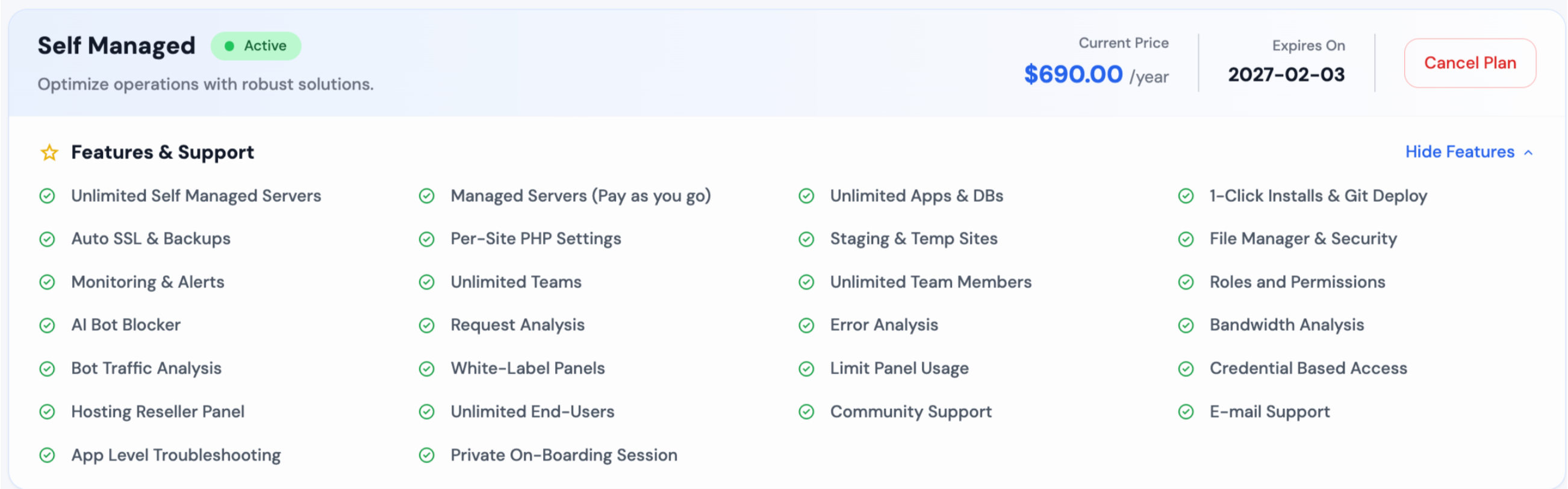
- Plan: Name of your Plan and whether it's billed Monthly or Yearly.
- Included Features: Core services (servers, applications, backups) and any premium suites.
- Support Level: Your support level (Community, Email, Priority).
- Next Renewal Date: When your current billing period ends or trial expires.
- Cancel Plan button to disable auto-renew and cancel your subscription.
Management Plans
Easily switch between plans or billing cycles:
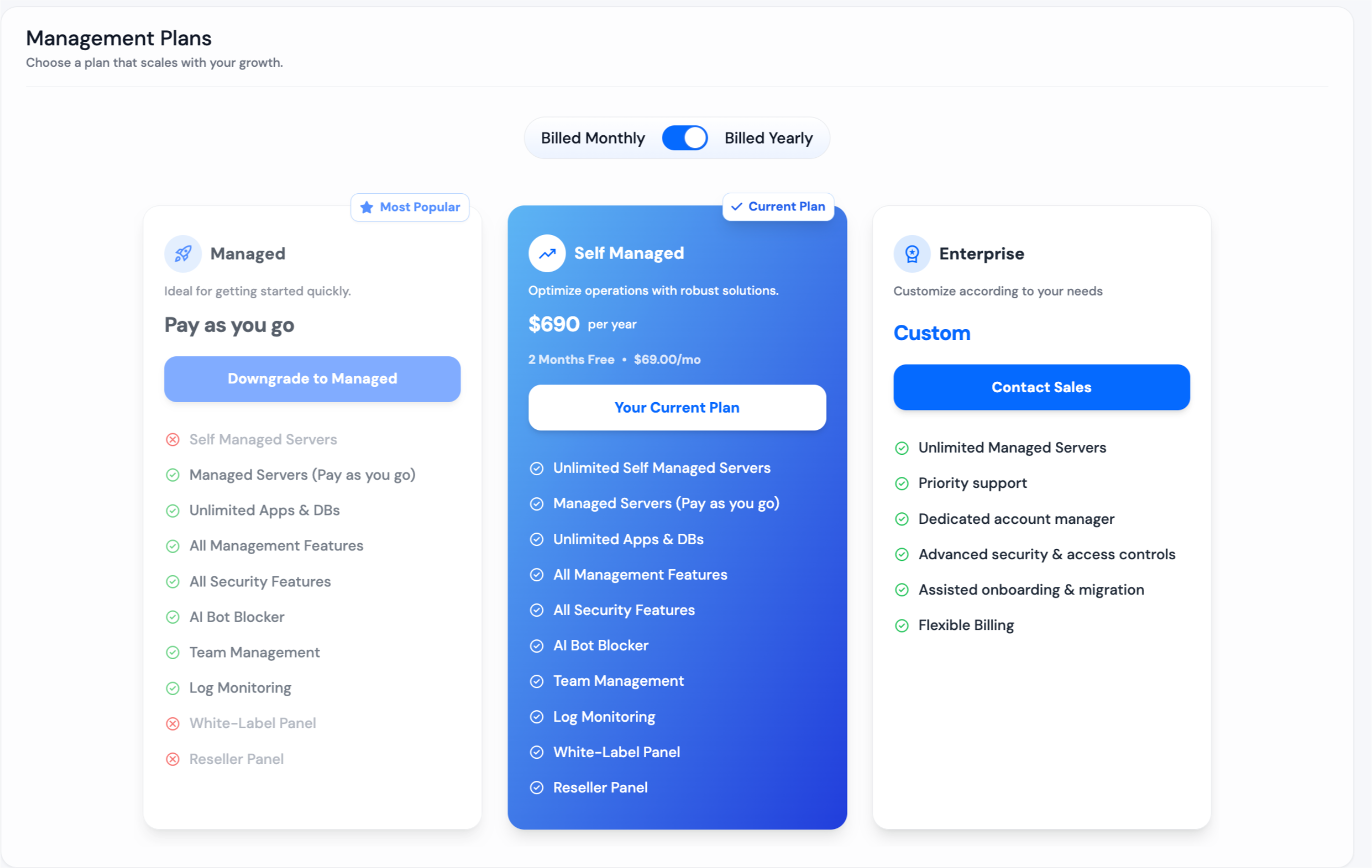
- Toggle Billing: Switch between Monthly and Yearly to see available rates.
- Choose a Plan: Each card shows the plan name, features checklist, and a button: Current Plan (your active plan) or Change Plan for others.
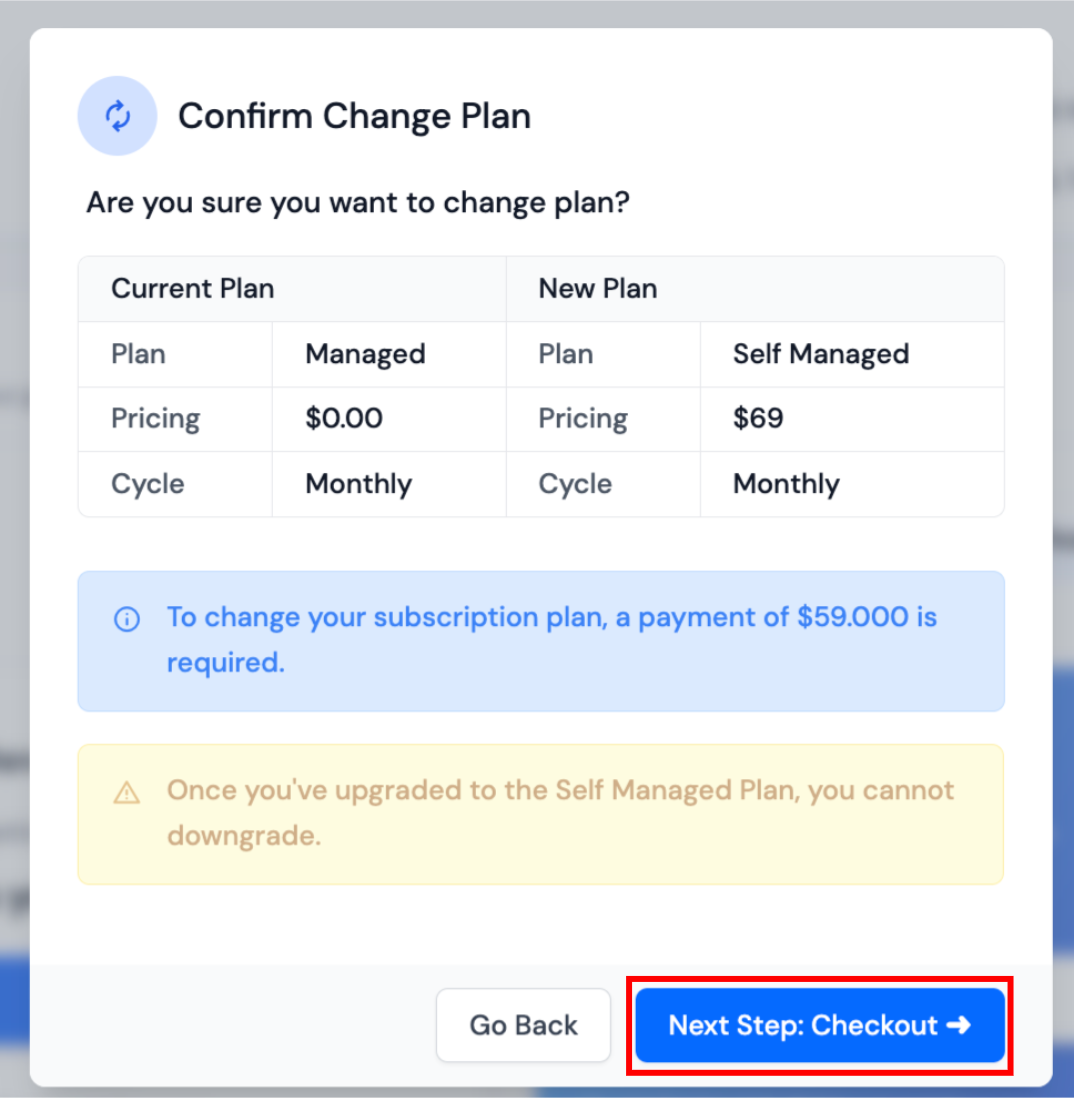
- Confirm Change: Click Checkout, review the confirmation modal, and complete the update.
Prorated Credits
When changing mid-cycle, unused amount of current plan is automatically applied: upgrades reduce your new plan cost, downgrades return credit to your wallet.
Cancel Plan
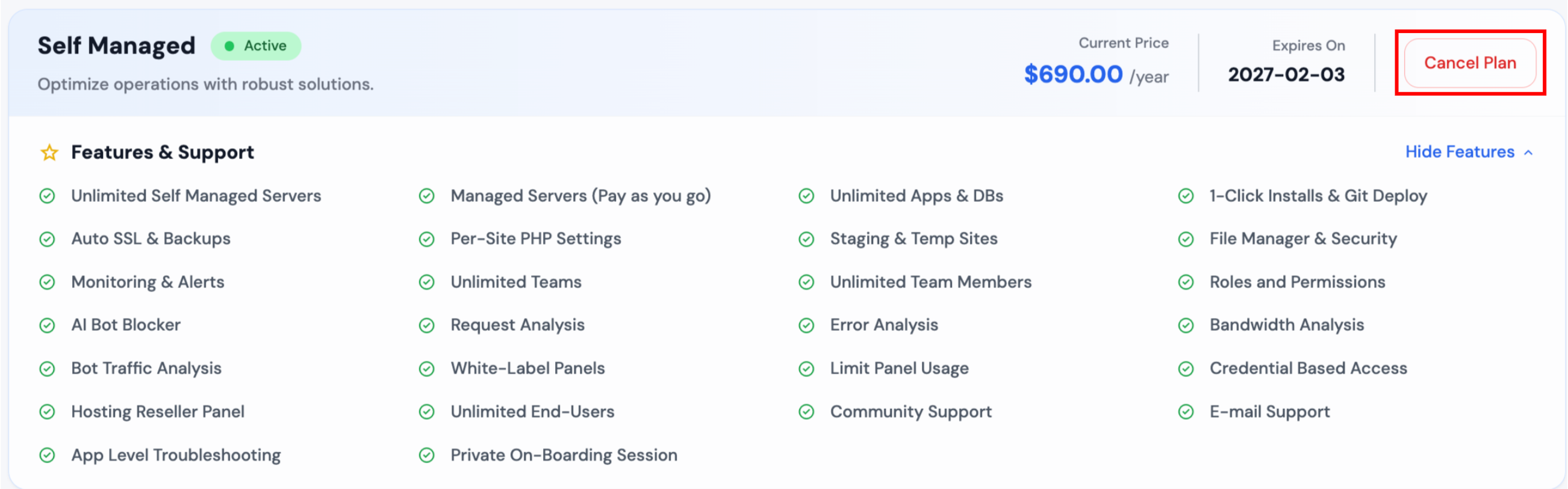
If you need to stop your subscription, you can cancel your plan at any time:
- Click Cancel Plan: In your Active Subscription Overview section, click the Cancel Plan button.
- Confirm Cancellation: Review the confirmation details and confirm your cancellation.
What happens when you cancel:
- Automatic renewal will be stopped at the end of your current billing period.
- You will continue to have access to all plan features until the expiration date.
- After the expiration date, you will need to manually renew your subscription from the panel if you want to continue using the plan.
Resume Plan
If you've canceled your plan but want to restart automatic renewal, you can resume your subscription:
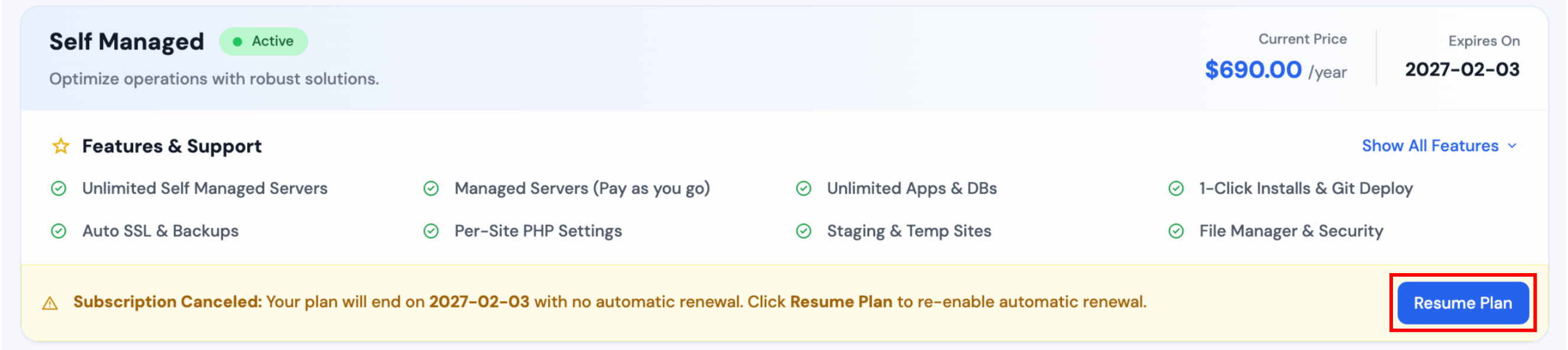
- Click Resume Plan: When your plan is canceled, you'll see a yellow banner with a Resume Plan button.
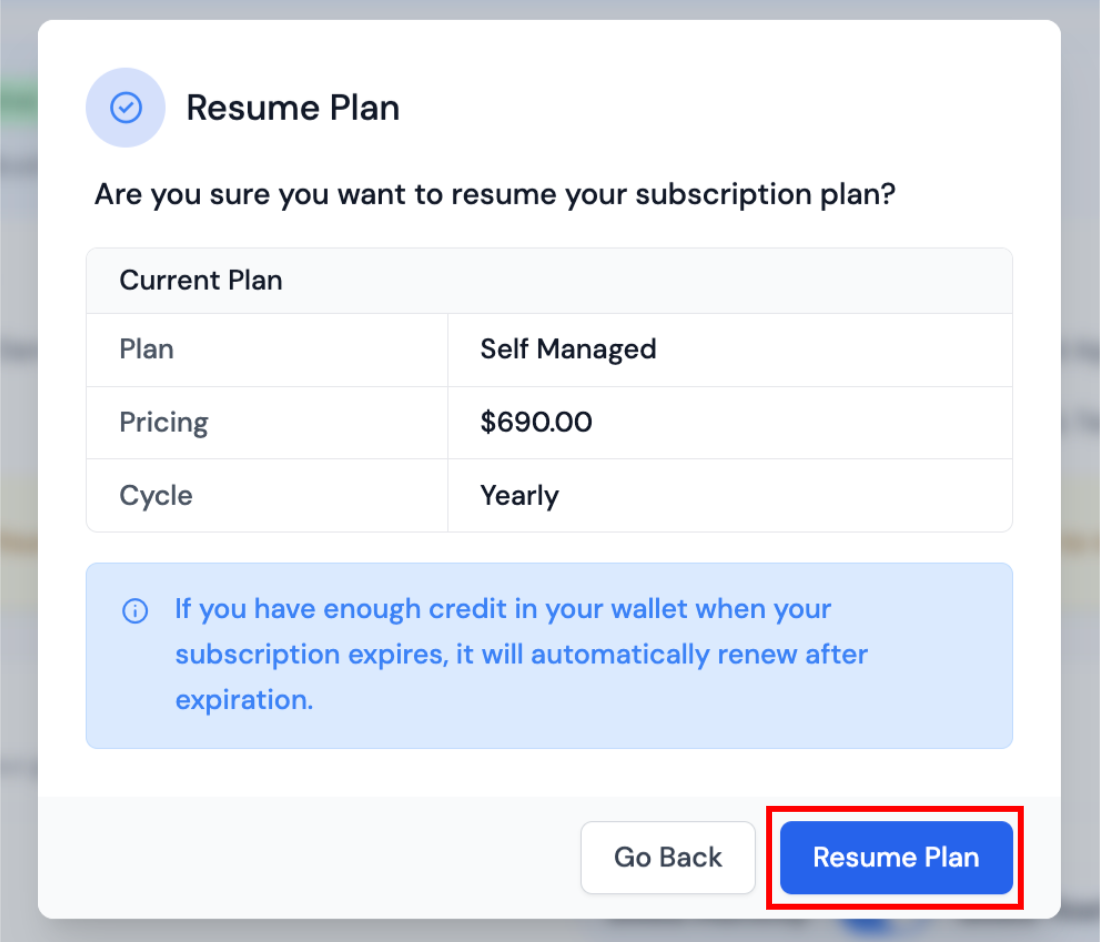
- Confirm Resumption: A confirmation modal will appear showing your current plan details (Plan, Pricing, and Cycle).
- Complete Resume: Click Resume Plan to re-enable automatic renewal.
What happens when you resume:
- Automatic renewal will be re-enabled for your subscription.
- The subscription cycle will start again, and your plan will automatically renew at the end of each billing period.
- If you have enough credit in your wallet when your subscription expires, it will automatically renew after expiration.
Quick Tips
- Annual billing often provides the best value for long-term commitments.
- Always check your Management Credits balance to avoid interruptions in automatic renewal.
Frequently Asked Questions
How do I cancel my subscription?
Click the Cancel Plan button in your Current Plan card. Your subscription will not renew at the end of the current billing period. You will need to manually renew it from the panel after the expiration date if you want to continue using the plan.
Can I resume a canceled subscription?
Yes. If you've canceled your plan, you'll see a Resume Plan button in a yellow banner. Click it to re-enable automatic renewal and restart your subscription cycle.
Can I switch between Monthly and Yearly billing?
Yes—use the Billing Toggle at the top of the Change Management Plan section to view pricing and select your preferred frequency.
Can I change my plan mid-cycle?
Yes. If you upgrade mid-cycle, the unused amount of your current plan is applied toward your new plan's cost. If you downgrade, the unused amount is added back to your Management Credits balance.
What if I don't have enough Management Credits?
You will be prompted to add credits via Stripe or Paypal before your plan can renew or switch. Ensure sufficient credits in your wallet.
Need more help?
If your question isn't covered here, visit our Support Center for further assistance.