Log Monitoring Suite
The Log Monitoring Suite enables real-time analytics, error tracking, and traffic insights for your applications. You can install, update, or remove the Log Monitoring Suite from your server settings.
Install Log Monitoring Suite
To install the Log Monitoring Suite on your server, follow these steps:
Step 1: First, log in to your ServerAvatar Account.
Step 2: Click on the Dashboard button for the server where you want to install the Log Monitoring Suite.

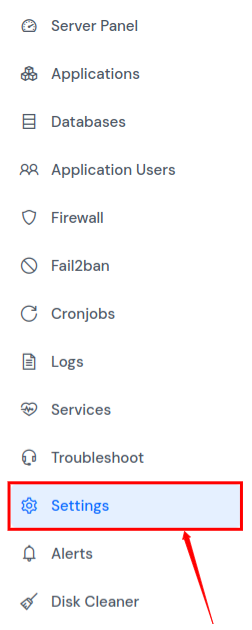
Step 3: In the left-hand sidebar of the server panel, click on Settings.
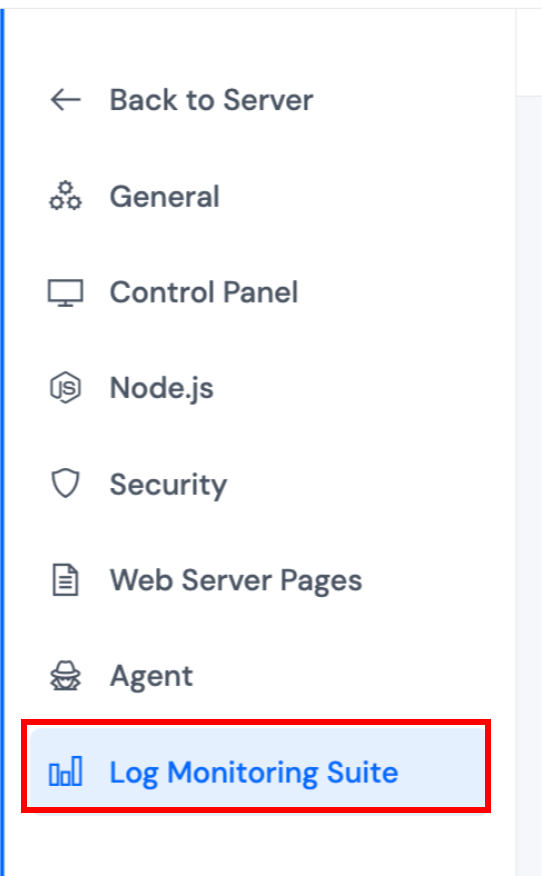
Step 4: In the settings sidebar, click on Log Monitoring Suite. You will see the Log Monitoring Suite section with an option to install it.
Step 5: In the installation card, you'll see a checkbox option: "Do you want to install it on all applications on this server as well?"
- If you check this option, the Log Monitoring Suite will be automatically installed on all applications on your server.
- If you uncheck this option, you will need to manually install the Monitoring Suite for each application from the application's Log Monitoring Suite settings.
Click the Install button to proceed with the installation.
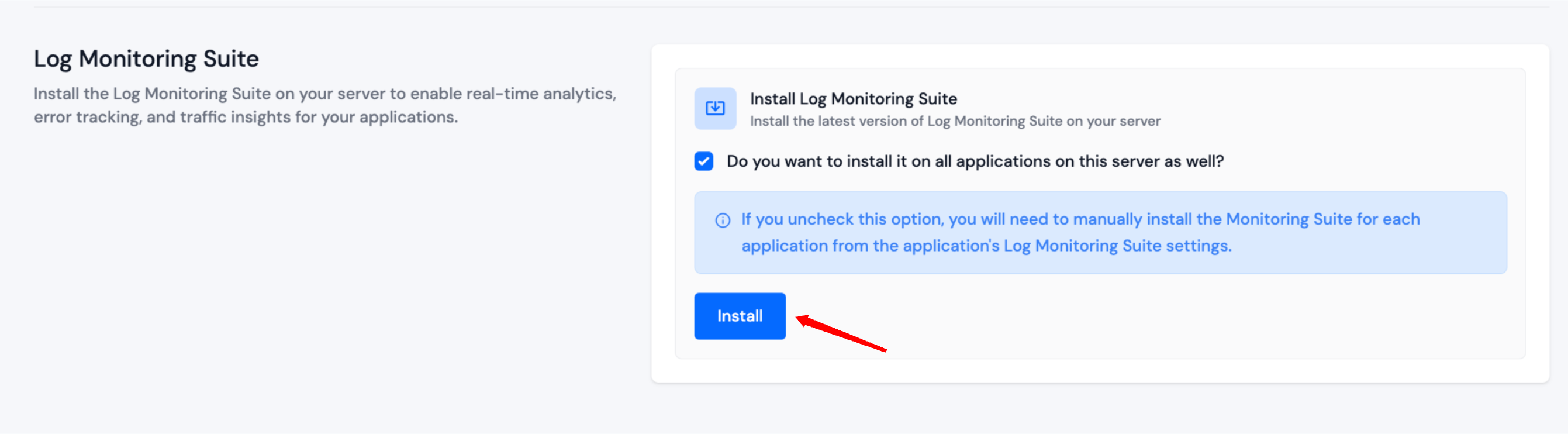
If you uncheck the option to install on all applications, you will need to manually install the Monitoring Suite for each application from the application's Log Monitoring Suite settings.
Update Log Monitoring Suite
When a newer version of the Log Monitoring Suite becomes available, you can update it from the server settings.
Step 1: First, log in to your ServerAvatar Account.
Step 2: Click on the Dashboard button for the server where you want to update the Log Monitoring Suite.
Step 3: In the left-hand sidebar of the server panel, click on Settings.
Step 4: In the settings sidebar, click on Log Monitoring Suite. You will see the Log Monitoring Suite Settings section displaying the current installed version and the latest available version.
Step 5: If a newer version is available, you'll see the current installed version and the latest version available. Click the Update button to update to the latest version.

If your Log Monitoring Suite is already up to date, the settings section will display the current installed version along with a Latest Version badge, and the Update button will not appear.
Remove Log Monitoring Suite
You can remove the Log Monitoring Suite from your server at any time.
Step 1: First, log in to your ServerAvatar Account.
Step 2: Click on the Dashboard button for the server where you want to remove the Log Monitoring Suite.
Step 3: In the left-hand sidebar of the server panel, click on Settings.
Step 4: In the settings sidebar, click on Log Monitoring Suite. You will see the Log Monitoring Suite Settings section displaying the current installed version.
Step 5: Click the Remove button to remove the Log Monitoring Suite from your server.

Removing the Log Monitoring Suite will disable real-time analytics, error tracking, and traffic insights for all applications on your server. You will need to reinstall it if you want to use these features again.