Cloudflare SSL/TLS Settings
After integrating your Cloudflare account with ServerAvatar, you can manage your SSL/TLS settings directly from the ServerAvatar panel.
Navigate to Application Dashboard → Cloudflare Integration → SSL/TLS.

From this page, you can view and configure various SSL/TLS encryption modes and security settings for your Cloudflare-protected domain.
Update SSL/TLS Settings
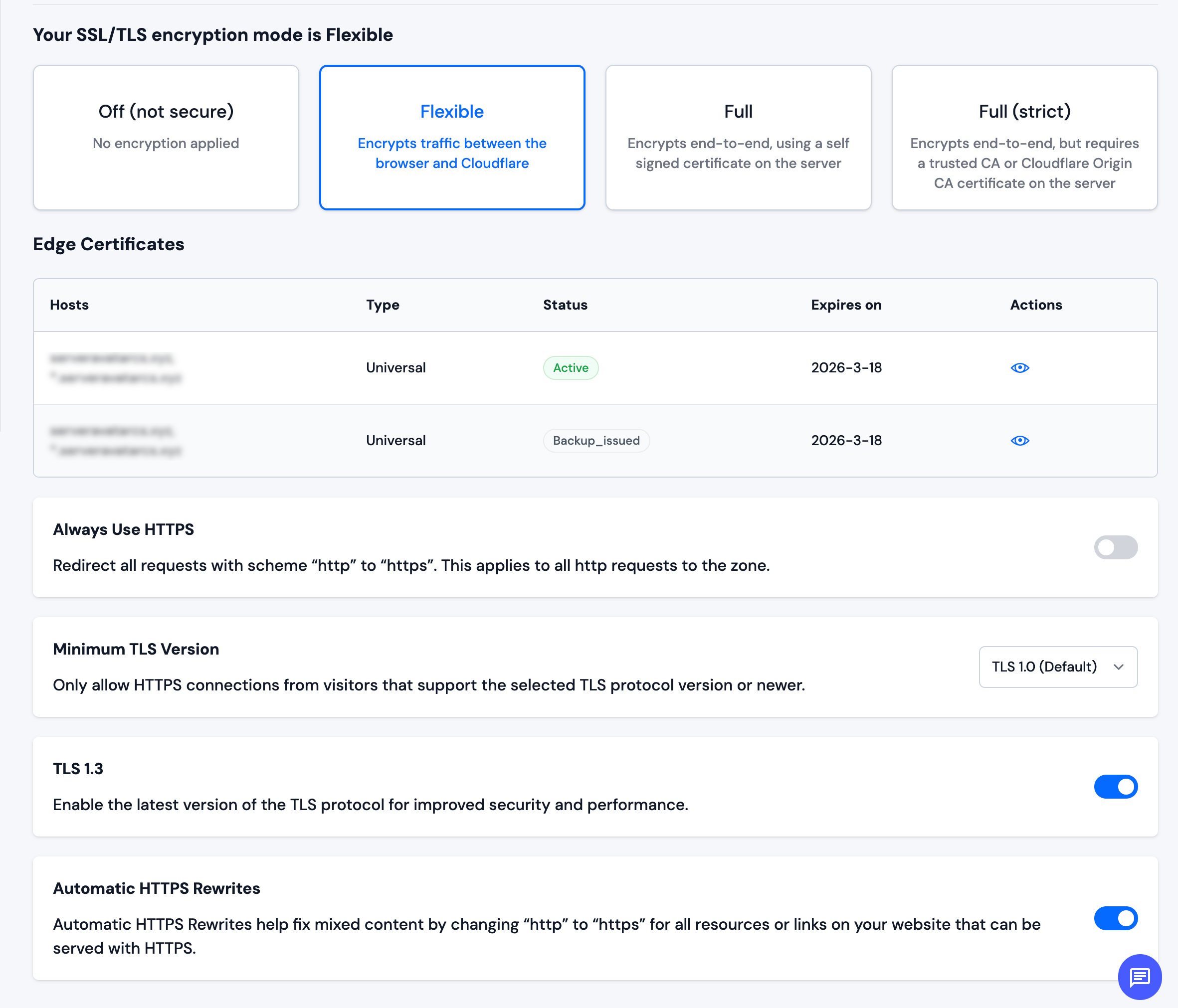
On the SSL/TLS page, configure your SSL/TLS settings as needed.
Common SSL/TLS Settings
-
SSL/TLS Encryption Mode: Click on a card to select the encryption mode for connections:
- Off (not secure): No encryption applied
- Flexible: Encrypts traffic between the browser and Cloudflare only
- Full: Encrypts end-to-end, using a self-signed certificate on the server
- Full (strict): Encrypts end-to-end, but requires a trusted CA or Cloudflare Origin CA certificate on the server (recommended)
-
Edge Certificates: View your active SSL certificates, their status, and expiration dates
-
Always Use HTTPS: Toggle to redirect all HTTP requests to HTTPS automatically
-
Minimum TLS Version: Select the minimum TLS protocol version from the dropdown (e.g., TLS 1.0, TLS 1.2, TLS 1.3)
-
TLS 1.3: Toggle to enable the latest version of the TLS protocol for improved security and performance
-
Automatic HTTPS Rewrites: Toggle to automatically rewrite HTTP links to HTTPS on your website to fix mixed content issues
Changes to SSL/TLS settings are applied automatically when you toggle switches or select options. Changes may take a few minutes to propagate. Ensure your origin server has a valid SSL certificate when using "Full" or "Full (strict)" encryption modes.
Using "Flexible" mode means traffic between Cloudflare and your origin server is not encrypted. For better security, use "Full" or "Full (strict)" mode with a valid SSL certificate on your origin server.