Maintenance Mode
Maintenance Mode is a feature that allows you to temporarily disable public access to your WordPress application while you perform updates, maintenance, or other administrative tasks. When enabled, visitors to your site will see a maintenance message instead of your regular website content. This feature is exclusively available for WordPress applications.
Toggle the button to activate/deactivate maintenance mode. Visitors will see a maintenance message when it's activated. Deactivate it when updates are done to restore website access.
Enable Maintenance Mode
Follow these steps to enable Maintenance Mode for your WordPress application:
Step 1: First, log in to your ServerAvatar account.
Step 2: Click on the Server Dashboard button.

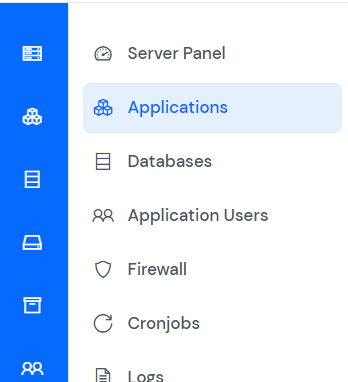
Step 3: Now, you will see the option Applications on the left-hand sidebar of the Server Panel. Click on Applications.
Step 4: Now, you will see the Applications table, as shown in the image below.
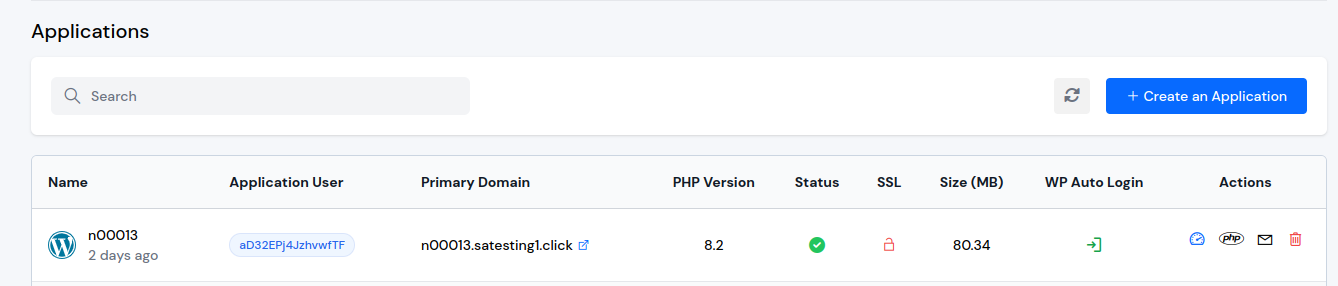
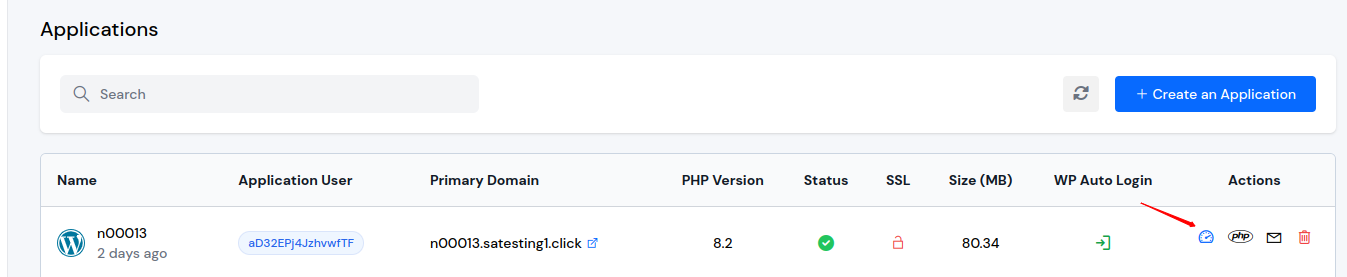
Step 5: Click on the Application Name or Dashboard icon to access the application panel.
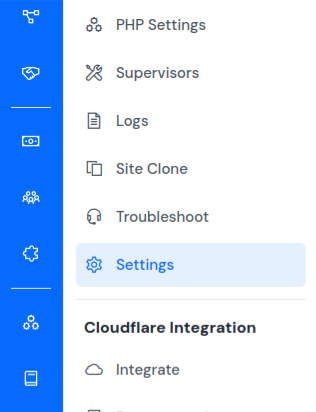
Step 6: In the Application Panel, find the Settings option in the left-hand sidebar and click on it.
Step 7: Within the Settings page, scroll down to find the Maintenance Mode section.
Step 8: You will see the Maintenance Settings card with a toggle switch labeled Enable. Simply toggle the switch to the on position to activate Maintenance Mode for your WordPress application.

Once Maintenance Mode is enabled, the status message will display: "Currently, Your application maintenance mode is activate."
Disable Maintenance Mode
To disable Maintenance Mode and restore normal website access:
Step 1: Navigate to the Settings page following the same steps above (Steps 1-6).
Step 2: In the Maintenance Mode section, toggle the switch to the off position.

Once Maintenance Mode is disabled, the status message will display: "Currently, Your application maintenance mode is deactivate."
Visitor Experience
When Maintenance Mode is enabled, visitors who access your application's domain will see a maintenance message instead of your regular website content. The message displayed is:
"Briefly unavailable for scheduled maintenance. Check back in a minute."
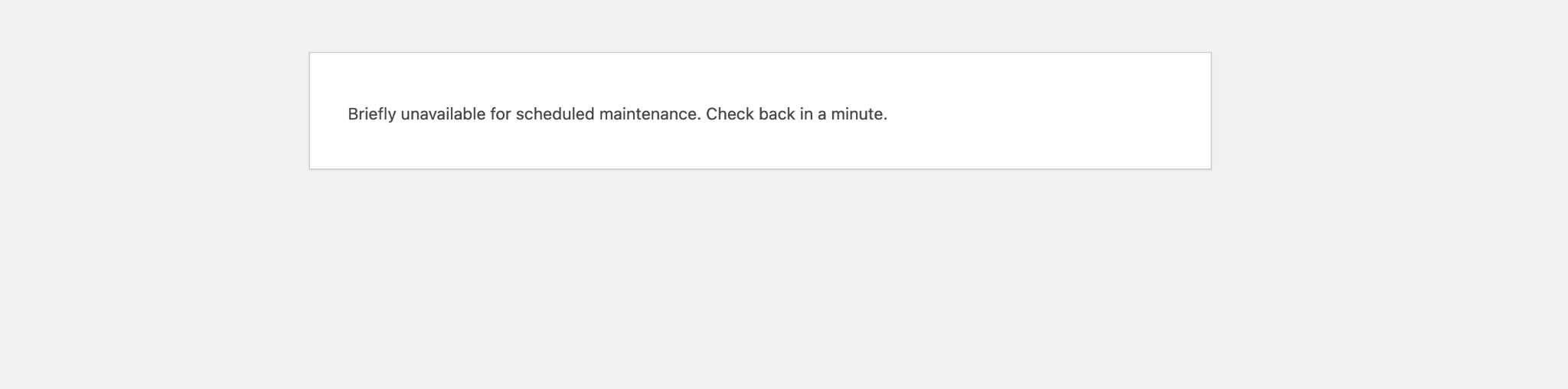
This ensures that visitors are informed that the site is temporarily unavailable and will be back shortly, providing a professional experience during maintenance periods.
Important Notes
- WordPress Only: This feature is exclusively available for WordPress applications. It will not appear in the Settings page for other application types.
- Quick Toggle: You can easily enable or disable Maintenance Mode at any time using the toggle switch in the Settings page.
- No Configuration Required: Unlike other settings, Maintenance Mode requires no additional configuration - simply toggle it on or off as needed.