Settings
Use the Log Monitoring Suite Settings page inside each application to install, update, remove, or temporarily disable log monitoring without affecting other applications.
You can only use the Log Monitoring Suite if you have purchased the add-on. Otherwise you will not see the install or update controls.
Install the Log Monitoring Suite for an Application
Step 1: Log in to your ServerAvatar account and open the server that hosts the application.
Step 2: From the server panel, go to Applications and open the application dashboard.

Step 3: In the application sidebar, click Log Monitoring Suite and then open the Settings tab.
Step 4: If the suite is not yet installed, you will see the Install Log Monitoring Suite card. Click Install to enable log collection for this specific application.
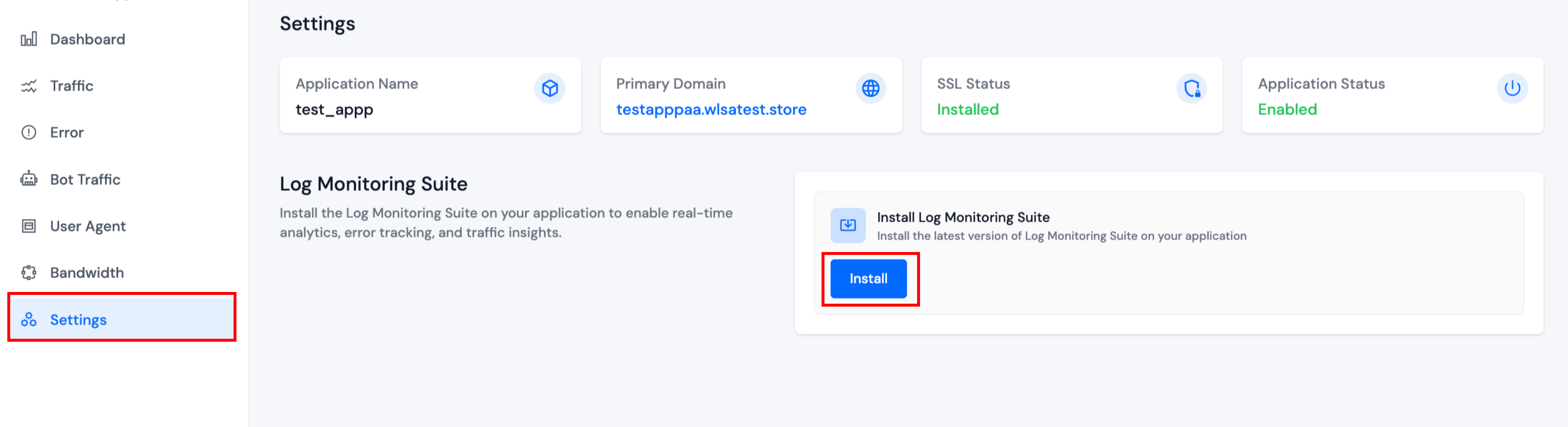
After installation, the page automatically reveals the management controls shown below.
Enable or Disable Log Analysis
The Toggle Log Analysis switch allows you to pause log parsing for the application without uninstalling the suite. Use this when you want to reduce resource usage or temporarily stop monitoring.

Update or Remove the Suite
Step 1: Stay on the Log Monitoring Suite Settings tab for the application.
Step 2: Click Update to install the latest version on that application only.

Step 3: To uninstall the suite from the application, click Remove. This action removes the per-application monitoring components but does not affect other applications running on the same server.

Removing or disabling the Log Monitoring Suite on an application immediately stops real-time analytics, error tracking, and traffic insights for that application. Reinstall or toggle it back on whenever you need those insights again.