Quick Backup
Quick Backup provides a faster way to create or view backups for the current application.
From the Application Panel, you can directly access Instant or Scheduled Backups without manually selecting the server and application. When you click Create or View, you'll be redirected to the Backups section with the relevant server and application already selected. If the application has databases attached, the database will also be pre-selected.
Use this option when you want quick access to backups while managing an application.
Accessing Quick Backup
Step 1: First, log in to your ServerAvatar account.
Step 2: Click on the Dashboard button next to your server.

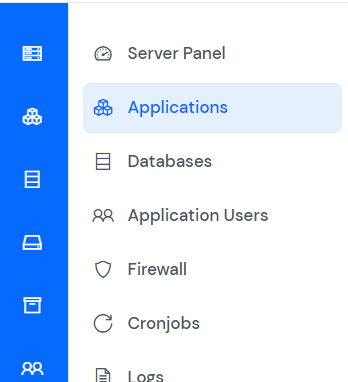
Step 3: Click on the Applications option on the left-hand sidebar of the Server Panel.
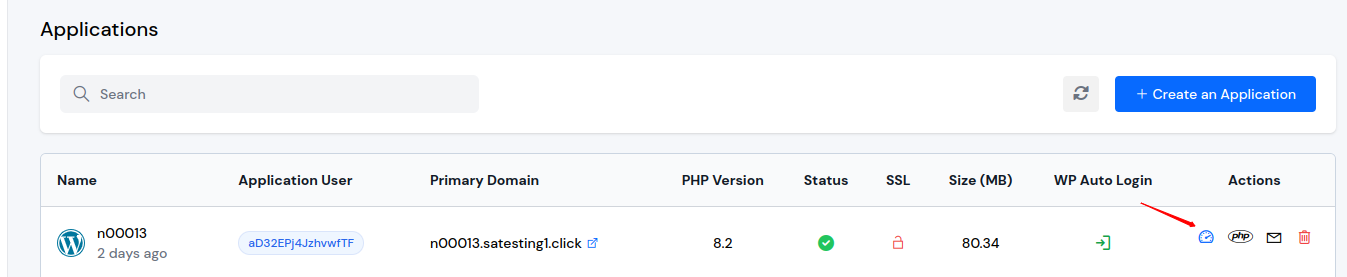
Step 4: Click on the Application Name or Dashboard icon to open the application panel.
Step 5: In the Application Panel, you will find the Quick Backup section, which displays options for both Instant Backup and Schedule Backup.

Using Quick Backup
Create Backup
-
Instant Backup: Click the plus icon next to Instant Backup to create a new instant backup. You'll be redirected to the Instant Backup creation page with the server and application pre-selected. You only need to select the storage provider and other backup settings.
-
Schedule Backup: Click the plus icon next to Schedule Backup to create a new scheduled backup. You'll be redirected to the Schedule Backup creation page with the server and application pre-selected. You only need to select the storage provider, schedule, and other backup settings.
View Backups
-
Instant Backup: Click the eye icon next to Instant Backup to view all instant backups for this application. You'll be redirected to the Instant Backups list page with the server and application pre-selected as filters.
-
Schedule Backup: Click the eye icon next to Schedule Backup to view all scheduled backups for this application. You'll be redirected to the Schedule Backups list page with the server and application pre-selected as filters.
If the application has databases attached, the database will also be automatically selected in the filters or creation form.
For detailed backup options, refer to the Backups documentation.