Craft CMS
Installing Craft CMS on your server using ServerAvatar is a quick and straightforward process. With just a few inputs and the One-Click installation method, the platform handles the download, setup, and configuration for you.
Craft CMS is not available as a one-click installer on the OpenLiteSpeed (OLS) web server.
Step 1: Navigate to the dashboard of the server where you want to install Craft CMS.

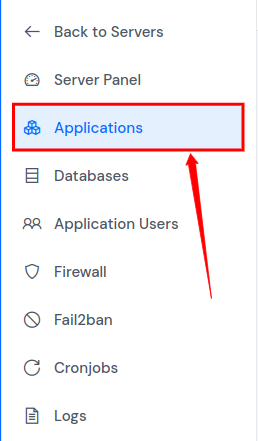
Step 2: In the left sidebar of the Server Panel, click on Applications.
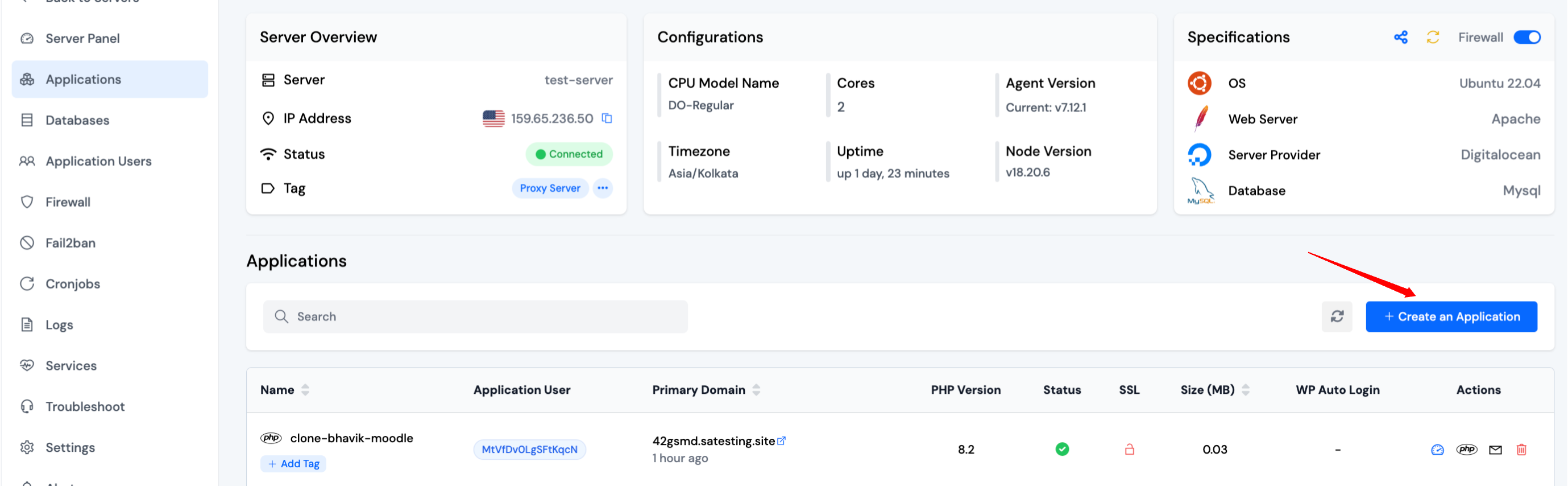
Step 3: In the Applications section, click the Create button located at the top-right corner.
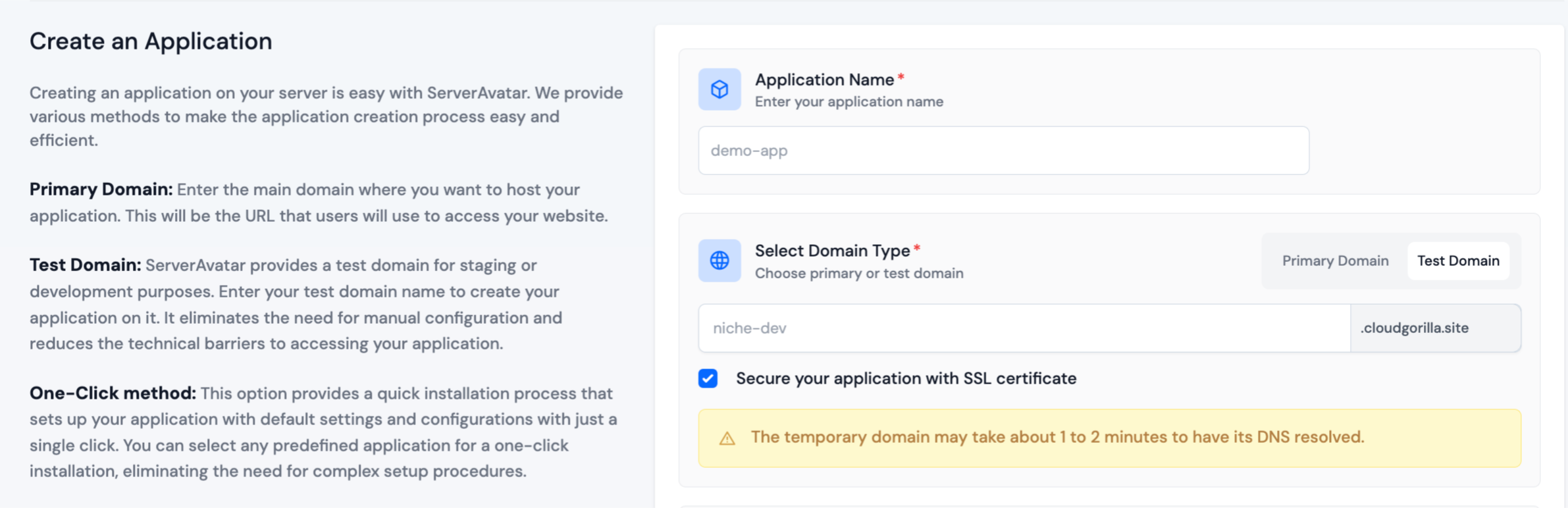
Step 4: You will be taken to the Create Application screen.
Step 5: Basic Details
- Enter your desired Application Name.
- Select whether to use a primary domain or a test domain. You can switch from a test domain to a primary domain later.
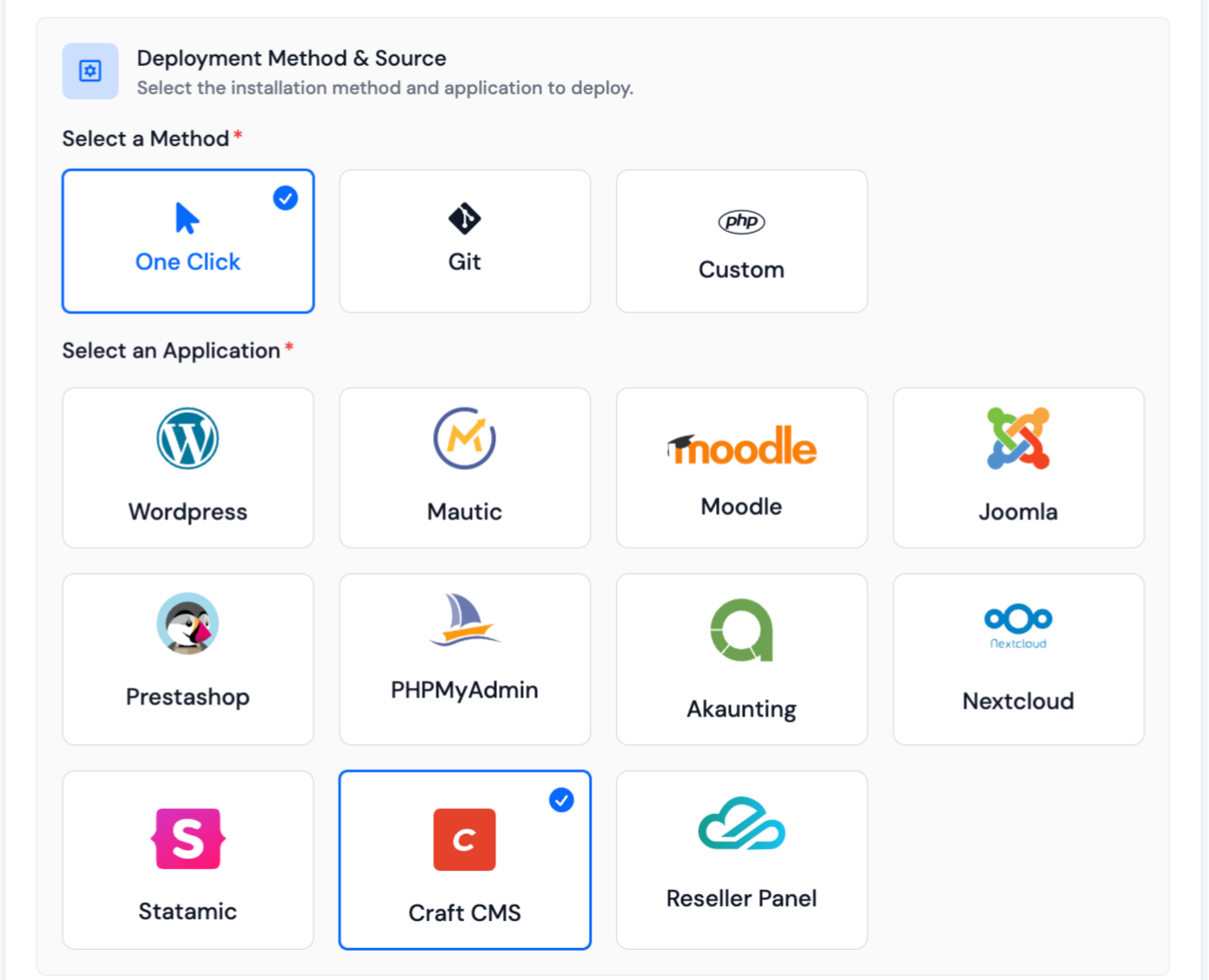
Step 6: Application Setup
-
Choose One-Click as the installation method.
-
Select Craft CMS from the list.
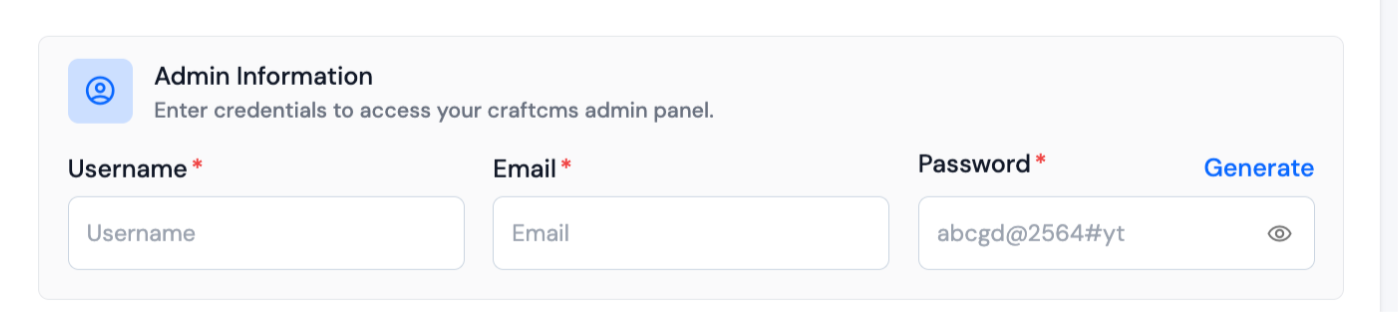
Fill in the following fields for Craft CMS setup:
- Username
- Password
You can set Database Details in Advanced options section.
ServerAvatar will handle downloading, installing, and configuring Craft CMS with all required dependencies.
Step 7: Log Monitoring Suite
-
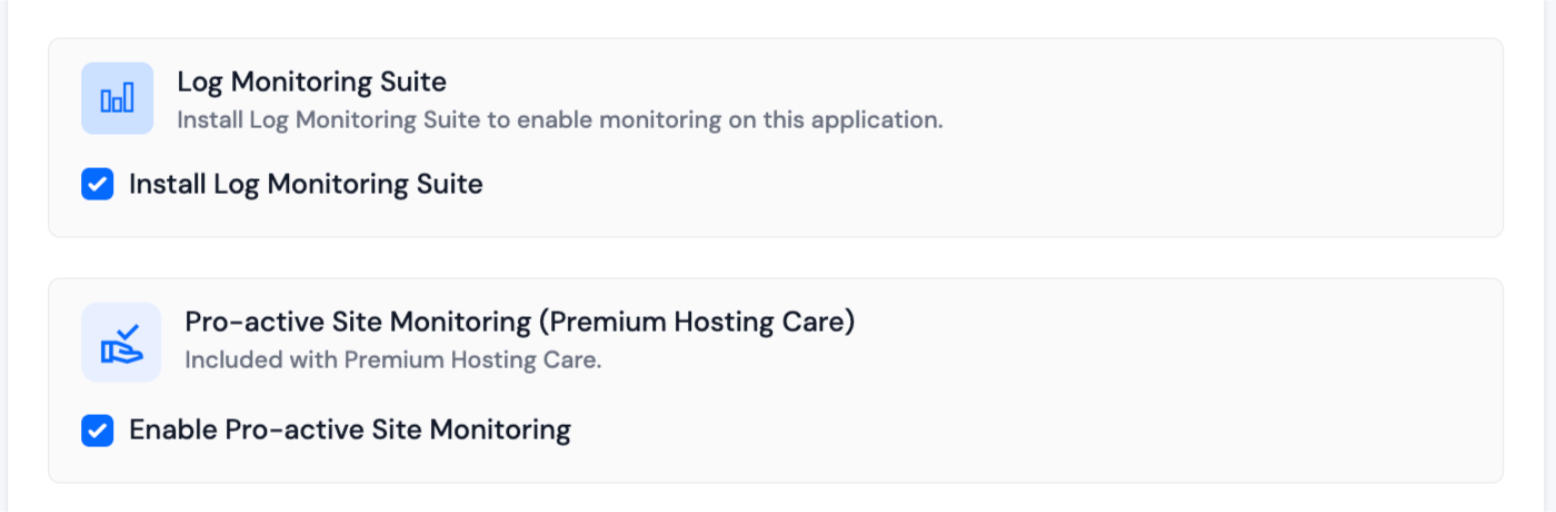
If you have purchased the Log Monitoring Suite, you will see a checkbox option to Install Log Monitoring Suite on this application.
-
Check this option if you want to enable log monitoring for your application. This will allow you to monitor and analyze application logs directly from the ServerAvatar dashboard.
Step 8: Pro-active Site Monitoring (Premium Hosting Care)
-
If you have purchased Premium Hosting Care, you will see a checkbox option to Enable Pro-active Site Monitoring on this application.
-
Check this option if you want to enable pro-active site monitoring for your application. Premium Hosting Care provides top-tier server management. Enjoy high-priority support, optimization, app-level troubleshooting, proactive monitoring, and a dedicated Slack channel for real-time assistance.
-
If you haven't purchased Premium Hosting Care yet, you can learn how to purchase Premium Hosting Care from the Add-ons section.
Step 9: Advance Options
-
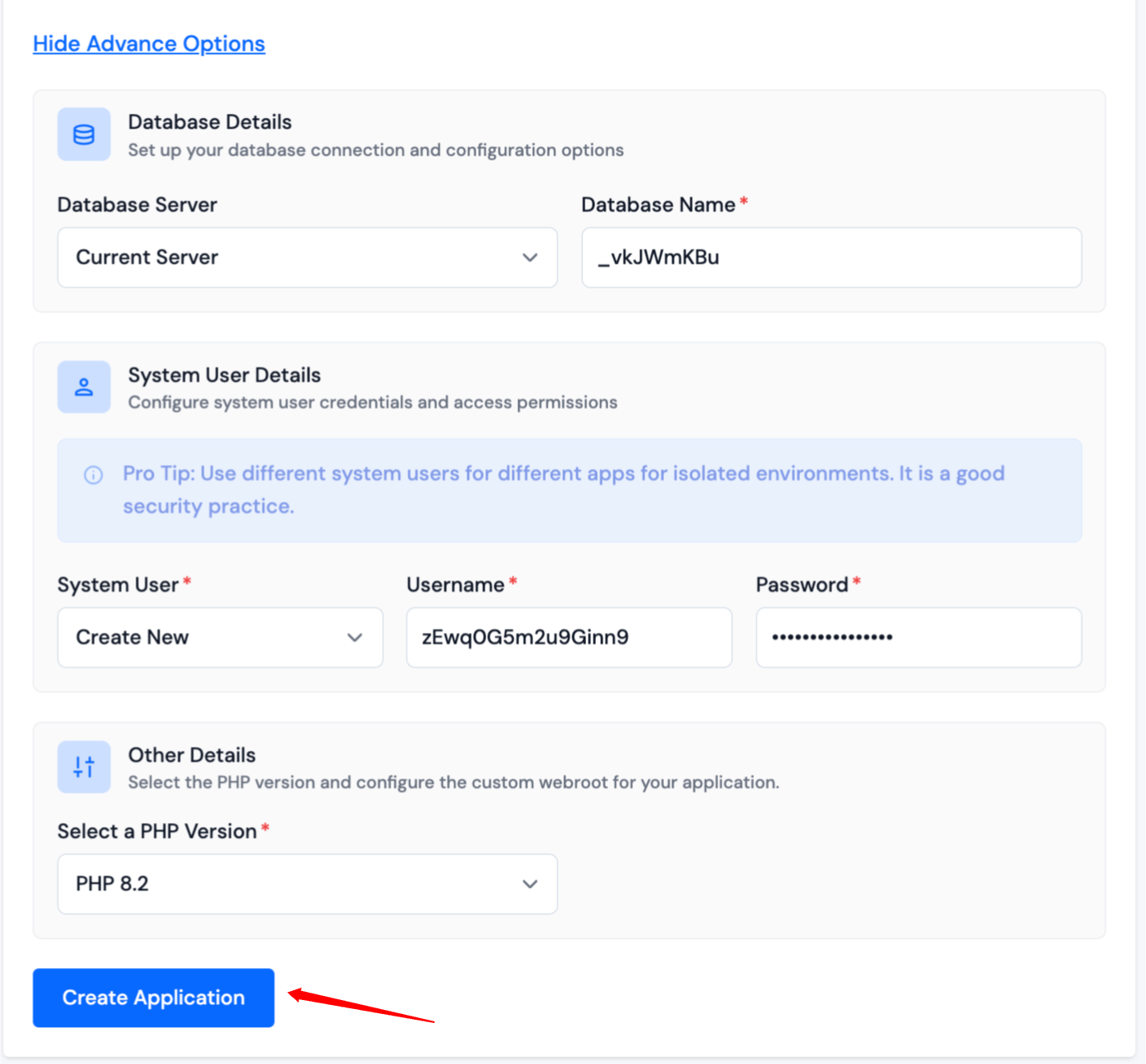
Click on Show Advanced Options to access additional configuration settings for your application.
-
Customize additional settings such as selecting a PHP version and managing system users for the application.
-
Review all your inputs. If any adjustments are needed, go back and update the relevant fields.
-
Once everything is ready, click Create Application. Your Craft CMS site will be live within 10–15 seconds.
-
After installation, you'll be redirected to the Application Dashboard, where you can manage your Craft CMS instance.