

Managing servers should feel less like fighting a complex machines. You want clear indicators, smooth controls, and confidence that everything is working as expected. That’s exactly where ServerAvatar v7.15.5 steps in.
This latest update focuses on visibility, control, and ease of use. Whether you are a developer, a business owner, or someone hosting applications for clients, this release gives you more insight into what’s happening on your server and more power to act quickly, without digging through confusing dashboards or running endless commands.
We’re excited to announce ServerAvatar v7.15.5, packed with powerful monitoring tools, deeper Cloudflare controls, smarter Git handling, and meaningful UI enhancements to improve your server management experience.
Overview of ServerAvatar v7.15.5
ServerAvatar v7.15.5 is not about flashy changes; it’s about meaningful improvements. This release strengthens monitoring tools, enhances Cloudflare integration, improves Git deployment reliability, and polishes the overall user experience.
The goal is simple: give you clarity and control without complexity.
Server Process List Monitoring
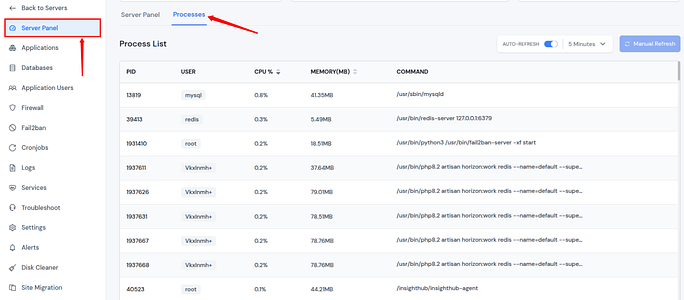
ServerAvatar now lets you monitor running server processes in real time directly from the server panel. You can easily track CPU and memory usage without needing to access the server via SSH.
With this update, you can now
- View all active server processes instantly from the dashboard
- Monitor CPU and RAM usage for each individual process
- Quickly identify resource-intensive tasks without using SSH
View Process List Monitoring
You can easily monitor the list of all the processes by simply navigating to the Server Panel by clicking on the server dashboard icon. All the process is listed out here as you can see in the attached image. You can also set Auto Refresh by setting a time interval.
Why It’s Useful
When a server slows down, guessing is risky. This feature lets you spot problems immediately. It’s like opening the hood of your car and instantly seeing which part is overheating, no tools required.
Database Process List & Query Monitoring
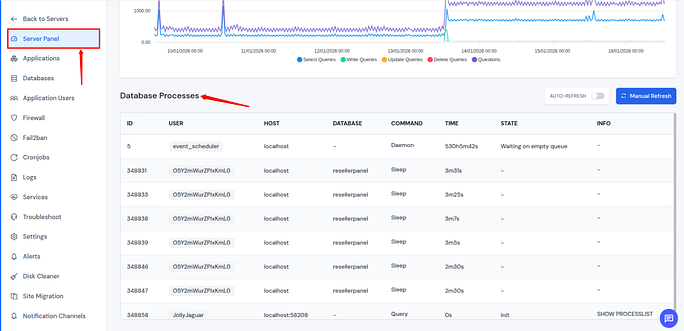
ServerAvatar’s Query Monitor now provides real-time visibility into database processes and query activity. This helps you track what’s happening inside your database and quickly spot performance issues as they occur.
With this update, you can now
- View active database queries in real time
- Identify long-running or stuck queries easily
- Understand current database load and performance instantly
Database Process List & Query Monitoring
You can easily monitor the list of all the database processes by simply navigating to the Server Panel by clicking on the server dashboard icon. All the process is listed out here as you can see in the attached image. You can also set Auto Refresh by setting a time interval.
Why It’s Useful
Databases are often the silent troublemakers. This update helps you catch slow queries before they affect users, saving both time and frustration.
Disk I/O Activity Monitoring
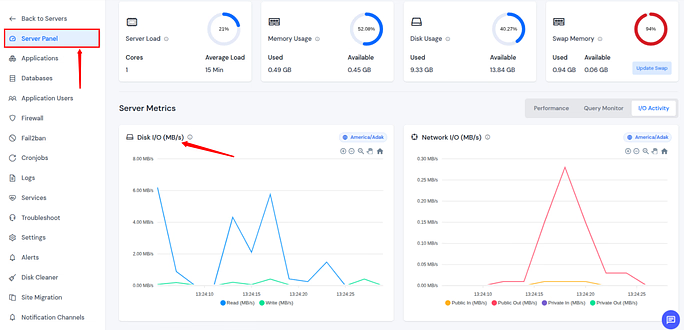
ServerAvatar now allows you to monitor real-time disk read and write activity directly from the control panel. This gives you clear visibility into storage performance and helps detect issues before they impact your applications.
With this update, you can now
- Track disk usage and I/O patterns in real time
- Identify processes causing heavy read or write operations
- Monitor overall storage performance live from the dashboard
Disk I/O Activity Monitoring
You can easily monitor the disk activity by simply navigating to the Server Panel by clicking on the server dashboard icon.
Why It’s Useful
If your server feels sluggish, disk activity is often the reason. This feature helps you confirm the cause instead of guessing, much like checking traffic before choosing a route.
Network I/O Activity Monitoring
ServerAvatar v7.15.5 introduces real-time monitoring of inbound and outbound network activity directly from the dashboard. This helps you keep track of bandwidth usage and quickly detect unusual network behavior.
With this update, you can now
- View incoming and outgoing network traffic in real time
- Monitor live bandwidth usage across the server
- Quickly spot abnormal or unexpected traffic patterns
Network I/O Activity Monitoring
You can easily monitor the network activity by simply navigating to the Server Panel by clicking on the server dashboard icon.
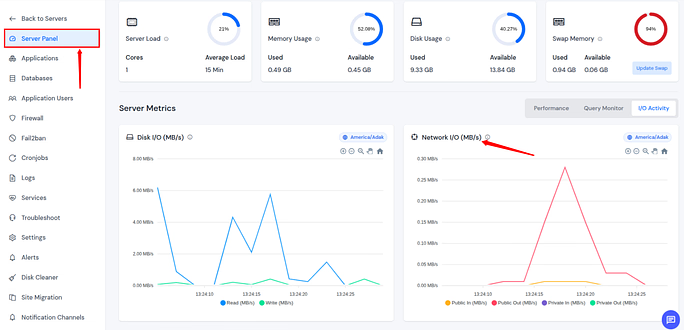
Why It’s Useful
Sudden traffic spikes can mean growth, or trouble. This feature helps you tell the difference instantly and act before things get out of hand.
Cloudflare Cache Purge from Panel
ServerAvatar now lets you purge Cloudflare cache directly from the application panel. This makes it easier to clear cached content and reflect website changes without switching platforms.
With this update, you can now
- Instantly clear Cloudflare cached content
- Apply website updates faster
- Avoid logging into Cloudflare separately
Purge Cloudflare Cache
- Navigate to the server panel by clicking on the server dashboard icon.
- Go to the applications section from the left sidebar and click on the application dashboard icon for the application you want to purge the Cloudflare cache.
- Integrate your Cloudflare account if you have not.
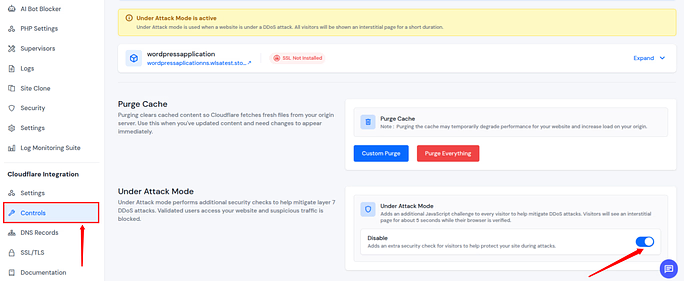
- Navigate to the Controls section.
- You can see the option to Purge the Cache.
- You can purge the Cache by selecting the custom option or purge everything.
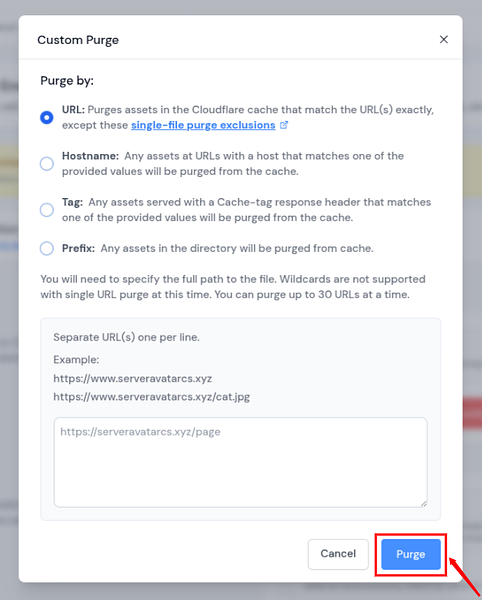
Custom Purge:
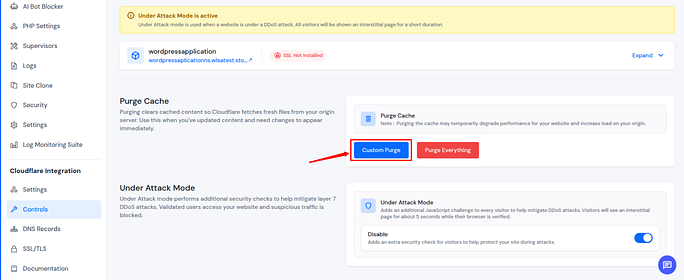
- By selecting your preferred option from the given. Enter the details and click on the Purge option.
Purge Everything:
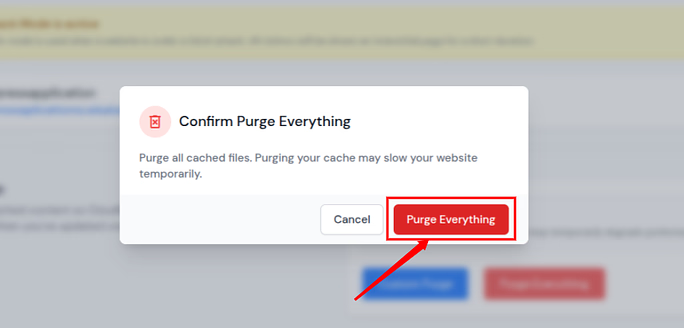
- Click on the Purge Everything button.
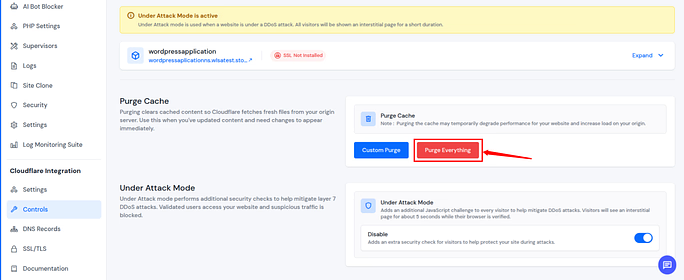
- Give a confirmation on the pop up by clicking on the Purge Everything button.
Why It’s Useful
Waiting for cache updates can feel like shouting into the wind. This feature gives you a clear “refresh now” button, saving time and reducing confusion.
Cloudflare Under Attack Mode
You can now enable Cloudflare’s Under Attack Mode straight from the ServerAvatar panel. This helps protect your applications during high-traffic or attack scenarios with just a click.
With this update, you can now
- Activate DDoS protection instantly
- Block suspicious traffic quickly
- Safeguard applications during sudden traffic spikes
Cloudflare Under Attack Mode
- Navigate to the server panel by clicking on the server dashboard icon.
- Go to the applications section from the left sidebar and click on the application dashboard icon for the application you want to enable the under-attack mode of Cloudflare.
- Integrate your Cloudflare account if you have not.
- Navigate to the Controls section and enable the Under Attack Mode from there.
Why It’s Useful
When attacks happen, speed matters. This feature lets you respond immediately, like pulling an emergency brake before damage is done.

Manual Git Pull Improvements
ServerAvatar now allows you to manually pull updates from both public and private Git repositories when auto-pull fails. This ensures your deployments stay on track even during webhook issues.
With this update, you can now
- Manually pull code changes directly from the panel
- Recover quickly from webhook or auto-pull failures
- Keep application deployments running smoothly
Manual Git Pull
- Navigate to the server panel by clicking on the server dashboard icon.
- Go to the applications section from the left sidebar and click on the application dashboard icon for the git application you want to manually pull git.
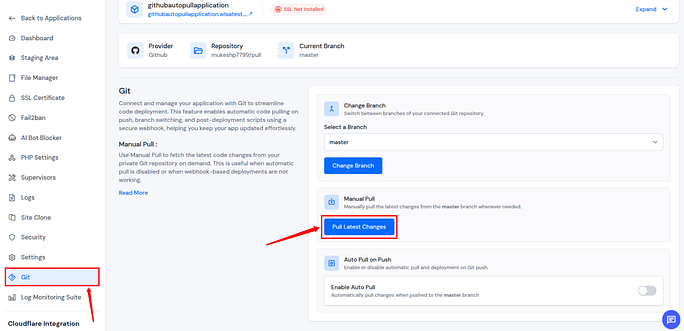
- Navigate to the Git section.
- Click on the Pull Latest Changes from the Manual Pull section.
Why It’s Useful
Sometimes automation trips. Manual Git pull acts as a reliable backup, ensuring your workflow never comes to a halt.
Git Auto Pull Enhancements
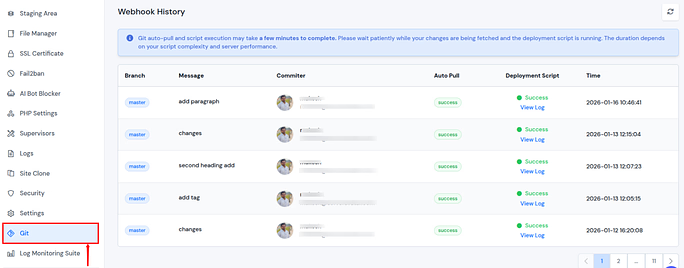
Git auto pull now pauses automatically when untracked or unstaged files are detected, along with real-time status updates and email alerts. This prevents unintended file overwrites.
With this update, you can now
- Prevent accidental overwriting of files
- Clearly see why auto-pull is blocked
- Receive detailed email notifications about pull status
Git Auto Pull
- Navigate to the server panel by clicking on the server dashboard icon.
- Go to the applications section from the left sidebar and click on the application dashboard icon for the git application you want to enable git auto pull.
- Navigate to the Git section.
- Enable the toggle button for Enable auto pull.
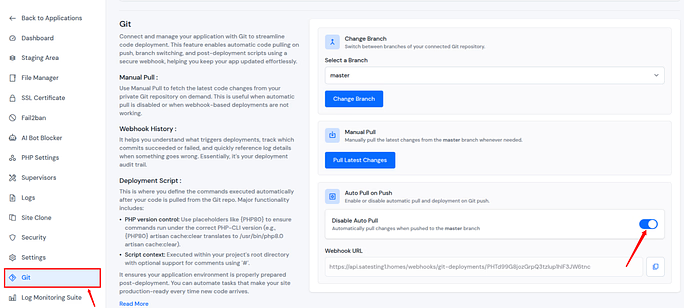
- You can check out the Webhook History by scrolling through the Git section.
Why It’s Useful
This is like a safety lock. It protects your code from unwanted changes and keeps you informed every step of the way.
Persist Per Page UI Setting
Your selected per-page view options (10, 15, 20, 50, 100) are now saved across sessions and remain unchanged even after reloading the page, ensuring a smoother user experience.
With this update, you can now
- Keep your preferred per-page view settings
- Avoid resetting options after each reload
- Enjoy a consistent and personalized panel experience
Why It’s Useful
Small comfort, big impact. It’s like your chair remembering your favorite position, everything feels just right when you return.
Manage PHP Extensions Filter
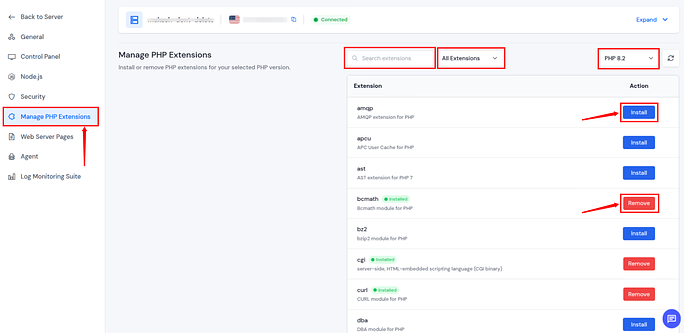
A new filter makes it easier to view installed and not-installed PHP extensions from the panel. This helps you configure PHP environments more efficiently and accurately.
With this update, you can now
- Quickly identify missing PHP extensions
- Manage PHP configurations faster
- Reduce setup and configuration errors
PHP Extensions Filter
- Navigate to the server panel by clicking on the server dashboard icon.
- Go to the Settings section from the left sidebar and navigate to the General section from the left sidebar.
- You can check out by filtering the installed and Not Installed PHP extensions. You can also select a different PHP version to check out with the versions.
- You can also search for a specific PHP extension.
- You can install a specific php extension by clicking on the Install button next to the extension.
- You can remove a specific php extension by clicking on the Remove button next to the extension.
Why It’s Useful
No more scrolling endlessly. This feature saves time and removes guesswork from PHP configuration.
Why Monitoring Matters for Everyone
Monitoring isn’t just for experts. Whether you run a blog or manage client sites, knowing what’s happening under the hood helps you make smarter decisions and avoid downtime.
ServerAvatar v7.15.5 makes monitoring simple, visual, and accessible.
How v7.15.5 Improves Daily Workflows
From quicker troubleshooting to smoother deployments, this update removes friction. Tasks that once took minutes, or commands, now take seconds and clicks.
Who Benefits Most from This Update
- Developers managing multiple apps
- Agencies hosting client websites
- Businesses needing uptime and security
- Anyone who values clarity over complexity
Final Thoughts on ServerAvatar v7.15.5
ServerAvatar v7.15.5 is a thoughtful update focused on real-world needs. It doesn’t overwhelm you with features; it empowers you with the right ones. If server management ever felt intimidating, this version makes it feel approachable, reliable, and even enjoyable.
Explore ServerAvatar now and experience better visibility, stronger security controls, and smoother workflows. Register Now!
If you are already using ServerAvatar, thank you for trusting ServerAvatar to manage your servers with confidence.
FAQs
1. Is ServerAvatar v7.15.5 suitable for beginners?
Yes, the interface and features are designed to be easy to understand, even for non-technical users.
2. Does this update improve server security?
Yes, especially with Cloudflare Under Attack Mode and better monitoring tools.
3. Can I use Git features without deep Git knowledge?
Absolutely. The panel simplifies Git actions with clear controls and notifications.
4. Will monitoring features affect server performance?
No, they are optimized to provide insights without slowing down your server.
5. Do I need to reconfigure settings after updating?
No, most settings carry over automatically, and UI preferences are now saved.
Stop Wasting Time on Servers. Start Building Instead.
You didn’t start your project to babysit servers. Let ServerAvatar handle deployment, monitoring, and backups — so you can focus on growth.
Deploy WordPress, Laravel, N8N, and more in minutes. No DevOps required. No command line. No stress.
Trusted by 10,000+ developers and growing.