

Managing a WordPress website involves more than publishing content. One common challenge website owners face is spam submissions and automated bot activity. Bots often target login pages, contact forms, and registration systems to submit fake data or attempt brute-force logins. To protect your website from these threats, it is important to add CAPTCHA in WordPress, which helps verify that the user interacting with your forms or login pages is a real person and not an automated script.
To prevent this, websites use a verification system called CAPTCHA. CAPTCHA helps distinguish between human users and automated scripts by requiring a small verification step before a form is submitted.
In this guide, you will learn how to add CAPTCHA in WordPress using the best plugins and a simple step-by-step setup process.
What Is WordPress?
WordPress is the world’s most popular open-source content management system (CMS), used to build websites, blogs, and e-commerce stores. It offers flexibility through themes and plugins, making it suitable for beginners, developers, and businesses of all sizes.
How ServerAvatar Simplifies WordPress Deployment & Management
What is ServerAvatar?
ServerAvatar is a platform to simplify the hosting and management of servers and applications. It simplifies the process of deploying and managing PHP and Node.js based web applications on servers.
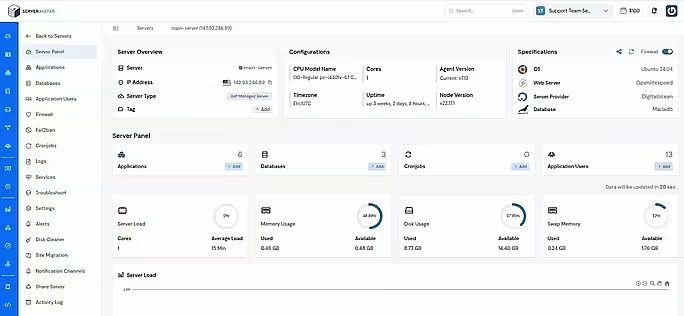
ServerAvatar makes WordPress and other popular applications, such as Mautic, N8N, UptimeKuma, etc, deployment effortless with its one-click WordPress application installer, allowing you to launch a fully configured WordPress site in minutes. It removes the complexity of server setup by providing an intuitive dashboard to manage servers, applications, databases, PHP versions, SSL, and performance settings from one place.
ServerAvatar supports multiple cloud providers and gives users full control over their infrastructure while eliminating the need for deep server administration knowledge. You can refer to the ServerAvatar documentation and the detailed blog to install WordPress effortlessly.
Key Benefits of Using ServerAvatar for WordPress
- One-click WordPress installer: Deploy WordPress instantly without manual configuration.
- Unified management panel: Manage servers and WordPress applications from a single dashboard.
- Performance optimization: Easily configure services, PHP, and server resources.
- Redis caching support: ServerAvatar comes with built-in Redis integration that helps speed up WordPress by storing frequently accessed data in memory.
- Enhanced security: Includes firewall, SSL management, and secure access controls.
- Easy scalability: Upgrade server resources as your WordPress site grows.
ServerAvatar is an ideal solution for users who want the power of cloud servers without the operational complexity.
What is CAPTCHA in WordPress
CAPTCHA is a verification system designed to identify whether an action on a website is performed by a human user or an automated program.
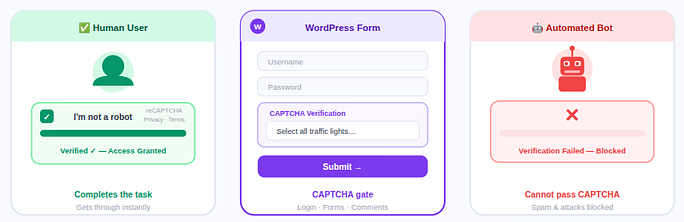
In WordPress, CAPTCHA is typically added to areas where user input is allowed, such as forms or login pages. The system requires users to complete a small verification task before submitting information.
Common CAPTCHA formats include:
- Checkbox verification: Users confirm they are human by clicking a simple verification checkbox before submitting a form.
- Image selection challenges: Visitors must choose images that match a specific instruction to prove they are not automated bots.
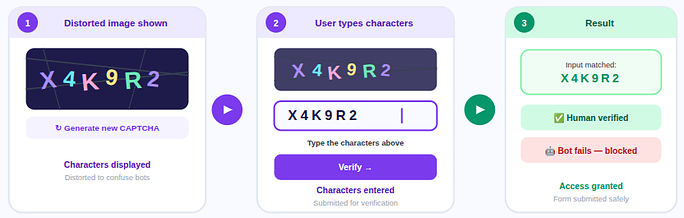
- Text recognition: Users type characters shown in a distorted image to complete the verification process.
- Background verification systems: These systems analyze user behavior silently without requiring visible interaction.
These methods help block automated scripts from submitting forms or accessing protected areas of the website.
Why You Should Add CAPTCHA in WordPress
Spam and automated submissions can affect website performance and security. Adding CAPTCHA provides a simple solution to reduce these issues.
- Prevent Spam Submissions: Automated scripts often target forms to submit large volumes of spam data. CAPTCHA blocks these automated submissions.
- Protect Login Pages: Automated login attempts can try multiple password combinations. CAPTCHA helps reduce these attempts.
- Secure Contact Forms: Without verification, contact forms can receive excessive automated messages.
- Protect User Registration: CAPTCHA prevents automated creation of fake accounts on WordPress websites.
- Improve Overall Website Security: By blocking automated bots, CAPTCHA adds an additional layer of protection to the website.
Common Areas Where CAPTCHA Is Used
CAPTCHA can be applied to several parts of a WordPress website.
- Login Forms: Protects against automated login attempts.
- Registration Forms: Prevents automated account creation.
- Comment Sections: Blocks spam comments generated by bots.
- Contact Forms: Prevents automated form submissions.
- Password Reset Forms: Stops automated password reset requests.
Applying CAPTCHA to these sections helps control automated traffic.
Types of CAPTCHA Used in WordPress
Different CAPTCHA systems are available depending on the verification method used.
- Text CAPTCHA: Users enter characters displayed in an image to verify that the request is being made by a human.
- Image CAPTCHA: Visitors select images that match given instructions as part of the verification process.
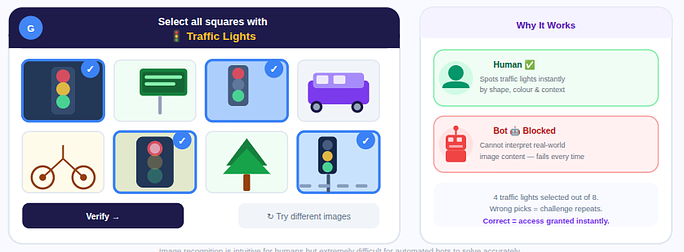
- Math CAPTCHA: Users solve a simple arithmetic problem before a form can be submitted.
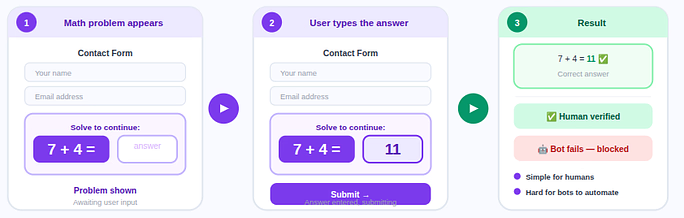
- Invisible CAPTCHA: The verification process runs in the background and only triggers if suspicious activity is detected.
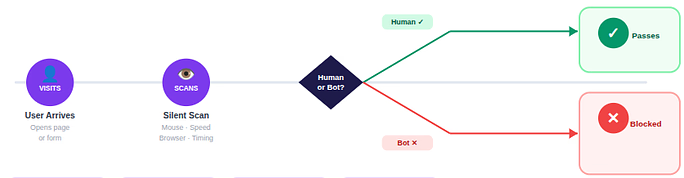
- Audio CAPTCHA: Users listen to an audio clip and enter the spoken characters or numbers for verification.
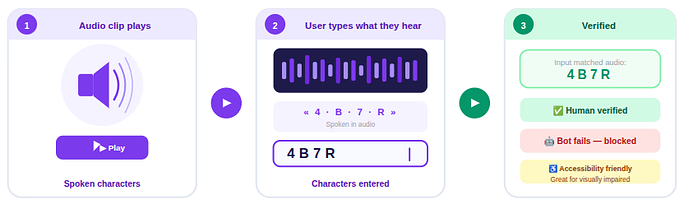
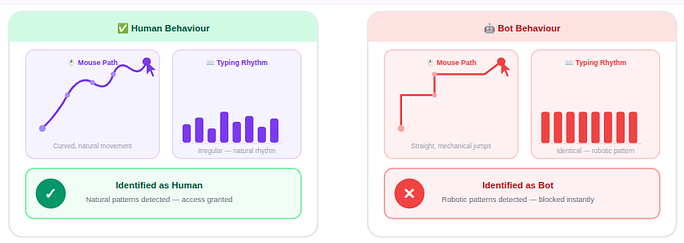
- Behavior-Based CAPTCHA: The system studies interaction patterns such as mouse movement or typing behavior to detect bots.
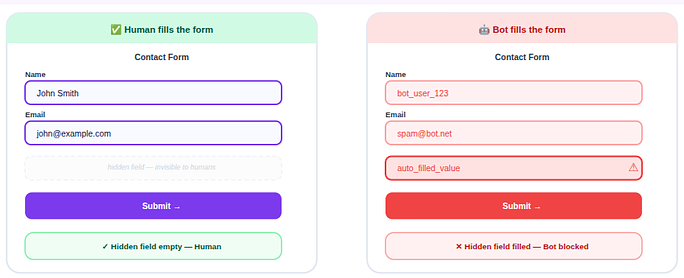
- Honeypot Methods: Hidden form fields are used to trap automated bots that attempt to fill every input field.
Each type offers different levels of security and user convenience.
Understanding Google reCAPTCHA
Google reCAPTCHA is one of the most widely used CAPTCHA systems for websites. It uses machine learning and behavior analysis to detect automated activity. There are three primary versions.
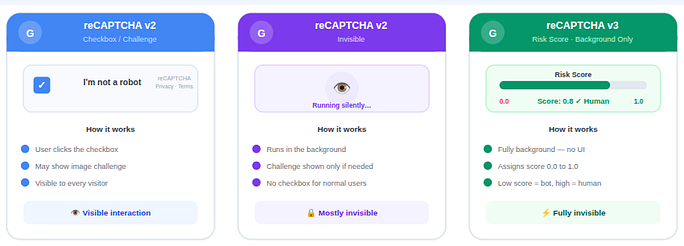
- reCAPTCHA v2: Displays a verification checkbox or challenge.
- reCAPTCHA v2 Invisible: Runs automatically and only shows verification if required.
- reCAPTCHA v3: Operates entirely in the background and assigns a risk score based on user behavior.
Most WordPress websites use reCAPTCHA v2 or v3 because they are easy to integrate through plugins.
Best WordPress CAPTCHA Plugins for WordPress
Several plugins make it easy to add CAPTCHA functionality in WordPress.
1. Simple CAPTCHA Alternative with Cloudflare Turnstile
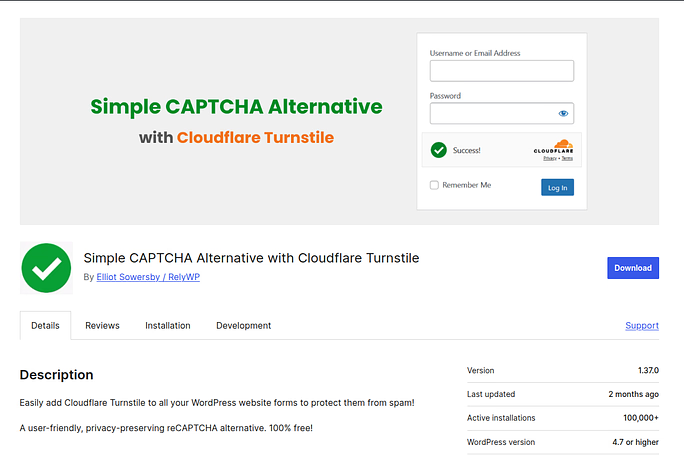
Simple CAPTCHA Alternative with Cloudflare Turnstile integrates Cloudflare Turnstile CAPTCHA with WordPress forms to block automated spam submissions. It provides a privacy-focused verification system that works quietly without requiring users to solve puzzles. The plugin supports multiple WordPress forms and is easy to configure.
Key Features
- Cloudflare Turnstile integration
- Supports login, registration, and comment forms
- Lightweight and easy setup
- Privacy-friendly CAPTCHA verification
Advantages
- Works without image puzzles or challenges
- Simple configuration process
- Minimal impact on website performance
Disadvantages
- Requires Cloudflare API keys
- Limited customization options
Best for: Websites looking for a modern CAPTCHA solution with a smoother user experience.
2. Advanced Google reCAPTCHA
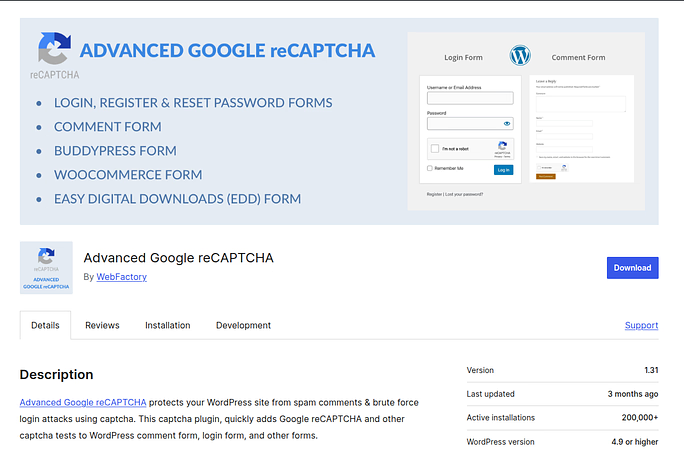
Advanced Google reCAPTCHA is designed specifically to protect WordPress forms using Google’s CAPTCHA verification system. It allows administrators to enable CAPTCHA protection across different parts of the website.
Key Features
- Supports Google reCAPTCHA v2 and v3
- Protects login, registration, and comment forms
- Simple configuration interface
- Lightweight security plugin
Advantages
- Reliable CAPTCHA system from Google
- Works with multiple WordPress forms
- Easy to configure
Disadvantages
- Requires Google API keys
- Google reCAPTCHA may affect user privacy concerns
Best for: Websites that prefer Google reCAPTCHA integration for spam protection.
3. Really Simple CAPTCHA
Really Simple CAPTCHA is a lightweight verification plugin originally developed for Contact Form 7. It creates CAPTCHA images that users must enter before submitting a form.
Key Features
- Image-based CAPTCHA verification
- Designed for Contact Form 7 integration
- Lightweight and simple functionality
- Basic configuration settings
Advantages
- Very lightweight plugin
- Easy to integrate with compatible forms
- No external API required
Disadvantages
- Limited functionality compared to modern CAPTCHA systems
- Requires manual integration with some form plugins
Best for: Websites that use Contact Form 7 and need simple CAPTCHA protection.
4. WP Armour
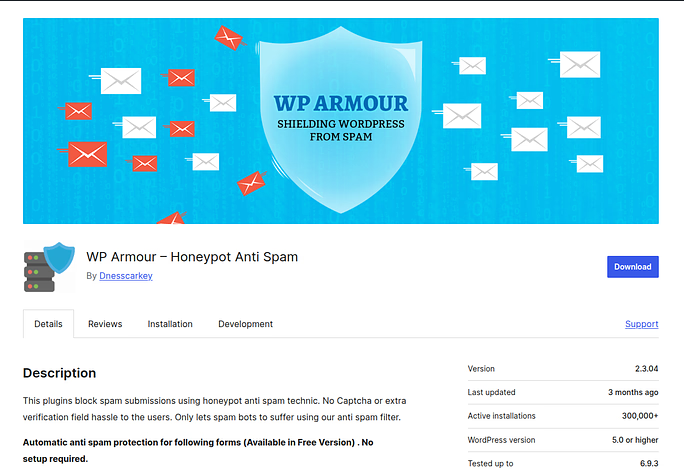
WP Armour uses a spam protection method called honeypot technology to block bots without requiring visible CAPTCHA challenges. It adds hidden fields to forms that automated bots often fill, allowing the system to detect spam automatically.
Key Features
- Honeypot spam protection method
- Works without visible CAPTCHA
- Compatible with multiple form plugins
- Automatic spam detection
Advantages
- No user interaction required
- Improves user experience
- Lightweight and fast
Disadvantages
- May not stop advanced bots
- Limited control compared to CAPTCHA systems
Best for: Websites that want spam protection without displaying CAPTCHA challenges.
Choosing the Right CAPTCHA Plugin
Selecting the right CAPTCHA plugin depends on your website’s requirements and the type of forms you use.
Key factors to consider include:
- Compatibility with existing form plugins: Ensure the CAPTCHA plugin works smoothly with the form builders or contact form plugins already installed on your website.
- Ease of configuration: Choose a plugin that offers simple setup and clear settings so it can be configured without complex technical steps.
- CAPTCHA type support: The plugin should support modern CAPTCHA options such as reCAPTCHA, Turnstile, or invisible verification methods.
- Performance impact: A good CAPTCHA plugin should run efficiently without slowing down your website or affecting page load times.
- Regular plugin updates: Frequent updates indicate active development and help maintain compatibility with the latest WordPress versions.
Plugins that are well-maintained, regularly updated, and supported by active developers are generally the most reliable choice for long-term website security.
How to Add CAPTCHA to a WordPress site
effective ways to prevent automated spam and bot attacks. Instead of using traditional image-based CAPTCHA systems, many website owners now prefer Cloudflare Turnstile because it offers a more privacy-friendly and seamless verification process.
Cloudflare Turnstile works quietly in the background and verifies visitors without forcing them to solve puzzles or select images. Another advantage is that it is completely free and does not require your website to be hosted on Cloudflare.
No matter whether you are using the default WordPress forms or custom form builders, the setup usually involves three main steps.
Step 1: Generate Your Cloudflare Turnstile API Keys
Before adding CAPTCHA to WordPress, your website needs to connect with the CAPTCHA provider using API keys. These keys allow the verification service to communicate securely with your website.
Follow these steps to generate your keys:
- Login to your Cloudflare account and if you don’t have already create a new account.
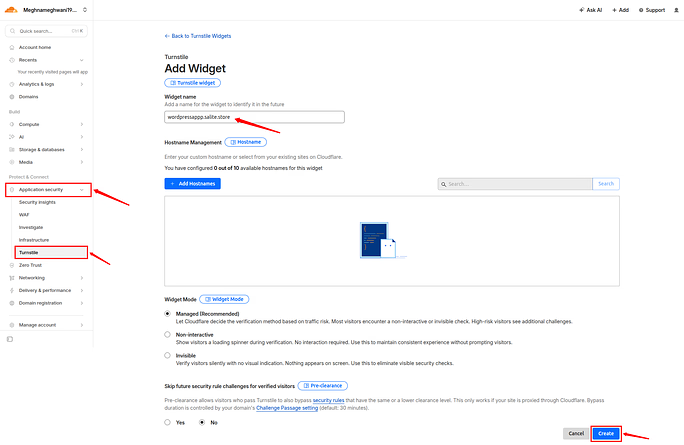
- Navigate to Application Security >> Turnstile from the left sidebar.
- Click on the Add Widget button.
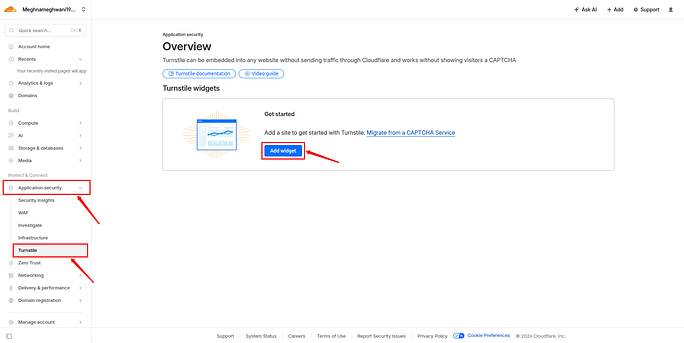
- Enter your website domain name in the Widget name section.
- Add your Hostname.
- Choose a widget mode. Cloudflare provides several widget modes. The Managed mode (Recommended) automatically determines how to verify users depending on their activity and risk level.
- Click on the Create button.
Once the widget is created, Cloudflare will instantly generate two keys:
- Site Key: The Site Key is added to your website to display the CAPTCHA challenge to visitors.
- Secret Key: The Secret Key is used on the server to securely validate the CAPTCHA response submitted by users.
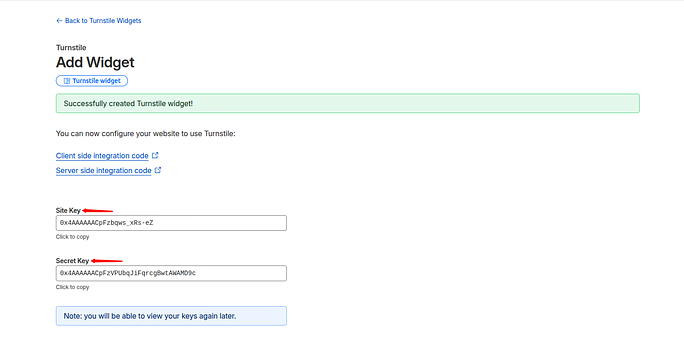
You will use these keys later to connect Turnstile with your WordPress website.
Step 2: Select a WordPress Integration Method
After generating the API keys, the next step is connecting them to your WordPress forms. The method you choose depends on how your forms are created.
Option 1: Default WordPress Forms
If your website uses the standard WordPress pages, such as:
- WordPress login page (wp-login.php)
- User registration page
- Comment forms
You will need a WordPress plugin that integrates Cloudflare Turnstile with these default forms.
A commonly used option is the Simple CAPTCHA Alternative with Cloudflare Turnstile plugin available in the WordPress plugin repository. This plugin acts as a bridge between WordPress forms and the Turnstile verification system.
- Navigate to the Plugins >> Add Plugin section from the left sidebar.
- Search for the Simple CAPTCHA Alternative with Cloudflare Turnstile Plugin.
- Click Install Now, then Activate the plugin.
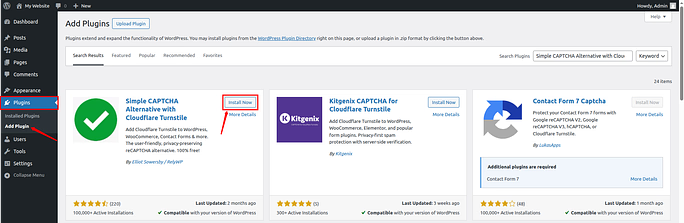
- Once installed, the plugin enables CAPTCHA protection for WordPress’s default forms without requiring any code changes.
- After activation, navigate to the Plugins >> Installed Plugin section from the left sidebar.
- Click on the Settings option for the Simple CAPTCHA Alternative with Cloudflare Turnstile plugin.
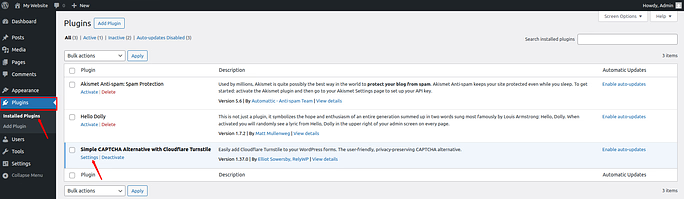
- Enter the Site Key and Secret Key previously generated in Cloudflare.
- Configure additional options such as Theme and Language.
- In the Advanced Settings, you can also adjust options like:
- Widget Size
- Appearance Mode
- Custom Error Message
- Failsafe Mode
- User or IP Address Whitelisting
- Next, select where you want to enable Turnstile verification, such as:
- WordPress Login
- WordPress Registration
- WordPress Password Reset
- WordPress Comment Forms
- Click on the Save Changes button to apply the settings.
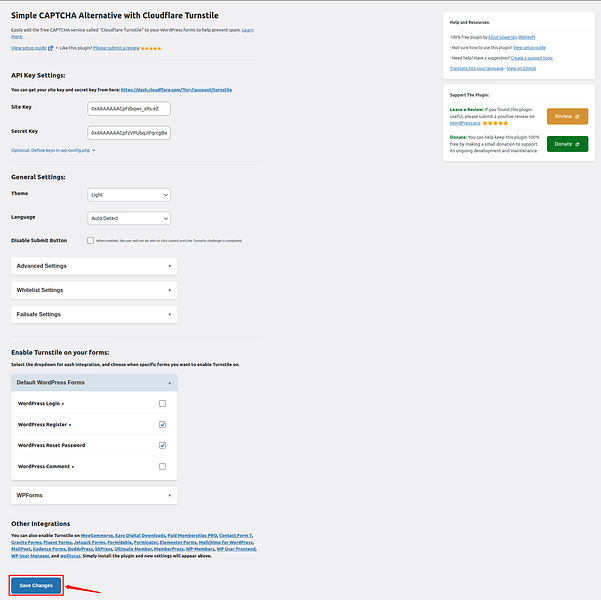
That’s it! You have successfully configured the Simple CAPTCHA Alternative with Cloudflare Turnstile plugin on your WordPress site.
Option 2: Custom Form Builder Plugins
If your website uses form builder plugins such as:
- WPForms
- Elementor Forms
- Fluent Forms
Then you usually don’t need an extra plugin to integrate Cloudflare Turnstile. Many modern form builders already provide built-in support for Turnstile within their settings. All you need to do is add your API keys and enable CAPTCHA protection for your forms. In this example, we’ll use WPForms.
- From your WordPress dashboard, go to WPForms >> Settings in the left sidebar.
- Open the CAPTCHA tab.
- Select Turnstile as your CAPTCHA option.
- Enter the Site Key and Secret Key that you generated earlier in Cloudflare.
- Configure additional options such as:
- Fail Message
- CAPTCHA Type
- No-Conflict Mode
- Once you have completed the configuration, click Save Settings to apply the changes.
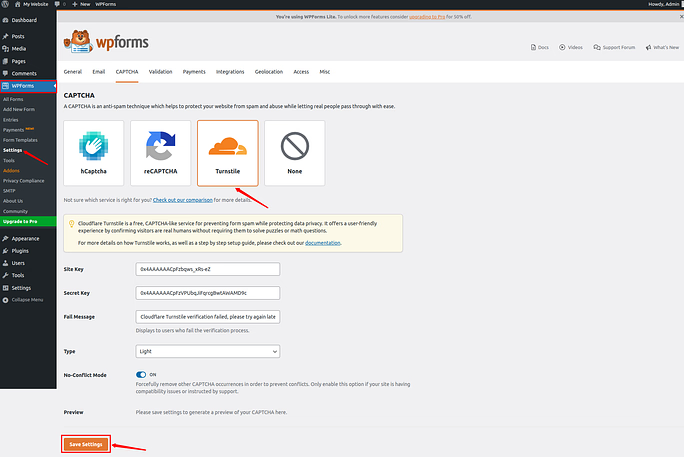
After saving the settings, CAPTCHA verification will automatically appear on those forms.
Testing CAPTCHA After Setup
Testing is necessary to confirm that CAPTCHA is functioning correctly. Steps to test the configuration:
- Open the website in a private browser window: This ensures the test is performed without cached data or active login sessions.
- Access the form where CAPTCHA was added: Navigate to the login page, contact form, or comment section that contains the CAPTCHA.
- Attempt to submit the form: Try completing the form normally to see if the CAPTCHA verification appears.
- Verify that the CAPTCHA verification appears: Confirm that the system requests verification before allowing submission.
Successful verification indicates that the setup is complete.
Free CAPTCHA Plugin Enough for WordPress?
Free CAPTCHA solutions such as Cloudflare Turnstile are highly effective for preventing spam submissions on website forms. They help ensure that only legitimate users can interact with your login pages, comment sections, and contact forms.
However, it is important to understand that CAPTCHA only protects the form level of your website. It does not block automated traffic that directly targets your server.
For websites with higher traffic, such as large blogs, business websites, or online stores, relying only on a CAPTCHA plugin may not be enough. Bots can still send large volumes of requests to your server even if they fail the CAPTCHA challenge.
Because of this, many websites combine CAPTCHA with additional server-level security and traffic filtering tools to protect their infrastructure.
Best Practices for Using CAPTCHA
While CAPTCHA improves security, proper configuration is important.
- Enable CAPTCHA Only Where Necessary: Adding CAPTCHA to every page can affect usability.
- Use Modern CAPTCHA Versions: Newer CAPTCHA systems provide better security and performance.
- Keep Plugins Updated: Updates ensure compatibility and security improvements.
- Combine with Other Security Tools: CAPTCHA works best when combined with additional spam protection plugins.

Common CAPTCHA Issues and Solutions
Sometimes CAPTCHA may not work as expected.
1. CAPTCHA Not Displaying
Possible causes include:
- Incorrect API keys: CAPTCHA may fail to load if the site key or secret key is entered incorrectly.
- Plugin conflicts: Sometimes other WordPress plugins interfere with CAPTCHA functionality and cause display issues.
- Cache interference: Website caching can prevent CAPTCHA scripts from loading properly on certain pages.
Clearing the cache and verifying API keys usually resolves this issue.
2. Verification Errors
Repeated verification failures may occur if the domain configuration in the CAPTCHA provider settings is incorrect.
3. Plugin Conflicts
Temporarily disabling other plugins can help identify conflicts that affect CAPTCHA performance.
Conclusion
Adding CAPTCHA to your WordPress website is a simple yet effective way to protect your forms, login pages, and registration systems from automated spam and bot activity. By implementing CAPTCHA, you can significantly reduce fake submissions, improve website security, and maintain a cleaner user interaction environment. With modern solutions like Cloudflare Turnstile and easy-to-use WordPress plugins, integrating CAPTCHA no longer requires technical expertise. When combined with proper server management tools like ServerAvatar and additional security practices, CAPTCHA becomes an important part of maintaining a secure, reliable, and well-managed WordPress website.
FAQs
1. Why should I add CAPTCHA to my WordPress website?
Adding CAPTCHA helps prevent spam submissions, automated bot attacks, and fake registrations by verifying that the user interacting with your forms is a real person.
2. Which CAPTCHA plugin is best for WordPress?
Popular options include Simple CAPTCHA Alternative with Cloudflare Turnstile, Advanced Google reCAPTCHA, Really Simple CAPTCHA, and WP Armour, depending on your website’s needs.
3. Can I add CAPTCHA to the WordPress login and registration forms?
CAPTCHA can be easily added to login pages, registration forms, comment sections, and contact forms using WordPress plugins.
4. Do I need coding knowledge to add CAPTCHA in WordPress?
Most CAPTCHA plugins provide a simple interface that allows you to configure and enable verification without writing any code.
5. Is a free CAPTCHA plugin enough for WordPress security?
Free CAPTCHA tools are effective for stopping spam submissions, but combining them with additional security measures such as firewalls and server-level protection provides stronger website security.