

Managing a website today is more than just publishing content. Visitors expect quick answers, smooth interactions, and a more personalized experience. Handling all of this manually can quickly become overwhelming. If you’re looking to add ChatGPT to WordPress, it can completely transform how your site interacts with users. By integrating ChatGPT into your WordPress website, you can automate conversations, assist users instantly, and improve engagement without constantly being online.
In this guide, you’ll learn exactly how to add ChatGPT to your WordPress site using simple, practical methods, even if you’re not a developer.
What is ChatGPT and Why Use It?
ChatGPT is an AI-powered chatbot that can understand questions and respond like a human. Think of it as a helpful assistant sitting on your website, ready to talk to your visitors anytime.
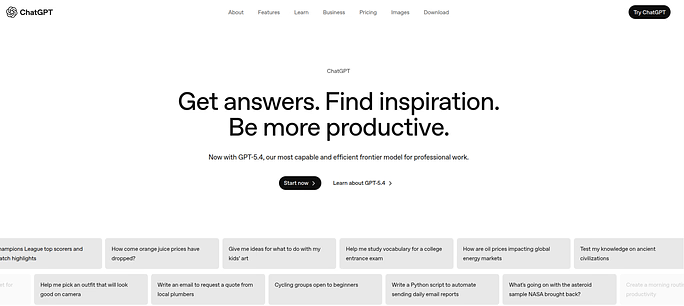
Instead of forcing users to search through pages, ChatGPT allows them to ask questions and get instant answers.
Why Add ChatGPT to WordPress?
Adding ChatGPT to your WordPress site helps you handle user interactions more efficiently without constant manual effort. It improves response speed, engagement, and overall user experience.
- Provide 24/7 customer support: Assist visitors anytime without needing a live support team.
- Respond instantly to common queries: Answer frequently asked questions in real time.
- Improve user engagement and retention: Keep users interested with interactive responses.
- Assist with content creation and updates: Help generate and refine website content quickly.
- Generate leads through interactive conversations: Capture user interest through guided interactions.
It transforms your website from a static platform into an interactive experience.
What Is WordPress?
WordPress is the world’s most popular open-source content management system (CMS), used to build websites, blogs, and e-commerce stores. It offers flexibility through themes and plugins, making it suitable for beginners, developers, and businesses of all sizes.
How ServerAvatar Simplifies WordPress Deployment & Management
What is ServerAvatar?
ServerAvatar is a platform to simplify the hosting and management of servers and applications. It simplifies the process of deploying and managing PHP and Node.js based web applications on servers.
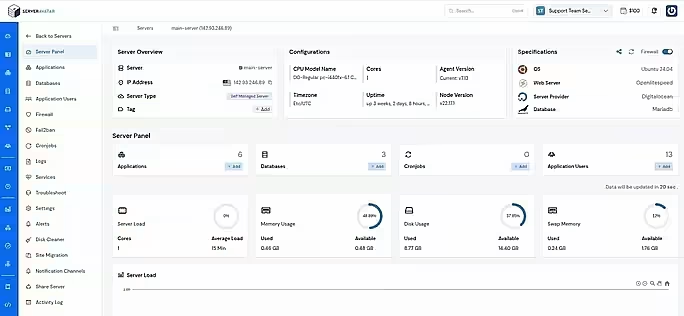
ServerAvatar makes WordPress and other popular applications, such as Mautic, N8N, UptimeKuma, etc, deployment effortless with its one-click WordPress application installer, allowing you to launch a fully configured WordPress site in minutes. It removes the complexity of server setup by providing an intuitive dashboard to manage servers, applications, databases, PHP versions, SSL, and performance settings from one place.
ServerAvatar supports multiple cloud providers and gives users full control over their infrastructure while eliminating the need for deep server administration knowledge. You can refer to the ServerAvatar documentation and the detailed blog to install WordPress effortlessly.
ServerAvatar does not directly provide WordPress Multisite, but our technical experts can help you set up a WordPress Multisite environment.
The ServerAvatar support team is available 24/7 to assist you with any issues or questions you may have.
Key Benefits of Using ServerAvatar for WordPress
- One-click Application installer: Deploy WordPress and many popular applications instantly without manual configuration.
- Unified management panel: Manage servers and WordPress applications from a single dashboard.
- Performance optimization: Easily configure services, PHP, and server resources.
- Redis caching support: ServerAvatar comes with built-in Redis integration that helps speed up WordPress by storing frequently accessed data in memory.
- Enhanced security: Includes firewall, SSL management, and secure access controls.
- Easy scalability: Upgrade server resources as your WordPress site grows.
ServerAvatar is an ideal solution for users who want the power of cloud servers without the operational complexity. It simplifies WordPress hosting by automating server setup, streamlining application management, and providing performance and security optimizations out of the box.
Whether you’re a developer, agency, or business owner, ServerAvatar allows you to deploy, manage, and scale WordPress websites confidently while focusing on growth instead of infrastructure management.
What Does ChatGPT Integration in WordPress Really Mean?
Adding ChatGPT to WordPress doesn’t mean handing over your website to AI. It simply means using ChatGPT as a support tool to reduce manual work. Your website still works the same way:
- WordPress handles design, structure, and performance
- ChatGPT helps with content, responses, and repetitive tasks
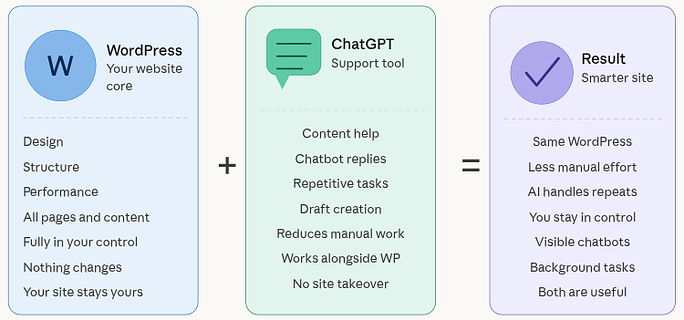
Some integrations are visible, such as chatbots. Others work quietly in the background, such as content generation. Both are useful.
What Can You Actually Do with ChatGPT in WordPress?
ChatGPT can support a wide range of everyday tasks on your website, from content creation to user interaction. It helps simplify workflows and reduces the time spent on repetitive work.
- Write blog drafts and page content: Quickly generate structured content for your site.
- Generate product descriptions: Create engaging and informative product details.
- Add chatbots for customer queries: Provide instant assistance to visitors.
- Create SEO meta descriptions and FAQs: Improve content visibility and structure.
- Automate repetitive responses: Save time by handling recurring queries automatically.
- Assist with small code snippets: Get help with basic development tasks.
You don’t need to use everything. Most websites benefit by starting with just one use case.
Why Add ChatGPT to Your WordPress Site?
As your website grows, managing content and user interactions becomes more demanding. ChatGPT helps you scale your efforts without increasing your workload.
Key Benefits
- Faster content creation: Produce content more quickly with AI assistance.
- Instant responses to users: Provide real-time replies to visitor queries.
- Improved engagement: Keep users active and interested on your site.
- Consistent output across pages: Maintain a uniform tone and structure.
- Reduced manual workload: Minimize repetitive tasks and save time.
It doesn’t replace human input, it just gives you a better starting point.
Different Ways to Add ChatGPT to WordPress
There are multiple ways to integrate ChatGPT depending on your technical comfort and requirements. Each method provides different level of control and flexibility.
- Plugin-based (easy and quick): Simple setup with minimal effort.
- API-based (flexible and powerful): Greater control over functionality.
- Automation-based (workflow-focused): Ideal for task automation.
Let’s go through each method step by step.
Method 1: Add ChatGPT Using a WordPress Plugin
Plugins are the most accessible way to get started. They connect WordPress with ChatGPT in the background and allow you to work directly from the dashboard.
Basic Setup Steps:
- Navigate to the WordPress dashboard, and go to the Plugins >> Add plugins section.
- Search for any compatible plugin as per your preference.
Popular ChatGPT Plugins:
Different plugins focus on different tasks.
- AI Power: Covers multiple AI-based tasks
- WooCommerce AI plugins: Assist with product-related content
- AI Engine: Supports content and chatbot features
- WPForms with ChatGPT: Helps with automated responses
- WP Chatbot: Great for customer support
- ChatBot with GPT: Simple setup and clean UI
Choosing a plugin depends on what you want to simplify, not how many features it offers.
- Install and activate the plugin
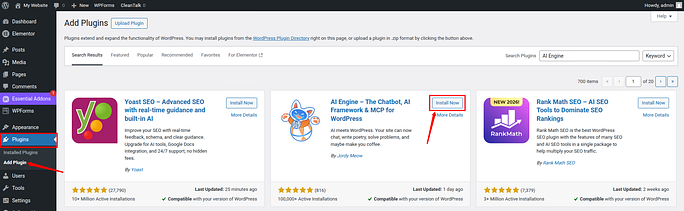
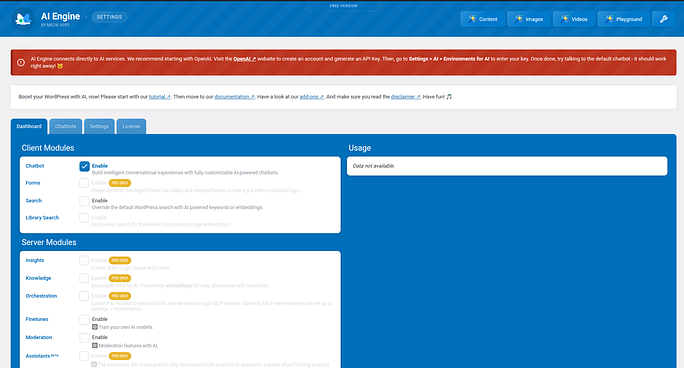
This method works well for users who want a quick and simple setup.
Advantages of Plugin-Based Integration
Plugin-based integration is the easiest way to connect ChatGPT with WordPress. It allows you to get started quickly without dealing with technical complexity.
- Quick and beginner-friendly setup: Get started within minutes.
- No coding required: Suitable for non-technical users.
- Built-in UI and customization options: Easily manage settings from the dashboard.
- Works directly from WordPress dashboard: No external setup needed.
Disadvantages
- Limited customization compared to API: Less flexibility for advanced needs.
- Some features may require paid versions: Full functionality may not be free.
- Performance depends on plugin quality: Poor plugins can slow your site.
Best Use Cases
- Adding a chatbot to your website: Provide instant visitor support.
- Assisting with content writing: Generate and edit content easily.
- Automating simple user interactions: Handle basic repetitive tasks.
Why Choose Plugin-Based Integration?
This method is ideal for users who want a fast and simple setup without technical complexity. It allows you to start using ChatGPT features directly from your dashboard with minimal effort.
Method 2: Add ChatGPT Using OpenAI API
If you want more control and flexibility, API integration is the better option. Instead of relying on a plugin, your website communicates directly with ChatGPT.
When Should You Use API Integration?
API integration is suitable when you need more flexibility and control over how ChatGPT works on your site. It is best for custom implementations and advanced use cases.
- You need custom workflows: Build tailored solutions for your needs.
- Plugin features are too limited: Go beyond standard plugin capabilities.
- You want full control over responses and logic: Customize how ChatGPT behaves.
Step-by-Step API Integration
Step 1: Get Your API Key
- Sign up on OpenAI: Create an account to access API services.
- Generate your API key: Use it to connect your website with ChatGPT.
Step 2: Add Code to WordPress
- Use functions.php or create a custom plugin: Integrate API into your site.
- Store your API key securely: Protect it from public access.
Step 3: Create a Chat Interface
- Build a simple chatbox using HTML/CSS: Design the frontend interface.
- Use JavaScript (AJAX) to send user input: Connect user queries to the API.
Step 4: Process and Display Responses
- Send request to ChatGPT: Send user’s input to API.
- Receive response: Get generated output.
- Display it in your chat interface: Show results to users.
Step 5: Test Everything
- Try different queries: Check how the system responds.
- Fix formatting or response issues: Improve output quality.
Advantages of Plugin-Based Integration
API integration gives you more control and flexibility compared to plugins. It is suitable for building customized and scalable solutions.
- Full customization: Control every aspect of functionality.
- Better control over user experience: Tailor interactions to your needs.
- More scalable for advanced projects: Suitable for complex applications.
Disadvantages
- Requires technical knowledge: Not beginner-friendly.
- Takes more time to set up: Needs development effort.
Best Use Cases
- Custom chatbots: Build unique interaction systems.
- Dynamic user interactions: Respond based on real-time input.
- Advanced automation workflows: Create complex logic-based tasks.
Why Choose API Integration?
- Full customization
- Better control over user experience
- More scalable for advanced projects
Method 3: Automate Tasks with ChatGPT
Automation tools allow you to connect ChatGPT with actions happening on your website. Instead of manual input, ChatGPT responds automatically based on triggers.
- Uncanny Automator: Automate WordPress workflows easily.
- Zapier: Connect apps and automate tasks.
- Make (formerly Integromat): Build advanced automation scenarios.
Example Use Cases
- Auto-generate blog summaries after publishing: Save time on content updates.
- Respond to form submissions automatically: Provide instant replies.
- Create email replies based on user input: Automate communication.
Automation is ideal for reducing repetitive work.
Real Examples
- Auto-generate blog outlines after publishing
- Reply to form submissions instantly
- Create email responses automatically
Automation works best when tasks repeat regularly.
Adding a ChatGPT Chatbot to WordPress
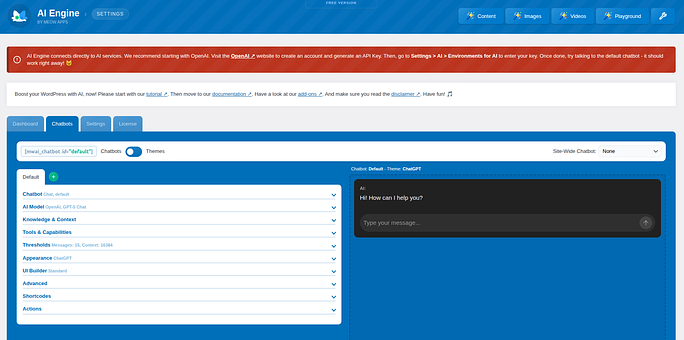
A chatbot is very popular and most common use cases. It helps when users ask similar questions repeatedly. A chatbot becomes useful when similar queries appear frequently. It can be added through:
- Plugins: Quick and simple chatbot setup.
- Automation tools: Connect chatbot responses with workflows.
Once configured, it responds based on predefined rules and prompts.
When a Chatbot Makes Sense
- Customer support websites: Handle frequent user queries.
- eCommerce stores: Assist customers with product questions.
- Membership platforms: Guide users through services.
Tips for Better Chatbot Performance
- Keep answers short and clear: Improve readability and response quality.
- Define what it should handle: Set clear boundaries for responses.
- Avoid overcomplicating conversations: Keep interactions simple.
- Test regularly: Continuously improve chatbot accuracy.
A focused chatbot performs better than a complex one.
Using ChatGPT for Content and SEO
ChatGPT is especially useful for speeding up content creation and improving structure. It helps prepare content efficiently but still requires manual review.
Content Use Cases
- Blog writing: Generate draft content quickly.
- Page content creation: Build structured web pages.
- Product descriptions: Create engaging product details.
SEO Use Cases
- Meta descriptions: Write concise summaries for search engines.
- FAQ generation: Improve content clarity and relevance.
- Content structuring: Organize information effectively.
ChatGPT helps with preparation, not final optimization. You still need to review everything before publishing.
Performance and Cost Considerations
Using ChatGPT involves API calls, which consume resources and may affect costs. Managing usage properly helps maintain performance.
Best Practices
- Limit unnecessary API calls: Avoid excessive requests.
- Use caching to reduce repeated requests: Improve efficiency.
- Avoid real-time AI processing everywhere: Use it only where needed.
- Monitor usage regularly: Keep track of costs and performance.
Planning ahead prevents performance issues later.
Best Practices for Using ChatGPT
The effectiveness of ChatGPT depends on how you use it. Clear input and proper monitoring lead to better results.
- Write clear and specific prompts: Improve output quality.
- Keep instructions short and focused: Avoid confusion.
- Review outputs before publishing: Ensure accuracy.
- Monitor usage and performance: Maintain efficiency.
Common Mistakes to Avoid
Some common mistakes can reduce the effectiveness of ChatGPT. Avoiding them helps maintain quality and performance.
- Publishing content without review: Always verify output.
- Over-automating interactions: Keep human control where needed.
- Ignoring performance impact: Monitor system load.
- Not tracking API usage: Avoid unexpected costs.
Keeping control over the process ensures better results.
Security and Privacy Considerations
Security should always be a priority when using AI tools. Proper setup helps protect user data and maintain trust.
- Avoid sending sensitive data: Protect user information.
- Use secure API connections: Ensure safe communication.
- Be transparent with users: Build trust and credibility.
Most risks come from poor setup, not the tool itself.

Use Cases for ChatGPT on WordPress
ChatGPT can be applied in different ways depending on your website’s needs. It helps improve both functionality and user experience.
- Customer Support: Answer FAQs instantly.
- Lead Generation: Collect user information through interaction.
- Content Creation: Assist in generating ideas and drafts.
- E-commerce Assistance: Recommend products and guide users.
Does ChatGPT Help SEO?
ChatGPT does not directly impact search rankings, but it supports factors that improve SEO performance. It helps enhance user experience and content quality.
- Better user engagement: Keep visitors active on your site.
- Longer session duration: Encourage users to stay longer.
- Faster content creation: Publish content more consistently.
- Improved content structure: Make content easier to read and understand.
Search engines reward useful and engaging content, regardless of how it’s created.
Conclusion
Adding ChatGPT to your WordPress website is a practical way to improve how you manage content, handle user queries, and scale your workflow. Whether you choose a simple plugin, a custom API setup, or automation tools, the goal is not to replace human effort but to make your work more efficient. By starting with the right approach and gradually expanding its use, you can create a faster, more interactive, and user-friendly website experience.
FAQs
1. Do I need coding skills to add ChatGPT to WordPress?
You can use plugins to integrate ChatGPT without any coding knowledge. API integration is only needed for advanced customization.
2. Which method is best for beginners?
Plugin-based integration is the easiest and fastest way to get started.
3. Is ChatGPT free to use on a WordPress website?
ChatGPT integration may be free through plugins, but API usage is usually billed based on how much you use it.
4. Will ChatGPT slow down my website?
Not if implemented properly. Using caching and limiting unnecessary API calls helps maintain performance.
5. Can ChatGPT replace customer support completely?
It can handle basic queries efficiently, but human support is still important for complex issues.