

Have you ever tried to change WordPress admin email and felt stuck waiting for confirmation? Or maybe you lost access to the old email and now you’re locked out of important notifications? You’re not alone.
Changing the admin email in WordPress might seem like a small task, but it plays a huge role in your website’s security, communication, and overall control. Think of it like updating your phone number at the bank, if it’s outdated, you risk missing critical alerts.
In this guide, I’ll walk you through 3 easy methods to change your WordPress admin email.
What Is WordPress Admin Email?
The WordPress admin email is the main email address linked to your website for management and communication. It is used by WordPress to send important updates and notifications.
- Password reset links: Helps you recover access if you forget your login details
- Security alerts: Notifies you about suspicious activity or threats
- Plugin/theme notifications: Updates you about changes or issues in plugins and themes
- System updates: Informs you about core WordPress updates and maintenance
In short, it’s the main communication channel between your website and you.
Why You May Need to Change Admin Email
There are multiple situations where updating your admin email becomes necessary for smooth website management and security.
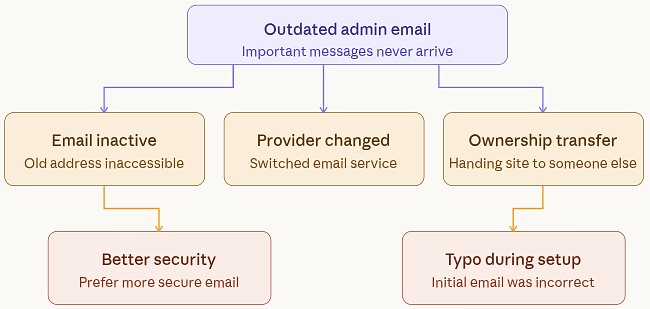
- You no longer use the old email: The previous email is inactive or inaccessible
- Your email provider changed: You switched to a new email service
- You’re transferring website ownership: Ownership is being handed over to someone else
- You want better security: You prefer a more secure or private email
- You made a typo during setup: The email entered initially was incorrect
Imagine sending important letters to an old address, you’d never receive them. That’s exactly what happens when your admin email is outdated.
Things to Know Before You Start
Before updating your admin email, it’s important to take a few precautions to avoid any issues.
- Always backup your website: Prevent data loss in case something goes wrong
- Make sure you have admin access: Required to change settings successfully
- Use a valid and active email address: Needed to receive confirmation emails
- Check your spam folder: Important emails might land in spam or junk
Taking these small precautions can save you from big headaches later.
Method 1: Change WordPress Admin Email via Dashboard (Recommended)
Let’s start with the easiest and most beginner-friendly method, using your WordPress dashboard. Before we begin, here’s something important: WordPress actually uses two different email addresses:
- The main site admin email (for notifications)
- Your user profile email (for login and password resets)
To avoid confusion later, we’ll update both.
Step-by-Step Guide for Dashboard Method
Step 1: Update the Main Website Admin Email
Follow these steps:
- First, log in to your WordPress dashboard.
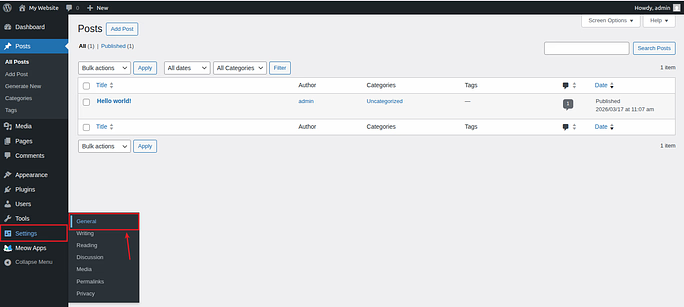
- Go to Settings >> General section
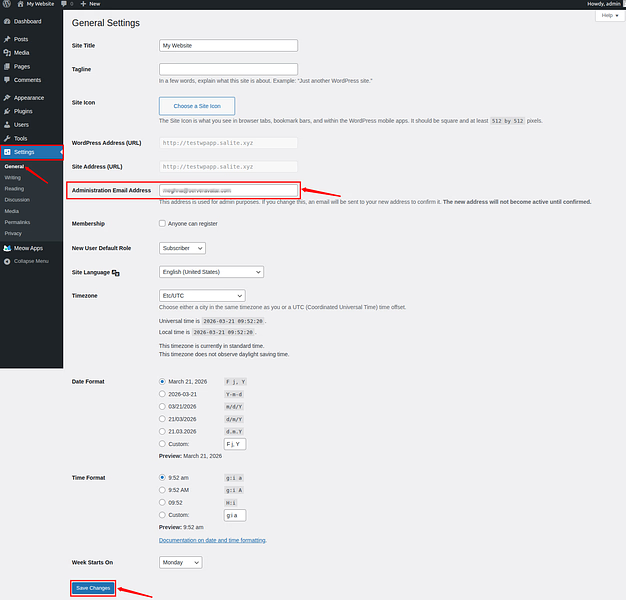
- Scroll down to Administration Email Address section.
- Replace the old email address with your new one
- Click on the Save Changes button
Now here’s where many people get confused as WordPress does not change the email instantly.
Instead, you’ll see a message saying there’s a pending change. This means WordPress is waiting for confirmation. So what should you do next?
- Now, open your new email inbox
- Checkout for the confirmation email from WordPress
- Now, click the verification link
- Once you confirm it, the new email becomes active.
Step 2: Update Your Admin User Email
Now let’s update your personal account email as well.
- Go to the Users >> All Users section
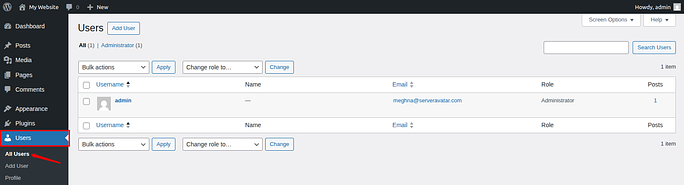
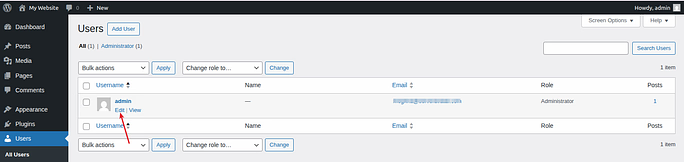
- Find your admin account and click on the given Edit option
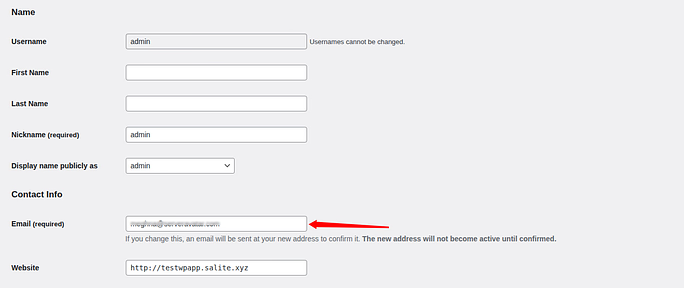
- Scroll and find the Email field under Contact Info
- Enter your new email address there
- Now, click Update Profile button.
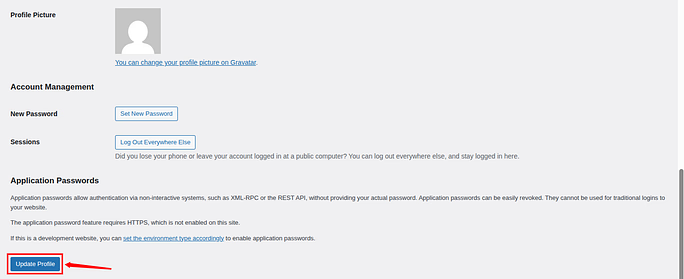
Just like before, you’ll receive a confirmation email. Click the link to finalize the update.
What If You Don’t Receive the Confirmation Email?
This happens more often than you’d think. Sometimes, WordPress emails don’t arrive because they use a basic sending method that email providers don’t trust.
Here’s what you can try:
- Check your spam or junk folder
- Wait for a few minutes (delays happen)
- Try resending the request
- Set up SMTP for reliable email delivery
Quick Insight: By default, WordPress uses a simple mail function that often gets flagged as spam. Setting up SMTP gives your emails proper authentication so they actually reach your inbox.
If you don’t want to deal with email setup right now, don’t worry, the next method skips verification entirely.
Method 2: Change Admin Email Without Verification (Using Plugin)
If you’re stuck with a “pending email change” message or just want a faster way, this method is perfect. We’ll use a lightweight plugin that disables the confirmation requirement so you can update the email instantly.
Step-by-Step Guide for Plugin Method
Step 1: Install the Plugin
- Navigate to the Plugins >> Add Plugins section.
- Search for Change Admin Email
- Install and activate the plugin
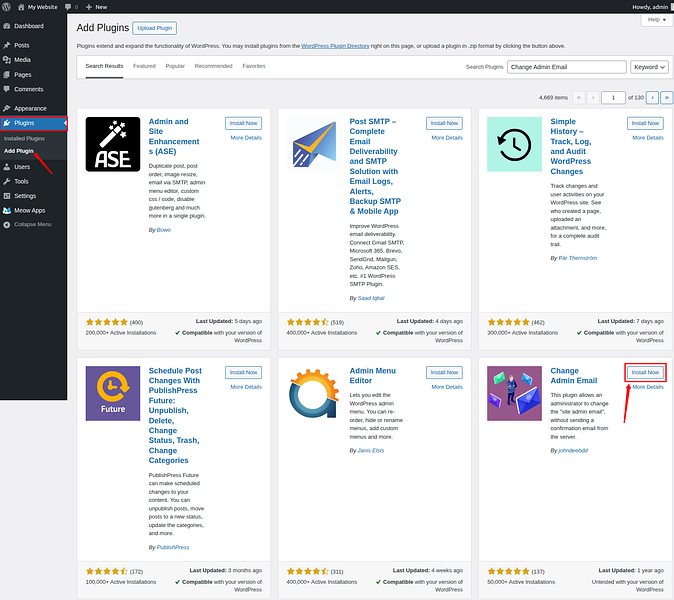
Step 2: Update Email Instantly
- Now, navigate to the Settings >> General section
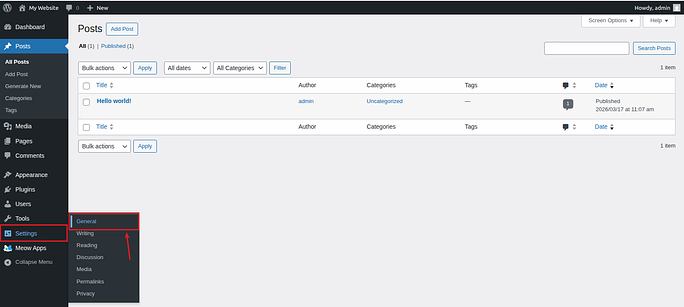
- Find the Administration Email Address field
- If there’s a pending change, click on the Cancel button
- Now, enter your new email
You’ll now notice something new: a Test Email button.
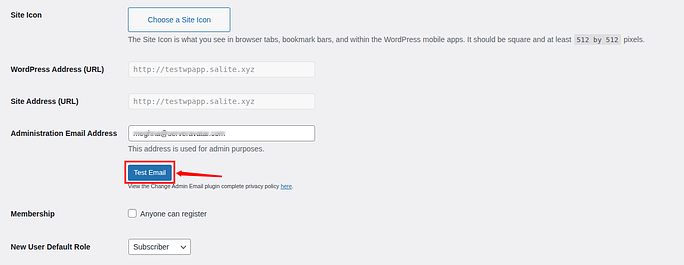
- Click on it to make sure everything is working properly.
- Scroll down and click on the Save Changes button
That’s it! The email will update immediately, no confirmation required.
Pro Tip: Click on it to make sure everything is working properly.
Scroll down and click on the Save Changes button
That’s it! The email will update immediately, no confirmation required.
Pro Tip: You can deactivate or delete the plugin once you are done. No need to keep it active.
Important Note: This plugin only updates the main site admin email.
If you also need to update your user profile email, and emails still aren’t working, you’ll need the next method. can deactivate or delete the plugin once you are done. No need to keep it active.
Important Note: This plugin only updates the main site admin email.
If you also need to update your user profile email, and emails still aren’t working, you’ll need the next method.
Method 3: Change Your WordPress Admin Email via Database Using phpMyAdmin
This is your ultimate backup method. If you:
- Can’t access your email
- Can’t receive confirmation links
- Or are locked out completely
Then editing the database directly is the way to go.
Think of this like going straight to the engine of your website instead of using the dashboard controls.
Step-by-Step Guide for Database Method
Step 1: Access Your Database via phpMyAdmin
You can easily access your phpMyAdmin with your Hosting Provider. You can access PHPMyAdmin directly from ServerAvatar.
What is ServerAvatar?
ServerAvatar is a platform to simplify the hosting and management of servers and applications. It simplifies the process of deploying and managing PHP and Node.js based web applications on servers.
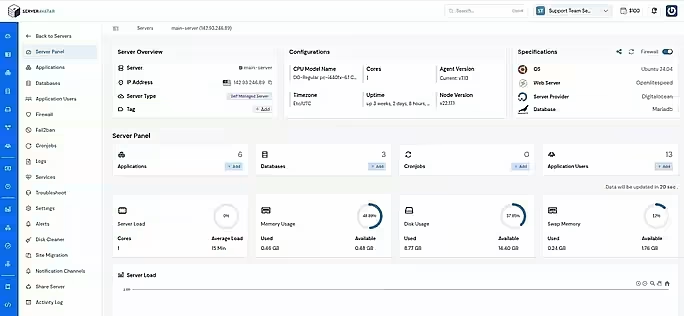
ServerAvatar makes WordPress and other popular applications, such as Mautic, N8N, UptimeKuma, etc, deployment effortless with its one-click WordPress application installer, allowing you to launch a fully configured WordPress site in minutes. It removes the complexity of server setup by providing an intuitive dashboard to manage servers, applications, databases, PHP versions, SSL, and performance settings from one place.
ServerAvatar supports multiple cloud providers and gives users full control over their infrastructure while eliminating the need for deep server administration knowledge. You can refer to the ServerAvatar documentation and the detailed blog to install WordPress effortlessly.
ServerAvatar does not directly provide WordPress Multisite, but our technical experts can help you set up a WordPress Multisite environment.
The ServerAvatar support team is available 24/7 to assist you with any issues or questions you may have.
Key Benefits of Using ServerAvatar for WordPress
- One-click Application installer: Deploy WordPress and many popular applications instantly without manual configuration.
- Unified management panel: Manage servers and WordPress applications from a single dashboard.
- Performance optimization: Easily configure services, PHP, and server resources.
- Redis caching support: ServerAvatar comes with built-in Redis integration that helps speed up WordPress by storing frequently accessed data in memory.
- Enhanced security: Includes firewall, SSL management, and secure access controls.
- Easy scalability: Upgrade server resources as your WordPress site grows.
ServerAvatar is an ideal solution for users who want the power of cloud servers without the operational complexity. It simplifies WordPress hosting by automating server setup, streamlining application management, and providing performance and security optimizations out of the box.
Whether you’re a developer, agency, or business owner, ServerAvatar allows you to deploy, manage, and scale WordPress websites confidently while focusing on growth instead of infrastructure management.
Access Your Database via phpMyAdmin
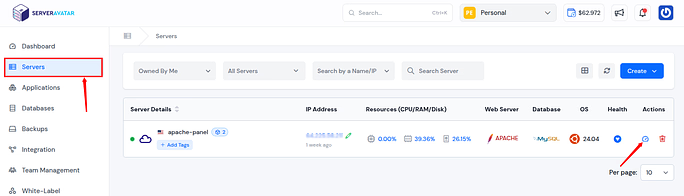
- Log in to your ServerAvatar account
- Navigate to the server panel by clicking on the server dashboard icon.
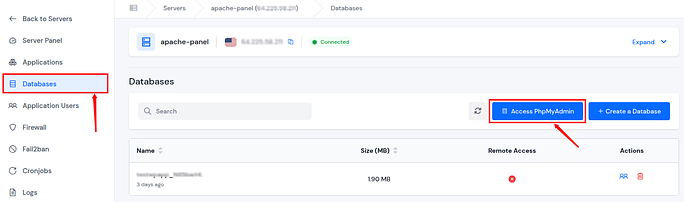
- Navigate to the Databases section and click on the Access phpMyAdmin button
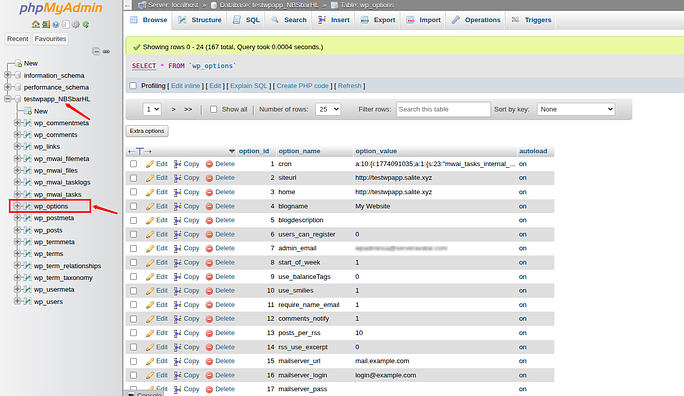
- Log in to the PhpMyAdmin and select your WordPress database.
Step 2: Update Main Admin Email
- Find the table named wp_options (Your prefix may be different)
- Look for the row called admin_email, and click on the Edit button
- Replace the old email with the new one
- Now, click on the Save button
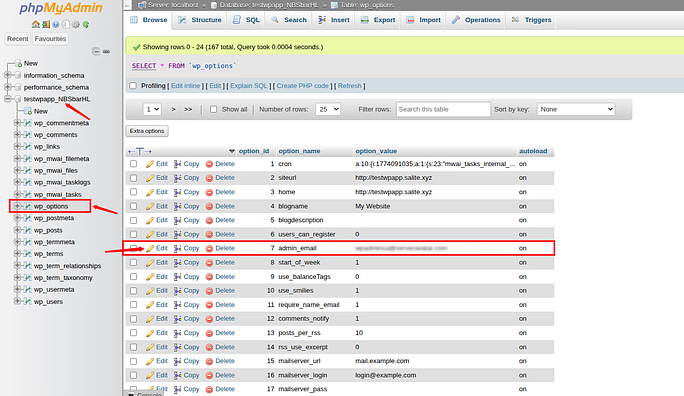
- Now, your main site email is updated instantly.
Step 3: Update User Profile Email
- Now, open the wp_users table, and find your admin account
- Now, click on the Edit button
- Locate the user_email field
- Enter your new email, and update your email with the new one
- Save changes
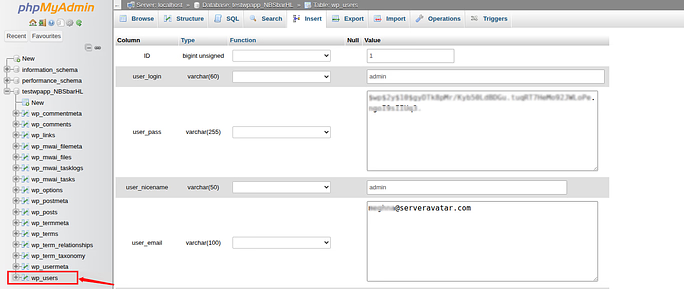
- Done! You’ve now updated both emails directly, no verification, no delays.
Which Method Should You Choose?
Choosing the right method depends on your current situation and access level.
- Use Dashboard Method: Best when your site is working normally
- Use Plugin Method: Ideal if emails are not being delivered
- Use Database Method: Useful if you’re locked out or need full control
Common Issues When Updating WordPress Admin Email (And How to Fix Them)
Changing your WordPress admin email sounds simple, but sometimes things don’t go as expected. You click “Save Changes,” and suddenly… nothing happens. Or worse, you’re stuck with a “pending change” message forever. Don’t worry. These issues are quite common, and most of them have quick fixes. Let’s checkout the popular problems and how you can solve the problems.
1. Not Receiving the Confirmation Email
This is the most common issue that users have face. You enter a new email, hit save, and wait… but the confirmation email never shows up.
Why it happens:
WordPress uses a basic email function that often gets flagged as spam or blocked entirely.
How to fix it:
- Check your spam or junk folder
- Wait a few minutes (sometimes emails are delayed)
- Try resending the request
- Set up an SMTP plugin for reliable email delivery
Think of SMTP like a verified courier service, it makes sure your message actually reaches the destination.
2. Stuck on “Pending Email Change”
You may notice a message saying your email change is pending, but it never updates.
Why it happens:
The confirmation link hasn’t been clicked, or the email was never delivered.
How to fix it:
- Open your new email inbox and click the confirmation link
- If you didn’t receive it, cancel the pending request and try again
- Use the plugin method to skip verification if needed
3. Email Not Updating After Saving Changes
Sometimes, even after following all steps, the email just doesn’t update.
Why it happens:
- Browser cache issues
- Plugin conflicts
- WordPress settings not refreshing properly
How to fix it:
- Clear your browser cache
- Try a different browser
- Temporarily disable plugins and test again
4. Unable to Access Old Email Address
What if you no longer have access to the old email? This can feel like being locked out of your own house.
How to fix it:
- Use phpMyAdmin (database method) to update email directly
- Or use the plugin method to bypass confirmation
These methods don’t require access to your old inbox.
5. WordPress Emails Not Sending at All
If your site isn’t sending any emails, not just admin changes, there’s likely a deeper issue.
Why it happens:
Your hosting server may not be configured properly for sending emails.
How to fix it:
- Install an SMTP plugin
- Connect it with services like Gmail or Mailgun
- Test email delivery after setup
6. White Screen or Error After Editing Files
If you tried the functions.php method and your site breaks, don’t panic.
Why it happens:
A small coding mistake can cause errors.
How to fix it:
- Remove the added code immediately
- Restore your backup if needed
- Double-check syntax before saving
7. Changes Reverting Back Automatically
In some cases, your email may revert to the old one.
Why it happens:
- Code still present in functions.php
- Caching issues
- Hosting-level overrides
How to fix it:
- Remove any temporary code
- Clear website and server cache
- Save changes again

Tips to Keep Your Email Secure
Your admin email is one of the most important parts of your website, so securing it is essential.
- Use a strong password: Prevent unauthorized access
- Enable 2-factor authentication: Add an extra layer of security
- Avoid public/shared emails: Keep access limited and private
- Keep WordPress updated: Reduce security vulnerabilities
- Use security plugins: Monitor and protect your website
Think of your admin email as the master key to your website, you wouldn’t leave it lying around, right?
Conclusion
Changing your WordPress admin email is more than just a simple update, it’s a key step in maintaining control, security, and smooth communication for your website. Whether you choose the dashboard method, a plugin, or the database approach, each option gives you flexibility based on your situation. By following the right steps and understanding common issues, you can avoid delays and ensure your website stays connected to the right email address. Keeping this information updated not only prevents future problems but also helps you manage your site with confidence and peace of mind.
FAQs
1. How long does it take to change the WordPress admin email?
It usually updates instantly after confirmation, but delays can happen if the email is not verified quickly.
2. What happens if I don’t confirm the new admin email?
The email will remain unchanged, and WordPress will continue using the old address.
3. Can I change the admin email without access to the old one?
You can use a plugin or database method to update it without needing the old email.
4. Why am I not receiving the confirmation email?
This often happens due to spam filters or server email issues; using SMTP can fix it.
5. Is it necessary to update both admin and user email?
Updating both ensures you receive notifications and can manage login-related actions properly.
6. Will changing the admin email affect my website?
It won’t impact your site’s functionality, but it changes where you receive important notifications.
7. How can I make sure my new admin email is secure?
Use a strong password, enable two-factor authentication, and avoid using shared or public email accounts.