


Your WordPress site may be more exposed than you realize. Strong WordPress Security isn’t just about passwords and updates, features like XML-RPC, PHP execution, and file integrity can also create risks if left unchecked. Securing these areas helps protect your website from common threats.
I have lost count of how many times I have seen a fresh WordPress install get compromised within days of going live. Not because the owner was careless, but because the defaults are built for convenience, not security.
ServerAvatar’s WordPress Toolkit puts three powerful security controls right in front of you, no config files, no command line, no guesswork. Block XML-RPC requests, stop PHP from running in your uploads directory, and verify your core files against WordPress.org’s checksums.
This guide walks through all three. I will explain what each one does, why it matters, and when you’d actually flip the switch on or off. Let’s get into it.
TL;DR
- Block XML-RPC if you’re not using the WordPress mobile app or Jetpack
- Block PHP execution in uploads, this stops the most common attack path for uploaded malware
- Verify checksums to catch any core files that have been modified without you knowing
- All three are in ServerAvatar’s WordPress Toolkit Security section, no config files needed
- These are layered defenses, one alone isn’t enough, but all three together make a real difference
Why WordPress Security Deserves Your Attention
WordPress runs over 40% of websites, which makes it a constant target. Attackers don’t need new tricks, they reuse the same known entry points across many sites.
Most hacks usually happen in a few ways:
- Brute-force login attempts (often via
xmlrpc.php) - Malicious files were uploaded and later executed
- Core WordPress files are being modified through a vulnerability
These mentioned settings lowers the risk by shutting the main entry points that attackers typically target.
Block XML-RPC Requests
What is XML-RPC?
XML-RPC (xmlrpc.php) is a WordPress feature that allows external apps like the mobile app, Jetpack, and other tools to connect and interact with your site.
The concern is that attackers can also take advantage of it. It includes a method called system.multicall, which allows multiple password attempts in a single request, making brute-force attacks faster and harder to detect than normal login attempts.
If you notice POST requests to xmlrpc.php in your logs, it’s often a sign of automated login attacks targeting this endpoint.
How to Block XML-RPC in ServerAvatar’s WordPress Toolkit
Here’s how you can disable it using ServerAvatar:
- Log in to your ServerAvatar account and navigate to the server panel.
- Go to Applications, then click on your dashboard icon for your WordPress application.
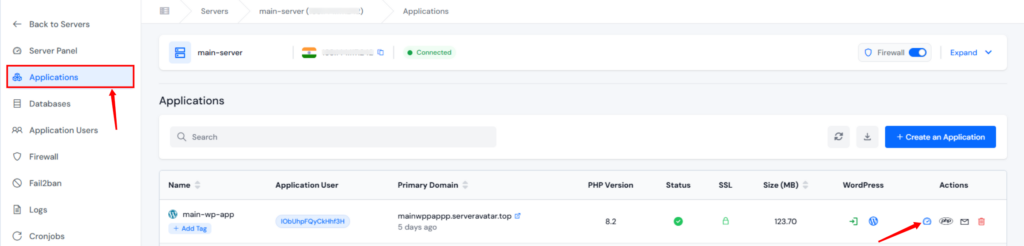
- Open WP Toolkit from left sidebar and go to the Security section.
- Find the “Block XML-RPC Requests”
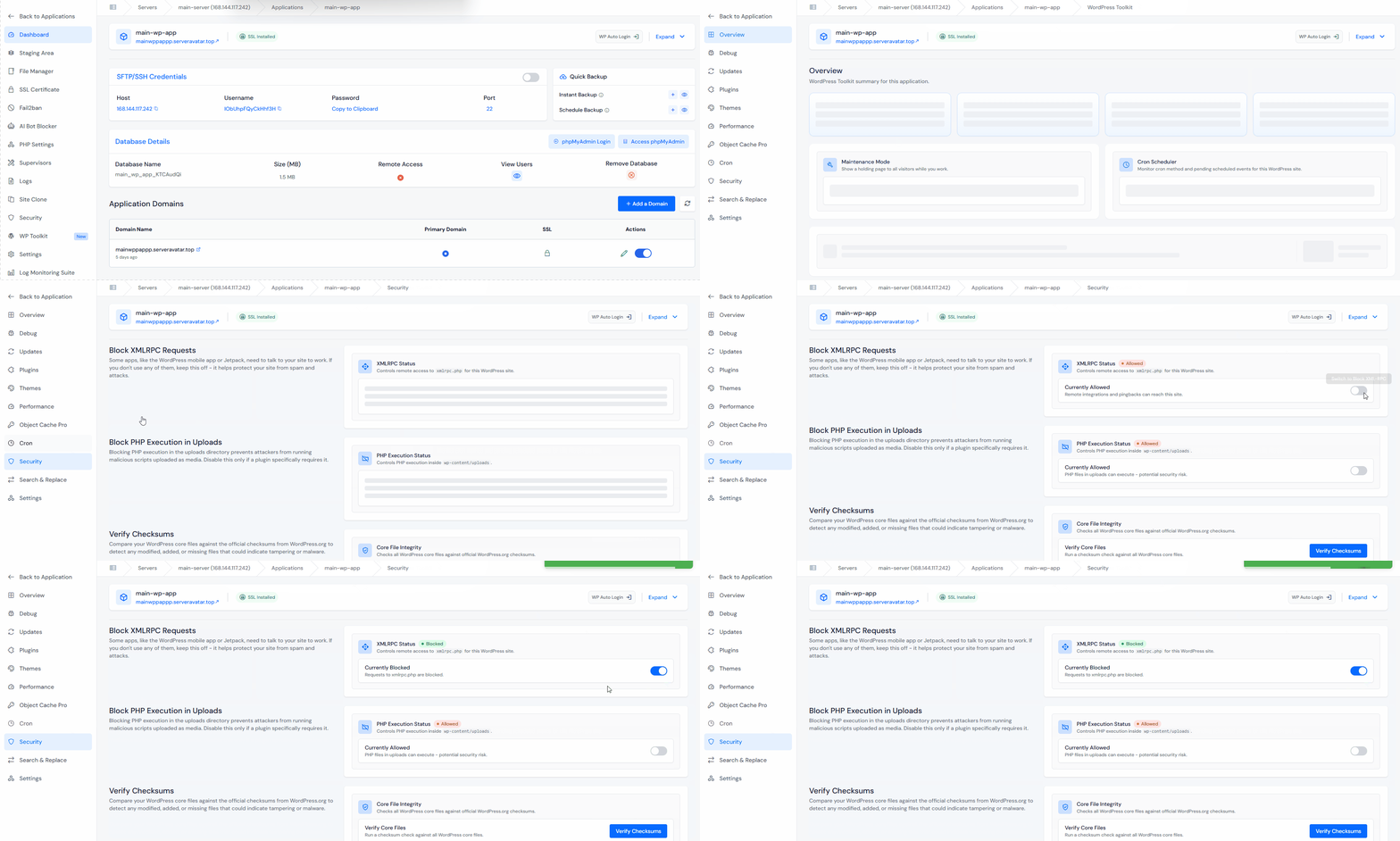
- Once enabled, the status will change from Allowed to Blocked, meaning XML-RPC requests, pingbacks, and remote access calls will no longer work on your site.
What to Consider Before You Block It
This setting breaks a few things:
- WordPress mobile app won’t be able to publish or manage content remotely
- Jetpack needs xmlrpc.php to connect to WordPress.com
- Some pingback/trackback systems still exist, but in reality, pingbacks have largely become noise at this stage.
If you’re using the mobile app or Jetpack, you can keep XML-RPC enabled, but make sure your site is well protected with a strong password, two-factor authentication, and Jetpack’s brute-force protection.
If you don’t need these features, disabling XML-RPC is an easy improvement that can quickly reduce a large number of unwanted login attempts.
Block PHP Execution in Uploads
Why Uploads Are a Security Risk
When you upload files in WordPress, they are stored in /wp-content/uploads/. By default, if a PHP file ends up there, it may still be executed if accessed directly.
This becomes dangerous if an attacker uploads a malicious script through a vulnerable plugin, form, or compromised account. That file isn’t just stored, it can run on your server with your site’s permissions.
This is one of the most common WordPress attack patterns. But it’s easy to prevent, you can simply block PHP execution inside the uploads folder so any uploaded scripts can’t run at all.
How to Block PHP Execution in Uploads
ServerAvatar’s WordPress Toolkit makes this straightforward:
- In the Security section of the WordPress Toolkit, find Block PHP Execution in Uploads option, which is allowed by default. Simply enable the toggle button.
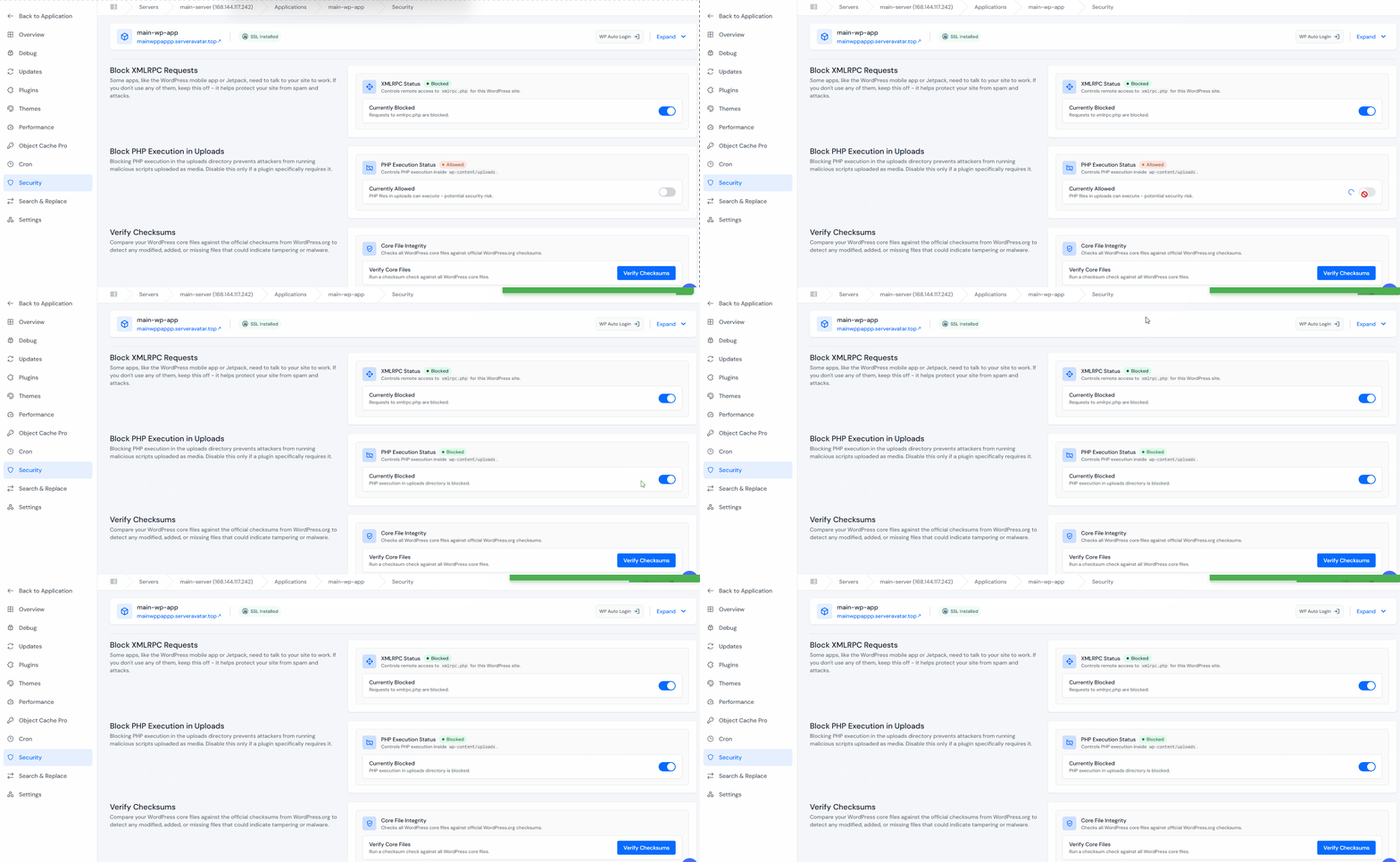
- Once enabled, any PHP file uploaded to your uploads folder will display as plain text instead of running. The file gets stored, but it can’t do any damage.
A Key Note to Keep in Mind
Some plugins may require uploading and running PHP files, especially those handling file uploads or server-side media processing. This is rare because most well-designed plugins depend on JavaScript or WordPress’s media handling system rather than executing uploaded code.
If enabling this setting causes issues, it can be turned off again. In most cases, WordPress sites run smoothly with it enabled.
When a plugin does break, it’s worth reviewing closely, as needing to execute uploaded PHP can be a potential security concern.
Verify Checksums
What Are Checksums and Why They Matter?
Each WordPress core file has a checksum, a unique digital signature based on its contents. WordPress.org provides these for every release. If even a single change occurs in a file, whether from corruption, a failed update, or malicious tampering, the checksum will no longer match.
Checking these values is like auditing your core files to ensure nothing has been altered. Issues can easily go unnoticed until this verification reveals them.
In some cases, compromised core files may continue working normally for a long time because the injected code only runs under specific conditions. A checksum check would detect such hidden changes right away.
How to Run Checksum Verification
In ServerAvatar’s WordPress Toolkit:
- In the Security section of the WordPress Toolkit, find Verify Checksums option.
- Click the Verify Checksums button
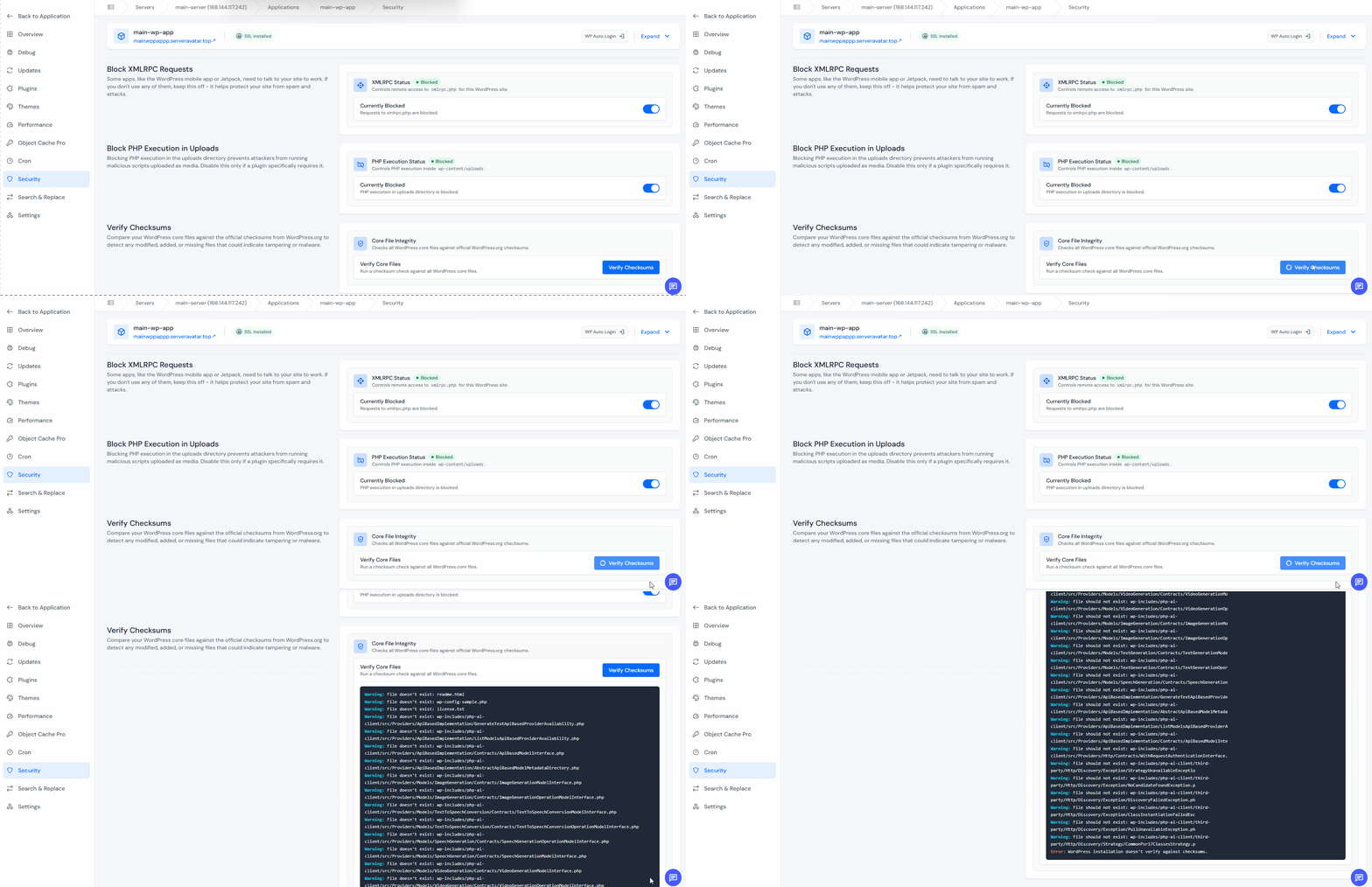
- ServerAvatar will compare every WordPress core file against the official checksums published by WordPress.org.
- If anything’s been modified, added, or deleted without matching the official release, it’ll show up in the results.
What to Do If Checksums Fail
If checksum shows mismatched files, respond it promptly:
- Check what changed: the report will show you which files don’t match
- Restore from a known good backup: if you have clean backups (and you should), restore the affected files
- Update WordPress core: a fresh WordPress installation will replace all core files with verified copies
- Audit your plugins and themes: if WordPress core was modified, there’s usually a way in through a plugin or theme. Find it before you just patch over the damage
Checksums failing is a real signal, not a false alarm. Treat it as evidence that something happened, even if you can’t immediately identify what, and investigate before assuming it’s nothing.
All Three Together: How They Layer
Each of these three controls targets a different type of attack. Used together, they form a layered security approach that improves overall protection.
| Security Feature | What It Blocks | Attack Vector It Addresses |
|---|---|---|
| Block XML-RPC | External apps from connecting via XML-RPC | Brute force attacks through xmlrpc.php |
| Block PHP in Uploads | PHP files in uploads folder from executing | Uploaded malware execution |
| Verify Checksums | Catches modified core files against WordPress.org | Silent core file tampering |
Each control is useful on its own. With multiple layers in place, an attacker who bypasses one still faces others. The idea of layered security isn’t to make a system unbreakable, but to raise the cost and effort of an attack so it’s no longer worth it.

Key Takeaways
- Block XML-RPC if you don’t use the WordPress mobile app or Jetpack, it’s one of the easiest ways to stop brute force attacks
- Block PHP execution in uploads, this neutralizes the most common path for uploaded malware
- Run checksum verification regularly, it’s the only way to catch core files that have been silently modified
- All these three setting is in ServerAvatar’s WordPress Toolkit Security section, no config files or command line required
- These are layered defenses, use all three together for the best protection
Managing WordPress security across multiple sites?
ServerAvatar’s WordPress Toolkit puts all three of these controls, and more, in a single dashboard, so you’re not jumping between different tools to keep your sites secure.
Conclusion
Security doesn’t have to be complex. You don’t need advanced server expertise to get started. ServerAvatar’s WordPress Toolkit brings practical security controls into one place, and setting them up takes only a few minutes.
Disable XML-RPC if it isn’t required, block PHP execution in upload directories, and run periodic checksum checks. These simple steps each reduce real attack risks and together provide meaningful protection without disrupting your workflow.
In practice, many WordPress compromises happen through XML-RPC brute-force attempts or malicious file uploads. These are not just theoretical issues, they’re actively exploited. The encouraging part is that they’re also easy to prevent.
FAQs
Will blocking XML-RPC break my WordPress site?
It only affects you if you use tools like the WordPress mobile app, Jetpack, or other external services that rely on XML-RPC. If you don’t use them, blocking it has no impact. If you do, keep it enabled but secure your login with a strong password and two-factor authentication.
How do I know if my site was already compromised before I enabled these settings?
Perform a checksum verification to identify any modified core files. Also review the uploads folder for unknown PHP files and check server logs for unusual XML-RPC activity. If anything looks suspicious, restore from a clean backup before continuing.
Can I unblock PHP execution in uploads if a plugin stops working?
Yes, you can toggle it off anytime. If a plugin stops working after enabling this, it may be poorly designed and worth reviewing. Most legitimate plugins don’t require executing PHP from uploads. You can disable it temporarily if required.
How often should I verify WordPress core checksums?
For most sites, once a month is enough. Websites with heavy traffic or critical business functions can benefit from being checked on a weekly basis. You can also automate the process, but regular manual checks are still effective.
Does enabling these settings affect my site’s performance?
No, there’s no noticeable performance impact. XML-RPC blocking simply rejects unwanted requests, while PHP blocking and checksum checks only run occasionally and don’t affect daily site speed.
About the Author
Meghna Meghwani is a technical writer with hands-on experience in Ubuntu, VPS hosting, PHP, Laravel, Node.js, and cloud deployments. She writes practical tutorials, troubleshooting guides, and informative articles that help developers and businesses better understand server management, web hosting, security, trending technologies, and modern deployment workflows.