
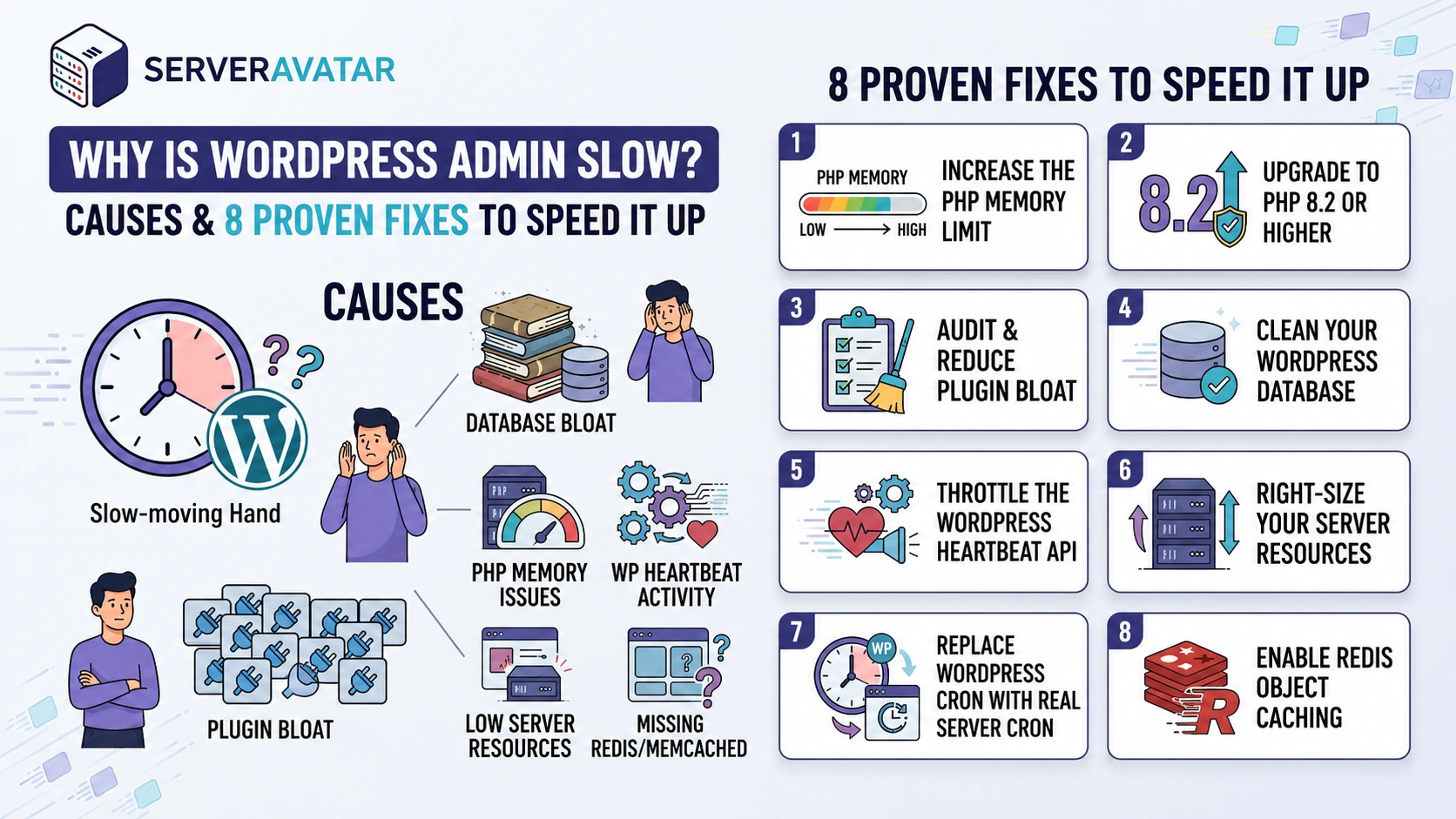

You have probably seen this happen: your WordPress website loads in under a second for visitors, yet your WordPress Admin Slow issue keeps getting worse. Every time you open the dashboard, you are staring at a loading spinner, wondering if something broke.
It is one of the most common complaints among WordPress users, and it is genuinely frustrating because it feels backwards. As your site grows, these backend operations become more demanding and can impact dashboard performance.
In this guide, we’ll explore practical ways to speed up the WordPress admin area, from optimizing PHP and databases to improving caching, cron jobs, and server resources. We’ll also show how ServerAvatar makes many of these optimizations easier to manage.
TL;DR
- WordPress admin is slower than the frontend because it bypasses page caching and processes everything dynamically.
- Increase PHP memory to 256M–512M to prevent performance bottlenecks.
- Upgrade to PHP 8.2 or higher for better speed, efficiency, and security.
- Audit plugins regularly and remove or replace resource-heavy plugins.
- Clean your database by removing old revisions, expired transients, and spam data.
- Reduce Heartbeat API frequency to lower unnecessary background requests.
- Use a server with at least 2 CPU cores, 2GB RAM, and SSD/NVMe storage.
- Replace WP-Cron with a real server cron job for more reliable task execution.
- Enable Redis Object Caching to dramatically reduce database queries and improve admin responsiveness.
- Apply optimizations gradually and measure results to identify the most impactful fixes for your site.
Why WordPress Admin Loads Differently Than Your Public Site
When a visitor lands on your homepage, the web server checks if a cached HTML version exists. If it does, the server serves that file directly, no PHP involved, no database query needed.
Now compare that to what happens when you open the WordPress admin panel:
- You authenticate, so page caching is bypassed intentionally.
- WordPress boots the full application stack for every single page request.
- PHP processes the request, loading your theme, active plugins, and core files.
- The database gets queried, often 30 to 80 times per page load, depending on your setup.
- Plugin hooks fire, some running additional database writes or external API calls.
For a site with light traffic and minimal plugins, this is manageable. But the moment you add a few plugins, enable e-commerce functionality, or increase content volume, the backend starts feeling the weight.
The fixes below target each bottleneck specifically.
1. Increase the PHP Memory Limit
Why It Matters
WordPress relies on PHP memory to process admin requests. When the available memory is too low, the dashboard can become sluggish, especially on sites using:
- Multiple plugins
- Page builders
- WooCommerce
- Security and backup tools
Common signs of a low PHP memory limit:
- Slow-loading admin pages
- Incomplete page loads
- Memory-related warnings or errors
- Poor performance during plugin updates or media uploads
Increase PHP Memory in ServerAvatar
On ServerAvatar, you can adjust the PHP memory limit directly from the dashboard without touching configuration files:
- Log into your ServerAvatar account.
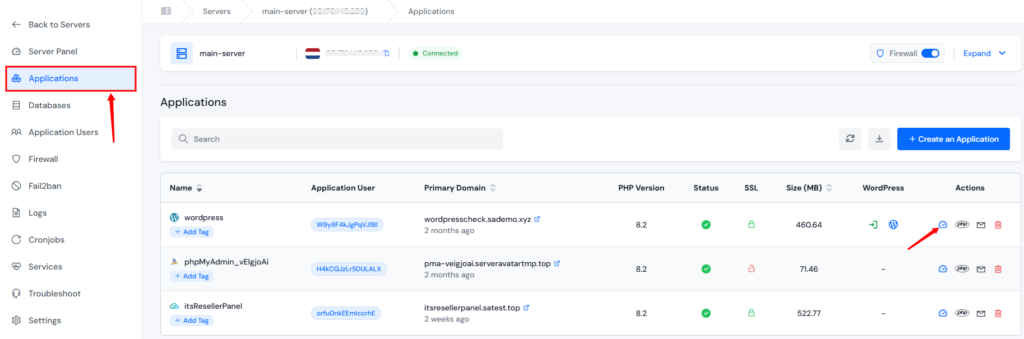
- Go to your server panel and the Applications section. Click on the dashboard icon for your application to open application panel.
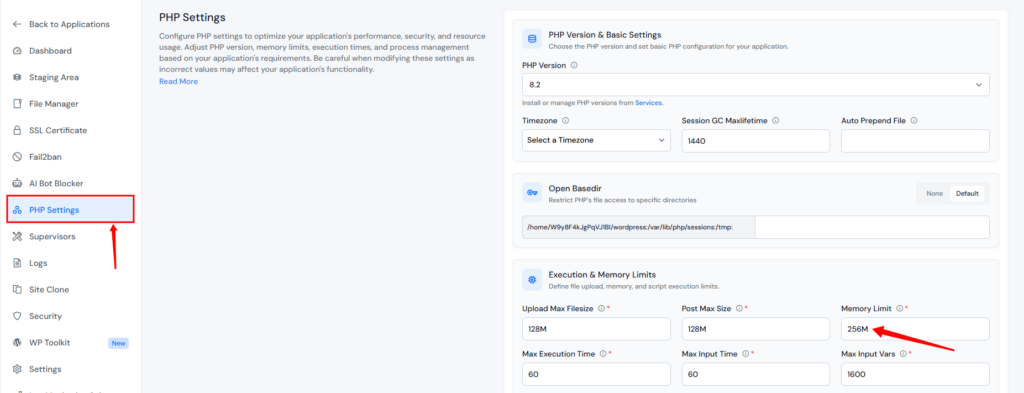
- Go to PHP Settings from the left sidebar.
- Find the
memory_limitfield and change it to256M. For WooCommerce or other heavy e-commerce setups,512Mis a safer bet. - Click on Update Settings button.
Manual Method
Add the following line to your wp-config.php file before the “That’s all, stop editing!” comment:
define('WP_MEMORY_LIMIT', '256M');What Happens Next
After increasing the PHP memory limit, WordPress admin pages should load more smoothly and reliably. Resource-heavy sections like WooCommerce orders, the Plugins page, and the Media Library often perform better, with fewer slowdowns, incomplete loads, or memory-related errors.
2. Upgrade to PHP 8.2 or higher
Why It Matters
Older PHP versions can limit WordPress performance and expose your server to security risks.
Benefits of upgrading to PHP 8.2 or higher version
- Faster PHP execution and request processing
- Improved resource efficiency
- Better compatibility with modern WordPress plugins and themes
- Ongoing security updates and bug fixes
How to Fix It
Upgrading PHP with ServerAvatar takes a few clicks:
- Go to your WordPress application panel from the ServerAvatar dashboard.
- Navigate to PHP Settings from the left sidebar.
- Change the version to PHP 8.2 or Higher PHP version (whichever is available and compatible with your theme and plugins, always test in staging first), and update the settings.

What Happens Next
Upgrading to PHP 8.2 or higher PHP version can significantly improve WordPress admin speed. The improvement is most noticeable on resource-heavy screens like Plugins, Themes, and pages that load multiple plugin files at once.
3. Audit and Reduce Plugin Bloat
Why It Matters
Not all plugins are optimized efficiently. Some plugins:
- Load CSS and JavaScript on every admin page
- Run unnecessary database queries
- Consume excessive PHP memory
- Perform background tasks and API requests
Over time, this can significantly slow down the WordPress dashboard.
How to Fix It
Start by identifying the worst offenders. Install the free Query Monitor plugin and activate it. Then analyze:
- Slow-loading plugins
- Excessive database queries
- High memory usage
- Performance bottlenecks
Once you know which plugins are heaviest, you have options:
For asset control, use tools like Asset CleanUp or Perfmatters to disable unnecessary CSS and JavaScript on specific admin pages. This prevents plugins from loading files where they aren’t needed.
For unused plugins, it’s best to remove them entirely. If a plugin isn’t essential or actively used, especially those running background tasks or analytics, deactivating and deleting it is the cleanest performance fix.
What Happens Next
After cleaning up unnecessary plugins, most users notice a smoother and more responsive WordPress admin. Navigation between dashboard sections becomes faster, and key screens like the Plugins page load more efficiently due to reduced system overhead.
4. Clean Your WordPress Database
Why It Matters
As your site grows, the database collects unnecessary data such as:
- Old post revisions
- Expired transients
- Orphaned metadata
- Spam comments
- Trashed content
This extra data increases query times and slows down admin pages.
How to Fix It
A simple way to clean your database is by using a plugin like WP-Optimize. It lets you remove post revisions, spam comments, transient data, and unused metadata directly from a user-friendly dashboard, without needing to access the database manually.
The WP-CLI approach (for users comfortable in the terminal):
# Clear expired transients
wp transient delete --expired

# Delete transients (safe if plugins handle them)
wp transient delete --all

# Remove post revisions
wp post delete $(wp post list --post_type=revision --format=ids)What Happens Next
A clean database often leads to a clear performance boost, especially on websites that have been active for years or publish content regularly. After optimization, pages like Posts, Pages, and the Media Library load more quickly and feel more responsive.
5. Throttle the WordPress Heartbeat API
Why It Matters
The Heartbeat API powers features such as:
- Autosave
- Session management
- Real-time notifications
By default, it sends frequent requests to the server, which can create unnecessary load.
How to Fix It
You can choose between two methods: a code snippet or a plugin.
The snippet approach
Add to your theme’s functions.php or a code snippets plugin:
add_filter('heartbeat_settings', function($settings) {
    $settings['interval'] = 60; <em>// Fires every 60 seconds instead of 15</em>
    return $settings;
});This pushes the Heartbeat interval from 15 seconds to 60 seconds, which is perfectly adequate for autosave and session monitoring without the constant polling.
The plugin approach
Install the free Heartbeat Controller plugin. Once activated, navigate to Heartbeat Controller and set the interval to 60 seconds for the WordPress Dashboard, Post Editor, and Frontend.
What Happens Next
After applying these changes, the WordPress admin should feel noticeably more responsive, especially in the post editor where most users spend their time. You may also notice fewer real-time plugin updates, which is a fair trade-off for improved overall performance.
6. Right-Size Your Server Resources
Why It Matters
WordPress admin relies heavily on PHP and database processing. Even a perfectly optimized site can feel slow on an underpowered server.
The Recommended Minimum Resources are 2 CPU cores, 2GB RAM, SSD or NVMe storage.
Consider upgrading if you are experiencing:
- Consistent admin lag
- High CPU usage
- Slow page loads during peak traffic
- Delays when multiple users are logged in
If you are on a 1-core VPS and are noticing consistent sluggishness in the admin area, upgrading your server specifications is often the most direct fix.
What Happens Next
On a properly sized server, admin page load times become significantly more consistent. You should not see the dramatic slowdowns that happen when multiple users or background processes hit the server simultaneously.
7. Replace WordPress Cron With a Real Server Cron Job
Why It Matters
WP-Cron runs scheduled tasks when pages are loaded instead of using the server’s scheduler.
This can lead to:
- Slower admin pages
- Delayed scheduled tasks
- Unnecessary resource usage
How to Fix It
Step 1: Disable the built-in WordPress cron.
Open wp-config.php and add this line:
define('DISABLE_WP_CRON', true);This prevents WordPress from running cron on page visits.
Step 2: Set up a real server-side cron job.
- Select the server, go to Cron Jobs.
- Add a new cron job with the following command:
wp cron event run --due-now --path=/var/www/your-site.com/public_htmlSwitch from WP-Cron to Server Cron with One Click
Use ServerAvatar’s WordPress Toolkit to change WP-Cron to a server-level cron job for more reliable scheduling and improved WordPress performance.

What Happens Next
This leads to more stable and consistent dashboard performance, even on busy websites. It also ensures scheduled actions like posts and backups execute on time without relying on user traffic.

8. Enable Redis Object Caching
The Cause
Without object caching, WordPress repeatedly queries the database for frequently requested data.
Redis stores this data in memory, reducing database load and speeding up page generation.
How to Fix It
Setting up Redis manually involves installing a Redis server, configuring it, installing a Redis PHP extension, and then configuring a WordPress drop-in plugin.
To set this up, you will need:
- A Redis server running on your VPS
- The
php-redisextension installed
You can easily install and set up the Redis Object Cache Plugin into WordPress with ServerAvatar.
What Happens Next
Redis object caching typically produces the most dramatic improvement for WordPress admin speed. On a typical site, it can reduce database queries per admin page from 30–80 down to just a handful.
Conclusion
A slow WordPress admin is usually caused by server, PHP, database, or caching bottlenecks—not WordPress itself. By applying the optimizations covered in this guide, such as increasing PHP memory, upgrading PHP, optimizing your database, and enabling Redis caching, you can significantly improve dashboard performance. Start with the changes that best match your site’s needs and measure the results as you go.
FAQs
Why is my WordPress admin slow even though my public site loads fast?
Your website’s frontend can use page caching, but the WordPress admin cannot. Every admin request must run PHP code, query the database, and load plugins in real time, making it more resource-intensive.
Does installing more caching plugins speed up the WordPress admin?
Usually not. Traditional caching plugins only speed up public pages. For admin performance, object caching (Redis), OPcache, and proper server optimization are far more effective.
How do I know if my PHP memory limit is too low?
Common signs include slow admin pages, failed updates, media upload issues, and memory-related errors such as “Allowed memory size exhausted”.
Can a slow WordPress admin affect my site’s SEO?
Not directly, but a sluggish dashboard can make site maintenance harder. Delayed updates, content publishing, and plugin management can indirectly impact SEO over time.
Is WooCommerce admin slower than a regular WordPress admin?
Yes, WooCommerce handles products, orders, inventory, and analytics, which require more database queries and server resources than a standard WordPress site.
Key Takeaways
- WordPress admin is slower because it doesn’t use page caching like the frontend.
- Increase PHP memory to 256M–512M for smoother dashboard performance.
- Upgrade to PHP 8.2 or higher version for better speed and security.
- Remove or optimize resource-heavy plugins.
- Clean your database regularly to reduce query load.
- Throttle the Heartbeat API to minimize background requests.
- Ensure your server has adequate CPU, RAM, and SSD/NVMe storage.
- Replace WP-Cron with a real server cron job.
- Enable Redis Object Caching for faster admin page loads.
Ready to simplify WordPress performance management? With ServerAvatar, you can configure PHP settings, Redis object caching, cron jobs, and other key optimizations from a single dashboard.
About the Author
Meghna Meghwani is a technical writer focused on Linux, Ubuntu, VPS hosting, server management, WordPress, PHP, Node.js, cloud hosting, and DevOps. She creates beginner-friendly tutorials, practical hosting guides, troubleshooting articles, and server security content designed to help developers and businesses manage applications and servers more efficiently.