
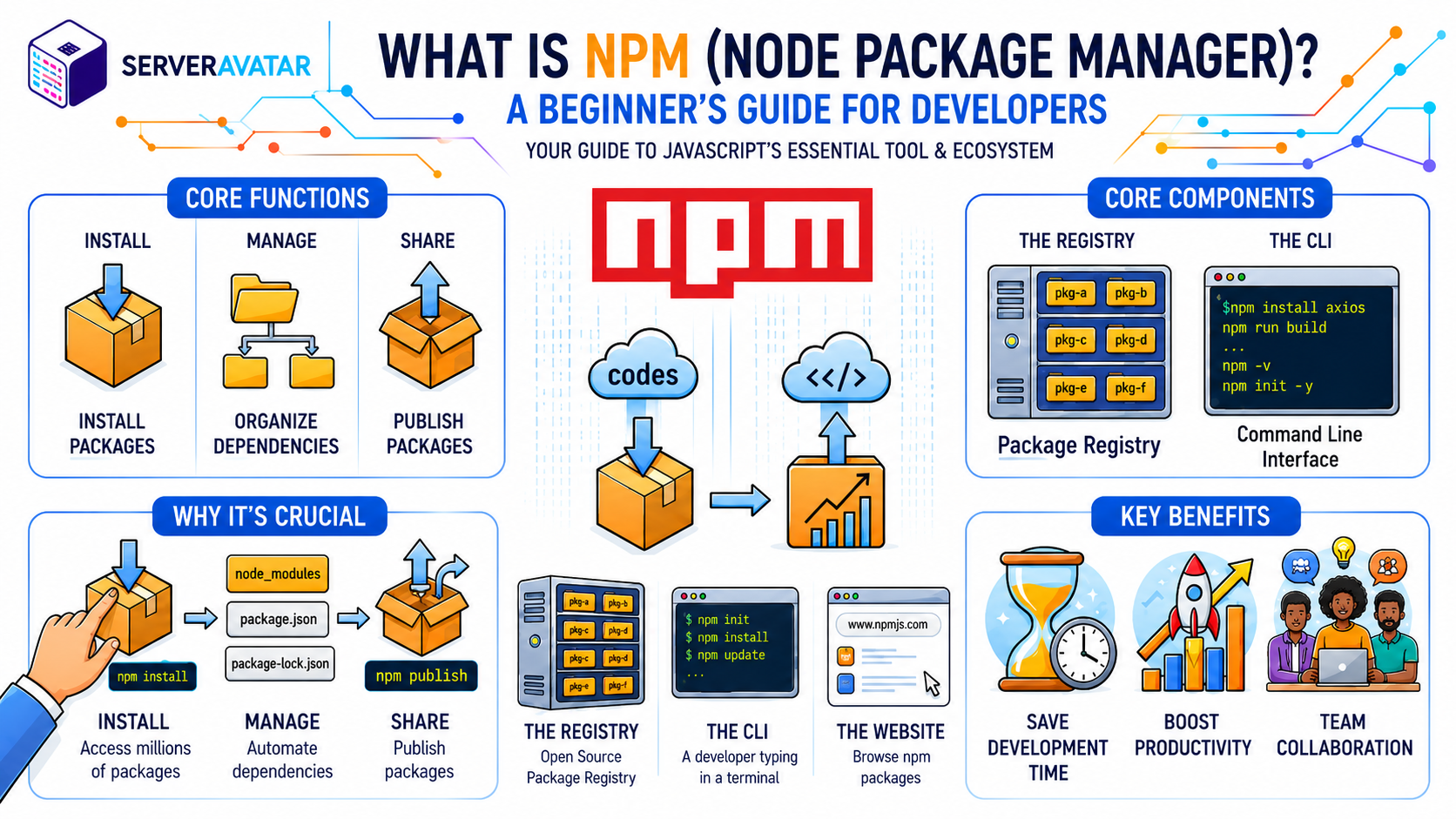

If you’ve started learning JavaScript or Node.js, you may be wondering what is npm and why developers use it so often. From installing packages to managing project dependencies, npm is an essential tool that simplifies modern JavaScript development.
Here’s the thing: modern JavaScript development is built on reusable packages. Instead of writing every feature from scratch, developers pull in code that others have already built, tested, and published. npm is what makes that possible. It’s the bridge between your project and a massive library of pre-built code.
This guide is for you if you are new to Node.js and want to understand what npm is, how it works, and how to use it without feeling overwhelmed. I will walk you through the concepts and commands you can understand and will use as a developer.
TL;DR (Too Long; Didn’t Read)
- npm stands for Node Package Manager. It’s the default tool for managing JavaScript code packages in Node.js projects
- It comes automatically when you install Node.js, so you don’t need a separate setup
- npm gives you access to a massive online registry where thousands of developers publish reusable code libraries
- The core workflow involves installing packages with
npm install, managing dependencies inpackage.json, and running scripts from the terminal - Understanding a few essential commands is enough to be productive, you don’t need to memorize the entire CLI reference
What is npm?
npm is short for Node Package Manager. It’s the default package manager for Node.js, and it’s been around since 2010. In plain terms, npm is a tool that helps you find, install, and manage small pieces of reusable code, called packages or modules, that other developers have published for anyone to use.
The npm registry is hosted at npmjs.com and contains over two million packages. These range from tiny utility libraries that handle specific tasks (like formatting dates or generating random IDs) to full frameworks like Express.js for building web servers or React for building user interfaces.
npm itself has three main components:
- The Registry: the online database that stores all published packages
- The CLI (Command Line Interface): the terminal tool you use to interact with the registry
- The Website: where you can search for packages, read documentation, and manage your account
Why Does npm Exist?
Before package managers were common, JavaScript developers had to manually download library files, manage file paths, and figure out which versions worked together. You want to update library, you manually download the new version with hoping nothing broke.
npm automated all of that. It handles downloading, version tracking, dependency resolution, and updates, things that used to take hours of manual work.
How does npm work? A Simple Breakdown
Understanding npm becomes much easier once you see how its pieces fit together. Let’s break it down.

The npm Registry
The npm registry is essentially a cloud storage system for JavaScript code packages. It serves as a central place where developers publish, share, and reuse code for JavaScript projects.
Each package on npm, Inc. (npmjs.com) typically includes:
- Official documentation and usage instructions
- Version history and release updates
- Download and usage statistics
- Dependency details showing what the package relies on
When you run an npm install command,
- The npm CLI connects directly to the registry
- It locates the requested package
- It downloads and installs it into your project automatically
This process removes the need to manually search or download packages from the website, as everything is handled through the command line.
The npm CLI
The Command Line Interface is the tool you use in your terminal to work with npm. Every command starts with npm, followed by an action like install, update, or run.
Here’s a simple example. Say you want to add a popular date library called moment to your project. You’d open your terminal, navigate to your project folder, and run:
npm install momentnpm connects to the registry, downloads moment, and places it inside a folder called node_modules in your project directory. That’s it.
The node_modules Folder
When you install packages, npm creates a node_modules folder in your project directory. This folder contains the code for every package your project depends on.
Key points:
- It contains the actual code of installed packages
- It is fully managed by npm
A good practice is to add node_modules to your .gitignore file so it doesn’t get committed to version control.
Because this folder can get large, and since npm can regenerate it from your configuration files, there’s no need to store it in your repository.
Understanding package.json
One of the most important files in any Node.js project is package.json. This file lives in your project root and acts as a manifest for your project.
It stores information like:
- Your project’s name and version
- A description of your project
- The packages your project depends on
- The packages your project needs for development only (dev dependencies)
- Scripts you can run (like starting a server or running tests)
- The version of Node.js your project supports
When you run npm install without specifying a package name, npm looks at your package.json file and installs all the packages listed there.
Creating a package.json
The easiest way to create a package.json file is to run:
npm initThis starts an interactive prompt that asks you a few questions about your project, name, version, description, entry point, and so on. If you want to skip the prompts and use sensible defaults, you can add the -y flag:
npm init -yThis generates a package.json with default values that you can edit later.
Installing Packages and Saving Dependencies
When you install a package, you can choose where it gets listed in your package.json:
- Regular dependencies: packages your application needs to run. Installed with:
npm install <package-name>- Development dependencies: packages only needed while you’re writing and testing code. Installed with:
npm install <package-name> --save-devThe distinction matters when you deploy your project. If you run npm install --production, only regular dependencies are installed. Dev dependencies like testing frameworks or build tools are skipped, keeping your production environment lean.
What is package-lock.json?
You might notice a second file in your project: package-lock.json. This file is automatically generated by npm and it locks the exact versions of every installed package, including the sub-dependencies (dependencies of your dependencies).
Why is it important
- When installing packages, version ranges like
^4.0.0may allow updates within a range. - Over time, newer compatible versions might get installed during future installs.
package-lock.jsonprevents this by locking the exact versions used.
Key benefits
- Ensures consistent installations across all environments
- Keeps development, testing, and production setups identical
- Helps avoid unexpected bugs caused by version differences
- Eliminates the common issue: “it works on my machine”
Essential npm Commands You Need to Know
The npm CLI has dozens of commands, but as a beginner, you only need to learn a handful. Here’s a practical breakdown.
Installing Packages
To install a package and add it to your dependencies.
npm install <package-name>To install everything listed in package.json , without package name.
npm installTo install only production dependencies, skipping dev dependencies.
npm install --productionRemoving Packages
Removing a package from your project and updates package.json.
npm uninstall <package-name>Updating Packages
Updating a package to the latest version allowed by your package.json . Without a package name, it updates all packages.
npm update <package-name>Running Scripts
Your package.json can define custom scripts. To run them:
npm run <script-name>There’s also a shortcut for common scripts. If your package.json has a start script, you can run it with:
npm startAnd for test scripts:
npm testChecking for Security Issues
npm auditThis scans your installed packages for known security vulnerabilities and reports what needs fixing. It’s a good habit to run this regularly, especially before deploying.
npm audit fixThis automatically applies security patches where available.
Listing Installed Packages
npm listShows you every package currently installed in your project, along with their versions.
How to Install npm (And Node.js)
Here’s some good news: when you install Node.js, npm comes bundled with it automatically. You don’t need to install them separately.
To get started:
- Go to nodejs.org
- Download installer for Windows, macOS, or Linux as per your operating system
- Run the installer; it handles everything, including npm
You’ll see two versions available:
- LTS (Long Term Support): recommended for most users because it prioritizes stability
- Current: It has the latest features but may update more frequently.
Once installed, open your terminal and verify:
node --version
npm --versionBoth commands should return version numbers, confirming that everything is set up correctly.
Updating npm
npm updates regularly. To make sure you’re on the latest version:
npm install npm@latestInstall Node.js and npm automatically with ServerAvatar
If you’re deploying applications on a VPS or cloud server, ServerAvatar simplifies the entire setup process. Instead of setting up Node.js and npm manually, ServerAvatar automatically handles the setup, so you can deploy your Node.js applications quickly.
It also offers one-click installation for popular Node.js applications, including:
- n8n: Workflow automation platform
- Node-RED: Visual programming and IoT automation tool
- Uptime Kuma: Self-hosted uptime monitoring solution
- NodeBB: Modern community forum software
Managing your applications is just as simple. ServerAvatar provides one-click updates for npm and node, making it easy to keep your Node.js applications and their environments up to date without manual server maintenance or complex deployment steps.
ServerAvatar enables developers and teams to deploy and manage Node.js applications faster and more efficiently.
Understanding Semantic Versioning
When you look at your package.json, you’ll notice version numbers like ^4.18.2 or ~1.0.4. These follow a system called semantic versioning (or SemVer).
A version number has three parts: MAJOR.MINOR.PATCH
- MAJOR: incompatible changes in the API
- MINOR: new functionality that stays backwards compatible
- PATCH: bug fixes that stay backwards compatible
The symbols in front of the version number tell npm how flexible to be when installing:
^(caret): allows minor and patch updates.^1.0.0accepts1.x.x~(tilde): allows only patch updates.~1.0.0accepts1.0.x- No symbol: locks to exactly that version
Using ^ is common for most projects because it lets you get bug fixes and new features without major breaking changes.
npm vs other package managers
npm comes with Node.js by default, but it it’s the only available package manager. Two popular alternatives are Yarn and pnpm.
| Feature | npm | Yarn | pnpm |
|---|---|---|---|
| Installation speed | Standard | Faster | Fastest |
| Disk space usage | Higher | Higher | Efficient |
| Lockfile | package-lock.json | yarn.lock | pnpm-lock.yaml |
| Adoption | Most widely used | Popular | Growing |
| Native Node.js support | Yes | No (needs extra deps) | Yes |
For beginners, starting with npm is the right choice. It’s everywhere, well-documented, and you won’t run into compatibility issues.
As you grow more comfortable, exploring alternatives like Yarn or pnpm is worth doing, but npm will serve you well for a long time.
Troubleshooting Common npm Issues
Permission Errors on Linux/macOS
If you see errors like EACCES: permission denied, avoid using sudo with npm. Instead, fix npm’s default directory permissions. This is a safer approach that doesn’t compromise your system security.
node_modules Is Too Large
This is normal for mature projects. Use .gitignore to exclude node_modules from version control. If you need to free up space, deleting the folder and running npm install regenerates everything from your configuration.
Package Not Found
If npm can’t find a package, double-check the spelling and that the package actually exists on the npm registry. You can search directly at npmjs.com.
Outdated Dependencies
Run npm outdated to see which packages have newer versions available. Then decide which ones to update based on your project’s stability needs.
Best Practices for Using npm
A few habits that will save you trouble down the road:
- Always use a
package.jsonin every project. It tracks your dependencies and makes collaboration easier. - Lock your production environment by using
npm ciinstead ofnpm installin CI/CD pipelines. It installs exact versions frompackage-lock.json. - Audit regularly. Run
npm auditbefore deploying to production. - Read package documentation before installing a package, skim its page on npmjs.com to understand what it does and what permissions it requires.
- Don’t install random packages, be intentional, every package is potential technical debt or a security risk.
Conclusion
npm is one of those tools that becomes invisible once you understand it, you stop thinking about the mechanics and just use it naturally. That’s exactly what you want as a developer. The goal isn’t to memorize every npm command or understand every internals. The goal is to understand the core concepts well enough to be productive.
You now know what npm is, how the registry and CLI work together, what package.json does, and which commands you’ll reach for most often. That’s a solid foundation. As you build more projects, your familiarity with npm will grow naturally, and you’ll find yourself exploring more advanced features when the need arises.
If you’re deploying Node.js applications and want a simpler way to manage servers, SSL certificates, firewalls, and applications on your VPS, ServerAvatar can help streamline many of these tasks.
FAQs
Does npm cost money?
No, npm is free for public packages, including installing and publishing open-source code. A paid plan (npm Pro) is available for private packages and extra team features, but basic usage is free for most developers.
Is npm required to be installed separately from Node.js?
No, when you install Node.js from nodejs.org, npm is included automatically.
What is the difference between npm install and npm ci?
npm install reads from package.json and may update versions within your allowed range. npm ci ignores package.json entirely and installs exact versions from package-lock.json. Use npm ci in production and automated environments for reproducible builds.
Is it safe to delete the node_modules folder?
Yes, node_modules is completely generated by npm. Deleting it and running npm install restores everything based on your configuration files. That’s exactly why it should be in your .gitignore.
Can I publish my own package to npm?
Absolutely, create a free account at npmjs.com, log in with the CLI using npm login, and run npm publish from your project directory. Make sure your package.json is properly configured first.
What is the difference between dependencies and devDependencies?
dependencies are packages required for your application to run in production. devDependencies are only needed during development (like testing frameworks or build tools). Use npm install <package> --save-dev to add a dev dependency.
Key Takeaways
- npm (Node Package Manager) is the standard package manager that comes with Node.js, used for installing, managing, and sharing reusable JavaScript packages
- npm comes bundled with Node.js, so a single installer sets up both
- The
package.jsonfile tracks your project name, version, dependencies, and scripts;package-lock.jsonlocks exact versions for consistency - A handful of commands (
install,uninstall,update,run,audit) cover most of what you’ll do daily - The
node_modulesfolder is managed automatically, never edit it manually, and keep it out of version control - Run
npm auditregularly, especially before deploying to production - Semantic versioning (SemVer) uses the format
MAJOR.MINOR.PATCHto communicate what kind of changes a package update contains
Want to learn more about deploying Node.js applications?
Check out how you can easily host and manage your Node.js apps using ServerAvatar Managed Node.js Cloud Hosting for a simple and reliable deployment experience.
About the Author
Meghna Meghwani is a technical writer focused on Linux, Ubuntu, VPS hosting, server management, WordPress, PHP, Node.js, cloud hosting, and DevOps. She creates beginner-friendly tutorials, practical hosting guides, troubleshooting articles, and server security content designed to help developers and businesses manage applications and servers more efficiently.