

You just clicked “Update Now” on a plugin. Thirty seconds later, your WordPress stuck in maintenance mode and shows a white screen that says: “Briefly unavailable for scheduled maintenance. Check back in a minute.” That minute passes. Then ten. Then an hour. You refresh. Still the same message.
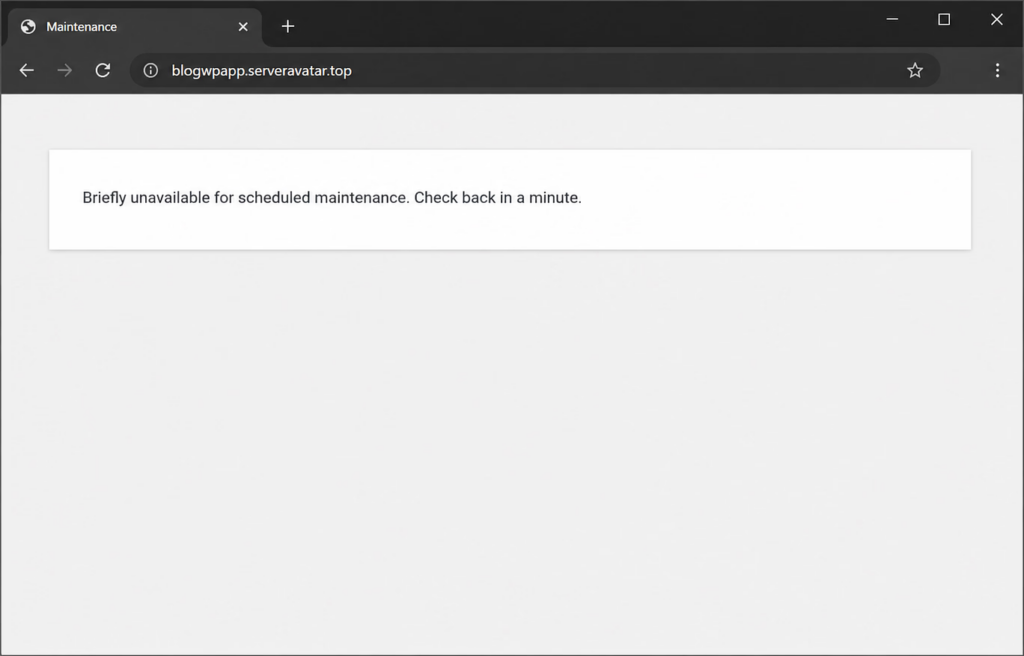
If you’ve been there, and plenty of WordPress users have, you already know the sinking feeling. You are locked out of your own website, and your visitors are seeing the same thing. You start wondering if you broke the internet, lost months of content, or need to restore from a backup.
Take a breath. You almost certainly didn’t break anything. Getting WordPress unstuck from maintenance mode is usually a simple fix, and you don’t need to be a server admin to do it. This guide walks you through exactly what’s happening, why it happened, and how to get your site back right now. I will also walk you through the best practices to prevent this issue from returning.
By the time you finish reading, you’ll know how to diagnose the issue, fix it yourself, and harden your setup so interruptions don’t leave you stranded again.
TL;DR
| Aspect | Details |
|---|---|
| What’s happening | WordPress creates a hidden .maintenance file during updates to block access temporarily. Normally gone in seconds. |
| Why it gets stuck | Interrupted updates (closed browser, dropped connection), low PHP memory, plugin/theme conflicts, file permission issues, or forgotten manual maintenance mode. |
| How to confirm | Refresh your website to see if the maintenance notice persists, confirm that /wp-admin redirects to the maintenance page, and check whether the .maintenance file exists in the root folder. |
| Step 1: Access files | Use ServerAvatar File Manager, FTP/SFTP, SSH, or hosting control panel. Enable “show hidden files.” |
| Step 2: Delete the file | Remove .maintenance from WordPress root (or run rm .maintenance via SSH). Refresh site. |
| Step 3: Clear cache | Hard refresh (Ctrl+F5 / Cmd+Shift+R) or test in incognito mode. |
| Step 4: If still stuck | Disable WP-Cron temporarily >> delete file again; deactivate all plugins and re-enable one by one; run wp core verify-checksums; check PHP/server error logs. |
| Prevention tips | Update plugins one at a time, test on staging first, monitor PHP memory limits, use server-side cron instead of WP-Cron, use a maintenance plugin with auto-timeout, check logs weekly. |
| Data safety | No data loss, it’s an access lock only, not a database/content issue. |
What Is WordPress Maintenance Mode, Exactly?
When WordPress runs an update, whether it’s a plugin, a theme, or the core itself, it needs a moment where nothing else touches the site while files are being swapped out. If a visitor tried to load a page mid-update, they could end up with a half-written file or corrupted database entry.
So WordPress puts the site into a brief holding state. It drops a small file called .maintenance in your root directory, and every visitor, including you, sees that “Briefly unavailable” message instead of your actual content. If you’re new to WP-CLI, the official WP-CLI documentation explains its available commands and how to use them for managing WordPress from the command line.
Under normal circumstances, this is invisible. The update finishes, WordPress deletes the .maintenance file, and everything goes back to normal within seconds.
The problem starts when something interrupts the update process before WordPress can clean up. Maybe your browser tab closed mid-upload. Maybe your internet dropped. Maybe your server ran out of memory and killed the process. When that happens, the .maintenance file stays right where it is, and your site stays locked.
I’ve seen this happen on everything from small personal blogs to agency-managed client sites. The good news is that the fix is almost always the same: find that file and remove it.
How to Tell If Your WordPress Site Is Actually Stuck
Not every slow update means your site is stuck. Sometimes WordPress really is just taking a minute to process a large plugin update. Here’s how to know the difference.
- The message is the first clue. If your site displays “Briefly unavailable for scheduled maintenance. When the maintenance message stays visible for several minutes instead of disappearing, it’s usually a sign that WordPress is stuck in maintenance mode and requires manual intervention.
- You can’t reach the admin dashboard. If you cannot access your WordPress admin dashboard and visiting
/wp-adminredirects you back to the maintenance screen, your site is likely stuck in maintenance mode rather than simply taking longer to update. - The message persists after refreshing. Give it a few refreshes over the course of a minute or two. If it never resolves, something has interrupted the process.
- You can confirm it by checking your files. You can verify the issue by checking your WordPress root directory for a
.maintenancefile using your hosting file manager, FTP, or SSH. If the file exists after several minutes of an update, it is likely causing the maintenance mode lock.
A useful side note: if you see the maintenance message but never initiated an update yourself, that’s actually a red flag. Someone may have triggered an update on your site without you knowing, or a plugin auto-updated itself. Either way, the fix is the same.
What Actually Causes WordPress to Get Stuck?
Understanding why this happens helps you fix it faster and avoid it in the future. Here are the most common culprits I’ve encountered in practice.
- Interrupted updates are the most common reason WordPress gets stuck in maintenance mode. If an update is stopped due to a closed browser, lost connection, or system sleep, the
.maintenancefile may remain and keep the site locked. - Server resource limits can also cause maintenance mode issues. On shared hosting, low PHP memory limits or execution timeouts may interrupt plugin updates, especially when updating multiple plugins or handling large update files.
- Plugin and theme conflicts can also interrupt updates. Incompatible plugins, outdated themes, or resource conflicts may cause the update process to fail and leave WordPress stuck in maintenance mode.
- File permission problems can also prevent WordPress from exiting maintenance mode. If WordPress lacks proper write access to manage the
.maintenancefile, it may remain even after a successful update. - Running multiple updates at the same time can create conflicts, especially on multi-user sites. These overlapping processes may leave the
.maintenancefile behind and keep WordPress stuck in maintenance mode. - Manual maintenance mode activation can also be the cause. If a site owner or developer enables maintenance mode through
wp-config.phpor a plugin and forgets to disable it, the.maintenancefile may remain and keep the site inaccessible.
How to Fix WordPress Stuck in Maintenance Mode
Here’s the step-by-step process I use every time. These steps work regardless of which hosting platform you’re on, though the exact interface will differ slightly.
Step 1: Access Your WordPress Files
Before making any changes, you need access to your WordPress Files.
Option 1: Using ServerAvatar (Recommended)
- Log in to your ServerAvatar dashboard. Navigate to the Server panel where your website is hosted.
- Go to the Applications section, and click on your application dashboard icon to navigate to your WordPress application panel.
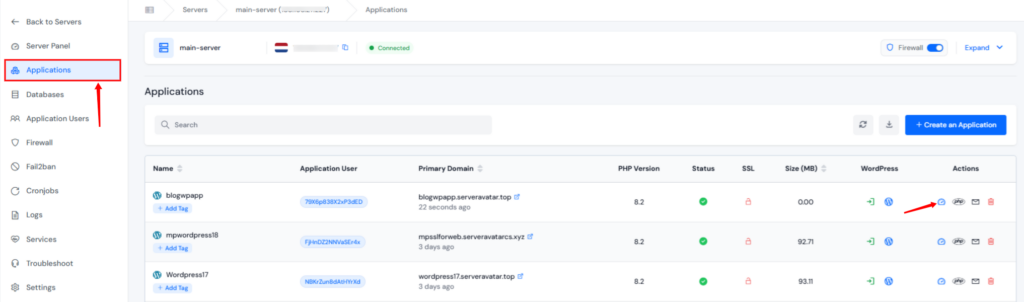
- Open the File Manager. Go to your WordPress root directory, generally public_html (the folder containing wp-admin, wp-content, and wp-includes).
- Enable the toggle to Show Hidden Files so hidden files such as
.maintenancebecome visible.
Option 2: Using FTP or SFTP
If your hosting provider doesn’t include a built-in file manager:
- Connect using an FTP/SFTP client such as FileZilla, WinSCP, or Cyberduck.
- Log in using your server hostname, username, password, and port (22 for SFTP or 21 for FTP).
- Navigate to your WordPress root directory.
- Enable Show Hidden Files in your FTP client if the
.maintenancefile is not visible.
Option 3: Using SSH
If you have SSH access:
- Connect to your server via SSH.
- Access your WordPress root directory by navigating to it with the
cdcommand. - Verify that hidden files are visible before proceeding.
Option 4: Using Your Hosting Control Panel
Most hosting providers offer a File Manager through their control panel.
- Open your hosting dashboard.
- Launch the File Manager.
- Navigate to your WordPress root directory.
- Enable hidden files if necessary.
Tip: Before modifying any files, create a backup of your website. This allows you to restore your site if something unexpected happens.
Step 2: Delete the .maintenance File
The .maintenance file tells WordPress to display the maintenance mode page. Removing it usually restores your website immediately.
Option 1: Using ServerAvatar
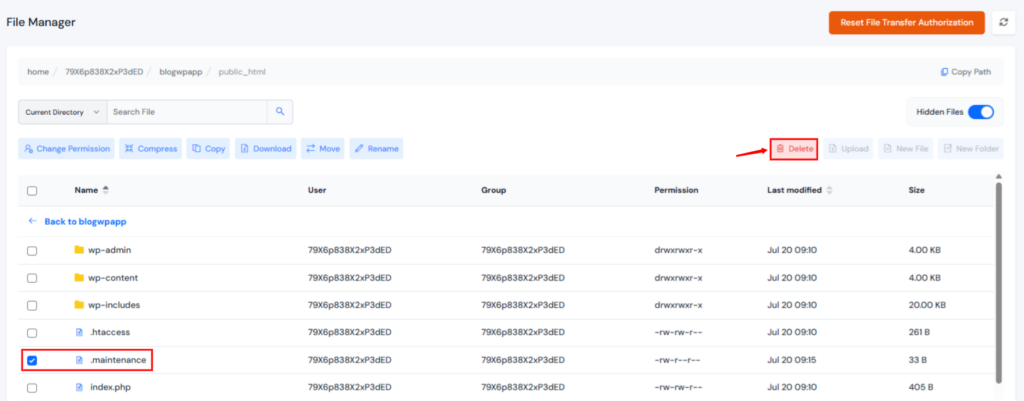
- Open File Manager.
- Navigate to your WordPress root directory.
- Locate the hidden
.maintenancefile. - Delete the file.
- Wait a few seconds and refresh your website.
Option 2: Using FTP or Hosting File Manager
- Locate the
.maintenancefile inside the WordPress root directory. - Delete it using the Delete option.
Option 3: Using SSH
Run the following command from your WordPress root directory:
rm .maintenance
After deleting the file, refresh your website. In most cases, the maintenance mode message disappears immediately
Step 3: Clear Your Browser Cache
If your website still displays the maintenance page after deleting the file, your browser may simply be showing a cached version.
- Refresh the page using Ctrl + F5 (Windows/Linux) or Cmd + Shift + R (macOS).
- If the issue remains, clear your browser cache.
- Alternatively, open the website in an Incognito or Private window to verify whether the issue is cache-related.
If the website loads correctly in a private window, simply clear your browser cache and reload the site normally.
Step 4: Perform Advanced Troubleshooting (If the Issue Persists)
If deleting the .maintenance file doesn’t solve the issue, or the file keeps reappearing, follow the checks below.
A. Check for a Stuck WordPress Cron Job
A failed scheduled task can recreate the .maintenance file repeatedly.
- Edit the
wp-config.phpfile. - Temporarily add the following line:
define('DISABLE_WP_CRON', true);- Delete the
.maintenancefile again. - Refresh your website.
- If the issue is resolved, investigate the cron job or configure a proper server cron.
- Remove the above line after troubleshooting unless you intentionally want WP-Cron disabled.
- To better understand how scheduled tasks work, refer to the official WordPress Cron documentation.
B. Disable Plugins
Run the command below to deactivate all plugins:
wp plugin deactivate --all- Once the website becomes accessible, reactivate plugins one at a time from the WordPress dashboard to identify the problematic plugin.
Note: If you are using ServerAvatar and had WP Toolkit enabled, you can easily manage plugins and other WordPress settings. You can quickly deactivate all plugins without using the command line.
C. Verify WordPress Core Files
Corrupted WordPress core files can also prevent updates from completing successfully.
Using ServerAvatar Terminal or SSH, run:
wp core verify-checksumsIf corrupted files are detected, reinstall the core files with:
wp core update --forceThis replaces only the WordPress core files without affecting your themes, plugins, or media.

D. Review Error Logs
If the problem still exists, inspect your server logs.
Using ServerAvatar
- Open your server panel in ServerAvatar.
- Navigate to the Logs section. Select the Log file from the given options.
- Review the PHP and web server logs.
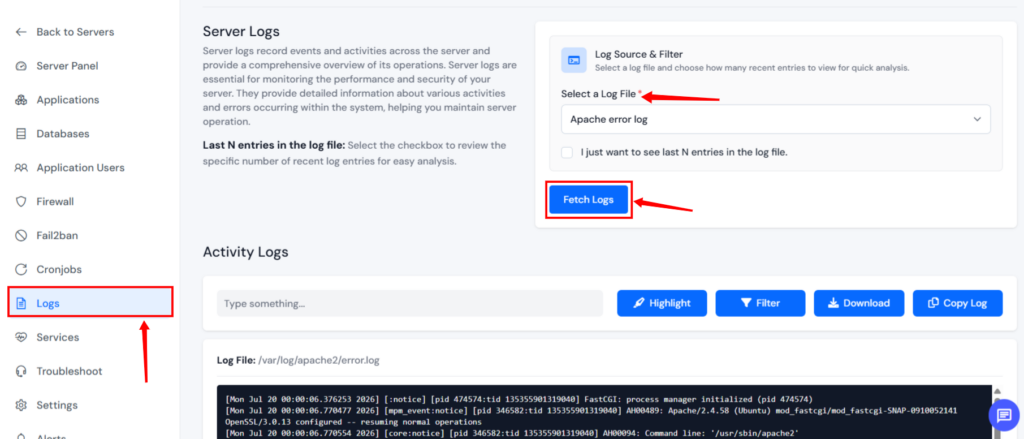
- Look for errors generated around the time maintenance mode appeared.
Other Hosting Providers
- Open your hosting control panel.
- Access the PHP or server error logs.
- Identify any plugin, theme, PHP, or server-related errors that may have interrupted the update process.
The error logs often reveal the exact cause, making it much easier to fix the underlying problem instead of repeatedly deleting the .maintenance file.
Preventing WordPress Maintenance Mode Issues
Getting unstuck is one thing. Preventing it from happening again is where a little planning goes a long way.
- Never run multiple updates at once. When you update plugins one at a time, WordPress can focus its resources on that single task. Updating five plugins simultaneously increases the chance that something gets interrupted, especially on resource-constrained hosting.
- Test updates on a staging site first. Always test updates on a staging site before applying them to your live website. A staging environment helps identify plugin, theme, or compatibility issues safely without affecting your production site. Before applying updates to your live website, it’s always a good idea to test them in a staging environment. Read our Complete Guide to Setting Up a Staging Environment to safely test updates and changes.
- Keep an eye on your PHP memory limits. Monitor your PHP memory limits regularly, as low available memory can interrupt WordPress updates. If your site frequently reaches its limit, optimize resource usage or consider upgrading to a hosting plan with higher capacity.
- Set up server-side cron instead of WordPress cron. Use a server-side cron job instead of relying on WP-Cron. Unlike WP-Cron, which depends on site traffic, server cron runs at scheduled intervals and provides more reliable task execution with better resource control. If you don’t know about cron job, read our detailed guide on Cronjob in Linux: A Complete Guide to Task Automation for a step-by-step walkthrough.
- Use a maintenance mode plugin with a timeout feature. Use a maintenance mode plugin with an automatic timeout option. This ensures maintenance mode is disabled after a set period, preventing accidental lockouts when manual deactivation is forgotten.
- Monitor your error logs regularly. A weekly check of your error logs can catch problems before they become full outages. Many hosting panels provide this out of the box, and it’s one of the simplest preventative habits you can build.
Key Takeaways
- WordPress maintenance mode is triggered by a
.maintenancefile in your root directory, delete it to restore access - Browser caching can make it look like your site is still stuck even after you’ve fixed it, always clear your cache
- Server resource limits and interrupted updates are the most common root causes
- WP-CLI gives you powerful troubleshooting tools when you can’t access the admin panel
- Staging environments and server-side cron jobs are your best long-term prevention tools
- Your site data is never at risk during a maintenance mode lock, only access is affected
If you’re managing multiple WordPress sites and want a simpler way to handle updates, backups, and server configuration from a single dashboard, ServerAvatar offers a platform designed for exactly that, managing WordPress deployments and maintenance without needing to dig through server configs every time.
Conclusion
WordPress getting stuck in maintenance mode feels dramatic, but it’s almost always a minor issue with a quick fix. In most cases, you’re looking at deleting a single file and clearing your browser cache. Even when the simple fix doesn’t work, WP-CLI and your server’s error logs give you enough information to pinpoint exactly what went wrong.
The real lesson isn’t just about fixing it, it’s about building habits that prevent it. Running updates one at a time, testing on staging first, keeping an eye on your PHP memory usage, and knowing how to access your site files without the admin panel are all skills that pay off well beyond this specific problem.
FAQs
How long should WordPress maintenance mode actually last?
Normally, less than a minute. The entire process of updating a plugin or theme is designed to complete in seconds. If your site is still showing the maintenance message after two or three minutes, something has gone wrong. Start troubleshooting.
Will I lose data if my site is stuck in maintenance mode?
No. Maintenance mode is a temporary access lock, it doesn’t affect your database or files. Your content, posts, settings, and uploaded media are all safe. The issue is purely about access, not data loss.
Can I access my site while it’s stuck in maintenance mode?
Usually not. WordPress redirects both visitors and administrators to the maintenance page. However, if you can access your server files directly, you can fix the issue without needing admin access at all.
What if deleting the .maintenance file doesn’t work?
If the file keeps reappearing after you delete it, a stuck WP-Cron job is the most likely cause. Try disabling WP-Cron temporarily in wp-config.php, delete the file again, and see if it stays gone. You should also check your error logs for PHP fatal errors that might be triggering the condition.
Is there a command to force WordPress out of maintenance mode?
From the terminal, you can delete the .maintenance file directly with rm .maintenance from your WordPress root directory. If you have WP-CLI installed, you can also run wp maintenance-mode deactivate if a maintenance mode plugin is handling the lock, though in most cases, simply removing the file is enough.
About the Author
Meghna Meghwani is a technical writer focused on Linux, Ubuntu, VPS hosting, server management, WordPress, PHP, Node.js, cloud hosting, and DevOps. She creates beginner-friendly tutorials, practical hosting guides, troubleshooting articles, and server security content designed to help developers and businesses manage applications and servers more efficiently.