

You refresh your website. Instead of loading, you get a blank white page with four words: HTTP 503 Service Unavailable Error. No explanation. No timeline. No next step. Whether you’re managing a WordPress site, an eCommerce store, or a web application, the HTTP 503 Service Unavailable Error can instantly make your website inaccessible to visitors and impact your business.
I’ve been there. Not just as a user, but as someone responsible for the server when that message started appearing for hundreds of real visitors. The 503 error is frustrating because it tells you something is wrong but gives you almost nothing to work with.
Here’s the good news: it almost always has a fixable cause, and you can usually identify it in under ten minutes if you know where to look. This guide walks through everything, what the error actually means, why it happens, how to diagnose it systematically, and how to fix it. Let’s get into it.
TL;DR
- HTTP 503 means your server can’t handle requests right now, temporarily or otherwise
- The most frequent causes include server overload, scheduled maintenance, application process failures, incorrect firewall configurations, and DNS-related problems.
- Diagnosis starts with checking server resource usage and reading logs
- Most 503 errors clear within minutes; persistent ones usually need manual intervention
- ServerAvatar’s dashboard gives you resource monitoring, process management, and log access in one place, no CLI required for most diagnoses
What Is HTTP 503, Really?
503 is a status code in the 5xx range, which means something went wrong on the server side. Unlike 404 (not found) or 403 (forbidden), a 503 isn’t telling you the resource doesn’t exist; it’s telling you the server exists but can’t respond right now.
Here’s the part most people skip: 503 is a signal, not a diagnosis. It doesn’t tell you why the server is unavailable. That ambiguity is what makes it tricky. The cause could be as simple as a background service that crashed or as complex as a database server running out of memory.
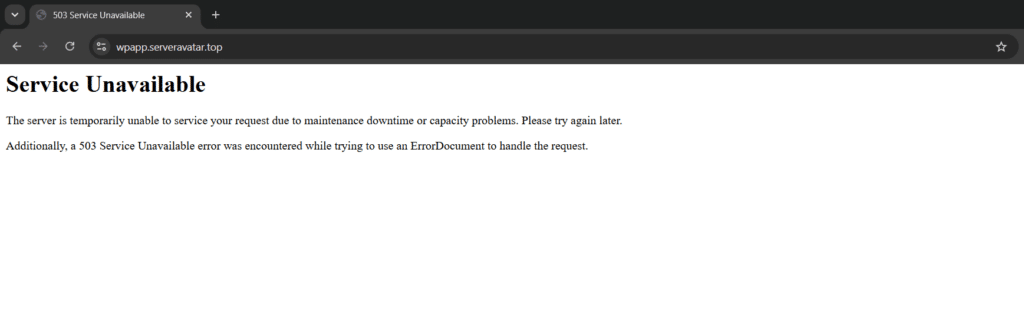
On the user’s end, the only real option is to wait a bit and attempt it again later. From a developer or sysadmin perspective, you’ve got work to do.
One important distinction: 503 can be temporary or permanent, depending on what’s causing it. A server under a DDoS attack might recover once traffic normalizes. A misconfigured firewall rule, on the other hand, will keep throwing 503 indefinitely until someone fixes it.
HTTP 503 vs Other Common HTTP Errors
| HTTP Status | Meaning | Primary Cause | Can Visitors Fix It? | Typical Solution |
|---|---|---|---|---|
| 503 Service Unavailable | Server is temporarily unable to process requests | Server overload, maintenance, backend service failure | No | Restore services, free resources, or wait until maintenance finishes |
| 500 Internal Server Error | Unexpected server-side application error | Application bugs, PHP errors, configuration issues | No | Review application logs and fix the underlying error |
| 502 Bad Gateway | Invalid response from an upstream server | Reverse proxy, load balancer, or backend communication failure | No | Restart upstream services and verify proxy configuration |
| 504 Gateway Timeout | Upstream server took too long to respond | Slow database, overloaded application server, network latency | No | Optimise application performance or increase timeout limits |
| 404 Not Found | Requested resource doesn’t exist | Missing page or incorrect URL | Sometimes | Verify the URL or restore the missing resource |
Why 503 Errors Happen: The Real Causes
Let me group these by where the problem originates, because that’s how you actually troubleshoot.
1. The Server Is Exhausted
This is the most common culprit. Your server has finite resources, CPU, RAM, disk I/O, network bandwidth. When something consumes all of them, the web server (Nginx, Apache) can’t even spawn a process to acknowledge your request.
What exhausts resources in practice:
- A traffic spike from a viral post or unexpected campaign
- A poorly optimized query hammering the database
- A runaway PHP-FPM process that keeps forking
- Cron jobs running simultaneously and piling up
I have seen a single misconfigured WordPress plugin cause 100% CPU usage on a 4-core server within minutes. The site went from responsive to 503 in under five minutes.
2. The Server Is in Maintenance Mode
If you’ve triggered a system update, OS patch, or panel upgrade, the server may intentionally return 503 during the process. Once the update completes, the server comes back online automatically.
3. A Backend Service Failed
Your web server is often just a middleman. It forwards requests to PHP-FPM, a Node.js process, a Python app, or a proxy upstream. If any of those services are down, the web server can’t fulfill the request and throws 503.
Common scenarios:
- PHP-FPM crashed and didn’t restart automatically
- A Node.js app ran out of memory and exited
- The upstream server (e.g., a Docker container) isn’t running
- A reverse proxy (Nginx to Apache, or Nginx to an application server) lost its connection
4. Firewall or Security Layer Misconfiguration
Your firewall, whether it’s UFW, iptables, or a cloud layer like Cloudflare, decides what traffic is allowed. If a rule suddenly starts blocking legitimate requests (or if a rate limit kicks in too aggressively), the server responds to valid users with a 503.
This happens more often than you’d think after server hardening. You might tighten security, block a few IPs, and accidentally catch real users in the net.
5. DNS Is Pointing Somewhere Wrong
If your domain’s DNS records are misconfigured, visitors might be routed to the wrong server, one that doesn’t host your site at all. The result: 503 from a server that has no idea what you’re asking for.
Recent DNS changes are a common trigger. If you switched hosting providers or updated your nameservers, propagation takes time, and during that window, you can get inconsistent 503 errors depending on which resolver a visitor’s ISP uses.
6. Database Connectivity Issues
If your application relies on a database (and most WordPress, Laravel, and Node.js apps do) and the database becomes unreachable, the application often can’t render pages at all. Instead of a partial page load, you get a full 503.
Common database culprits:
- MySQL/MariaDB ran out of connections
- The database server is down entirely
- Credentials in
wp-config.phpor the app config are wrong - A connection timeout that’s too aggressive
How to Diagnose a 503: Systematic Approach
Before attempting a solution, it’s essential to properly identify the problem. Here’s the diagnostic flow I use.
Quick Symptoms and What They Usually Mean
| Symptom | Most Likely Cause | Check First |
|---|---|---|
| Website suddenly goes offline after traffic spike | CPU or memory exhaustion | Server resource usage |
| Only dynamic pages return 503 | PHP-FPM or application failure | Running processes |
| Entire site returns 503 after deployment | Maintenance mode or failed update | Deployment logs |
| Random visitors report intermittent outages | DNS propagation or firewall rules | DNS records and firewall configuration |
| Database-driven pages fail to load | Database connection issue | MySQL service and application configuration |
Step 1: Check Server Resource Usage
Start by reviewing your server’s current resource consumption. High CPU usage, exhausted memory, or a full disk can prevent your web server from processing incoming requests.
Pay close attention to:
- CPU usage consistently above 80–90%
- Memory (RAM) nearly exhausted
- Disk storage reaching 100% capacity
- Unusually high disk I/O activity
If your server is running out of resources, the web server or application may temporarily stop accepting new requests, resulting in a 503 Service Unavailable error.
If resources look fine, move to step 2.
Step 2: Check Active Processes
Next, verify that all essential services are running correctly. Before attempting a fix, you must first understand the exact problem you’re trying to solve:
- NGINX or Apache
- PHP-FPM
- MySQL or MariaDB
- Node.js
- Python application services
- Redis or other background services
Watch for processes that:
- Consume excessive CPU or memory
- Repeatedly crash and restart
- Become unresponsive
- Stop running unexpectedly
If you spot a problem process, that’s your culprit. Kill it or restart the related service.
Step 3: Read the Server Logs and Application Logs
Logs are often the quickest way to determine why a 503 error occurred.
Check your web server’s error logs along with your application’s logs, focusing on entries generated around the time the error appeared.
Look for entries around the timestamp of the 503. Common log patterns:
"upstream prematurely closed connection"– PHP-FPM or backend died"connect() failed"– backend service unreachable"connection timed out"– upstream slow or down"recv() failed"– proxy lost connection to upstream
If the logs are clean, check the access logs for an unusual spike in requests, that points to a DDoS or traffic spike.
Step 4: Check the Application’s Status
A healthy web server alone isn’t enough, your application must also be operational. Confirm that your application service is active, whether it’s:
- PHP-FPM for WordPress, Laravel, or other PHP applications
- Node.js processes
- Python application servers
- Java-based services
- Containerised applications
If the application process has stopped or crashed, restart it and investigate the underlying cause to prevent future interruptions.
Step 5: Verify DNS
If you recently modified your DNS settings, double-check that they route to the correct server IP. You can confirm this using utilities like dig and nslookup, or by testing through a web-based DNS lookup tool:
- Your A record is correctly mapped to your server’s IP address.
- Recent DNS changes have fully propagated.
- There are no conflicting DNS records.
Misconfigured DNS settings can cause traffic to be split between a functional server and an offline one, resulting in sporadic 503 Service Unavailable errors for some users.

Diagnosing 503 Errors Faster with ServerAvatar
If you manage your server using ServerAvatar, many of the above troubleshooting steps can be completed from a single dashboard instead of switching between SSH sessions, log files, and multiple monitoring tools.
With ServerAvatar, you can:
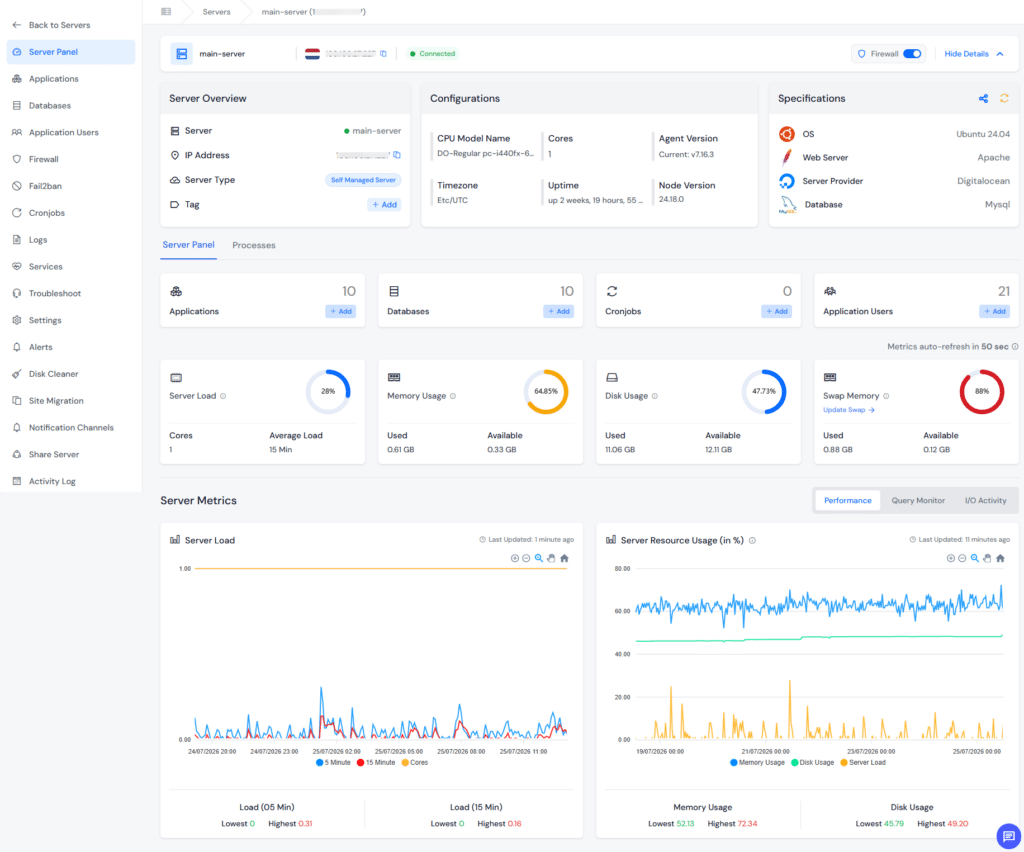
- Monitor real-time server health, including CPU, RAM, disk usage, and system load.
- Monitor overall server health from a centralised interface, making it easier to identify resource bottlenecks before they affect your applications.
- View running processes to identify applications consuming excessive resources.
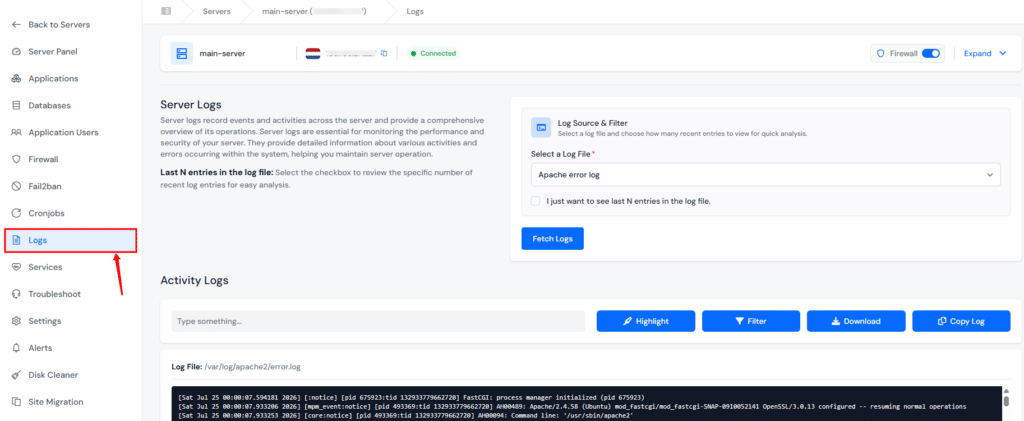
- Restart services such as PHP-FPM, NGINX, or other supported services without using terminal commands.
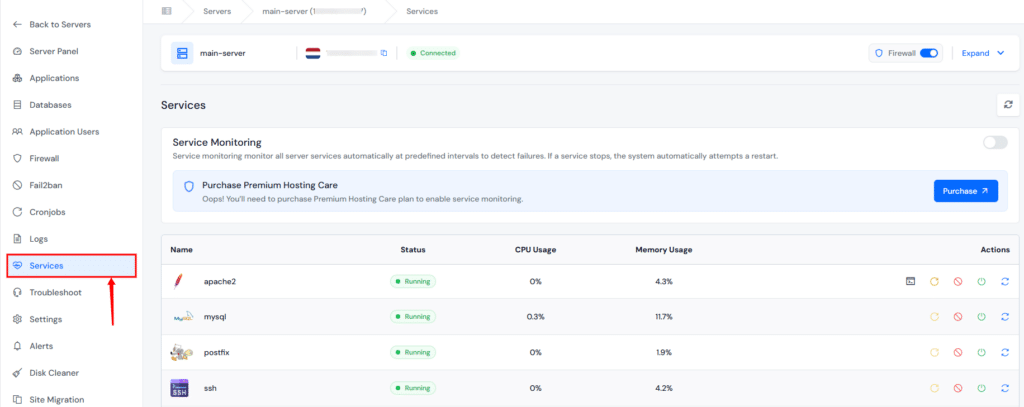
Having server metrics, processes, logs, and service management available in one place significantly reduces the time required to identify the root cause of a 503 Service Unavailable error, helping you restore your website or application more quickly.
How to Fix HTTP 503 Error: Step by Step
Now that you know where to look, here are the actual fixes. Each one corresponds to a cause above.
Fix 1: Scale Resources or Kill Hungry Processes
If you find resource exhaustion, you have two options:
Option A: Free up resources: Find the offending process in the Processes section and terminate it. If it’s a cron job causing the load, disable it temporarily.
Option B: Scale up: If you’re consistently hitting resource limits, vertically scale your server. This is the right call if you’re seeing resource exhaustion regularly.
Practical tip: I’ve found that PHP-FPM is the usual suspect on shared or mid-tier VPS plans. Check the PHP-FPM process count, if you have 50+ PHP-FPM children all running at once, your server is likely swapping itself to death.
Fix 2: Wait Out Maintenance or Complete a Stuck Update
If your server is mid-update, give it 10–15 minutes. f the site remains inaccessible after this timeframe, the update likely didn’t go through successfully. Check the activity log for any failed tasks. You can also manually retry a failed operation.
Fix 3: Restart Failed Backend Services
Restarting clears stuck processes, resets memory leaks, and re-establishes connections. It’s the sysadmin equivalent of “turning it off and on again”, and it works more often than you’d expect.
From ServerAvatar’s Services section, you can restart Nginx, PHP-FPM, MySQL, or any other service with one click.
For WordPress specifically, I’ve seen PHP-FPM get into a state where it stops accepting new connections but doesn’t crash outright. A restart fixes this immediately.
Fix 4: Review and Reset Firewall Rules
The quick reset approach: Temporarily disable the most recent firewall rule and test. If the site comes back, you know that rule caused the problem.
For Cloudflare users: check whether a firewall rule, challenge, or Under Attack mode is active. Cloudflare’s I’m Under Attack mode returns a 503 to all visitors regardless of your origin server.
For ServerAvatar’s users: Navigate to the Firewall section. Review recent rule changes. If you added a rule that’s too broad (for example, blocking a whole port range), it can cause a 503 for everyone.
Fix 5: Correct DNS Records
If DNS is the issue, go to your DNS provider and verify:
- The A record points to your server’s correct IP
- The AAAA record (if using IPv6) is accurate
- There are no conflicting CNAME records
- TTL values aren’t causing stale lookups
After correcting records, give it 5–10 minutes for local caches to clear, then test from an incognito window.
If you’re unsure whether recent DNS changes have propagated worldwide, you can verify propagation across multiple geographic locations using an independent DNS propagation checker.
Fix 6: Repair Database Connectivity
For WordPress, open your wp-config.php and verify:
define('DB_NAME', 'your_database_name');
define('DB_USER', 'your_database_user');
define('DB_PASSWORD', 'your_database_password');
define('DB_HOST', 'localhost'); //or your DB server IPA wrong DB_HOST value is surprisingly common after server migrations. It causes exactly this kind of silent failure.
If MySQL itself is the issue, too many connections, you can view active MySQL connections and kill idle ones. If it’s a chronic problem, you may need to optimize your queries or increase the max_connections limit. You can easily increase the max_connections limit with the ServerAvatar dashboard.
How to Prevent 503 Errors
Fixing a 503 is one thing. Preventing it is another. Here’s what I would recommend based on what U have seen cause repeated outages:
Set up resource alerts. ServerAvatar lets you configure alerts for Server Load, Memory Usage, and Disk Usage. I recommend Server Load alerts at 80% and Memory Usage at 85%. Catch the problem before it becomes a 503.
Use a process manager. If your application keeps crashing, something like Supervisor or PM2 can automatically restart it.
Monitor your services. Don’t wait for visitors to report a 503. Check your service status dashboard regularly, daily if you’re managing a production site.
Keep your stack updated, but do it carefully. System updates are important, but test them on a staging environment first. A failed update on a production server is a surefire way to get a 503, and a stressful midnight debugging session.
Implement caching. If your server is overloaded due to traffic spikes, a good caching layer can absorb many requests before they reach your application server.
Use a CDN. Services like Cloudflare not only speed up delivery but can absorb DDoS traffic and serve cached content even when your origin server is struggling.
ServerAvatar Makes This Easier
If you’re managing your servers through ServerAvatar, a lot of the diagnostic work is already done for you. The dashboard consolidates resource monitoring, service controls, log viewing, etc. into one interface.
Instead of SSHing in and running top, htop, or parsing log files manually, you can see what’s happening at a glance, and act on it without opening a terminal. For teams managing multiple client sites, this matters. You can check server health, restart services, and review logs without context-switching between tools.
Key Takeaways
- HTTP 503 is a server-side signal that the server can’t handle requests right now, not a user-side problem
- The root causes usually fall into one of six categories: resource exhaustion, maintenance, failed backend services, firewall issues, DNS misconfiguration, or database problems
- Diagnosis is systematic: check resources >> check processes >> read logs >> verify services >> check DNS
- ServerAvatar’s dashboard centralizes most of this diagnostic work
- Prevention is better than cure: set resource alerts, use process managers, keep software updated, and implement caching and CDNs
- 503 errors can affect SEO if they persist, use
Retry-Afterheaders for planned maintenance
Conclusion
The HTTP 503 Service Unavailable error is intimidating because it tells you almost nothing directly. But with a systematic approach, check resources, read logs, verify services, you can usually identify the cause in under ten minutes.
The fixes are rarely complex. It’s more about knowing where to look. ServerAvatar’s integrated dashboard removes a lot of the friction from that process, especially if you’re managing servers without wanting to live in the terminal all day.
If you keep running into 503 errors despite fixing the immediate cause, it’s worth investigating the underlying trigger, a plugin eating CPU, a database that needs optimization, or a server that’s genuinely underpowered for your traffic.
FAQs
What’s the difference between HTTP 503 and HTTP 500?
HTTP 500 (Internal Server Error) means something went wrong on the server while trying to fulfill the request, typically an application error. HTTP 503 means the server is not ready to accept requests at all, usually because it’s overloaded, undergoing maintenance, or a required service is down. 500 is about how the request was handled; 503 is about whether the server can handle it at all.
Can a 503 error be caused by Cloudflare?
Yes, Cloudflare’s “I’m Under Attack” mode, overly aggressive firewall rules, or rate limiting can return 503 to visitors even when your origin server is perfectly healthy. If Cloudflare is enabled and you encounter 503 errors, inspect your Cloudflare dashboard for any triggered security challenges or active firewall rules.
What does “503 first byte timeout” mean?
This is a specific type of 503 where the server didn’t respond within the expected time limit for the first byte of data (usually around 15–30 seconds). This typically happens when an upstream server is extremely slow or unresponsive, or when a CDN’s timeout is set too aggressively. Check your CDN configuration and your upstream service response times.
How long does a 503 error last?
It depends entirely on the cause. A temporary server overload may clear in seconds once traffic normalizes. A failed service that auto-restarts might be down for 30–60 seconds. A misconfigured firewall or DNS issue will persist indefinitely until someone fixes it. In my experience, the longest 503s come from failed PHP-FPM processes that don’t auto-restart.
Is HTTP 503 related to SEO?
Yes, and this is an underrated concern. Googlebot visits your site regularly. If it consistently hits 503 errors during crawl sessions, Google may interpret your site as unavailable and drop your rankings. If you’re doing planned maintenance, return a 503 with a Retry-After header so Google knows to come back later. Persistent 503s are a problem for more than just user experience.
About the Author
Meghna Meghwani is a technical writer focused on Linux, Ubuntu, VPS hosting, server management, WordPress, PHP, Node.js, cloud hosting, and DevOps. She creates beginner-friendly tutorials, practical hosting guides, troubleshooting articles, and server security content designed to help developers and businesses manage applications and servers more efficiently.