


Open Chrome. Now, open a new Incognito window. Feel private? You’re not. Chrome Privacy Extensions can help protect your browsing activity, but Google may still see your IP address, device fingerprint, and everything synced to your account. Incognito mode only prevents local cookies from being saved; it doesn’t make you invisible.
That’s the misconception a lot of people are still running on in 2026. They have been told Incognito is “private browsing”, and they believe it. Meanwhile, advertisers, data brokers, and whoever else is paying attention have a surprisingly detailed picture of their browsing habits.beh
The best solution is not to switch browser modes but to use trusted extensions that address Chrome’s privacy gaps. Since the Manifest V3 transition changed how many extensions work, some older privacy tools may now offer limited protection. If you installed an extension a few years ago, review its current features and update status.
This guide cuts through the noise. I have tested the extensions that actually hold up in 2026’s browser environment, understand which categories matter most for different threat models, and can tell you exactly what to install and why.
TL;DR
- Incognito mode helps prevent browsing activity from being saved locally after the session ends, but it does not hide your IP address or make you anonymous online.
- The Chrome MV3 migration killed many old extensions; several popular picks from 2022-2024 are now dead or broken
- Five tool categories matter most in 2026: content blocking, tracker learning, VPN, password management, and email privacy
- You don’t need ten extensions. Most people need five carefully chosen ones
- uBlock Origin, Privacy Badger, NordVPN, Bitwarden, and PixelShield make a tight, effective stack
Why Chrome Privacy in 2026 Is a Different Problem
Chrome has improved its built-in privacy tools with features like Tracking Protection, HTTPS-only mode, and Privacy Sandbox. However, these controls may not provide complete protection, especially as Google’s advertising ecosystem relies heavily on user data.
Modern tracking has also become more advanced. Techniques such as browser fingerprinting, email pixels, and cross-site identity tracking may continue monitoring users even when third-party cookies are disabled.
For stronger privacy, Chrome users should consider reliable extensions that address these gaps and remain compatible with the Manifest V3 extension model.
What this means practically: you need extensions that cover the gaps Chrome leaves, and you need to know which extensions are actually still alive and working in 2026’s MV3 extension model.
Understanding What Privacy Extensions Actually Do
Before picking tools, it helps to understand the actual threat categories. Privacy is not one problem, it’s several distinct ones that need different solutions.
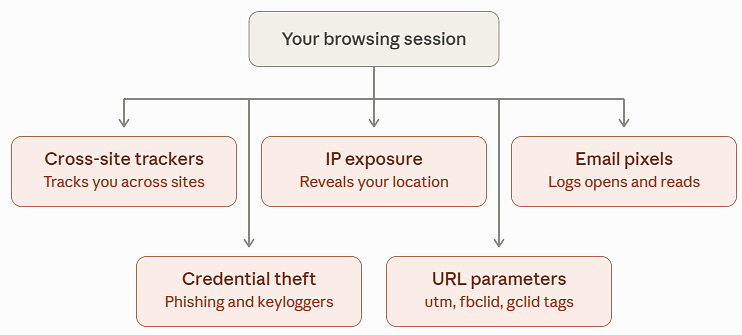
Cross-site tracking is the most familiar. Third-party scripts on sites you visit collect data about your behaviour, build profiles, and sell or share those profiles with other parties. This is what ad blockers target, and what tracking protection in browsers partially addresses.
IP and traffic exposure is what your ISP, public Wi-Fi operators, and network-level observers can see when you’re not using encryption. This is what VPNs solve. Incognito doesn’t touch this at all.
Email surveillance is the one most people forget. Marketing emails, newsletters, and even internal corporate emails routinely embed invisible tracking pixels that report back when you opened the message, how long you spent on it, and often your approximate location. This requires a dedicated email tracker blocker.
Credential compromise from password reuse remains one of the most common attack vectors. If you use the same password across five sites and one of them gets breached, all five accounts are exposed. Chrome’s built-in autofill doesn’t help here, it just saves your passwords in Google’s ecosystem.
URL tracking parameters, the utm_source, fbclid, gclid strings appended to links, follow you around the web and let trackers link your sessions across sites. These can be stripped without breaking page functionality.
Quick Comparison of the Chrome Privacy Extensions
Before exploring each extension in detail, use this comparison table to understand its main purpose, key privacy benefit, and the type of user it may suit best.
| Chrome Extension | Main Purpose | Key Privacy Benefit | Best For |
|---|---|---|---|
| uBlock Origin | Blocks ads and unwanted content | Helps reduce trackers, intrusive ads, and potentially harmful domains | Everyday users |
| Privacy Badger | Limits online tracking | Detects and restricts trackers based on their behaviour | Users who want additional tracker protection |
| NordVPN Chrome Extension | Protects browser traffic | Helps mask your IP address and secure browser traffic | Remote workers and public Wi-Fi users |
| Bitwarden | Manages passwords | Creates and stores strong, unique passwords | Users managing multiple online accounts |
| Digital Shield | Blocks trackers and manages tabs | Helps reduce tracking while improving tab management | Users who want additional browsing controls |
| URL Cleaner | Removes tracking parameters | Cleans unnecessary tracking information from links | Users who frequently open shared or marketing links |
| WebMark | Highlights and saves web content | Helps keep saved highlights under user control | Researchers and privacy-conscious readers |
| Grammar Checker | Checks writing and grammar | Supports safer writing when its data practices are reviewed | Users writing emails, documents, or online content |
Note: Extension features, permissions, availability, and privacy practices may change over time. Always review the latest information on the official Chrome Web Store page and the developer’s website before installing an extension.
This table fits your blog well because it improves readability, helps users compare the tools quickly, and adds practical value without repeating the detailed sections.
The Extensions That Actually Hold Up in 2026
1. uBlock Origin: Your Foundation Layer
uBlock Origin remains one of the most reliable content-blocking extensions for improving privacy and creating a cleaner browsing experience.
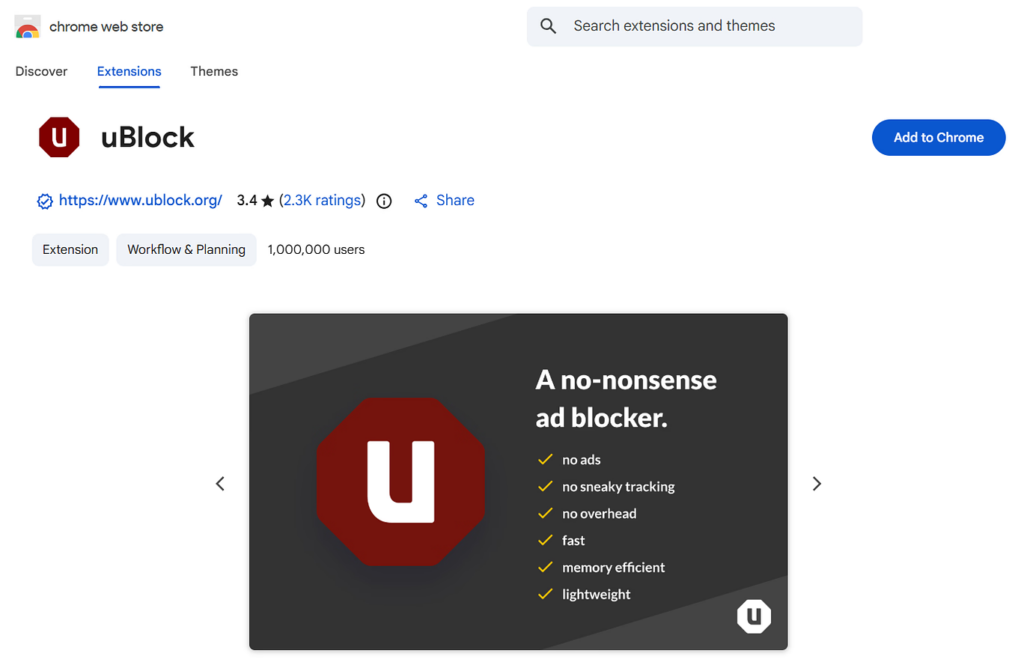
Although Chrome’s Manifest V3 update changed how extensions handle network requests, uBlock Origin adapted with uBlock Origin Lite, which is designed to work within Chrome’s newer extension framework.
What uBlock Origin Helps Block
- Display advertisements and intrusive pop-ups
- Online tracking scripts and third-party trackers
- Malicious domains that may distribute harmful content
- Browser fingerprinting resources
- Cryptocurrency mining scripts
- Social media tracking widgets embedded on websites
Manifest V3 and uBlock Origin Lite
Chrome’s Manifest V3 limits how extensions can monitor and filter network activity. As a result, uBlock Origin Lite uses Chrome’s updated extension APIs while continuing to provide effective ad and tracker blocking.
For most users, the differences are minimal. However, some advanced features, such as highly customized filtering rules and detailed per-site controls, may be more limited than in the original version.
Recommended Settings
- Keep the default filter lists enabled, including popular ad and privacy filters.
- Avoid enabling overly aggressive blocking rules unless necessary.
- Use balanced or medium-level filtering to reduce ads and trackers without causing websites to malfunction.
- Review blocked content if a website does not load or work correctly.
uBlock Origin is lightweight, efficient, and effective for everyday browsing. If you plan to install only one privacy-focused Chrome extension, it is a strong starting point.
2. Privacy Badger: The Smart Tracker Learner
Privacy Badger is a privacy extension developed by the Electronic Frontier Foundation (EFF).
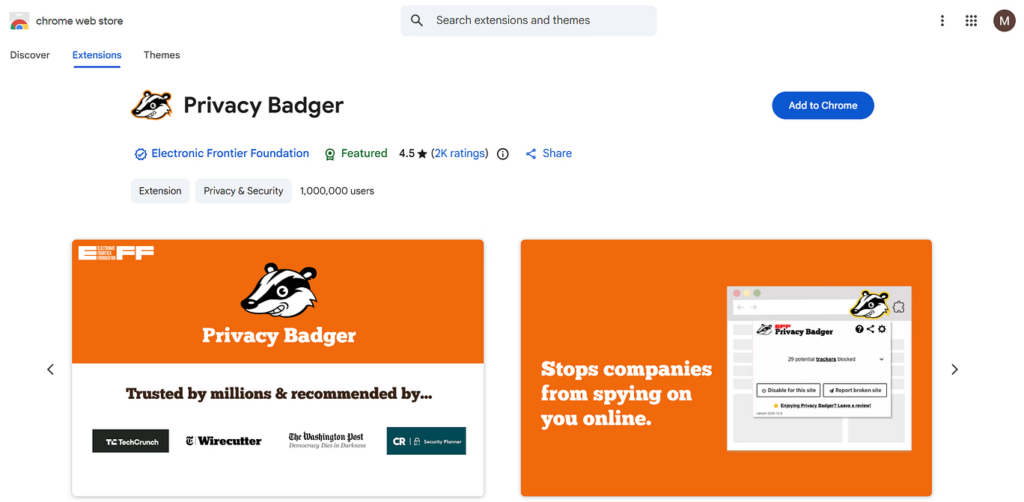
Unlike traditional blockers that mainly depend on predefined filter lists, Privacy Badger identifies potential trackers by analyzing how third-party domains behave while you browse.
How Privacy Badger Works
- Monitors third-party domains across the websites you visit
- Detects domains that appear to track users across multiple sites
- Limits or blocks suspicious tracking activity automatically
- Helps identify newer or less common trackers that may not yet appear on standard block lists
- Focuses on reducing unwanted tracking rather than blocking all advertisements
Privacy Badger vs. Traditional Ad Blockers
Privacy Badger is not designed to be a conventional ad blocker. Its primary purpose is to reduce cross-site tracking and improve browsing privacy.
Because some advertisements rely on tracking scripts, certain ads may disappear automatically. However, ad removal is a secondary effect rather than its main function.
Why Use It with uBlock Origin?
Privacy Badger works well alongside uBlock Origin because both tools serve different purposes:
- uBlock Origin: Uses filter lists to block known ads, trackers, and unwanted content
- Privacy Badger: Detects and limits trackers based on their behaviour across websites
- Combined: Provides broader protection against both known and emerging tracking methods
Using both extensions can help create a stronger privacy layer without relying on a single tracking-blocking approach.
3. NordVPN Chrome Extension: Closing the Traffic Exposure Gap
The NordVPN Chrome extension adds an extra privacy layer by routing your browser traffic through a secure VPN server. This helps hide your IP address from websites and reduces exposure to network-level monitoring.
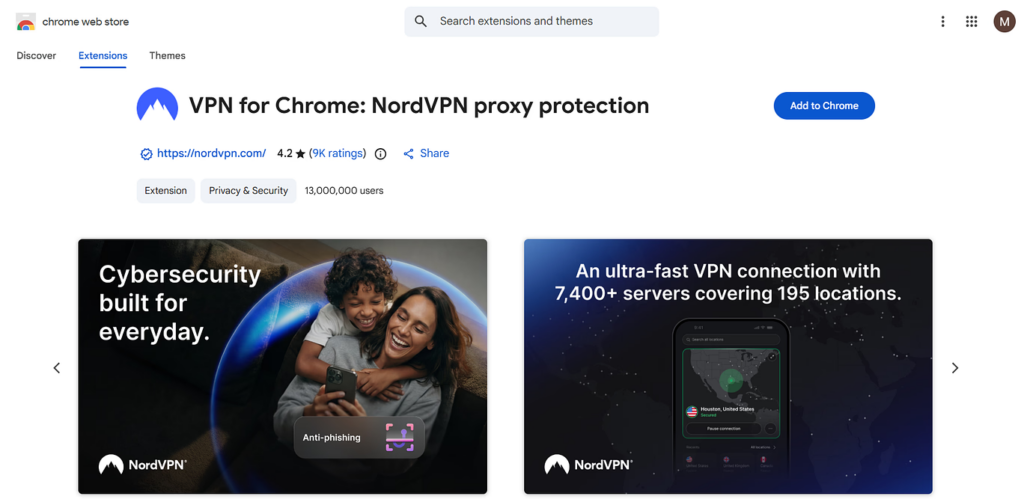
Unlike ad blockers, a VPN extension does not remove advertisements or block every tracking script. Its main purpose is to protect your connection and control how your browser traffic is routed.
What the NordVPN Chrome Extension Does
- Encrypts traffic generated through the Chrome browser
- Masks your real IP address from websites
- Helps protect browsing activity on public Wi-Fi networks
- Routes browser traffic through a remote VPN server
- Allows you to manage VPN protection directly from Chrome
- Provides more control over which browser activity uses the VPN connection
Browser Extension vs. Desktop VPN App
The Chrome extension protects only browser-related traffic, while the NordVPN desktop application can secure internet traffic across the entire device.
| NordVPN Chrome Extension | NordVPN Desktop App |
|---|---|
| Protects Chrome browser traffic | Protects traffic from the entire device |
| Useful for browser-specific privacy | Provides system-wide VPN protection |
| Offers convenient browser-level controls | Covers apps, background services, and browsers |
| Can be managed directly from Chrome | Runs independently in the operating system |
Threat Protection Lite
NordVPN also includes Threat Protection Lite, which adds another layer of browser security by:
- Blocking access to known malicious websites
- Helping prevent harmful domains from loading
- Reducing exposure to certain online threats
- Providing protection alongside the VPN connection
It is not a replacement for a dedicated ad or tracker blocker, but it can complement tools such as uBlock Origin and Privacy Badger.
Important Privacy Considerations
The effectiveness of any VPN extension depends on the provider’s infrastructure, security practices, and privacy policy. Before choosing a VPN, consider the following:
- Review the provider’s privacy and logging policies
- Check whether its privacy claims have been independently audited
- Avoid unknown or unverified free VPN extensions
- Review the permissions requested by the extension
- Choose a trusted provider with clear security and privacy practices
The honest caveat: a VPN extension only works as well as the VPN provider’s infrastructure and privacy policy. NordVPN’s no-log policy has been independently audited, which matters. A “free VPN” Chrome extension from an unknown vendor is often worse than using nothing, those tools have to monetize somehow, and your traffic data is the obvious product.
4. Bitwarden: Password Management That Doesn’t Nickel-and-Dime You
Bitwarden is a popular password manager that offers strong security features and a useful free plan. It stores passwords in an encrypted vault, making it easier to manage login details without relying on weak or repeated passwords.
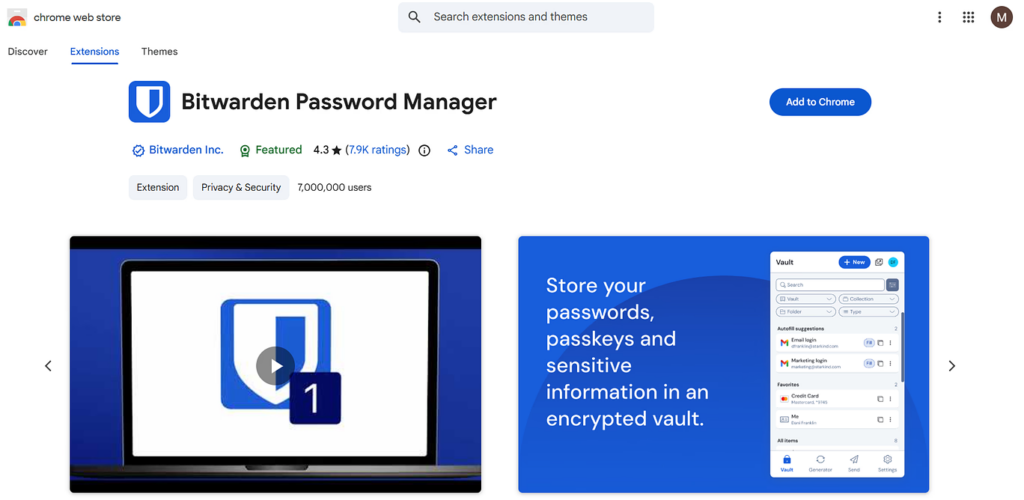
Reusing the same password across multiple accounts can put all of them at risk. If one website experiences a data breach, attackers may use the leaked credentials to access other accounts with the same login details. A password manager helps reduce this risk by creating and storing unique passwords for every account.
Key Features of Bitwarden
- Stores unlimited passwords in an encrypted vault
- Generates strong and unique passwords
- Autofills login credentials in Chrome
- Syncs passwords securely across supported devices
- Stores secure notes, recovery codes, and license information
- Supports two-factor authentication (2FA) features
- Offers both free and premium plans
How Bitwarden Protects Your Data
- Uses end-to-end encryption to secure stored information
- Encrypts sensitive data on your device before it is synchronized
- Keeps passwords protected from unauthorized access
- Allows users to manage and control their password vault securely
Why Use Bitwarden Instead of Reusing Passwords?
Using Bitwarden helps you:
- Create a different password for every account
- Avoid remembering multiple complex passwords
- Reduce the impact of credential leaks
- Improve account security with stronger login credentials
- Access passwords conveniently across devices
Bitwarden is also open-source and regularly reviewed through independent security assessments. Its combination of strong encryption, useful features, and an accessible free plan makes it a practical password manager for everyday users.
Security Tip: Protect your Bitwarden account with a strong, unique master password and enable two-factor authentication for additional security.
5. Digital Shield: Tracker Blocking and Smarter Tab Management
Digital Shield combines privacy protection with tab management to help improve both browsing security and browser performance. It can help limit unwanted tracking while suspending inactive tabs to reduce unnecessary system resource usage.
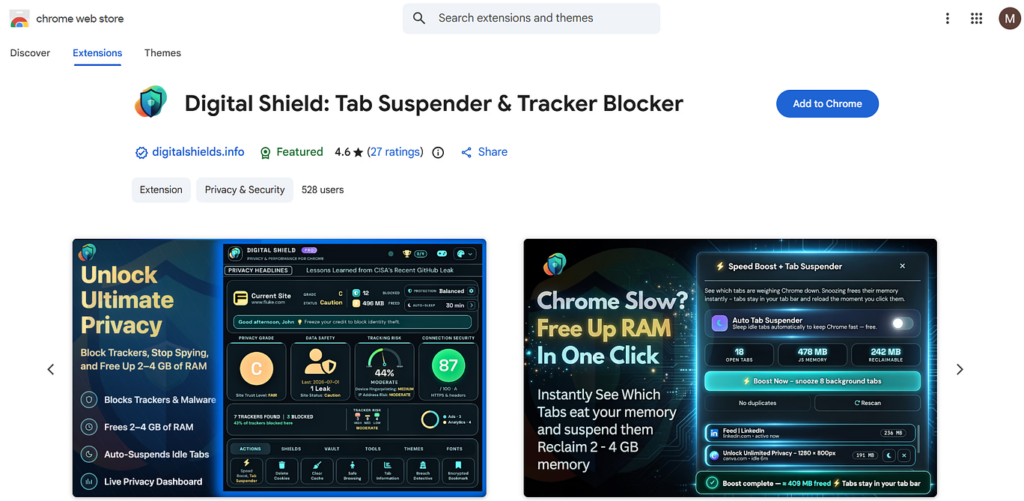
Key Features of Digital Shield
- Helps block trackers and unwanted third-party activity
- Suspends inactive tabs to reduce memory and CPU usage
- Improves browser performance when many tabs are open
- Helps create a cleaner and more privacy-focused browsing experience
- Allows users to manage active and inactive tabs more efficiently
Why Tracker Blocking Matters
Many websites use third-party trackers to collect information about browsing behaviour. A tracker-blocking extension can help reduce unnecessary data collection and provide greater control over online privacy.
Why Tab Suspension Is Useful
Keeping many browser tabs open can increase Chrome’s memory and CPU usage. Suspending inactive tabs may help:
- Reduce memory consumption
- Improve browser responsiveness
- Lower unnecessary background activity
- Keep the browser running smoothly with multiple open tabs
Privacy Tip: Review the extension’s permissions and privacy policy before installing it. Only use trusted extensions that are actively maintained and receive regular updates.
Digital Shield can be a useful addition to a privacy-focused Chrome setup, especially for users who want tracker protection along with better tab and resource management.
6. URL Cleaner: Remove Tracking Parameters from Links
URL Cleaner helps remove unnecessary tracking information from supported links, allowing you to open cleaner URLs while reducing the amount of referral and campaign data shared with websites.
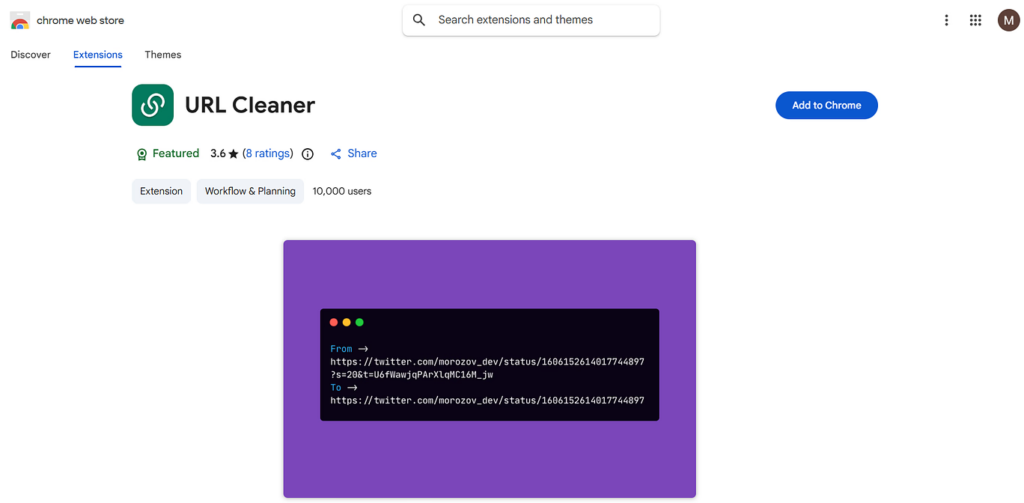
Many links shared through newsletters, social media platforms, advertisements, and marketing campaigns contain extra tracking parameters. These may include tags such as utm_source, utm_medium, utm_campaign, or fbclid.
How URL Cleaner Helps
- Removes common tracking parameters from URLs
- Cleans links shared through emails, social media, and marketing campaigns
- Helps reduce unnecessary tracking information
- Keeps URLs shorter and easier to share
- Allows the main webpage to load without unnecessary tracking tags
- Works automatically in the background after installation
Why Cleaning URLs Matters
Tracking parameters are commonly used to:
- Identify where website visitors come from
- Measure marketing campaign performance
- Track clicks from emails, advertisements, or social media
- Support website analytics and advertising activities
Removing unnecessary parameters can help limit the browsing-related information included in links.
Privacy Tip: Some URL parameters are required for specific website features, such as login sessions, search filters, or page settings. If a link does not work correctly, temporarily disable the extension or add the website to its allowlist.
URL Cleaner is a simple, low-maintenance privacy tool that helps keep links clean and reduces unnecessary tracking during everyday browsing.
7. WebMark: Private Highlighting Without the Data Harvesting
WebMark is a browser-based highlighting and annotation tool designed for users who want to save important information without relying heavily on cloud storage.
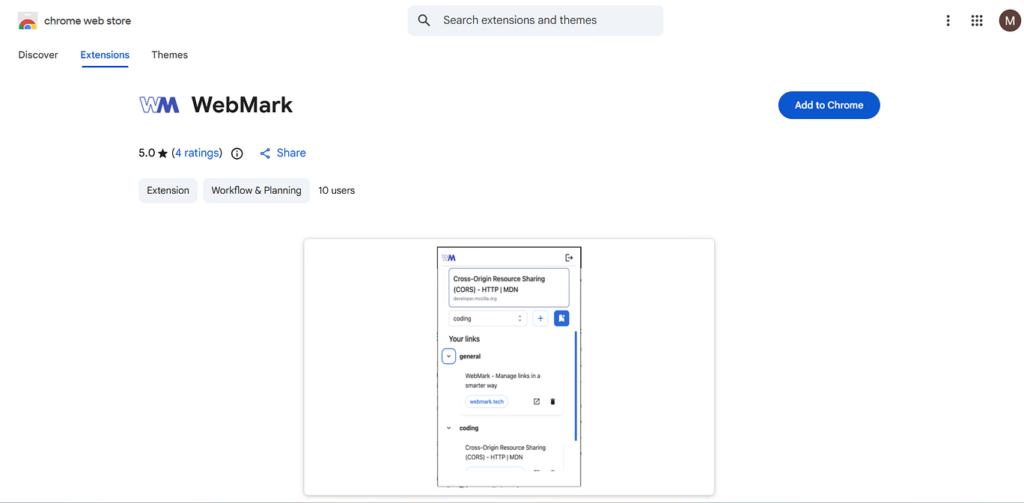
It allows you to highlight content, add notes, and organize useful information while keeping privacy in focus.
Key Features of WebMark
- Highlight text directly on webpages
- Use different colors to organize important information
- Add notes to selected content
- Search and review saved highlights
- Use the extension without creating an account
- Keep highlights stored locally instead of automatically uploading them to external servers
Why Local Storage Matters
Many web-highlighting tools store saved content on cloud servers. While cloud syncing is convenient, it may not be suitable for users working with private or sensitive information.
Local storage can be useful when reviewing:
- Confidential business information
- Legal documents
- Private research material
- Internal reports
- Sensitive online content
Privacy Tip: Before using any browser extension, review its permissions and privacy policy. If you work with sensitive information, choose tools that clearly explain where your data is stored and whether it is shared with third parties.
WebMark can be a useful option for users who want a simple way to highlight and organize web content while maintaining greater control over their saved data.
8. Grammar Checker: Improve Writing While Browsing
Grammar Checker helps users identify common writing mistakes and improve the clarity of their content while working in Chrome. It can be useful for writing emails, blog posts, social media content, documents, and other online text.
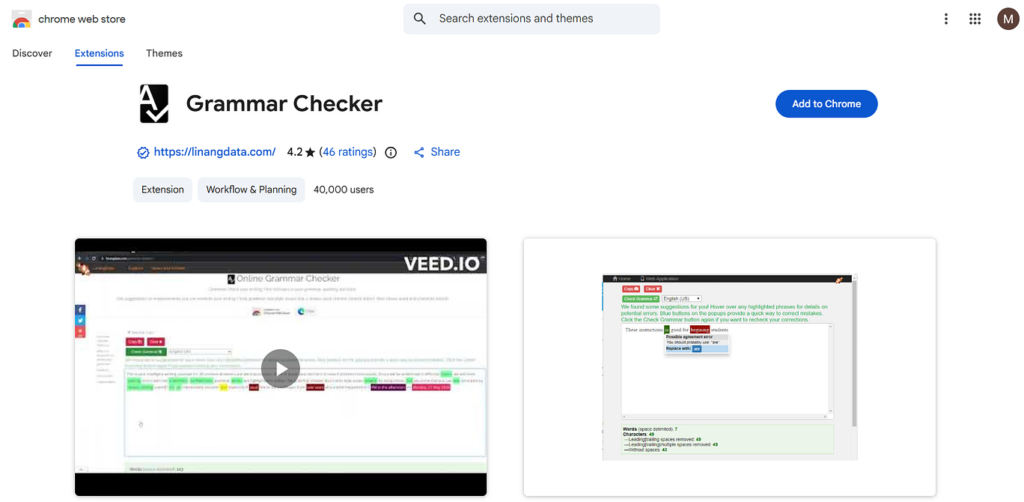
Key Features
- Detects common grammar and spelling mistakes
- Suggests corrections to improve writing clarity
- Helps identify punctuation and sentence errors
- Supports writing across compatible websites
- Provides quick suggestions while typing
- Makes proofreading faster and more convenient
Why Use a Grammar Extension?
A grammar-checking extension can help you:
- Reduce spelling and grammar errors
- Improve sentence clarity and readability
- Proofread content more efficiently
- Create more professional emails and documents
- Review content before publishing or sending it
Privacy Considerations
Grammar tools may process the text you enter to provide suggestions. Before installing an extension, review its privacy policy and check:
- Whether your text is processed locally or on external servers
- What information the extension collects
- Whether typed content is stored or shared
- Which websites and text fields the extension can access
- Whether the extension is actively maintained and regularly updated
Privacy Tip: Avoid entering highly sensitive information into third-party grammar tools unless you understand how your text is processed and protected.
Grammar Checker can be a helpful addition to your Chrome setup for improving everyday writing. For privacy-sensitive content, always review the extension’s data-handling practices before using it.
The MV3 Reality Check: Are Your Old Extensions Still Working?
Chrome’s shift from Manifest V2 (MV2) to Manifest V3 (MV3) changed how browser extensions access and manage network activity. As a result, many older privacy and security extensions needed major updates to remain compatible with Chrome.
How Manifest V3 Affects Extensions
- Limits how extensions monitor and modify network requests
- Introduces newer extension APIs with stricter security controls
- Reduces access to certain real-time network filtering features
- Requires developers to redesign or update some privacy tools
- May limit advanced features in extensions built for Manifest V2
Why Some Older Extensions May No Longer Work
Extensions that were not updated for Manifest V3 may:
- Stop working completely
- Offer limited functionality
- Lose important privacy or filtering features
- Become incompatible with newer Chrome versions
- Remain listed in the Chrome Web Store despite being outdated
How to Review Your Chrome Extensions
Before installing or continuing to use an extension, check:
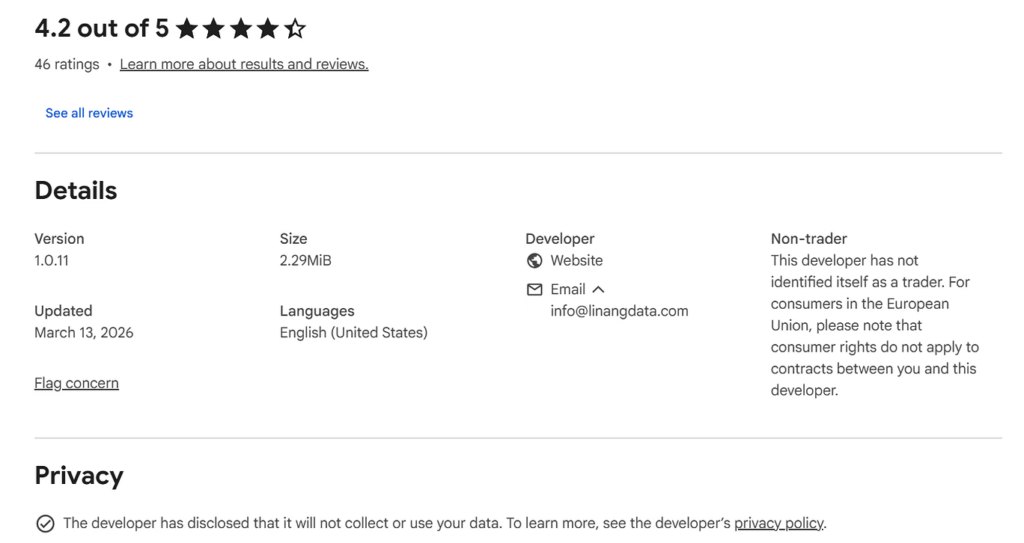
- Last updated date: Prefer extensions that receive regular updates
- Manifest V3 compatibility: Confirm that the extension supports Chrome’s current framework
- Developer information: Use extensions from trusted and verified developers
- User reviews: Look for recent feedback about functionality and reliability
- Permissions: Avoid extensions requesting access that is unrelated to their purpose
- Privacy policy: Review how the extension collects, processes, and stores data
Important Security Tip
An outdated extension may contain unpatched security issues or become vulnerable if it is no longer actively maintained. In some cases, inactive extensions may also change ownership, which can introduce new privacy or security risks.
Best Practice: Review your installed Chrome extensions regularly and remove any tools you no longer use. Keep only trusted, actively maintained extensions with clear privacy practices.
Manifest V3 does not automatically make every privacy extension less effective. However, it makes regular extension reviews more important to ensure your privacy tools remain compatible, secure, and functional.
Common Mistakes That Quietly Undermine Your Privacy Setup
Installing extensions is the easy part. Here are the patterns I see most often that quietly undo the protection people thought they had.
1. Installing Too Many Content Blockers
Using several ad and tracker blockers at the same time does not always provide better protection. Multiple extensions may conflict with each other and cause websites to load incorrectly.
Best practice:
- Use one trusted content blocker
- Add a separate privacy tool only when it provides a different function
- Avoid installing multiple extensions with the same purpose
- Remove duplicate or unnecessary blockers
2. Ignoring Extension Permissions
Some extensions request permission to read and change data on all websites. This level of access may be necessary for certain tools, but it also gives an extension broad access to your browsing activity.
Before installing an extension:
- Review the permissions carefully
- Check whether the requested access matches its purpose
- Avoid extensions that request unnecessary permissions
- Remove extensions you no longer trust or use
3. Using Unknown Free VPN Extensions
A VPN extension may process or route your browsing traffic, so choosing a trusted provider is important. Unknown free VPN tools may have unclear privacy practices or collect browsing data.
Before choosing a VPN extension:
- Review the provider’s privacy and logging policies
- Check for independent security audits
- Verify the company and developer information
- Avoid extensions with unclear ownership or privacy policies
- Consider reputable providers that offer transparent free plans
4. Installing Extensions and Never Reviewing Them
Browser extensions require regular checks to remain secure and useful. An outdated or abandoned extension may stop working correctly or contain unresolved security issues.
Review your extensions regularly:
- Remove tools you no longer use
- Check whether extensions are actively maintained
- Review recent updates and user feedback
- Confirm that permissions are still appropriate
- Replace unsupported extensions with trusted alternatives
Best Practice: Keep your browser extension setup simple. A small number of trusted, actively maintained tools is often safer and more effective than installing many overlapping extensions.
Regularly reviewing your extensions can help maintain a cleaner, faster, and more secure browsing experience.

Who Needs What: A Practical Extension Stack by Use Case
Not everyone needs every tool. Choose extensions based on your browsing habits, security needs, and the type of information you handle. Here’s a quick framework:
1. Casual Users
For everyday browsing on a home or personal network, start with:
- uBlock Origin: Blocks ads, trackers, and unwanted content
- URL Cleaner: Removes unnecessary tracking parameters from links
- Bitwarden: Creates and stores strong, unique passwords
Recommended: Enable Chrome’s built-in HTTPS-First Mode for an additional layer of browsing security.
2. Remote Workers and Freelancers
Users who work from cafés, coworking spaces, or public Wi-Fi networks may benefit from:
- uBlock Origin: Reduces ads and online tracking
- Bitwarden: Protects work and personal login credentials
- NordVPN Chrome Extension: Adds privacy protection to browser traffic
- Grammar Checker: Helps improve emails, documents, and online content
Best practice: Use separate Chrome profiles for work and personal browsing. This helps keep accounts, extensions, bookmarks, and browsing activity organized and separated.
3. Users Handling Sensitive Information
If you work with confidential business data, legal documents, financial information, or private research, consider adding:
- Privacy Badger: Helps limit cross-site tracking
- Digital Shield: Adds tracker-blocking and tab-management features
- WebMark: Helps highlight and organize web content
- Bitwarden: Secures sensitive login credentials
Important: Review each extension’s permissions and privacy policy before using it with confidential information.
4. Power Users
Users who want broader privacy coverage can combine tools that serve different purposes:
- uBlock Origin: Ad and content blocking
- Privacy Badger: Behavioral tracker protection
- NordVPN Chrome Extension: Browser-level VPN protection
- Bitwarden: Password management
- Digital Shield: Tracker blocking and tab management
- URL Cleaner: Removes tracking parameters from links
- WebMark: Private web highlighting and notes
- Grammar Checker: Writing and proofreading support
Best Practice: Avoid installing multiple extensions that perform the same task. A small, well-maintained set of trusted extensions is usually more effective than a large collection of overlapping tools.
Choose only the tools that match your needs, review their permissions regularly, and remove extensions you no longer use.
Key Takeaways
- Incognito mode does not make you private. Chrome still logs your session, and your IP, ISP, and network observers can still see your traffic
- Chrome’s transition to Manifest V3 affected several previously popular extensions, including PixelBlock and Ugly Email. Verify that your installed extensions are still actively updated and supported.
- A tight stack of five to seven well-chosen extensions is more effective than fifteen loosely selected ones
- uBlock Origin remains the foundation for content and tracker blocking
- A reputable paid VPN is worth the cost for anyone on public networks
- Bitwarden handles password security without the data-collection concerns of Chrome’s built-in manager
- Audit your extensions monthly and remove anything that’s been abandoned
Conclusion
Protecting your privacy in Chrome requires more than simply using Incognito mode. The best Chrome privacy extensions can help reduce online tracking, block unwanted content, secure browser traffic, protect passwords, and give you greater control over the data you share while browsing. Tools such as uBlock Origin, Privacy Badger, NordVPN, Bitwarden, and other privacy-focused extensions can provide stronger protection when each tool is chosen for a specific purpose.
However, installing many extensions does not automatically improve privacy. A small, trusted, and regularly updated extension setup is often safer and more effective than using multiple tools with overlapping features. Review extension permissions, confirm Manifest V3 compatibility, check privacy policies, and remove extensions you no longer use. By choosing reliable tools and reviewing them regularly, you can build a more private, secure, and controlled Chrome browsing experience in 2026.
FAQs
Does Incognito mode actually protect my privacy?
No, not in the way most people think. Incognito mode only prevents Chrome from saving your browsing history, cookies, and form data locally on your device. Your IP address is still visible to the sites you visit and your ISP. Google still logs your activity associated with your account. If you’re on a shared network, other devices on that network can still see your traffic. For actual privacy, you need a VPN and tracker-blocking extensions, Incognito is not a substitute.
How do I check if a Chrome extension is safe to install?
Look at three things before installing any extension. First, the update date, if it hasn’t been updated since 2022, assume it’s abandoned and potentially compromised. Second, the permission request, if an extension asks for full site access and its purpose doesn’t logically require it, skip it. Third, the developer reputation, well-known names with public identities and audited codebases are safer than anonymous developers with generic tool names.
Can Chrome extensions see my passwords?
Yes, any extension with permission to “Read and change all your data on all websites” can, in theory, capture passwords you type into forms. This is why you should audit your extensions and remove any you don’t actively need or trust. Use a dedicated password manager (like Bitwarden) instead of Chrome’s autofill for sensitive accounts, and only grant full-site access to extensions where you have a specific, justified reason.
What’s the Manifest V3 change I keep hearing about?
Manifest V3 is Chrome’s extension framework that sets the rules for how browser extensions operate. Google’s 2025–2026 transition to MV3 restricted how extensions can intercept network requests, which broke several privacy extensions and forced developers to rebuild their products. Some extensions didn’t survive. uBlock Origin adapted with Lite, and most major privacy tools have MV3 versions, but older extensions like PixelBlock and Ugly Email are now non-functional. Always verify that your installed extensions have been updated for MV3.
Do I need a VPN if I use Chrome’s built-in privacy features?
Chrome’s built-in privacy features handle some tracking locally, but they don’t encrypt your traffic or hide your IP address from network observers. If you use public Wi-Fi, work with sensitive data, or want to prevent your ISP from logging your browsing activity, a VPN is still necessary. Chrome’s HTTPS-only mode ensures you connect to sites over encrypted connections, but it doesn’t change who can see that you’re connecting to those sites.
About the Author
Meghna Meghwani is a technical writer focused on Linux, Ubuntu, VPS hosting, server management, WordPress, PHP, Node.js, cloud hosting, and DevOps. She creates beginner-friendly tutorials, practical hosting guides, troubleshooting articles, and server security content designed to help developers and businesses manage applications and servers more efficiently.