

You run a JavaScript file that looks perfectly valid, yet the process stops before the first useful line executes: Cannot Use Import Statement Outside a Module.
SyntaxError: Cannot use import statement outside a moduleThe wording makes the import statement look guilty. Usually, it isn’t. The real problem is that your runtime and your source file disagree about the file’s module format.
This guide shows you how to identify that disagreement before changing project settings. You’ll learn how to fix the error in Node.js, a browser, TypeScript, and common development tools without creating a second module problem elsewhere. It is written for developers who want a reliable diagnosis, not a list of unrelated commands to try.
TL;DR
- First identify which program is executing the file: Node.js, a browser, a test runner, or a TypeScript tool.
- In Node.js, choose one module system for the relevant package: ESM with
"type": "module"or.mjs, or CommonJS withrequire()and.cjs. - In a browser, load an entry file with
<script type="module">and use valid browser-resolvable import paths. - In TypeScript, align
package.json,tsconfig.json, the emitted JavaScript, and the command that launches it. - Don’t add Babel or another build tool until you know the current runtime cannot execute the format you intend to use.
What the Error Is Actually Telling You
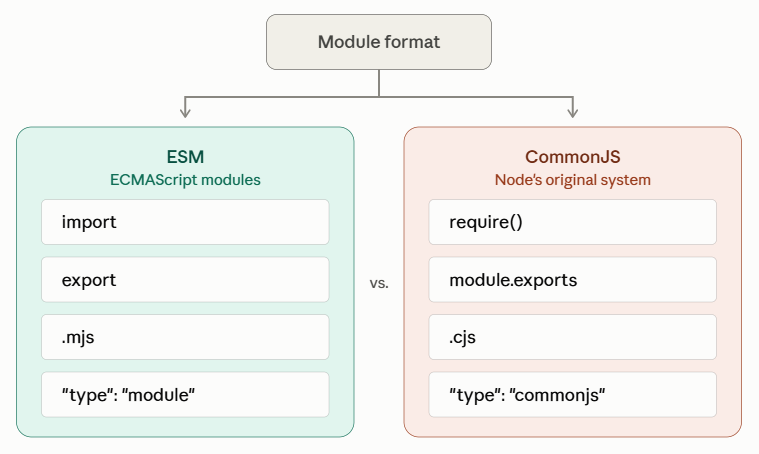
In Node.js projects, developers commonly encounter two module systems:
ECMAScript modules (ESM) and CommonJS (CJS).
If you’re getting started with Node.js or deciding whether it fits your application, see our guide to the key reasons Node.js is a strong choice for web development in 2026
| Module format | Typical import syntax | Typical export syntax | Common file signal |
|---|---|---|---|
| ECMAScript modules (ESM) | import { readFile } from "node:fs/promises" | export function run() {} | .mjs or .js inside a "type": "module" package |
| CommonJS (CJS) | const fs = require("node:fs") | module.exports = run | .cjs or .js inside a CommonJS package |
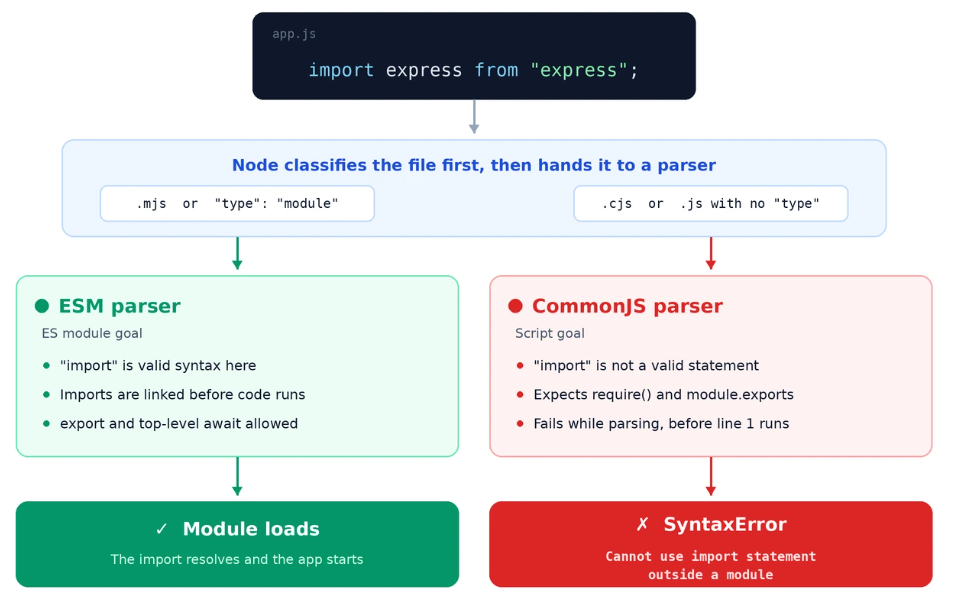
Static import declarations belong to ESM. If the runtime parses the same file as a classic script or a CommonJS module, it rejects the syntax before your application starts.
That detail matters because this is a parsing and configuration error, not normally a package-installation error. Reinstalling node_modules may change nothing. The useful question is:
Why did this specific runtime classify this specific file as something other than an ES module?
Node.js uses explicit markers such as file extensions and the nearest parent package.json to determine a file’s format. A browser uses the script element and the module graph. Test runners and transpilers may apply another transformation layer before either one sees the code.
For the complete rules Node.js uses to determine whether a file is treated as ESM or CommonJS, see the Node.js documentation on packages and module formats.
Diagnose the Runtime Before You Edit Anything
Use the following checks in the directory where the failing command runs:
node --version
node -p "process.cwd()"
node -p "require('./package.json').type || 'commonjs (implicit)'"The third command checks the type field in the current directory’s package.json. If the failing file is inside a nested package or monorepo, also inspect the nearest applicable package.json above that file.
If there is no applicable package.json, or the nearest package.json does not define a type field, a .js file is ambiguous. Current Node.js versions can use syntax detection for ambiguous .js files, treating files containing syntax that cannot be parsed as CommonJS, such as import, export, or import.meta, as ES modules. For predictable behavior, explicitly declare the package type or use .mjs/.cjs
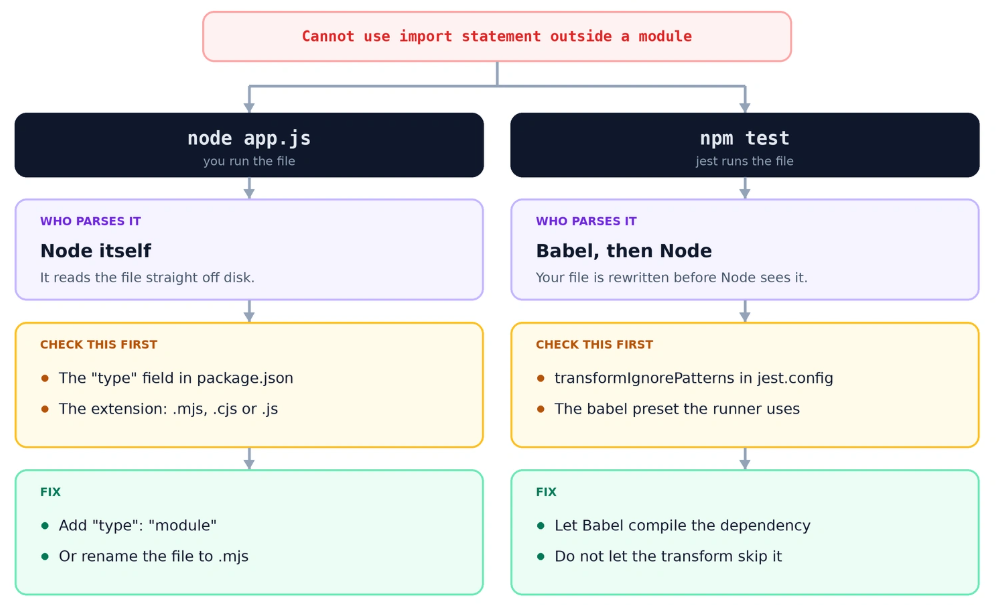
Now record the exact failing command. These are not equivalent execution paths:
node src/index.js
npm run dev
npx ts-node src/index.ts
npm testAn npm script may call a framework CLI, loader, or test runner with its own module rules. If node src/index.js works while npm test fails, changing the application file may be the wrong fix.
Next, inspect the entry file and the closest package.json above it:
find .. -name package.json -not -path '*/node_modules/*' -printIn a monorepo, the nearest package boundary can matter more than the repository root. A root package may be ESM while a nested tool package is CommonJS—or the reverse.
A quick decision table
| What you observe | Most likely mismatch | Start here |
|---|---|---|
node app.js fails on the first import | Node is treating the file as CommonJS or another non-ESM context | Set the package to ESM or use .mjs |
| Browser console reports the error | Script loaded as a classic script | Add type="module" to the entry script |
Source is .ts, but built .js fails | Compiler output and Node package type disagree | Align tsconfig.json and package.json |
| App runs, tests fail | Test runner is not transforming or loading ESM | Configure that runner’s documented ESM mode |
| Error appears only in a copied config file | Tool expects CommonJS configuration | Use the tool’s ESM config name or keep that file as .cjs |
This short diagnosis prevents the most common overcorrection: converting an entire project when only one configuration file needs a different extension.
Use the runtime to identify the correct module-format fix.
                        Import error
                              ↓
                     What runs the file?
                              ↓
    ┌─────────────────┬─────────────────┬─────────────────┐
 Node.js           Browser          TypeScript        Test Runner
    ↓                 ↓                 ↓                 ↓
package.json     type=module         tsconfig +      runner config
type/.mjs + URL paths package type / ESM modeFix the Error in Node.js
There are three practical approaches in Node.js. Choose based on the project format you want to maintain, not on which edit is shortest.
If you’re working on a Node.js application and want a practical example of building a server with Node.js, see our guide on creating an MCP server in Node.js.
Option A: Make the package use ES modules
For a modern project already written with import and export, add the type field to the nearest relevant package.json:
{
  "name": "module-demo",
  "private": true,
  "type": "module",
  "scripts": {
    "start": "node src/index.js"
  }
}Node.js provides additional guidance on using ECMAScript modules, including package configuration and module resolution.
Then use ESM consistently:
<em>// src/math.js</em>
export function add(left, right) {
  return left + right;
}
<em>// src/index.js</em>
import { add } from "./math.js";
console.log(add(20, 22));Run it:
npm startExpected output:
42Notice the .js extension in ./math.js. Node’s ESM resolver expects complete relative file specifiers. Code copied from a bundler-based frontend project often omits that extension because the bundler resolves it automatically.
The "type": "module" setting applies to .js files inside that package boundary. If an older configuration file still uses module.exports, rename only that file to .cjs or convert its exports intentionally.
Option B: Use an explicit .mjs entry file
If you cannot change the package-wide default, rename the ESM file:
scripts/report.js → scripts/report.mjsThen launch it directly:
node scripts/report.mjsThe .mjs extension is an explicit ESM marker. It works well for a small ESM utility living inside a mostly CommonJS project. The tradeoff is that imports, npm scripts, process managers, and deployment commands must all point to the new filename.
Option C: Keep the project in CommonJS
Sometimes the codebase, plugin ecosystem, or deployment tooling still expects CommonJS. In that case, don’t label CommonJS code as ESM merely to silence one error. Convert the file’s module syntax instead:
<em>// Before: ESM syntax</em>
import express from "express";
<em>// After: CommonJS syntax</em>
const express = require("express");Exports need to match too:
function createApp() {
  <em>// Application setup</em>
}

module.exports = { createApp };For an unambiguous CommonJS file inside an ESM package, use .cjs.
If you’re still evaluating Node.js for your backend stack, our comparison of Django vs Node.js covers their differences in performance, scalability, architecture, and use cases.
Handle ESM and CommonJS Interoperability Carefully
Real projects are rarely converted in one commit. You may need to consume a CommonJS dependency from ESM or load an ESM module from older CommonJS code.
When ESM imports a CommonJS package, a default import is often the safest starting point:
import legacyPackage from "legacy-package";Named imports may work for some CommonJS packages through Node’s static analysis, but they aren’t equivalent to native ESM exports in every case.
Check the package’s current documentation instead of assuming this form always works:
import { helper } from "legacy-package";When CommonJS needs an ESM-only dependency, dynamic import() gives you a Promise:
async function loadFormatter() {
  const { formatReport } = await import("./formatter.mjs");
  return formatReport;
}

loadFormatter().then((result) => console.log(result));That asynchronous boundary is significant. A direct replacement for synchronous require() can change initialization order, error handling, and exported API design.
Replace CommonJS globals in ESM
After switching a package to ESM, the original import error may disappear and expose a follow-up error such as __dirname is not defined. Build the equivalent path from import.meta.url:
import { fileURLToPath } from "node:url";
import { dirname } from "node:path";

const __filename = fileURLToPath(import.meta.url);
const __dirname = dirname(__filename);

console.log(__dirname);Treat this as a migration step, not evidence that ESM failed.
require, module.exports, __filename, and __dirname are CommonJS conventions, so a file converted to ESM must replace any it still uses.
Fix the Error in a Web Browser
A browser treats a normal script as a classic script. If that file contains a static import, declare the entry as a module in HTML:
<!doctype html>
<html lang="en">
  <head>
    <meta charset="utf-8">
    <title>Module example</title>
  </head>
  <body>
    <script type="module" src="/assets/app.js"></script>
  </body>
</html>For more details on JavaScript modules, including
import,export, and<script type="module">, see MDN’s JavaScript modules guide.
Then import using a URL the browser can resolve:
<em>// /assets/app.js</em>
import { showStatus } from "./status.js";

showStatus("Application loaded");
<em>// /assets/status.js</em>
export function showStatus(message) {
document.body.textContent = message;
}Static imports such as import React from "react" use a bare specifier. Browsers do not resolve npm package names by searching node_modules. Use a build tool, an import map, or a browser-compatible URL strategy for that use case.
Don’t test modules by double-clicking the HTML file
Opening index.html through a file:// URL can trigger origin and module-loading restrictions. Serve the directory over HTTP instead:
npx serve .Open the local URL printed by the command and check the Network panel. Every imported file should return a successful status and a JavaScript-compatible MIME type.
If type="module" is present but the page still fails
Look for the next error rather than repeatedly editing the script tag:
- 404 response: The relative import path is wrong. Remember that it resolves from the importing file, not from the HTML file.
- MIME type error: The server returned HTML, plain text, or another content type for a JavaScript module.
- CORS error: A cross-origin module response lacks an acceptable CORS header.
- Bare specifier error: The browser cannot map a package name such as
lodashto a URL. - Import inside a function: Static
importdeclarations must stay at module top level; useimport()for conditional loading.
Fix the Error in TypeScript Projects
TypeScript adds a compiler between the source code and the runtime. Four pieces need to agree:
- The module syntax in the
.tssource. - The
moduleandmoduleResolutionbehavior intsconfig.json. - The package type applied to emitted
.jsfiles. - The command or loader that executes the source or output.
TypeScript’s
modulecompiler option controls how module syntax is emitted and is an important part of keeping the compiler output aligned with Node.js.
For a Node.js ESM project, a practical configuration is:
<em>// package.json</em>
{
  "type": "module",
  "scripts": {
    "build": "tsc",
    "start": "node dist/index.js"
  }
}
<em>// tsconfig.json</em>
{
"compilerOptions": {
"target": "ES2022",
"module": "NodeNext",
"moduleResolution": "NodeNext",
"rootDir": "src",
"outDir": "dist",
"strict": true
},
"include": ["src/**/*.ts"]
}With Node-aware module resolution, write relative imports so the emitted path will be valid:
<em>// src/index.ts</em>
import { buildMessage } from "./message.js";

console.log(buildMessage("ready"));The .js suffix in a TypeScript source file can look odd at first. It describes the runtime file that will exist after compilation.
Build and inspect the emitted entry point:
npm run build
sed -n '1,40p' dist/index.js
npm startIf the compiler preserves import statements but Node treats dist/index.js as CommonJS, the error remains. If the compiler emits require() while the package marks .js as ESM, you get the opposite mismatch.
TypeScript provides .mts and .cts source extensions for explicitly marking ESM and CommonJS. Under Node-aware module modes such as NodeNext, .mts files emit .mjs files and .cts files emit .cjs files, respectively. Tool compatibility still varies, so package-level configuration is often easier to maintain across editors, test runners, and production builds.
When the Error Comes from a Test Runner or Config File
If production code starts correctly but tests fail, isolate the failing layer:
node src/index.js
npm testThat comparison tells you whether Node can load the application outside the test environment. Next, inspect what the test command actually runs:
npm pkg get scripts.testTest runners may execute files in a sandbox, transform syntax, or load configuration before the application package. Use the runner’s current ESM instructions and version-specific configuration. Avoid copying an old --experimental flag from a forum post without checking whether your installed version still requires it.
Configuration files deserve special attention. A project may use ESM application code while a build tool expects its config in CommonJS. In that case, an explicit .cjs config can be cleaner than changing the entire repository. Likewise, some tools recognize an .mjs config name for ESM.
The same rule applies to process managers and deployment panels: confirm the configured startup file after renaming index.js to index.mjs, and verify that the working directory contains the expected package.json.
Common Fixes That Create New Problems
1. Adding "type": "module" without checking the rest of the package
This changes how Node interprets every applicable .js file under that package boundary. Search for CommonJS features first:
grep -R --line-number --include='*.js' \
  -E 'require\(|module\.exports|exports\.|__dirname|__filename' . \
--exclude-dir=node_modulesIf results include configuration or maintenance scripts, convert them or give them a .cjs extension.
2. Renaming a file but not its references
After changing .js to .mjs, update imports, npm scripts, service definitions, deployment commands, and process-manager configuration. A production service still pointing to the old entry file will fail differently, often with MODULE_NOT_FOUND.
3. Installing Babel as the first response
A transpiler is useful when you genuinely need syntax transformation or older-runtime support. It also adds configuration, dependencies, source maps, and another place for module settings to disagree. Native ESM support is usually simpler for a current Node.js project.
4. Mixing static import and require() casually
They differ in loading behavior and available globals. Decide where the interoperability boundary belongs, document it, and keep it small.
5. Treating every import failure as the same error
Once the parser recognizes ESM, the message may change to an export mismatch, missing extension, unsupported directory import, or package export restriction. That’s progress: the runtime has moved to the next validation stage. Diagnose the new message on its own terms.
Verify the Fix Before You Deploy
Don’t stop when one development command runs. Use a small verification sequence:
# 1. Confirm the runtime used locally
node --version

# 2. Run the same entry point production will use
node src/index.js

# 3. Run the project scripts
npm test
npm run build

# 4. Check the production dependency tree
npm ls --omit=devAdjust the entry path for your project. Then verify these items:
- The startup command points to the correct extension and directory.
- The deployed package includes the
package.jsonthat defines the intended type. - Relative ESM imports include valid file extensions.
- The Node.js version on the server matches the version you tested.
- Build output, rather than raw TypeScript source, is launched unless a supported loader is intentionally configured.
- Environment-specific config files use the format expected by their tool.
Commit package.json, any required lockfile changes, renamed files, and module-configuration updates together so the deployment receives a consistent module setup. If only part of the module migration reaches the server, the deployed project may behave differently from your local checkout.
For a Node.js application hosted on a VPS, keep the startup command and runtime version documented alongside the deployment configuration.
Prevent the Error in Future Projects
Choose the module format when the project is created and make the choice explicit. Even for CommonJS, an explicit package type communicates intent:
{
  "type": "commonjs"
}Explicitly declaring the package type makes the intended behavior clearer to Node.js and other tooling. Current Node documentation actually recommends package authors explicitly specify
"type"even for CommonJS packages.
Then add a continuous integration check that runs the actual entry point or build output. A linter can catch some mixed syntax, but execution catches package boundaries, missing extensions, and loader differences that a syntax rule may miss.
For teams, document four facts in the README:
- Supported Node.js version.
- Module format: ESM or CommonJS.
- Development command.
- Production build and startup commands.
Keep application code and tool configuration separate when they follow different module conventions. Explicit .mjs and .cjs extensions make those exceptions visible during code review.

Final Deployment Checks
Before deploying your Node.js application, verify that the runtime, package type, build process, and startup command are aligned.
| Package Type | Node.js Version | Build Command | Startup Command |
|---|---|---|---|
ESM ("type": "module") | Supported LTS | npm run build | npm start |
ESM (.mjs) | Supported LTS | npm run build | node dist/index.mjs |
CommonJS ("type": "commonjs") | Supported LTS | npm run build | npm start |
CommonJS (.cjs) | Supported LTS | npm run build | node dist/index.cjs |
| TypeScript + NodeNext (ESM) | Supported LTS | npm run build | node dist/index.js |
Use the Node.js version required by your framework and dependencies, and prefer a currently supported LTS release for production.
Note: The commands and Node.js version shown above are examples. Always use the version required by your application and framework. Your
package.jsonscripts should be treated as the source of truth for the build and startup commands.
Pre-Deployment Checklist
- Confirm the Node.js version used in production.
- Confirm whether the application uses ESM or CommonJS.
- Verify the
typefield inpackage.json. - Check whether the entry file uses
.js,.mjs, or.cjs. - Run the production build command locally.
- Verify that the build output contains the expected module format.
- Confirm the startup command points to the correct entry file.
- Make sure all relative ESM imports use the correct file extensions.
- Include the required
package.jsonand lockfile in the deployment. - Verify that production uses the same Node.js version tested locally.
- Test the deployed application after startup.
Example Deployment Configuration
For a typical TypeScript + Node.js ESM application:
{
  "type": "module",
  "scripts": {
    "build": "tsc",
    "start": "node dist/index.js"
  }
}| Setting | Value |
|---|---|
| Package type | ESM |
| Node.js | Supported LTS |
| Build command | npm run build |
| Startup command | npm start |
| Output directory | dist/ |
| Entry point | dist/index.js |
Key Takeaways
- The error means the file is being parsed in a context that does not allow the static
importsyntax you wrote. - Identify the executor and nearest package boundary before editing code.
- Use
"type": "module"or.mjsfor ESM; userequire()or.cjsfor CommonJS. - Browser modules need
type="module", resolvable URLs, correct MIME types, and valid cross-origin responses. - TypeScript source, compiler output, package type, and launch command must agree.
- Verify the same build and startup path that production will use.
Conclusion
The fastest reliable fix is not “add one setting everywhere.” It is to establish how the failing file is being executed, decide whether that file should be ESM or CommonJS, and make the surrounding configuration agree.
Start by running the file directly and checking the nearest package.json. Apply the smallest consistent change, then run the build, tests, and production entry command. That sequence fixes the current error while reducing the chance of replacing it with a harder deployment-only failure.
If you’re looking for a simpler way to manage your servers, PHP and Node.js applications, domains, SSL certificates, and server configuration, and many more, use ServerAvatar to deploy and manage everything from one platform.
FAQs
Why does Node.js say “Cannot use import statement outside a module”?
Node.js shows this error when the file is being parsed in a non-ESM context even though it contains a static ESM import declaration. Mark the relevant package with "type": "module", use an .mjs file, or keep the project in CommonJS and replace the import with require().
Should I use "type": "module" or rename the file to .mjs?
Use "type": "module" when ESM is the default for the package. Use .mjs when only a specific file needs ESM or when changing the package default would disrupt existing CommonJS files.
Why do I still get an error after adding type="module" in HTML?
The browser may have moved past the original parser error and found another issue. Check DevTools for an incorrect relative URL, a 404 response, an invalid MIME type, a CORS restriction, or a bare package specifier the browser cannot resolve.
How do I fix the error in TypeScript?
Align the TypeScript compiler settings with the runtime. For Node.js ESM, use a compatible Node-aware module mode such as NodeNext, set the package to "type": "module", compile the project, and run the emitted JavaScript using the intended Node.js version.
Can I use import in a CommonJS file?
You can use the asynchronous dynamic import() expression in CommonJS. A static top-level import declaration requires the file to be treated as ESM. Remember that dynamic import returns a Promise, so the calling code must handle the asynchronous result.
About the Author
Meghna Meghwani is a technical writer focused on Linux, Ubuntu, VPS hosting, server management, WordPress, PHP, Node.js, cloud hosting, and DevOps. She creates beginner-friendly tutorials, practical hosting guides, troubleshooting articles, and server security content designed to help developers and businesses manage applications and servers more efficiently.