


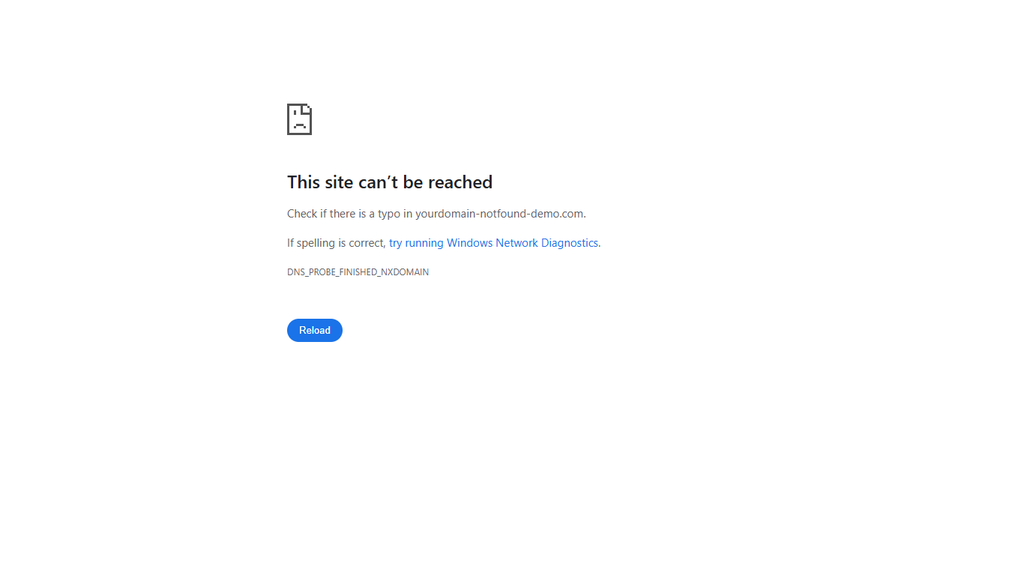
Have you ever seen a DNS_PROBE_FINISHED_NXDOMAIN in browser? We usually begin by verifying the website URL, then try accessing it on another device, through a different network, or in an incognito browser window to identify the possible cause of the issue. That quick steps helps to decide whether to troubleshoot your device or the website’s DNS configuration.
What if you own the website and the error appears across networks? You probably check the domain’s nameservers and DNS records before changing browser settings.
This guide takes you through both situations, with Windows and Ubuntu commands, Chrome checks, and separate workflow for developers and website administrators.
Find where the problem happens
Copy the exact address that keeps failing. Keep the hostname unchanged as example.com, www.example.com, and shop.example.com all can have different DNS records.
Then make these comparisons:
- Open an unrelated website to check whether the problem affects more than one domain.
- Try the failing address in another browser or in incognito browser on the same device.
- Try another device on the same Wi-Fi or network.
- Try the same address over mobile data, with Wi-Fi switched off.
| What you observe | What to investigate first |
| Only Chrome fails | Chrome Secure DNS, extensions, or browser configuration |
| One device fails across browsers | Local resolver settings, cached DNS, or a hosts-file override |
| Devices on Wi-Fi fail, but mobile data works | Router, ISP resolver, network filtering, or VPN configuration |
| The hostname fails across independent networks | Public DNS records, nameserver delegation, or domain status |
| The root domain works, but www or a subdomain fails | Records for that exact hostname or its CNAME target |
These are basic diagnostic hints, not proof. Different networks can use different caches, and browser can use different resolver from the operating system.
If you are visiting someone else’s website: follow the device checks below. If it fails across networks, send the owner the exact address and error.
If you manage the website: move to the website-owner checks when multiple networks fail.
What does DNS_PROBE_FINISHED_NXDOMAIN mean?
DNS helps browser to find the address associated with a hostname. NXDOMAIN means “non-existent domain”: a DNS response reports that the queried name does not exist. A response can also involve alias whose target not exist.
That does not necessarily mean the domain was never registered, but maybe you might be requesting a missing subdomain, or receiving an old cached response, or using resolver that filters the name. The browser message alone is not establish the root cause.
DNS distinguishes non-existent name from a name that exists but has no record of the requested type. These distinctions are defined in RFC 2308 on negative DNS caching.
The failure occurs during name resolution, before the browser can make its normal connection to the website. Reinstalling WordPress, changing PHP, or renewing an SSL certificate is not a sensible first response to an NXDOMAIN error.
Check out “How DNS Works” guide to see DNS working and it’s complete process.
Troubleshoot Issues Related to Your Device or Network
Make one change at a time, then check by reopening the same failing address. Stop when it is opened properly and access is restored.
1. Check the address and reconnect
Look for any spelling mistakes, or any extra characters, or incorrect subdomain. Try typing the correct address instead of opening old bookmark.
Check by close and reopen the browser. On personal device, reconnect to Wi-Fi or restart the device if required. Restarting router may help with temporary network issues.
Do not directly factory-reset your router as it can remove the connection settings and it is not necessary for initial DNS diagnosis.
2. Check Chrome’s Secure DNS setting
Chrome can perform encrypted DNS lookups. This method can help when command-line tools confirm that the website is reachable, yet Chrome still fails to load the page.
On desktop Chrome:
- Open Settings from the three-dot icon at the top right corner
- Navigate to the Privacy and security section >> Security
- Find the “Use secure DNS” option, and note the current configuration.
- If a custom provider is selected, test using your current service provider. Alternatively, turn off the “Secure DNS” to compare results.
- Reload the failing address to check, and then restore your preferred secure configuration after identifying the problem.
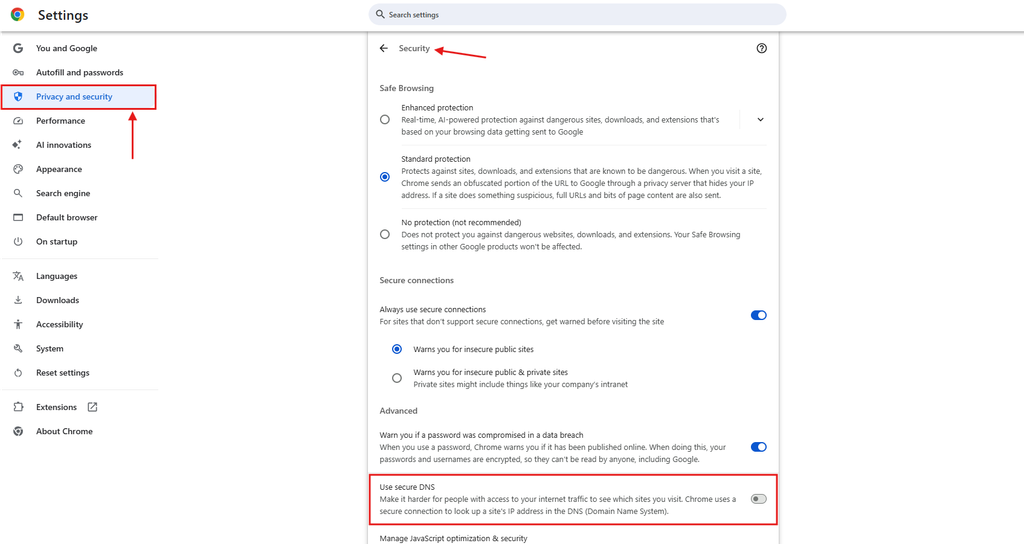
Google’s Chrome documentation explains a custom Secure DNS provider does not fall back to unencrypted DNS when encounters lookup problems. Website access may also be affected by device management settings or parental control restrictions.
If problem continues only in Chrome, update chrome, and test fresh browser profile or disable a recently added extension temporarily to check.
3. Clear the local DNS cache where applicable
DNS cache can retain earlier failure even after website owner fixes the record. Clearing DNS cache affects your device, and does not clear cache held by your ISP or another upstream resolver.
For Windows:
Open Command Prompt as an administrator and run below mentioned command:
ipconfig /flushdnsWindows will report that it flushed the DNS resolver cache. Close and relaunch your browser, then visit the website once more to check whether the issue has been resolved. The command is documented in Microsoft’s ipconfig reference.
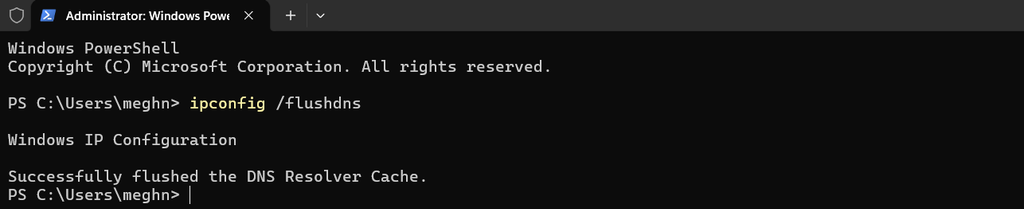
Do not immediately add “ipconfig /release” and “ipconfig /renew” to this step. It will change DHCP configuration and can interrupt connectivity, especially during remote work.
For Ubuntu 22.04 and 24.04:
Open a terminal and inspect the resolver using below command:
resolvectl statusYou can see the output as mentioned in below screenshot:
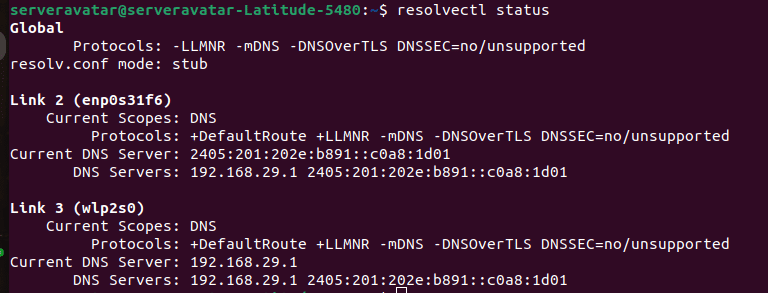
If machine use “systemd-resolved”, clear its cache and test lookup:
sudo resolvectl flush-cachesresolvectl query example.comReplace “example.com” in above command with your failing hostname.
The flush command generally finishes without success message, and follow-up query checks whether resolution now works.
If “resolvectl” is unavailable or resolver service is not running, identify machine’s actual DNS setup instead of installing or restarting unrelated caching service. Ubuntu documents its resolver approach in network configuration guidance and resolvectl manual.
Avoid overwriting “/etc/resolv.conf” as generic fix. Manual changes to it can be replaced or interfere with configured resolver.
For macOS and mobile devices:
First, quit and reopen browser, then restart device if needed. On Android or iPhone, check Wi-Fi with mobile data and check whether VPN or custom DNS configuration is active.
Do not erase mobile network settings, network reset can remove saved configuration. If error follows Wi-Fi rather than device, investigate that network’s resolver.
4. Compare with another DNS resolver
For public website, compare your current DNS resolver with Google Public DNS before changing system settings.
On Windows:
nslookup example.comnslookup example.com 8.8.8.8Replace “example.com” in above command with failing hostname.
On Ubuntu or a Mac with dig available:
dig example.com Adig @8.8.8.8 example.com AReplace “example.com” in above command with your failing hostname.
If public resolver returns address while your usual resolver reports non-existent name, difference points toward caching, filtering, or resolver configuration. It does not by itself prove ISP outage. Some networks block direct DNS queries to external providers.
If you decide to test Google Public DNS in your device settings, its IPv4 addresses are:
Preferred: 8.8.8.8
Alternate: 8.8.4.4
Note: Do not replace corporate or VPN DNS with public DNS when troubleshooting internal hostnames. Those names may intentionally exist only inside private network.
5. Review VPNs, filters, and local overrides
If error began after enabling a VPN or DNS filtering service, compare results with and without that service when your network policy allows it. Restore protection after the test.
Avoid disabling the entire firewall or antivirus as a routine fix. Investigate the specific DNS or web-filtering feature instead.
Developers should also check for an old hosts-file entry left over from a migration or local preview:
| Operating system | Hosts-file location |
| Windows | C:\Windows\System32\drivers\etc\hosts |
| Ubuntu/Linux | /etc/hosts |
| macOS | /etc/hosts |
Back up the file before editing. Remove or comment out only an obsolete entry you understand; preserve intentional development and system entries. An incorrect override may cause different connection error rather than NXDOMAIN, but it is relevant when the browser and DNS tools disagree.
Fix DNS for your own website
You need access to the domain registrar and the authoritative DNS provider. These may be different companies. Before changing anything, save the current DNS records and nameserver settings.
1. Confirm the domain and exact hostname
Start by reviewing your domain details in the registrar’s dashboard. Confirm that the domain is renewed, hasn’t been suspended, and has no pending verification requirements. Expiry or a registrar hold can disrupt DNS, and resulting browser errors.
Then check the exact hostname that visitors use. A working “example.com” domain does not ensure that “www.example.com” works.
2. Confirm you are editing the active DNS zone
Compare the nameservers configured at the registrar with those assigned by your DNS provider. Editing zone at provider that is no longer authoritative will not change the answers visitors receive.
For instance, if your domain points to one DNS provider but you configure records with a different provider, those changes won’t take effect because the active DNS configuration doesn’t include them.
3. Repair the required address or alias record
Common website records are:
| Record | Purpose | What to check |
| A | Maps hostname to IPv4 | Address matches the intended hosting configuration |
| AAAA | Maps hostname to IPv6 | Hosting supports that IPv6 address |
| CNAME | Makes hostname an alias | Target exists and resolves successfully |
Illustrative configuration for website hosted directly on server:
| Type | Name | Value |
| A | @ | 192.0.2.40 |
| CNAME | www | example.com |
Do not copy IP address above. It is just an example; replace it with the actual address your hosting setup requires. Providers often use @ for the root domain, but their input formats differ.
If you use CDN or proxy, public DNS may correctly return the proxy’s addresses. Follow that provider’s configuration instead of assuming every public answer must equal your origin server IP.
Do not delete unrelated MX or TXT records while repairing web records, as it may support email delivery, authentication, or domain verification.
4. Account for negative caching
Suppose someone opened preview.example.com before you created its DNS record. Their resolver may have cached the earlier “does not exist” response. The authoritative server can now have the correct record while that resolver still returns NXDOMAIN.
The negative-cache lifetime is derived from the zone’s SOA information. Under RFC 2308, it uses the lower of the SOA record’s TTL and SOA MINIMUM value. Lowering the newly created A record’s TTL does not remove an already cached negative response.
There is no any universal “wait exactly 48 hours” rule. Check whether the authoritative servers are correct first, then compare recursive resolver answers. Waiting will not fix an incorrect record or delegation.
Advanced checks for developers and server administrators
The commands below perform DNS lookups without changing configuration. On Ubuntu, install dig only if needed:
sudo apt updatesudo apt install dnsutilsThis installs diagnostic software; it does not change the DNS provider. Ubuntu’s DNS documentation identifies dnsutils as the package providing dig.
Read the response before choosing a fix
dig @8.8.8.8 shop.example.com Adig @8.8.8.8 shop.example.com AAAAReplace the hostname with the one that fails. Read the header’s status, the answer section, and any CNAME chain. Do not rely only on +short: an empty display hides useful distinctions.
| Result | Meaning | Next action |
| NXDOMAIN | The lookup reports non-existent name; alias target may be involved | Check spelling, the hostname, alias targets, and the active zone |
| NOERROR with no relevant answer | The lookup completed, but that record type may be absent | Check other address types and alias records |
| SERVFAIL | The resolver could not complete the lookup | Investigate delegation, authoritative availability, and DNSSEC |
| Timeout | No answer arrived within the query timeout | Check resolver reachability and network policy |
| Expected address or valid alias chain | DNS answers this query | Investigate browser differences or the subsequent connection |

Verify the fix and know when to escalate
A successful DNS lookup is one milestone. Confirm that the website itself loads too:
- Query the exact failing hostname again.
- Check root domain, www, and any affected application subdomain separately.
- Reopen browser and load intended HTTPS address.
- For a public website, repeat test from an independent network.
If NXDOMAIN message is replaced by certificate warning, timeout, or HTTP error, you have different symptom to investigate. Check relevant TLS, networking, or application layer rather than continuing to flush DNS.
Reduce the chance of another DNS incident
- Enable registrar renewal reminders and keep account contact details current.
- Save DNS-zone export before migrations or nameserver changes.
- Create and verify important hostname records before sharing new application links.
- When planning changes, lower relevant record TTLs ahead of time if appropriate; existing caches retain their earlier lifetimes.
- Monitor DNS resolution as well as HTTP availability for critical domains.
- For agencies, record who controls each client’s registrar, DNS provider, and hosting account.
If you manage applications with ServerAvatar, use its DNS workflow where your connected Cloudflare setup applies. Verify public resolution before moving on to application or certificate troubleshooting.
Key takeaways
- DNS_PROBE_FINISHED_NXDOMAIN means DNS lookup reports that the requested hostname or its alias target does not exist.
- Test exact website address across browsers, devices, and networks to identify where DNS error occurs.
- Review Chrome’s Secure DNS settings, clear the local DNS cache, and check VPNs or DNS filters when the issue is limited to your device.
- Compare DNS responses using nslookup or dig before changing your DNS resolver settings.
- Verify domain status, authoritative nameservers, and the affected hostname’s A, AAAA, or CNAME records.
- Cached NXDOMAIN responses can persist after DNS fix, but waiting will not resolve incorrect records or nameservers.
- Confirm DNS resolution and HTTPS access after troubleshooting, and maintain DNS monitoring, renewal reminders, and backups.
Conclusion
To fix DNS_PROBE_FINISHED_NXDOMAIN error, starting by identifying whether problem affects the browser, device, network, or the website’s DNS configuration. By checking exact URL, comparing results across independent networks, and using DNS lookup tools for next step. Depending on the findings, the solution may involve clearing a local DNS cache, reviewing Chrome’s Secure DNS settings, or correcting a missing hostname record.
For website owners, reliable recovery depends on checking domain status, confirming the authoritative nameservers, and repairing the required DNS records in the active zone. After making changes, account for cached negative responses and verify that both DNS resolution and the website’s HTTPS connection work. Regular DNS monitoring, renewal reminders, and configuration backups can help prevent future DNS errors and keep your website accessible.
FAQs
Is DNS_PROBE_FINISHED_NXDOMAIN a server-down error?
This alone does not necessarily mean the web server is offline. It indicates a name-resolution problem. A server can be running while its hostname fails to resolve.
Why Can You Access a Website on Mobile Data but Not on Wi-Fi?
The connections may use different DNS resolvers, caches, filters, or VPN routes. Compare lookup answers before deciding whether the router or ISP is responsible.
Will clearing cookies fix NXDOMAIN?
Cookies are not DNS records. Clearing cookies is not targeted remedy for missing hostname. Check DNS resolution and browser resolver settings first.
Why does NXDOMAIN remain after I add the DNS record?
A resolver may retain a negative answer from before the record existed. Confirm the record at the authoritative servers, then compare recursive answers. Also check that you edited the active zone.
Can WordPress plugins or PHP settings fix this error?
They do not create public DNS records. Fix hostname resolution first, then investigate WordPress or PHP only if the site produces an application error after connecting.
Does an empty A-record answer always mean the domain does not exist?
No. Inspect the DNS response status and check AAAA and CNAME records. A hostname can exist without an A record.
About the Author
Meghna Meghwani is a technical writer focused on Linux, Ubuntu, VPS hosting, server management, WordPress, PHP, Node.js, cloud hosting, and DevOps. She creates beginner-friendly tutorials, practical hosting guides, troubleshooting articles, and server security content designed to help developers and businesses manage applications and servers more efficiently.