

A mistyped word at the start of a long command or forgotten options from yesterday’s session can slow you down in the terminal. This Bash shortcuts cheat sheet helps you edit commands, navigate the command line, and search your command history with fewer keystrokes.
This Bash shortcuts cheat sheet helps you with those small interruptions. You will learn how to recover previous commands, change only text that needs fixing, reuse the arguments, handle a running job without closing your terminal.
This guide is designed for developers, Linux beginners, and anyone who regularly works with Bash in a terminal. Start with quick reference, then try examples to understand what each shortcut actually does.
TL;DR
- Use
Ctrl+Rto find previous command, then review it before running it. - Jump with
Ctrl+A,Ctrl+E,Alt+B, andAlt+Finstead of moving one character at time. - Cut text with
Ctrl+W,Ctrl+U, orCtrl+K; restore it withCtrl+Y. - Use Tab for completion and
Alt+. to insert previous command’s last argument. - Remember that
Ctrl+C,Ctrl+Z, andCtrl+Dhave different purposes.
Quick reference: choose the shortcut for the task
These keyboard shortcuts work with Bash’s Emacs editing mode. Terminal settings and personal configuration can change them.
| What you need to do | Shortcut | What to expect |
| Find an older command | Ctrl+R | Search backward through available history |
| Browse recent commands | Ctrl+P / Ctrl+N | Show the previous / next history entry |
| Jump to either end | Ctrl+A / Ctrl+E | Move to beginning / end of input line |
| Move through words | Alt+B / Alt+F | Move backward / forward by a Readline word |
| Move one character | Ctrl+B / Ctrl+F | Move left / right |
| Remove the previous whitespace-delimited word | Ctrl+W | Cut backward to a whitespace boundary |
| Remove the next word | Alt+D | Cut forward by a Readline word |
| Clear text before / after the cursor | Ctrl+U / Ctrl+K | Cut back to the line start / forward to its end |
| Restore cut text | Ctrl+Y | Insert the most recently killed text |
| Undo an editing change | Ctrl+_ | Undo the last undoable line edit |
| Swap adjacent characters | Ctrl+T | Transpose characters around the cursor |
| Reuse the previous last argument | Alt+. | Insert the last argument from history |
| Complete partial input | Tab | Complete a command, path, or supported argument |
| Redraw a crowded screen | Ctrl+L | Clear the display and redraw the current input |
| Interrupt a foreground job | Ctrl+C | Normally send an interrupt signal |
| Suspend a foreground job | Ctrl+Z | Normally stop it until you resume it |
| Delete under the cursor / signal end of input | Ctrl+D | Behavior depends on the input context |
Before you start: check which shortcuts your shell uses
Bash uses Readline, its interactive line-editing library, to handle most shortcuts in this guide. These keys operate at Bash prompt; a program running inside terminal may interpret them differently.
Bash uses the GNU Readline library for interactive command-line editing, and you can explore its available editing modes and commands in the official Bash command-line editing documentation.
Check your current Bash version:
printf '%s\n' "$BASH_VERSION"In Bash, this prints a version string. If no output appears, you might be running a different shell.

To inspect editing modes, run:
set -oYou can see output as mentioned below:
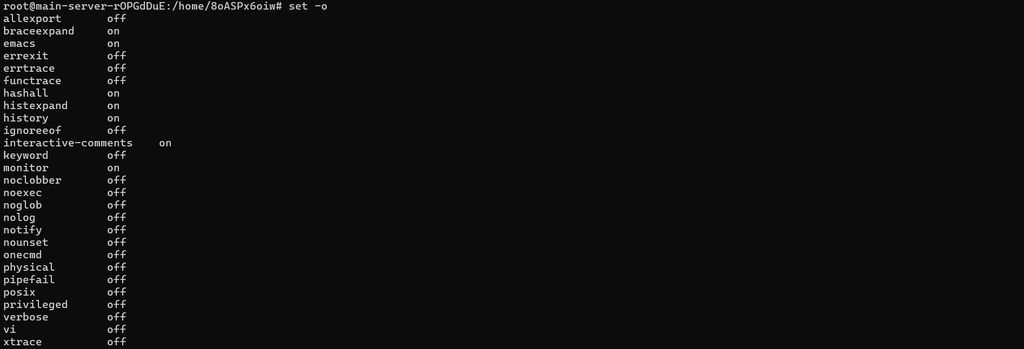
Look for the emacs and vi entries. You can change the mode as per your requirements for the current session with:
set -o emacsThat changes command-line editing, not the commands themselves.
In this guide, “Ctrl+R” means holding “Ctrl” key then pressing “R”. For “Ctrl+X”, then “Ctrl+E”, press the first key combination, release the keys, and then press the second combination. If your terminal does not recognize an “Alt” shortcut, press and release “Esc”, then press required letter.
Find the command you need without retyping it
Search by a memorable fragment with “Ctrl+R”
Suppose you previously ran:
printf '%s\n' 'release-check-42'At a new prompt, press “Ctrl+R” and type release-check-42. Bash searches the available command history as you type. Press “Ctrl+R” once more to search for the previous match.
This is a useful habit to search for specific element. A filename or unusual argument often narrows the results better than common command name.
When you find entry, press Right Arrow key to leave search and edit it. Enter runs the selected command immediately. Use “Ctrl+G” to abort the search and restore original input line.
To learn more about how Bash stores and recalls previous commands, refer to the Bash history interaction documentation.
Check entire command before running it again. Yesterday’s directory, destination, or environment might be wrong today. Avoid entering passwords and access tokens directly into commands: they can end up in shell history and other records.
Browse nearby entries with “Ctrl+P” and “Ctrl+N”
If you only need command you ran just moment ago, “Ctrl+P” retrieves previous history entry. “Ctrl+N” moves forward again.
These are convenient when your hands are already on letter keys. For something further back, switch to “Ctrl+R” rather than stepping through dozens of entries.
Fix a command while keeping the useful parts
Jump directly to text you want to change
Use “Ctrl+A” to reach start of input line and “Ctrl+E” to return to its end. Between those points, “Alt+B” and “Alt+F” move by words.
For a deeper explanation of cursor movement, command-line editing, and text removal, see the GNU Readline interaction guide.
Try typing this without pressing Enter:
printf '%s\n' staging release pendingFrom end, press “Alt+B” to move backward toward “pending”. Press it again to continue toward preceding word. Use “Ctrl+B” or “Ctrl+F” when you need precise one-character adjustment.
Remove mistaken text and restore it if necessary
The most useful editing distinction is how much text you want to remove:
- “
Ctrl+W” cuts backward using whitespace as boundary. - “
Alt+D” cuts forward using Readline’s word rules. - “
Ctrl+U” cuts from cursor back to beginning of the line. - “
Ctrl+K” cuts from cursor to end of line.
For example, type:
printf '%s\n' stagingWith the cursor at end, press “Ctrl+W”. The final word disappears. Type “production” to replace it, or press “Ctrl+Y” immediately to restore cut text.
Bash keeps this text in Readline’s kill ring, a storage area for cut text. It is not your desktop clipboard. Copying something in browser doesn’t make it available through “Ctrl+Y”.
Consecutive cuts can also combine into one kill-ring entry, so later yank may restore more than last word you removed.
Undo an edit or correct a transposed typo
Press “Ctrl+_” to undo undoable command-line edit. If that combination is awkward on your keyboard, try “Ctrl+X”, then “Ctrl+U”.
Undo changes text you are editing. It cannot reverse command that has already executed.
For swapped pair of letters, use “Ctrl+T”. At end of line, it swaps final two characters. Elsewhere, its behavior depends on cursor position, so watch result before continuing.
Reuse arguments and let completion handle long names
Insert the previous command’s last argument with Alt+.
You usually need same path or filename in two consecutive commands. Retyping it adds work and another chance to make mistake.
Run the below mentioned command for example:
printf '%s\n' release-notes.txtAt the next prompt, type “printf '%s\n' ”, including the space, then press “Alt+.”, bash inserts “release-notes.txt”. Press Enter and command prints filename again.
Repeated presses can retrieve last arguments from older history entries. Watch inserted value; don’t assume it belongs to command you had in mind.
The inserted text is still part of shell command. When filenames contain spaces or shell-special characters, inspect quoting before execution.
Complete partial input with Tab
Type start of command or path and press “Tab”. If match is unambiguous, Bash can fill in remaining text. When multiple matches exist, another press commonly lists candidates, depending on your settings.
For path example, start with:
cd /usPress “Tab”. On typical system with matching “/usr/” directory, completion can extend path. The exact result depends on filesystem and other matches.
Completion for command’s options or subcommands may require additional completion definitions. Filename completion working does not mean every installed program has argument completion.
Know what to do when a command is running
Interrupt a job with Ctrl+C
“Ctrl+C” normally sends “SIGINT” to foreground process group. Many command-line programs respond by stopping, but program can handle or ignore signal.
At a standard Bash prompt, it clears the current incomplete command. During running command, consider what interruption means: partially written file or interrupted operation may need checking afterward.
Suspend job with Ctrl+Z, then resume it deliberately
“Ctrl+Z” normally sends stop signal to foreground job. A suspended job is paused; it is not continuing its work in background.
Try this short practice sequence:
sleep 60Press “Ctrl+Z” before it finishes, then run:
jobsBash should list stopped job. Resume it in foreground with:
fgYou can then press the “Ctrl+C” to end practice command. To resume stopped job in background instead, use “bg”. These examples assume practice command is your only current job; when several exist, use job identifier such as “%1” deliberately.
Background execution is not guarantee that process will survive closing terminal or disconnecting. That requires separate process-management decision.
Understand why Ctrl+D changes behavior
While editing nonempty input, Ctrl+D normally deletes character under cursor. At the end of nonempty input, there may be no character to delete.
When the Bash prompt is empty, this key combination typically indicates the end of input and closes the shell. Bash’s “ignoreeof” setting can alter that behavior. Inside another program, the program decides how to respond.
Use “Ctrl+C” to cancel unfinished input. Don’t treat “Ctrl+D” as universal cancellation key.
Clear the display with Ctrl+L
“Ctrl+L” clears visible display and redraws current input line. It helps when earlier output makes a prompt hard to follow.
It doesn’t delete shell history, and terminal scrollback may remain accessible. Clearing screen is not the way to remove sensitive command records.
Why Bash shortcut might not work
Check context before changing configuration. Are you at Bash prompt, or inside an editor or another interactive program?
| Symptom | Likely explanation | What to check |
“Alt+B” triggers a menu | The terminal intercepts Alt | Try Esc, then B; inspect terminal key settings |
| Many bindings behave differently | Vi mode or custom bindings are active | Inspect set -o and bind -p |
“Tab” completes files but not options | Command-specific completion is unavailable | Check that command’s completion setup |
“Ctrl+R” can’t find an old command | It isn’t in the available history | Try another fragment; check history settings |
| Keys work locally but differ remotely | The remote shell or its configuration differs | Check the remote shell and bindings |
Inspect bindings before customizing them
In Bash, run:
bind -pThis prints current Readline function bindings. In its notation, “\C-r” means Ctrl+R and “\e” represents Escape, which is commonly involved in Alt combinations.
To temporarily customize your shortcuts, you can assign “Ctrl+O” to jump to the end of the current line.
bind '"\C-o": end-of-line'This setting overwrites Ctrl+O’s current shortcut assignment for the session, so verify what it does before changing it. Opening fresh shell normally restores configured binding unless you have saved change in startup configuration.
I would keep defaults while learning. A personal binding is convenient on one machine but may be missing on next server you access.

A five-minute practice routine
Use fresh prompt and harmless text so mistakes are easy to recover from.
- Run
printf” '%s\n'shortcut-practice. - Press “
Ctrl+R”, search for “shortcut-practice”, and use Right Arrow to return to editing. - Press “
Ctrl+E”, then “Ctrl+W”, and type “shortcut-complete”. - Use “
Ctrl+A” and “Ctrl+E” to jump between the ends. Review the line and press Enter. - Type “
printf '%s\n'” and press “Alt+.” to reuse last argument. Review and run it.
The final command should print “shortcut-complete”. Practice these few actions until they feel familiar before adding more shortcuts.
Key takeaways
- Search command history with “
Ctrl+R”, then inspect result before executing it. - Move by words or line boundaries to make long commands easier to edit.
- Restore Readline cuts with “
Ctrl+Y”; use undo only for unexecuted line edits. - Reuse arguments with “
Alt+.” and reduce manual typing with “Tab”. - Distinguish interrupting, suspending, and ending input before using process-control keys.
Put your terminal headaches aside with ServerAvatar
If you manage servers and applications, explore how ServerAvatar simplifies server and application management and reduces the need for complex command-line tasks, making your workflow smoother and more efficient.
Explore ServerAvatar documentation to learn how to manage servers and applications through a web-based interface.
Conclusion
You don’t need to memorize every shortcut to make Bash easier to use. Begin with the actions you repeat: finding an earlier command, replacing its final argument, and moving to the part that needs attention. A few familiar combinations can remove much of back-and-forth editing.
Keep this cheat sheet nearby during your next terminal session and try five-minute routine. After you get used to these shortcuts, you can explore Bash completion features and job control commands. On a server, keep reviewing commands before you run them; faster editing is most useful when it supports careful work.
FAQs
Which Bash shortcuts should beginners learn first?
Start with “Ctrl+R” for history search, “Ctrl+A” and “Ctrl+E” for movement, and “Ctrl+W” and “Ctrl+Y” for cutting and restoring text. These cover common tasks without requiring a long list to memorize.
What is the difference between “Ctrl+W” and “Alt+D”?
“Ctrl+W” cuts backward using whitespace boundaries. “Alt+D” cuts forward using Readline’s word boundaries. Both the direction and the definition of a word differ, which matters when editing paths or punctuation-heavy arguments.
Does pressing “Ctrl+Z” move a running command to the background?
No. It normally suspends the foreground job. Run bg to continue the suspended job in the background, or use fg to resume it in the foreground. Use “jobs” to inspect the current state.
Why does Ctrl+D sometimes close Bash?
At an empty prompt, Ctrl+D normally signals end of input, causing Bash to exit. On a nonempty line, its default editing function deletes the character under the cursor. Shell settings and the active program can change the result.
Why do Bash shortcuts behave differently over SSH?
Your local terminal still interprets some keys, while the remote shell handles the input it receives. A different remote shell, editing mode, or Readline configuration can change the behavior. Check both the terminal settings and the remote session.