

You open a website, but instead of the page, your browser displays “This site can’t provide a secure connection”. At the bottom, you see “ERR_SSL_VERSION_OR_CIPHER_MISMATCH”.
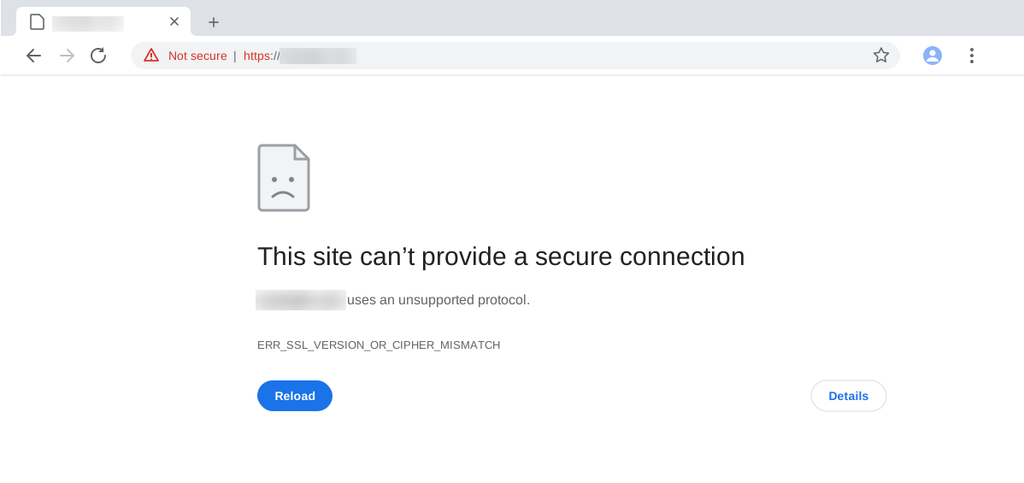
The message looks complicated, especially when your website was working before migration, certificate change, or server update. It means browser could not establish a compatible secure connection with endpoint it reached.
Fixing it starts with finding where connection fails. A browser update may help one visitor, while server configuration problem requires action from website owner.
This guide walks website owners, developers, and visitors through causes, diagnostic checks, and practical fixes.
TL;DR
- Test affected website on another updated browser, device, and network.
- If problem affects multiple users, inspect website’s SSL/TLS configuration.
- Check for compatible TLS versions, cipher suites, and correct HTTPS virtual host.
- If you use Cloudflare, verify certificate activation and hostname coverage.
- Retest after each change instead of adjusting several settings together.
- Keep modern security protections enabled while troubleshooting.
What Does ERR_SSL_VERSION_OR_CIPHER_MISMATCH Mean?
ERR_SSL_VERSION_OR_CIPHER_MISMATCH error occurs when a browser cannot establish a secure connection with a website because the SSL/TLS protocol versions or encryption settings are incompatible. Unsupported TLS versions or incompatible cryptographic settings can cause this failure.
Before loading HTTPS page, browser and server perform TLS handshake. They determine the compatible protocols and encryption methods available to secure communication between the browser and the website.
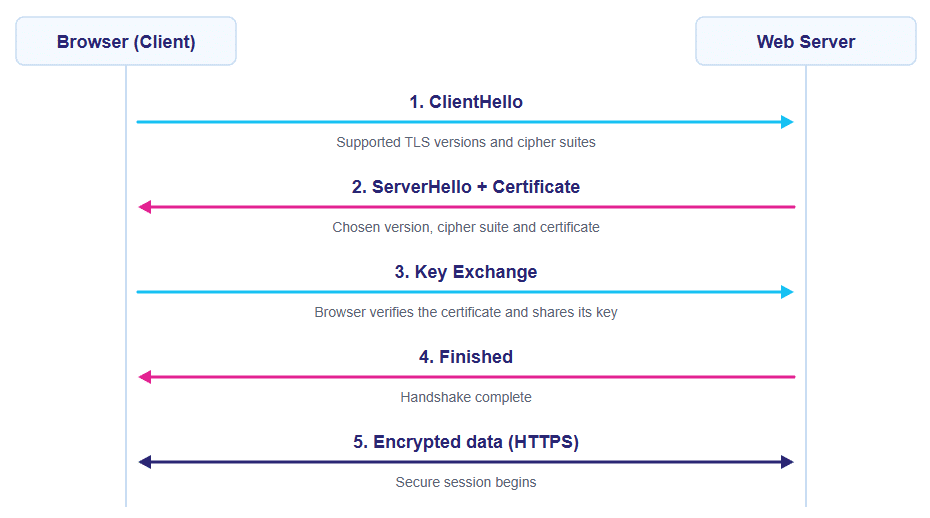
Two terms help explain process:
- TLS version: Indicates which version of Transport Layer Security protocol is used to establish secure connection.
- Cipher suite: A set of cryptographic algorithms used within that protocol.
If browser and server cannot agree on compatible settings, connection stops before page loads.
The term “SSL certificate” remains widely used, but current HTTPS connections rely on TLS to secure data exchanged between browsers and websites.
How Is This Different from Other SSL Errors?
The exact browser message helps with investigation.
| Error or symptom | What it generally indicates |
| ERR_SSL_VERSION_OR_CIPHER_MISMATCH | A secure connection could not negotiated with compatible settings |
| NET::ERR_CERT_DATE_INVALID | A certificate validity-date problem or incorrect device clock |
| NET::ERR_CERT_COMMON_NAME_INVALID | The certificate does not cover requested hostname |
| ERR_SSL_PROTOCOL_ERROR | A broader problem with TLS exchange or response received |
These differences matter. Renewing certificate will not resolve issue if server supports only obsolete security protocols. Likewise, changing cipher settings can not fix certificate issued for wrong domain.
What Causes ERR_SSL_VERSION_OR_CIPHER_MISMATCH?
Several configurations can produce similar errors. Start with endpoint that visitors actually reach, mainly if your website uses proxy or recently moved to another server.
Outdated TLS Versions
A server configured only for obsolete TLS versions may fail to connect with current browsers. The reverse can also happen: old client may not support modern protocols that required by modern endpoints.
Incompatible Cipher Suites
A manually configured cipher suite can leave the browser and server without any mutually supported encryption methods. This may happen when outdated settings are reused, security rules are made too restrictive, or certificate types are changed without checking compatibility.
Incorrect HTTPS Virtual Host or SNI Settings
One IP address can host multiple HTTPS websites. Server Name Indication lets client specify hostname it wants during handshake. An incorrect virtual host, default listener, or explicit handshake-rejection rule can cause wrong configuration to handle connection.
Cloudflare Certificate Problems
When Cloudflare proxies traffic, visitors connect to Cloudflare’s edge first. Inactive edge certificate or missing hostname coverage can prevent that connection from succeeding, even when origin server has a working certificate.
Outdated Clients or HTTPS Inspection
An old browser, operating system, antivirus HTTPS scanner, or corporate proxy may interfere with negotiation. If website loads everywhere except one device or office network, investigate that environment before changing server.
Diagnose the Problem Before Applying a Fix
1. Check Whether Error Affects One Device or Everyone
Open the affected URL using:
- Another updated browser.
- A second device.
- A different network, such as mobile data.
Also compare the exact hostnames if involved:
For example:
- https://example.com
- https://www.example.com
- https://app.example.com
If main domain loads but subdomain fails, focus on subdomain’s DNS destination, certificate coverage, and HTTPS configuration.
If issue affects all hostnames across multiple devices, check server’s publicly accessible endpoint for potential configuration problems. These checks are directional rather than conclusive.
2. Run an SSL Labs Server Test
For a publicly accessible website, use Squally SSL Labs Server Test to analyse of SSL.
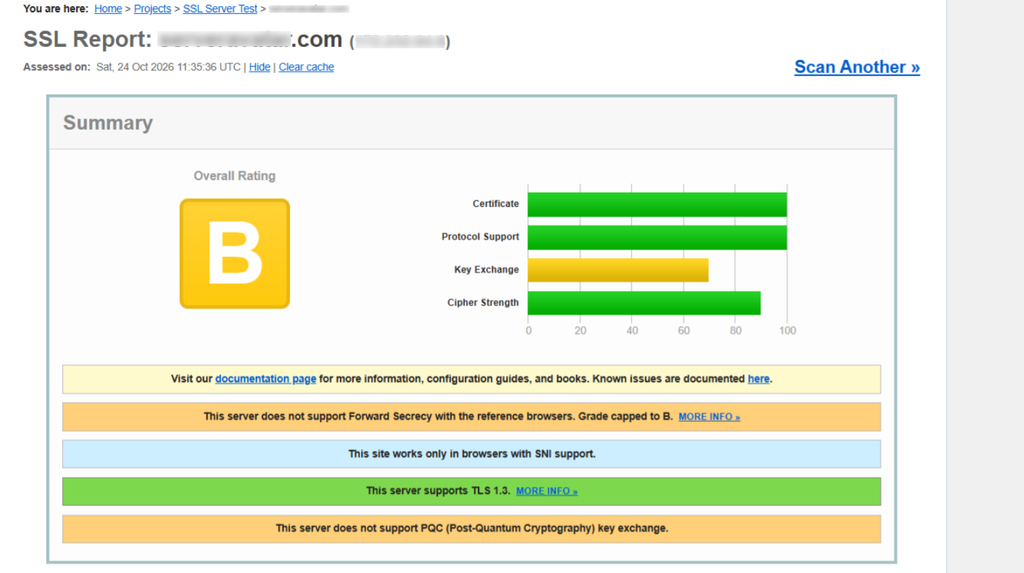
Enter the affected hostname and review:
- Supported TLS versions.
- Offered cipher suites.
- Certificate names and validity.
- Certificate chain findings.
- Handshake simulation results.
- Differences between detected server endpoints.
Look beyond overall grade. Relevant question is whether tested endpoint supports connection your visitors need.
If Cloudflare proxies domain, public scan usually assesses Cloudflare’s edge. It does not prove that origin server has same configuration.
3. Test the TLS Handshake with OpenSSL
From machine with current OpenSSL installation, replace “example.com” with the your hostname:
openssl s_client \
-connect example.com:443 \
-servername example.com \
-brief </dev/nullThe -username argument supplies SNI so the server can select the intended website.
Next, test protocol versions separately:
openssl s_client \
-connect example.com:443 \
-servername example.com \
-tls1_2 \
-brief </dev/null
openssl s_client \
-connect example.com:443 \
-servername example.com \
-tls1_3 \
-brief </dev/nullLook for any protocol, cipher, or a handshake error. Error wording varies by OpenSSL version and responding endpoint.
These commands used to analyze negotiation issues, but that does not mean browser certificate validation will succeed in every case. OpenSSL documents separate options for hostname verification and verification-error handling.
For additional command options and details about SNI, see the official OpenSSL s_client documentation.
4. Match the Symptom to the Next Check
| Symptom | Next check |
| Fails on one device only | Browser, operating system, and HTTPS inspection |
| Fails on multiple devices | Public endpoint’s TLS configuration |
| Main domain works; subdomain fails | Subdomain certificate coverage and routing |
| Started after moving servers | DNS records and destination server |
| Started after enabling Cloudflare | Edge certificate status and coverage |
| TLS 1.2 works; TLS 1.3 fails | TLS 1.3 support and configuration |
| Different networks give different results | DNS destinations, IPv4/IPv6, and network interference |
A failed TLS 1.3 test does not automatically mean modern browser cannot connect: it may successfully negotiate TLS 1.2.
How to Fix the Error as a Website Owner
Before changing production configuration, save copy of affected files to restore them if required.
If hosting panel manages those files, use its supported settings or configuration mechanism. Direct edits may be overwritten.
1. Enable Compatible TLS Versions
For general public website, check TLS 1.2 and TLS 1.3 are available where supported by server software and linked TLS library.
If endpoint offers only obsolete versions, update its configuration and software.
If your organization intentionally requires TLS 1.3, review whether affected clients meet that requirement. Compatibility policy should be deliberate decision.
Do not enable obsolete protocols as shortcut.
2. Correct Incompatible Cipher Settings
Review custom cipher directives, especially if problem began immediately after configuration change.
Check whether:
- Recent change removed previously compatible suites
- Available suites match server’s certificate capabilities
- Configuration includes outdated restrictions
- A shared configuration file overrides website-specific settings
Avoid pasting arbitrary cipher string into production. Use current, maintained configuration appropriate for your server version and audience.
Also distinguish TLS 1.2 cipher settings from TLS 1.3 ciphersuite settings. A directive that affects one may not configure other.
3. Fix HTTPS Virtual Host and SNI Configuration
Confirm that requested hostname matches intended HTTPS virtual host.
Review:
- Listener handling port 443
- Configured hostname
- Certificate and private-key paths
- Default virtual host settings
- Any rules that reject unrecognized hostnames
For example, if “shop.example.com” reaches server that only has HTTPS configuration for “example.com”, resulting behavior depends on default listener. It may serve another certificate or reject handshake. Testing only server’s IP address can be misleading because it does not necessarily select website’s hostname-specific configuration.
For more information about configuring certificates and name-based HTTPS servers, consult the official NGINX HTTPS server configuration guide.
4. Check Certificate Coverage and Installation
Inspect certificate actually presented by the endpoint. Verify that:
- It covers exact requested hostname
- It is within its validity period
- Correct certificate chain is installed
- Configured private key belongs to that certificate
Wildcard such as “*.example.com” does not cover “app.shop.example.com”.
Resolve any certificate problem you find, but keep diagnosis straightforward. On direct connection, expired certificate or hostname mismatch commonly produces certificate-specific warning rather than this exact error.
If you manage your application through ServerAvatar, follow the automatic SSL certificate installation to install a certificate and review its status from the application panel, and If you use a certificate issued by an external provider, see ServerAvatar’s custom SSL certificate installation guide for instructions on configuring the certificate, private key, and chain file.
5. Update the Web Server and TLS Libraries
If installed stack cannot support your TLS configuration, update it through operating system’s supported package-management process.
Plan the change rather than upgrading blindly:
- Check supported software versions
- Review dependencies and configuration changes
- Schedule service interruption if needed
- Validate configuration afterward
- Confirm running service uses updated components
OpenSSL command-line version alone does not prove which library web server uses. Check server’s build and runtime information as well.
6. Apply and Validate Nginx Configuration
For Nginx, protocol directive is:
ssl_protocols TLSv1.2 TLSv1.3;Place it in appropriate managed configuration context.
Nginx notes that protocol selection can depend on default server configuration because it occurs early in connection handling. Therefore, changing only one named server block may not resolve effective policy.
After editing, test the configuration:
sudo nginx -tIf test succeeds, reload Nginx:
sudo systemctl reload nginxThese commands assume systemd-based installation with service named nginx.
If validation fails, correct reported problem before reloading. A successful reload should then be followed by new external handshake test.
7. Apply and Validate Apache Configuration
For Apache with compatible “mod_ssl” and OpenSSL versions, explicit protocol policy can use:
SSLProtocol -all +TLSv1.2 +TLSv1.3Apply it in appropriate server configuration and review virtual host settings. Apache’s capabilities and supported security features vary depending on the installed Apache and OpenSSL versions.
On an Ubuntu or Debian installation, check syntax:
sudo apache2ctl configtestAfter a successful result, reload:
sudo systemctl reload apache2Other distributions may use httpd as command or service name.
If Apache runs behind Nginx or another TLS-terminating proxy, fix component handling failing connection. Changing backend service that never negotiates visitor’s TLS session will not resolve public-facing problem.
Before applying protocol changes, check the official Apache mod_ssl documentation for directive syntax and compatibility with your installed server version.
How to Fix ERR_SSL_VERSION_OR_CIPHER_MISMATCH with Cloudflare
Cloudflare troubleshooting requires checking both certificate availability and hostname being requested.
1. Check Edge Certificate Activation
In Cloudflare dashboard, open domain’s SSL/TLS certificate settings. Confirm that active edge certificate covers affected hostname. If issuance is pending or failed, investigate displayed validation status. Adding a certificate to the origin server will not resolve the issue if the required Cloudflare edge certificate is not enabled.
2. Check Subdomain Coverage
Cloudflare Universal SSL ordinarily covers the zone’s apex domain and first-level subdomains.
For a zone named example.com:
| Hostname | Ordinary Universal SSL coverage |
| example.com | Covered |
| www.example.com | Covered |
| shop.example.com | Covered |
| app.shop.example.com | Requires additional coverage |
If hostname is deeper than certificate covers, arrange appropriate certificate coverage using available Cloudflare certificate option. Check certificate’s listed names rather than assuming every subdomain is included.
For the complete coverage rules and available options for deeper subdomains, review Cloudflare’s Universal SSL limitations.
3. Review DNS Proxy Status and Minimum TLS Settings
Check whether affected DNS record is proxied.
- Proxied: Visitors normally negotiate TLS with Cloudflare.
- DNS only: Visitors connect directly to destination server.
This determines where to investigate browser-facing handshake.
Also review configured minimum TLS version. If client cannot meet it, update client or assess compatibility policy.
Avoid switching proxy status repeatedly as general fix. Doing so changes endpoint being tested and can hide underlying issue.
For instructions on viewing and managing DNS records through ServerAvatar panel, see Cloudflare DNS records guide.
4. Separate Edge Problems from Origin Problems
A proxied website can involve two secure connections:
- Visitor to Cloudflare.
- Cloudflare to the origin server.
A browser negotiation failure at edge requires different investigation from origin connection failure.
Cloudflare error 525 concerns failed handshake with origin. Error 526 concerns invalid origin certificate under applicable validation settings.
Do not switch to Flexible mode as blanket solution. It changes origin encryption behavior without necessarily correcting browser-facing failure.
What Website Visitors Can Try
Visitors can investigate their own environment, but server-side configuration requires website owner’s help.
Update the Browser and Operating System
Install supported updates and restart browser. If you use older operating system, browser update alone may not address every compatibility limitation.
Test Another Device or Network
Try same URL on second device and mobile data.
If it works there, compare what differs: browser version, network policy, proxy settings, or inspection software.
If problem persists across different devices and networks, contact website owner to investigate issue.
Investigate Antivirus HTTPS Scanning or a Network Proxy
Some security products inspect encrypted traffic by establishing their own TLS connections. Update product and review its logs. On managed network, ask administrator to investigate affected hostname. Any temporary diagnostic change should follow product’s instructions and be reversed promptly. Avoid leaving protection disabled.
Fixes to Avoid
Enabling Obsolete Protocols or Cipher Suites
Do not restore SSL 3.0, TLS 1.0, TLS 1.1, or obsolete cipher suites simply to remove error message. Update incompatible component and maintain deliberate security policy.
Disabling Browser Security Checks
Bypassing protection does not repair failed handshake or establish trustworthy connection.
Treating Cache Clearing as a Universal Fix
Clearing browser data cannot add missing TLS support or create compatible server cipher configuration. isolated browser-profile issue may justify targeted investigation, but widespread failures should lead to endpoint checks.
Renewing Certificates Without Diagnosing the Failure
Renewal helps when certificate renewal is actual problem. It does not correct incompatible protocol settings.
Changing Several Settings at Once
Record original configuration, make one justified change, and retest. That makes outcome easier to explain and rollback easier if change introduces another problem.
How to Verify the Error Is Fixed
Retest the Exact Hostname
Open original failing URL in updated browser. Test other affected hostnames separately. A working homepage does not prove that www, application subdomains, or deeper subdomains work.
Repeat the SSL Scan and Handshake Tests
Run diagnostic checks again. Confirm that intended TLS versions negotiate successfully and that correct certificate is presented. Also check normal application behavior after connection succeeds.
Check IPv4 and IPv6 Endpoints
If domain has both address types, verify both paths:
curl -4 -I https://example.comcurl -6 -I https://example.comThese commands require corresponding connectivity on testing machine. local lack of IPv6 connectivity does not prove website’s IPv6 endpoint is broken.
If two path reach different servers, align their HTTPS configuration or correct outdated DNS records.
Confirm the Fix Persists
Ensure correct configuration survives deployment, service restart, and hosting-panel configuration generation. temporary edit that gets overwritten can bring error back.

How to Prevent the Error from Returning
Maintain Supported Software and TLS Settings
Keep operating system, web server, and TLS components within supported update paths. Review custom security settings periodically rather than leaving copied configurations untouched indefinitely.
Monitor Certificate Renewal and Hostname Coverage
Check that renewal succeeds and that active service loads renewed certificate. Make sure every new hostname is included in your certificate coverage before routing visitors to it.
Retest HTTPS After Infrastructure Changes
Include HTTPS validation in migrations, DNS changes, proxy changes, and certificate deployments. Check each public hostname and relevant destination.
Keep Tested Configuration and Rollback Copy
Store last known working configuration and document why important TLS settings exist. This helps future changes remain understandable and easier to troubleshoot.
Key Takeaways
- Identify whether failure affects one device, one hostname, or multiple visitors before changing settings
- Use SSL scans and hostname-aware handshake tests to investigate endpoint visitor actually reach
- Correct protocol, cipher, virtual host, or certificate settings according to diagnostic result
- Check Cloudflare edge certificate activation and hostname coverage separately from origin configuration
- Retest affected hostnames and network paths after change
Conclusion
Fixing “ERR_SSL_VERSION_OR_CIPHER_MISMATCH” starts with locating failed connection. Compare devices and networks, inspect public endpoint, and use results to choose relevant fix. This method is more reliable than repeatedly deleting browser data or renewing certificates without first identifying the underlying cause.
After restoring access, verify every affected hostname and keep corrected configuration documented. If you manage multiple applications, use your hosting platform’s supported SSL controls to keep changes consistent. ServerAvatar can help simplify routine server and application management; use checks in this guide whenever you need to investigate HTTPS compatibility.
FAQs
What Does ERR_SSL_VERSION_OR_CIPHER_MISMATCH Mean?
It means browser could not negotiate usable secure connection with endpoint it reached. Incompatible TLS versions, cipher settings, or certain edge certificate configurations can cause it.
How Do I Know Whether the Problem Is My Browser or the Website?
Test exact URL using updated browser on another device and network. A failure isolated to one environment suggests local issue. Consistent failures across independent environments suggest endpoint problem.
Why Does This Error Appear After Enabling Cloudflare?
Check whether Cloudflare has active edge certificate covering affected hostname. Also confirm proxy status and TLS settings. Deeper subdomains may require certificate coverage beyond ordinary Universal SSL.
Can Clearing the Browser Cache Fix This Error?
It cannot correct unsupported server protocols or incompatible cipher suites. Use cross-device testing and TLS diagnostics before treating browser data as the cause.
Should I Enable Older TLS Versions to Make the Website Work?
Avoid enabling obsolete protocols as workaround. Update outdated client or server component and use supported TLS settings appropriate for your audience.
About the Author
Meghna Meghwani is a technical writer focused on Linux, Ubuntu, VPS hosting, server management, WordPress, PHP, Node.js, cloud hosting, and DevOps. She creates beginner-friendly tutorials, practical hosting guides, troubleshooting articles, and server security content designed to help developers and businesses manage applications and servers more efficiently.