

An automatic update can fix security issue while you are away from desk. It can also change plugin that your contact form or checkout depends on. Learning how to manage WordPress automatic updates helps you keep your website secure while staying in control of these changes.
I recommend choosing update policy around what your website does, how quickly you spot problems, and whether you restore it. Personal blog and busy online store need different safeguards.
In this guide, I will walk through what to check when updates fail. It’s written for website owners, developers, and agencies who want practical control without unnecessary complexity.
TL;DR
- Keep minor core updates enabled for most websites
- Choose plugin and theme auto-updates according to their dependencies and business impact
- Test major changes on staging when site handles important transactions or custom functionality.
- Maintain recoverable backups and check update notifications.
- If you disable automation, assign someone to apply updates promptly.
What Does WordPress Update Automatically?
WordPress separates updates into core, plugins, themes, and translations. Core release include minor maintenance/security release and major feature release.
Fresh installations from WordPress 5.6 onward normally enable both minor and major core auto-updates. Older installations can retain minor-only behavior. Hosting policies and custom configuration can change this. Translation updates are normally automatic; routine plugin and theme auto-updates are generally opt-in, with exceptions for certain security interventions.
Check the official WordPress policy your installation actually uses instead of assuming the default.
Should You Enable Automatic Updates?
I would start with consequences of failed update, then decide what level of testing is appropriate.
| Website type | Suggested starting policy | Essential safeguard |
| Personal blog or portfolio | Consider broad automation after checking compatibility | Backups and failure alerts |
| Business website with lead forms | Selective plugin/theme automation | Test form submissions after changes |
| Store or membership website | Controlled updates for payment and access dependencies | Staging and transaction checks |
| Agency-managed client site | Document a policy for each client | Named owner and update records |
These are starting points. Small site depend on fragile custom code, and large site can have reliable automated testing process.
I would not leave vulnerable component unpatched, because it’s update need testing. Review advisory, prioritize fix, and use temporary mitigation if safe deployment needs preparation.
Before You Change Update Settings
First, back up both the database and files of your application. Store backup copy outside server and confirm you have credentials and instructions required to restore it.
Next, identify business-critical functions: payments, bookings, membership access, forms, and custom integrations. Put these on short testing checklist.
For important changes, create staging copy and check compatibility requirements. Staging prevent real payment and unintended customer email. Keep direct customization out of parent themes, where update can be overwrite them.
Before applying updates to a live website, consider creating a separate testing environment. Guide on setting up a staging environment explains how to test website changes without affecting your production website.
Finally, check administrator email address and confirm notifications arrive. An unread failure message cannot help you respond.
Manage Auto-Updates from WordPress Dashboard
WordPress core
- Open WordPress admin Dashboard >> navigate to the Updates section.
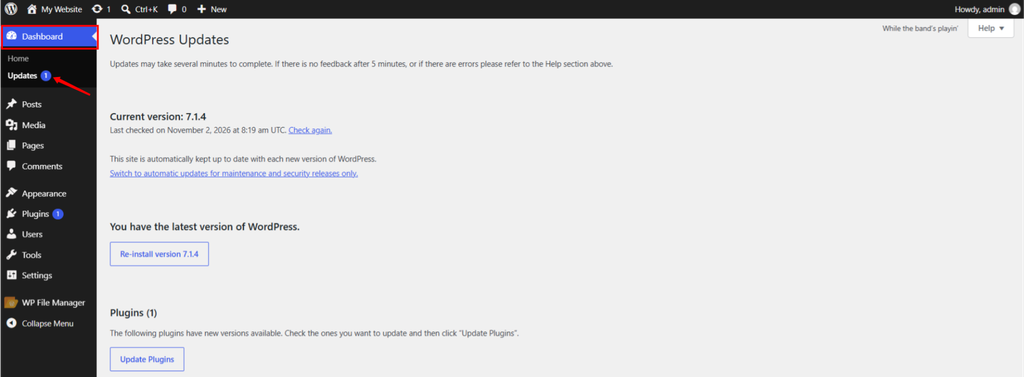
- Read current automatic-update message.
- Use available link to enable all new core versions or switch to maintenance and security releases only.
Read link carefully: it describes action you can take, which may be opposite of current setting. Host or configuration rule may prevent changes here.
Plugins
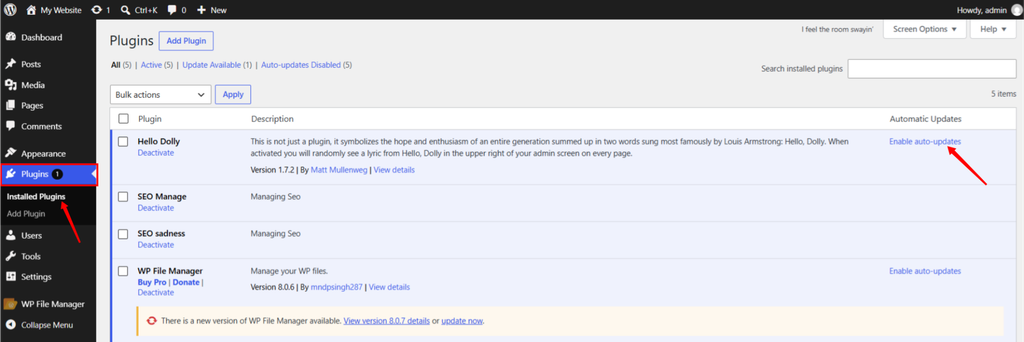
Navigate to the Plugins >> Installed Plugins section in WordPress admin dashboard. Use Enable auto-updates or Disable auto-updates beside plugin. To change several together, select them, choose corresponding bulk action, and apply it.
Themes
Navigate to the Appearance >> Themes section in WordPress admin dashboard, select theme, and use its auto-update link. Configure themes individually.
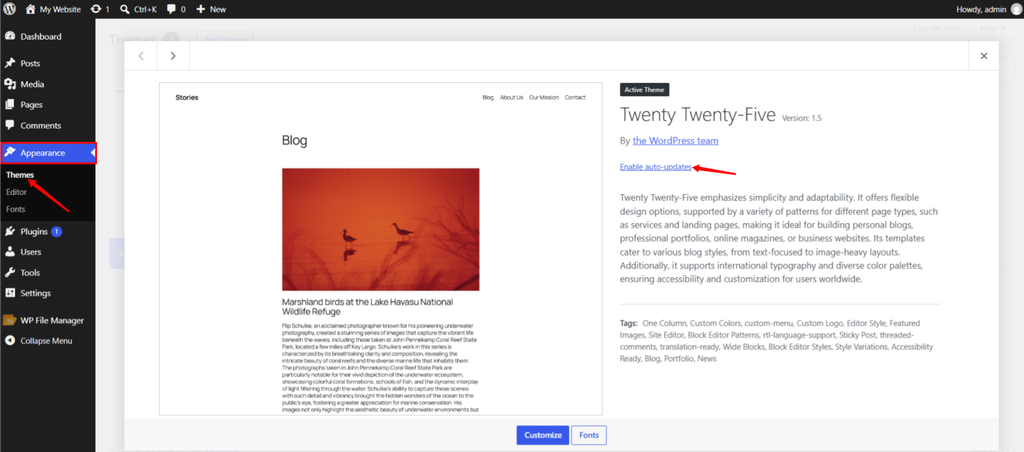
After this, revisit screen to confirm setting persisted. Saving preference doesn’t prove that update can successfully run.
Configure Core Updates in wp-config.php
Back up configuration file before editing it. Add one applicable description from before WordPress loads, normally above “stop editing” comment. Edit existing definition rather than adding duplicate.
Allow minor core updates:
define( 'WP_AUTO_UPDATE_CORE', 'minor' );Allow all applicable core updates:
define( 'WP_AUTO_UPDATE_CORE', true );Disable core auto-updates:
define( 'WP_AUTO_UPDATE_CORE', false );Disable WordPress background updater:
define( 'AUTOMATIC_UPDATER_DISABLED', true );The core constant does not control plugin or theme update. Disabling background updater also does not necessarily stop external hosting service from performing updates.
I would secure broad disable option for maintained replacement workflow. Also, don’t substitute DISALLOW_FILE_MODS: that setting restricts wider range of installation and update operations.
Control Plugin and Theme Updates with Filters
For explicit code-enforced policy, use small must-use plugin rather than placing filters in wp-config.php or tying them to active theme.
Create wp-content/mu-plugins/site-update-policy.php, directory if needed:
<?php

/**

* Plugin Name: Site Update Policy

*/

add_filter( 'auto_update_plugin', '__return_false' );

add_filter( 'auto_update_theme', '__return_false' );This blocks background updates of plugin and theme, including security-triggered ones. Use it only when someone owns prompt manual patching. Remove relevant filter to return control to normal policy; replacing __return_false with __return_true broadly enables that update type.
For selective automation, I prefer dashboard unless developer needs to enforce documented policy. Avoid competing rules across code, plugins, and hosting settings.
A no-code alternative
Update-management plugin such as Easy Updates Manager can provide centralized control. Review its current feature list and compatibility first. If native control meet your needs, additional plugin may add little value.
Check Update Settings with WP-CLI
If you have SSH access and WP-CLI installed, run commands from correct WordPress directory as website’s operating-system user.
Inspect plugin and theme preferences:
wp plugin auto-updates status --allwp theme auto-updates status --allEnable or disable automation for installed plugin, replace example with its actual slug:
wp plugin auto-updates enable examplewp plugin auto-updates disable exampleRun status command again afterward. These commands change stored preferences; filters and other policies can still affect execution. See official plugin and theme command references.
I distinguish this from wp plugin update: that command performs update now rather than configuring future automation.
Build a Safer Update Workflow
For business-critical changes, mentioned sequence should be helpful:
- Review changelog and compatibility requirements
- Confirm current backup
- Apply the update to staging.
- Test workflows that generate revenue or leads
- Update production during appropriate maintenance window
- Repeat checks and review errors
Useful record includes component, old/new versions, update time, checks performed, and person responsible.
Don’t rely solely on homepage loading. Submit test form, check account access, test checkout using site’s approved test process. Review mobile pages and browser errors where relevant.
If you manage WordPress websites through ServerAvatar, you can also explore how to update WordPress core, plugins, themes, and databases from one place using its WordPress Toolkit.
Why Are WordPress Automatic Updates Not Working?
Start checking with Tools >> Site Health, update emails, and server logs.
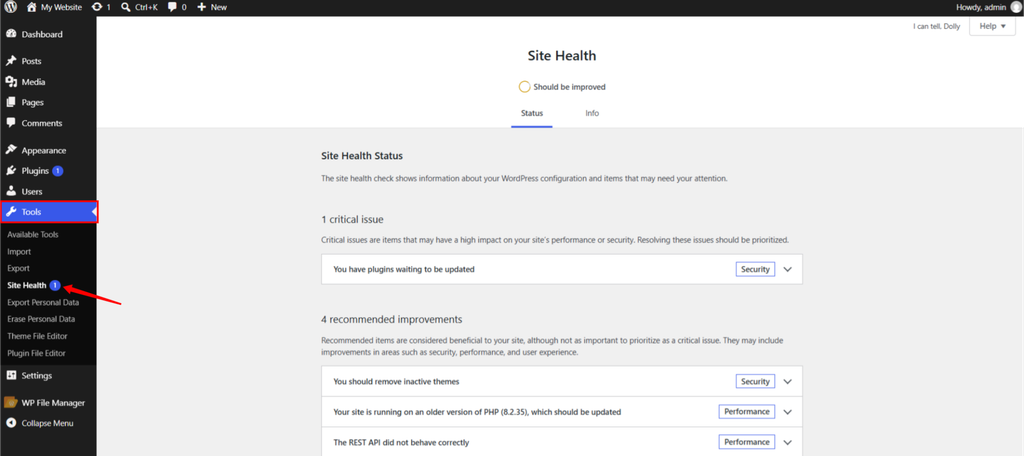
Then focus on exact problem.
| Symptom | What to check first |
| Auto-update controls are missing | Permissions, hosting restrictions, and update-management plugins |
| Updates stay scheduled indefinitely | WP-Cron execution and loopback-request errors |
| Files cannot be replaced | Ownership, write permissions, and available disk space |
| Update downloads fail | Outbound connectivity and download service |
| Premium plugin updates fail | License activation and vendor update access |
| Settings don’t match behavior | Constants, must-use plugins, filters, and hosting policies |
If DISABLE_WP_CRON is enabled, confirm that working server cron replacement exists. Don’t disable scheduling without replacing it.
If you want more control over scheduled WordPress tasks, read guide on managing WordPress Cron Jobs with ServerAvatar to understand how WP-Cron and server-side cron execution work.
I would also recommend to avoid permission changes such as chmod 777. Correct ownership or access problem instead of making installation writable.

Recover from Broken Automatic Update
Check update emails and logs to identify what has changed. WordPress 6.6 introduced rollback protection for plugin auto-updates when its checks detect PHP fatal errors. That protection is useful, but it is not complete functional test or database backup.
You can learn more about this improvement in the official WordPress 6.6 release documentation, which describes the plugin auto-update rollback feature introduced in that release.
If dashboard is unavailable, use valid Recovery Mode link if offered, or have administrator disable affected plugin through WP-CLI or file access. Disabling payment or membership plugin can interrupt services, so verify consequences.
Restore from known-good backup when necessary. Before restoring older database, account for new orders, registrations, and submissions. Replacing database can erase records created after that backup. Preserve current state and plan recovery with your developer or host.
After recovery, address compatibility and security before returning component to service. An older vulnerable version shouldn’t become permanent fix.
If an interrupted update leaves your website displaying the scheduled maintenance message, follow our guide on fixing WordPress stuck in maintenance mode to restore normal website access.
Key Takeaways
- Verify your site’s actual update settings before changing them.
- Choose automation according to dependencies and business impact
- Keep recoverable file and database backups
- Test important user workflows after updates
- Assign prompt manual patching whenever automation is disabled
Conclusion
I recommend treating WordPress automatic updates as part of ongoing maintenance process. Start by reviewing current settings, checking your backups, and deciding which components need testing before release. That gives you clear policy you can maintain.
Your next step will be simple, audit one website and document its update owner, recovery method, and testing checklist. If you manage WordPress on VPS, consider ServerAvatar for surrounding server-management workflow, and review its backup and staging capabilities against your needs.
FAQs
Are WordPress automatic updates enabled by default?
Minor core and translation updates generally are. Fresh installations from WordPress 5.6 onward normally include major core updates too. Check your installation for overrides.
Should I enable auto-updates for every plugin?
I recommend evaluating dependencies, business impact, testing, and recovery capability before enabling them across site.
Can I keep minor updates but disable major updates?
Yes, use dashboard’s maintenance/security-only option or set WP_AUTO_UPDATE_CORE to ‘minor’.
Can I choose exact automatic-update time?
Native dashboard does not offer precise time selector. Use suitable scheduling tool or maintained deployment process when timing matters.
Does WordPress automatically undo every failed update?
No, built-in safeguards don’t identify every broken workflow, visual issue, or compatibility problem. Keep backups and perform functional checks.
About the author
Meghna Meghwani is a technical writer focused on Linux, Ubuntu, VPS hosting, server management, WordPress, PHP, Node.js, cloud hosting, and DevOps. She creates beginner-friendly tutorials, practical hosting guides, troubleshooting articles, and server security content designed to help developers and businesses manage applications and servers more efficiently.