


Your site is up one minute, then visitors get blank page or database error. You check logs and find the MySQL Too Many Connections Error. It looks like this:
ERROR 1040 (08004): Too many connectionsThat’s MySQL too many connections error, and it is most common database problem on a growing VPS. In this guide, I will walk you through how to diagnose, raise limit safely, and fix real cause so it does not come back.
TL;DR
- Error 1040 means every available connection slot is in use, so MySQL refuses new clients
- Diagnose first with
SHOW FULL PROCESSLISTbefore touching any settings - Raise
max_connectionsonly as temporary relief, and check your RAM first - Lower
wait_timeoutto clear idle connections, and fix slow queries and leaky app code - Use connection pooling and monitoring to prevent repeat
What MySQL Too Many Connections Error Actually Means
Every client that talks to MySQL, whether it’s your PHP app, cron job, or backup script, uses one connection slot. Number of slot is controlled by “max_connections” system variable. According to official MySQL reference manual, when this error appear, all available connections are in use by other client.
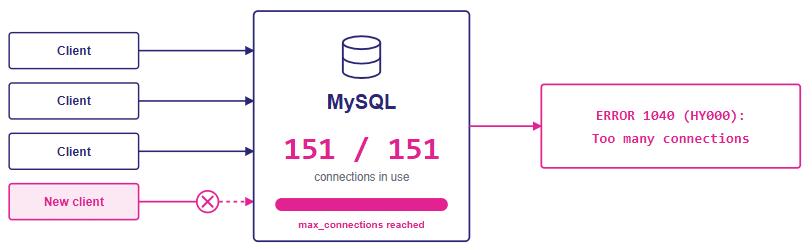
Default is usually 151 on stock install. That sounds like plenty, until you remember that one busy WordPress page can open several connections, and slow query can hold slot for minutes.
MySQL also keeps one extra slot in reserve. It’s available only to account with “CONNECTION_ADMIN” privilege (or older “SUPER”), so admin can still log in and investigate during outage.
If WordPress only show generic database error, start with guide to fixing the WordPress database connection error to check whether MySQL is running and your database setting are correct.
Start by checking connection limit and seeing which apps or jobs are using available slots. If your site is already down, you can make small, temporary change to get it back online while you look for the cause. The steps below walk you through what to check, what to change, and how to check problem early if it happen again.
Step 1: Log In and Check Your Current Limit
Connect as admin user:
sudo mysql -u root -pIf your normal users are locked out, reserved admin connection is what lets you in. Check current limit first using below command.
SHOW VARIABLES LIKE 'max_connections';
SHOW STATUS LIKE 'Max_used_connections';
SHOW STATUS LIKE 'Threads_connected';You can see the output as mentioned:
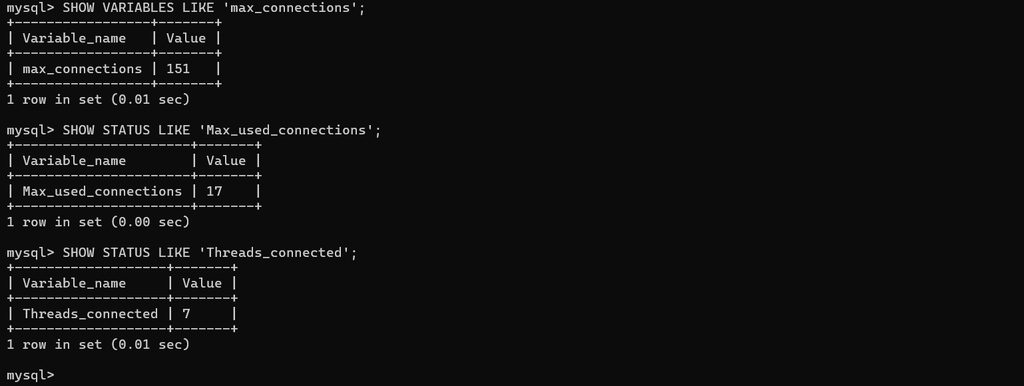
Here’s how read output:
| Value | What it tells you |
max_connections | Connections you’ve configured |
Max_used_connections | Highest number reached since MySQL last restarted |
Threads_connected | How many clients are connected right now |
If “Max_used_connections” equal “max_connections”, you have hit limit. If it’s far below limit, something else is happening, such as restart that reset counter, or different user-level limit.
Step 2: Find What’s Eating Your Connections
This is step mostly skip, and it’s one that matters most. Raising limit without knowing who’s using slots is like buying bigger bucket for leaking pipe.
SHOW FULL PROCESSLIST;Look at three columns:
- User and Host: Is one application or one IP dominating list?
- Time: How many seconds has each connection been in its current state?
- Command and State: Rows marked Sleep with big Time value are idle connections that are never closed.
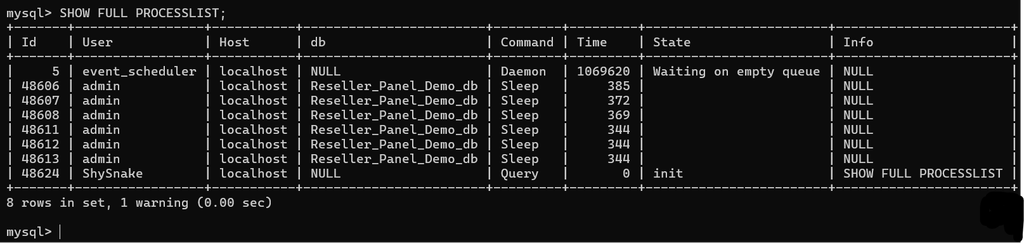
Use MySQL process list to see which account connected, how long each connection has been in current state.
To get cleaner summary, group by user:
SELECT user, COUNT(*) AS connections
FROM information_schema.processlist
GROUP BY user
ORDER BY connections DESC;You’ll usually land in one of three situations:
- Lots of Sleep rows: The app opens connections and doesn’t close them.
- Many long-running Query rows: Slow queries are holding slots hostage.
- A sudden crowd from one IP: This could be bot, misbehaving plugin, or traffic spike.
A practical caution: don’t just run “KILL” on everything. I’d check what each long-running query is doing first, because killing half-finished write can leave data in messy state.
Step 3: Get Breathing Room with Temporary Fix
When production is down, you need relief first and root-cause fix second. You can raise limit without restarting MySQL:
SET GLOBAL max_connections = 300;This takes effect immediately for new connection, but it disappears on restart.

On MySQL 8.0 and later you can make it survive restart with:
SET PERSIST max_connections = 300;MySQL’s SET PERSIST command applies the change immediately and saves it for the next restart.
If you want to clear stuck connection right now, find IDs from process list and end them using below command:
KILL 12345;Replace “12345” with real connection ID from Id column.

Before you stop session, check how to identify and safely stop MySQL query, including when to end statement and when to close whole connection.
Check RAM before raising number. Each connection use memory for its own buffer (sort, join, read, and so on), and exact footprint depends on your configuration and workload. Doubling “max_connections” on small VPS can push MySQL into swapping, or get it killed by Linux out-of-memory killer. That would turn connection error into full outage. Raise it in small step, and watch memory with “free -h” while you do.
Step 4: Make Changes Permanent
If you’re on MySQL 5.7, MariaDB, or you prefer config file edit. Location depends on your distro. On Ubuntu it’s commonly “/etc/mysql/mysql.conf.d/mysqld.cnf”:
[mysqld]
max_connections = 300
wait_timeout = 120
interactive_timeout = 120Then restart and verify using below command:
sudo systemctl restart mysql
mysql -u root -p -e "SHOW VARIABLES LIKE 'max_connections';"Back up config file before editing it, avoid restarting busy production database mid-day if you can wait for quiet window.
One more trap: if you set very high number and MySQL ignores it, cause is often operating system’s open-file limit. MySQL quietly lower “max_connections” to fit. Check effective value after every restart, because config file alone doesn’t prove it applied.
Step 5: Clear Idle Connections with “wait_timeout”
By default, MySQL keep idle connection open for very long time. “wait_timeout” default is 28,800 second, which is eight hour. For typical web app, that’s far too generous.
Lowering “wait_timeout” to somewhere between 60 and 300 second makes MySQL close connection that sit unused:
SET GLOBAL wait_timeout = 120;
SET GLOBAL interactive_timeout = 120;Be careful here. If application uses long-lived connection and doesn’t handle reconnect, short timeout cause “MySQL server has gone away” errors.

I would test any timeout change on staging first, and lower it gradually instead of jumping straight to 30 second.
Step 6: Fix Root Cause in Your Application
Setting only treat symptom. These are fix that stop error from coming back.
Close connection properly: In plain PHP, make sure script close connection or exit cleanly. In long-running worker, check that error don’t skip your cleanup code. A connection opened inside loop and never closed is classic leak.
Clear and direct: Use connection pooling to reuse a fixed set of open connections across requests instead of creating a new one each time. In Node.js, for example, “mysql2” library support pool with “connectionLimit” option, and this single change often cut connection count dramatically. Make sure your pool size multiplied by number of app process stay well below “max_connections”. That multiplication is where many setup go wrong.
Optimize slow queries: A query that takes 8 second hold slot for 8 second. Enable the MySQL slow query log to capture statements that exceed your time threshold.
Start with queries that show up repeatedly:
SET GLOBAL slow_query_log = 'ON';
SET GLOBAL long_query_time = 2;Then run “EXPLAIN” on worst offender. Adding one proper index can free up more connection than any config change.
Check plugins, cron jobs, and bots: On WordPress, heavy plugin or aggressive crawler hammering “wp-login.php” or “xmlrpc.php” can swallow slot fast. Check your access log for repeated hits from one IP.
If repeated requests to “xmlrpc.php” are driving spike, check guide to WordPress XML-RPC security to check whether your site still need endpoint before you block it.
Step 7: Monitor So You Catch It Early
Don’t wait for visitor to report error. Keep eye on connection usage with simple check:
SHOW STATUS LIKE 'Threads_connected';
SHOW STATUS LIKE 'Aborted_connects';Reasonable habit is to alert when “Threads_connected” stay above roughly 80% of “max_connections”.
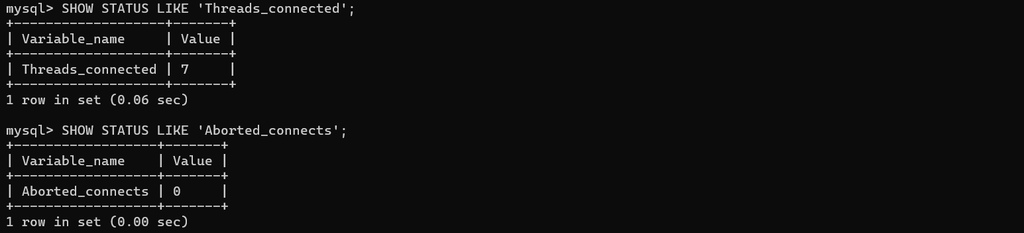
Pick threshold that fits traffic. Steady climb over days usually point to leak, while sharp spike points to traffic surge or bot.
Monitoring server and database performance regularly can help you identify resource-related issues before they affect website visitors. If you’re managing multiple VPS servers and websites, using a server management platform, ServerAvatar can make day-to-day server management easier, so you can spend less time switching between servers and handling routine administration.
Common Mistakes to Avoid
- Setting “
max_connections” to 5000 “just to be safe”. This risk running out of memory under load. - Restarting MySQL as only fix. It clear problem for few hours, then it return.
- Ignoring application. Config tuning can’t rescue code that leak connection.
- Forgetting to check after restart. Always re-run “
SHOW VARIABLES” to confirm value applied.

Quick Troubleshooting Reference
| Symptom | Likely cause | First fix |
Many “Sleep” connections | App not closing connections | Lower “wait_timeout”, fix code |
Many long “Query” rows | Slow or unindexed queries | Slow query log, add indexes |
| Spike from one IP | Bot or abusive client | Block the IP, rate limit |
| Limit set but not applied | OS file limit or wrong config file | Check effective value after restart |
Key Takeaways
- Diagnose with “
SHOW FULL PROCESSLIST” before change anything - Treat higher “
max_connections” as temporary patch, sized to your RAM - Use “
wait_timeout” to clear idle connections, and test it first - Pooling and index tuning are fixes that last
- Monitor “
Threads_connected” so you catch trend early
Conclusion
MySQL too many connection error look scary, but it’s usually sign of few leaking connections or slow queries, not broken database. As my advice to log in, read process list, make small and careful limit change, then spend real effort on application side. Next, pick one server today, check its “Max_used_connections”, and see how close it’s been to ceiling.
If you would rather not hand-edit config files and monitor databases manually, ServerAvatar can help simplify server, database, and application management on your VPS.
FAQs
What cause MySQL too many connection error?
It happen when all connection slot, set by “max_connections”, are in use. Common cause are unclosed app connection, slow queries holding slot, traffic spike, and bot.
What is default “max_connections” value in MySQL?
It is 151 on standard MySQL install. Hosting provider and some package change it, so confirm with “SHOW VARIABLES LIKE 'max_connections';”.
Is it safe to increase “max_connections”?
Yes, in moderation. Each connection use memory, so raise it in small step and monitor RAM. Setting it high can cause swapping or out-of-memory crash.
How do fix error when can’t log in to MySQL?
MySQL reserve one extra connection for account with “CONNECTION_ADMIN” or “SUPER” privilege. Log in as root, run “SHOW FULL PROCESSLIST”, and use “KILL” on stuck connection.
Does restarting MySQL fix too many connections error?
It clears the problem temporarily by dropping every connection, but it doesn’t fix the cause. Without fixing leaks or slow queries, the error will return.
About the author
Meghna Meghwani is a technical writer focused on Linux, Ubuntu, VPS hosting, server management, WordPress, PHP, Node.js, cloud hosting, and DevOps. She creates beginner-friendly tutorials, practical hosting guides, troubleshooting articles, and server security content designed to help developers and businesses manage applications and servers more efficiently.