

When you spin up a new WordPress site, configuring the right WordPress Site Settings is one of the first steps you should take. The default settings aren’t always what your project actually needs. Your language might be set to English by default even if you’re building for a multilingual audience. Your permalink structure might be stuck on “Plain”, which is fine for reading, but terrible for SEO. And if you forget to toggle search engine visibility before launch, you could find your half-built site indexed by Google overnight.
These settings live under Settings >> General in wp-admin, which means you traditionally had to log in, navigate there, and hope nothing broke if you changed something sensitive.
ServerAvatar’s WordPress Toolkit changes that workflow entirely. From a single dashboard, without touching wp-admin, you can configure every essential site setting: language, timezone, date/time formats, permalink structure, and search engine visibility. Everything happens in one place, tied to your server context, which is especially useful if you’re managing multiple WordPress sites for clients or projects.
This guide walks through every setting of the WordPress Toolkit, explains why each one matters, and shows you exactly how to update them without logging into wp-admin.
TL;DR
- ServerAvatar’s WordPress Toolkit lets you configure essential WordPress site settings from a single dashboard, no wp-admin required
- Site Preferences covers language, timezone, date format, time format, and memory limit
- Permalink Structure controls how your post and page URLs look (and affects SEO)
- Search Engine Visibility lets you quickly hide your site from search engines while it’s under development
- Always click Update to save any changes you make
- The Settings tab is the fastest way to handle foundational WordPress configuration across multiple sites
What Is the WordPress Toolkit in ServerAvatar?
Before diving into the settings themselves, let’s clarify what you’re working with.
The WordPress Toolkit is a built-in management layer within ServerAvatar that gives you centralized control over WordPress applications on your server. ServerAvatar’s WP Toolkit include sections of Plugins, Themes, Performance, Cron, Debug, Security, Search & Replace, Updates, and Settings.
The Settings tab is where foundational site configuration lives. Think of it as the WordPress General Settings page, but accessible from your ServerAvatar panel.
Accessing the Settings Section
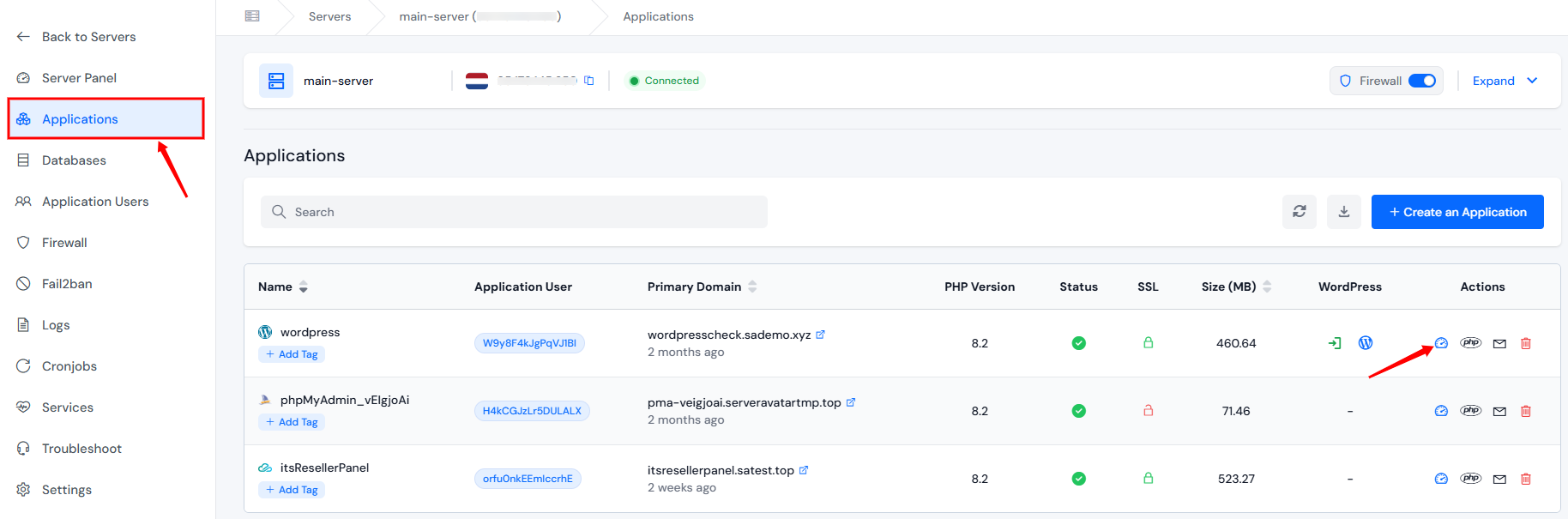
- Log in to your ServerAvatar account and navigate to the server panel.
- Go to Applications, then click on your dashboard icon for your WordPress application.
- Open WP Toolkit from left sidebar and go to the Settings section.
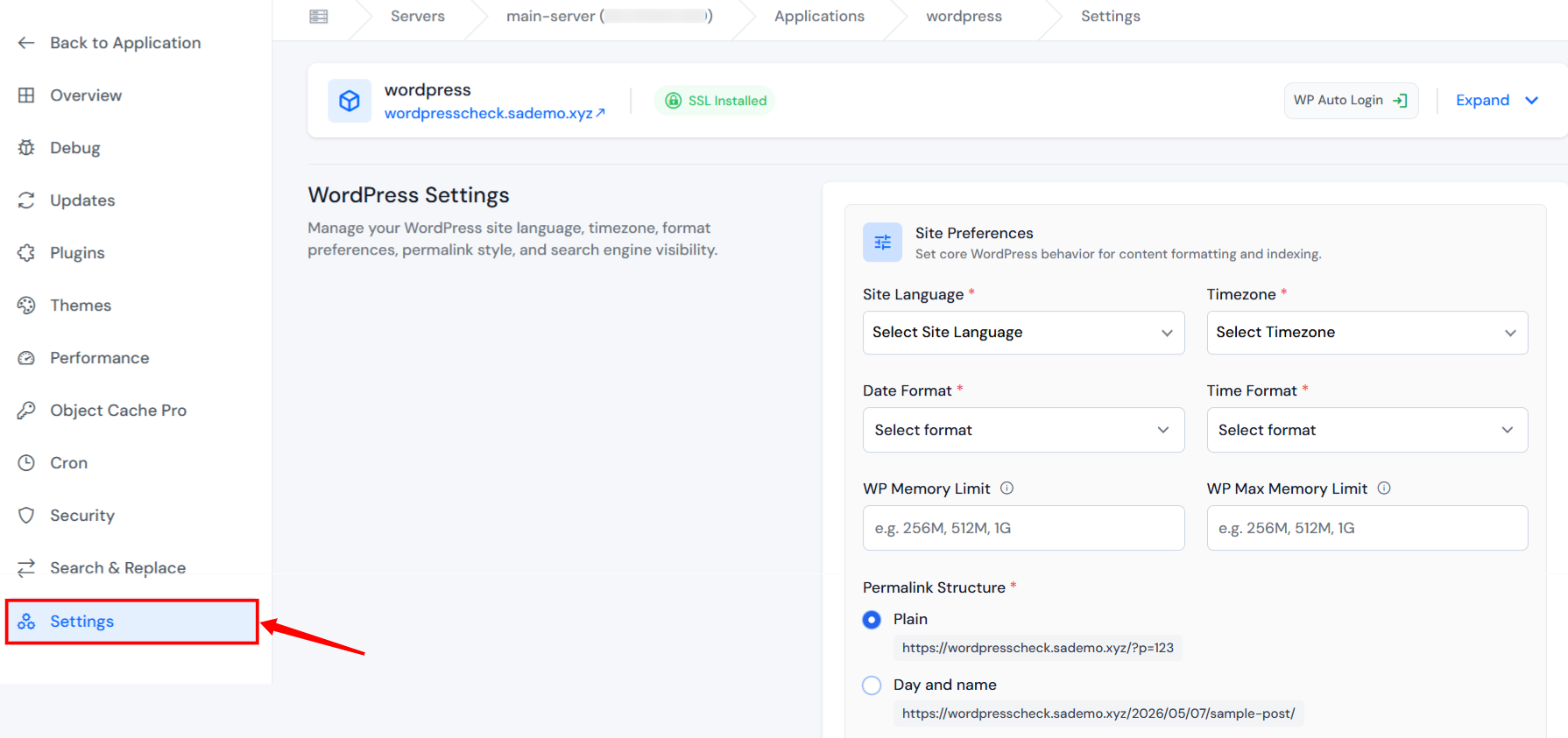
- You’ll see below-mentioned configuration areas on this page:
- Site Preferences: core site-level settings
- Permalink Structure: URL format configuration
- Search Engine Visibility toggle lets you control whether search engines can crawl your site.
Configuring Site Preferences
The Site Preferences section handles the foundational details about how WordPress operates your site. Here’s what each option controls.
Site Language
WordPress supports a wide range of languages. The default installation typically sets this to English (United States), but if your audience, client, or project targets a different region, you’ll need to change this here.
To change the site language in ServerAvatar:
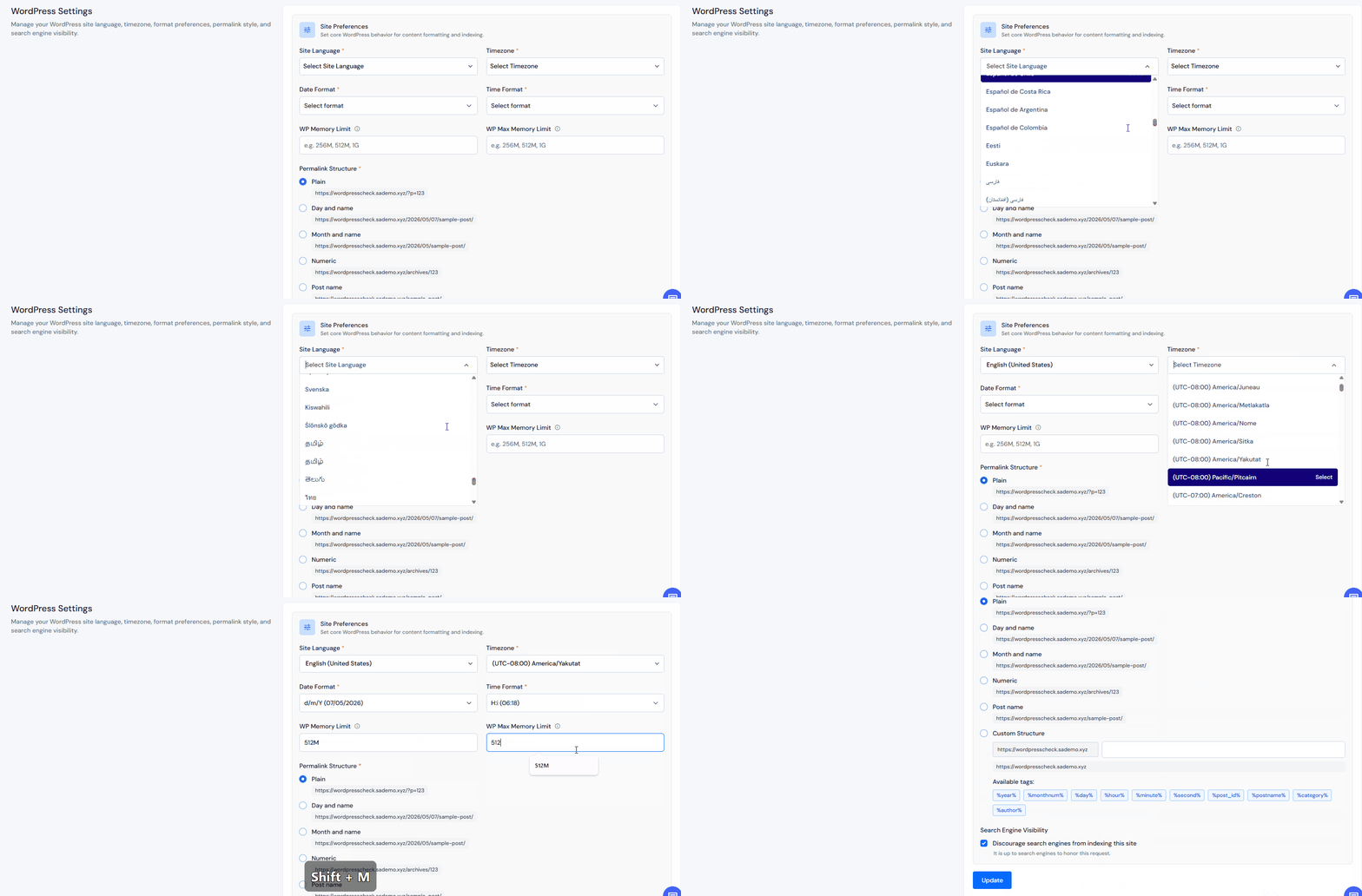
- In the Settings section, find the Site Language dropdown, select your desired language
- Click Update at the bottom right of the page
The change takes effect immediately across your WordPress installation.
Timezone
WordPress defaults to a UTC-based timezone. The timezone setting controls how WordPress displays dates and times throughout your site, including post publish times, scheduled publish times, comment timestamps, and event date displays.
To update the timezone:
- In the Settings section, find the Site Language dropdown, select your city or region (WordPress lists these as UTC offsets, e.g., UTC+05:30)
- Click Update
Once saved, all time-sensitive features in WordPress will reflect the new timezone.
Date Format and Time Format
WordPress gives you control over how it displays dates and times in two separate settings:
- Date Format: controls how dates appear (e.g.,
F j, Yrenders as “June 18, 2026”) - Time Format: controls how times appear (e.g.,
g:i arenders as “6:18 am”)
WordPress offers several predefined format options for each. You can see the current selection in the dropdowns and choose the one that matches your site’s style.
To update Date and Time format:
- Choose your preferred option from the Date Format or Time Format dropdown
- Click Update
These formats affect how dates appear in post bylines, comment sections, and any theme templates that use WordPress’s date display functions.
Memory Limit
WordPress has a default PHP memory limit that can become a bottleneck when you’re running heavy plugins, working with large media files, or running resource-intensive themes. The Memory Limit setting in Site Preferences lets you increase this threshold directly from the toolkit.
You can choose memory limit values based on your site’s needs, raising it unnecessarily can mask performance problems rather than solve them.
To adjust the memory limit:
- Add the desired value to WP Memory Limit and WP Max Memory Limit
- Click Update
Keep in mind that this setting adjusts WordPress’s allowed PHP memory, not the server’s actual RAM. Make sure your server has enough resources before pushing this value very high.
Configuring Permalink Structure
The Permalink Structure is one of the most important settings on any WordPress site, and it has direct implications for both user experience and SEO.
By default, WordPress sets new installations to Plain permalinks, meaning URLs look like https://example.com/?p=123. These are technically functional but offer no readability for humans and provide zero context to search engines.
A better permalink structure makes URLs descriptive. For example:
https://example.com/2026/06/my-wordpress-post/– tells you the date and topic at a glancehttps://example.com/sample-page/– clean and memorablehttps://example.com/2543/– short but opaque
The available options in the ServerAvatar WordPress Toolkit are:
| Permalink Structure | Example URL | Best For |
|---|---|---|
| Plain | /?p=123 | Debugging only |
| Day and name | /2026/06/18/sample-post/ | News sites, blogs with heavy date context |
| Month and name | /2026/06/sample-post/ | Content archives, smaller blogs |
| Numeric | /2543/ | Short URLs, ID-based sites |
| Post name | /sample-post/ | Most general-purpose sites, clean, readable, SEO-friendly |
| Custom | User-defined structure | Advanced users with specific URL requirements |
For most websites, business sites, blogs, portfolios, marketing pages, Post name is the recommended choice. It’s clean, human-readable, and includes your target keywords naturally in the URL.
How to Change Permalink Structure
- From the WordPress Toolkit Settings section, find the Permalink Structure
- Select your desired structure (or choose Custom to define your own using WordPress’s supported tags like
%year%,%postname%,%category%) - Click Update
WordPress will automatically flush the rewrite rules so your new URL structure takes effect immediately across all posts and pages.
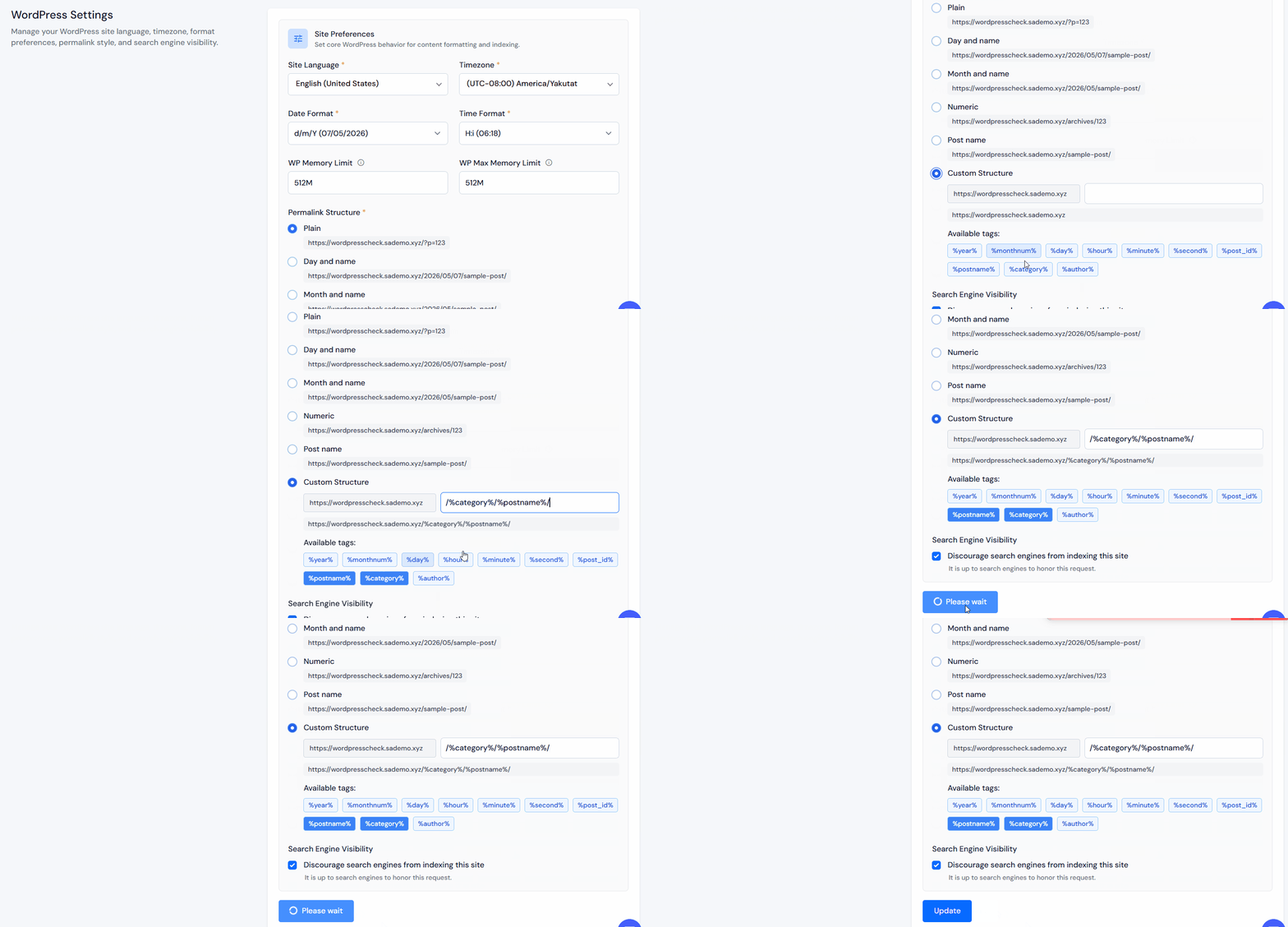
Search Engine Visibility
The Search Engine Visibility is a quick-access control that tells search engines whether to index your site. When enabled, WordPress adds a noindex Meta tag to your site’s HTML, signaling to Google, Bing, and other crawlers to stay away.
This is not the same as password-protecting your site or taking it offline, it’s specifically a request to search engines. Determined bots can still visit, but legitimate search engine crawlers will respect the directive.
- In the Settings section, find the Search Engine Visibility option
- Check or uncheck the box based on your site’s current status and your preferences
- Click Update
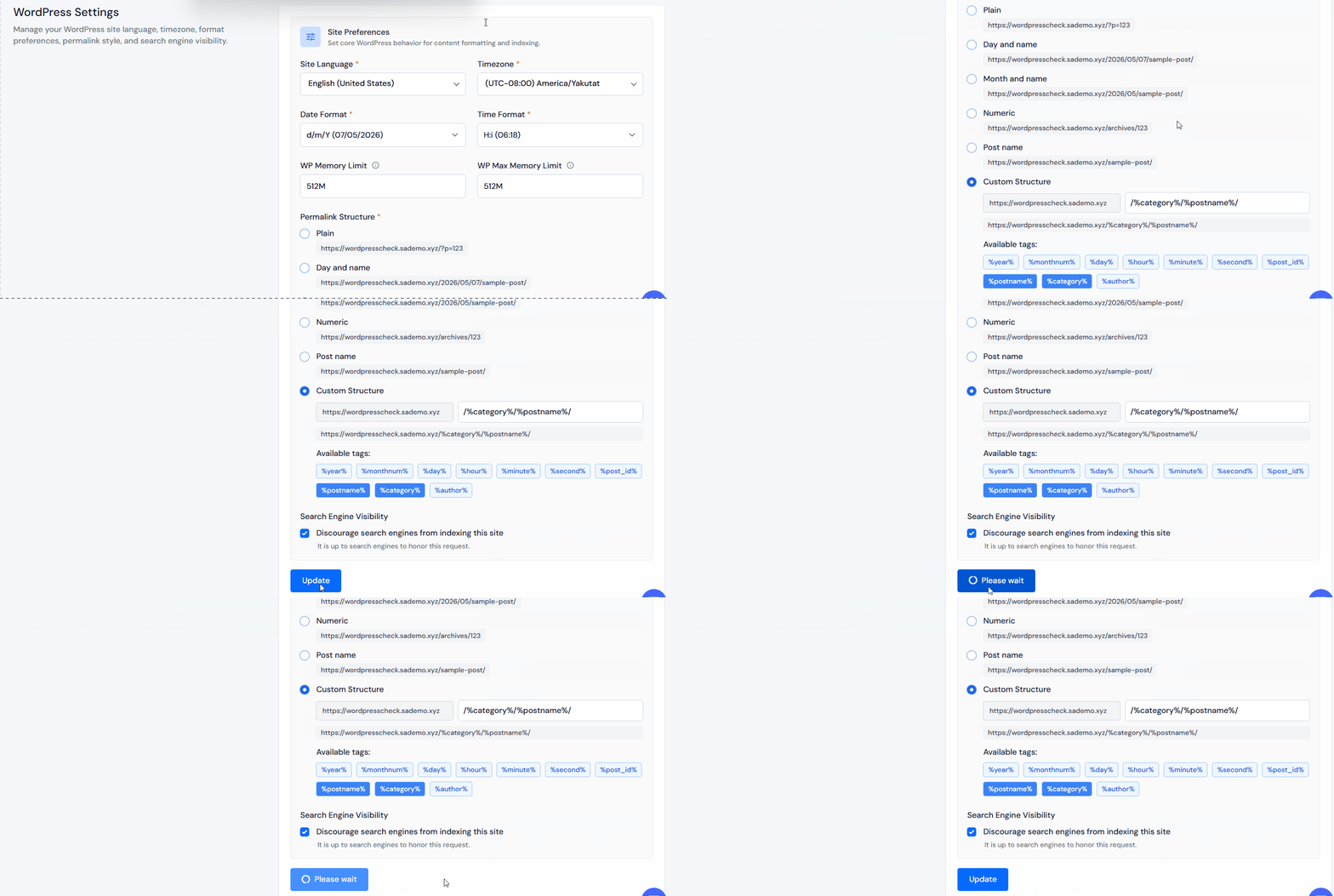
This setting corresponds directly to the Discourage search engines from indexing this site checkbox in WordPress’s built-in Reading Settings page.
When to Disable Search Engine Visibility
- During initial setup, especially if your site is in the public domain before launch
- For staging or development sites, you rarely want a staging environment indexed
- For client review, before a site goes live, you don’t want search engines picking it up
When to Keep It Enabled (Default)
- Production sites, you want search engines to index your content as soon as possible

Why Use the WordPress Toolkit Instead of wp-admin?
You might be wondering, why go through ServerAvatar when I can just open wp-admin and click Settings?
That’s a fair question. Here’s the practical reality:
- Managing multiple sites: if you’re overseeing multiple WordPress installations, bouncing in and out of different wp-admin panels is inefficient. The WP Toolkit gives you a single panel for all management for your wp site.
- No login required: wp-admin access can be restricted, lost, or locked out. ServerAvatar’s toolkit is in serveravatar panel, so you don’t need WordPress credentials to fix critical settings.
- Faster configuration: especially for recurring tasks like setting permalink structure or enabling search visibility across multiple environments (dev, staging, production).
- Client-facing workflows: if you’re an agency, you can delegate site configuration without handing over wp-admin credentials.
The Toolkit doesn’t replace wp-admin entirely, complex plugin configurations, content editing, and user management still happen inside WordPress. But for foundational server-level settings, it’s faster and more centralized.
Key Takeaways
- The Settings tab in ServerAvatar’s WordPress Toolkit covers all essential WordPress site settings in one place
- Site Preferences includes language, timezone, date format, time format, and PHP memory limit
- Permalink Structure should almost always be set to Post name for readability and SEO
- The Search Engine Visibility toggle prevents search engines from indexing sites under development
- Always click Update to save any changes, they take effect immediately
- Use the WordPress Toolkit when managing multiple sites or when you need to configure settings without wp-admin access
Conclusion
Getting your WordPress site’s foundational settings right from the start saves you from headaches down the road, whether that’s dealing with indexing issues on a half-built site, confusing timestamps in your editorial calendar, or ugly URLs that hurt your SEO before you’ve even launched.
ServerAvatar’s WordPress Toolkit Settings section gives you a direct, efficient path to all of this. No wp-admin, no switching between tabs, no credentials to remember. Just pick your application, open Settings, make your changes, and click Update. This approach makes ServerAvatar worth considering for your workflow.
FAQs
Does changing the permalink structure break existing links?
Yes, it can cause 404 errors and break existing URLs. To avoid this, choose your permalink structure before publishing or set up 301 redirects to send visitors from old links to the new ones.
Will changing the timezone affect my existing post timestamps?
Changing the timezone in WordPress only affects how dates and times are shown. The original UTC timestamps stay the same, so content remains unchanged while displayed times update to match the new timezone.
What permalink structure is best for SEO?
Post name (/%postname%/) is usually the best SEO-friendly option because it creates short, clear, and keyword-focused URLs. Date-based URLs are longer and can make content seem outdated, while plain permalinks offer little SEO value.
How do I revert changes made in the WordPress Toolkit?
Simply return to the Settings tab, adjust the option back to its previous value, and click Update. All changes are immediate and reversible.
Does the Search Engine Visibility toggle fully hide my site?
No, it only adds a noindex tag that search engines typically follow, but it does not secure or hide your site. Visitors and bots can still access it. For complete protection during development, use a staging site or server-level access controls.
Can I configure custom permalink structures?
Yes, choose Custom in the Permalink Structure settings and use tags such as %postname%, %category%, %year%, or %monthnum% to create your own URL format, for example: /%category%/%postname%/.
Next Steps
Managing WordPress sites on a VPS becomes much easier when theme updates, server management, SSL, backups, and application controls are available from one dashboard. ServerAvatar helps simplify those everyday tasks without adding extra complexity.
You should also read:
- WordPress Toolkit for WordPress Management in ServerAvatar
- How to Create WordPress Blueprints Easily in ServerAvatar
- WordPress Security Essentials: XML-RPC, PHP Blocking & Checksums
Ready to streamline your WordPress workflow? Explore ServerAvatar’s WordPress Toolkit for complete website management from ServerAvatar dashboard.
About the Author
Meghna Meghwani is a technical writer focused on Linux, Ubuntu, VPS hosting, server management, WordPress, PHP, Node.js, cloud hosting, and DevOps. She creates beginner-friendly tutorials, practical hosting guides, troubleshooting articles, and server security content designed to help developers and businesses manage applications and servers more efficiently.