

You open your browser, type a web address, hit Enter, and instead of the website you wanted, you’re staring at a cold error message: ERR_NAME_NOT_RESOLVED. Your first instinct might be to panic, refresh, or blame your internet connection. The truth is, this error is one of the most common issues on the web, and in most cases, it’s solvable in under ten minutes once you know what you’re dealing with.
The tricky part? The error message tells you what went wrong but not why or how to fix it. That’s exactly what this guide is for.
I will walk you through what triggers the error, how to isolate the cause, and precisely how to resolve it depending on where the problem lives; your browser, your machine, your network, or the website itself. Let’s dig in.
TL;DR
| Topic | Summary |
|---|---|
| What the error means | The ERR_NAME_NOT_RESOLVED error appears when your browser cannot convert a website’s domain name into its corresponding IP address because the DNS lookup was unsuccessful. |
| Common causes | The issue may stem from your device or network (such as browser settings, operating system, router, or internet provider) or from the website itself, including expired domains or incorrect DNS configuration. |
| How to fix it | In most situations, the problem can be resolved by flushing the DNS cache, using a reliable public DNS service, or rebooting your router to refresh the network connection. |
| Possible security concern | In less common cases, malware may interfere with DNS settings or alter the hosts file, preventing websites from resolving correctly. |
| Advice for website owners | If you manage a website, first verify that the domain registration is active and that all DNS records are correctly configured to avoid resolution issues. |
Quick Troubleshooting Checklist
Before diving into the detailed fixes below, use this quick reference table to identify the most likely cause of the ERR_NAME_NOT_RESOLVED error and the recommended solution.
| Problem | Recommended Fix | Difficulty | Time Required |
|---|---|---|---|
| Incorrect website address | Double-check the URL | Easy | Less than 1 minute |
| Router DNS cache issue | Restart your router and modem | Easy | 2–3 minutes |
| Corrupted DNS cache | Flush the DNS cache | Easy | 1 minute |
| ISP DNS problems | Switch to Google or Cloudflare DNS | Easy | 3–5 minutes |
| VPN or Proxy conflict | Disconnect the VPN or Proxy temporarily | Easy | 1 minute |
| Firewall or Antivirus blocking DNS | Temporarily disable and whitelist the website | Medium | 2–5 minutes |
| Modified Hosts file | Remove incorrect entries from the hosts file | Medium | 5 minutes |
| Domain or DNS misconfiguration | Verify domain registration and DNS records | Medium | 5–10 minutes |
Now that you have an overview of the possible fixes, let’s understand what this error actually means and why it happens.
What Does ERR_NAME_NOT_RESOLVED Actually Mean?
When you visit a website, your browser doesn’t store the IP addresses of every site on the internet. Instead, it asks a DNS resolver, essentially the internet’s phonebook, to translate a human-readable domain like example.com into a numeric IP address like 192.0.2.1. That process is called a DNS lookup.
ERR_NAME_NOT_RESOLVED is what your browser displays when that lookup failed. The resolver was asked for an address it couldn’t find, couldn’t reach, or didn’t have in its records.
It’s worth noting this is different from DNS_PROBE_FINISHED_NXDOMAIN. The latter specifically means the DNS server was reached and definitively said “this domain doesn’t exist.” ERR_NAME_NOT_RESOLVED is broader, it covers lookup failures for any reason, including network connectivity issues, timeouts, or misconfigured settings on your side.

ERR_NAME_NOT_RESOLVED vs Other Common Browser Errors
Many browser errors look similar but point to different underlying issues. Understanding the difference can help you choose the correct troubleshooting steps more quickly.
| Error | Meaning | Most Common Cause |
|---|---|---|
| ERR_NAME_NOT_RESOLVED | DNS lookup failed | DNS cache, DNS server, or network issue |
| DNS_PROBE_FINISHED_NXDOMAIN | Domain does not exist | Expired or incorrect domain |
| ERR_CONNECTION_TIMED_OUT | Server didn’t respond | Network congestion or server downtime |
| ERR_CONNECTION_REFUSED | Server rejected the connection | Web server or firewall configuration |
| ERR_SSL_PROTOCOL_ERROR | SSL/TLS handshake failed | Invalid SSL certificate or HTTPS configuration |
Now that you know what ERR_NAME_NOT_RESOLVED means and how it differs from other browser errors, let’s start fixing it step by step.
Step 1: Retry and Check the URL: The Fastest Possible Fix
Before diving into settings and command lines, do two quick things:
- First, look at the URL bar: Did you type the address correctly? A single wrong character,
gogle.cominstead ofgoogle.com, orexmaple.cominstead ofexample.com, will produce this exact error. This sounds obvious, but it’s responsible for more error reports than most people admit. - Second, try a different browser or an Incognito/Private window: Browser extensions, particularly ad blockers, privacy tools, or security plugins, can interfere with DNS resolution for specific domains. A clean browser session rules this out quickly.
If neither of those works, move to the next step.
Step 2: Restart Your Router and Modem
I know this sounds like the classic “have you tried turning it off and on again?” But in this case, there’s a real technical reason it works.
Your router runs a local DNS caching process. Over time, this cache can accumulate stale or corrupted entries. A simple power cycle clears it entirely, forcing the router to perform fresh DNS lookups from scratch on the next request.
Here’s the correct way to do it:
- Unplug your modem and router from power
- Wait 60 seconds. The residual charge needs time to drain
- Plug the modem back in and wait for all indicator lights to stabilize (usually 60–90 seconds)
- Plug the router back in and wait for it to fully boot
- Try the website again
This resolves roughly 15–20% of ERR_NAME_NOT_RESOLVED cases in my experience, especially on networks that haven’t been restarted in weeks or months. If it works, great, you are done. If not, we need to go deeper.
Step 3: Flush Your DNS Cache: The Most Common Fix
This is the step that fixes the majority of cases. Your operating system maintains a local DNS cache, a short-term memory of domain-to-IP mappings. If that cache holds an outdated or incorrect entry, your browser will use the bad data instead of performing a fresh lookup.
Flushing the cache forces your OS to discard all stored mappings and ask the DNS resolver from scratch.
DNS Flush Commands by Operating System
The commands used to clear the DNS cache differ depending on your operating system. Here’s a quick reference before following the detailed instructions.
| Operating System | Command |
|---|---|
| Windows | ipconfig /flushdns |
| macOS | sudo dscacheutil -flushcache; sudo killall -HUP mDNSResponder |
| Ubuntu (systemd) | sudo resolvectl flush-caches |
| Older Linux systems | sudo systemd-resolve --flush-caches |
Follow the instructions below for your operating system to clear the DNS cache successfully.
On Windows:
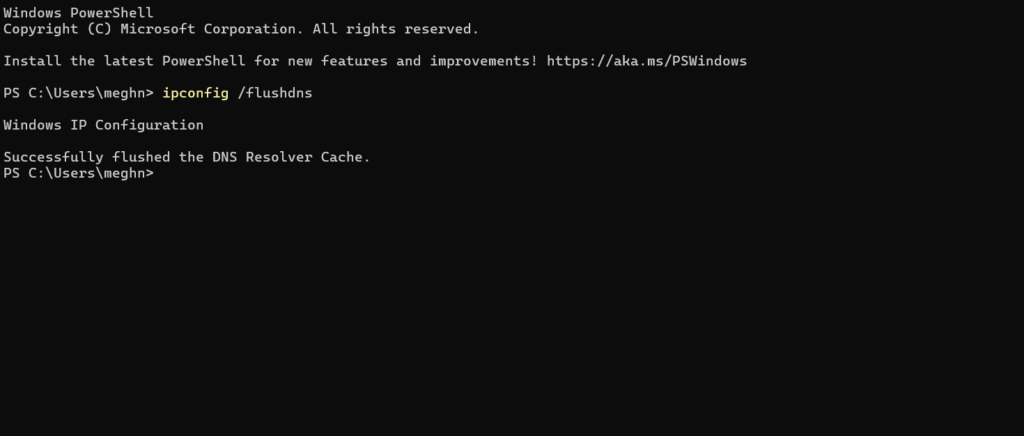
Open Command Prompt as Administrator (right-click on Terminal >> Run as administrator):
ipconfig /flushdnsYou’ll see a confirmation message such as: “Successfully flushed the DNS Resolver Cache.”
On macOS (Ventura, Sonoma, Sequoia):
Open Terminal (Applications >> Utilities >> Terminal) and run:
sudo dscacheutil -flushcache; sudo killall -HUP mDNSResponderEnter your admin password when prompted. There’s no confirmation message on macOS, no news is good news.
On Linux (Ubuntu and most systemd-based distributions):
sudo systemd-resolve --flush-cachesOr, on newer systems:
sudo resolvectl flush-cachesAfter flushing, try loading the website again. In most cases, this is where the error disappears.
Step 4: Switch to a Public DNS Server
If flushing the cache didn’t help, the problem might be that your ISP’s DNS resolver itself is slow, overloaded, or temporarily unavailable.
Rather than waiting for them to fix it, you can bypass their DNS entirely by switching to a public DNS service. Two reliable options:
- Google Public DNS:
8.8.8.8and8.8.4.4 - Cloudflare DNS:
1.1.1.1and1.0.0.1
Cloudflare’s DNS is generally faster for most users, but Google’s has massive global infrastructure. Either is a significant upgrade over most ISP defaults.
Popular Public DNS Servers
If your ISP’s DNS server is unreliable, switching to a trusted public DNS provider can improve both reliability and browsing performance.
| DNS Provider | Primary DNS | Secondary DNS | Best For |
|---|---|---|---|
| Cloudflare DNS | 1.1.1.1 | 1.0.0.1 | Speed and privacy |
| Google Public DNS | 8.8.8.8 | 8.8.4.4 | Reliability and global coverage |
| Quad9 | 9.9.9.9 | 149.112.112.112 | Security-focused DNS |
| OpenDNS | 208.67.222.222 | 208.67.220.220 | Family filtering and business use |
The steps below explain how to configure these DNS servers on Windows, macOS, and Ubuntu.
Changing DNS on Windows:
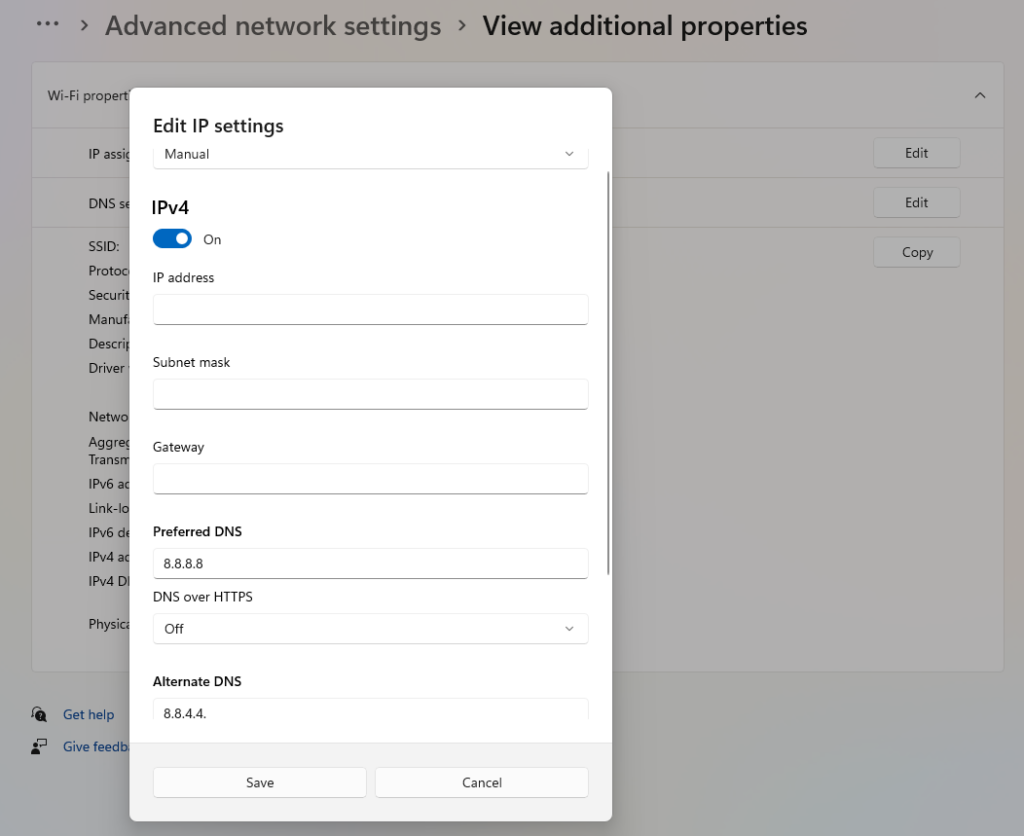
- Open Settings >> Network & Internet >> Advanced network settings
- Click your active connection (Wi-Fi or Ethernet) >> Additional properties
- Click Edit under “IP settings”
- Change the dropdown to Manual and toggle IPv4 to ON
- Enter
8.8.8.8as Preferred DNS and8.8.4.4as Alternate DNS - Save and restart your browser
Changing DNS on macOS:
- Open System Settings >> Network
- Select your active connection >> Details
- Go to the DNS tab
- Click the “+” button and add
1.1.1.1, then add1.0.0.1 - Click OK and restart your browser
Changing DNS on Ubuntu
- Open Terminal.
- Identify your active network connection:
nmcli connection show- Set Google Public DNS:
sudo nmcli connection modify "<connection-name>" ipv4.dns "8.8.8.8 8.8.4.4"
sudo nmcli connection modify "<connection-name>" ipv4.ignore-auto-dns yes- Or use Cloudflare DNS:
sudo nmcli connection modify "<connection-name>" ipv4.dns "1.1.1.1 1.0.0.1"
sudo nmcli connection modify "<connection-name>" ipv4.ignore-auto-dns yesReplace
<connection-name>with the name of your active connection (for example,Wired connection 1orHome Wi-Fi).
- Restart the connection to apply the changes:
sudo nmcli connection down "<connection-name>"
sudo nmcli connection up "<connection-name>"- Verify the configured DNS servers:
resolvectl statusThe output should list the DNS servers you configured. Once the new settings are active, restart your browser and try accessing the website again.
This approach works on Ubuntu 20.04, 22.04, and 24.04 using NetworkManager. If your server uses Netplan instead, the commands are different.
This step resolves persistent DNS lookup failures that nothing else on this list can touch. It’s also a permanent improvement, public DNS servers tend to be faster and more reliable than ISP defaults.
Step 5: Check Your Firewall and Antivirus: Security Software Can Block DNS Too
Security software is designed to monitor network traffic. Sometimes, it intercepts DNS requests and redirects them through its own filtered channel. If that channel fails or the software flags the domain incorrectly, you’ll get ERR_NAME_NOT_RESOLVED.
This doesn’t mean your antivirus or firewall is bad, it just means it made a false positive decision for a specific domain on your specific machine.
To test:
- Temporarily disable your third-party firewall or antivirus protection (not Windows Defender, which is integrated differently)
- Visit the website again
- If it loads, re-enable the software and add the domain to your security software’s allowlist or exceptions list
Most antivirus and security tools provide an allowlist option within their settings. Depending on the software, this feature may appear under names such as Web Shield exclusions, URL filtering exceptions, Trusted websites, or similar security settings. Adding the domain there lets your security software resume normal protection while allowing the DNS lookup to complete.
One practical note: Only disable the firewall/antivirus for testing. Don’t browse the internet with it off for extended periods.
Step 6: Check Your VPN or Proxy Settings
VPNs and proxy servers route your internet traffic through their own servers and use their own DNS resolvers. If the VPN server you’re connected to has DNS issues, or if the VPN drops and leaves your traffic in an undefined state, DNS lookups will fail, and you’ll see ERR_NAME_NOT_RESOLVED.
Quick test: disconnect your VPN and try the website again.
If it loads after disconnecting, your VPN is the culprit. This could be because:
- The VPN’s DNS resolver is blocked or down for that specific domain
- The VPN connection is unstable, and the DNS request never reached the resolver
- The VPN’s DNS was configured incorrectly
Try switching to a different VPN server location. If the issue persists, contact your VPN provider’s support and report the specific domain that’s failing.
If you’re using a corporate VPN, it may be blocking certain domains at the DNS level, check with your IT team.
Step 7: Inspect Your Hosts File: A Sneaky Cause
The hosts file is one of the oldest mechanisms on your computer for mapping hostnames to IP addresses. It predates DNS entirely. When your computer tries to resolve a domain, it checks the hosts file before asking any DNS server. If it finds a matching entry, it uses that, regardless of what the actual DNS records say.
Malware often exploits this. It adds entries to your hosts file that redirect legitimate domains to 127.0.0.1 (your own machine) or to malicious IP addresses, effectively blocking those sites.
How to check on Windows:
- Open Notepad as Administrator (right-click Notepad >> Run as administrator)
- Open
C:\Windows\System32\drivers\etc\hosts - Look for any lines mentioning the domain you’re trying to reach that don’t start with
# - If you find an entry like
127.0.0.1 example.com, add a#at the beginning to comment it out - Save the file
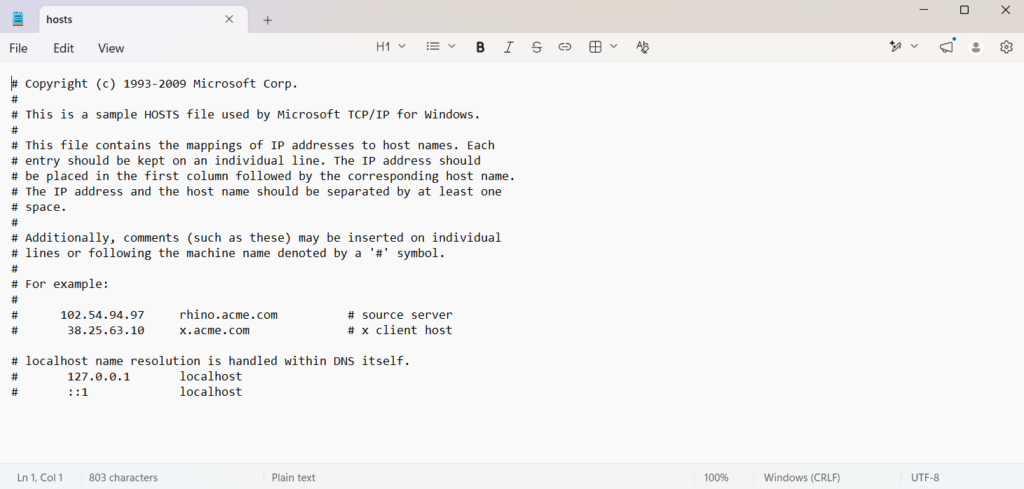
How to check on macOS/Linux:
- Open Terminal
- Run:
- MacOS:
sudo nano /private/etc/hosts - Linux:
sudo nano /etc/hosts
- MacOS:
- Look for suspicious entries as described above
- Comment them out by adding
#at the start - Save with
Ctrl + X, thenY, thenEnter
If you’re comfortable doing this, it’s a good habit to check your hosts file periodically anyway, especially if you notice certain sites working while others consistently fail despite everything else being correct.
Step 8: Update Your Network Adapter Driver: A Less Common Culprit
If you’ve tried everything above and the error persists, your network adapter’s driver could be outdated or corrupted. This is uncommon but real, particularly on Windows systems that haven’t received driver updates in a long time.
On Windows:
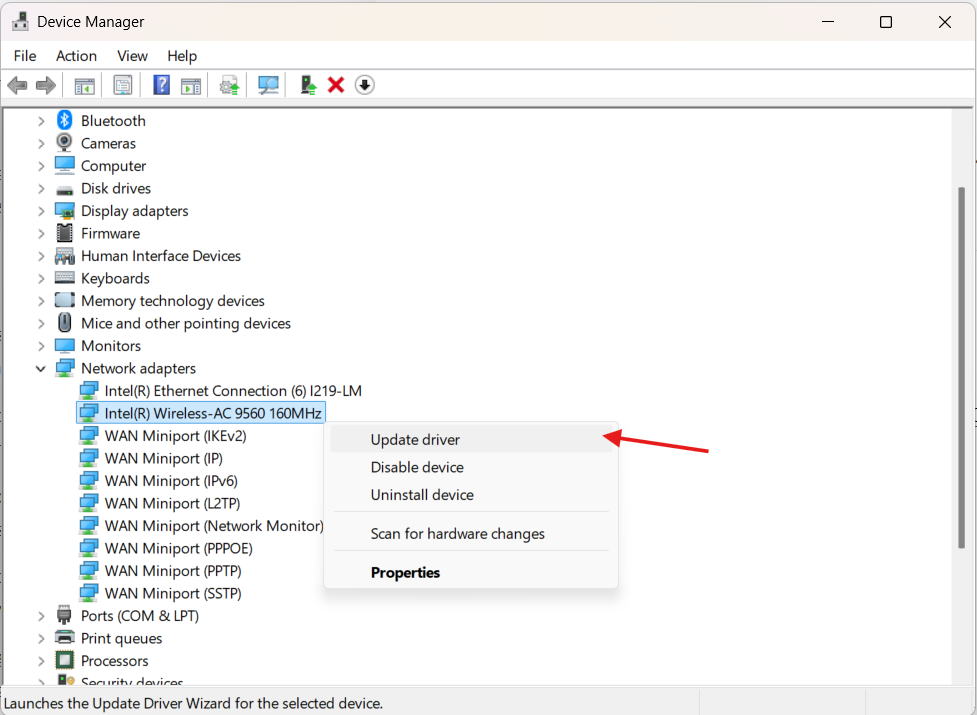
- Navigate to Device Manager
- Expand Network adapters
- Locate the network adapter that is currently in use. It may be labeled as Wi-Fi, Wireless, Ethernet, or identified by the name of its manufacturer, such as Intel, Realtek, or Broadcom.
- Right-click it >> Update driver >> Search automatically for updated driver software
If Windows finds nothing, visit your computer manufacturer’s support page or the network adapter manufacturer’s page and download the latest driver manually.
This step is worth trying if you’re on an older Windows installation that hasn’t been updated in a while. Driver issues can cause intermittent DNS resolution failures that are otherwise hard to diagnose.

For Website Owners: Diagnosing the Problem on Your End
If visitors report seeing ERR_NAME_NOT_RESOLVED when trying to reach your website, the problem is almost certainly one of three things:
- your domain has expired
- your DNS records are misconfigured
- there’s a connectivity issue with your hosting provider.
Here’s how to diagnose and fix each:
Is Your Domain Expired?
An expired domain stops resolving entirely. It’s the digital equivalent of a disconnected phone number, the name still exists in the registrar’s database, but it no longer points anywhere.
Use a WHOIS lookup tool at who.is or ICANN Lookup to check your domain’s status. Pay attention to:
- Expiration date: if it’s passed, your domain has expired
- Registrar Status: “pending renewal,” “redemption period,” or “client hold” all indicate a problem
If your domain has expired, renew it immediately through your registrar. After renewal, propagation can take anywhere from a few minutes to 48 hours.
Are Your DNS Records Pointing Correctly?
This is the most common cause of ERR_NAME_NOT_RESOLVED for website owners. Your DNS records tell the internet where to find your server. A single typo in an A record or CNAME record breaks everything.
Log in to your domain registrar or DNS provider and verify:
- Your A record points to the correct server IP address
- Your CNAME record for the
wwwsubdomain points to your root domain (or the correct destination) - There are no stray records pointing to old or decommissioned IP addresses
If you’re managing DNS records manually across a registrar and a hosting provider, it’s easy to miss a digit or forget to update a record after a server migration. A tool like DNSChecker.org lets you see what DNS records are currently visible from different global locations, useful for confirming your changes have propagated.
Is Your Hosting Provider Experiencing a Network Issue?
If your domain is active and your DNS records look correct, the issue might be on your hosting provider’s infrastructure, their DNS servers could be experiencing an outage, or a network firewall might be misconfigured.
Create a support request with your hosting provider and include the following information:
- The exact error message the visitor sees
- The domain name affected
- Confirmation that your domain is active and DNS records are correct
This context helps their team diagnose faster. If it’s a provider-side DNS outage, you’ll need to wait for them to resolve it, but at least you’ll know what’s happening.
Conclusion
ERR_NAME_NOT_RESOLVED is frustrating, but it’s almost never permanent. The vast majority of cases come down to stale DNS cache data, ISP DNS failures, or simple network glitches, all of which you can fix in minutes.
Work through the steps in order; restart your router, flush your DNS cache, switch to a public DNS server, check your security software and VPN, and inspect your hosts file if needed. By the time you’ve finished that list, you’ll have covered the causes responsible for roughly 95% of cases. If you’re a website owner and visitors are hitting this error on your domain, start with your domain’s expiration date and DNS record configuration, that’s where the problem lives 99% of the time.
FAQs
Why does ERR_NAME_NOT_RESOLVED happen on only one website?
This almost always means the issue is specific to that domain and not your internet connection. The website’s server could be down, your DNS cache might hold a bad entry for that specific domain, or your hosts file could have a redirect for it. Try flushing your DNS cache first, that resolves the majority of single-site cases.
Can malware cause ERR_NAME_NOT_RESOLVED?
Yes. Certain malware modifies your hosts file or changes your DNS settings to redirect traffic away from legitimate sites. Running a full system scan with reputable antivirus software is a good idea if you suspect infection. After cleaning the malware, check your hosts file and restore any altered DNS settings.
What’s the difference between ERR_NAME_NOT_RESOLVED and DNS_PROBE_FINISHED_NXDOMAIN?
ERR_NAME_NOT_RESOLVED is a general DNS lookup failure, the browser couldn’t complete the lookup for reasons that could include network issues, timeouts, or misconfigurations. DNS_PROBE_FINISHED_NXDOMAIN is more specific: the DNS server was reached and confirmed the domain does not exist (NXDOMAIN = Non-Existent Domain). If you’re getting NXDOMAIN, the domain genuinely doesn’t exist or isn’t registered anymore.
Should I change my DNS server permanently?
Switching to a public DNS server like Cloudflare (1.1.1.1) or Google (8.8.8.8) is generally a good idea. They’re faster, more reliable, and more private than most ISP defaults. Once you configure them, they stay in place until you change them again.
How long does it take for DNS changes to propagate?
DNS propagation can take anywhere from a few minutes to 48 hours, depending on your DNS provider’s TTL (Time to Live) settings and the ISP’s cache refresh rate. Most changes are visible within 15–30 minutes. You can track propagation status using tools like DNSChecker.org.
Key Takeaways
ERR_NAME_NOT_RESOLVEDmeans your browser couldn’t find the IP address for a domain, the DNS lookup failed- Most cases are fixed by flushing the DNS cache or switching to a public DNS server like Cloudflare (
1.1.1.1) - Restarting your router clears corrupted router-level DNS cache, simple but effective
- Malware can modify your hosts file to block or redirect domains, always worth checking if all else fails
- As a website owner, always verify domain expiration and DNS record accuracy before assuming the problem is on the visitor’s side
- If you’re managing DNS across multiple services, consider using a unified server management platform to reduce configuration errors
Explore more practical tips and in-depth guides on the ServerAvatar blog. If you would like to simplify server management, register for ServerAvatar to experience its features and refer to the step-by-step setup documentation to get started quickly.
About the Author
Meghna Meghwani is a technical writer focused on Linux, Ubuntu, VPS hosting, server management, WordPress, PHP, Node.js, cloud hosting, and DevOps. She creates beginner-friendly tutorials, practical hosting guides, troubleshooting articles, and server security content designed to help developers and businesses manage applications and servers more efficiently.