

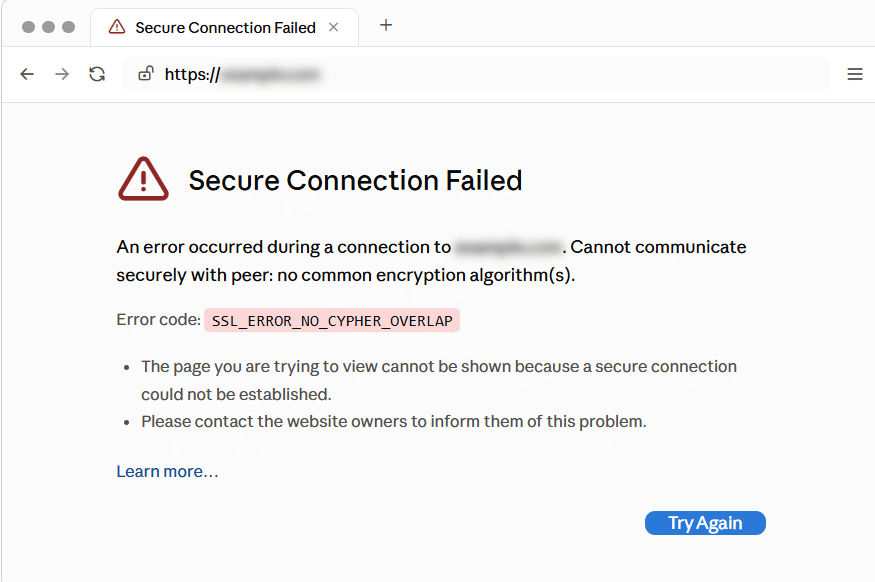
Have you ever open website in Firefox, and instead of webpage, you see “Secure Connection Failed” error with error code SSL_ERROR_NO_CYPHER_OVERLAP. Reloading the page can not help, and message gives you little guidance about what to change.
My first step is to find out where connection is failing. The problem might involve Firefox’s settings, software inspecting your HTTPS traffic, or website’s TLS configuration. Each needs different fix.
In this guide, I will walk you through diagnosis before moving into browser and server changes.
TL;DR
- Update Firefox and restart it completely.
- Check whether error affecting one website or several unrelated websites.
- Compare another browser, device, and trusted network.
- Reset relevant Firefox security preferences only if they were modified.
- If you manage website, inspect its public TLS endpoint and server configuration.
- Keep modern security settings enabled while fixing compatibility problem.
What Does SSL_ERROR_NO_CYPHER_OVERLAP Mean?
SSL_ERROR_NO_CYPHER_OVERLAP means Firefox cannot agree on compatible encryption settings with server or intermediary handling connection. Without that agreement, Firefox cannot establish secure connection.
Although error contains “SSL,” modern HTTPS connections use TLS, successor to SSL.
How Firefox Negotiates Secure Connection
Before loading HTTPS page, Firefox and server perform a TLS handshake. During this exchange, they negotiate security parameters, including supported protocol version and cryptographic options.
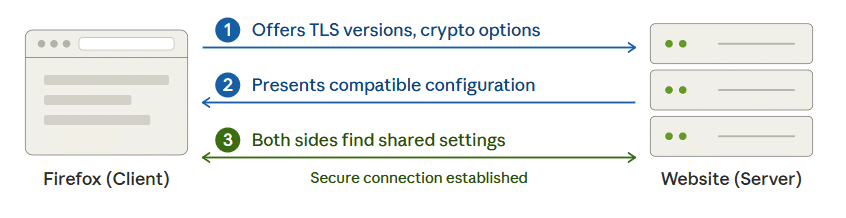
A cipher suite identifies part of cryptographic configuration used to protect connection. The details differ between TLS versions, but practical requirement is same: both sides need compatible settings.
I would think of it as two systems trying to agree on secure way to communicate. If their supported options don’t overlap, conversation stops before the page loads.

How This Differs From Certificate Error
A certificate error concerns issues such as an expired certificate, an untrusted issuer, or a certificate that doesn’t match requested hostname.
A cipher negotiation problem concerns whether connection can use compatible cryptographic settings. Both can interrupt HTTPS, but renewing certificate is not universal fix for SSL_ERROR_NO_CYPHER_OVERLAP.
To understand how certificates protect website connections and why their correct installation matters, checkout why SSL certificates matter for website security guide.
What Causes This Firefox Error?
Several conditions can produce a negotiation failure. I’d use these as diagnostic possibilities rather than assume first one explains every case.
Outdated Browser or Server Software
Older software may lack compatible protocol support or depend on cryptographic options that current browsers reject.
Updating Firefox addresses browser side. Website owners also need to maintain their web server, operating system, and TLS libraries.
Incompatible TLS or Cipher Settings
A server may offer only obsolete protocols, use excessively restrictive cipher list, or apply settings that conflict with its certificate and cryptographic capabilities.
Customizing can also break otherwise working configuration. A cipher list copied from old tutorial may no longer suit installed software.
Modified Firefox Security Preferences
Firefox exposes advanced settings through about:config. Changes to protocol limits or individual cipher preferences can affect which connections it accepts.
I would give particular attention here if error started after following browser “security tweak” or troubleshooting guide.
HTTPS Inspection or Proxy Interference
Some antivirus products, corporate security systems, and proxies inspect encrypted traffic by acting as intermediary.
If that intermediary has incompatible TLS settings, connection can fail even when website itself supports modern HTTPS. Mozilla identifies security software conflicts as potential cause of secure connection problems.
CDN or Reverse Proxy Configuration Problems
When website uses CDN or reverse proxy, Firefox may connect to that service instead of directly to origin server.
That means public-facing TLS configuration matters. Changing origin alone may not fix failure occurring at edge.
If you are troubleshooting a different HTTPS protocol failure, simple guide to fixing the ERR_SSL_PROTOCOL_ERROR covers additional causes and troubleshooting approaches.
Before Changing Settings, Identify Where Connection Fails
A few comparisons can save lot of unnecessary changes.
Check Whether One Website or Several Websites Fail
Open few unrelated HTTPS websites. If only one fails, investigate that website and anything specific to route you use to reach it. If many unrelated websites fail, local browser settings, security software, or network infrastructure become stronger suspects.
This is clue, not proof. I’d combine it with next checks.
Compare Another Browser and Device
Try same hostname in another updated browser. Then test second device if available. A website working elsewhere doesn’t automatically prove Firefox is broken. Different browsers and devices can use different TLS implementations, settings, proxies, or network paths.
Try Another Trusted Network
Compare your normal connection with trusted alternative, such as your mobile hot-spot. If the site works on the hot-spot but fails on office Wi-Fi, I’d investigate the office proxy, security gateway, DNS routing, or HTTPS inspection system.
| What you observe | Where I’d investigate first |
| One website fails across browsers and devices | Website or public TLS endpoint |
| Only one Firefox profile fails | Modified preferences or profile configuration |
| Multiple devices fail on one network | Network proxy, filtering, or inspection |
| Many sites fail on one computer | Local security software or browser configuration |
| Failure began after server configuration change | Recently changed TLS or proxy settings |
How to Fix SSL_ERROR_NO_CYPHER_OVERLAP in Firefox
Work through these steps in order. Retest affected website after each meaningful change.
Step 1: Update Firefox and Restart It
Start with supported, updated browser before investigating advanced settings.
If you need help checking for updates, follow Mozilla’s guide to updating Firefox for your operating system.
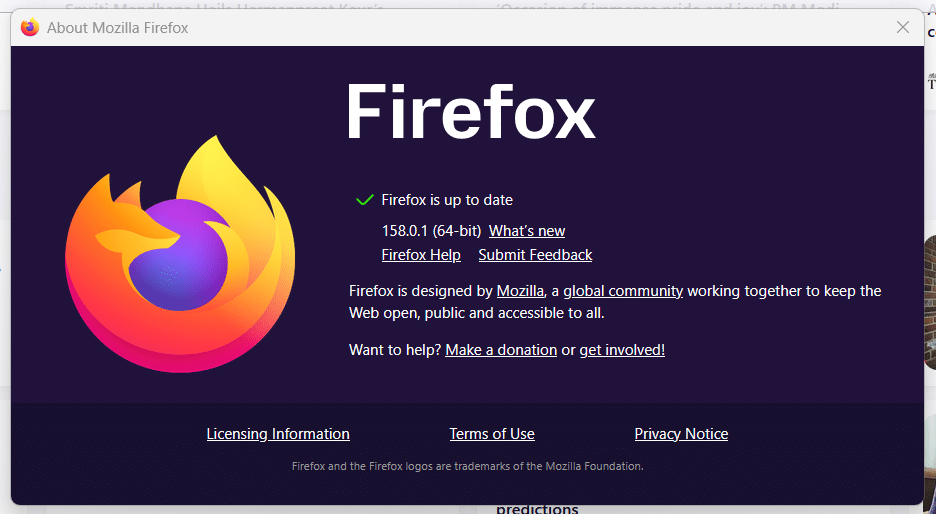
On a typical desktop installation:
- Open the Firefox menu.
- Select Help >> About Firefox.
- Allow available updates to install.
- Restart Firefox when prompted.
On macOS, the About Firefox option is available through Firefox application menu. On Linux, updates may be managed through your distribution’s package manager or software application.
Close all Firefox windows before reopening it. If your organization manages browser updates, ask its administrator to confirm that your installation is supported.
Step 2: Restore Modified TLS and Cipher Preferences
If updating does not help, I would check whether Firefox’s connection settings have been customized.
- Enter about:config in address bar.
- Read and acknowledge the advanced-settings warning.
- Search for: security.tls.version

- Review matching preferences for user modifications.
- Reset relevant modified preferences using the reset control.
- Search for: security.ssl3
- Review and reset relevant user-modified cipher preferences.
- Restart Firefox and test again.
Reset to defaults for your installed Firefox version instead of copying numeric values from another guide.
security.ssl3. prefix is legacy Firefox naming convention, not reason to enable obsolete SSLv3. Reset only modified preferences and avoid copying numeric values from older guides, as defaults may vary by Firefox version.
Mozilla documents preference resets as troubleshooting option. Avoid deleting preference files or resetting unrelated settings at this stage.
If preference is locked or repeatedly changes back, organizational policies or configuration files may control it. In that situation, involve administrator.
Step 3: Test Firefox Troubleshoot Mode
Troubleshoot Mode temporarily disables extensions and certain other features, helping you check whether they contribute to problem.
- Open Firefox’s menu.
- Select Help >> Troubleshoot Mode.
- Confirm the restart.
- Open the affected website.
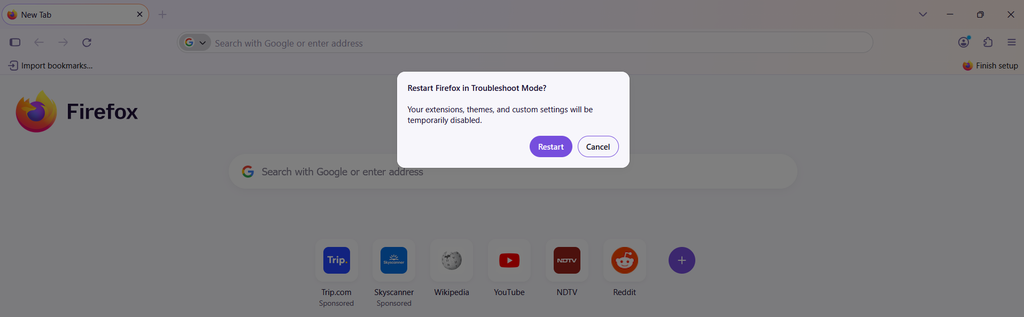
If it works, restart normally and investigate extensions or related customizations individually.
One limitation matters: Troubleshoot Mode does not reset modified Firefox preferences. A failure in this mode therefore doesn’t rule out settings checked in previous step.
I’d treat this as isolation step, rather than expect it to repair every TLS error.
Step 4: Review HTTPS Inspection and Proxy Settings
If issue affects multiple websites, check software that handles encrypted connections.
Look for security-product features named:
- HTTPS scanning
- Encrypted connection scanning
- SSL inspection
- Web protection
Start by updating security product and reviewing its vendor’s guidance.
On personally managed device, a brief, controlled test with HTTPS inspection paused may help identify interference. Restore protection immediately afterward, and avoid signing in or entering sensitive information during test.
If that changes the result, work toward product update or supported configuration correction.
For Firefox proxy settings:
- Open Settings.
- Search for Network Settings.
- Open the connection settings.
- Check for unexpected manual proxy or automatic configuration URL.
Don’t remove required workplace proxy. Ask the administrator to review it.
For additional guidance on connection problems, proxy configuration, and security software interference, checkout Mozilla’s Firefox connection troubleshooting guide.
Step 5: Test New Firefox Profile
If problem appears limited to your existing profile, create separate test profile.
- Enter about:profiles.
- Select Create a New Profile.
- Give it recognizable name.
- Launch it without importing settings or installing extensions.
- Test website.
Keep your original profile intact. If new profile works, difference points toward something in original profile. Review its preferences, extensions, and customizations before choosing broader reset.
If you are unfamiliar with Firefox profiles, Mozilla explains how to create and manage separate browser profiles without immediately replacing your existing configuration.
Firefox Refresh is another option, but it removes extensions and resets customizations. Review Mozilla’s explanation before using it.
How to Fix the Error on a Website You Manage
If you own website, start with hostname visitors actually use. Then trace connection through your infrastructure.
Before editing server configuration, save copy of relevant files and identify last working version.
Test Public Hostname With SSL/TLS Scanner
A public TLS scanner, such as Qualys SSL Labs Server Test, can help inspect internet-accessible website’s configuration.
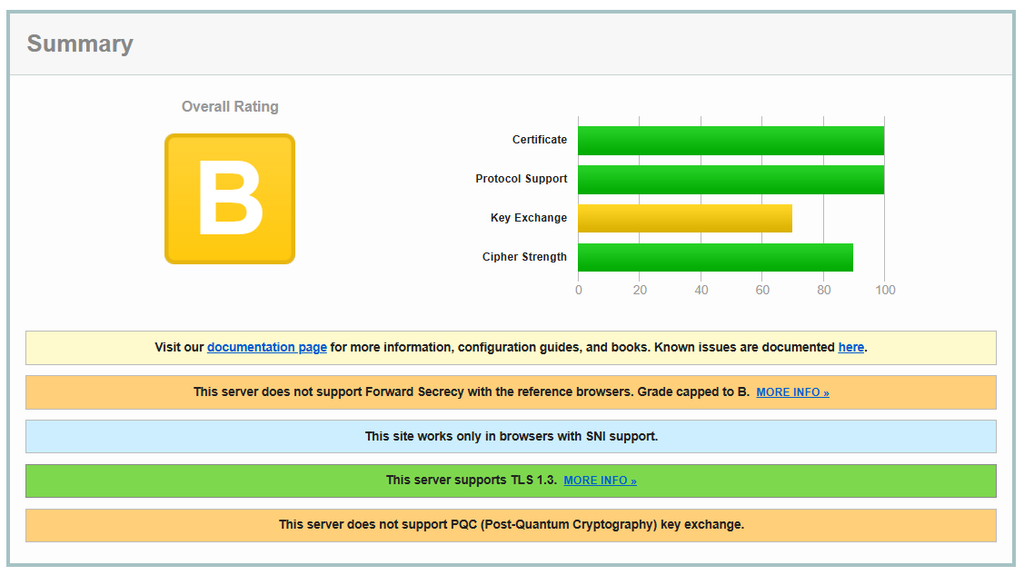
Review:
- Supported TLS versions.
- Offered cipher suites.
- Handshake compatibility results.
- Certificate deployment.
- Differences between endpoints, if reported.
Test exact affected hostname. example.com, www.example.com, and another subdomain can have different configurations.
If website uses CDN, public scan usually evaluates CDN endpoint reached by scanner. It doesn’t automatically validate origin server.
Inspect TLS Handshake With OpenSSL
From system with OpenSSL installed, replace example.com with your hostname:
openssl s_client -connect example.com:443 -servername example.com -briefThe -servername option sends Server Name Indication (SNI). This helps endpoint select correct site when multiple hostnames share an address.
You can also test protocol versions separately:
openssl s_client -connect example.com:443 -servername example.com -tls1_2 -briefopenssl s_client -connect example.com:443 -servername example.com -tls1_3 -briefCheck whether negotiation succeeds and which protocol and cipher are reported.
A failed TLS 1.3 test alone doesn’t prove why Firefox failed. Server may still support compatible TLS 1.2 connection. Your local OpenSSL version and policies also influence these tests.
Likewise, OpenSSL handshake succeeding doesn’t guarantee Firefox will accept every aspect of connection. Use it alongside browser testing and server logs.
Review Protocol and Cipher Compatibility
For typical public website, review support for TLS 1.2 and TLS 1.3 using maintained software.
Check whether recent change:
- Removed all Firefox-compatible cipher suites.
- Restricted protocols unexpectedly.
- Introduced incompatible certificate or signature requirements.
- Changed public TLS termination point.
I would avoid adding long cipher list simply to make error disappear. Use maintained configuration suitable for your software version and compatibility requirements.
TLS 1.3 cipher configuration is handled differently from earlier TLS versions. Changing legacy cipher directive may not alter TLS 1.3 behavior.
Check Nginx Configuration
For Nginx, protocol directive commonly looks like this:
ssl_protocols TLSv1.2 TLSv1.3;This is one directive, not complete HTTPS configuration. Review it in context of effective configuration and Nginx/OpenSSL versions installed.
Before modifying your server, review official Nginx HTTPS configuration documentation to understand how protocol support, cipher settings, certificates, and virtual hosts work together.
After making appropriate change, validate the configuration:
sudo nginx -tIf validation succeeds, reload Nginx:
sudo systemctl reload nginxIf validation fails, correct or restore configuration before reloading.
When hosting panel generates configuration files, use its supported configuration workflow. Direct edits may be overwritten.
Check Apache Configuration
For Apache installation with compatible TLS support, protocol configuration may look like:
SSLProtocol -all +TLSv1.2 +TLSv1.3Check the global SSL configuration as well as the relevant virtual host settings. Effective behavior depends on Apache and TLS library versions.
For version-specific details about accepted TLS protocols and cipher-suite directives, checkout Apache mod_ssl documentation before changing your virtual-host configuration.
On Ubuntu or Debian, validate the configuration:
sudo apache2ctl configtestAfter a successful result, reload Apache:
sudo systemctl reload apache2Service and command names may differ on other distributions.
Check CDN and Reverse Proxy Settings
With proxy or CDN, separate these two connections:
- Firefox >> public proxy or CDN
- Proxy or CDN >> origin server
For browser-facing TLS failures, check connection between Firefox and CDN first. If you use Cloudflare, verify edge certificate coverage and TLS settings before changing origin server configuration.
If your domain uses Cloudflare, follow its SSL/TLS version and cipher mismatch troubleshooting guide to check edge certificate activation, hostname coverage, and proxy-related configuration.
For Cloudflare, review affected hostname’s edge certificate status, coverage, and TLS settings. Its official troubleshooting documentation covers Firefox’s SSL_ERROR_NO_CYPHER_OVERLAP alongside protocol and cipher mismatch errors.
I wouldn’t switch encryption modes blindly. First, identify which connection fails and which setting controls it.
Update Outdated TLS Components
Review support status of:
- Your operating system
- Nginx or Apache
- TLS library used by running web server
- Any load balancer or reverse proxy
The openssl command-line version doesn’t necessarily identify the library used by every running service.
Use supported updates and follow any required service-restart instructions. Updating packages without restarting an affected process may leave the old component in use.
Common Fixes I Would Avoid
Some suggestions trade visible error for weaker security or unnecessary disruption.
Lowering Firefox’s Minimum TLS Version
If website relies on obsolete protocols, durable fix belongs on that website or its intermediary. Lowering browser protections can affect more than one site you are troubleshooting.
Re-enabling Weak Ciphers
Avoid enabling obsolete cryptographic options just to create overlap. Objective is connection that works with modern security expectations.
Permanently Disabling Security Software
Controlled diagnostic test can identify HTTPS inspection interference. Leaving protection disabled doesn’t resolve underlying incompatibility. Update or correct responsible product instead.
Repeatedly Clearing Cache or Replacing Certificates
Cached page content generally is not responsible for TLS negotiation that happens before page loads. Similarly, replace or renew certificate when diagnostics identify certificate problem. Doing it repeatedly without evidence adds work and may introduce new configuration issues.
For separate explanation of browser warnings caused by website security and certificate configuration, see guide on how to fix a website not secure warning
How to Verify the Fix
After making change, I would repeat test that originally failed.
- Open exact affected URL in updated Firefox
- Confirm it loads without security exception
- Retest on any device or network that previously failed
- Restore temporary diagnostic changes
- If you manage site, rerun TLS checks.
For websites served by multiple nodes, check for inconsistent configurations. An intermittent failure may mean only some endpoints received fix.
Record what changed and what successful verification showed. That makes future recurrence easier to investigate.

How to Prevent the Error From Returning
A working HTTPS configuration still needs maintenance.
Keep Software Supported
Maintain browser, operating system, web server, and proxy updates. Schedule upgrades in advance to ensure components are updated before their support period expires. Review TLS Changes Before Deployment. Keep copy of working configuration. Validate syntax and test affected hostname after changing protocols, ciphers, certificates, or proxy settings.
Monitor HTTPS Availability
Use HTTPS checks that validate secure connections, rather than only checking whether a network port responds. A successful monitor check is useful evidence, but it doesn’t replace Firefox compatibility testing. Monitoring clients can have different TLS capabilities.
Key Takeaways
- Compare browsers, devices, and networks before changing security settings.
- Reset modified Firefox TLS preferences to their defaults rather than copying arbitrary values.
- Use clean profile and controlled inspection checks to isolate local problems.
- Website owners should inspect public endpoint, effective TLS configuration, and proxy connections.
- Verify fix without exceptions or permanently reduced security protections.
Conclusion
My approach to SSL_ERROR_NO_CYPHER_OVERLAP is to narrow down failure before changing anything. Start with updated Firefox installation, compare where site works, and review modified preferences or inspecting software when evidence points to your device.
If you manage website, test public hostname and correct responsible TLS endpoint. For routine application and SSL management, ServerAvatar can help organise server administration tasks; use that alongside targeted TLS diagnostics when connection problems appear.
FAQs
What does SSL_ERROR_NO_CYPHER_OVERLAP mean?
It means Firefox and endpoint handling HTTPS connection cannot agree on compatible cryptographic settings. The cause may involve website, browser configuration, or an intermediary such as an inspecting proxy.
Why does website work in another browser but fail in Firefox?
Browsers can differ in TLS support, security policies, proxy behavior, and profile settings. Compare updated Firefox installation with clean profile before deciding whether cause is local or server-side.
Will clearing Firefox’s cache fix this error?
Usually, clearing cached content won’t address cipher negotiation failure. I’d prioritize updates, modified security preferences, network comparisons, and website’s TLS configuration.
Does renewing an SSL certificate fix a cipher mismatch?
Not necessarily, certificate validity and cipher compatibility are different parts of HTTPS. Renew certificate when diagnostic results identify certificate-related problem.
Can I safely bypass SSL_ERROR_NO_CYPHER_OVERLAP?
There is not general safe bypass that fixes incompatible encryption settings. Restore appropriate browser defaults or correct server or intermediary configuration instead of weakening security.
About the author
Meghna Meghwani is a technical writer focused on Linux, Ubuntu, VPS hosting, server management, WordPress, PHP, Node.js, cloud hosting, and DevOps. She creates beginner-friendly tutorials, practical hosting guides, troubleshooting articles, and server security content designed to help developers and businesses manage applications and servers more efficiently.