


Have you committed too early, included the wrong files, or taken a local branch in a direction you no longer want? Git Reset to Previous Commit lets you move that branch back to an earlier commit using git reset. The difficult part isn’t typing the command. It’s choosing what should happen to the changes that came after the target commit.
This guide shows how to use git reset to revert to a previous commit while protecting the work you may still need. It is written for developers who are comfortable running basic Git commands but want a safer way to undo local commits. You’ll learn how Git’s three reset modes behave, practice them in a disposable repository, handle common scenarios, and recover when a reset goes farther than intended.
Quick safety rule: If the commits are already on a shared remote branch, pause before using
git reset. In most team workflows,git revertis the safer choice because it preserves the published history.
TL;DR
- Use
git reset --soft HEAD~1to remove the latest commit while keeping its changes staged. - Use
git reset HEAD~1to remove the latest commit while keeping its changes unstaged. This is the default--mixedbehavior. - Use
git reset --hard HEAD~1only when you intentionally want to discard tracked changes as well as commits. - Inspect
git status,git log, andgit diffbefore and after resetting. - Prefer
git revertfor commits that teammates may already have pulled. - If you reset to the wrong place, use
git reflogto locate the earlier branch position.
Before You Reset: Decide Whether History May Be Rewritten
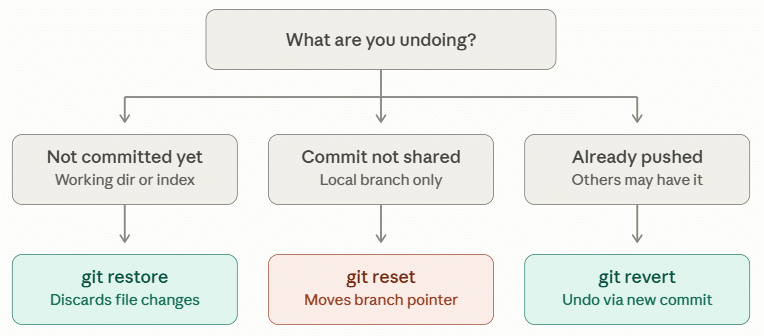
The key question to ask first is not, “Which reset mode is right for me?” It is “Does anyone else depend on this branch history?”
git reset changes where the current branch points. A commit can disappear from the visible path of that branch even though Git may retain the underlying object for some time.
That is convenient on a private feature branch. On a shared branch such as main, however, rewriting the published sequence can leave another developer’s local history out of sync.
Use this decision table before running anything:
| Situation | Better starting choice | Why |
|---|---|---|
| The commit exists only on your machine | git reset | You control the local history |
| You want to revise your latest local commit | git reset --soft HEAD~1 | The changes remain ready to recommit |
| You want to reorganize several local commits | git reset --mixed <commit> | The file changes remain available but unstaged |
| The commit is already on a shared branch | git revert <commit> | A new commit undoes the change without rewriting history |
| You only want an older version of one file | git restore --source=<commit> -- <file> | The branch pointer does not need to move |
Git’s official documentation separates these jobs clearly:
git resetmoves a branch or updates the index, whilegit revertrecords a new commit that reverses an earlier commit.
If your team deploys from Git, history changes can also affect the commit a server expects to fetch. Review the deployment pipeline before rewriting any branch used in production.
Understand What git reset Actually Changes
A Git project has three working layers that matter during a reset:
- HEAD and the current branch:
HEADnormally refers to the branch you have checked out, and that branch points to a commit. - The index: Also called the staging area, it stores the snapshot prepared for the next commit.
- The working tree: These are the files you can currently open and edit.
When you run:
git reset <target-commit>Git moves the current branch to <target-commit>. The mode determines whether Git also changes the index and working tree.
| Command | Branch moves? | Staging area | Working files | Typical use |
|---|---|---|---|---|
git reset --soft <commit> | Yes | Kept | Kept | Rebuild or amend local commits |
git reset --mixed <commit> | Yes | Reset to target | Kept | Review and selectively restage changes |
git reset --hard <commit> | Yes | Reset to target | Reset to target | Deliberately discard later tracked work |
If no mode is supplied, Git uses --mixed.
Two details prevent common surprises:
--hardcan overwrite modifications to tracked files. Commit, stash, or back up anything you may need first.- A hard reset does not generally remove ordinary untracked files. Removing untracked files is a separate operation, commonly handled with
git clean, which is outside the reset itself.
There are additional options such as --merge and --keep, but they solve narrower cases involving local changes and merge-like resets.
For the everyday task of returning a private branch to an earlier commit, soft, mixed, and hard are the modes worth understanding first.
Build a Disposable Repository and See the Difference
The safest way to understand reset is to observe it somewhere that cannot harm a real project.
If you’re new to working with Git from the command line, you can first learn how to use Git Bash before following the examples below.
The following mini-lab creates three commits in a temporary practice directory.
If Git is not installed on your Ubuntu system yet, follow our guide on how to install Git on Ubuntu before starting.
mkdir git-reset-practice
cd git-reset-practice
git init

git config user.name "Practice User"
git config user.email "practice@example.com"

printf "version 1\n" > app.txt
git add app.txt
git commit -m "Add version 1"

printf "version 2\n" >> app.txt
git add app.txt
git commit -m "Add version 2"

printf "version 3\n" >> app.txt
git add app.txt
git commit -m "Add version 3"Now inspect the compact history:
git log --oneline --decorate -3You can see the output as mentioned:

Your hashes will differ, but the output should resemble this:
8c2de91 (HEAD -> main) Add version 3
431f7a0 Add version 2
bb7262e Add version 1The name HEAD~1 means the first parent of the current commit, in this example, “Add version 2.” HEAD~2 means two first-parent steps back.
Commit hashes are more explicit, while relative references are quicker when you know exactly how many recent commits you want to move past.
Before testing a mode, create a recovery label:
git branch before-resetThat branch gives the original tip a memorable name. In a real repository, a temporary backup branch is a simple precaution when you are uncertain.
Try a soft reset
git reset --soft HEAD~1
git status
git diff --stagedThe Add version 3 commit is no longer the tip of main, but its file change remains staged. As mentioned below:

This is ideal when the content is correct but the commit itself needs a better message, additional files, or a cleaner split.
To restore the lab before the next test:
git reset --hard before-resetAs you can see in the output mentioned below:

Try a mixed reset
git reset --mixed HEAD~1
git status
git diffThe same change is now present in app.txt, but it is not staged. As mentioned below:
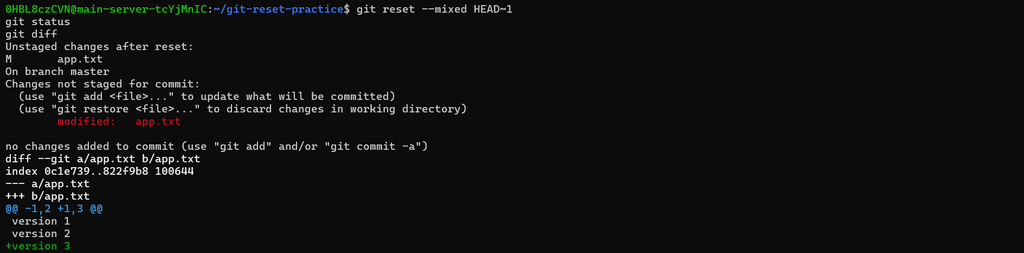
This gives you room to edit it, discard part of it, or stage selected hunks with git add -p.
Restore the starting point again:
git reset --hard before-resetAs you can see in the output mentioned below:

Try a hard reset
git reset --hard HEAD~1
git status
cat app.txtThe branch, index, and tracked file now match “Add version 2.” The line introduced by the third commit is no longer in the working tree. As mentioned below:

This is why --hard deserves a deliberate check before you press Enter.
You can return to the saved state with:
git reset --hard before-resetAs you can see in the output mentioned below:

Use git reset Safely in a Real Repository
Once the three-layer model makes sense, a real reset becomes a short, controlled operation.
1. Confirm the branch and current state
Start by checking where you are and whether the working tree contains anything valuable:
git status
git branch --show-currentIf git status shows uncommitted changes, choose one of these precautions:
# Option 1: commit a temporary checkpoint
git add -A
git commit -m "WIP: checkpoint before reset"

# Option 2: stash tracked and untracked changes
git stash push -u -m "Before resetting branch"The -u flag includes untracked files in the stash. Do not assume the default stash contains them.
2. Identify the exact target commit
Use a readable log rather than copying a hash from memory:
git log --oneline --decorate --graph -10If you want the parent of the latest commit, HEAD~1 is sufficient. For an older target, copying the displayed hash is usually clearer:
git show --stat <commit-hash>git show --stat confirms the commit message and affected files without changing the repository.
As mentioned in the output below:

3. Mark the current tip when the change is significant
For a multi-commit reset, create a temporary branch:
git branch backup-before-resetThis isn’t required, but it turns recovery into an obvious command instead of a reflog investigation. Delete the backup branch later, after verifying the result.
4. Run the mode that matches your intended outcome
Keep changes staged:
git reset --soft <commit-hash>Keep changes but unstage them:
git reset --mixed <commit-hash>Discard later commits and tracked file changes:
git reset --hard <commit-hash>5. Verify all three layers
Do not stop at a successful command message. Check the new branch tip and remaining changes:
git log --oneline --decorate -5
git status
git diff
git diff --staged- For a hard reset, both diff commands should normally be empty.
- For a mixed reset,
git diffshould show the retained working-tree changes. - For a soft reset,
git diff --stagedshould show the retained staged changes.
Verification is especially important before a deployment. If the target branch triggers automatic releases, inspect the final commit and run the project’s tests before pushing.
Choose the Right Reset for Common Git Mistakes
The command becomes easier to remember when it is tied to an outcome rather than a definition.
Undo the latest commit but keep everything staged
Use this when the files are correct but the commit message is poor, a file was omitted, or the work should be recommitted as one revised snapshot:
git reset --soft HEAD~1
git statusMake the needed adjustment, then commit again:
git add path/to/missed-file
git commit -m "Describe the corrected change"If you only need to modify the most recent commit and it has not been shared, git commit --amend may be even more direct. Reset is more flexible when you want to split or substantially rebuild that commit.
Undo several local commits and reorganize the work
Suppose three quick commits contain mixed changes that should become two logical commits. Move the branch back three commits while leaving all file changes unstaged:
git branch backup-before-rework
git reset --mixed HEAD~3
git statusThen stage intentionally:
git add -p
git commit -m "Add validation for deployment settings"

git add -A
git commit -m "Update deployment interface"
git add -p lets you stage individual change hunks. It is often more useful than staging whole files when unrelated edits ended up together.
Return a private branch to a known good commit
If later local work is genuinely unwanted and you have confirmed the target:
git branch backup-before-hard-reset
git reset --hard <known-good-commit>Run the application’s test suite afterward. A clean Git status only proves that the working tree matches the selected commit; it does not prove that the commit is safe to deploy.
Unstage a file without losing its edits
Reset also has a path-oriented form. To remove a file from the index while keeping its working copy:
git reset -- path/to/fileModern Git also offers a more explicit command:
git restore --staged path/to/fileNeither command moves the current branch when used this way. The official git restore reference documents how restoration can target the working tree, index, or a selected source commit.
What to Do When the Commit Is Already on the Remote
First fetch the current remote state and compare it with your local branch:
git fetch origin
git status
git log --oneline --left-right --graph HEAD...origin/mainIf teammates may have based work on the commit, use git revert:
git revert <commit-hash>Git creates a new commit that applies the inverse change. The original commit stays in the history, so everyone can pull the correction normally.
If a private remote branch must be rewritten and your team process explicitly permits it, push with a lease:
git push --force-with-lease origin <branch-name>--force-with-lease is safer than an unconditional --force because it refuses to update the remote when its current value differs from what your local repository expects. It still rewrites history, so branch protection rules may block it, and that is often intentional.
Never present a forced push as the automatic final step of every reset. Many resets are local cleanups that should be followed by new commits and a normal push.
If you’re still getting familiar with remote repositories and how GitHub fits into Git workflows, see our guide to GitHub and how it works.
Recover from the Wrong Reset with git reflog
A mistaken reset can feel final because the removed commits disappear from git log. The local reflog usually provides a way back.
Run:
git reflog --date=localYou may see entries resembling:
431f7a0 HEAD@{0}: reset: moving to 431f7a0
8c2de91 HEAD@{1}: commit: Add version 3As mentioned in the output below:

Here, HEAD@{1} represents the position before the reset. Inspect it first:
git show --stat HEAD@{1}As mentioned in the output below:

Then create a recovery branch instead of immediately performing another destructive reset:
git branch recovered-work HEAD@{1}
git log --oneline recovered-work -5As mentioned in the output below:

If the recovered branch contains the missing commits, you can merge, cherry-pick, or reset to it after deciding what the final history should be.
Reflogs are local records. A different clone does not automatically have your machine’s reflog, and old entries are eventually expired. Treat reflog as a recovery tool, not as a backup policy.
The official
git reflogdocumentation explains how Git records earlier values of branch tips and other references.

Troubleshoot Unexpected Reset Results
1. git reset --hard did not delete an untracked file
That is expected. Reset updates tracked content. Check untracked files with:
git status --shortDo not casually run a cleanup command just to make the status empty. Review every untracked path and preserve anything important first.
2. The reset was blocked because local changes would be overwritten
Some reset modes, including --keep, are designed to stop rather than overwrite conflicting local changes. Commit or stash those changes, recheck the target, and try again with the appropriate mode.
3. The branch is behind the remote after a reset
That can be a normal consequence of moving the local branch backward. Do not pull or force-push reflexively. Decide whether the remote history must remain intact. If it must, restore your branch and use git revert instead.
4. A submodule still points to unexpected content
Submodules have their own repositories and checked-out commits. A reset of the parent repository does not always update every submodule working tree automatically.
Review the recorded submodule commit and use the relevant submodule option only after confirming that local submodule work will not be lost.
5. HEAD~1 selected the wrong commit after a merge
HEAD~1 follows the first parent. Merge commits have more than one parent, so parent notation can be easy to misread.
Inspect the graph and use an explicit hash when the history branches:
git log --graph --oneline --decorate --allPractical Safety Checklist
Before reset:
- Confirm the current branch with
git branch --show-current. - Read
git status; do not assume the working tree is clean. - Inspect the target with
git show --stat <commit>. - Decide whether the commits have been shared.
- Commit, stash, or copy work you may need.
- Create a temporary backup branch for a significant reset.
After reset:
- Confirm the new tip with
git log --oneline --decorate. - Inspect unstaged changes with
git diff. - Inspect staged changes with
git diff --staged. - Run the project’s tests or build.
- Review deployment automation before pushing.
- Use a normal push unless history rewriting is intentional and permitted.
This workflow is slower by perhaps a minute and can save hours of recovery, especially when the branch is connected to a staging or production deployment.
Conclusion
Using git reset safely depends on the result you want. Use --soft to remove a commit while keeping its changes staged, --mixed to keep the changes unstaged for further editing, and --hard only when you are sure the changes can be discarded. It is best to practice these commands in a separate repository before using them on a real project.
For live projects, always create a backup or recovery point before resetting. If changes have already been shared, git revert is usually safer because it preserves the existing history. Server management platforms such as ServerAvatar can simplify deployment, backups, SSL, and application management, but Git rollback decisions should still be made carefully.
Key Takeaways
- A reset moves your current branch; the selected mode controls the index and working tree.
--softkeeps changes staged,--mixedkeeps them unstaged, and--hardoverwrites tracked working-tree changes.- When commits have already been shared,
git revertis the safer choice because it preserves the existing history for everyone using the repository. - A backup branch and a careful verification pass make resets much less risky.
git reflogcan recover committed work after many local reset mistakes, but it is not a substitute for backups.
FAQs
Does git reset permanently delete commits?
It removes later commits from the visible history of the current branch, but the commits may remain reachable through another branch or the local reflog. Create a recovery branch as soon as possible if you reset too far, because unreachable objects are not retained forever.
What is the safest way to undo the latest local commit?
Use git reset --soft HEAD~1 when you want to keep all changes staged, or git reset --mixed HEAD~1 when you want to review them as unstaged changes. Check git status and the relevant diff before recommitting.
Should I use git reset or git revert on main?
Use git revert when main is shared or its commits have been published. Revert adds a new corrective commit and preserves history. Reset is better suited to local or explicitly rewriteable branches.
Can I recover after running git reset --hard?
Often, yes, if the lost work existed in a commit. Use git reflog, inspect the earlier entry with git show, and create a recovery branch at that reference. Uncommitted tracked changes overwritten by a hard reset are much harder, and sometimes impossible, to recover through Git.
Does git reset --hard remove untracked files?
No, an ordinary hard reset does not generally remove untracked files. It resets the branch, index, and tracked files to the selected commit. Review untracked files separately with git status --short.
About the Author
Meghna Meghwani is a technical writer focused on Linux, Ubuntu, VPS hosting, server management, WordPress, PHP, Node.js, cloud hosting, and DevOps. She creates beginner-friendly tutorials, practical hosting guides, troubleshooting articles, and server security content designed to help developers and businesses manage applications and servers more efficiently.