

Linux file permissions are one of the first concepts every Linux user and system administrator needs to master. Every sysadmin has been burned by a permissions mistake at least once. Uploaded a script that won’t run. Moved a file you couldn’t overwrite. Set up a deployment hook that silently failed because the user running it didn’t have write access to the log directory. These aren’t exotic edge cases, they’re the daily friction of working on a Linux system.
Linux file permissions are the gatekeepers of everything that runs on your server. Get them right, and your applications work smoothly, your users can access what they need, and your server stays reasonably secure. Get them wrong, and you’re either locked out of your own files or handing out access like candy.
This guide cuts through the noise. You’ll learn exactly how Linux permission bits work, what each one actually does when you’re logged in, how to read the cryptic output of ls -l, and how to change permissions the right way using both symbolic and numeric chmod. Everything here is written from the perspective of someone who’s spent real hours on actual servers, not just quoting man pages.
TL;DR
- Linux has three permission types: Read (r), Write (w), and Execute (x)
- Permissions apply to three categories of users: Owner (u), Group (g), and Others (o)
- The
ls -lcommand shows permissions in a 10-character string like-rw-r--r-- - Use
chmodto change permissions, symbolic mode (u+x) or numeric mode (755) - Use
chownandchgrpto change ownership - Common pitfalls: execute bit on directories, wrong group ownership, restrictive umask in production
Why Linux Permissions Matter More Than You Think
On a single-user laptop, permissions feel academic. On a server running multiple services, serving web traffic, and handling multiple users? Permissions are load-bearing infrastructure.
When a web server like Nginx runs, it typically operates under its own user, www-data on Ubuntu. The user account must have read permissions for the web root directory in order to serve website files. Your deployment script, running as a deploy user, needs write access to certain directories and execute access to deployment hooks. Your backup cron job, running as root, needs read access to everything but write access only to the backup volume.
Getting any one of these wrong breaks something silently. I’ve seen a Node.js app that kept crashing every night because a cron job was deleting its log directory, and the app didn’t have permission to recreate it. Permissions weren’t on anyone’s radar until the app started failing.
Understanding permissions also matters for security. The difference between chmod 777 and chmod 644 on a configuration file could be the difference between a server that’s yours and a server that’s been compromised. That’s not hyperbole, misconfigured permissions are a documented entry point for a wide range of attacks.
The Three Layers: Owner, Group, Others
Before you can understand what a permission means, you need to know who it’s being applied to. Linux splits access into three layers:
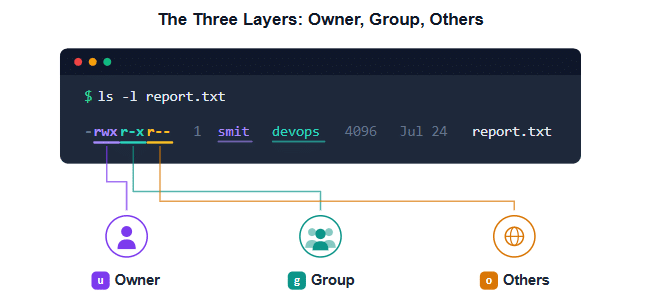
Owner (u)
The user who created the file. On a shared server, each user has their own home directory with files they own. The owner can change permissions on their own files, or take them away from themselves, which is a fun way to lock yourself out of something.
Group (g)
A group is a named collection of users. Instead of granting the same permission to five individual users one by one, you put them in a group and set permissions once. This is how most team-based server access works in practice.
Others (o)
Everyone else, users who aren’t the owner and aren’t in the owning group. “Others” permissions are your last line of defense. They’re what the world gets when someone with no account on your server tries to access your files.
The Three Permission Types Explained
Read (r or 4)
Read permission lets a user view a file’s contents. For a directory, read means listing the directory’s contents, you can see what files and subdirectories exist inside it, but you can’t enter it or access any of those files without additional permissions.
In practice, read on a directory is the permission that ls checks. Without it, ls returns a permission denied error even if you already know the directory exists.
Write (w or 2)
Write permission lets a user modify a file’s contents, add data, truncate it, rewrite it entirely. On a directory, write means you can create, delete, and rename files inside that directory.
Here’s the part that catches people: you need write permission on the directory itself to delete a file, not write permission on the file.
Execute (x or 1)
Execute permission is what makes a file run as a program or script. Without it, trying to run ./script.sh gives you a “permission denied” error, even if you own the file and have full read/write access.
For directories, execute has a different meaning: it allows access to the directory’s metadata and file contents. Without execute on a directory, you can’t cd into it or access any file inside it, even if you have read permission on those individual files.
How to Read Output
Once you know the player roles, the notation starts making sense.
Here’s a real-world example:
-rw-r--r-- 1 www-data www-data 4096 Jul 24 06:00 index.phpLet’s break it down character by character.
File Type: The very first character tells you what kind of object this is:
| Character | Meaning |
|---|---|
- | Regular file |
d | Directory |
l | Symbolic link |
In our example, - means this is a regular file.
Permission Bits: The next nine characters are three groups of three, representing the permission bits for the owner, the group, and others, in that order.
rw-   r--   r--
owner group othersFor index.php:
- Owner (www-data):
rw-read and write, but no execute - Group (www-data):
r--read only - Others:
r--read only
Each - is a missing permission. If execute were present, you’d see an x in that slot.
A few more examples to make the pattern stick:
-rwxr-xr-x   → Owner: rwx, Group: r-x, Others: r-x  (755)
-rw-------   → Owner: rw-, Group: ---, Others: ---  (600)
-rw-rw----   → Owner: rw-, Group: rw-, Others: ---  (660)
lrwxrwxrwx → Symbolic link, all permissions (777, but symlinks handle this differently)The trailing dot or plus sign you’ll sometimes see after the nine bits, like -rw-r--r--. or -rw-r--r--+ indicates extended attributes. The . means SELinux context is present. The + means there’s an ACL (Access Control List) overriding the standard permission bits. In most managed VPS environments, you won’t deal with these daily, but they exist.
Changing Permissions with chmod
The chmod command is your primary tool for modifying permission bits. You need to be the file’s owner, or root, to use it. Two modes are available, symbolic and numeric. Both get the job done; you will develop a preference over time.
Symbolic Mode
Symbolic mode uses letters to describe what you want to change: which user class, what operation, and which permission.
chmod [ugoa] [+-=] [rwx] filenameUser classes:
u– owner (user)g– groupo– othersa– all (equivalent tougo)
Operations:
+– add a permission-– remove a permission=– set exactly these permissions (remove any not listed)
Some common examples:
# Add execute permission for the owner
chmod u+x deploy.sh

# Remove write permission from group and others
chmod go-w sensitive.conf

# Set owner to read+write, group to read, others to nothing
chmod u=rw,g=r,o= deploy.sh

# Add execute to everyone (common for scripts)
chmod +x script.shThe last one, chmod +x , is probably the most used in practice. It’s shorthand for “add execute to all three classes.” When you download a script and need to run it, this is usually the fix.
A practical caution: never chmod +x on a file you downloaded from the internet without at least glancing at its contents. You’re telling your shell to execute whatever is in that file. Downloaded scripts with execute bits are a known malware delivery vector.
Numeric Mode
Numeric mode represents permissions as three digits. Each digit is the sum of the permission bits you want for that class:
| Number | Permissions | Sum |
|---|---|---|
| 0 | Nothing | – |
| 1 | Execute | 1 |
| 2 | Write | 2 |
| 3 | Execute + Write | 1+2 |
| 4 | Read | 4 |
| 5 | Read + Execute | 4+1 |
| 6 | Read + Write | 4+2 |
| 7 | Full (rwx) | 4+2+1 |
The order is always owner, group, others. So chmod 754 means:
- Owner: 7 (rwx)
- Group: 5 (r-x)
- Others: 4 (r–)
Common chmod values in practice:
# 644 standard for regular files (owner rw, everyone else r)
chmod 644 index.php

# 755 standard for scripts and executables (owner rwx, everyone r-x)
chmod 755 deploy.sh

# 600 private file, owner only
chmod 600 .env

# 700 private directory, owner only
chmod 700 /root/backups

# 775 group-writable shared directory
chmod 775 /var/www/shared

# 664 group-writable files in a shared project directory
chmod 664 project files<em>/*.js</em>The distinction between 644 and 755 on scripts comes up constantly in deployment workflows. If you chmod 644 a shell script, it won’t run when you try to execute it. If you chmod 755 a sensitive config file, you’re giving more access than necessary. The numbers become intuitive after a few deployments.
Changing Ownership with chown and chgrp
Permissions control what users can do with a file. Ownership controls who the file “belongs” to, and ownership itself changes what the owner permission bits apply to.
# Change the owner of a file
chown deployuser:deploygroup application.jar

# Change only the owner
chown www-data /var/www/html/index.php

# Change only the group
chgrp www-data /var/www/html/index.php

# Recursively change ownership of a directory and everything inside
chown -R nginx:nginx /var/www/myappThe -R flag is recursive. Use it carefully, running chown -R on a large directory tree takes time, and the operation is not instant. On production servers with high I/O load, I’ve seen this command compete with application I/O and cause noticeable slowdowns. Consider running it during low-traffic windows.
A real scenario: when you install Nginx from Ubuntu’s package manager, it creates its document root at /var/www/html and sets ownership to root:root. Your web application, running as www-data, can’t write to that directory. The standard fix is chown -R www-data:www-data /var/www/html , but you’ll often want to set a more specific directory structure than that.
The umask: Your Default Permissions Filter
Every new file or directory created on a Linux system gets a set of default permissions. These aren’t random, they’re filtered through something called the umask, which subtracts permissions from the system default.
On most Linux systems:
- The default permission for a new file is
666(rw-rw-rw-), filtered by umask - The default permission for a new directory is
777(rwxrwxrwx), filtered by umask
A umask of 022 is common on servers. That means:
- Files get
666 - 022 = 644(owner rw, group and others r) - Directories get
777 - 022 = 755(owner rwx, group and others rx)
A restrictive umask like 077 creates files with 600 (owner only) and directories with 700 (owner only). Some security-conscious environments use this.
Check your current umask:
umaskSet a new umask (session-level):
umask 022Make it permanent, add it to your shell’s profile file (~/.bashrc or ~/.profile):
echo "umask 022" >> ~/.bashrcOne thing to note: executables don’t get the execute bit automatically. A script you create with touch script.sh && chmod +x script.sh works fine. But if you compile a binary or generate a file some other way, you may need to explicitly add the execute bit.
Special Permission Bits Worth Knowing
Beyond the basic rwx bits, Linux has two special permission types that come up in server administration.
Setuid
When set on an executable, setuid causes the program to run with the permissions of the file’s owner, not the user who executed it. The classic example is the passwd command, it needs to modify /etc/shadow, which regular users can’t write to. passwd is owned by root and has the setuid bit set.
-rwsr-xr-x 1 root root 40K Jun 12 06:00 /usr/bin/passwdNotice the s in the owner’s execute position instead of x. That’s the setuid indicator.
Setuid is powerful and dangerous. A poorly configured setuid binary is a privilege escalation risk. Most production environments restrict which binaries can have setuid set, and Ubuntu’s default kernel configuration ignores setuid on scripts entirely (this was added specifically to close a security hole).
Setgid
Setgid works similarly but applies to the group. When set on a directory, any file created inside that directory inherits the directory’s group ownership rather than the creating user’s primary group.
drwxrwsr-x 2 root developer shared-workspaceThis is how shared group directories work in team environments. Every file created in shared-workspace gets developer as its group, so everyone in the developer group can read and write to it, regardless of their individual primary group settings.
The Sticky Bit
On a directory, the sticky bit restricts deletion: only the owner of a file (or root) can delete files inside the directory. The classic example is /tmp:
drwxrwxrwt 10 root root 4.0K Jul 24 06:00 /tmpThe t at the end of the others execute slot means the sticky bit is set. Every user can create files in /tmp, but nobody can delete anyone else’s files. Without it, one user could wipe out another user’s session data or temporary files.
Common Mistakes and How to Fix Them
These are the permission problems I see most often on actual servers.
1. “Permission Denied” on a Web Application File
Web servers run under a specific user, www-data on Ubuntu, nginx on some setups, apache on older systems. That user needs read access to your web root and execute access to any CGI scripts or server-side handlers. If your application writes files (uploads, caches, logs), it needs write access too.
Fix: Set the web root owner to the web server user, or use group permissions if multiple services need access.
chown -R www-data:www-data /var/www/myapp
chmod -R 755 /var/www/myapp      # directories
chmod -R 644 /var/www/myapp<em>/* # files</em>2. Accidentally Using chmod 777
Every sysadmin does this at least once, usually at 2 AM, under pressure, when nothing else seems to work. chmod 777 does work, but it opens the file to the world. On a shared server or a containerized environment, this is a security incident waiting to happen.
The right approach: figure out exactly which user needs access and set permissions for that user (or their group) specifically. If you’re on a shared host and you need web application access, chmod 755 on directories and chmod 644 on files is almost always the correct starting point.
3. Losing SSH Access After Editing sudoers
Editing /etc/sudoers or files in /etc/sudoers.d/ with a syntax error locks you out of sudo. Unlike most config files, sudoers doesn’t give you a graceful fallback, a broken syntax file causes sudo to refuse to start.
Always use visudo to edit sudoers files. It validates the syntax before saving and prevents you from overwriting a working configuration with a broken one.
4. Files Created by Root That Your User Can’t Modify
When root creates files (during a package install, for example), those files are owned by root. If your application runs as a non-root user, it can’t write to those files.
Fix ownership explicitly after installing packages if you need non-root access:
chown -R deployuser:deploygroup /opt/myapp5. Removing the Execute Bit from a Script You Need to Run
If you set chmod 644 on a script and then try to run it, you get “permission denied.” The fix is one command:
chmod +x script.sh

How Permissions Interact with Application Deployment
When you deploy an application on a VPS, whether it’s a Node.js app, a Python service, or a PHP website, permission handling is part of the deployment checklist, not an afterthought.
Here is what a realistic permission setup looks like for a web application:
# Web root: readable by web server, writable by application
chown -R www-data:www-data /var/www/myapp
chmod 755 /var/www/myapp          # directories: rwx for owner, rx for group/others
chmod 644 /var/www/myapp<em>/*        # files: rw for owner, r for group/others

# Upload directory: writable by web server
chown www-data:www-data /var/www/myapp/uploads
chmod 755 /var/www/myapp/uploads

# Deployment script: executable by deploy user
chown deploy:deploy /opt/myapp/deploy.sh
chmod 750 /opt/myapp/deploy.sh    # rwx for owner, r-x for group, nothing for others

# Environment file: owner only
chmod 600 /var/www/myapp/.env
chown www-data:www-data /var/www/myapp/.env</em>The principle here is least privilege: give each component exactly the access it needs and nothing more. Your web server reads files. Your application writes to specific directories. Your deployment user runs deployment scripts. Your backup user reads everything and writes to backup volumes.
Key Takeaways
- Linux permissions operate on three categories, owner, group, and others, and three permission types: read, write, execute
- The
ls -loutput shows permissions in a 10-character string; read it left to right as file type, then three groups of rwx for owner, group, and others - Use
chmod symbolic(e.g.,u+x) for surgical changes andchmod numeric(e.g.,755) for bulk settings - Use
chownto change file ownership andchgrpto change group ownership - The umask filters default permissions for newly created files, know what yours is
- Special bits, setuid, setgid, and sticky, exist for specific multi-user scenarios
- Always apply the principle of least privilege: give each user and process exactly the access it needs
For a simpler way to manage server configurations, application permissions, and deployments without memorizing every chmod combination, tools like ServerAvatar can handle a lot of this infrastructure work for you.
Conclusion
Understanding Linux file permissions is a fundamental skill for anyone managing servers, hosting websites, or deploying applications. Once you know how to read permission strings, assign the correct access levels, and use commands like chmod, chown, and chgrp effectively, you’ll be able to prevent common permission errors while keeping your Linux system secure. Following the principle of least privilege ensures that every user and application has only the access it needs, reducing both security risks and troubleshooting time.
Mastering Linux file permissions isn’t about memorizing every permission combination, it’s about knowing when and why to apply them. Whether you’re a beginner learning the basics or a system administrator managing production servers, applying the right read, write, and execute permissions will help you build a more stable, secure, and reliable Linux environment. As you gain hands-on experience, permission management will become second nature, making server administration faster, safer, and far more efficient.
FAQs
What is the difference between chmod 755 and chmod 644?
chmod 755 gives the owner full read, write, and execute permissions (rwx) while giving the group and others read and execute (r-x). chmod 644 gives the owner read and write (rw-) while giving everyone else read-only access (r–). Use 755 for scripts and directories, and 644 for regular files.
How do I fix “Permission Denied” errors on Linux?
First, identify which user is hitting the error. Then check ownership (ls -l) and permissions on the target file or directory. The most common fix is chown to give the correct user ownership, or chmod to add the missing permission bit. For web applications, the user is typically www-data or nginx.
What does chmod +x do?
chmod +x adds the execute permission to a file for all three user classes (owner, group, others). It’s the standard way to make a script runnable after you create or download it.
What is the difference between chmod 777 and chmod 755?
chmod 777 gives every user on the system full read, write, and execute access to the file or directory, a serious security risk. chmod 755 gives full access to the owner and read/execute to everyone else, which is appropriate for most shared files and directories.
How do I change file permissions recursively?
Use the -R flag: chmod -R 755 /path/to/directory. Note that this sets the same permissions on every file and subdirectory. For most web applications, you’ll want directories at 755 and regular files at 644 , which requires two separate commands.
About the Author
Meghna Meghwani is a technical writer focused on Linux, Ubuntu, VPS hosting, server management, WordPress, PHP, Node.js, cloud hosting, and DevOps. She creates beginner-friendly tutorials, practical hosting guides, troubleshooting articles, and server security content designed to help developers and businesses manage applications and servers more efficiently.