
If you’ve ever spent 20 minutes clicking through wp-admin just to manage WordPress plugins, only to find out which of your 14 plugins needs an update, you know how frustrating WordPress plugin management can get. The default plugin screen works, but it can feel slow and cluttered, and when you’re managing multiple WordPress sites, that extra time adds up quickly.
That’s exactly the problem WordPress Toolkit solves. ServerAvatar’s WordPress Toolkit puts plugin management inside your hosting dashboard, a real-time view of every plugin, one-click updates, search and filter tools, and the ability to act without ever touching wp-admin. Whether you’re running one blog or handling 30 client sites, this changes how you work.
In this guide, I will walk you through everything you can do with the Plugins tab in WordPress Toolkit. By the end, you’ll know exactly how to install, update, activate, deactivate, and remove plugins without leaving ServerAvatar.
TL;DR
- WordPress Toolkit gives you a centralized dashboard to manage plugins without opening the wp-admin
- You can install, activate, deactivate, update, and uninstall plugins, all from the ServerAvatar Dashboard
- Search and filter plugins by status, update availability, or name
- Suitable for both single-site owners and agencies managing multiple client websites
What Is WordPress Toolkit?
Before diving into plugins specifically, WordPress Toolkit is an add-on of ServerAvatar that gives you centralized management for WordPress sites. It covers updates, debugging, performance, security, cron jobs, search-and-replace, and site preferences, all from one panel.
The Plugins tab is the control center for everything plugin-related on any WordPress site connected to your ServerAvatar account.
Why Plugin Management Gets Messy
Most WordPress sites end up with plugin sprawl. You install something for a client project, forget about it, and six months later, you’re dealing with a compatibility issue or an outdated plugin that became a security risk.
The core problems are:
- No central view: wp-admin shows one site at a time. If you’re managing five or fifty, that’s five or fifty different WP-Admin logins.
- Update exhaustion: plugins update frequently. Doing it manually per site is tedious and easy to skip.
- No status context: wp-admin doesn’t tell you at a glance which plugins are pending for update, which have known conflicts, or which are sitting inactive.
WordPress Toolkit addresses all three. It gives you the full picture for each WordPress site at a time, lets you act in bulk for updating plugins for each site, and keeps your workflow inside your hosting dashboard.
Accessing the Plugins Tab in WordPress Toolkit
Here’s how to get there:
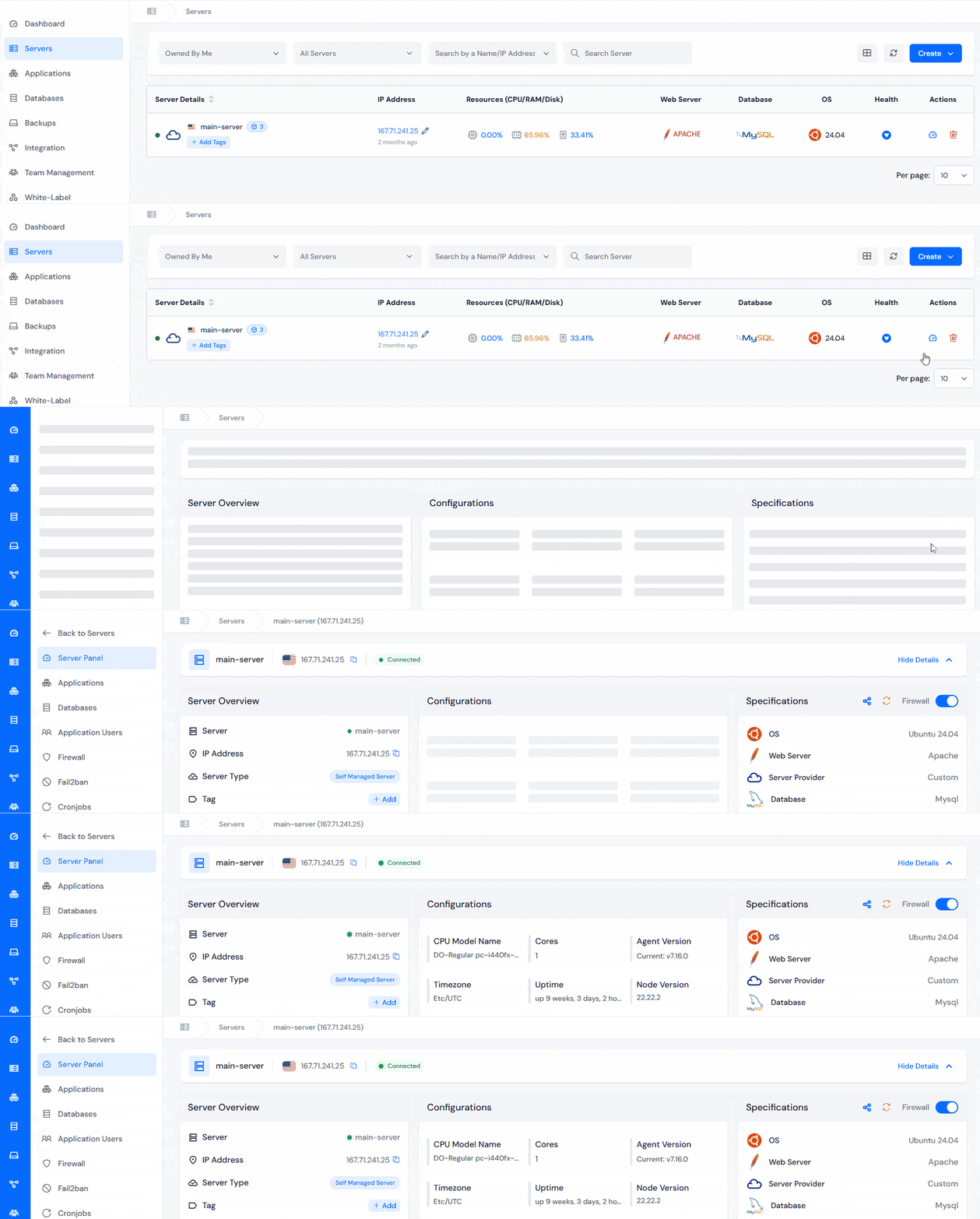
- Log in to your ServerAvatar account, navigate to your server panel by clicking on the server dashboard icon for the particular server in which your WordPress site is deployed.
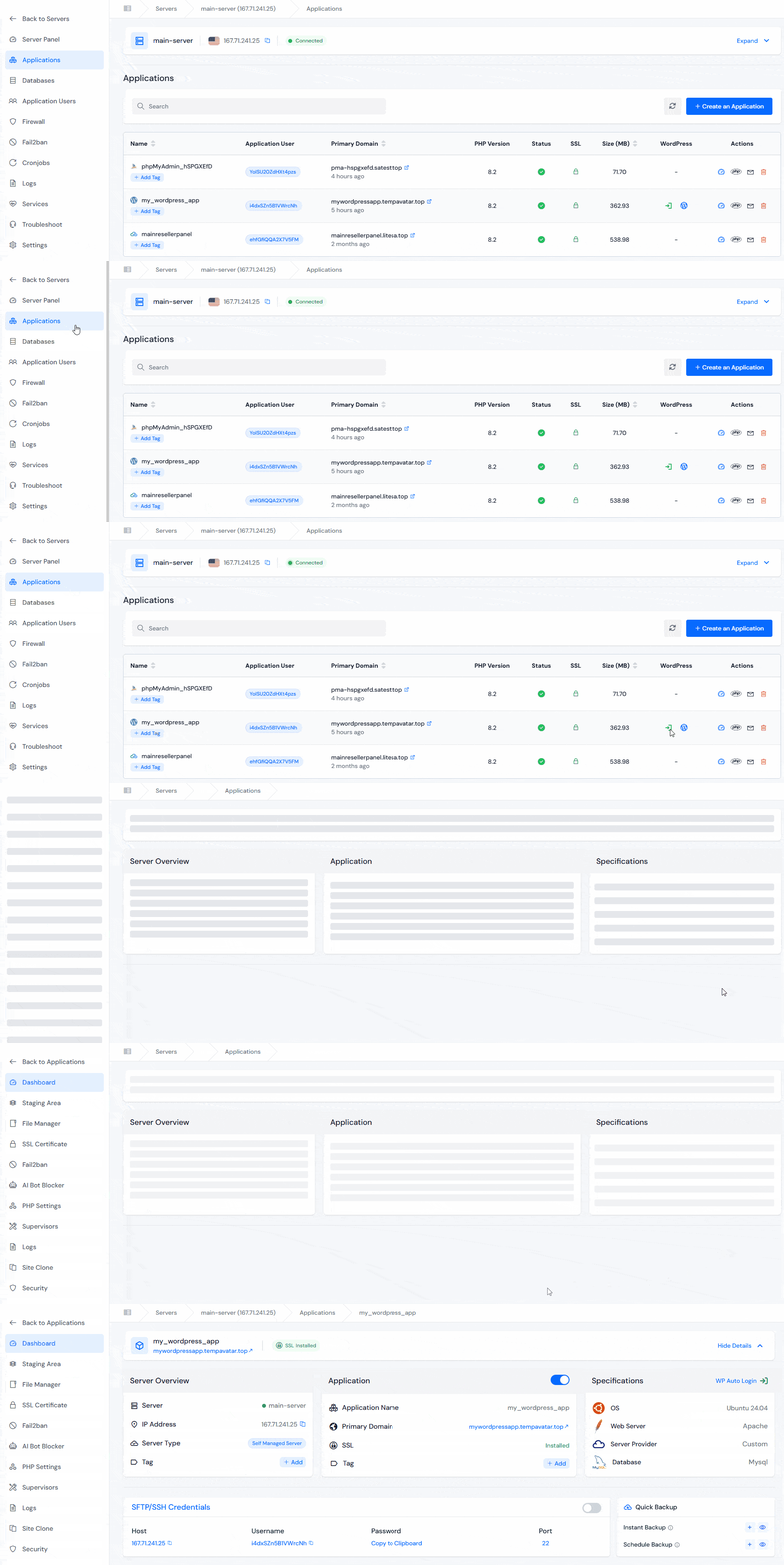
- Navigate to the Applications section from the left sidebar, and click on the application dashboard icon for your WordPress application
- Click WordPress Toolkit in the sidebar, and navigate to the Plugins section
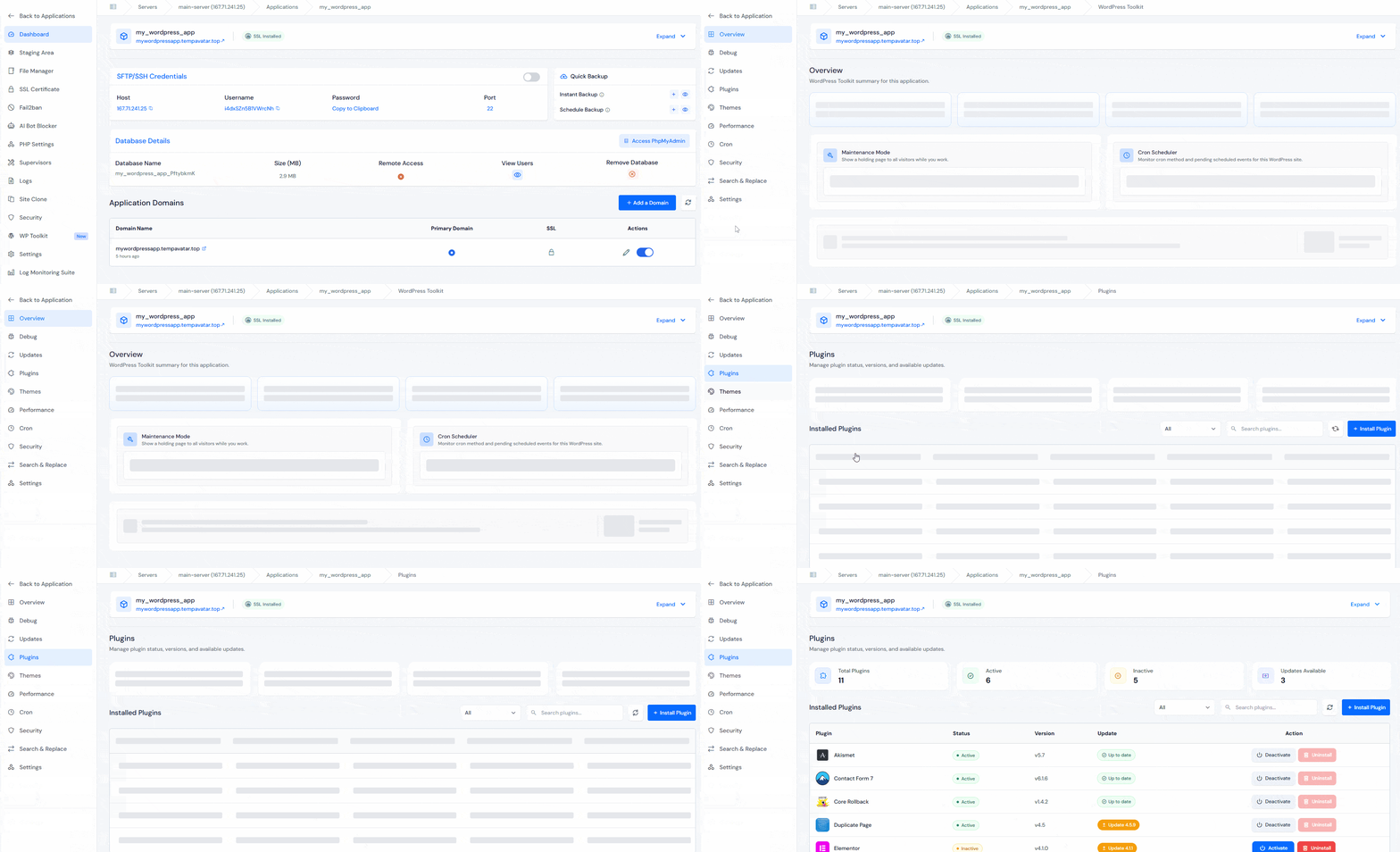
- You’ll find:
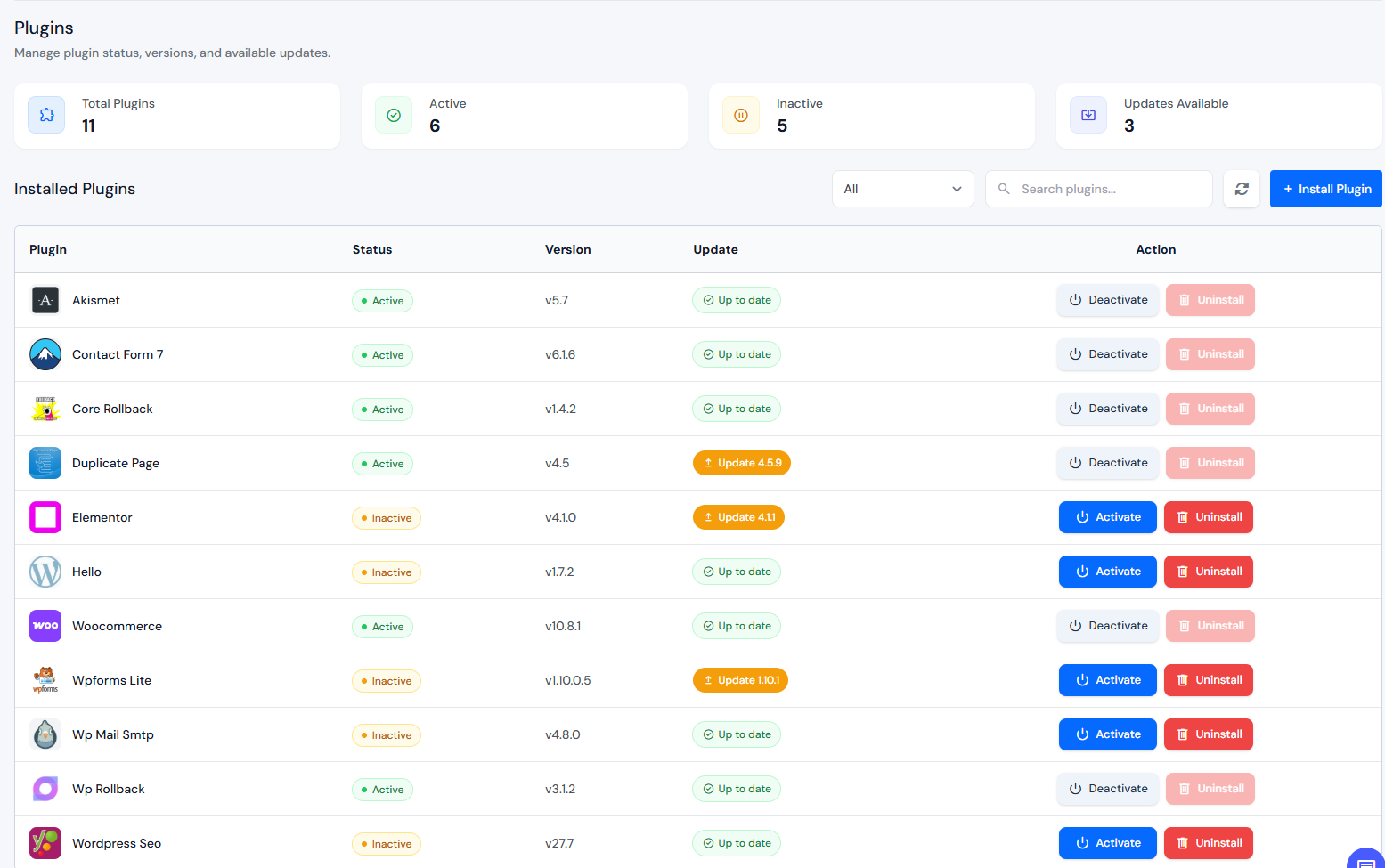
- Plugin Summary Cards at the top showing:
- Number of total plugins
- Number of active plugins
- Number of inactive plugins
- Number of plugins with available updates
- Search and Filter Tools to quickly locate plugins by name, status, or update availability
- Install Plugin Button for adding new plugins directly from the dashboard.
- A table listing every plugin installed on that site. The columns show:
- Plugin name
- Status (active/inactive)
- Current Version
- Update indicator (Whether an update is available and the version of the plugin update)
- Action (to Activate/Deactivate/Uninstall the plugin)
Installing a New Plugin
Need a new plugin? You don’t have to go hunting for it in the WordPress repository. ServerAvatar has an “Install Plugin” button right inside the Plugins tab.
Here’s what the process looks like:
- Click “Install Plugin” at the top of the Plugins tab
- A search prompt appears, type the plugin name you’re looking for
- ServerAvatar connects to the WordPress plugin directory and shows matching results
- Click Install Now to install the plugin you want
- Once installed, it appears in your plugins list, where you can activate it immediately
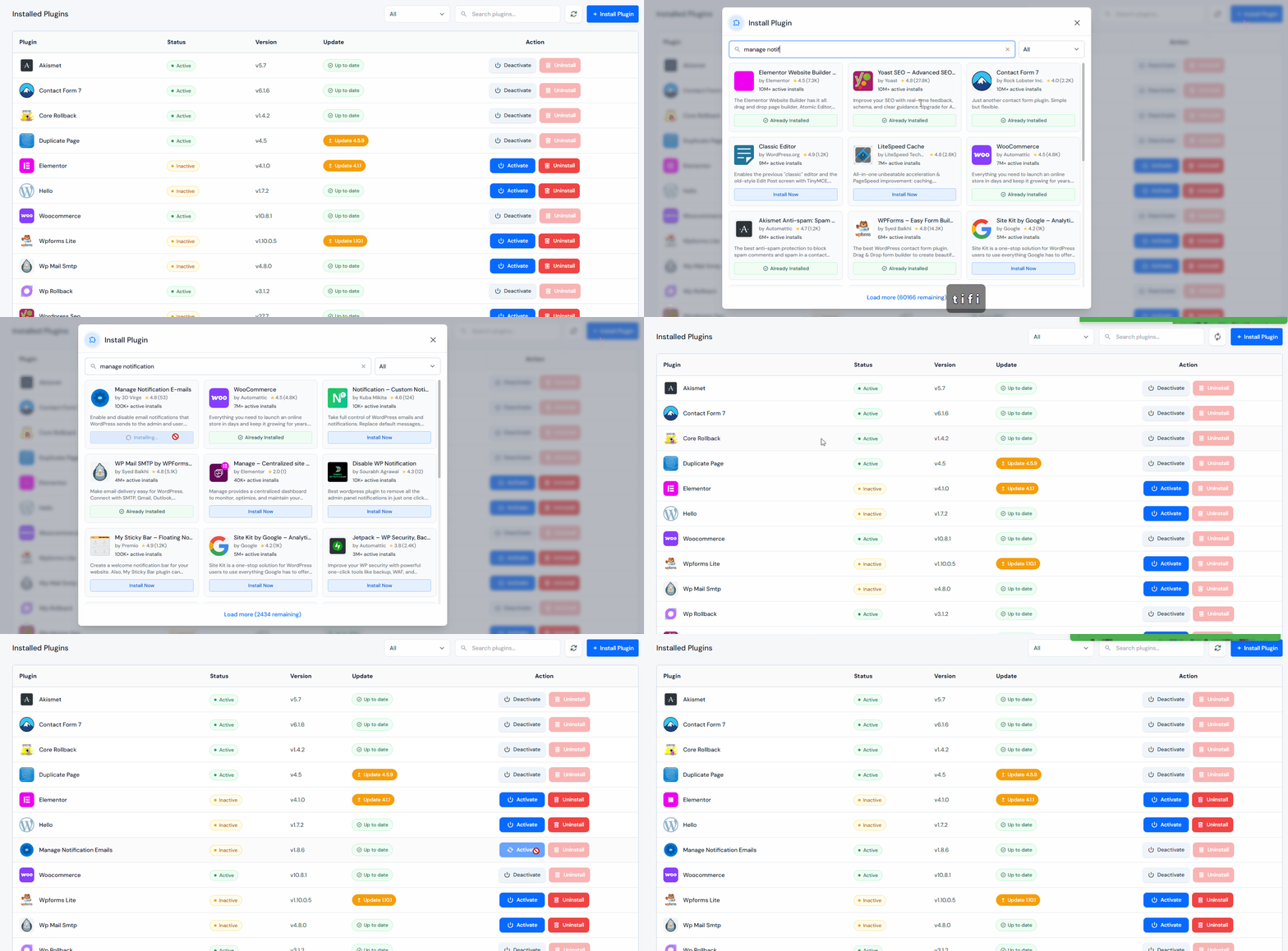
What I like about this: the search is fast, results come back instantly, and the plugin installs in the background without you needing to leave the page.
After installing, activate it using a single click from the Plugins action tab, no WP-Admin required.
Activating and Deactivating Plugins
Every plugin in your list has action buttons. Activating or deactivating takes one click, the status updates immediately in the table. Just click on the Activate button to activate the plugin, and the Deactivate button to deactivate the plugin.
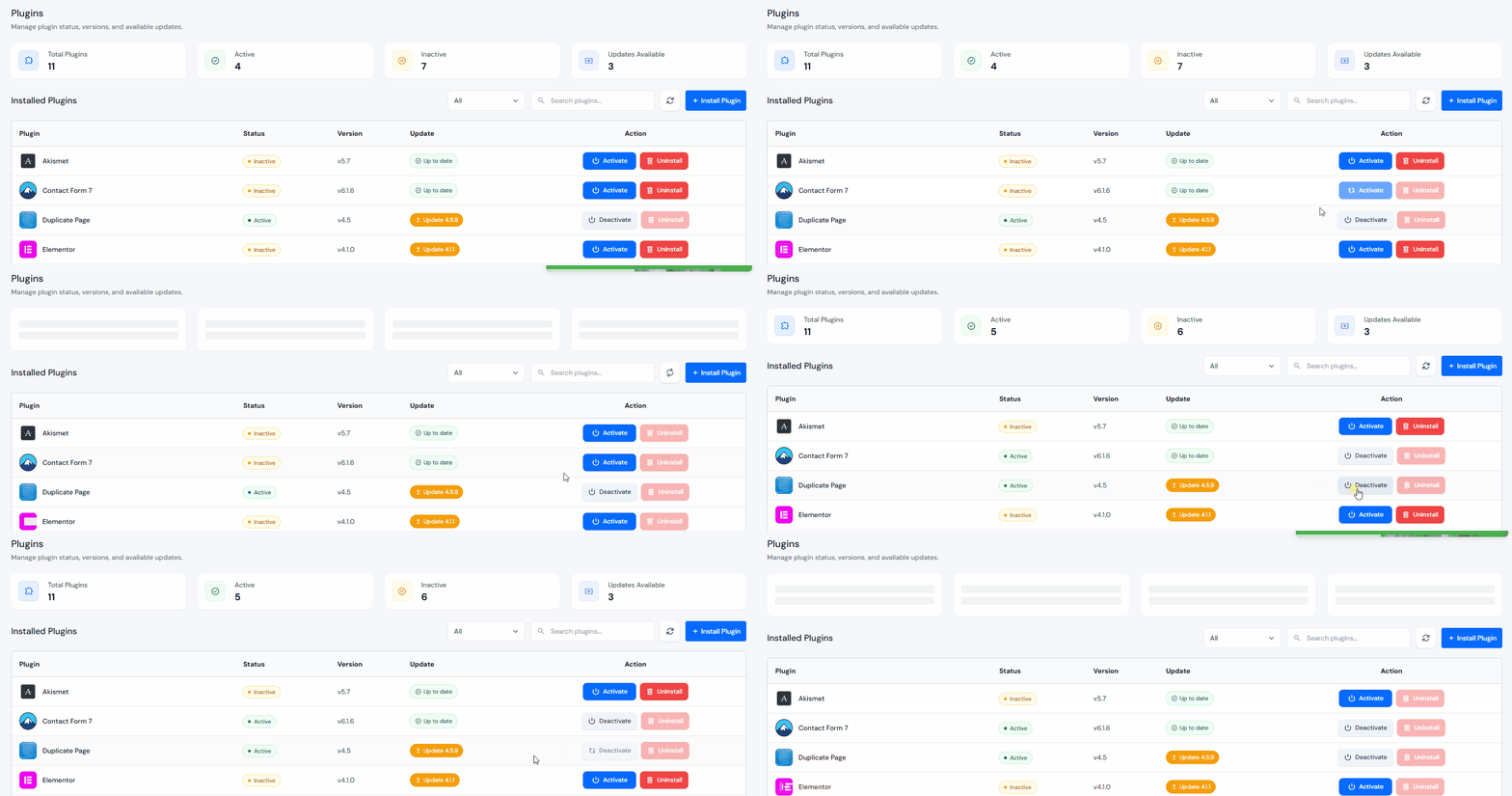
Why deactivate instead of uninstall?
Sometimes you need to troubleshoot. If a plugin is causing a conflict or a white screen, deactivating is the fastest way to isolate the problem, without deleting the plugin entirely. You can reactivate just as quickly once you’ve resolved the issue.
For staging environments or during development, keeping a plugin installed but inactive is a clean way to test without removing configuration or data. This is something I reach for often when debugging, deactivating, checking if the issue resolves, and reactivating one by one to narrow down the culprit.
Updating Plugins
Outdated plugins are one of the most common entry points for security issues on WordPress sites. WordPress Toolkit makes updates straightforward.
In the Plugins section, each plugin with an available update shows an “Update” button with the version mentioned on it. One click and the update runs, and once updated, the update button disappears until the next release.
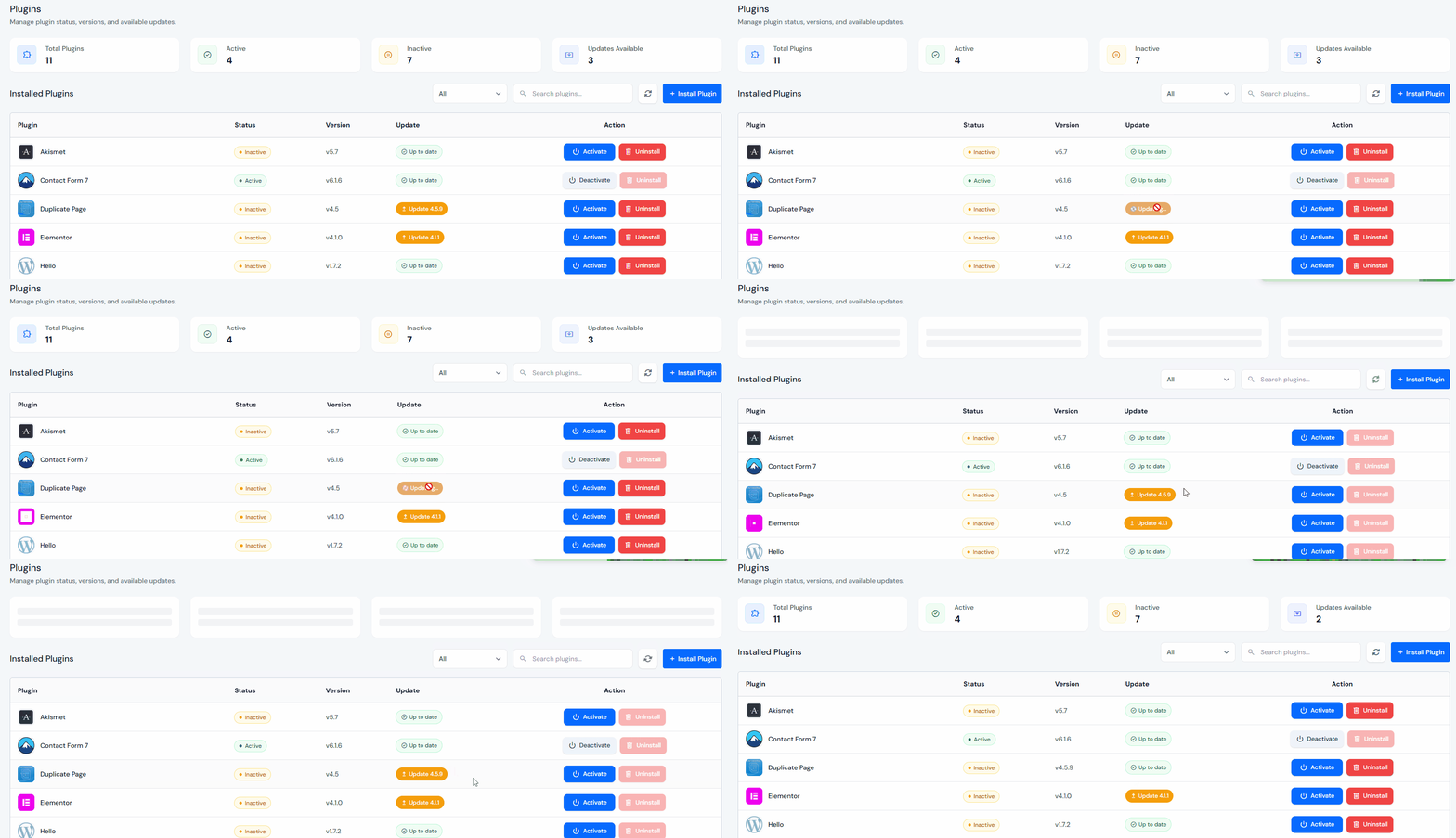
Searching and Filtering Plugins
The Plugins tab has a search bar at the top and status filters. These sound simple, but when you are managing a site with 20+ plugins, they save real time.
Filter options include:
- All: shows every plugin
- Active: only currently enabled plugins
- Inactive: plugins installed but not running
- Update Available: plugins with pending updates
This is particularly useful in a few scenarios, such as:
- During troubleshooting: filter to inactive plugins and check if disabling something resolves an issue
- Before an update session: filter to “Update Available” to see exactly what needs attention
- For auditing: filter to inactive plugins and ask yourself whether each one is still needed (unused plugins are unnecessary attack surface)
Uninstalling Plugins
When a plugin is no longer needed, uninstalling it from the Plugins section removes it entirely from your WordPress website. Just simply click on the Uninstall button next to the specific plugin.
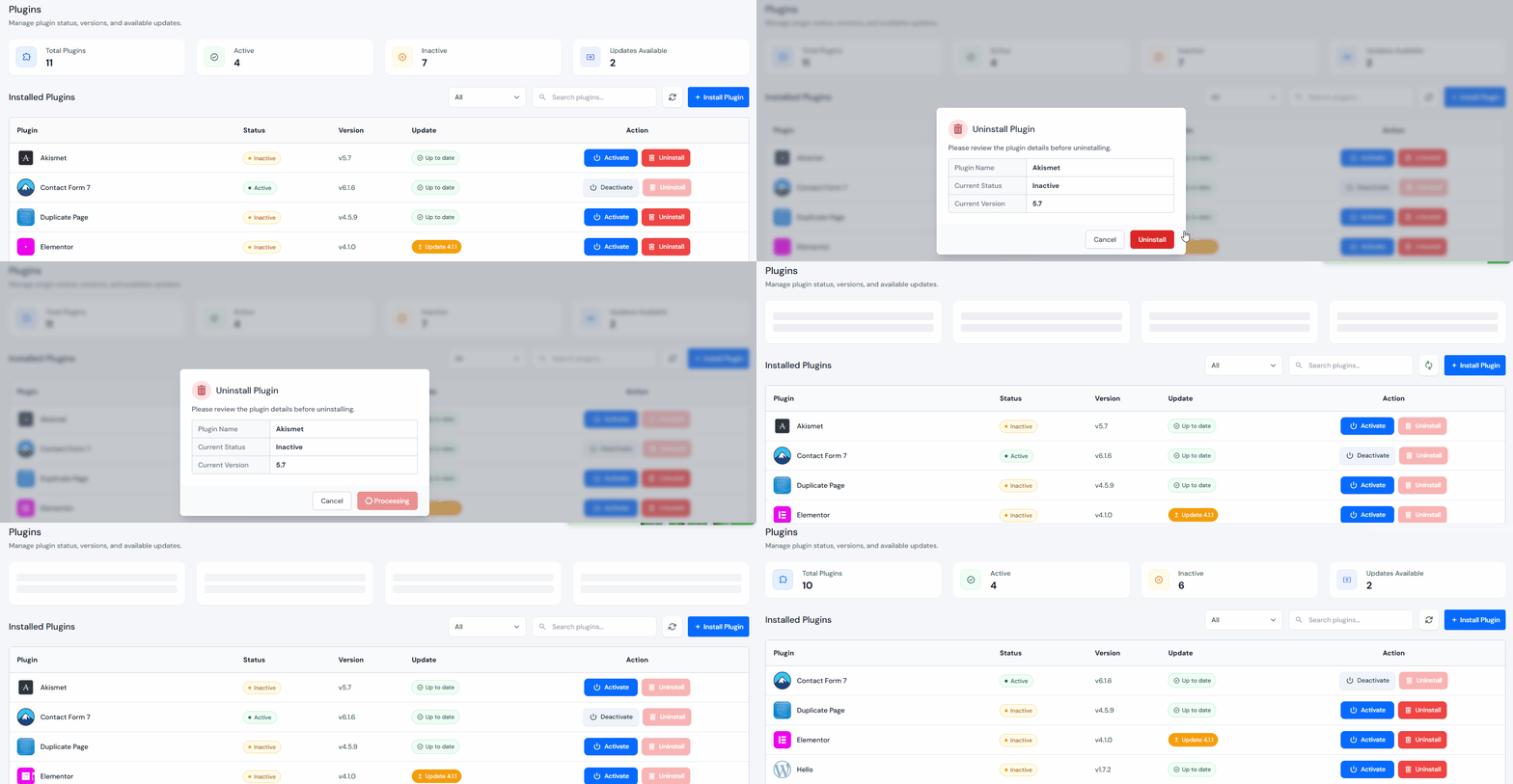
A few notes on uninstalling:
- Always deactivate first: Plugins register their uninstall routine when deactivated, so deactivate before you uninstall, this ensures cleanup routines run properly.
- Check for data: If you’re replacing a plugin with an alternative, make sure the old plugin’s data is not something you need to keep.
- Test after removal: Particularly for plugins that handle critical functions (caching, security, SEO), remove one at a time and verify the site still works correctly.
Real-World Use Cases
Managing Multiple Client Sites
Managing multiple WordPress sites is simpler with a unified plugins interface that keeps actions like activate, update, and uninstall consistent across all installations, avoiding the need to switch between dashboards.
Security Maintenance Routine
Regular plugin audits help quickly identify outdated, inactive, or risky plugins before they cause issues, saving time by removing the need to log into each site separately.
- Which plugins haven’t been updated in over 6 months?
- Are there inactive plugins that could be removed?
- Do any plugins show known compatibility warnings?
Running this from ServerAvatar instead of logging into each wp-admin separately saves significant time if you’re managing more than three or four sites.
Staging and Development Workflows
In staging environments, managing plugin activation and testing from a single interface speeds up development and reduces repetitive work during frequent changes.
Conclusion
Plugin management shouldn’t take more time than it needs to. WordPress Toolkit’s Plugins tab in ServerAvatar removes the friction of jumping between wp-admin tabs, hunting for updates, and managing one site at a time. Whether you’re handling your own blog or overseeing 30 client WordPress installs, the centralized view and bulk actions make a real difference in day-to-day workflow.
If you haven’t explored WordPress Toolkit yet, the Plugins tab alone is worth the add-on, especially if you manage multiple WordPress sites regularly.
For more on what else WordPress Toolkit can do, explore our complete guide to ServerAvatar WordPress Toolkit.
FAQs
Does WordPress Toolkit support premium or paid plugins?
Yes, if the premium plugin is installed in your WordPress site, it will appear in the Plugins tab. Updates for premium plugins depend on the plugin developer, if the plugin has an update available in the WordPress repository or its own update mechanism, Toolkit will surface it. Some premium plugins require license activation within their own settings panel for updates to work.
What happens if a plugin update breaks my site?
If an update causes a conflict or white screen, you can immediately deactivate the plugin from the Plugins tab in ServerAvatar. If the site is completely inaccessible, contact your hosting provider, ServerAvatar’s support team can help restore functionality. Always run a backup before updating plugins on a live site, especially when doing bulk updates.
Can I manage plugins across multiple WordPress sites from one ServerAvatar account?
Yes. Each WordPress application in your ServerAvatar dashboard has its own Plugins tab. You can manage plugins for every WordPress site you have connected to ServerAvatar through their respective application panels.
How is this different from managing plugins in wp-admin?
The main difference is centralization and speed. wp-admin gives you the same actions, install, activate, deactivate, update, uninstall, but only for one site at a time. WordPress Toolkit lets you manage plugins across multiple sites from your ServerAvatar dashboard without logging into each wp-admin separately. It also surfaces update availability and plugin status at a glance, which wp-admin doesn’t do as clearly.
Is WordPress Toolkit free?
No. WordPress Toolkit is a paid add-on for ServerAvatar. You can purchase it from the Add-ons section in ServerAvatar’s Billing Dashboard. Once activated, it’s accessible from any WordPress application in your ServerAvatar panel.
Key Takeaways
- WordPress Toolkit’s Plugins tab replaces the wp-admin plugin management workflow with a faster, centralized dashboard
- Install, activate, deactivate, update, and uninstall, all without leaving ServerAvatar
- Search and filter tools make it easy to audit and manage large plugin inventories
- One “Update All” button keeps sites current in seconds
- Works for single site owners, freelancers, and agencies managing multiple WordPress installs
- Deactivate before uninstalling to ensure cleanup routines run properly
About the Author
Meghna Meghwani is a technical writer focused on Linux, Ubuntu, VPS hosting, server management, WordPress, PHP, Node.js, cloud hosting, and DevOps. She writes beginner-friendly tutorials, practical hosting guides, troubleshooting documentation, and server security content based on real-world hosting and application management workflows. Her goal is to make server and WordPress management easier for developers, agencies, and businesses running production websites and applications.