
If you are manage one or more WordPress website, you know how time-consuming it can be to handle updates, debug errors, manage plugins, and keep everything secure, all from different places. That’s exactly what ServerAvatar’s WordPress Toolkit solves.
WordPress Toolkit is powerful, all-in-one add-on built into ServerAvatar, gives you complete control over your WordPress applications. From single dashboard, you can:
- Check WordPress site details
- Manage plugins and themes
- Improve performance
- Tighten security
- Fix database issues
everything without touching the WordPress admin panel.
Who Is WordPress Toolkit For?
WordPress Toolkit is designed for anyone that wants a faster and easier way to manage WordPress websites from one dashboard.
It is most useful for:
- Developers working on multiple client sites
- WordPress agencies with multiple projects
- Business owners who manage their own websites
- Freelancers working on client applications
- Beginners that want simpler WordPress management
- Teams that wanting centralised website control
WordPress Toolkit makes daily management simple whether you are managing one website or dozens of WordPress installs, WordPress Toolkit simplify daily management tasks.
Activating WordPress Toolkit
To start using WordPress Toolkit, you need to activate it on your ServerAvatar account.
Here’s how:
- From your ServerAvatar account panel, access the Billing Dashboard.
- Head to the left sidebar and look for the add-ons section.
- You’ll spot WordPress Toolkit listed there among the available options.
- Hit Buy Now and go through the payment and checkout flow.
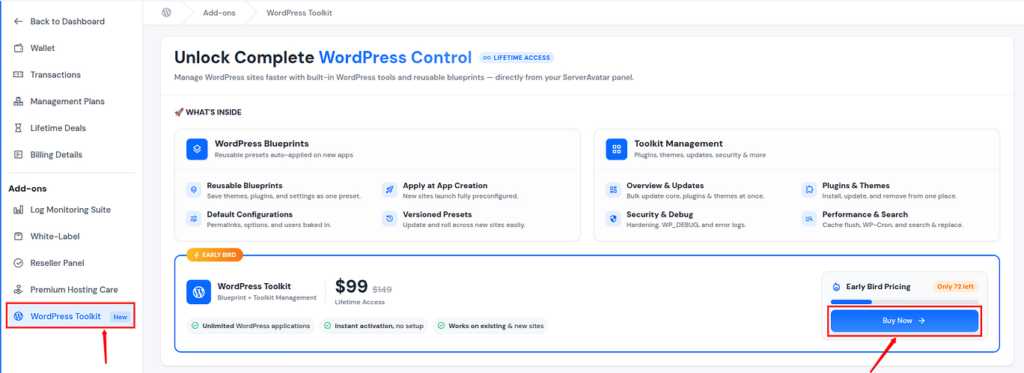
Once your purchase is complete, WordPress Toolkit is activated and ready to use. You can then access it from any of your WordPress applications through the ServerAvatar dashboard.
Overview: Your WordPress Application’s Toolkit summary
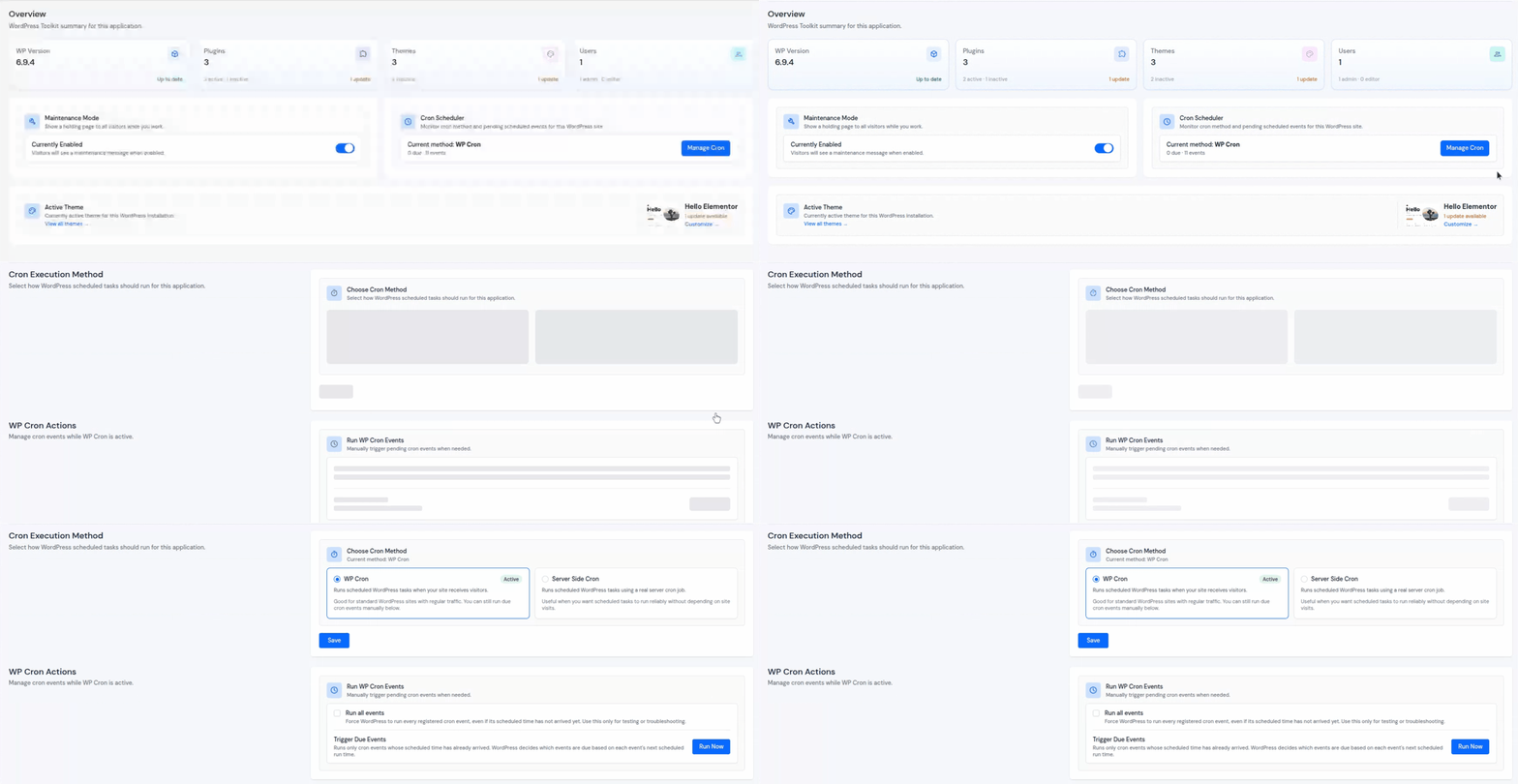
Every time you log into ServerAvatar and open WordPress Toolkit, the first thing you land on is the Overview page.
Think of it as your site’s report card, everything important shows up right there, no digging required.
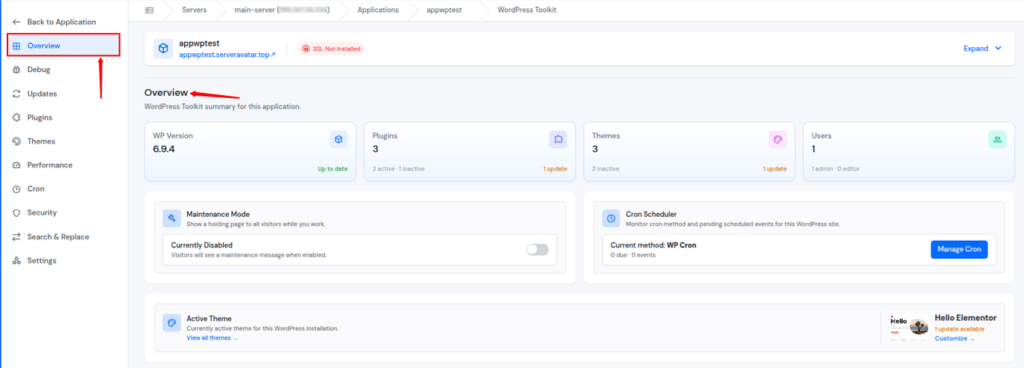
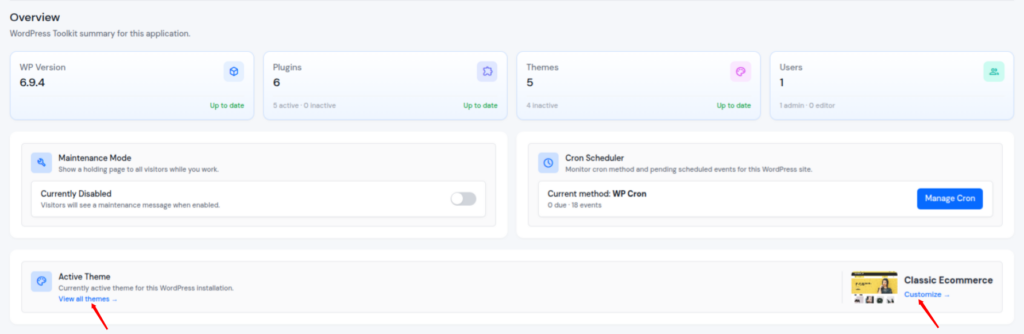
You can see the following details at the top of the page
- Current WordPress version
- Total number of installed plugins, including both active and inactive plugins, along with the plugins that have updates available
- Total number of themes, including inactive, and the update status of themes
- Total number of users, including the number of users with Administrator and Editor roles.
- Additionally, you can also see the SSL Certificate status for your application.
This gives you a clean snapshot of your site’s current state without opening multiple screens.
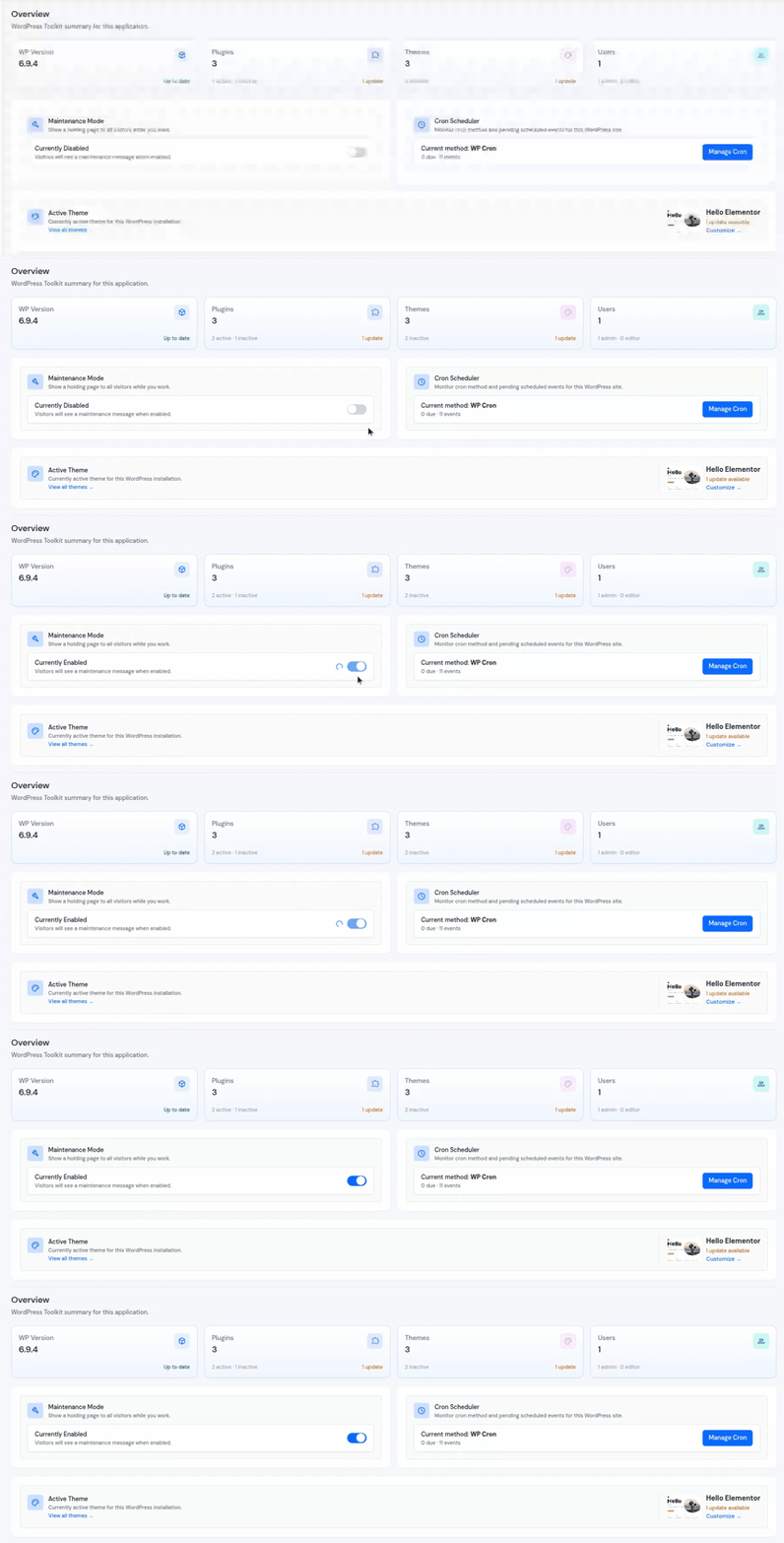
Further down, there are two simple toggles:
Maintenance Mode
Use this before making changes to your site. Go ahead and turn maintenance mode on before you start making changes to your site. Here’s why it makes sense:
- Visitors see a clean “under construction” page instead of a broken site
- Your live site stays protected while you’re working
- Users won’t run into broken layouts or weird temporary glitches
Cron Scheduler
This one saves you time. It gives you a quick overview of how your scheduled WordPress tasks are running, no need to dig into the dedicated Cron section every time.
You can view:
- Current cron execution method being used
- Number of due scheduled events
- Total registered cron events
- Quick access to manage cron settings
The Manage Cron button provides direct access to the full Cron management section.
Active Theme Information
At the bottom of the Overview page, you’ll see which theme is currently active on your site, and a quick access to view all themes, and customize the theme.
Why This Is Useful
Instead of jumping between multiple areas to check things, everything comes together in one place. The layout is clean, you get the full picture, and managing, monitoring become actually manageable.
Debug: Fix Issues Before They Become Problems
When something goes wrong on your WordPress site, debugging is usually the first thing you have to do. The debug process can get messy fast, digging through log files, editing config values, and trying to remember previous changes. WordPress Toolkit simplifies the entire process.
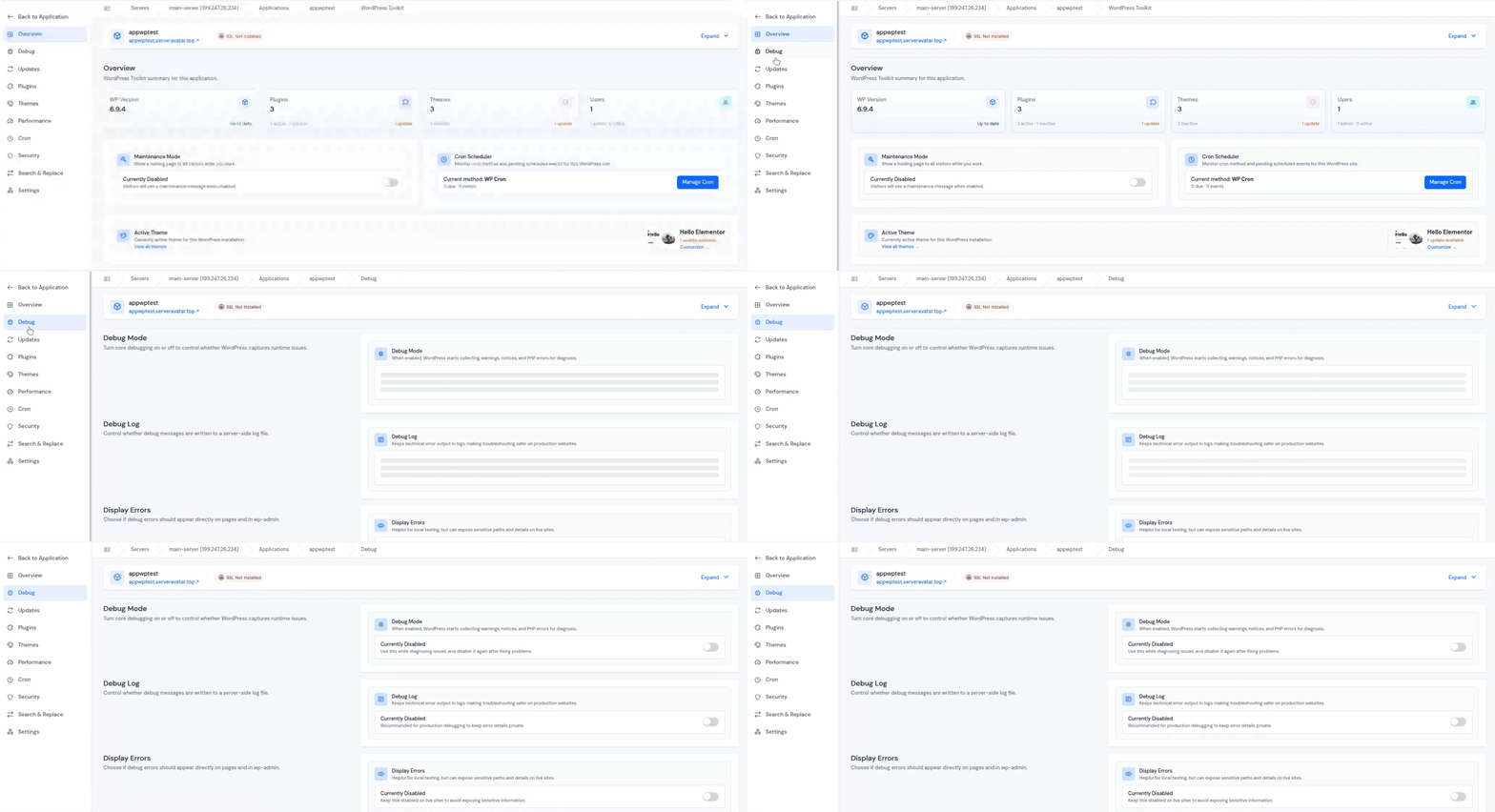
Inside the Debug section, you’ll find three toggles that control how WordPress handles errors and warnings:
Debug Mode
Flip this on or off to control whether WordPress logs and captures runtime issues. Once enabled, WordPress starts collecting:
- PHP errors
- Notices
- Warnings
This helps you identify exactly what’s going wrong.
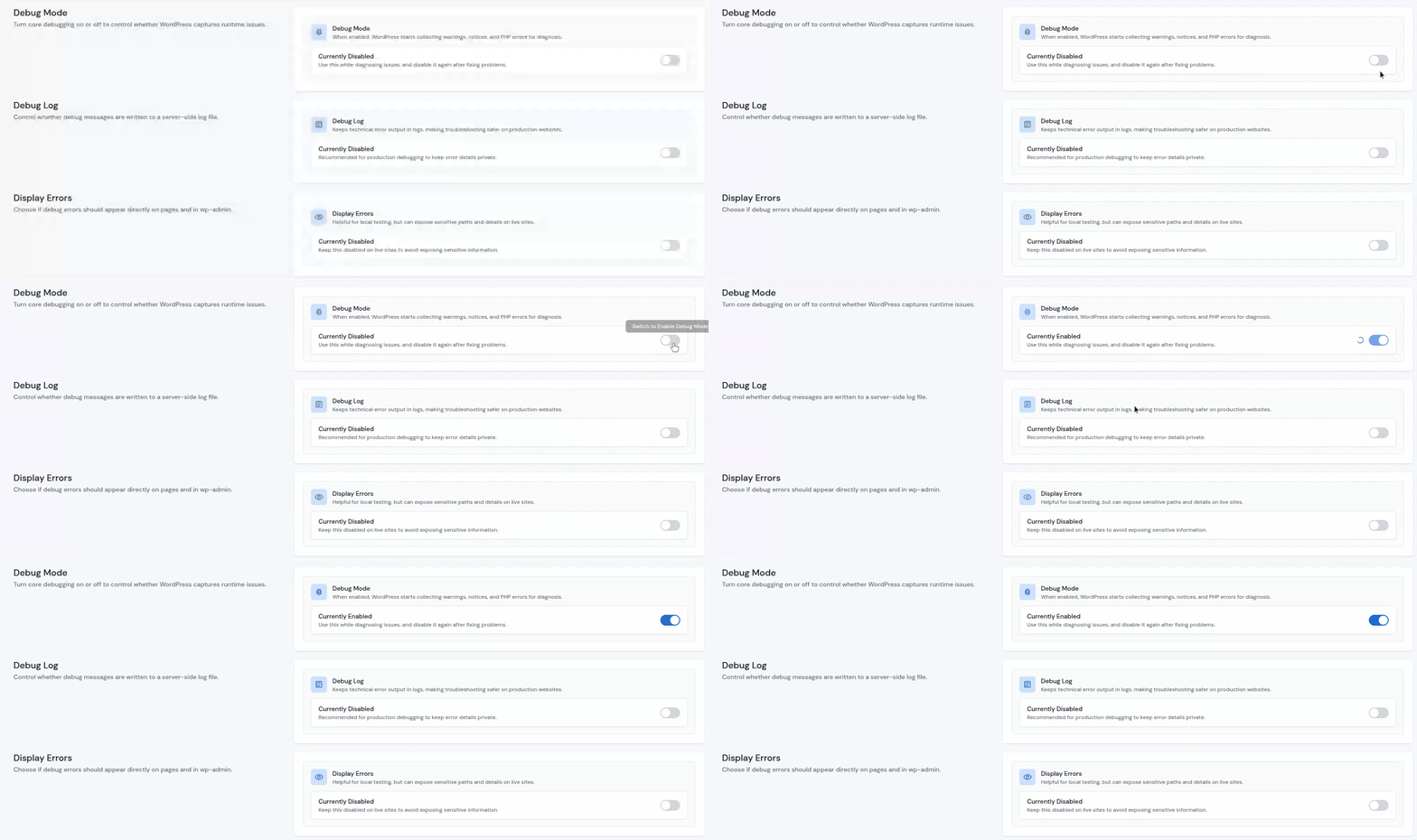
Debug Log
Instead of showing errors on the screen, WordPress writes them into a log file on your server. That’s really useful on live sites where you don’t want visitors seeing technical error messages.
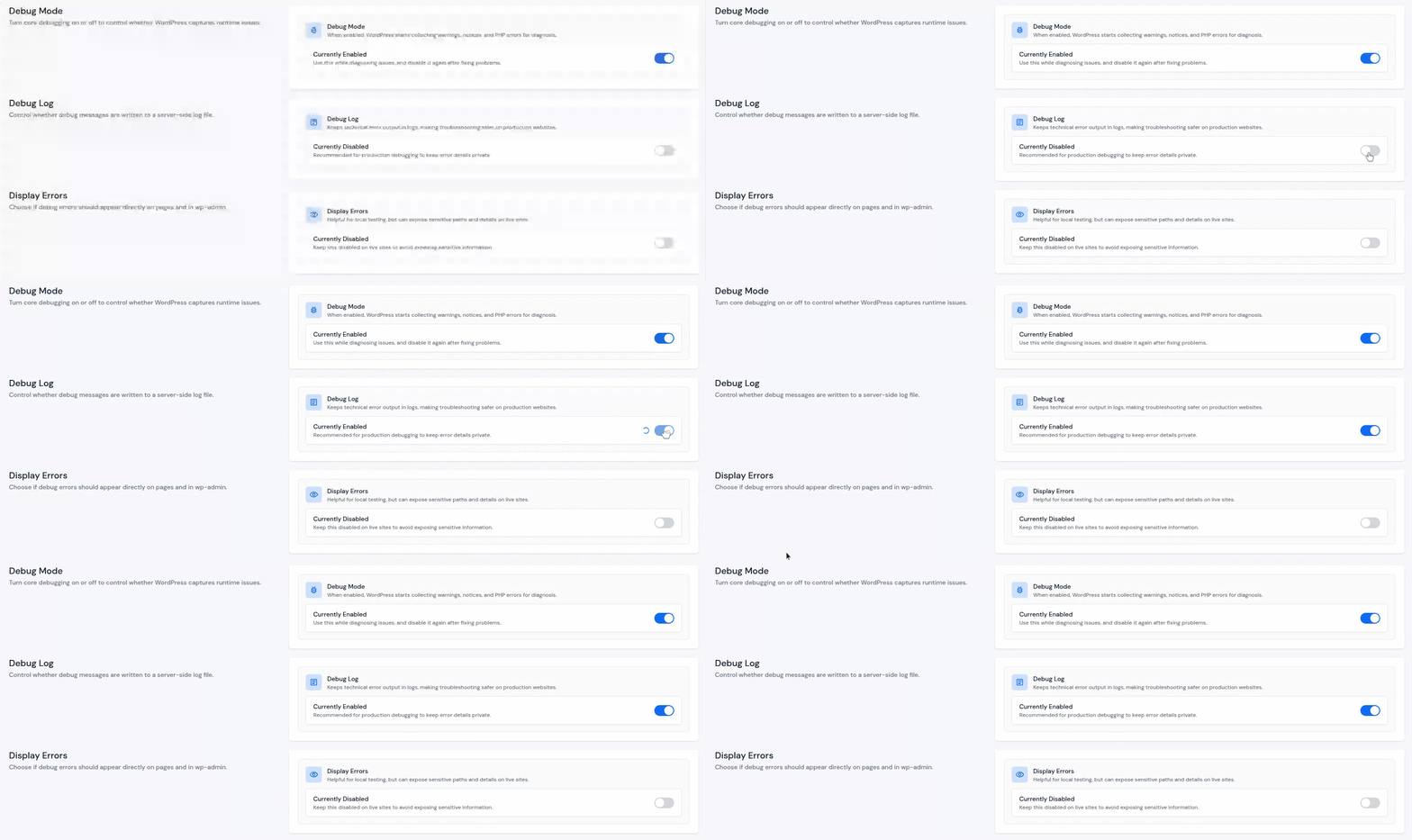
Display Errors
Displays Errors shows errors directly on the website page. This is incredibly useful for:
- Local testing
- Development environments
- Quick troubleshooting on the fly
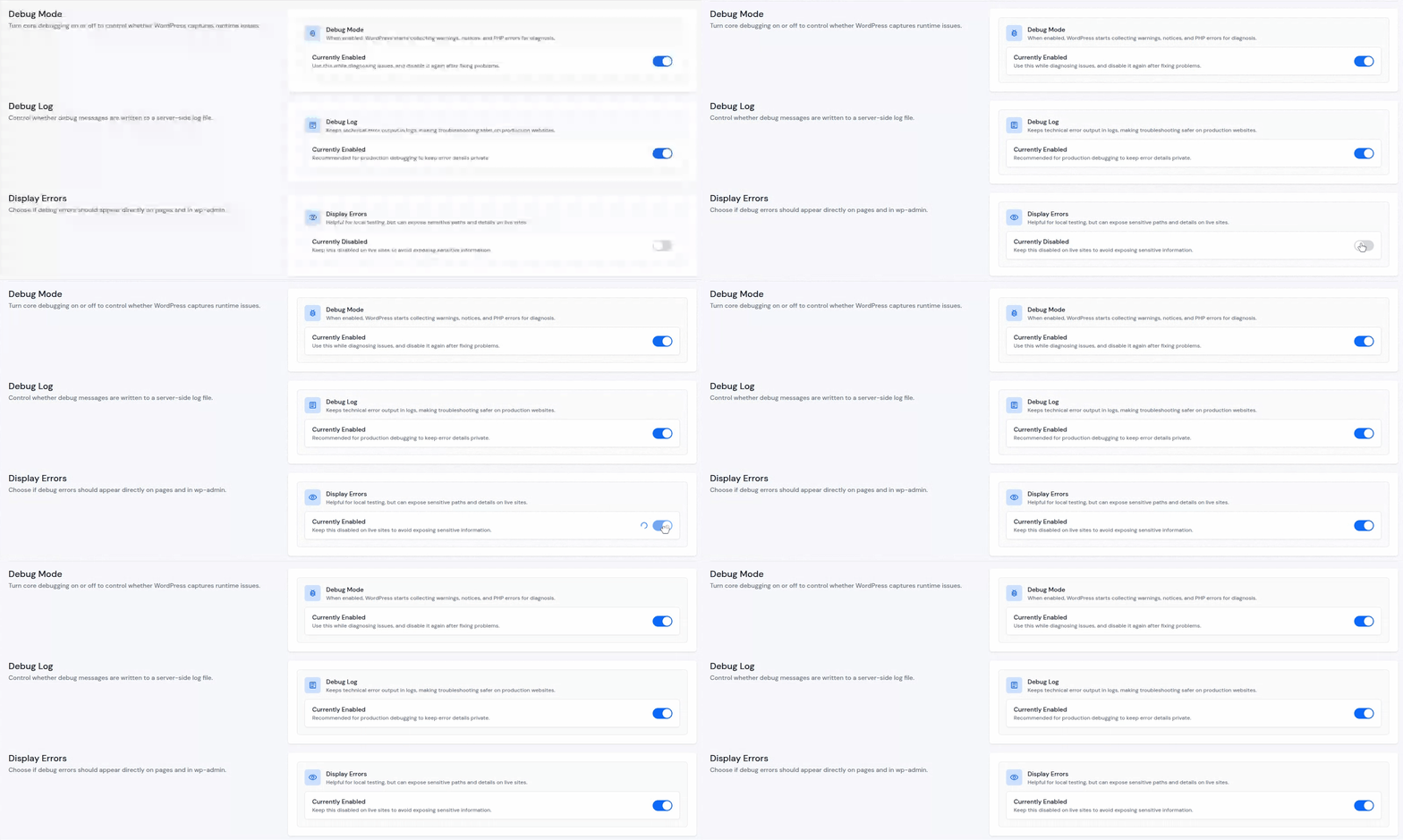
One important note: Keep this disabled on live websites. Because error pages can end up exposing sensitive information about your server setup, not something you want floating around publicly.
Why This Is Useful
Everything’s centralized. No file editing, no digging through your hosting control panel. Just toggle things on, see what happens, turn them back off once you’ve fixed the issue.
Updates: Everything in One Place
Keeping WordPress, plugins, and themes updated is one of the most important habits for keeping a site healthy and secure.
But, it can be hassle as you have to;
- Logging into wp-admin
- Checking multiple sections
- Updating items one by one
WordPress Toolkit simplifies this entire workflow. The Updates section gives you a complete overview of every update that’s available on your site.
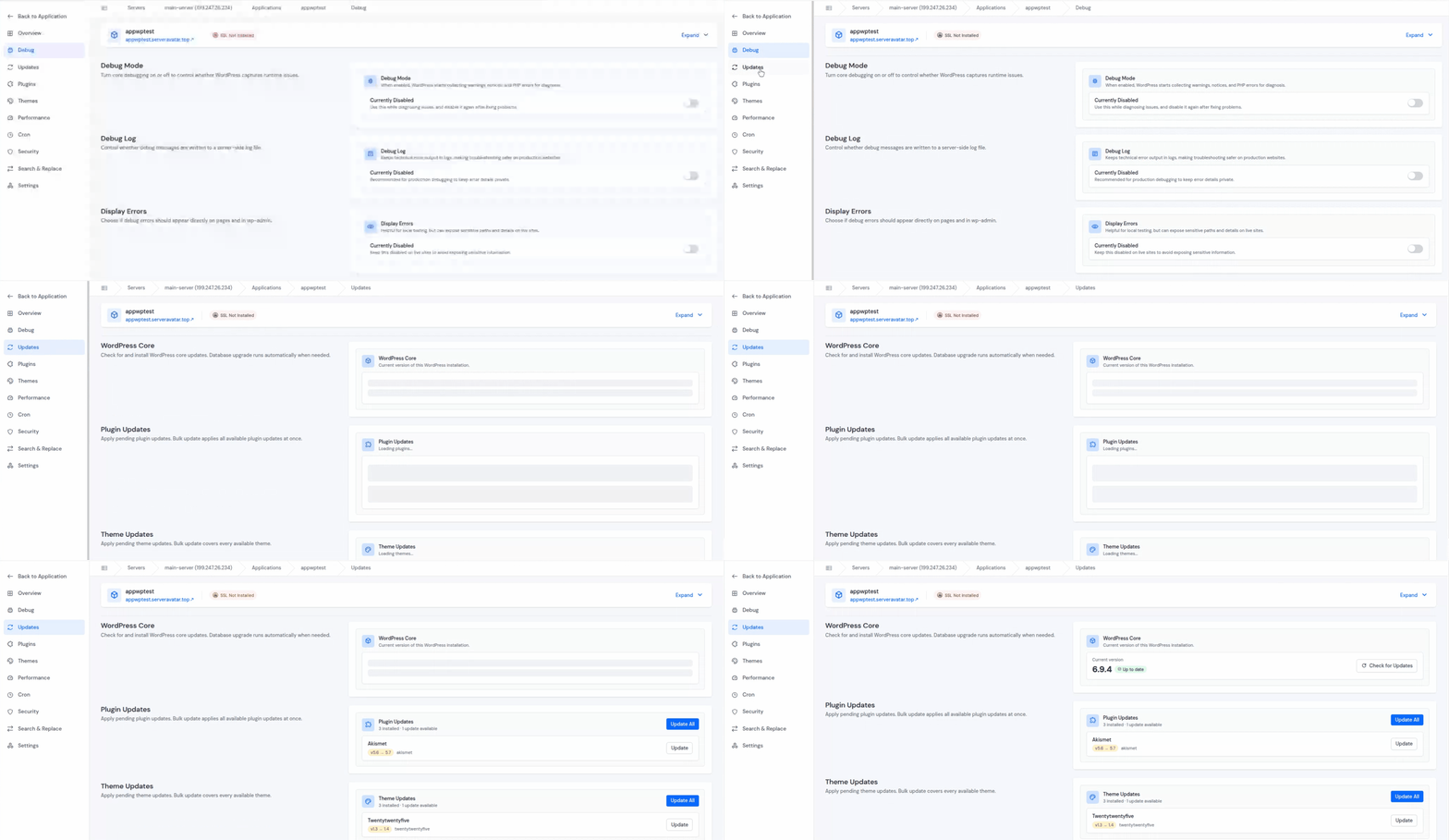
WordPress Core
At the top of the section, you’ll see:
- The current WordPress version
- An update status badge
- Any available core updates
- Button to check for the Updates

Plugin Updates
The Plugins section shows:
- Total number of installed plugins
- Plugins need updates
- Available version upgrades for plugins
You can:
- Update plugins individually
- Use Update All button to update everything at once

Theme Updates
The Themes section works the same way. The Themes section gives you a snapshot of:
- Total number of installed themes
- Any pending updates
- Available version upgrades
You’ve got options here too, update themes one by one, or just hit Update All and let it roll through everything at once.

Database Updates
Keep your WordPress database schema synchronized after core or plugin updates directly from the WP Toolkit dashboard.
- Check pending database updates
- Apply database migration routines safely
- Avoid compatibility and update-related issues
- Monitor database status in one place

Why This Is Useful
Instead of bouncing between different areas, you handle WordPress core, plugin, and theme updates from one single spot. No more repeatedly logging into wp-admin just to check for updates.
Plugins: Full Control Over Your Extensions
Plugins are what make WordPress actually powerful. But managing many plugins can quickly become messy, especially when you have a lot of them.
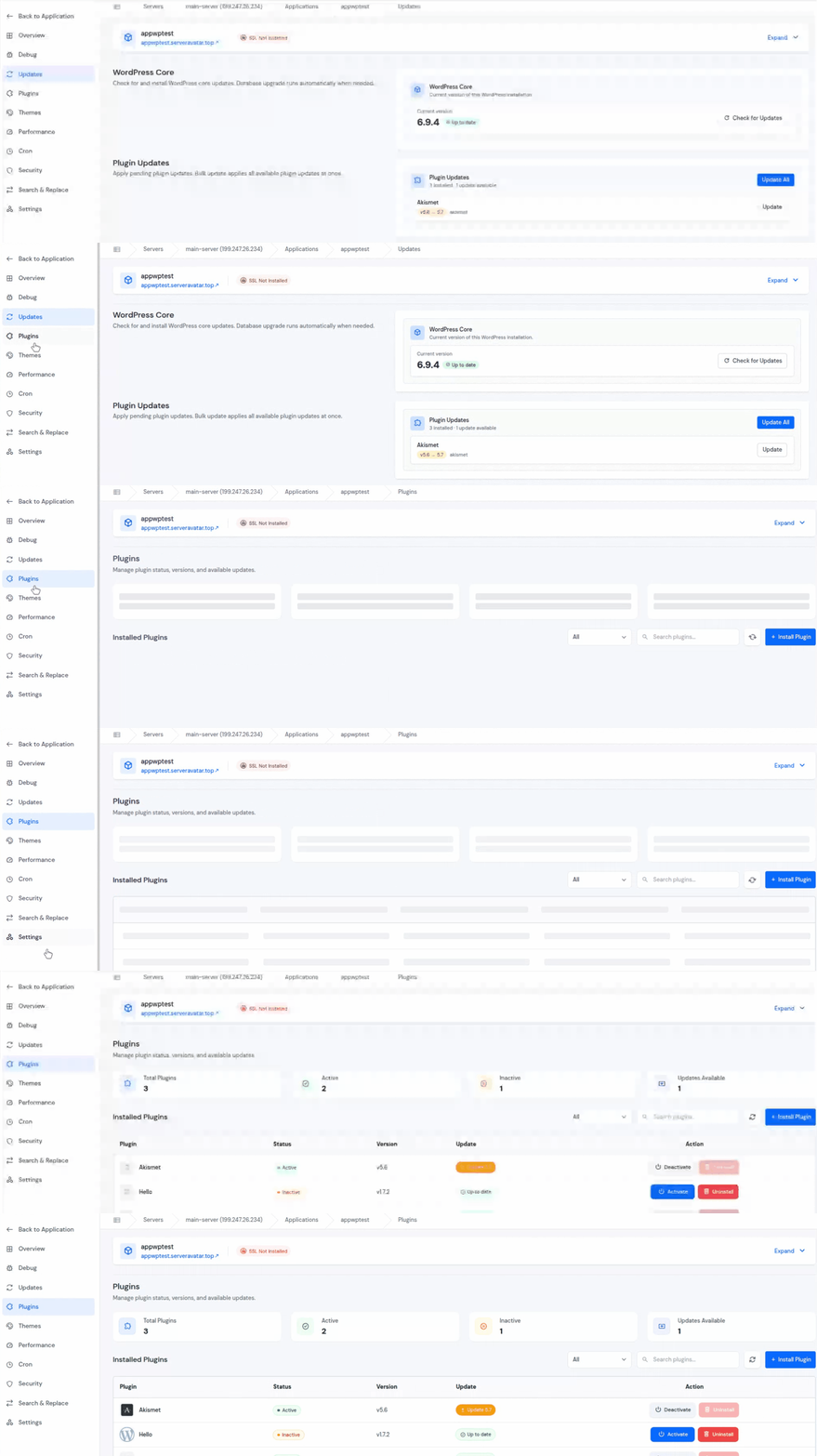
The Plugins section in WordPress Toolkit gives you a clean, organized overview of every plugin on your site.
At the top, you’ll see:
- Total number of plugins
- Number of active plugins
- Number of inactive plugins
- Number of plugins with pending updates
Search for any plugin from the list, filter it by status, and refresh it to pull the latest information.
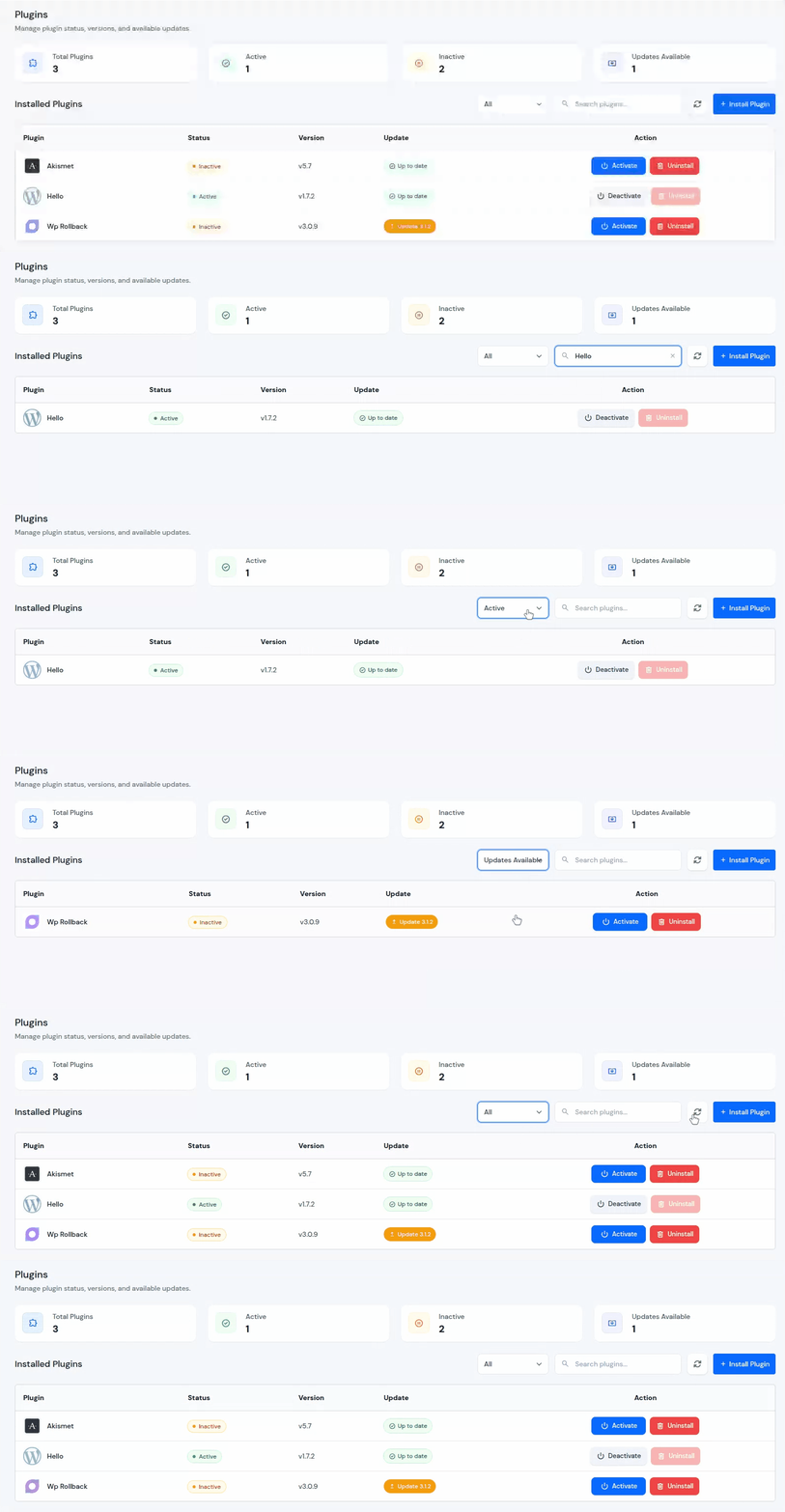
If you want to add a new plugin, there is an “Install Plugin” button at the top that opens the installation flow directly. You can also search for specific plugin to install it.
Below, you can see a full list of every plugin with it’s name, current version, update availability, and an action buttons for each plugin. You can easily;
- Activate a plugin (if it’s currently inactive)
- Deactivate a plugin if not required
- Directly update plugin, if an update is available
- Uninstall it if you no longer need it
All without navigating to the wp-admin at all. It’s a refreshingly simple way to manage your site’s functionality without switching between different screens.
Why This Is Useful
No more jumping between different admin pages just to handle plugins. You can install, update, activate, deactivate, or remove them in just a few clicks, right from where you already are.
Themes: Manage Your Site’s Look
Your WordPress theme is what defines how your site looks to visitors. The Themes section in WordPress Toolkit makes it easy to see everything at a glance and make changes without touching code.
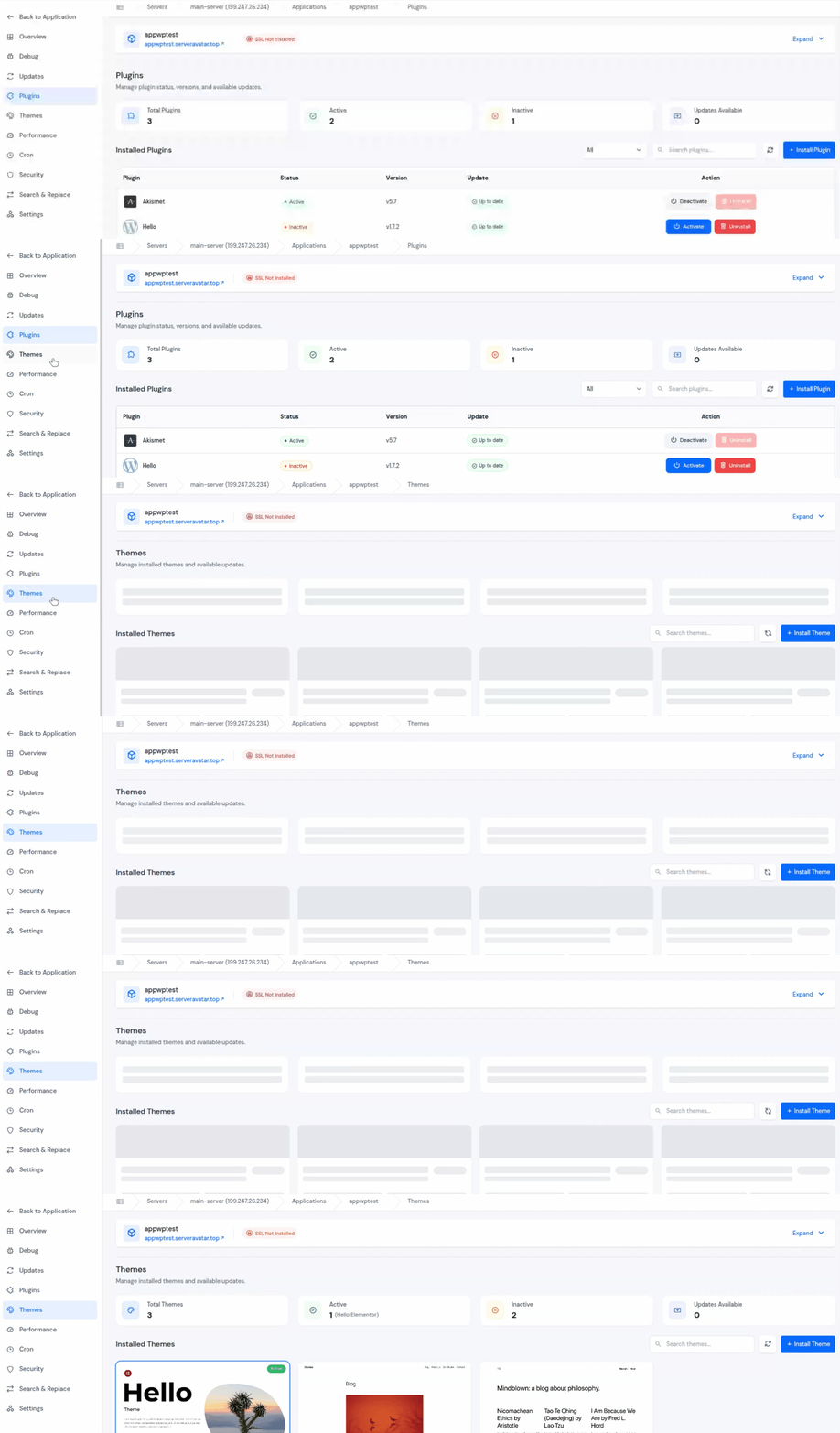
At the top, you’ll see quick stats for:
- Total number of installed themes
- Active theme name
- Number of total Inactive themes
- number of themes with updates available
Below section is showing each theme with its preview image, name, and version. You can easily:
- Switch themes by clicking on the “Activate” button on whichever theme you want to use
- Update a theme by given “Update” option next to particular theme
- Remove a theme entirely with “Uninstall” button next to theme
- You can search for particular theme from the search bar
If you want to add a new Theme, there is an “Install Theme” button at the right corner that opens the installation flow directly. You can also search for specific Theme to install it.

Everything is visual, straightforward, and takes just seconds to do.
Why This Is Useful
You can quickly switch, update, search, or remove themes without manually navigating through the WordPress admin dashboard.
Performance: Speed Up Your Site
The Performance section in WordPress Toolkit takes care of the important WordPress maintenance and optimization stuff directly from your ServerAvatar dashboard. No extra steps, no switching between tools.
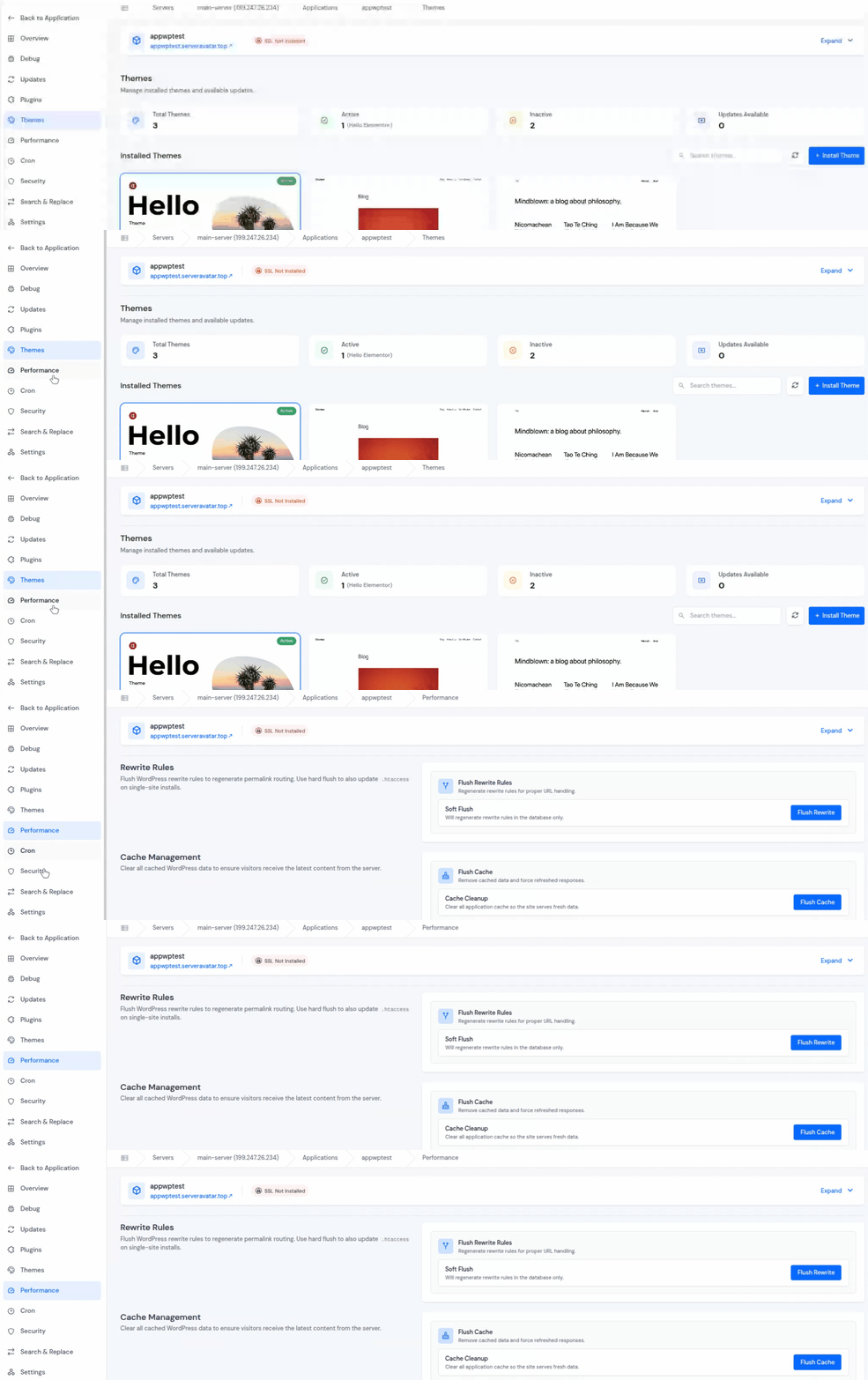
Instead of manually dealing with rewrite rules, clearing cache through the wp-admin, or running server commands, you handle all of it from one centralized interface. Less hassle, less back-and-forth.
Rewrite Rules
Rewrite rules control how WordPress handles your website URLs and permalink routing. Over time, things like plugin installations, permalink changes, or config updates can cause:
- Broken URLs
- 404 errors
- Routing conflicts
- Incorrect permalink behavior
The Flush Rewrite option regenerates your WordPress rewrite rules without you having to manually dig into permalink settings inside wp-admin.

This restores proper URL handling and gets your permalinks working correctly again, just a few clicks, that’s it.
Cache Management
Caching is great for speed, it stores temporary copies of your website content so pages load faster. Sometimes those cached files hang onto old content, and you won’t see your recent changes show up properly.
The Flush Cache option clears out that stored application cache and forces your site to pull fresh, updated content.

This comes in handy if you update plugins or themes, make design changes, update website content, troubleshoot display issues, or run into cache conflicts
Clearing the cache ensures visitors always see the latest version of your site, not a stale one.
Why This Is Useful
The Performance section bundles important optimization and maintenance controls into one dashboard. No terminal, no digging through settings, just straightforward controls when you need them.
Cron: Manage WordPress Scheduled Tasks
WordPress leans on scheduled background tasks to handle a lot of important stuff automatically, things like publishing posts on schedule, checking for updates, sending email notifications, and more.
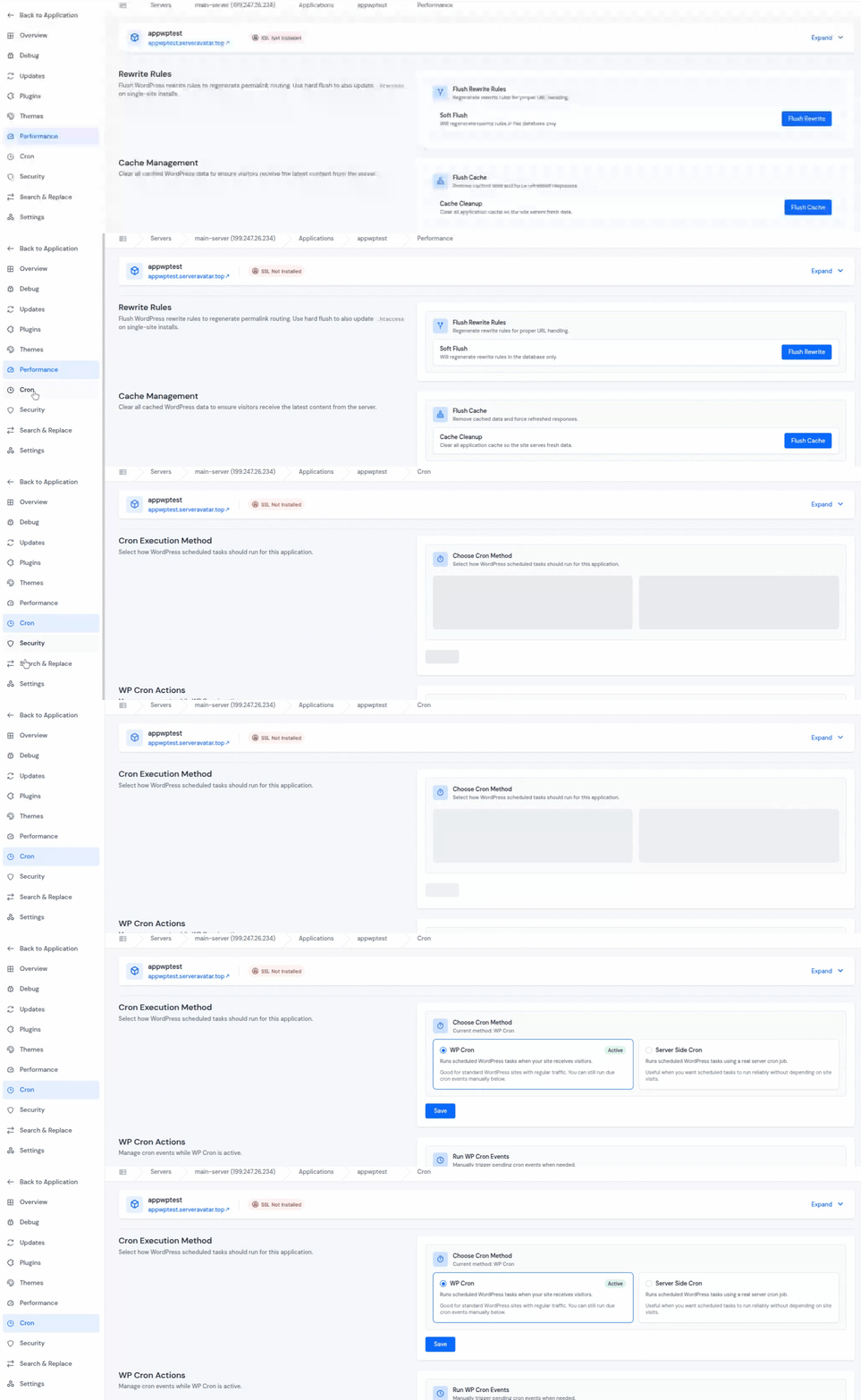
The Cron section in WordPress Toolkit gives you centralized control over how these scheduled tasks run on your WordPress application directly from the ServerAvatar dashboard.
Cron Execution Method
WordPress uses scheduled tasks to handle important background operations. The Performance section allows you to choose how these scheduled WordPress tasks should run.
Available Cron Methods
- WP-Cron is WordPress’s default scheduling system. It kicks in whenever your website gets a visitor, and it’s a solid fit for:
- Small to medium WordPress sites
- Sites with regular traffic
- Standard WordPress installations
- Server-Side Cron uses an actual server cron job instead of relying on visits. Go with this option for:
- High-traffic websites
- Production applications
- Sites with critical scheduled tasks
- Situations where reliability is a must

The big benefit? Server-side cron keeps your scheduled jobs running consistently, even during those quiet periods when traffic dips, no missed tasks, no surprises.
WP Cron Actions
The WP Cron Actions section lets you manually trigger WordPress cron events whenever you need to, no waiting around.
Available Actions
- Run All Events: Forces WordPress to run every registered cron event immediately, even if their scheduled time hasn’t arrived yet. This is mainly useful for:
- Development environments
- Troubleshooting issues
- Testing scheduled events
- Trigger Due Events: Only runs cron events whose scheduled time has already passed. This lets you safely work through pending tasks without accidentally triggering anything premature or unexpected.

Security: Protect Your Site
Keeping your WordPress site secure matters just as much as keeping it updated. Security section helps you to secure your WordPress application against common vulnerabilities, no need to manually edit server files or configuration settings.
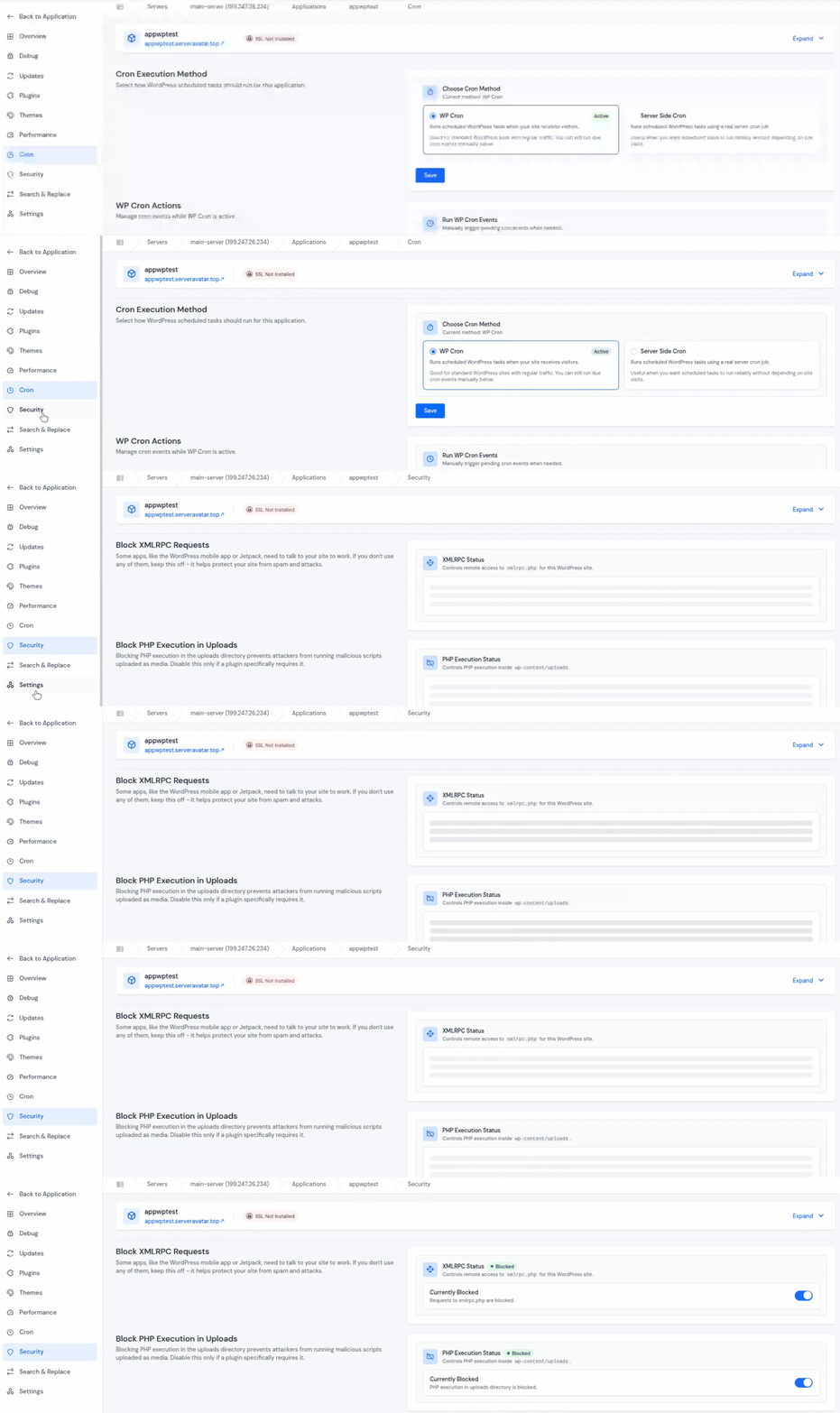
Available security options include:
Block XML RPC requests
XML-RPC is a WordPress feature that lets external tools talk to your site remotely. The problem is, it’s also a common target for:
- Brute-force attacks
- Spam attacks
- Pingback abuse
- Remote login attempts
The Block XML-RPC Requests option lets you easily shut this down when you don’t actually need it.

Disabling XML-RPC can help
- Cuts down unwanted login attempts
- Prevents spam-based attacks
- Improves overall WordPress security
- Minimizes unnecessary remote access points
If your site doesn’t rely on external WordPress integrations, turning this off is generally the safer call.
Block PHP Execution in Uploads
The uploads directory in WordPress is normally used for storing:
- Images
- Videos
- Documents
- Media files
By default, PHP files should never execute from this folder. If attackers manage to upload malicious PHP scripts, they could potentially run harmful code directly from the uploads directory.
The Block PHP Execution in Uploads feature helps prevent this risk.

Blocking PHP execution in uploads helps
- Prevent malware execution
- Reduce security vulnerabilities
- Protect against malicious file uploads
- Improve server-level security
In most cases, this should remain enabled unless a specific plugin explicitly requires PHP execution inside the uploads folder.
Verify Checksums
Checksums are like a fingerprint for your files. This feature compares your WordPress core files against the official WordPress.org checksums to make sure nothing’s been modified unexpectedly.
Just hit the Verify Checksums button and it’ll scan your WordPress installation. The toolkit checks whether your files match the official release, any mismatches will show up right away.

This feature helps you:
- Detecting unauthorized changes
- Monitoring WordPress file integrity
- Identifying possible malware infections
- Improving overall website security
It’s a quick, reliable way to confirm your WordPress installation is still clean and unmodified.
Search & Replace: Update Content Across Your WordPress Database
Making changes across a WordPress website can sometimes be time-consuming, especially when the same text, URL, or value appears in multiple places throughout the database.
The Search & Replace feature in WordPress Toolkit helps simplify this process by allowing you to quickly find and replace text across your entire WordPress database from a single interface. It scans your WordPress database and replaces matched content automatically.
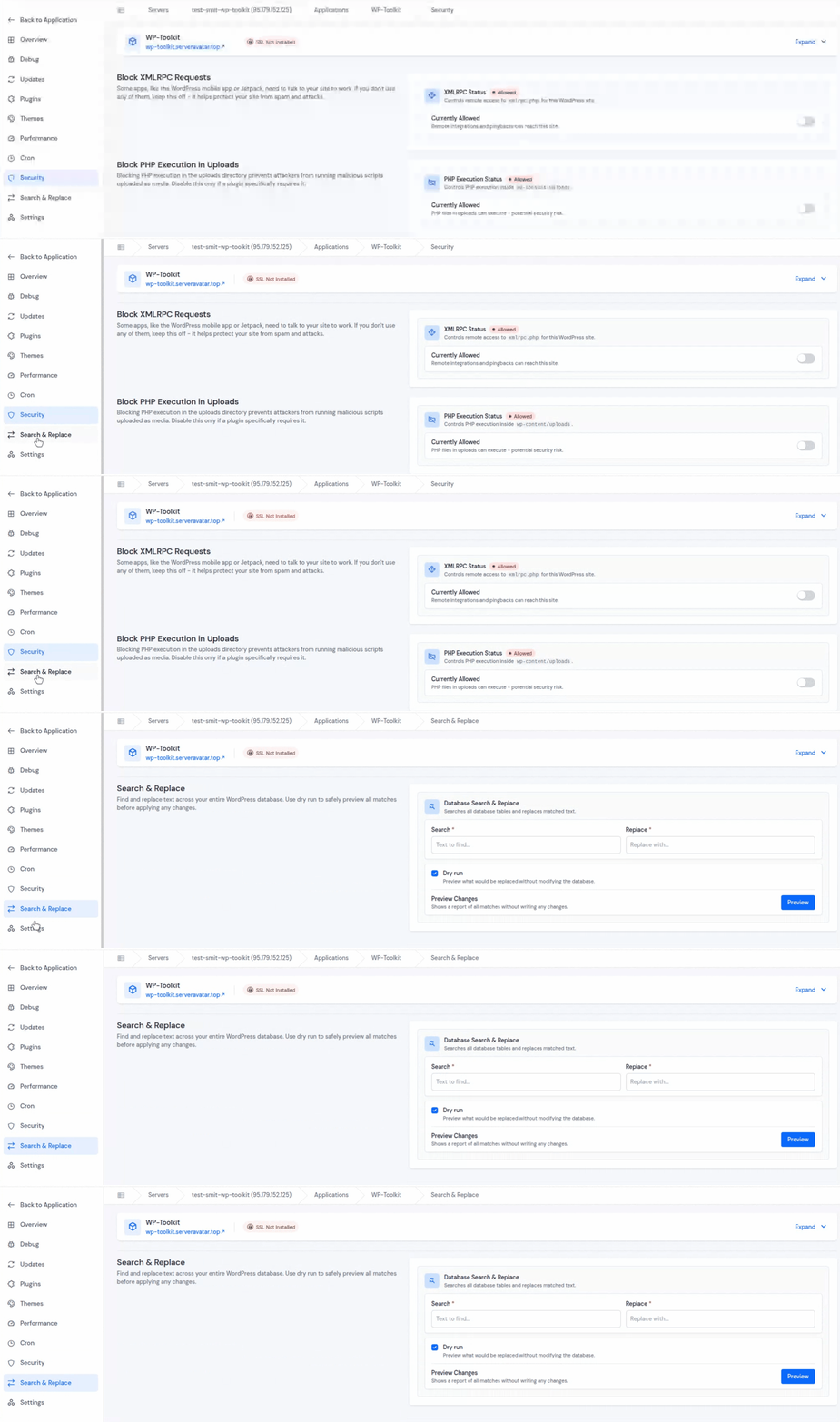
Whether you’re updating old URLs, replacing branding, or fixing repeated content, this tool makes bulk changes much faster and safer.
Instead of manually editing, you can make changes globally in just a few clicks.
Search Field: The Search field allows you to enter the text or value you want to locate inside the database.
Replace Field: The Replace field is where you enter the new value that should replace the matched content.
The Search & Replace tool is especially helpful for:
- Website migrations
- Domain name changes
- Rebranding projects
- Bulk content updates
- Fixing incorrect URLs
- Updating repeated text across the site
Dry Run: When enabled, WordPress Toolkit will scan the database, find matching entries, generate a preview report, show what will change without actually modifying the database.
Dry Run helps you:
- Avoid accidental replacements
- Review changes before applying them
- Prevent database mistakes
- Safely test replacements
It’s especially useful when performing large database updates or domain migrations.
Preview: After entering your search and replacement values, click the Preview button to generate a detailed report of all matching entries.
The preview helps you verify:
- Which values will change
- How many matches were found
- Whether the replacement is correct
This extra verification step helps reduce errors and gives you better control over database modifications.
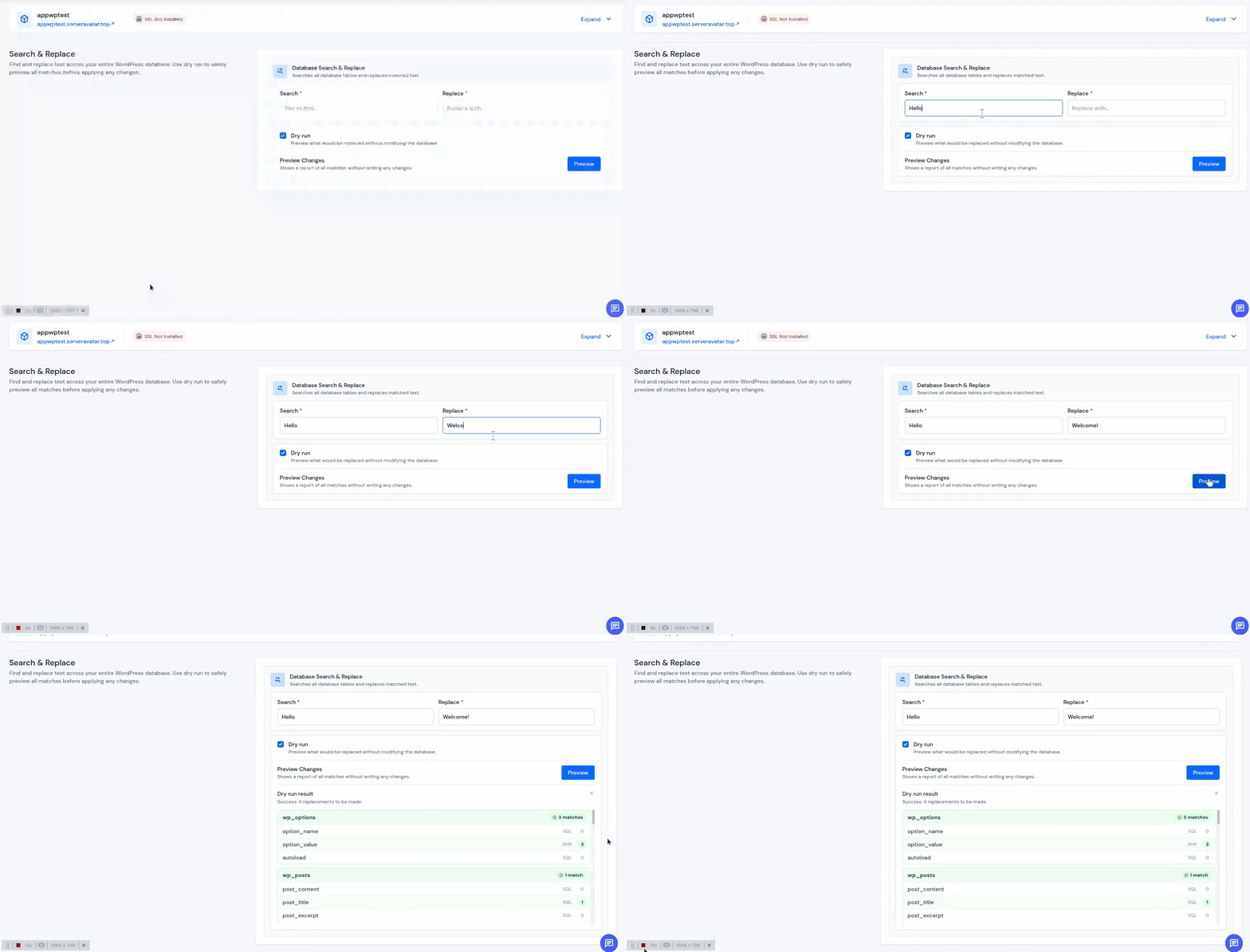
Instead of manually editing database records, WordPress Toolkit allows you to handle everything safely from one centralized dashboard.
Settings: Set Up Your Site Your Way
The Settings section in WordPress Toolkit gives you a centralized place to manage important WordPress configuration options without navigating through multiple admin pages.
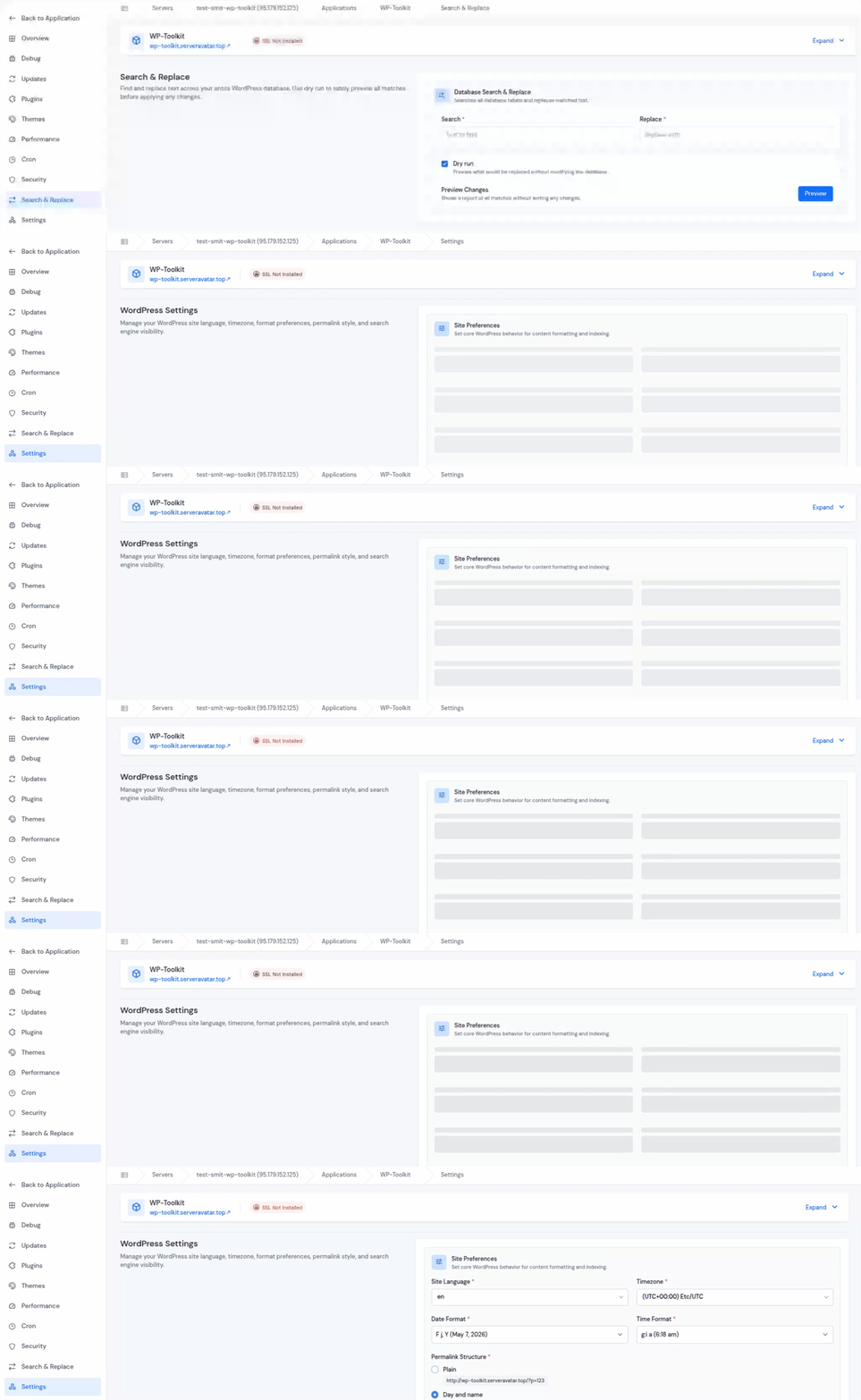
From language preferences to permalink structures, everything is organized in a clean and easy-to-use interface that helps simplify WordPress management.
Site Preferences
The Site Preferences section lets you manage the basic settings and behaviour of your WordPress website. From one screen, you can manage:
- Site language: It allows you to select the default language used throughout your WordPress dashboard and system interface.
- Timezone: This setting controls the time reference used across your WordPress site.
- Date format: You can choose the date format for your WordPress website.
- Time format: You can also configure how time is displayed.
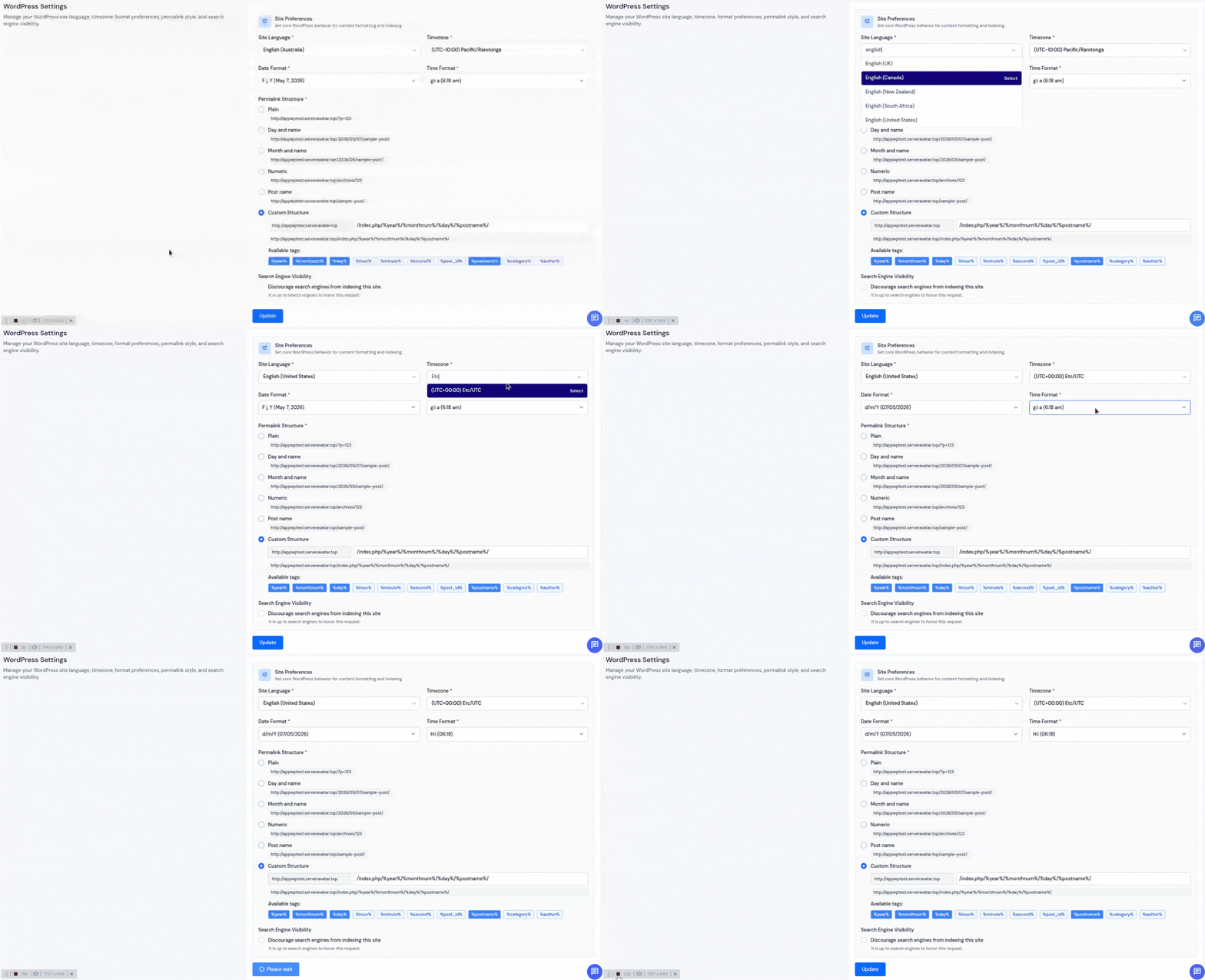
This helps ensure your website displays content correctly based on your preferred regional and formatting settings.
Permalink Structure: Control Your URL Format
The Permalink Structure section allows you to define how your website URLs are generated. WordPress Toolkit provides several permalink options, including:
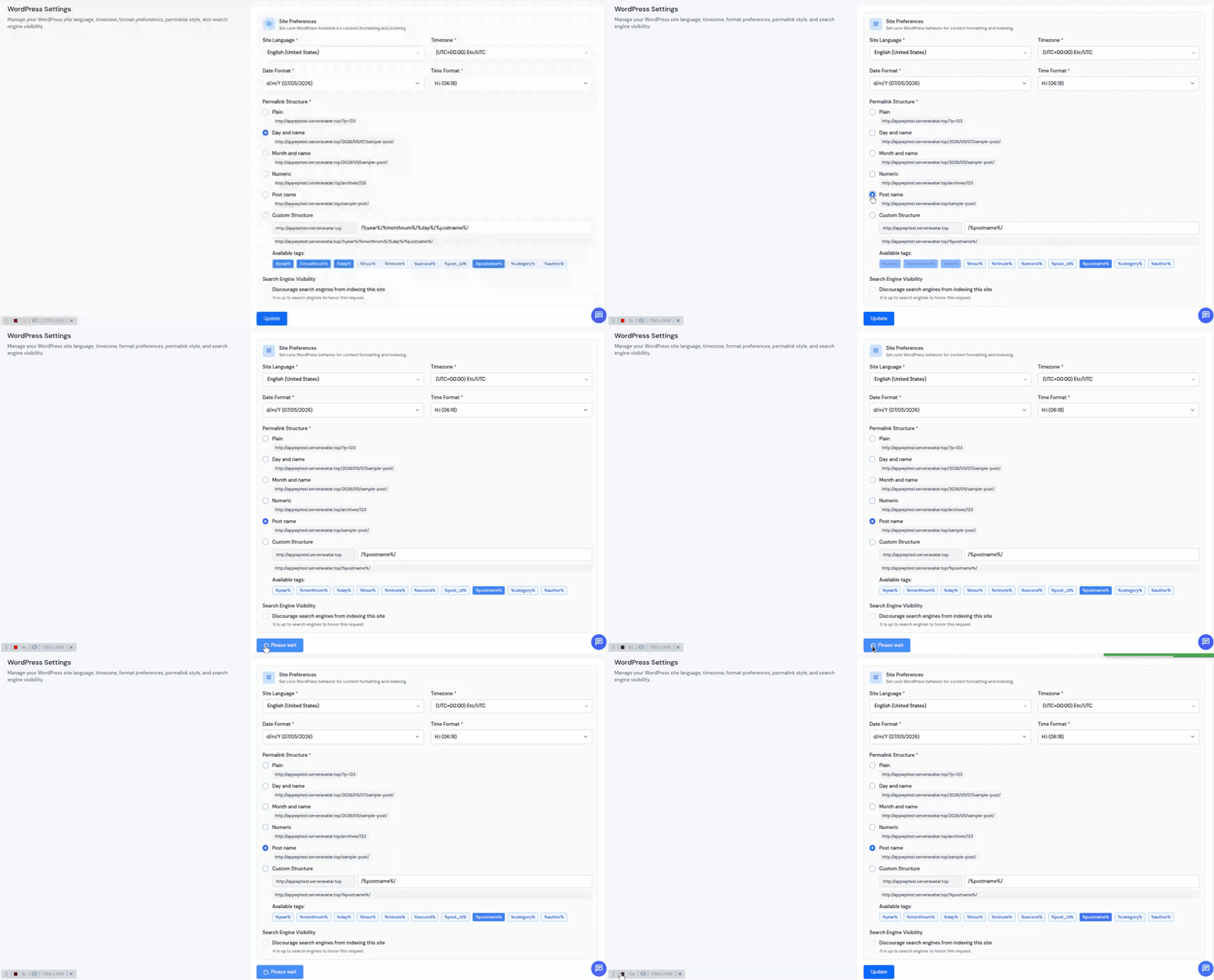
Clean permalink structures help improve, website readability, user experience, SEO optimization, search engine indexing.
Search Engine Visibility
Selecting the “Discourage search engines from indexing this site” checkbox tells search engines not to index your website.
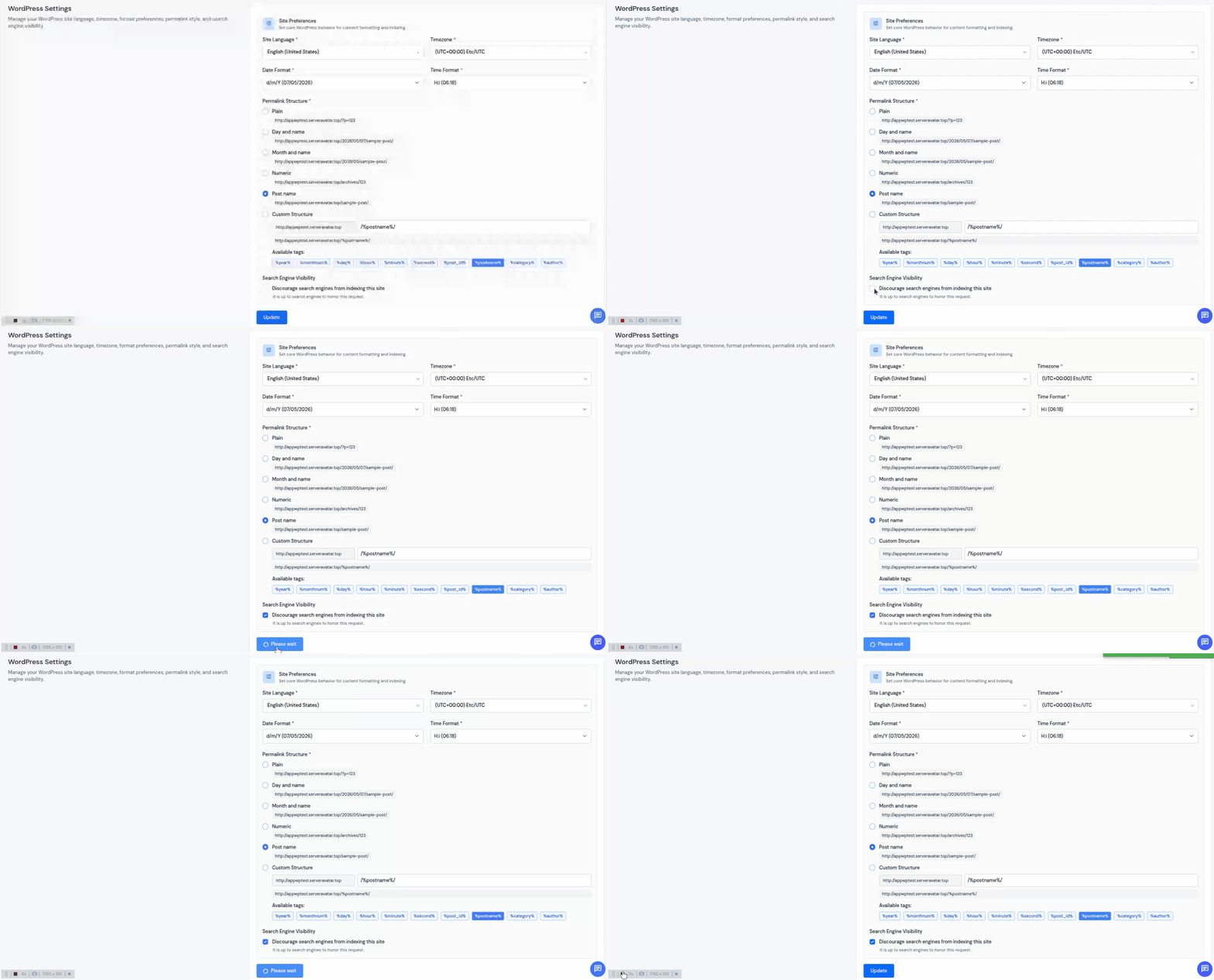
It helps prevent unfinished or private websites from appearing in search engine results before they are ready for public access.
However, the checkbox should not be selected for live production websites that you want indexed by Google and other search engines.
The Settings section helps centralize important WordPress configuration options in one place directly from the ServerAvatar dashboard.
Key Benefits of WordPress Toolkit
WordPress Toolkit helps simplify day-to-day WordPress management by bringing multiple tools together into one centralized dashboard.
With WordPress Toolkit, you can:
- Manage WordPress websites faster
- Reduce time spent on repetitive tasks
- Update plugins and themes easily
- Troubleshoot issues without editing files
- Improve WordPress security
- Optimize website performance
- Manage multiple websites more efficiently
- Perform database updates safely
- Configure WordPress settings from one place
Instead of switching between multiple tools and dashboards, WordPress Toolkit gives you a cleaner and more organized workflow.
Why Use WordPress Toolkit?
Managing WordPress websites normally involves switching between multiple tools, dashboards, and server panels. You often need to move between:
- WordPress wp-admin
- Hosting dashboards
- File managers
- Database tools
- Security plugins
- Cache plugins
- Server configurations
WordPress Toolkit simplifies all of this by bringing everything into a single centralized dashboard inside ServerAvatar.
It helps you:
- Save time on routine WordPress management
- Reduce manual work and repetitive tasks
- Improve website security
- Manage plugins and themes more efficiently
- Troubleshoot issues faster
- Handle updates from one place
- Maintain multiple websites more easily
- Simplify WordPress administration for teams and agencies
Whether you’re a beginner managing your first WordPress website or a developer handling multiple production applications, WordPress Toolkit provides a cleaner and more efficient management experience.
Conclusion
Managing WordPress websites becomes much easier when everything is available in one place. ServerAvatar’s WordPress Toolkit helps simplify daily WordPress management by combining updates, debugging, plugin management, theme management, security controls, performance optimization, database tools, and WordPress settings into a single centralized dashboard.
Instead of switching between wp-admin, server configurations, file managers, and third-party plugins, you can handle everything directly from ServerAvatar with a cleaner and more organized workflow.
FAQs
Do I need to access wp-admin to manage my WordPress site?
WordPress Toolkit allows you to perform many common WordPress management tasks directly from the ServerAvatar dashboard without logging into wp-admin.
Can I manage multiple WordPress websites with WordPress Toolkit?
Yes, WordPress Toolkit is especially useful for developers, agencies, freelancers, and businesses managing multiple WordPress applications.
Can beginners use WordPress Toolkit?
Absolutely, WordPress Toolkit is designed with a simple and user-friendly interface, making WordPress management easier for both beginners and advanced users.
Is Display Errors safe to use on live websites?
No, Display Errors should generally remain disabled on production websites because it can expose sensitive technical information to visitors.
Do I need technical knowledge to use WordPress Toolkit?
No, WordPress Toolkit is designed with a user-friendly interface that simplifies WordPress management for both beginners and experienced users.