

When your WordPress site starts feeling slow, the first instinct is to blame your server or add another plugin. But more often than not, the real culprit is simpler, stale cache and broken rewrite rules that silently degrade WordPress Performance.
These two issues are behind a surprisingly large share of WordPress performance problems. Pages loading slowly for no obvious reason, 404 errors on posts that clearly exist, updates not showing up after you’ve published them, all of these point back to cache and URL routing issues.
If you’re managing your WordPress site through ServerAvatar, you don’t need a separate plugin for either problem. The Performance section inside the WordPress Toolkit handles flushing your cache, resetting your rewrite rules, and getting your site back to full speed in seconds.
This guide walks you through exactly what each tool does, when to use it, and what happens when you don’t.
TL;DR
- Cache stores your rendered pages so WordPress doesn’t rebuild them on every visit
- Rewrite rules map clean URLs to actual pages on your server
- Stale cache makes visitors see old content even after you have updated your site
- Broken rewrite rules cause 404 errors and redirect failures on pages that exist
- Both are fixed instantly from the Performance section in ServerAvatar’s WordPress Toolkit
- Flushing cache after any content, theme, or plugin update keeps your site fast and accurate
How WordPress Serves a Page: A Quick Backdrop
Every time someone visits your WordPress site, WordPress typically:
- Receives the request on the server
- Load core WordPress files and connect it to database
- Runs plugin hooks and loads the active theme template
- Builds the page and sends the HTML to the visitor’s browser
Without caching, this entire process runs on every page request. As your site grows with more content, plugins, and database queries, page generation can take longer.
Why Rewrite Rules Matter
Rewrite rules are responsible for mapping clean URLs to the correct WordPress content.
For example:
yoursite.com/guides/ubuntu-server-setup
Rewrite rules ensure that URL loads the correct page behind the scenes. If they break:
- Visitors may see 404 errors
- Search engines may not reach your content
- Existing pages can become inaccessible even though they still exist in WordPress
How Caching Helps
Caching speeds things up by:
- Storing a pre-generated HTML version of the page
- Reducing database queries and PHP processing
- Serving repeat visitors the cached version instantly
- Lowering server load and improving response times
The Performance Section in WordPress Toolkit
Every WordPress application in ServerAvatar includes a Performance tab within the WordPress Toolkit.
From this section, you can manage performance-related tasks without:
- Logging into WordPress Admin (
wp-admin) - Accessing the file manager
- Running terminal commands
Available Features
- Rewrite Rules
- Flushes and regenerates WordPress URL routing
- Helps resolve broken permalinks and 404 errors
- Cache Management
- Clears stored page caches
- Ensures visitors see the latest version of your content
Why Use It?
- Fixes common WordPress routing and caching issues
- Requires only a few clicks
- Typically completes in just a few seconds
Rewrite Rules: What They Do and When They Break
WordPress uses clean URLs such as:
yoursite.com/best-ubuntu-server-setup-tools
These URLs don’t correspond to actual folders on your server. Instead, WordPress uses rewrite rules to map them to the correct content.
What Rewrite Rules Do
- Translate clean URLs into WordPress page requests
- Enable custom permalink structures
- Help WordPress route visitors to the correct content
- Are typically stored in the
.htaccessfile on Apache servers
How to Flush Rewrite Rules
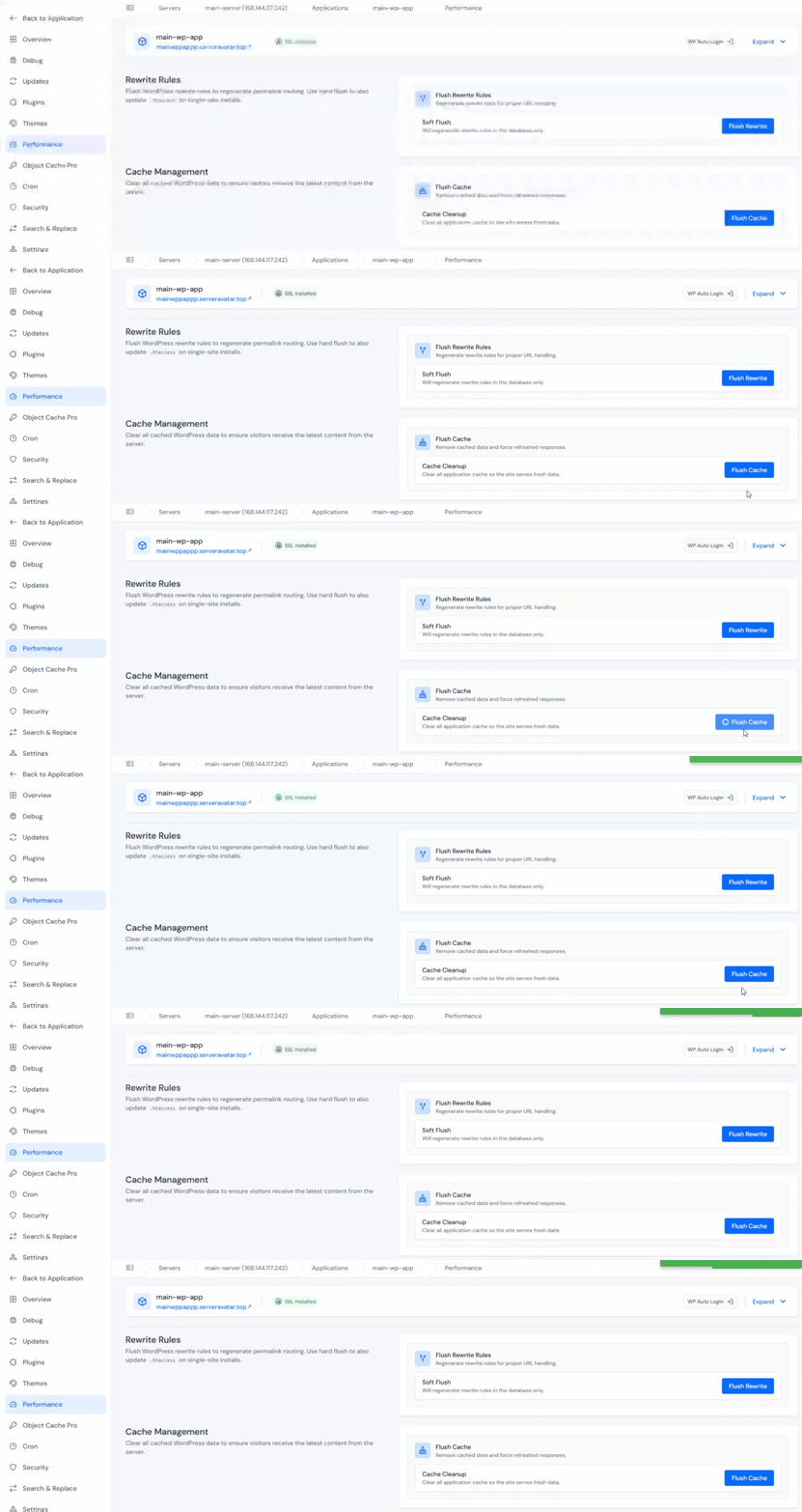
- Inside the ServerAvatar server panel, navigate to the Applications section and to your WordPress application panel by clicking on the dashboard icon
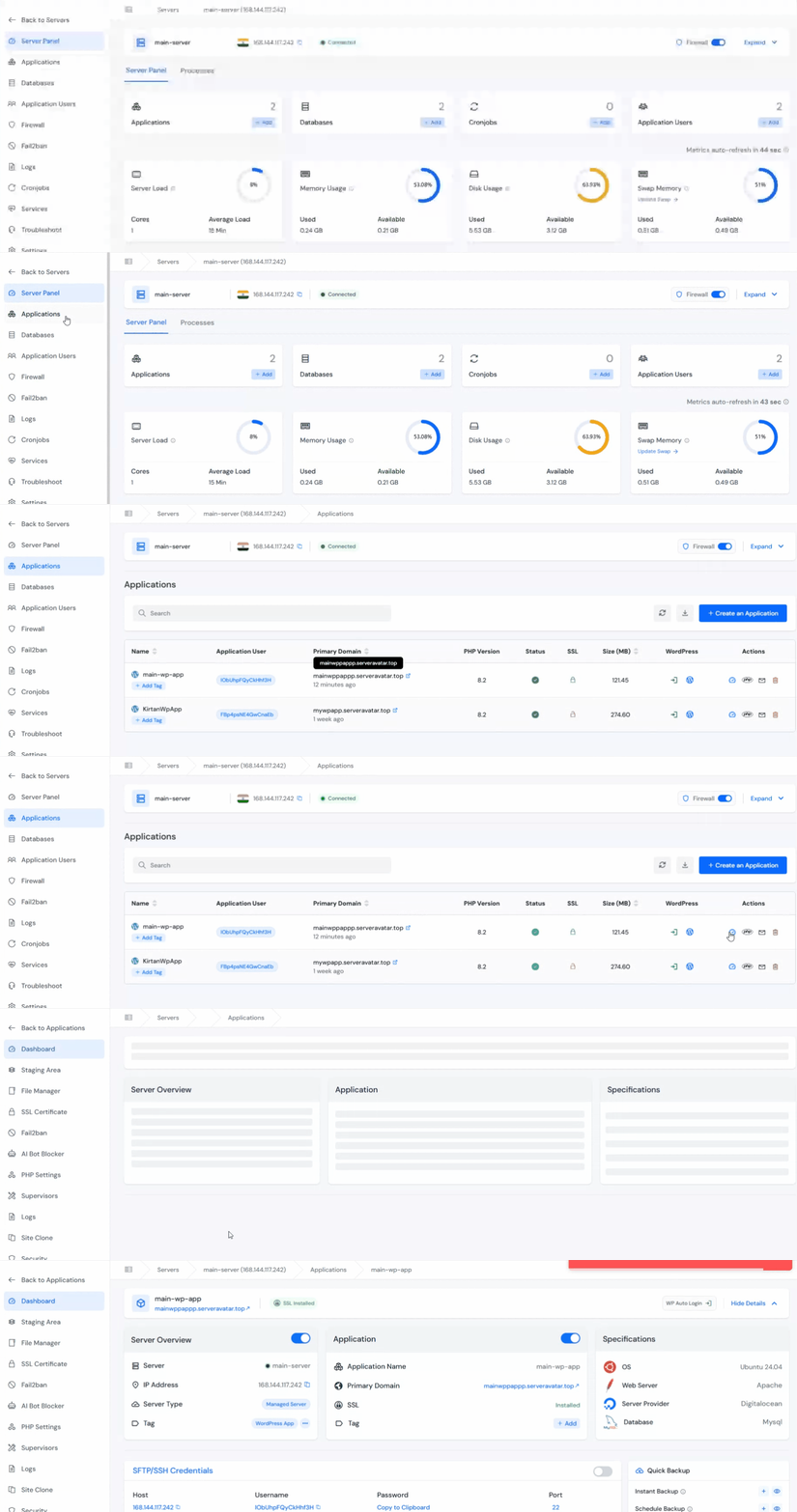
- Click WordPress Toolkit from the left sidebar
- Navigate to the Performance section, click on the Flush Rewrite button
This regenerates WordPress URL routing and usually resolves permalink-related issues within seconds.
After Flushing
Verify that:
- Posts load correctly
- Pages open without errors
- Category and archive URLs work as expected
Cache Management: What It Does and When to Use It
When WordPress generates a page, it:
- Runs PHP code
- Queries the database
- Builds the page HTML
Caching stores completed HTML so future visitors receive the page instantly without repeating the entire process.
Benefits of Caching
- Faster page loads
- Lower server usage
- Better visitor experience
- Improved scalability
When Cache Becomes a Problem
Cached pages can become outdated after:
- Editing posts or pages
- Updating themes
- Installing or removing plugins
- Changing menus or widgets
- Uploading new media
- Running content imports or migrations
Visitors may continue seeing old content until the cache is cleared.
How to Flush Cache
- Inside the Performance section of the WordPress Toolkit
- Click on the Flush Cache button
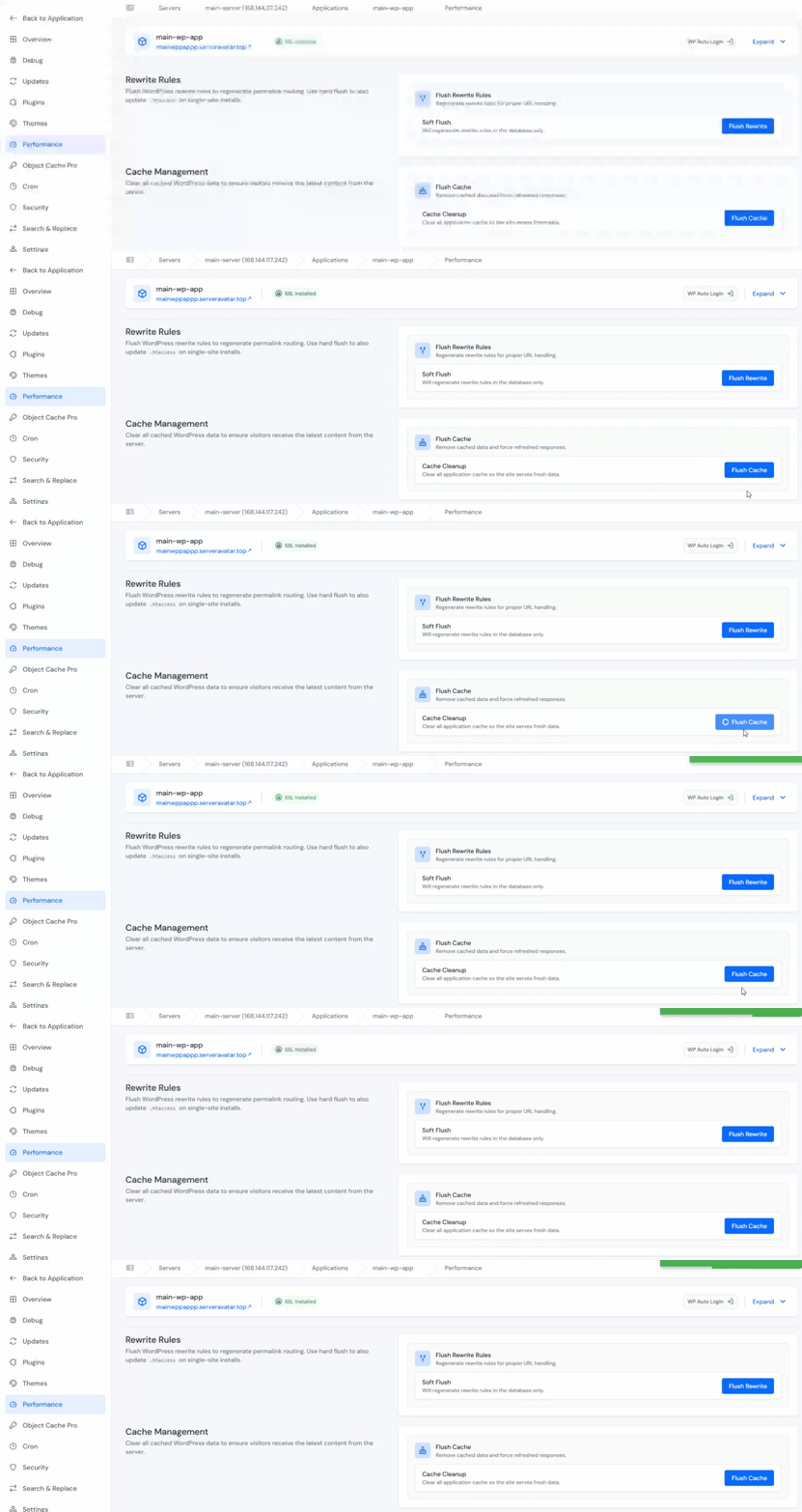
This immediately removes stored page versions and forces WordPress to generate fresh content on the next visit.
Flush Cache After
- Publishing or updating content
- Theme changes
- Plugin updates
- Menu or widget modifications
- Media uploads
- Site migrations
- Data imports
Making this a habit means your visitors always see current content, and your performance stays consistent even as your site grows and changes.
Why Flush Cache and Flush Rewrite Together
After migrations, restores, or major updates, both issues often occur simultaneously.
For Example, after moving to a new domain:
- Rewrite rules may still point incorrectly, causing 404 errors
- Cached pages may contain old URLs and outdated content
Best Practice
Run both actions:
- Flush Rewrite: Fixes URL routing and page accessibility
- Flush Cache: Removes outdated page renders
This ensures visitors see the correct content and all URLs function properly.
What Happens When You Don’t Flush
The consequences differ depending on the problem:
If You Don’t Flush Rewrite Rules
You may experience:
- 404 errors on valid pages
- Broken internal links
- Crawling issues for search engines
- Reduced SEO performance
If You Don’t Flush Cache
Visitors may see:
- Outdated page content
- Old navigation links
- Expired promotions
- Incorrect media or design changes
For eCommerce stores, this can lead to:
- Incorrect pricing
- Outdated inventory information
- Expired promotional banners
Quick Reference: When to Use What
| Situation | Action |
|---|---|
| Published or edited a post | Flush Cache |
| Updated theme or design | Flush Cache |
| Installed or updated a plugin | Flush Cache |
| Changed menus, widgets, or site-wide content | Flush Cache |
| Migrated site to new domain | Flush Rewrite + Flush Cache |
| Restored a backup | Flush Rewrite + Flush Cache |
| Pages returning 404 but content exists | Flush Rewrite |
| Inner pages and archives not loading | Flush Rewrite |
| Moved WordPress to a different directory | Flush Rewrite + Flush Cache |
Conclusion
Rewrite Rules and Cache are the two most overlooked performance tools in WordPress, and the two most likely to cause sudden problems when they’re neglected. The good news is that fixing both is trivial when you have the right dashboard. The Performance section in ServerAvatar’s WordPress Toolkit puts both tools in one place, labelled clearly, and ready to use in seconds.
Make it a habit to flush rewrite rules any time pages stop loading after a change, and flush the cache after every content update. And after every migration or restore, run both.
FAQs
How often should I flush cache?
Flush cache whenever you update content, change your theme, modify menus, or install/update plugins.
Can stale cache affect SEO?
Yes, Outdated cached pages may cause search engines and visitors to see old content, which can negatively impact user experience and SEO.
Why am I getting 404 errors after migrating my site?
This usually happens when rewrite rules haven’t been updated. Flushing rewrite rules often resolves the issue.
Should I flush cache after updating images?
If the updated images appear on cached pages and the changes aren’t visible, flush the cache to load the latest versions.
Is it safe to flush cache on a live website?
Yes, Flushing cache only removes temporary stored files and does not affect your posts, media, settings, or database.
Key Takeaways
- The Performance section in ServerAvatar’s WordPress Toolkit handles both cache flushing and rewrite rule resetting
- Flush Cache clears stored pages so visitors see your latest content
- Flush Rewrite regenerates URL routing when pages return 404 after a migration or change
- Run both after site migrations, restores, and major updates
- Flush cache after every content update, theme change, or plugin install to keep performance consistent
Next Steps
You may also want to read:
- WordPress Toolkit for WordPress Management in ServerAvatar
- How to Create WordPress Blueprints Easily in ServerAvatar
- How to Enable Debug Mode, Debug Logs, and Display Errors in WordPress
If you’re managing your WordPress sites through ServerAvatar, the WordPress Toolkit’s Performance section already has everything you need to keep your sites fast.
About the Author
Meghna Meghwani is a technical writer focused on Linux, Ubuntu, VPS hosting, server management, WordPress, PHP, Node.js, cloud hosting, and DevOps. She creates beginner-friendly tutorials, practical hosting guides, troubleshooting articles, and server security content designed to help developers and businesses manage applications and servers more efficiently.