

Seeing a 401 Unauthorized Error on your screen can be frustrating, especially when you are sure the page exists and should load correctly. One moment, everything seems fine, and the next moment, access is denied. For many people, this error feels confusing and technical, but the good news is that it is usually easy to understand and fix.
In this article, we will clearly explain what a 401 Unauthorized Error means, why it happens, and how you can fix it. This guide is written in simple language, without unnecessary technical terms, so anyone can follow along and resolve the issue confidently.
What Is a 401 Unauthorized Error?
A 401 Unauthorized Error is an HTTP status code that indicates a request was made to a server without proper authentication. In simple words, the server received your request but refused to process it because it could not verify your identity.
This error usually appears when:
- Login credentials are missing: The request is sent without a username, password, or required authentication data.
- Authentication details are incorrect: The provided login information does not match the stored credentials.
- Access permissions have expired: The user’s authorization period has ended and needs renewal.
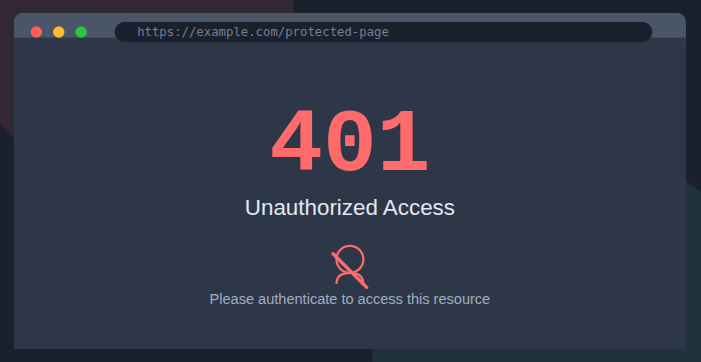
The server expects valid proof of authorization before allowing access.
Difference Between 401, 403, and 404 Errors
These errors are often confused, but each has a different meaning.
- 401 Unauthorized: Authentication is required or invalid
- 403 Forbidden: Authentication exists, but access is not allowed
- 404 Not Found: the resource that is requested is not exist
| Error Code | Name | Meaning | Common Cause | How to Fix |
| 401 | Unauthorized | Authentication is required or has failed | Missing, invalid, or expired login credentials | Log in again, provide valid credentials, or refresh authentication token |
| 403 | Forbidden | Authentication succeeded, but access is not allowed | User does not have permission to access the resource | Request proper permissions or check access control settings |
| 404 | Not Found | The requested resource does not exist | Incorrect URL or deleted/moved resource | Verify the URL, restore the resource, or update broken links |
A 401 error means the content is available, but access is restricted until proper credentials are provided.
Why the 401 Unauthorized Error Occurs
The 401 error is designed to protect private or restricted content. It ensures that only authorized users can access specific pages, data, or services.
This error commonly occurs when:
- A user tries to access a protected page without logging in: The page requires authentication that has not been completed.
- Stored login data is no longer valid: Saved session or cookie data has expired or become corrupted.
- Authentication rules are not properly configured: Security rules fail to correctly verify user identity.
Understanding the cause makes it easier to choose the right solution.
1. Incorrect Username or Password
One of the most common reasons for a 401 Unauthorized Error is incorrect login information. Even small mistakes can trigger this error.
Common issues include:
- Typing errors: Incorrect characters are entered while typing login details.
- Incorrect password: The password provided does not match the account password.
- Using outdated login details: Old or changed credentials are still being used.
Always double-check credentials before assuming there is a system issue.
2. Expired Login Sessions
Many websites use sessions to keep users logged in for a certain period. When a session expires, the server no longer recognizes the user as authenticated.
This often happens when:
- A page remains open for a long time: The session expires due to prolonged inactivity.
- The browser is closed and reopened: Closing the browser ends the active authentication session.
- Session timeout settings are strict: Short timeout limits automatically invalidate sessions quickly.
When this occurs, re-authentication is required.
3. Issues with Browser Cache and Cookies
Browsers store temporary data, such as cache and cookies, to improve performance. However, outdated or corrupted data can cause authentication problems.
This may result in:
- Invalid session data being sent: Expired or corrupted session details are included in the request.
- Conflicting login information: Multiple sessions send mismatched authentication data.
Clearing the cache and cookies often resolves the issue quickly.
4. Missing or Invalid Authorization Headers
In some cases, especially with applications and APIs, the server expects authorization details in request headers.
A 401 Unauthorized Error may occur if:
- Authorization headers are missing: The request does not include required authentication headers.
- Token values are incorrect: The provided token does not match the expected value.
- Headers are formatted incorrectly: Improper syntax prevents the server from reading credentials.
This is common in custom integrations and API-based services.
5. API Authentication Errors
When working with APIs, authentication relies on keys, tokens, or credentials. If these are missing or invalid, access is denied.
Common causes include:
- Expired API tokens: The token has passed its validity period.
- Revoked API keys: The key has been disabled or removed by the system.
- Incorrect authentication method: The API is accessed using an unsupported security method.
Ensuring proper API configuration is essential for uninterrupted access.
6. Server Configuration Problems
Sometimes, the issue is not on the user’s side. Server-side problems can also cause 401 errors.
These include:
- Incorrect permission settings: Users lack the required access rights.
- Misconfigured authentication rules: Security rules fail to properly validate users.
- Server software updates affecting access control: Updates modify existing authentication logic.
In such cases, the issue must be resolved by the server administrator.
How Users Can Fix a 401 Unauthorized Error
If you encounter a 401 Unauthorized Error, start with basic troubleshooting steps.
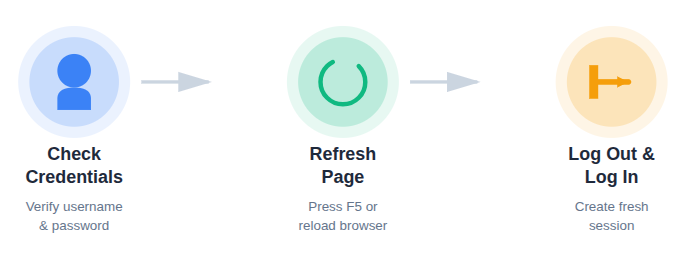
Recommended actions:
- Verify login credentials: Double-check your username and password to ensure they are entered correctly.
- Refresh the page: Reloading the page forces the system to retry authentication.
- Log out and log back in: This creates a fresh session and clears temporary login issues.
Most issues are resolved using these simple steps.
Logging Out and Logging Back In
Re-authenticating is often the quickest fix.
Steps to follow:
- Log out of the website or application: Ends the current authentication session.
- Close the browser: Removes active session data.
- Reopen the browser and log in again: Starts a new authenticated session.
This refreshes your session and updates authentication data.
Clearing Browser Cache and Cookies
If logging in again does not work, clearing browser data can help.
After clearing cache and cookies:
- Old session data is removed: Expired or corrupted session files are deleted.
- Fresh authentication details are used: New login data is generated after re-login.
This step resolves many recurring 401 errors.

How Website Owners Can Fix 401 Errors
For website owners and administrators, frequent 401 errors can disrupt user access and reduce trust. Identifying and fixing authentication-related issues helps improve usability and prevent unnecessary access problems.
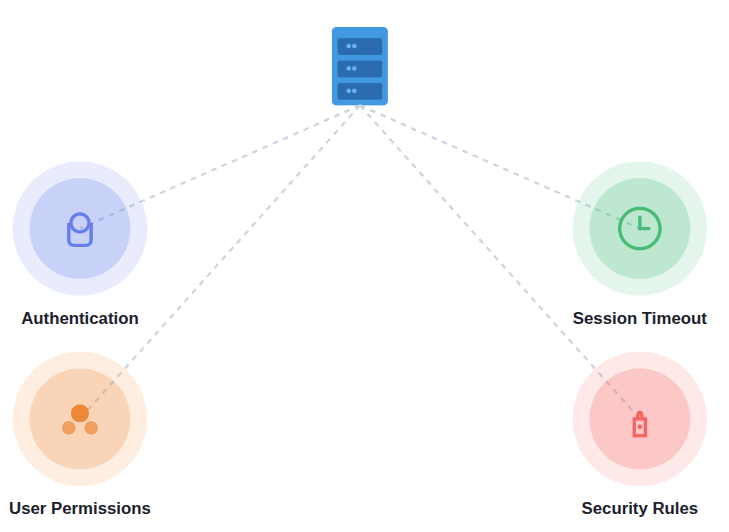
Key areas to check:
- Authentication configuration:
Authentication configuration controls how users log in and how their identity is verified. If these settings are incorrect, the system may fail to recognize valid users. This can result in repeated 401 Unauthorized errors. - Session timeout settings:
Session timeout settings define how long a user stays logged in without activity. Very short timeout limits can log users out unexpectedly. This often causes access errors when users return to a page. - User role and permission rules:
User roles determine what actions and pages a user can access. If permissions are misconfigured, even logged-in users may be blocked. Proper role assignment ensures users have the right level of access. - Security plugins or firewall rules:
Security plugins and firewalls protect the site from suspicious activity. Sometimes, they may mistakenly block legitimate requests. Reviewing these rules helps prevent valid users from being denied access.
Clear error messages can also guide users toward quick solutions.
Best Practices to Prevent 401 Unauthorized Errors
Preventing authentication issues improves user experience.
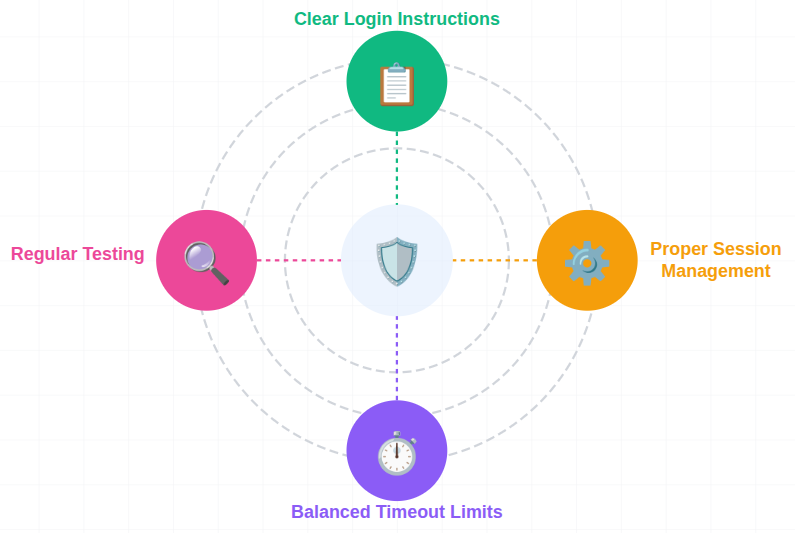
Best practices include:
- Clear login instructions:
Clear login instructions help users understand exactly how to sign in and what credentials are required. When the login process is simple and well-explained, users are less likely to make mistakes. This reduces failed authentication attempts. - Proper session management:
Proper session management ensures user sessions are created, maintained, and expired correctly. It prevents conflicts caused by stale or invalid session data. This helps maintain secure and smooth access. - Secure but reasonable timeout limits:
Timeout limits should protect user accounts without disrupting their activity. Very short timeouts can frustrate users, while very long ones may weaken security. A balanced approach improves both safety and usability. - Regular testing of authentication flows:
Regular testing helps identify authentication issues early. It ensures login, session handling, and permission checks work as expected. This prevents users from encountering access errors.
These steps help reduce confusion and support smoother access.
Conclusion
A 401 Unauthorized Error can be frustrating, but it is usually caused by simple authentication issues such as incorrect credentials, expired sessions, or misconfigured permissions. By understanding what triggers this error, users can quickly fix it using basic steps like refreshing the page, logging in again, or clearing browser data. For website owners, maintaining proper authentication settings, session management, and security rules helps prevent these errors from occurring frequently. With the right approach, 401 errors can be resolved easily, ensuring secure and smooth access for all users.
FAQs
1. Is a 401 error caused by a broken website?
In many cases, the website is working correctly, but authentication details are missing, expired, or incorrect.
2. Can clearing cache and cookies fix a 401 error?
Clearing cache and cookies removes outdated session data and forces the browser to use fresh authentication details, which often resolves the error.
3. Why does a 401 error keep appearing even after logging in?
This can happen due to expired sessions, strict timeout settings, browser cookie issues, or incorrect user permission settings.
4. Are 401 errors dangerous?
A 401 error itself is not dangerous. It is a security feature designed to protect restricted content from unauthorized access.
5. Can server updates cause 401 Unauthorized errors?
Server or security updates can change authentication rules or permissions, which may temporarily block valid users.
Stop Wasting Time on Servers. Start Building Instead.
You didn’t start your project to babysit servers. Let ServerAvatar handle deployment, monitoring, and backups — so you can focus on growth.
Deploy WordPress, Laravel, N8N, and more in minutes. No DevOps required. No command line. No stress.
Trusted by 10,000+ developers and growing.