

Have you ever opened your WordPress website and suddenly thought, “What just went wrong?” WordPress errors often appear without warning, everything works perfectly, and then suddenly you’re staring at a blank screen or an unfamiliar error message. Don’t worry, you’re not alone.
WordPress errors are common, even for experienced users. The good news? Most of them aren’t serious and can be fixed with a few simple steps. Think of your WordPress website like a car. Sometimes it makes a strange noise, but that doesn’t mean the engine is damaged—it just needs a quick check and the right fix.
In this guide, we’ll walk you through the most common WordPress errors and explain how to fix them using clear, beginner-friendly steps. No technical background required.
Introduction to Common WordPress Errors
Running a WordPress site is usually straightforward, but every site owner eventually bumps into technical issues that can be confusing at first glance. Whether you manage a personal blog or a full-scale business website, errors in WordPress can disrupt your workflow, affect your visitors’ experience, or even take your site offline for a moment.
The good news is that most WordPress problem, no matter how alarming they look, tend to have simple causes and practical solutions. From plugin conflicts to database connection hiccups, these issues often follow predictable patterns that you can diagnose and fix with a bit of guidance.
Understanding the most common WordPress errors not only saves time but also gives you more confidence as a site owner. Instead of feeling stuck when a warning message appears, you’ll know what it means, why it happens, and how to resolve it. In this guide, we’ll break down the typical errors you might encounter and offer clear steps to troubleshoot them, even if you’re not a developer.
In this guide, we’ll go through the most common issues WordPress users face and explain how to troubleshoot them with clear, simple steps.
Common WordPress Errors and How to Fix Them
1. The “White Screen of Death”
The White Screen of Death is exactly what it sounds like, a completely blank screen where your website should be. This is one of the most confusing issues for beginners because there’s no error message to explain what’s wrong.
Why it happens:
- A conflicting plugin or theme
- Running out of memory on the server
- A broken piece of code in a custom theme or function
How to fix it:
- Disable your plugins one by one to find the faulty one.
- Switch to WordPress default theme such as Twenty Twenty-Four.
- Increase your PHP memory limit if your hosting provider allows it.
- Once you find the cause, your site usually comes back immediately.
This error feels scary, but it’s usually easy to fix.
2. Error Establishing a Database Connection
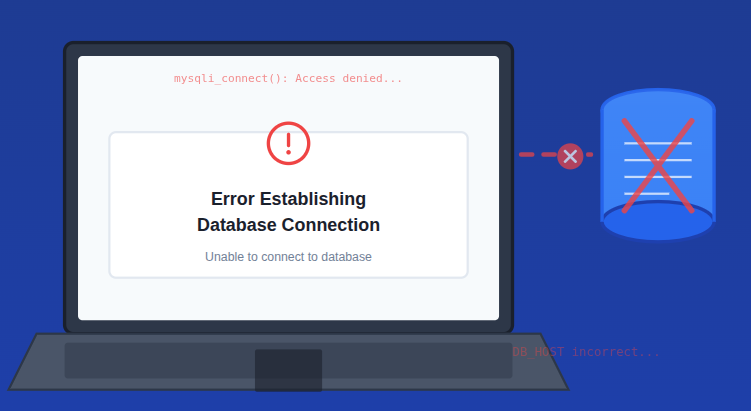
This message appears when WordPress can’t connect to the database that stores your site’s content. Without this connection, your site simply can’t load.
Why it happens:
- Incorrect database credentials
- Corrupted database tables
- Temporary issues on your server
How to fix it:
- Check your wp-config.php file and make sure the database name, username, and password are correct.
- If your host offers a database repair tool, use it to fix corrupted tables.
- Contact your hosting support to confirm if there’s a server-related issue.
- Often, beginners face this error after moving their website or changing their hosting plan.
Think of the database as WordPress’s brain, if communication breaks, nothing works.
3. 404 Page Not Found Error
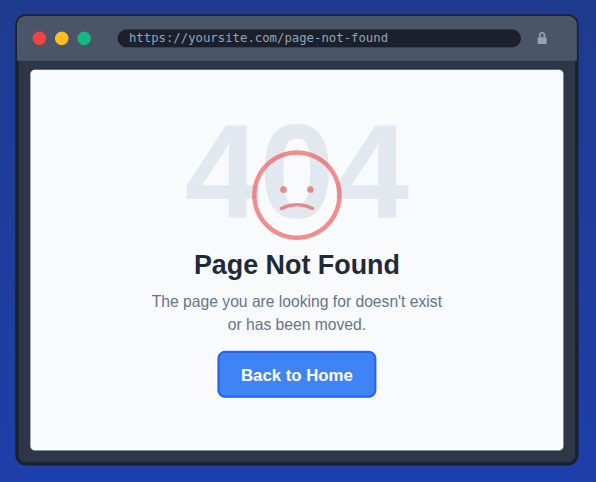
This error appears when a visitor clicks on a link that no longer exists or the page path is incorrect. Even though it looks like a problem with WordPress, it’s usually just a permalink issue.
Why it happens:
- WordPress permalink settings are broken
- A page or post was deleted or moved
- Plugin rewrites interfering with URLs
How to fix it:
- Go to Settings >> Permalinks. Click “Save Changes” directly without editing anything.
- Double-check your page URL to make sure it still exists.
- Disable plugins related to redirection or SEO to rule out conflicts.
This resets WordPress routing; a quick refresh of the permalink settings solves this error in most cases in seconds.
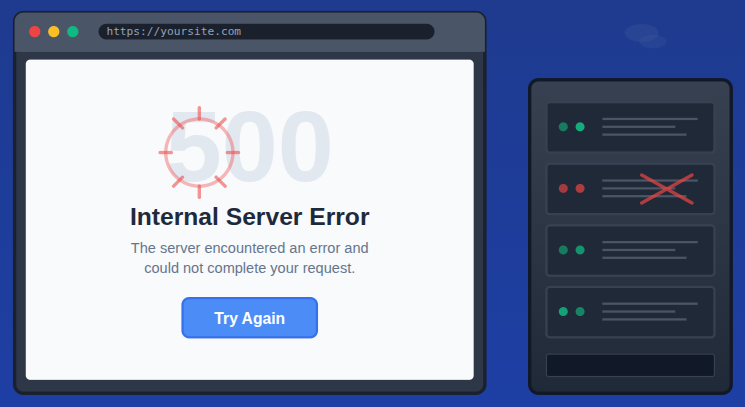
4. Internal Server Error (500 Error)
The 500 error is a general message that appears when the server can’t complete a request. It doesn’t tell you the exact cause, which can make it confusing for beginners.
Why it happens:
- Corrupted .htaccess file
- Faulty plugin or theme
- Memory or server configuration issues
How to fix it:
- Rename your .htaccess file to reset it and let WordPress create a new one.
- Disable all plugins to check for conflict.
- Switch to a default theme temporarily.
Once the culprit is identified and removed, your site should load normally again.
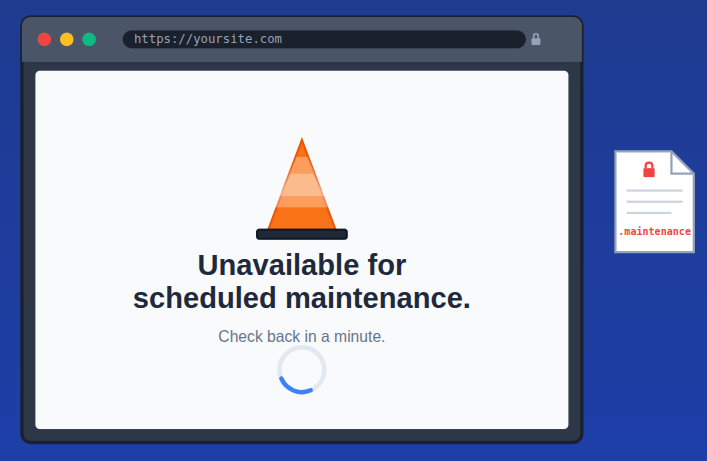
5. WordPress Stuck in Maintenance Mode
Sometimes, while updating plugins or themes, WordPress gets stuck in maintenance mode. When this happens, you’ll see a message saying the site is unavailable.
Why it happens:
- An interrupted update
- A slow server that times out
- Multiple updates running at the same time
How to fix it:
- Connect your website with FTP or the file manager provided by your hosting provider.
- Look for a file called .maintenance in the root folder.
- Delete that file and your site will return immediately.
- This is one of the fastest errors to fix once you know where to look.
That’s it. Your site should be back instantly.
6. Login Page Refreshing or Redirecting
If you enter your login details and the page simply refreshes without logging you in, you’re dealing with a cookie or URL mismatch issue.
Why it happens:
- Incorrect WordPress address or site address
- Corrupted login cookies
- Plugin conflicts
How to fix it:
- Clear your browser cache and cookies.
- Check your site’s URL settings in Settings → General.
- Deactivate plugins related to security or login protection.
With the correct site URLs, the login page usually starts working again.
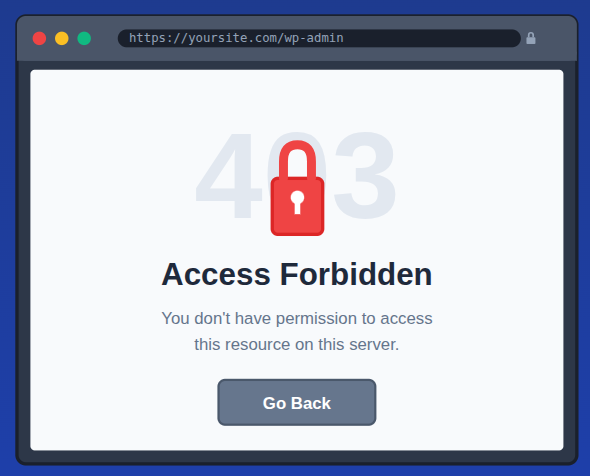
7. Forbidden 403 Error
A 403 error happens when your server blocks you from accessing a page you should be allowed to view.
Why it happens:
- Incorrect file permissions
- Security plugins blocking access
- Misconfigured .htaccess rules
How to fix it:
- Correct your file permissions (your host can help with this).
- Temporarily disable your security plugin.
- Replace the .htaccess file with a fresh one.
This issue is common on sites with strict security settings.
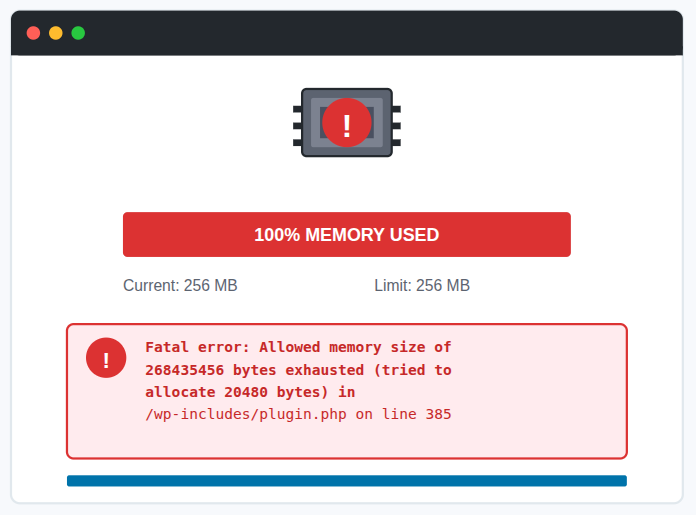
8. Memory Limit Exhausted Error
If you see something like “Allowed memory size exhausted”, it means your website needs more resources than the server is currently providing.
Why it happens:
- Resource-heavy plugins
- Large import/export tasks
- Running multiple plugins at the same time
How to fix it:
- Deactivate plugins that use a lot of memory, like page builders or analytics tools.
- Ask your hosting provider to increase your PHP memory limit.
- Consider upgrading your hosting plan if your site has grown.
This error is very common on shared hosting plans with limited memory.
9. Too Many Redirects Error
The “Too Many Redirects” error happens when your browser gets stuck in a loop trying to reach your website. Instead of loading the correct page, it keeps getting redirected back and forth until it finally gives up.
Why it happens:
- Wrong WordPress Address (URL) or Site Address settings
- Plugin conflicts (especially SEO, caching, or redirect plugins)
- Misconfigured .htaccess file
- HTTPS/SSL redirect loops when switching from HTTP to HTTPS
How to fix it:
- Check your WordPress URLs by navigating to the Settings → General and make sure your WordPress Address (URL), and Site Address (URL) match exactly.
- If your site uses HTTPS, both should start with https://.
- Clear your browser cookies and cache
- Disable redirect or caching plugins like, Redirection, Rank Math / Yoast SEO, WP Super Cache or LiteSpeed Cache, etc.
- Reset your .htaccess file
Once the incorrect rule or plugin is fixed, the site will load normally.
10. Syntax Error in WordPress
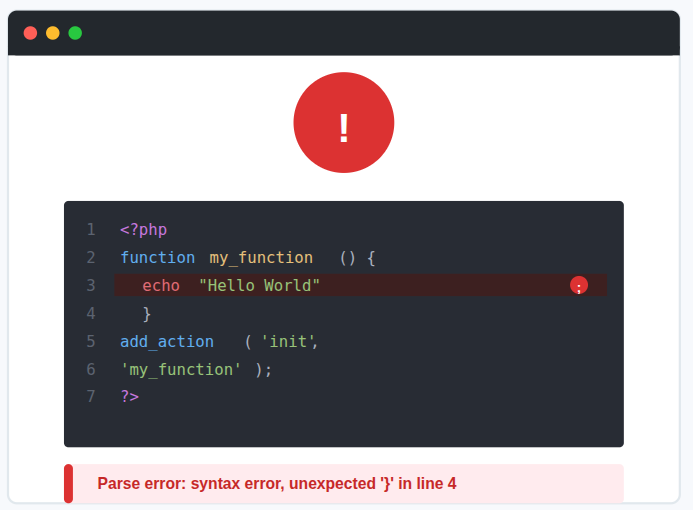
A syntax error usually appears right after editing code in WordPress—such as adding custom functions, editing a theme, or modifying a plugin. The screen often shows a message like:
“Parse error: syntax error, unexpected…”
Why it happens:
- Missing or extra characters like {}, (), ;, or quotes
- Copy–paste errors from code snippets
- Editing theme files incorrectly
- Incorrect PHP version compatibility
How to fix it:
- Identify the file and line number, the error message tells you the exact file and line causing trouble.
- Access your site via FTP or File Manager and open the file, such as, functions.php, header.php, custom.php
- Remove or fix the problematic code
- Upload the corrected file
Always use a child theme or Code Snippets plugin when adding custom code to avoid crashing your site. One tiny comma can break everything, code is sensitive.

10. Images Not Uploading in WordPress
Sometimes WordPress refuses to upload images, showing errors like:
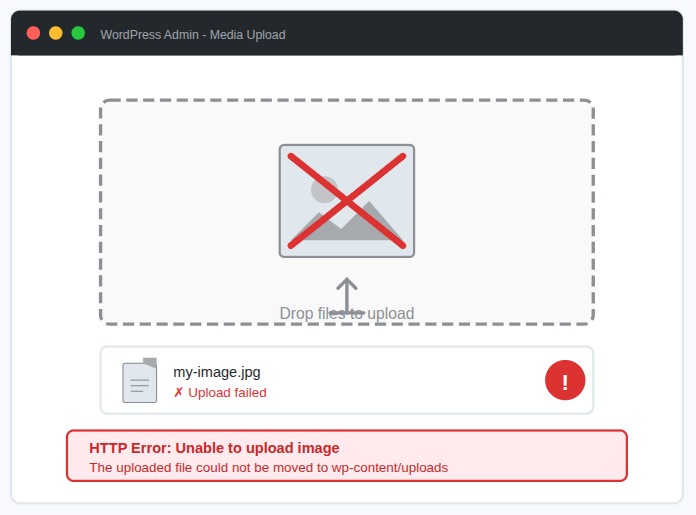
Why it happens:
- Wrong file permissions on the server
- Browser-related issues
- Conflicts with image optimization plugins
- Memory limits
- Incorrect folder structure inside /uploads
How to fix it:
- Check file permissions and Set wp-content/uploads permissions to 755
- Disable image optimization plugins like Smush, Imagify, or ShortPixel may block upload processing.
- Try a different browser
- Increase your PHP memory limit
- Verify your upload directory path
Once permissions or configuration are fixed, uploads should work normally.
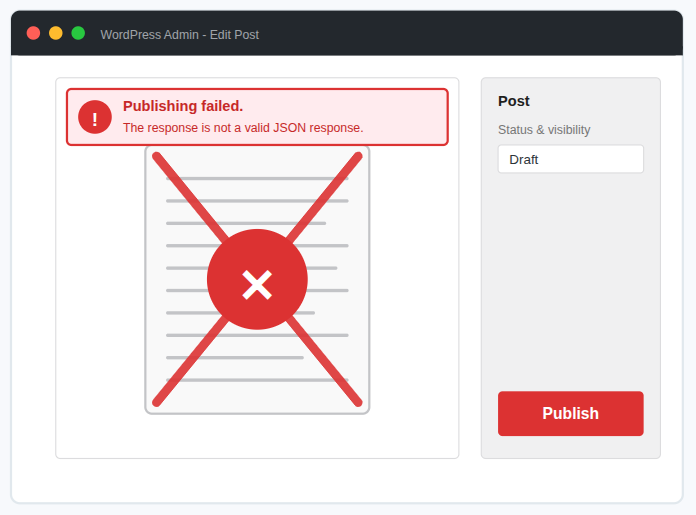
11. Updating Failed or Publishing Failed Error
This issue appears in the WordPress block editor (Gutenberg) when WordPress is unable to communicate with the server through the REST API.
Why it happens:
- Incorrect REST API settings
- Security plugins blocking requests
- Problems with the internet connection
- Caching issues
- Incorrect site URLs
- Server mod_security rules
How to fix it:
- Check your website URLs
- Disable conflicting plugins
- Enable HTTPS properly
- Clear cache
- Test REST API status by navigating to: “yourwebsite.com/wp-json/”. If it doesn’t load correctly, the REST API is blocked.
When WordPress can communicate again, the editor will publish normally.
12. Mixed Content Warnings
A mixed content warning appears when your website uses HTTPS, but some resources (such as images, CSS, or scripts) still load via HTTP. This makes the site partially insecure.
Why it happens:
- Old image URLs still using http://
- Hard-coded links in theme files
- Plugins loading external scripts without HTTPS
- Improper SSL configuration
How to fix it:
- Use a plugin like ‘Better Search Replace’ or ‘Really Simple SSL’ to update URLs
- Check your browser console to see which files are causing warnings.
- Replace any http:// URLs in theme files or header/footer scripts.
- Ensure your SSL certificate is active
When all resources load over HTTPS, the warning disappears and your padlock icon returns.
13. Website Slow or Not Loading Properly
A slow-loading WordPress website is one of the most common issues site owners face. Slow performance impacts your visitors and SEO rankings.
Why it happens:
- Too many active plugins
- Heavy themes or page builders
- Large, unoptimized images
- No caching system
- Slow hosting or overloaded servers
- External scripts (ads, tracking codes)
- Outdated PHP version
How to fix it:
- Install a caching plugin to speed up loading.
- Optimize your images
- Remove unnecessary plugins
- Use a lightweight theme like GeneratePress, Astra, or Blocksy
- Use a CDN (Content Delivery Network) to speed up global loading times.
- Update your PHP version to improve speed instantly.
Once optimized, your site will load faster, use fewer resources, and offer a better experience for users.
How ServerAvatar Helps Prevent Common WordPress Errors
Many WordPress errors don’t happen because WordPress itself is bad, they happen because of poor server configuration, limited resources, or complicated hosting setups. This is where using a smart server management platform like ServerAvatar can make a real difference.
What is ServerAvatar?
ServerAvatar is designed to simplify server hosting and management and reduce the chances of common WordPress issues before they even occur. Instead of manually configuring server settings or worrying about technical details, ServerAvatar handles the heavy lifting in the background.
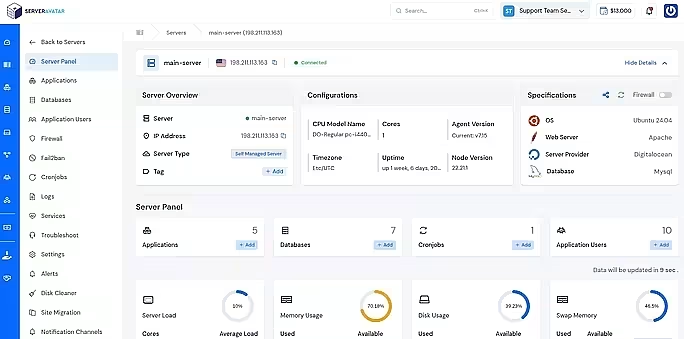
Here’s how ServerAvatar helps WordPress users avoid frequent errors:
1. Optimized Server Stack for WordPress
ServerAvatar sets up an optimized server environment (including Nginx, PHP, MySQL/MariaDB, and caching layers) that works smoothly with WordPress. This significantly reduces issues like:
- Internal Server Errors (500 errors)
- Memory limit exhausted errors
- Slow-loading or timeout issues
Because the server is properly tuned from the start, WordPress runs more efficiently with fewer conflicts.
2. Built-In Resource Management
Many WordPress errors happen when the site runs out of server resources. ServerAvatar gives you clear visibility into:
- CPU usage
- RAM usage
- Disk space
This makes it easier to spot problems early and prevent errors like the White Screen of Death or database connection failures caused by overloaded servers.
3. Simple Error Troubleshooting
ServerAvatar provides easy access to server logs and error details. Instead of guessing what went wrong, you can quickly identify:
- PHP errors
- Database issues
- Server-level configuration problems
This makes troubleshooting WordPress errors faster, even if you’re not a system administrator.
Note that ServerAvatar offers 24/7 technical support from our expert team to help you resolve any queries or server-level issues.
If you’re new to technical tasks and need assistance at the application level, our Premium Hosting Care Plan is the perfect solution.
A Premium Hosting Care Plan typically provides the following benefits:
- App Level Troubleshooting
- Custom Server Config
- Optimisation Assist
- Pro-Active Monitoring
- Free Inward Migration
- Priority Troubleshooting
- High Priority Support
- A dedicated, personalized Slack channel where you can connect directly with the entire ServerAvatar team for quick support
One-Click WordPress Installation with ServerAvatar
One of the biggest advantages of using ServerAvatar is its one-click WordPress and many other popular application installation features. This removes many setup-related mistakes that later cause errors.
Why One-Click Installation Matters
Manually installing WordPress often leads to:
- Incorrect database configuration
- Wrong file permissions
- Broken wp-config.php files
- Security misconfigurations
ServerAvatar eliminates these risks by handling everything automatically.
How One-Click WordPress Installation Works
With ServerAvatar:
- You select the WordPress application from the server panel
- Fill in the details and click Install
- ServerAvatar automatically configures the database, permissions, PHP version, and server settings
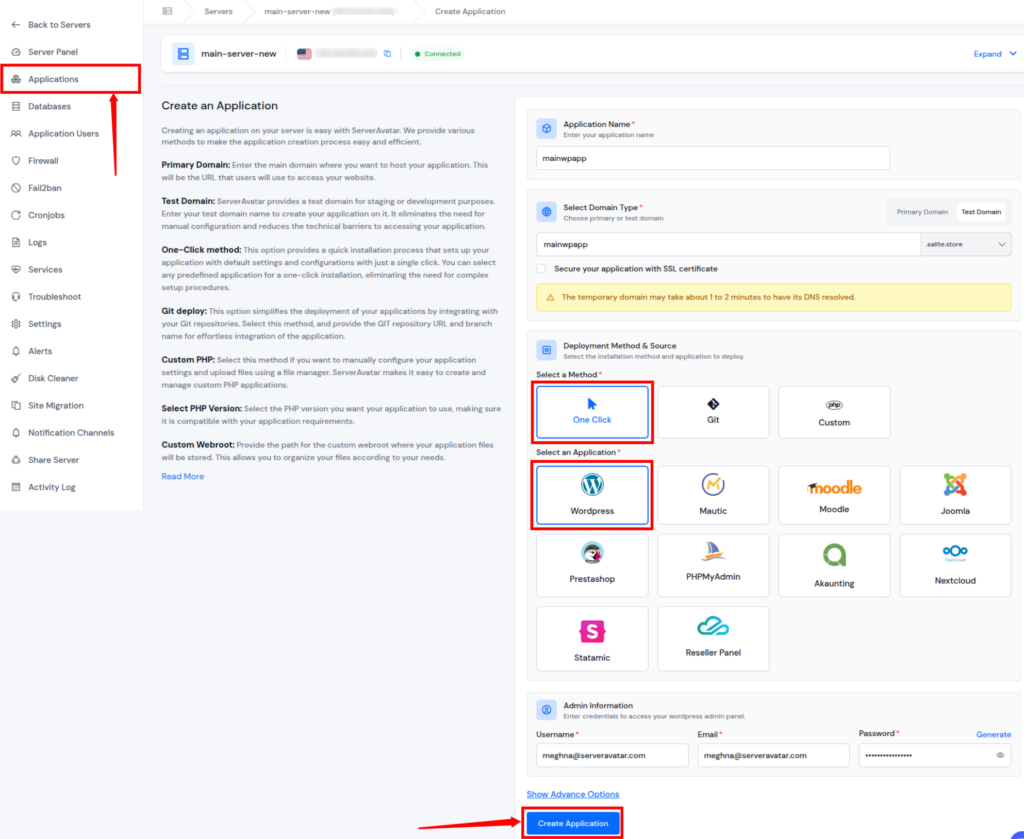
Your WordPress site is ready within minutes, no manual steps, no error-prone configuration.
Fewer Setup Errors, More Stability
Because WordPress is installed on a properly configured server:
- 404 errors caused by broken permalinks are reduced
- Database connection errors are far less likely
- Login issues and redirect loops are minimized
- Mixed content and SSL issues are easier to manage
This makes ServerAvatar a strong choice for beginners and professionals who want a smoother WordPress experience with fewer technical headaches.
Why This Matters for WordPress Site Owners
If you’re frequently dealing with WordPress errors, the problem may not be WordPress, it may be your hosting environment. Using ServerAvatar helps create a stable foundation where WordPress can run without constant troubleshooting.
Instead of fixing the same errors again and again, you start preventing them.
Conclusion
WordPress errors can be frustrating, but most of them are easy to fix once you understand what’s causing them. With the right troubleshooting steps and a stable server setup, you can resolve issues quickly and avoid repeated problems. By keeping your site optimized and using reliable tools, you’ll spend less time fixing errors and more time growing your WordPress website.
Many WordPress problems start at the server level. A well-configured hosting environment, proper resource management, and simplified setup can prevent many errors before they ever appear. With the ServerAvatar, you move from constantly reacting to issues to actively preventing them, keeping your WordPress site running smoothly for both you and your visitors.
FAQs About Common WordPress Errors
1. Are WordPress errors common?
Yes, WordPress errors are common and usually easy to fix with the right steps.
2. Can plugins cause most WordPress errors?
Plugin conflicts are one of the most common reasons for errors.
3. Do I need coding skills to fix WordPress errors?
Most fixes require basic actions like setting changes or file renaming.
4. How can I prevent WordPress errors in the future?
You can prevent many errors by keeping WordPress, plugins, and themes updated, using reliable plugins, choosing a stable hosting environment, and regularly backing up your site. A well-optimized server setup can also significantly reduce error frequency.
5. How can I prevent WordPress errors in the future?
You can prevent WordPress errors by keeping WordPress, themes, and plugins updated, using trustworthy plugins, and taking regular backups. Choosing a stable server setup also helps, ServerAvatar provides an optimized environment and one-click WordPress installation, reducing common server-related issues before they happen.