

Have you ever felt like your Linux system suddenly stopped listening to you? You click, you type, you wait… and nothing happens. It’s often because a process is already running in the background and refusing to let go. Linux is powerful, but sometimes that power needs to be controlled. That’s where knowing how to kill a running process in Linux becomes useful.
Think of a running process like a tap left open. Most of the time, water flows smoothly. But when something goes wrong, the tap keeps running and wastes resources. Stopping that flow is not about being harsh; it’s about regaining balance. In this guide, we’ll walk through everything in clear explanations so you can easily understand.
What Is a Process in Linux
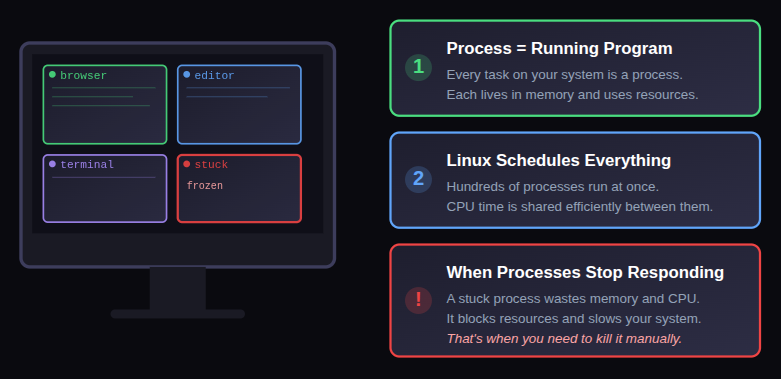
A process in Linux is simply a program that is currently running. Every action, whether visible or hidden, works through processes. Some start when the system boots, while others appear when you run a command or open an application.
Each process lives in memory and uses system resources. When everything works fine, processes start and stop on their own. Problems arise when a process refuses to stop or starts consuming more resources than it should.
How Linux Manages Multiple Processes
Linux is built to handle many tasks at once. It uses scheduling to decide which process gets attention and when. Even if hundreds of processes are running, Linux ensures they take turns efficiently.
This careful balance can break when one process stops cooperating. That’s when manual intervention becomes necessary.
Why Processes Become Unresponsive
A process may stop responding for many reasons. Sometimes it waits endlessly for a task to complete. Other times, it enters a state where it ignores input.
When this happens, the process continues to exist but does not behave normally. It may still consume memory or CPU power without doing anything useful.
What Happens When a Process Keeps Running
An unresponsive process doesn’t just sit quietly. It can slow down other tasks, delay system responses, or block resources.
Leaving such a process alone is like ignoring a warning light. Eventually, it can affect overall system performance.
Why You May Need to Kill a Process
Sometimes, a process becomes unresponsive. It may stop reacting to input or keep running endlessly. In such situations, waiting rarely helps.
Common reasons to kill a process include:
- It is frozen and not responding: The process stops reacting to user input or commands and cannot recover on its own.
- It is using too much CPU or memory: The process consumes excessive system resources, slowing down overall performance.
- It blocks other processes from working: The process holds system resources in a way that prevents other applications from running properly.
- It refuses to close normally: The process ignores normal close or exit commands and keeps running in the background.
Killing a process is like pressing a reset button; it helps your system breathe again.
What is Process Identification
Before stopping a process, Linux needs to know which one you’re referring to. That’s why identification matters.
Linux identifies processes using numbers rather than names. This avoids confusion when multiple processes share similar names.
Understanding Process IDs (PID)
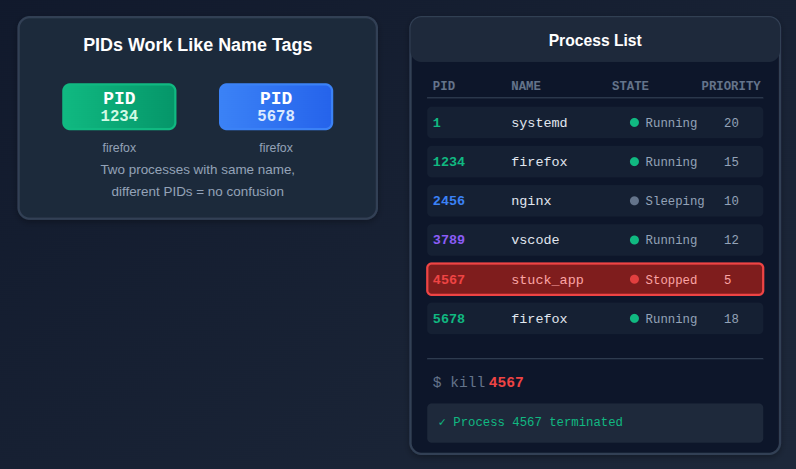
A Process ID (PID) is a unique number assigned to each running process. No two active processes share the same PID.
Think of a PID as a name tag. Instead of calling a process by name, Linux uses numbers to avoid confusion. Knowing the PID is often the first step before stopping a process.
How Linux Handles Running Processes
Linux is designed to multitask. It manages hundreds of processes at the same time without breaking a sweat. Each process has:
- A priority level: Determines how much CPU time the process receives compared to other running processes.
- A state (running, sleeping, stopped): Shows the current condition of the process and what it is doing at that moment.
- A unique PID: Acts as a distinct identification number that allows the system to track and manage the process accurately.
When you kill a process, you’re sending a message to Linux saying, “This one needs to stop now.”
Viewing Running Processes
Linux provides ways to see what is currently running. These tools list processes along with their PIDs, status, and resource usage.
Viewing processes before killing them helps ensure you are acting on the correct target and not stopping something important.
Common command to list processes:
ps auxThis command displays all running processes along with their PIDs, usage, and status. Another commonly used command is:
topThis shows processes in real time and helps identify resource-heavy ones.
While ps and top are powerful, many Linux users prefer htop because it is more visual and interactive.
htop provides a real-time view of running processes with color-coded information, making it easier to understand what is happening on your system. Unlike top, it allows you to scroll, search, and manage processes directly from the interface.
htopPlease note that the htop is not installed by default on most Linux systems. To install htop on Linux systems:
sudo apt install htopIntroduction to the kill Command
The kill command is the most common way to stop a running process in Linux. Despite its dramatic name, it doesn’t always mean force.
By default, kill politely asks a process to stop. If the process listens, it shuts down cleanly. If not, stronger signals can be used.
Basic kill Command Syntax:
kill PIDHere, PID is the Process ID of the program you want to stop.
Example:
kill 1425This sends a default signal (SIGTERM) to the process.
How Kill Signals Work
Signals are messages sent from the system to a process. Each signal has a purpose and meaning.
Some signals ask a process to stop gently, while others demand immediate termination. Choosing the right signal matters.
Different Types of Kill Signals
Linux uses signals to communicate with processes. Signals are instructions sent to a process.
Common signals include:
- SIGTERM (15): Sends a graceful stop request that allows the process to shut down cleanly.
- SIGKILL (9): Immediately ends the process without giving it a chance to clean up.
- SIGHUP (1): Instructs a process to reload or restart its configuration.
Signals give you control over how gently or firmly you want to stop a process.
Sending a Default Kill Signal
When you use the kill command without specifying a signal, Linux sends SIGTERM by default.
This allows the process to clean up before exiting. It’s the safest and most recommended approach.
Syntax:
kill -15 PIDor simply:
kill PIDThis allows the process to clean up before stopping.
Using SIGKILL (Force Kill)
Sometimes, a process ignores polite requests. In such cases, you can specify a signal number with the kill command. If a process ignores SIGTERM, you can use SIGKILL, which forces immediate termination.
Syntax:
kill -9 PIDThis signal cannot be ignored, but it does not allow cleanup. Use it only when necessary. Understanding signal numbers helps you choose the right approach instead of jumping straight to force.
Killing a Process Using PID
Once you know the PID, stopping the process becomes straightforward.
Example workflow:
ps aux | grep process_name
kill PIDThis approach ensures accuracy and avoids stopping the wrong process.
Killing a Process by Name
Remembering PIDs isn’t always convenient. Linux offers ways to kill a process using its name instead.
This method is useful when multiple instances of the same process are running. Instead of tracking numbers, you simply refer to what the process is called.
It’s a faster and more human-friendly way to manage running tasks.

Difference Between kill, pkill, and killall
Linux provides multiple tools for stopping processes, and each has a purpose.
- kill works with PIDs: It stops a process by targeting its unique process ID.
- pkill works with process names and patterns: It ends processes by matching their names or specific patterns.
- killall stops all processes with a specific name: It terminates every running instance of a given process at once.
Choosing the right tool makes the job easier and reduces mistakes.
Using pkill Command
The pkill command stops processes based on their name.
Syntax:
pkill process_nameExample:
pkill firefoxThis sends SIGTERM by default to all matching processes.
Using killall Command
This command stops all processes with a specific name.
Syntax:
killall process_nameExample:
killall nginxThis is powerful and should be used carefully.
Killing Multiple Processes at Once
Sometimes, more than one process needs to be stopped. Linux allows you to target multiple processes in one command.
This is helpful when several related processes are misbehaving. Instead of repeating the same command again and again, you can handle them together.
Syntax:
kill PID1 PID2 PID3Example:
kill 3596 1485 1685This saves time and improves efficiency. Efficiency matters, especially when managing a busy system.
Safe Practices Before Killing a Process
Before stopping a process, it’s always smart to pause and check.
- Confirming the process identity: Make sure you have selected the correct process before attempting to stop it.
- Trying a normal stop before force: Always attempt a graceful termination before using a forceful kill.
- Avoiding critical system processes: Stay away from stopping essential system processes that could affect system stability.
A little caution can prevent unexpected issues later.
Avoid these common errors:
Killing processes is powerful, but mistakes can happen.
- Killing system-level processes without understanding them
- Using force kill too quickly
- Stopping the wrong process due to similar names
- Being careful keeps your system stable and reliable.
What Happens After a Process Is Killed
Once a process is killed, Linux frees the resources it was using. Memory is released, CPU usage drops, and the system regains balance.
In most cases, nothing else happens. However, if the process was important, other services might be affected. That’s why knowing what you’re stopping matters.
When Not to Kill a Process
Not every slow or unfamiliar process needs to be killed. Some processes may look inactive but are doing essential background work.
If you’re unsure, it’s better to observe first. Killing without understanding can cause more harm than good.
Conclusion
Learning how to kill a running process in Linux is an essential skill for anyone who works with a Linux system, whether you’re a beginner or an experienced user. Processes are the backbone of everything Linux does, and while most of them behave as expected, some can become unresponsive or start consuming more resources than they should. When that happens, knowing how to identify and stop the right process helps you regain control without rebooting your system or causing unnecessary disruption.
By understanding what processes are, how Linux manages them, and how tools like ps, top, htop, and the kill command work, you can handle problematic situations calmly and confidently. Using the default kill signal first and escalating only when necessary keeps your system stable and safe. Most importantly, being cautious about what you terminate ensures you don’t accidentally stop critical system services.
FAQs
1. What does killing a process in Linux mean?
Killing a process means sending a signal to stop a running program so it no longer uses system resources.
2. Is killing a process dangerous?
It can be safe if done carefully, but stopping important system processes may cause issues.
3. What is the safest signal to use when killing a process?
SIGTERM is the safest because it allows the process to close properly.
4. Can a killed process restart automatically?
Some processes may restart if managed by system services or monitoring tools.
5. Should I always use force kill for stuck processes?
No, force kill should be the last option after gentler methods fail.
Stop Wasting Time on Servers. Start Building Instead.
You didn’t start your project to babysit servers. Let ServerAvatar handle deployment, monitoring, and backups — so you can focus on growth.
Deploy WordPress, Laravel, N8N, and more in minutes. No DevOps required. No command line. No stress.
Trusted by 10,000+ developers and growing.