

You finish setting up your WordPress website, click on a post with a clean, SEO-friendly URL… and suddenly you’re staring at a 404 error. Frustrating, right? Your homepage loads perfectly, but posts, pages, or category links refuse to open. This usually means one thing: your WordPress permalinks are not working.
When WordPress permalinks stop working, it can break blog posts, pages, and even affect your search rankings. The good news is that this problem is common, easy to fix, and usually doesn’t require advanced technical skills.
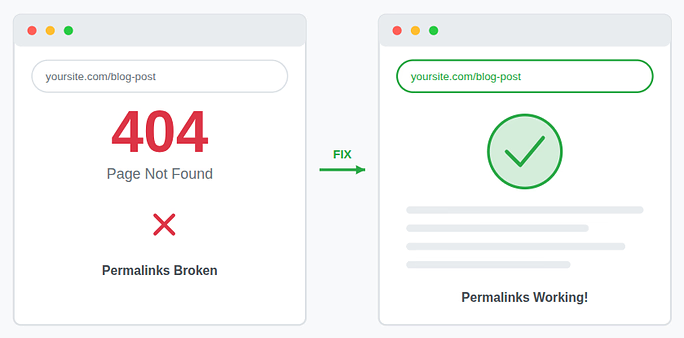
In this guide, we will see why WordPress permalinks stop working and how to fix them step by step, with beginner-friendly methods.
What Is WordPress?
WordPress is the world’s most popular open-source content management system (CMS), used to build websites, blogs, and e-commerce stores. It offers flexibility through themes and plugins, making it suitable for beginners, developers, and businesses of all sizes.
How ServerAvatar Simplifies WordPress Deployment & Management
What is ServerAvatar?
ServerAvatar is a platform to simplify the hosting and management of servers and applications. It simplifies the process of deploying and managing PHP and Node.js based web applications on servers.
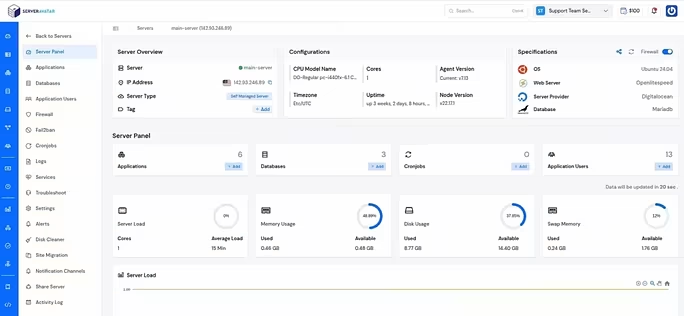
ServerAvatar makes WordPress and other popular applications, such as Mautic, N8N, UptimeKuma, etc, deployment effortless with its one-click WordPress application installer, allowing you to launch a fully configured WordPress site in minutes. It removes the complexity of server setup by providing an intuitive dashboard to manage servers, applications, databases, PHP versions, SSL, and performance settings from one place.
ServerAvatar supports multiple cloud providers and gives users full control over their infrastructure while eliminating the need for deep server administration knowledge. You can refer to the ServerAvatar documentation and the detailed blog to install WordPress effortlessly.
Key Benefits of Using ServerAvatar for WordPress
- One-click WordPress installer: Deploy WordPress instantly without manual configuration.
- Unified management panel: Manage servers and WordPress applications from a single dashboard.
- Performance optimization: Easily configure caching, PHP, and server resources.
- Enhanced security: Includes firewall, SSL management, and secure access controls.
- Easy scalability: Upgrade server resources as your WordPress site grows.
ServerAvatar is an ideal solution for users who want the power of cloud servers without the operational complexity. It simplifies WordPress hosting by automating server setup, streamlining application management, and providing performance and security optimizations out of the box.
Whether you’re a developer, agency, or business owner, ServerAvatar allows you to deploy, manage, and scale WordPress websites confidently while focusing on growth instead of infrastructure management.
What Are WordPress Permalinks?
WordPress permalinks are the permanent web addresses assigned to your website’s content, including blog posts, pages, categories, and tags. These URLs are designed to stay the same over time, making it easy for users and search engines to find and revisit your content without confusion.
A well-structured permalink clearly describes what a page is about, which improves readability and helps search engines understand your content better. When permalinks are not set correctly or stop working, WordPress struggles to map the URL to the right page, often resulting in broken links or 404 errors.
Example:
- Not a Permalink: https://example.com/?p=123
- Proper Permalink: https://example.com/how-to-fix-wordpress-permalinks
Why permalinks matter:
- Improve website SEO by using clear, keyword-friendly URLs
- Make links easier for visitors to read, remember, and trust
- Help WordPress correctly locate and display your content
Common Signs of WordPress Permalinks Not Working
You may be facing a permalink issue if you notice any of the following:
- Posts or pages show 404 errors
- URLs work only with ?p=123 format
- Category and tag pages don’t load
- The homepage works, but inner pages don’t
- Errors started after a plugin install, theme change, or site migration
These problems usually appear after installing a plugin, changing settings, migrating your site, or moving to a new hosting server. If this sounds familiar, keep reading, there’s a fix.
Why WordPress Permalinks Stop Working
Understanding main cause helps to apply the right fixes. Here are the most common reasons:
- Incorrect permalink settings: WordPress relies on permalink settings to generate URL rules. If these rules break or don’t refresh properly, links stop working.
- Missing or corrupted .htaccess file: The .htaccess file controls URL rewriting. If it’s missing, deleted, or corrupted, permalinks won’t work.
- Server Configuration Issues: Your server must support URL rewriting (such as Apache’s mod_rewrite). If it’s disabled, WordPress permalinks fail.
- Plugin conflicts: Some plugins, especially caching, security, or redirection plugins, can interfere with permalink rules.
- Theme Issues: A poorly coded or outdated theme can override rewrite rules and break permalinks.
- Site Migration or Hosting Changes: Moving your site to a new domain or server often resets rewrite rules and file permissions.
Now, let’s fix it.
Method 1: Reset WordPress Permalink Settings
Resetting the permalink settings is the easiest and most effective way to fix permalink issues in WordPress. When you save these settings, WordPress automatically regenerates its URL rewrite rules, which often clears up broken or incorrect links without any technical effort.
Steps to reset permalinks:
- Log in to your WordPress Dashboard
- Go to Settings >> Permalinks
- Now, note down your current permalink structure, and try a different permalink structure
- Click on Save Changes
- Now, revert to your original, required structure and save the changes again.
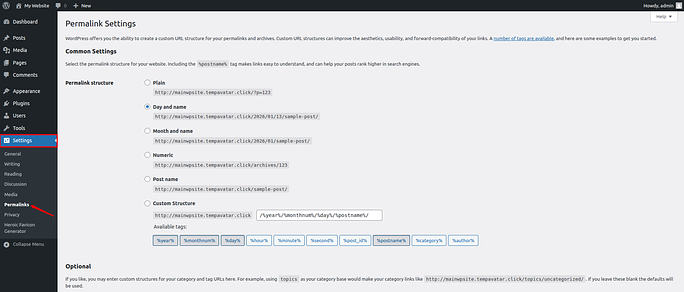
You don’t need to make any changes. Saving the settings forces WordPress to refresh the permalink rules. Check your posts again. In many cases, this alone solves the issue.
Method 2: Check and Fix the .htaccess File
If resetting the permalink settings does not solve the issue, the problem is often linked to the .htaccess file. This file plays a crucial role in how WordPress handles URL rewriting, and if it is missing, corrupted, or incorrectly configured, permalinks will not work properly.
Steps to check and fix the .htaccess file:
- Open your WordPress root directory (usually public_html)
- Locate the file named .htaccess
- Open it and confirm it contains the default WordPress rewrite rules as mentioned below:
# BEGIN WordPress
<IfModule mod_rewrite.c>
RewriteEngine On
RewriteBase /
RewriteRule ^index\.php$ - [L]
RewriteCond %{REQUEST_FILENAME} !-f
RewriteCond %{REQUEST_FILENAME} !-d
RewriteRule . /index.php [L]
</IfModule>
# END WordPressIf the .htaccess file is missing:
- Create a new file named .htaccess
- Paste the default WordPress code into it given above
- Save the file and set permissions to 644
Method 3: Temporarily Disable Plugins
Plugins add powerful features to WordPress, but sometimes they can conflict with core settings like permalinks. Certain plugins may alter rewrite rules or apply redirects that prevent WordPress from loading URLs correctly, leading to broken links or 404 errors.
By disabling plugins temporarily, you can quickly identify whether a plugin is causing the permalink issue. Once you find the problematic plugin, you can replace it or adjust its settings to avoid future conflicts.
Steps:
- Go to Plugins >> Installed Plugins section from your WordPress admin dashboard
- Deactivate all plugins at once
- Now, test if permalinks start working
- Reactivate all the plugin one after one until issue reappear, it will helps to find out which plugin actually conflicts.
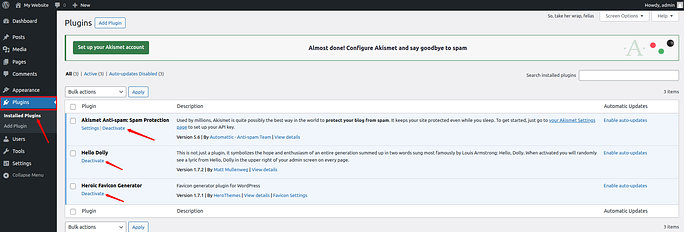
Plugins related to caching, security, SEO, and redirects are the most common sources of permalink problems.
Method 4: Switch to a Default Theme
Sometimes, the problem isn’t WordPress itself but the theme you are using. A poorly coded or outdated theme can override rewrite rules or include faulty functions that interfere with how permalinks work, resulting in broken links across your site.
Switching to a default WordPress theme helps you quickly confirm whether your current theme is causing the issue. If permalinks work after switching, you’ll know the theme needs fixing or replacing.
- Go to Appearance >> Themes section
- Activate a default theme such as Twenty Twenty-Four
- Now, test your links by opening a few posts or pages
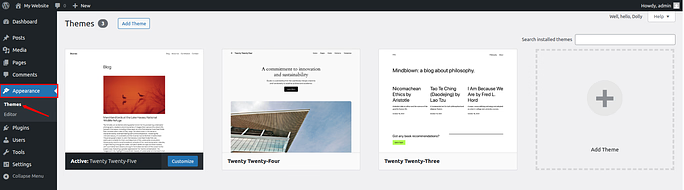
If permalinks start working, the issue lies within your theme’s code.
Method 5: Check File and Folder Permissions
WordPress needs proper file and folder permissions to update permalink and rewrite rules. If permissions are too restrictive, WordPress cannot write necessary changes, which may cause permalinks to stop working without any visible error.
Checking and correcting permissions ensures WordPress can function smoothly and manage URL rules correctly.
Recommended permission settings:
- Folders: 755
- Files: 644

Method 6: Fix Permalinks After Site Migration
If your permalinks stopped working after moving your website to a new server or domain, the migration process is likely the cause. Server settings, rewrite rules, and file paths often change during migration, which can break existing URLs.
Refreshing WordPress settings and confirming core files usually resolves these issues quickly.
- Re-save permalink settings under Settings >> Permalinks
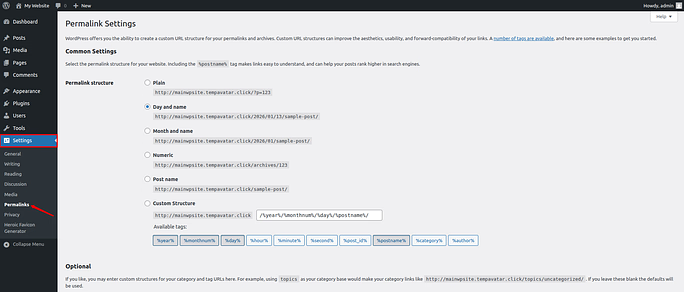
- Please check the .htaccess file exists in WordPress root directory
- Update WordPress Address and Site Address in Settings >> General
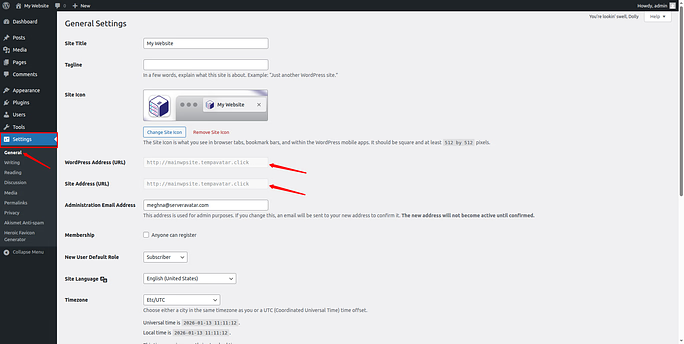
- Clear all plugin and server-level caches
Migration often resets server configurations, which can cause permalink issues.
How to Prevent Permalink Issues in the Future
Once your permalinks are working again, a few best practices can help you avoid similar problems down the road. Small precautions during updates, migrations, or design changes can save hours of troubleshooting later.
Best practices to avoid permalink problems:
- Avoid changing permalink structures on a live website
- Use well-reviewed and trusted plugins only
- Always create a full backup before major updates or migrations
- Clear cache after site changes or server moves
- Choose reliable, WordPress-friendly hosting
A little caution and preparation go a long way in keeping your WordPress permalinks healthy and reliable.
Conclusion
WordPress permalinks not working can be frustrating, especially when your homepage loads fine but posts and pages return 404 errors. However, as you’ve seen in this guide, the issue is usually caused by simple configuration problems related to permalink settings, plugins, themes, server setup, or site migrations.
By following the step-by-step methods outlined above, starting with resetting permalink settings and moving on to checking the .htaccess file, plugins, themes, permissions, and migration settings, you can quickly restore your website’s links without advanced technical knowledge. With the right hosting environment and a few best practices in place, you can keep your WordPress permalinks stable, SEO-friendly, and user-ready for the long term.
Frequently Asked Questions
1. Why are my WordPress permalinks showing a 404 error?
This usually happens due to incorrect permalink settings, a missing or corrupted .htaccess file, plugin conflicts, theme issues, or server rewrite settings being disabled.
2. Can resetting permalinks affect my website content?
No, resetting permalink settings does not delete or modify your posts or pages. It only refreshes WordPress’s URL rewrite rules.
3. What is the .htaccess file, and why is it important?
The .htaccess file controls how URLs are rewritten on your server. WordPress relies on it to route clean permalink URLs to the correct content.
4. Do plugins really cause permalink problems?
Yes, especially caching, security, SEO, and redirection plugins. These plugins can override rewrite rules or apply redirects that break permalinks.
5. Why do permalinks break after migrating a WordPress site?
During migration, server configurations, file paths, and rewrite rules may reset. Re-saving permalinks and checking the .htaccess file usually fixes the issue.
6. Should I change my permalink structure on a live site?
It’s not recommended. Changing permalinks on a live website can break existing links and negatively impact SEO unless proper redirects are set up.