

Cloning a WordPress site is one of the smartest ways to save time, reduce risk, and speed up website management. When you clone a WordPress site, you can quickly create a staging environment, move your website to a new server, or build multiple similar websites without starting from zero. This approach helps ensure consistency while avoiding manual setup errors.
The best part? You don’t need coding knowledge at all.
In this guide, you’ll learn how to clone a WordPress site without coding, explore common beginner-friendly method, and see how ServerAvatar’s Site Clone feature makes the entire process simple, safe, and fast.
What is ServerAvatar?
ServerAvatar is a platform to simplify the hosting and management of servers and applications. It simplifies the process of deploying and managing PHP and Node.js based web applications on servers.
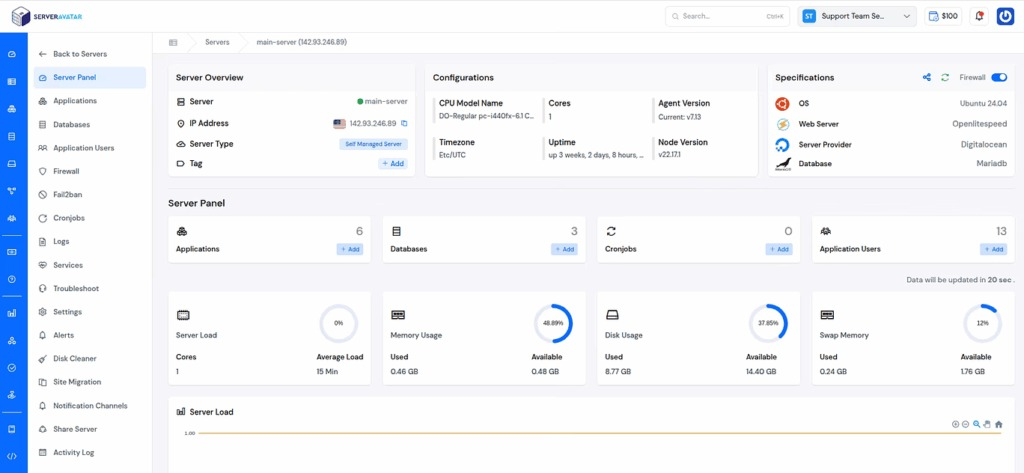
If you’re using ServerAvatar to manage your servers and applications, deploying and managing WordPress and other applications are incredibly simple, and it is very easy to clone your websites.
What Does It Mean to Clone a WordPress Site?
Cloning a WordPress site refers to creating a full duplicate of an existing website that can run separately. The cloned version mirrors the original site’s structure and content but functions as an independent website.
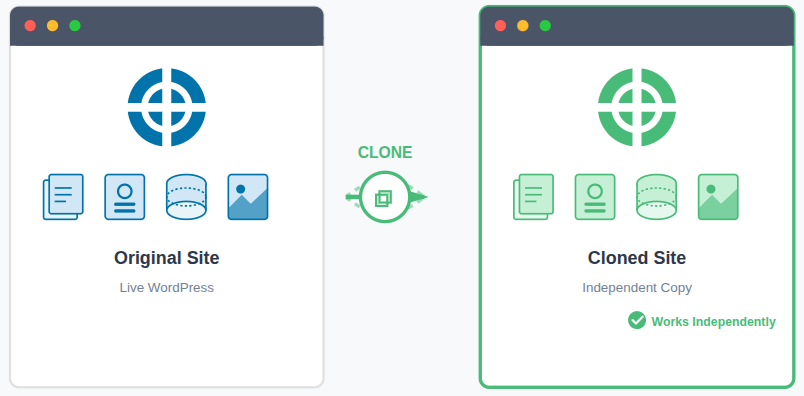
- Website files: Copies all essential files that power the WordPress site
- WordPress core: Duplicates the WordPress system needed for site operations
- Themes and plugins: Includes all design elements and added functionalities
- Media files: Transfers images, videos, and other uploaded assets
- Database content: Replicates posts, pages, users, and settings
- Site configuration: Preserves site-specific configurations and preferences
The cloned site operates independently, so changes made to it will not impact the live website.
Why Would You Need to Clone a WordPress Site?
Cloning a WordPress site helps you work safely without risking the live website. It provides a controlled environment where changes can be tested, refined, or prepared before going public.
- Creating a staging site: Tests updates and changes without affecting visitors
- Migrating to a new server or domain: Moves the site safely with minimal risk
- Designing a new layout: Experiments with design changes without downtime
- Launching similar websites: Reuses the same structure to save setup time
- Keeping a backup copy: Acts as a safety net before major modifications
Instead of experimenting on a live site, cloning allows you to work with confidence.
Understanding Different WordPress Cloning Use Cases
WordPress cloning is not a one-size-fits-all process. The purpose of cloning determines how the cloned site should be configured and used.
A staging clone is commonly used to:
- Test WordPress core updates: Ensures updates do not break the live site
- Try new plugins or themes: Check compatibility and performance safely
- Redesign layouts: Builds and previews design changes before launch
- Fix bugs privately: Resolves issues without affecting real users
This use case is ideal for ServerAvatar’s test domain cloning, which keeps experiments separate from production.
Server-Level Cloning vs Plugin-Based Cloning
While plugins are popular for beginners, server-level cloning offers greater reliability and control. The difference lies in how and where the cloning process takes place.
Plugin-Based Cloning
- Works inside WordPress: Relies on the WordPress dashboard and environment
- Depends on PHP limits: Performance is restricted by hosting resources
- Can fail on large sites: Struggles with heavy databases or files
- Limited server control: Offers minimal access to server-level settings
Server-Level Cloning
- Works outside WordPress: Functions independently of the WordPress dashboard
- Handles large sites smoothly: Manages big databases and files efficiently
- More stable and reliable: Reduces errors during cloning
- Suitable for staging and production: Supports professional workflows
ServerAvatar performs cloning at the infrastructure level, making it more dependable for serious WordPress management.
Why Clone WordPress Without Coding?
Traditional cloning methods require handling files, databases, and server commands manually, which can be risky for non-technical users. Cloning without coding removes these complications entirely.
- No technical skills required: Anyone can clone a site with ease
- Faster setup: Reduces time spent on manual tasks
- Lower risk of errors: Avoids misconfigurations and data loss
- Beginner-friendly interface: Simplifies the entire cloning process
- Minimal downtime risk: Keeps the live site safe and uninterrupted
With ServerAvatar, WordPress cloning becomes accessible, secure, and stress-free for everyone.
How to Clone a WordPress Site Using ServerAvatar
ServerAvatar provides a built-in Site Clone feature that allows you to duplicate WordPress applications in just a few steps.
This method is ideal for:
- Creating staging environments
- Copying WordPress sites between servers
- Launching test sites quickly
- Managing multiple similar projects
How ServerAvatar Handles WordPress Cloning Internally
While users never see the complexity, ServerAvatar automates several critical tasks during cloning:
- Copies all application files securely
- Duplicates the database without corruption
- Updates configuration paths automatically
- Maintains correct file permissions
- Preserves WordPress functionality
All of this happens behind the scenes, and allowing users to focus on their website instead of server operations.
Step-by-Step: Cloning a WordPress Site with ServerAvatar
Step 1: Log in to ServerAvatar
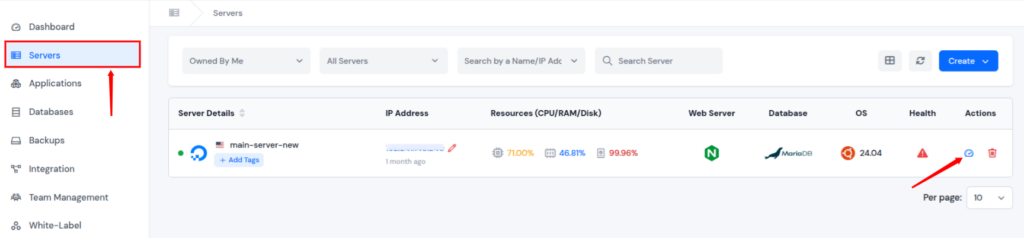
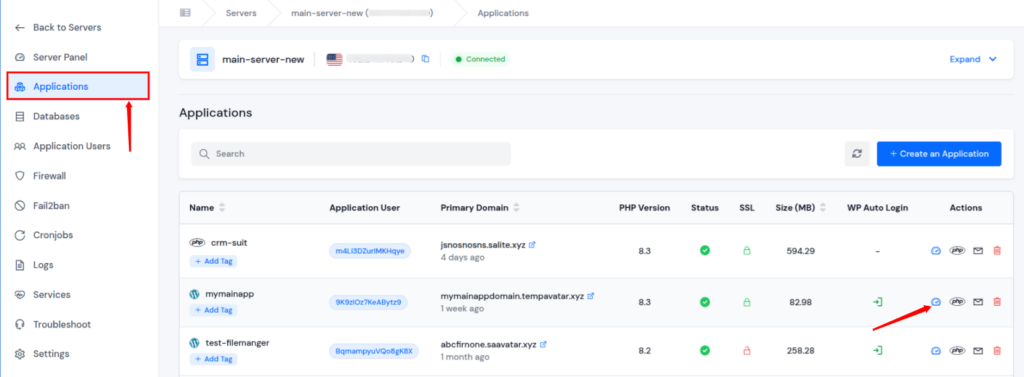
- Access your ServerAvatar dashboard and select the server where your WordPress site is hosted. Click on the ServerAvatar Dashboard icon.
Step 2: Open the Applications Panel
- From the server dashboard, navigate to the Applications section to see a list of installed applications.
- Choose the WordPress site you want to clone, and click on the dashboard icon to open the application panel.
Step 3: Configure Clone Settings
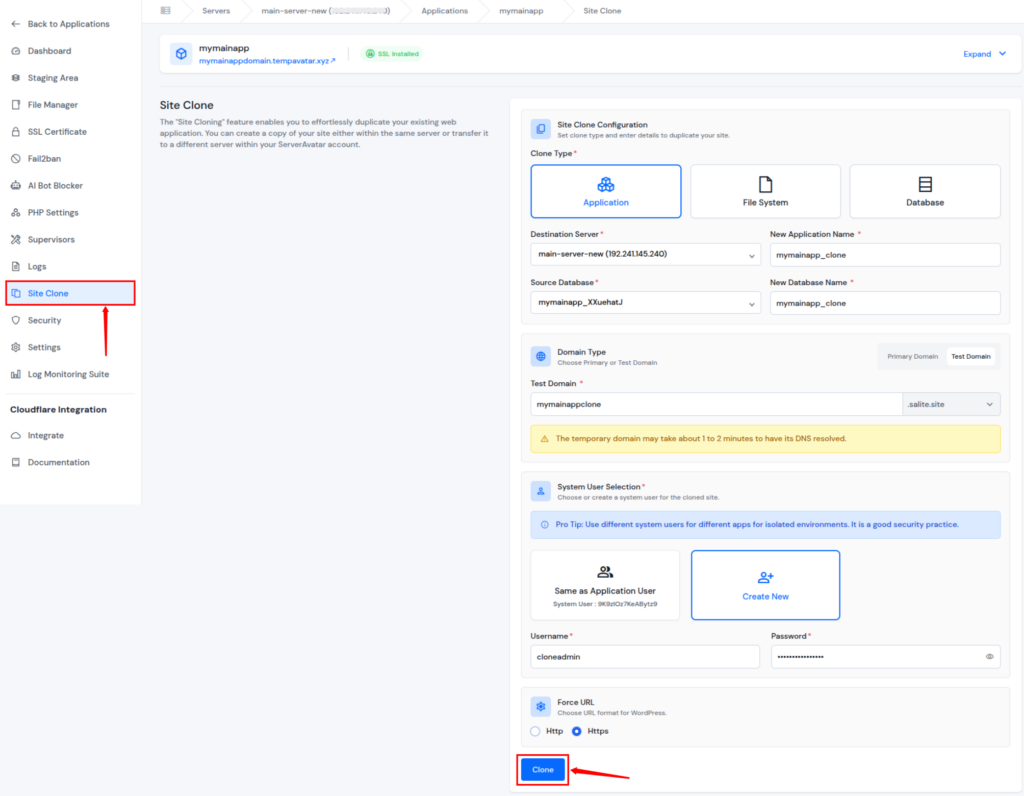
- Inside the application panel, select the Site Clone option.
- Fill in the required details:
- Clone Type: Choose Application to duplicate the full WordPress site
- Destination Server: Select the server where the cloned site will be created
- New Application Name: Assign a name to identify the cloned site
- Source Database: Select the database of the application
- New Database Name: Assign a name to the cloned application’s database
- Domain Option: Select from a primary domain or a test domain for staging
- System User: Keep existing settings or choose a new one as per your requirements
- Force URL: Choose URL format from Https or Https for your WordPress application
Step 4: Start the Cloning Process
- Click Clone, and ServerAvatar will automatically:
- Copy all website files
- Duplicate the database
- Configure the new application
- Set correct permissions
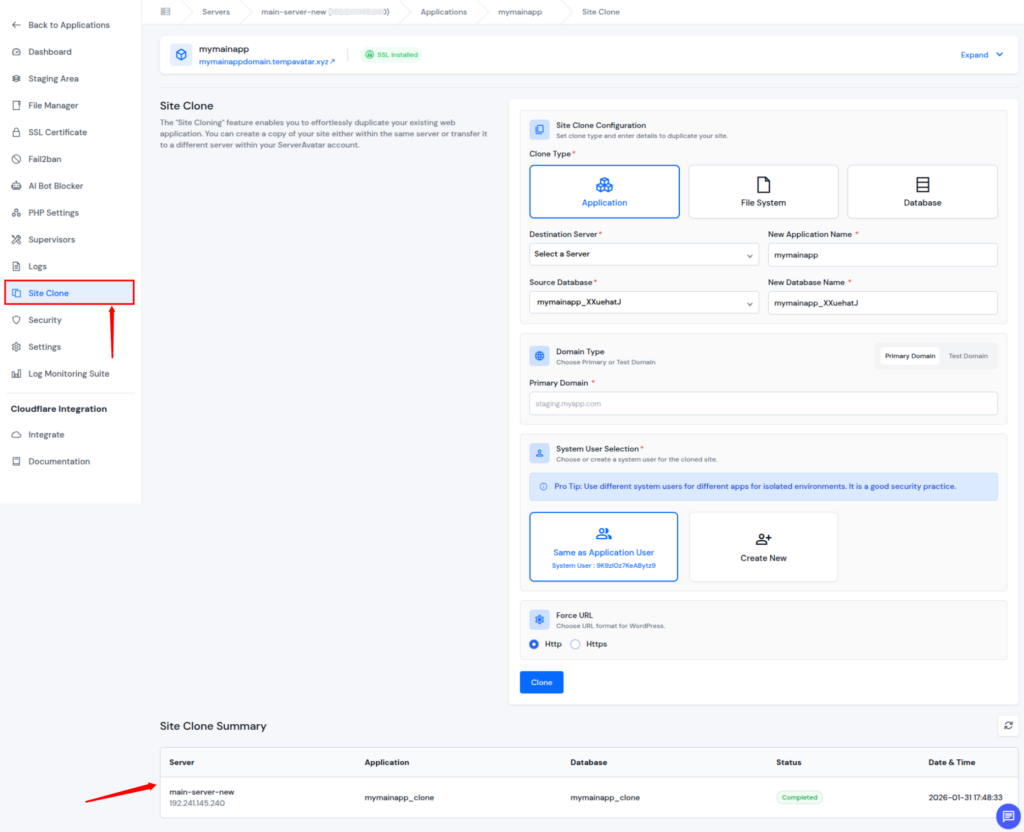
Once completed, your cloned WordPress site will be ready to use.
Why Use ServerAvatar for WordPress Cloning?
ServerAvatar simplifies WordPress cloning by removing technical barriers and manual effort. It provides a reliable, server-level cloning solution designed for both beginners and professionals.
- No plugins required: Clones your site without relying on WordPress plugins
- No coding or command-line work: Everything is handled through an intuitive dashboard
- Faster cloning process: Duplicates sites quickly with minimal waiting time
- Ideal for staging and production: Supports safe testing and live deployments
- Full server and application control: Gives better flexibility over site environments
- Beginner-friendly dashboard: Easy to use even for non-technical users
This makes ServerAvatar especially useful for developers, agencies, and businesses managing multiple WordPress websites.
Best Practices After Cloning a WordPress Site
Cloning is only the first step. Following best practices after cloning ensures the new site functions correctly and avoids common issues.
- Test the cloned site thoroughly: Verify pages, forms, and functionality
- Check internal links and media files: Ensures all resources load properly
- Enable SSL on new domains: Avoids security warnings and browser errors
- Keep the clone separate from live site: Prevents accidental changes to production
These steps help maintain performance, security, and stability after cloning.
When to Use a Test Domain for Cloning
A test domain allows you to work on a cloned site without exposing it publicly. It’s ideal for development, testing, and quality assurance tasks.
- Avoid search engine indexing: Keeps the clone hidden from search results
- Test design or functionality safely: Experiment without user impact
- Prepare sites not ready for launch: Work privately before going live
ServerAvatar lets you assign a test domain during cloning, making it perfect for staging and QA environments.
SEO Considerations When Cloning a WordPress Site
If not handled carefully, cloning can create duplicate content issues that harm SEO. Proper domain and indexing control is essential.
- Use a test domain or block indexing: Prevents search engines from crawling clones
- Avoid duplicate live domains: Ensures only one version is indexed
- Disable indexing on staging sites: Keeps unfinished content private
- Point DNS only when ready: Avoids SEO conflicts during migration
Performance Benefits of Cloning with ServerAvatar
ServerAvatar performs cloning at the server level, ensuring consistent performance across original and cloned sites.
- Faster load times: Avoids plugin-related performance overhead
- Optimized server resources: Efficient use of system resources
- No plugin dependency: Keeps WordPress lightweight and clean
- Cleaner installations: Results in stable and optimized WordPress setups
This makes ServerAvatar ideal for performance-focused WordPress projects.

Security Advantages of Non-Coding Cloning
Manual cloning methods can expose sensitive data if done incorrectly. ServerAvatar builds security directly into the cloning process.
- Automated permissions: Prevents incorrect file access settings
- Isolated system users: Keeps applications separated and secure
- Secure test environments: Protects staging sites from unauthorized access
- HTTPS enforcement support: Ensures secure connections during cloning
With ServerAvatar, security is part of the workflow, not an afterthought.
Common Mistakes to Avoid While Cloning WordPress
Even simple cloning processes can lead to issues if basic precautions are ignored. Being known of common mistakes can help you to avoid problems.
- Making clones public unintentionally can cause SEO and security risks
- Forgetting to update site URLs leads to broken links and redirects
- Skipping cache cleanup causes outdated content to appear
- Editing the live site by mistake risks damaging production content
- Not taking backups first makes recovery difficult if something fails
How Cloning Improves WordPress Workflow Efficiency
Cloning changes the way teams manage WordPress sites by making development safer and faster.
- Faster updates: Test and deploy changes with confidence
- Safer experimentation: Try ideas without risking live sites
- Better collaboration: Teams can work on separate environments
- Reduced downtime: Issues are resolved before going live
- Easier rollbacks: Quickly switch back if something goes wrong
For multi-site management, cloning becomes a core part of an efficient workflow.
Who Should Use ServerAvatar’s Cloning Feature?
ServerAvatar is designed to support a wide range of users with different experience levels.
- Beginners: Clone sites without technical complexity
- Freelancers and agencies: Manage multiple client projects easily
- SaaS founders: Test features and environments quickly
- Developers with multiple servers: Maintain consistent workflows
- Businesses with critical websites: Reduce risk during changes
If you want full control without added complexity, ServerAvatar offers the perfect balance.
Conclusion
Cloning a WordPress site no longer needs to be a complex or risky task reserved for developers. With the right approach and tools, anyone can duplicate a website safely for testing, migration, or scaling purposes. ServerAvatar simplifies the entire process by offering a server-level Site Clone feature that removes the need for plugins, coding, or manual server work. From staging and performance optimization to security and SEO control, ServerAvatar provides a reliable and beginner-friendly solution for managing WordPress clones efficiently. If you’re looking for a faster, safer, and smarter way to clone WordPress sites, ServerAvatar offers the perfect balance of simplicity and control.
FAQs
1. Is cloning a WordPress site the same as taking a backup?
Cloning creates a fully functional duplicate of your website that can run independently, while a backup is mainly used for recovery purposes.
2. Can cloning a WordPress site affect the live website?
A cloned WordPress site operates separately. Any changes made to the clone will not impact the live site when cloning is done correctly.
3. Do I need technical knowledge to clone a WordPress site using ServerAvatar?
ServerAvatar is designed for beginners and does not require coding, command-line access, or server expertise.
4. Is it safe to use plugins for WordPress cloning?
Plugins can work for smaller sites, but they may struggle with large websites or limited server resources. Server-level cloning with ServerAvatar is more stable and reliable.
5. Is cloning suitable for large WordPress websites?
ServerAvatar’s server-level cloning can handle large files and databases more efficiently than plugin-based solutions.
6. Can I clone a WordPress site to another server using ServerAvatar?
ServerAvatar supports cloning WordPress applications across different servers with minimal effort.
7. Who should use ServerAvatar’s cloning feature?
ServerAvatar is ideal for everyone, from beginners, freelancers, agencies, developers, SaaS founders, and businesses managing critical WordPress websites.