

Have you ever opened your website and suddenly been greeted by a “502 Bad Gateway” error? It’s frustrating, right? One moment, everything is working fine, and the next, your site feels completely broken. If you’re trying to fix 502 Bad Gateway in NGINX, it usually means something went wrong in the communication between servers. Think of it like one server sends a request to another but doesn’t receive a proper response in return. The request was made, but no valid response came back. The good news? You can fix it.
In this guide, I will walk you through simple, practical steps to troubleshoot and fix the 502 Bad Gateway error in NGINX, even if you’re not a technical expert.
What is a 502 Bad Gateway Error?
A 502 Bad Gateway error occurs when NGINX, acting as a proxy server, does not receive a valid response from the backend (upstream) server. In simple terms, the request is sent successfully, but the response is either invalid or missing. This usually indicates a communication failure between servers.
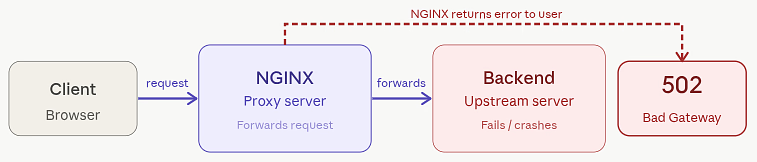
- NGINX sends a request: NGINX forwards the client request to the backend server.
- Backend server fails to respond properly: The upstream server crashes, delays, or sends an invalid response.
- NGINX returns a 502 error: NGINX shows the error because it cannot process the incomplete response.
Why Does 502 Error Occur in NGINX?
A 502 error doesn’t have a single cause; it can happen due to multiple issues in your server setup. It usually occurs when something breaks in the communication chain between NGINX and the backend service. Even a small misconfiguration can trigger this error. Common causes include:
- Backend server is down: The upstream service is not running or has crashed.
- PHP-FPM is not running: NGINX cannot process PHP requests without PHP-FPM.
- Wrong port or socket configuration: Incorrect connection details prevent communication.
- Timeout issues: The backend takes too long to respond.
- Firewall blocking requests: Security rules block internal connections.
- DNS problems: NGINX cannot resolve the backend hostname.
- Misconfigured NGINX settings: Errors in configuration files break the request flow.
Common Causes of 502 Bad Gateway Error
Understanding the cause enables you to fix the issue quickly. Below are the most frequent reasons behind 502 errors in NGINX setups.
1. Backend Server is Down or Not Reachable
NGINX works as a middle layer that forwards requests to backend services like PHP-FPM, Node.js, Apache, or containers.
If that backend service is stopped, crashed, or unreachable, NGINX cannot complete the request, which results in a 502 error.
2. Wrong Upstream Configuration
Even a minor mistake in configuration can break connectivity. If the port, socket path, or server details are incorrect, NGINX won’t be able to reach the backend. This usually happens when:
- Incorrect port number: NGINX is pointing to the wrong port.
- Wrong socket path: The defined socket file does not exist.
- Configuration typo: A small syntax error breaks the setup.
If NGINX points to a location that doesn’t exist, it simply fails to connect.
3. Slow Response from Backend (Timeout Issues)
NGINX has default timeout limits. If your backend takes too long to respond, the connection is closed early. This often happens when:
- Heavy database queries: Slow queries delay response time.
- Slow external APIs: Third-party services take too long to respond.
- Application bottlenecks: Inefficient code slows down processing.
4. PHP-FPM or App Server Problems
PHP-FPM manages PHP requests, and if it’s misconfigured or overloaded, it can’t handle incoming traffic. This leads to failed responses and 502 errors. Issues can occur when:
- All workers are busy: No free process is available to handle requests.
- Incorrect configuration: Improper settings affect performance.
- User mismatch with NGINX: Permission conflicts block communication.
When PHP-FPM can’t handle new requests, NGINX ends up showing a 502 error.
5. Server Resource Limits Reached
When your server runs out of resources, backend services may stop responding. High load conditions often lead to unstable performance and errors.
- Low memory (RAM): The system cannot handle new processes.
- High CPU usage: Processes become slow or unresponsive.
- Too many open files/processes: System limits prevent new connections.
When the server is overloaded, backend services fail to respond properly.
6. Firewall or Security Restrictions
Security layers can sometimes block valid communication between NGINX and backend services. This happens even when everything else is configured correctly.
- Local firewall rules: Tools like UFW or iptables block ports.
- Cloud firewall settings: External rules deny traffic.
- SELinux restrictions: Access to sockets or files is restricted.
Even if everything else is correct, blocked access can still trigger a 502 error.
7. DNS Resolution Problems
If NGINX relies on domain names instead of IP addresses, DNS issues can break connectivity. When the hostname cannot be resolved, the request fails. A 502 error can occur if:
- DNS not resolving: The domain cannot be converted to an IP.
- Incorrect hostname: The configured domain is wrong.
- Container/network DNS failure: Internal service discovery fails.
Steps to Diagnose 502 Errors
Once you know the causes, the next step is identifying the exact issue. A structured approach makes troubleshooting much easier and faster.
1. Check NGINX Error Logs
Logs provide direct insight into what went wrong and where the failure occurred. Start by reviewing logs:
sudo tail -n 50 /var/log/nginx/error.logLook for clues like:
- connection refused: Backend service is not accepting connections.
- upstream timed out: Backend response is too slow.
- no live upstreams: No available backend servers.
These messages point directly to the root problem.
2. Confirm Backend Service is Running
Make sure your backend service (PHP-FPM, Node.js, etc.) is active and properly configured:
sudo systemctl status php8.1-fpmAlso verify:
- Service is running: Backend is active and available.
- Listening on correct port/socket: Connection details match NGINX config.
3. Test Backend Directly
Testing the backend separately helps isolate the issue. Try accessing the backend without NGINX:
curl -I http://127.0.0.1:9000- Successful response: Backend is working correctly.
- No response: Backend service is the issue.
This helps you determine whether the issue is with NGINX or the backend itself.
4. Check Application Logs
Backend logs often reveal errors not visible in NGINX logs.
sudo tail -n 50 /var/log/php8.1-fpm.logLook for:
- Fatal errors: Application crashes during execution.
- Worker crashes: Processes stop unexpectedly.
- Config issues: Incorrect settings cause failures.
5. Monitor Server Resources
System performance issues can directly impact backend response. Use commands like:
top
htop
free -m
df -hWatch for:
- High CPU usage: Processes are overloaded.
- Low memory: System resources are exhausted.
- Load spikes: Traffic exceeds server capacity.
Effective Ways to Fix 502 Errors
Once you identify the issue, applying the right fix becomes straightforward. Here are some proven solutions.
1. Restart Backend Services
Restarting services can quickly resolve temporary crashes or unresponsive states.
sudo systemctl restart php8.1-fpm- Service restart: Resets the backend to a stable state.
2. Fix NGINX Proxy or FastCGI Settings
Ensure NGINX is pointing to the correct backend location.
fastcgi_pass unix:/run/php/php8.1-fpm.sock;- Correct socket/port: Ensures proper communication path.
3. Correct Socket Permissions
Permission issues can block access between NGINX and backend services.
sudo chown www-data:www-data /run/php/php8.1-fpm.sock
sudo chmod 660 /run/php/php8.1-fpm.sock- Proper ownership and permissions: Allows secure communication.
4. Increase Timeout Limits
Increasing timeouts helps when backend responses are slow.
proxy_read_timeout 60s;
proxy_connect_timeout 60s;- Higher timeout values: Prevents premature connection drops.
5. Clear NGINX Cache
Clearing cache removes outdated or corrupted data that may cause issues.
sudo rm -rf /var/cache/nginx/*
sudo systemctl restart nginx- Cache cleanup: Ensures fresh request handling.
Best Practices to Prevent 502 Errors
Preventing 502 Bad Gateway errors is always better than fixing them later. By following a few smart practices, you can keep your NGINX server stable and avoid unexpected downtime. These small but effective steps help ensure smooth communication between NGINX and your backend services.
- Keep backend services stable and monitored: Regularly check your backend services to ensure they are running properly and not crashing under load.
- Always test NGINX configs before reloading: Use configuration testing commands to catch errors before applying changes to your server.
- Set realistic timeout values: Adjust timeout settings based on your application’s response time to avoid premature connection drops.
- Maintain proper socket permissions: Ensure correct ownership and permissions so NGINX can communicate with backend services without issues.
- Enable detailed logging: Turn on logs to quickly identify and troubleshoot issues when something goes wrong.
- Use caching to reduce backend load: Implement caching to minimize repeated requests and improve overall performance.
- Optimize application performance: Improve code and database queries to reduce response time and server strain.
- Avoid unnecessary restarts: Frequent restarts can disrupt services; only restart when truly needed.
- Follow best practices for Docker/Kubernetes setups: Ensure proper configuration, health checks, and service communication in containerized environments.
- Plan for traffic spikes and scalability: Prepare your infrastructure to handle high traffic by scaling resources when needed.

Common Mistakes That Lead to 502 Bad Gateway Errors
When dealing with a 502 Bad Gateway error in NGINX, many issues are caused by simple oversights rather than complex problems. Avoiding these common mistakes can save you a lot of debugging time.
- Ignoring Error Logs: One of the biggest mistakes is not checking error logs. Many users try random fixes without looking at what NGINX is actually reporting. Logs often give a clear indication of what’s going wrong.
- Using Incorrect Socket or Port: Misconfiguring the socket path or port number is very common. If NGINX is pointing to the wrong location, it won’t be able to connect to the backend service.
- Forgetting to Restart Services After Changes: After updating configurations, many users forget to restart or reload services. Without applying the changes, the issue will continue even if the configuration is correct.
- Setting Extremely Low Timeout Values: If timeout settings are too short, NGINX may terminate the connection before the backend responds. This often leads to unnecessary 502 errors, especially for slow applications.
- Overlooking Permission Issues: Incorrect permissions on sockets or files can block communication between NGINX and backend services. This is often missed because everything else appears to be configured correctly.
- Not Monitoring Server Resources: High CPU or memory usage can cause backend services to slow down or crash. Ignoring system resource usage can make the problem worse over time.
- Making Changes Without Testing Configuration: Editing NGINX configuration files without testing them using nginx -t can introduce new errors. A small syntax mistake can break the entire setup.
- Blocking Requests with Firewall Rules: Sometimes, firewall or security settings unintentionally block internal communication. Many users forget to check these rules while troubleshooting.
- Relying Only on Restarts: Restarting services may temporarily fix the issue, but it doesn’t solve the root cause. Relying only on restarts can lead to recurring problems.
- Ignoring Backend Application Errors: Not all issues come from NGINX. Sometimes the backend application itself is failing, and ignoring its logs can delay proper diagnosis.
Simplify 502 Error Troubleshooting with ServerAvatar
Fixing a 502 Bad Gateway error manually can sometimes feel overwhelming, especially if you’re not comfortable working with server commands or digging through multiple log files. When several components like NGINX, PHP-FPM, and your application are involved, identifying the exact issue can take time. This is where ServerAvatar can make the process much simpler.
ServerAvatar is a platform to simplify the hosting and management of servers and applications. It simplifies the process of deploying and managing PHP and Node.js based web applications on servers.
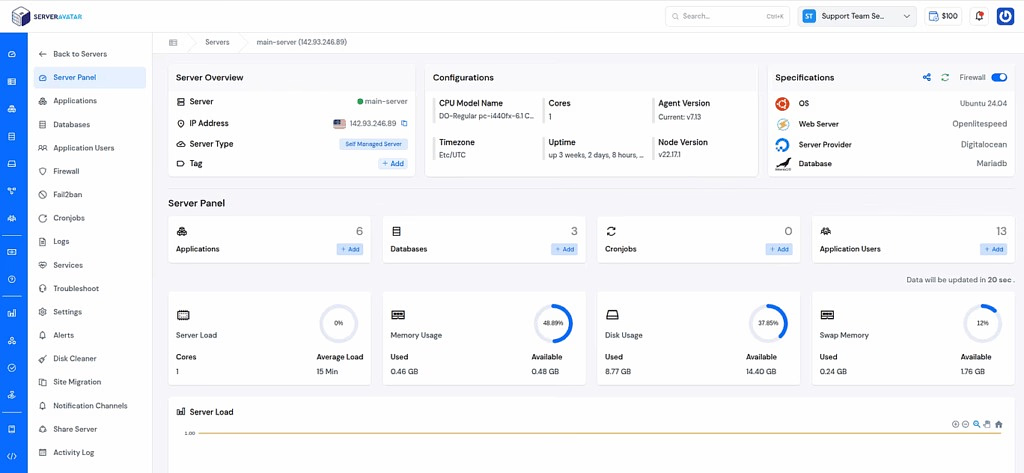
Instead of handling everything through the command line, you get a clean dashboard to manage and monitor your server in one place. You can quickly check whether services are running, restart them when needed, and review logs without switching between tools.
With ServerAvatar, you can:
- Monitor server and service status in real time
- Restart NGINX, PHP-FPM, or other services with a single click
- Access error logs without using SSH
- Manage your servers and applications through an easy-to-use dashboard
For developers and website owners who want to save time and reduce complexity, using a server management tool like ServerAvatar can make troubleshooting errors like 502 much faster and more efficient.
Conclusion
A 502 Bad Gateway error in NGINX may seem confusing at first, but once you understand how the communication between NGINX and backend services works, it becomes much easier to troubleshoot. Most issues come down to misconfigurations, server overload, or unresponsive backend services. By following a structured approach, checking logs, verifying services, and applying the right fixes, you can quickly identify and resolve the problem. And if you want to simplify server management and reduce manual effort, using a tool like ServerAvatar can help you handle monitoring, troubleshooting, and maintenance more efficiently.
FAQs
1. What does a 502 Bad Gateway error mean in NGINX?
It means that NGINX was able to send a request, but it didn’t receive a valid response from the backend server, resulting in a failed connection.
2. What is the most common cause of a 502 error?
The most common reason is a backend service (like PHP-FPM or Node.js) being down, unresponsive, or misconfigured.
3. How can I quickly fix a 502 Bad Gateway error?
Start by checking NGINX error logs, ensure backend services are running, and restart services if needed. These steps often resolve the issue quickly.
4. Can high server load cause a 502 error?
High CPU usage or low memory can slow down or crash backend services, preventing them from responding properly.
5. How do I know if the issue is with NGINX or the backend?
You can test the backend directly using tools like curl. If the backend doesn’t respond, the issue lies there, not in NGINX.
6. Is ServerAvatar helpful for fixing 502 errors?
It helps by providing an easy interface to monitor services, check logs, and manage servers without needing complex command-line operations.