

If you have ever faced a white screen of death or unexplained WordPress errors, you know how difficult troubleshooting can be. Learning how to Enable Debug Mode in WordPress helps you identify errors, generate debug logs, and fix issues faster.
WordPress Debug Mode fixes that. It switches on error reporting, saves detailed logs to your server, and actually tells you what went wrong, where, and why. Most beginners either don’t know it exists or accidentally leave it running after troubleshooting, which creates its own problems.
In this guide, I’ll walk you through every Debug setting inside ServerAvatar’s WordPress Toolkit, what each one does, when to turn it on, when to turn it off, and how to make sense of the logs when something breaks. Whether you’re a developer chasing a plugin conflict or a site owner wondering why your contact form stopped working, this guide has you covered.
TL;DR
- Debug Mode + Debug Log = production troubleshooting setup
- Display Errors = local/staging only, never on a live site
- Logs live at /wp-content/debug.log on your server
- WordPress Toolkit = point-and-click toggles, no file editing or FTP needed
- Always disable debug settings after fixing the problem
What Is WordPress Debug Mode?
WordPress Debug Mode is a built-in troubleshooting feature. It catches PHP errors, plugin conflicts, theme issues, deprecated functions, and fatal errors, then logs them to a file or displays them on screen during development.
By default, WordPress suppresses all PHP errors, which is fine for a live site, but absolutely maddening when you’re trying to figure out why something isn’t working.
When Debug Mode is enabled, you’ll see messages like:
- “Fatal error: Uncaught Error: Call to undefined function…” = a function that doesn’t exist
- “Warning: Cannot modify header information, headers already sent” = whitespace or output before a redirect
- Notices about deprecated functions = useful before upgrading PHP versions
Without Debug Mode, those messages disappear, and you’re left guessing. With it on, you get the exact file path, line number, and full error message. That’s the difference between 10 minutes of debugging and 10 hours.
Quick Comparison: Debug Mode vs Debug Log vs Display Errors in WordPress
Most WordPress users think Debug Mode, Debug Log, and Display Errors are the same thing. They’re not. Each one controls a different part of the debugging process, and mixing them up on a live site can expose errors to everyone who visits.
| Setting | What It Does | Recommended Usage | Safe on Production? |
Debug Mode (WP_DEBUG) | Enables WordPress debugging and error tracking | Turn on temporarily while troubleshooting | Temporarily |
Debug Log (WP_DEBUG_LOG) | Saves PHP errors and warnings to /wp-content/debug.log | Recommended for production troubleshooting | Yes |
Display Errors (WP_DEBUG_DISPLAY) | Displays PHP errors directly on webpages | Use only on local or staging environments | No |
| Debug Mode + Debug Log | Logs errors privately without showing them to visitors | Best practice for live websites | Yes |
| Debug Mode + Display Errors | Errors Shows errors instantly in the browser | Useful during local development | No |
Debug Mode, Debug Log, and Display Errors in WordPress
ServerAvatar’s WordPress Toolkit gives you three options in the Debug section. Each one works differently.
1. Debug Mode: The Main Switch
Debug Mode is the master switch. Turn this on, and WordPress switches PHP from silent mode to verbose mode, tracking everything that goes wrong.
What it does:
- Turns on error tracking in WordPress
- Writes errors to debug.log in your /wp-content/ folder
- Does NOT show errors on screen, that’s a separate toggle
When to use it:
- Anytime you’re actively troubleshooting something.
- Enable it, reproduce the issue, check the logs, fix the problem, then disable it.
When to leave it off:
- Any live production site. Leaving it on exposes your file structure to visitors.
2. Debug Log: The Error Journal
Debug Log is where WordPress writes every error, warning, and notice it encounters. This is the file you actually want to read when something breaks. It captures every error, warning, and notice, even ones that happened hours ago while nobody was watching.
What it does:
- Writes PHP errors to /wp-content/debug.log on your server
- Keeps a running record until you clear it
- Catches errors from scheduled tasks, API calls, and background processes
Why this matters:
Most errors happen when no one’s looking, during cron jobs, background updates, or API requests. Debug Log catches them retroactively, even if the error completely crashes your site. The file is still there waiting for you.
What I like about this approach in ServerAvatar:
The log lives on the server, not in your browser. Even if the error crashes your site completely, the log file is still there waiting for you. You don’t need the site to load to see what went wrong.
3. Display Errors: Show Errors on Screen
Display Errors is exactly what it sounds like, instead of logging errors silently, WordPress prints them directly on the webpage. Visitors see them too.
This is the most dangerous setting of the three if left enabled on a production site. You’ll see PHP warnings and fatal errors rendered right in the browser, sometimes exposing file paths, database query details, and code snippets.
When to use it:
- Local development environments where you want errors visible immediately
- Staging sites where you have full control over who’s visiting
- When you need instant feedback without switching to the terminal
When to turn it off and keep it off:
- Any live, production website. Displaying PHP errors publicly is a security risk and looks unprofessional to your visitors.
The best practice: Use Debug Mode + Debug Log for production troubleshooting. Use Display Errors only on local or staging environments where no visitors will ever see it.
How to Enable Debug Mode in WordPress Using ServerAvatar
Here’s the exact process for turning on Debug Mode using the WordPress Toolkit in ServerAvatar, no touching wp-admin, no editing files manually, no uploading via FTP.
Step 1: Open WordPress Toolkit
- Log in to your ServerAvatar account and navigate to your WordPress application panel by clicking the dashboard icon for the WordPress site you want to debug .
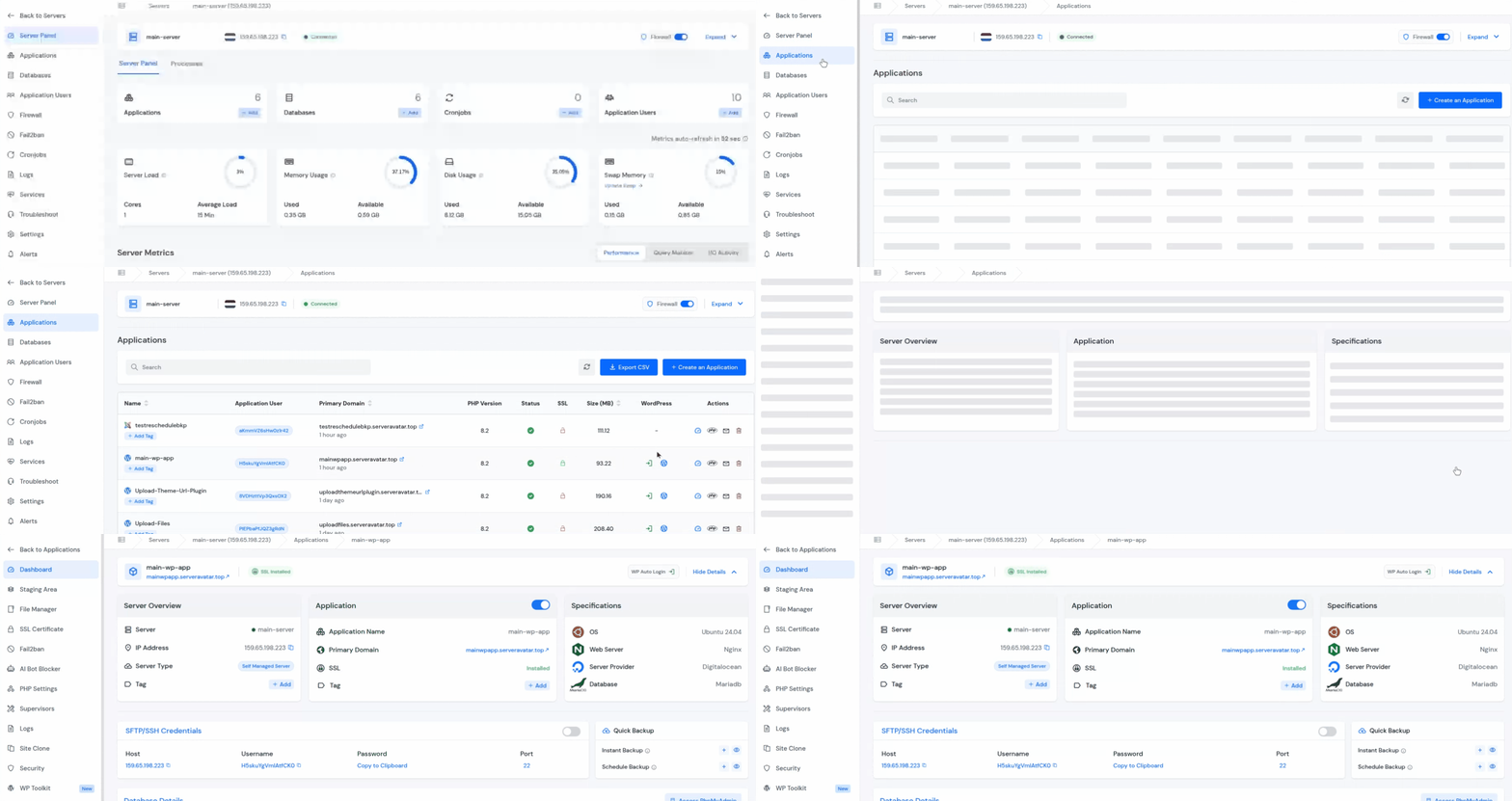
- From the left sidebar, click on WordPress Toolkit. This opens the WordPress management panel.
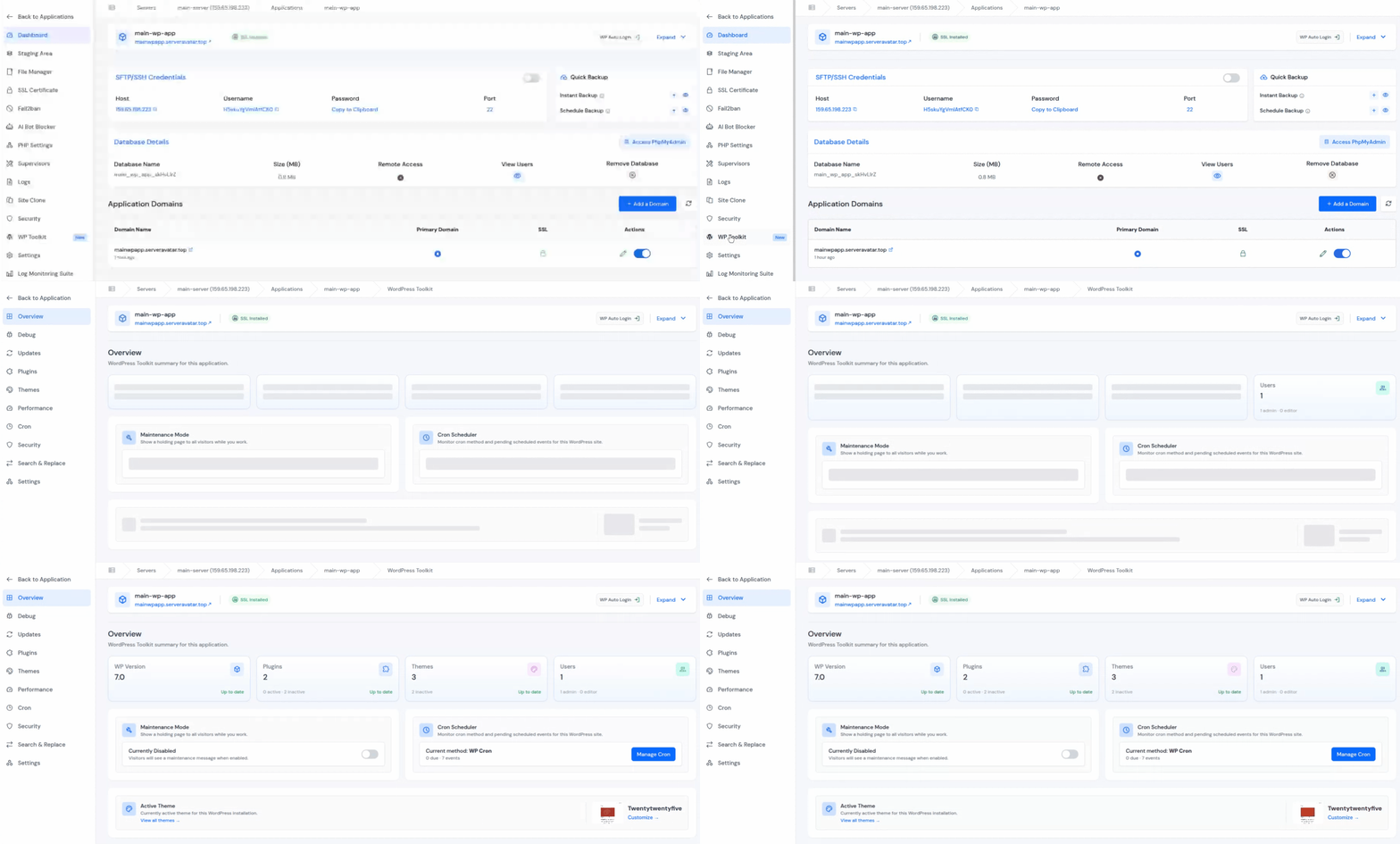
Step 2: Go to the Debug Tab
- Click on the Debug section from the left side bar of the WordPress Toolkit,
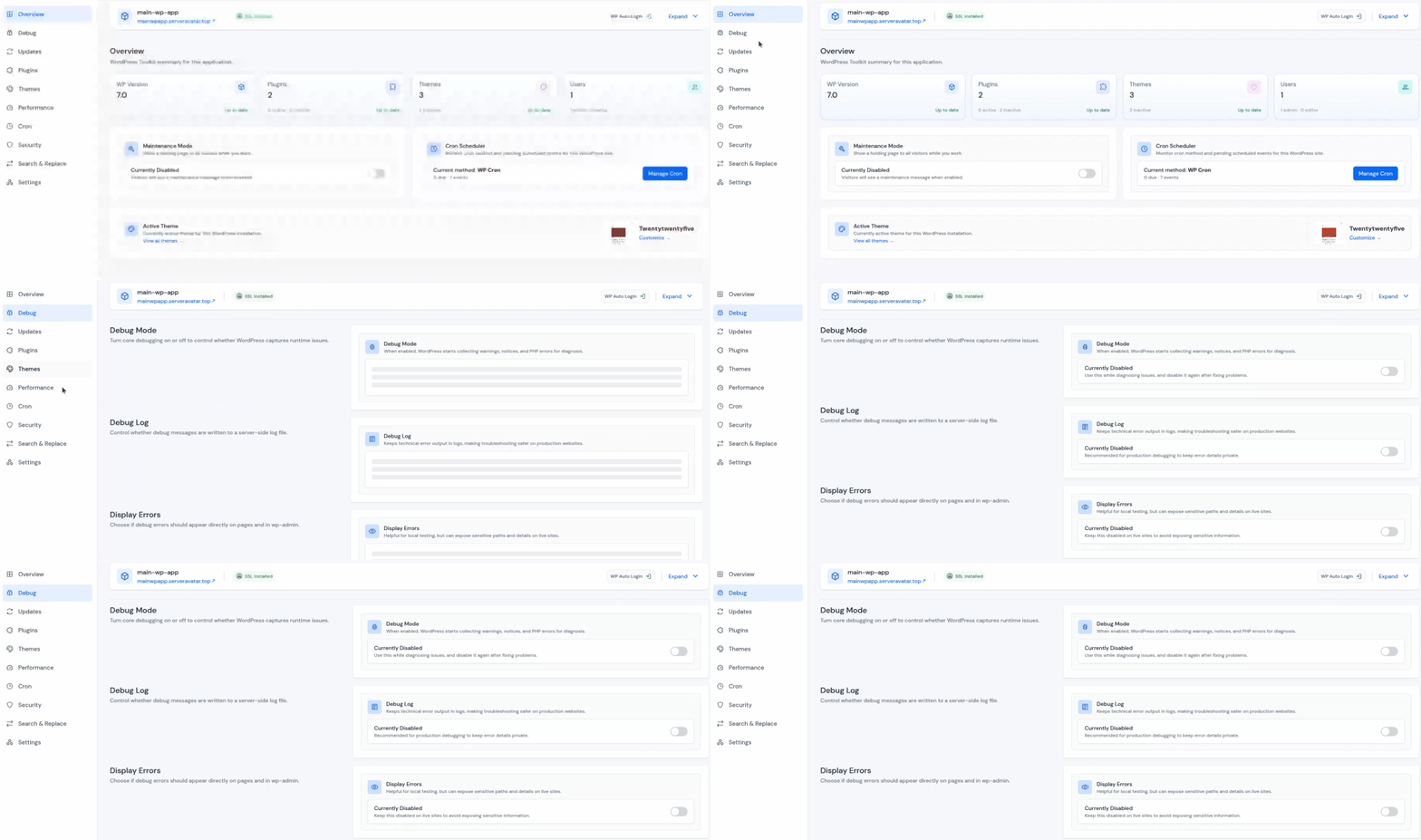
Step 3: Enable Debug Mode
You’ll see three sections with toggle buttons:
- Debug Mode: turn this ON
- Debug Log: turn this ON (recommended alongside Debug Mode)
- Display Errors: turn this ON only if you’re on a staging or local environment
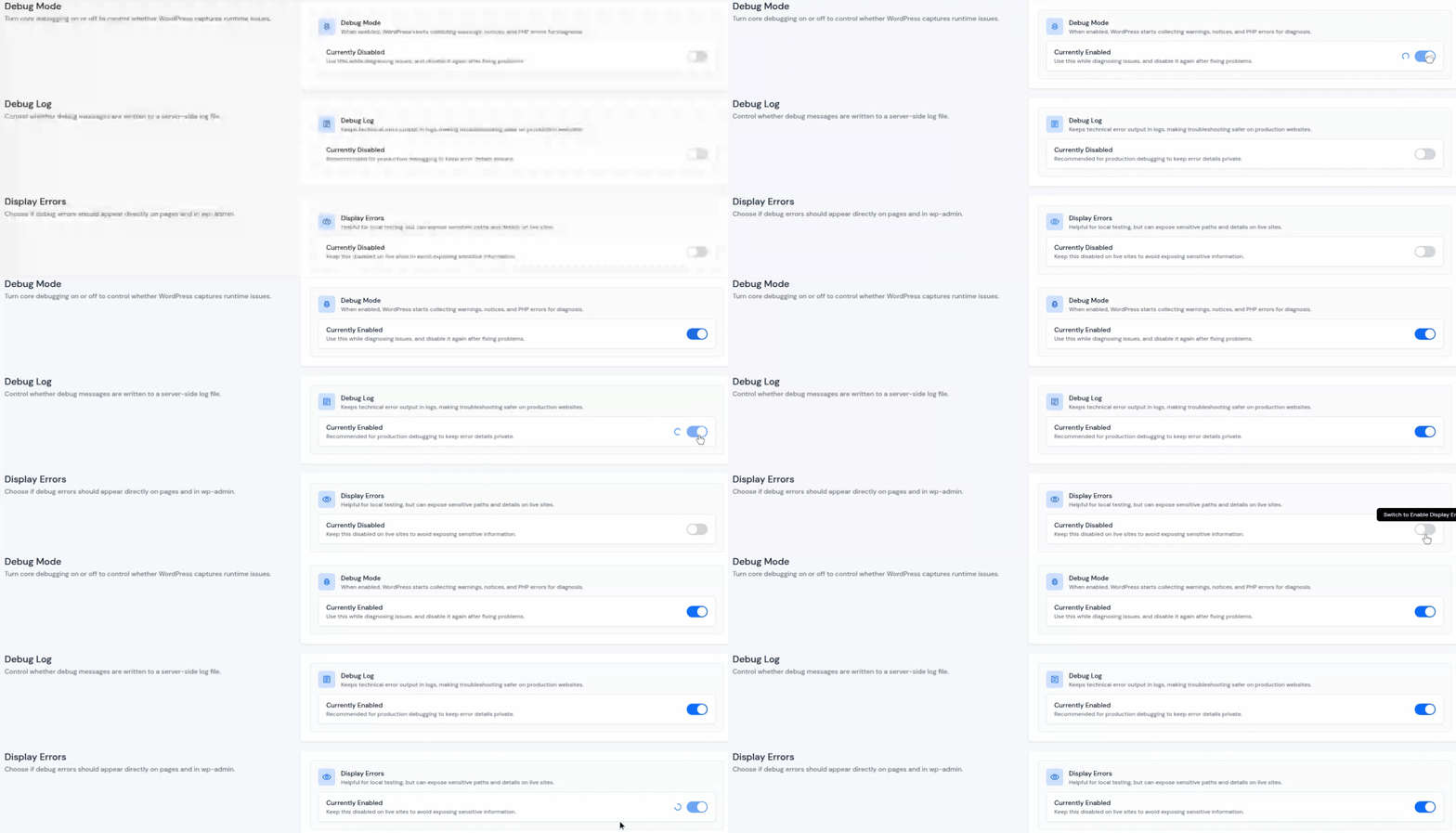
For most troubleshooting scenarios, especially on a live site, enable Debug Mode and Debug Log, but leave Display Errors OFF.
This captures all errors in the log file without exposing anything to your visitors.
Step 4: Reproduce the Issue
Now that debug logging is active:
- Visit your WordPress site and do whatever you were doing when the problem occurred
- Click the button, load the page, submit the form, whatever triggers the error
- WordPress will write every error to debug.log
Step 5: Read the Log
- Access it from the file manager: navigate to “public_html/wp-content/debug.log”
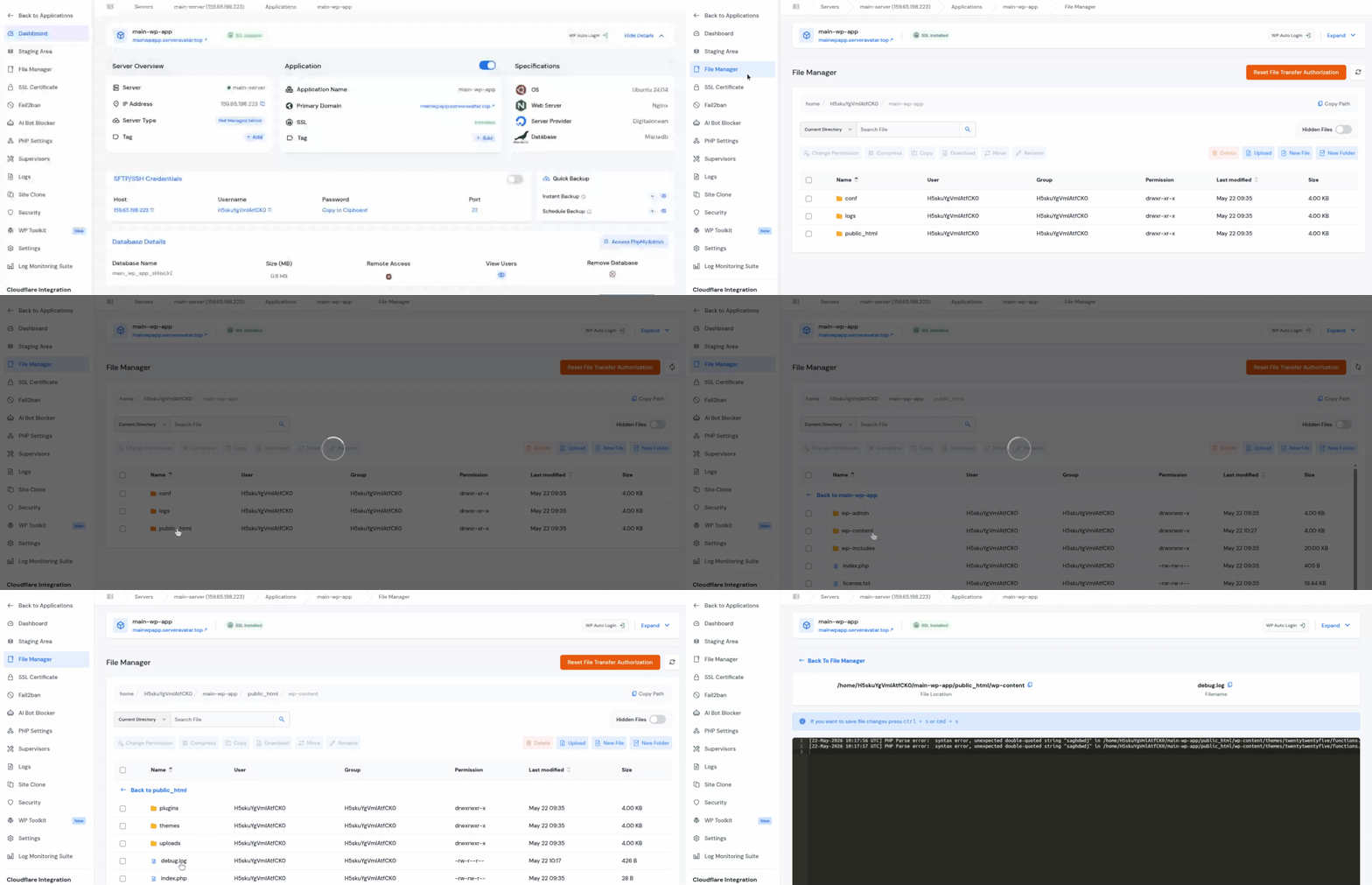
- Each log entry gives you:
- Timestamp
- Error type (Fatal, Warning, Notice)
- Full error message
- Exact file path and line number
- Each log entry looks something like this:
[20-May-2026 14:32:01] PHP Fatal Error: Uncaught Error: Call to undefined function wp_cache_get() in /var/www/html/wp-content/plugins/my-plugin/my-plugin.php on line 42- That’s everything you need to isolate the problem.
Step 6: Fix the Problem and Disable Debug Mode
Go back to the Debug tab and turn Debug Mode OFF
- Turn Debug Log OFF too, unless you’re actively troubleshooting something else
- No reason to keep logging errors on a healthy, functioning production site
How to Enable WordPress Debug Mode Manually
If you prefer enabling WordPress debugging manually, you can configure it directly inside the wp-config.php file without using a control panel or WordPress Toolkit.
This method works on any WordPress hosting environment and gives you full control over how WordPress handles debugging and PHP error logging.
Step 1: Open the wp-config.php File
Connect to your server using:
- FTP/SFTP
- SSH
- Your hosting file manager
Go to root directory of WordPress application and find the wp-config.php file.
Step 2: Add the Debug Constants
- Find this line inside the file:
/* That's all, stop editing! Happy publishing. */- Add the following code directly above it:
define('WP_DEBUG', true);
define('WP_DEBUG_LOG', true);
define('WP_DEBUG_DISPLAY', false);What These Constants Do:
| Constant | Purpose |
| WP_DEBUG | Enables WordPress debugging mode |
| WP_DEBUG_LOG | Saves PHP errors to “/wp-content/debug.log“ |
| WP_DEBUG_DISPLAY | Prevents errors from being displayed publicly |
This configuration is considered the safest setup for troubleshooting problems on a live WordPress website because errors are logged privately instead of being shown to visitors.
Step 3: Save the File and Reproduce the Issue
- Save the wp-config.php file
- Revisit the action that caused the issue on your website
- WordPress will automatically begin writing errors, warnings, and notices to:
/wp-content/debug.logStep 4: Disable Debug Mode After Troubleshooting
- Once you have fixed the problems, change values to previous:
define('WP_DEBUG', false);
define('WP_DEBUG_LOG', false);
define('WP_DEBUG_DISPLAY', false);- Why you shouldn’t leave debugging on:
- Exposes sensitive server information
- Increases log file size over time
- Slightly impacts performance under heavy traffic
Manual Method vs WordPress Toolkit
While manually editing wp-config.php works perfectly fine for developers comfortable with server access, ServerAvatar’s WordPress Toolkit simplifies the process into a few clicks without requiring:
- FTP access
- SSH access
- file editing
- manual configuration changes
This is especially useful when managing multiple WordPress websites or troubleshooting client sites quickly.
How to Read a WordPress Debug Log
A debug log is only useful if you know how to read it. Here is a quick format breakdown.
Understanding the format:
[Date Time] PHP Error Type: Error Message in /path/to/file.php on line LineNumber
Common error types you will see
- PHP Fatal Error: A serious problem that stops the script entirely. This is usually a missing plugin, a syntax error, or a PHP version incompatibility.
- PHP Warning: Something went wrong but WordPress kept running. Often a deprecated function or a missing file.
- PHP Notice: Minor things like undefined variables. Usually not breaking, but worth fixing.
- WordPress Error: A WordPress-level error, such as a failed cron job or a REST API failure.
What to do when you find an error
- Note the file path and line number, this is your exact location
- Identify which plugin, theme, or core file is involved
- If it’s a plugin, check if the plugin was recently updated, or if it’s incompatible with your PHP version
- If it’s a core WordPress file, you may have a corrupted installation or a PHP version mismatch
- Search the error message online, almost every common WordPress error has a known fix
Common Problems That Require WordPress Debug Mode
Here are some of the most common situations where enabling WordPress debugging helps:
- Plugin Conflicts: Outdated or poorly coded plugins trigger fatal errors and deprecated warnings. Debug logs show you exactly which plugin file caused it.
- Theme Errors: Custom or heavily modified themes can break layouts with missing functions or template issues. Debug Mode pins down the problematic file fast.
- White Screen of Death (WSOD): Site loads completely blank with no error message. Debug Mode reveals the fatal PHP error behind the crash.
- PHP Version Compatibility Issues: Upgrading PHP reveals deprecated functions used in older plugins and themes. Debug logs show you exactly what needs updating.
- REST API and AJAX Failures: Background processes fail silently. Debug Mode catches the authentication errors, callback failures, or plugin conflicts behind them.
- Cron Job and Scheduled Task Errors: Backups, WooCommerce actions, and automated tasks fail without obvious symptoms. The debug log is only place that shows actual error up.
- Memory Limit Exhaustion: Large imports, backups, or poorly optimized scripts crash by exceeding PHP memory limits. Debug logs record the exhaustion error so you know when to adjust server resources.

Best Practices for WordPress Debugging
After working with WordPress sites for a while, here are the habits that actually help:
- Enable only when troubleshooting: Turn it on, find the problem, turn it off. There’s no benefit to running Debug Mode on a healthy site, just unnecessary server load.
- Always use Debug Log on production: It captures everything server-side without showing visitors anything. If something breaks at 2am, the log tells you what happened by morning.
- Rotate your logs: After resolving an issue, clear the file or delete it. WordPress creates a fresh one automatically. Keeps the next debugging session clean.
- Test in staging first: Make code changes or update plugins on a staging environment with Debug Mode on. Catch errors there before they hit your live site.
- Correlate timestamps: Match log timestamps to when the problem occurred. WordPress logs in server time. Chasing old, unrelated errors wastes time.
- Check for multiple errors: One user action can trigger several errors in sequence. The first one is usually the real culprit; the rest are knock-on effects. Read the full log from bottom to top to trace the chain.
Why Use ServerAvatar’s WordPress Toolkit for Debugging?
The traditional way means editing wp-config.php, uploading via FTP/SFTP, and hoping you remember to switch everything off afterward. It works, but it’s easy to miss a line or accidentally leave debugging on.
ServerAvatar’s WordPress Toolkit fixes that:
- Point-and-click workflow, no file editing, no FTP
- Debug Mode, Debug Log, and Display Errors are clearly labeled
- Everything is managed from a single dashboard
- Enable or disable in seconds
What this means for you:
- No need for FTP or SSH access to debug a site
- Fewer configuration mistakes during troubleshooting
- Especially useful for agencies managing multiple WordPress sites or debugging client websites on shared hosting
FAQs
Is it safe to keep Debug Mode enabled on a live WordPress site?
No, keeping Debug Mode enabled on a production site is a security risk. Error messages can expose your file structure, plugin names, and database details to anyone who visits.
Where the WordPress debug log file located?
The debug log is stored at “/wp-content/debug.log” in your WordPress installation directory on the server.
Can I use Display Errors on a live site?
You should not. Display Errors shows PHP errors directly on your webpages, which means visitors see them too. It also exposes sensitive server information.
Does enabling Debug Mode slow down my WordPress site?
Yes, slightly. Debug Mode adds a small amount of overhead because WordPress is actively tracking and logging errors. On a production site, you won’t notice it for a single visitor, but under high traffic it can add up. Always disable it after troubleshooting.
I enabled Debug Mode but don’t see any errors in the log. What’s wrong?
First, make sure Debug Log is also enabled, Debug Mode and Debug Log are two separate toggles, and both need to be on for errors to write to the file. Also, check that the “/wp-content/” directory is writable by your web server.
Key Takeaways
- Debug Mode, Debug Log, and Display Errors are three separate toggles, enable Mode + Log for production; use Display Errors only on local or staging
- Debug Log writes to /wp-content/debug.log, catches errors even if your site is completely crashed
- Display Errors exposes everything to visitors, never leave it on a live site
- WordPress Toolkit makes enabling and disabling these a two-click operation, no file editing, no FTP
- Always disable after troubleshooting, there’s no benefit to keeping them running on a healthy site
Next Steps
Now you know how to use WordPress Debug Mode effectively. If you’re managing multiple WordPress sites, enable Debug Log on each one, that way you have historical data the moment something breaks.
Explore more:
- Complete guide to WordPress Toolkit in ServerAvatar
- Step-by-step guide to create and use WordPress Blueprints
About the Author: Meghna Meghwani is a technical writer focused on Linux, Ubuntu, VPS hosting, server management, WordPress, PHP, Node.js, cloud hosting, and DevOps. She creates beginner-friendly tutorials, practical hosting guides, troubleshooting articles, and server security content designed to help developers and businesses manage applications and servers more efficiently.