
Managing WordPress themes sounds simple until you need to manage WordPress themes across more than one website. A client asks for a design change. An inactive theme needs to be removed. Another site needs a new theme installed. Suddenly, you are logging into multiple WordPress dashboards, opening Appearance >> Themes again and again, and repeating the same steps. That workflow gets time-consuming very quickly.
ServerAvatar’s WordPress Toolkit makes theme management easier by bringing theme controls directly into your server dashboard. You can install, activate, update, and remove WordPress themes without switching to the WP-Admin.
If you manage WordPress websites on a VPS, whether for your own projects, client websites, or agency work, this guide walks through exactly how the Themes section in ServerAvatar’s WordPress Toolkit works and how to use it safely.
TL;DR
- ServerAvatar lets you manage WordPress themes from one dashboard.
- You can install, activate, update, and delete themes without logging into WP-Admin.
- Theme updates are easier when managing multiple websites.
- Removing unused themes improves security and keeps WordPress cleaner.
Why WordPress Theme Management Matters
A WordPress theme controls website layout, typography, styling, templates, header and footer structure, blog page appearance, and design consistency. So even a small theme change can affect homepage layout, mobile responsiveness, plugin compatibility, page speed, SEO structure, and customer experience. That’s why theme management isn’t just “design work”. It also affects maintenance and stability.
A few common situations:
- Updating an outdated theme: Older themes may include compatibility issues with newer WordPress versions.
- Activating a staging theme: Useful before redesigning a website.
- Cleaning inactive themes: Inactive themes still remain on the server and should be reviewed regularly.
- Managing multiple websites: Without a central dashboard, theme maintenance becomes repetitive.
ServerAvatar helps simplify that workflow.
Where to Find the Themes Section in ServerAvatar
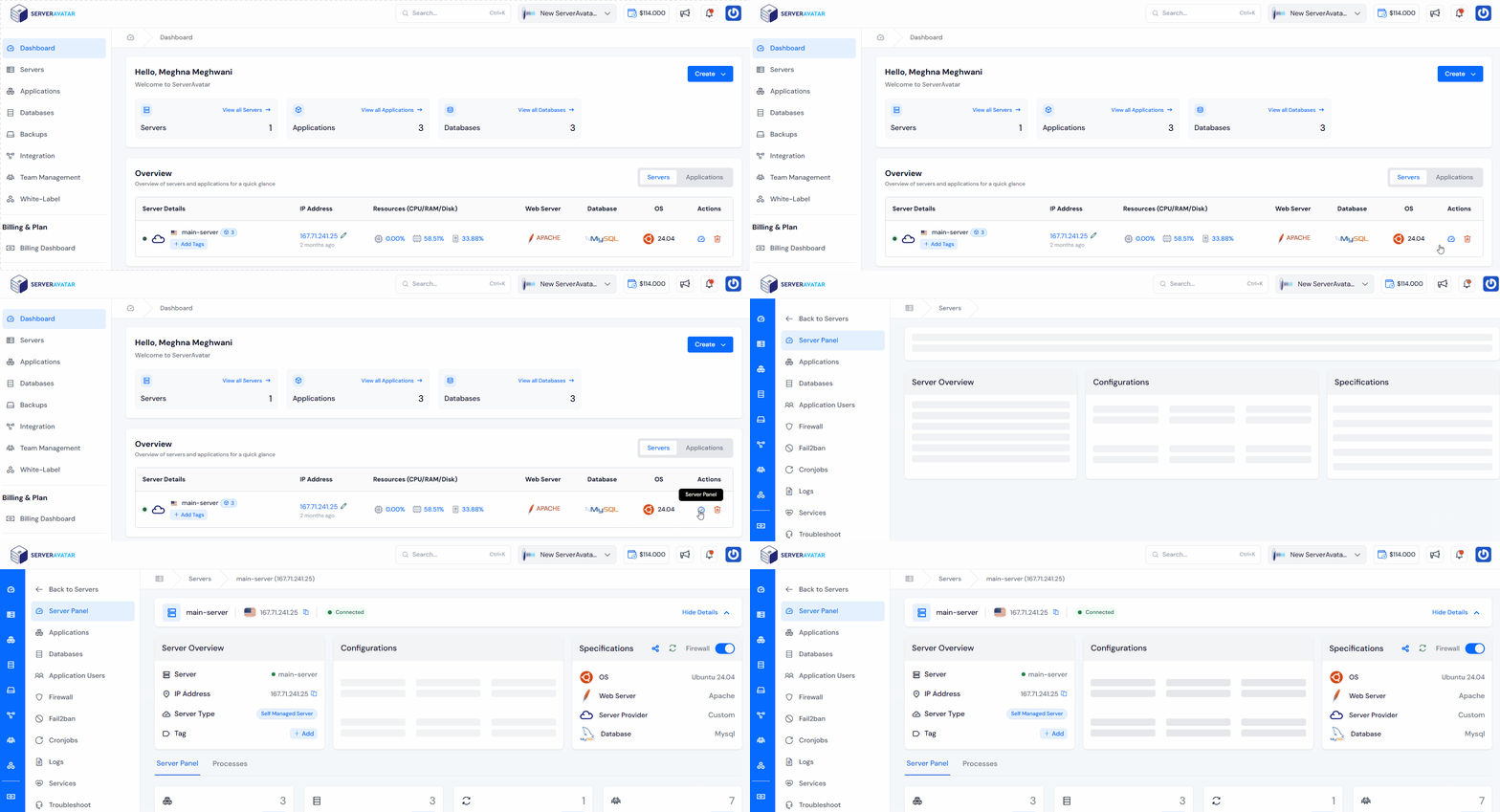
- Log in to your ServerAvatar account, and navigate to the server panel by clicking on the server dashboard icon.
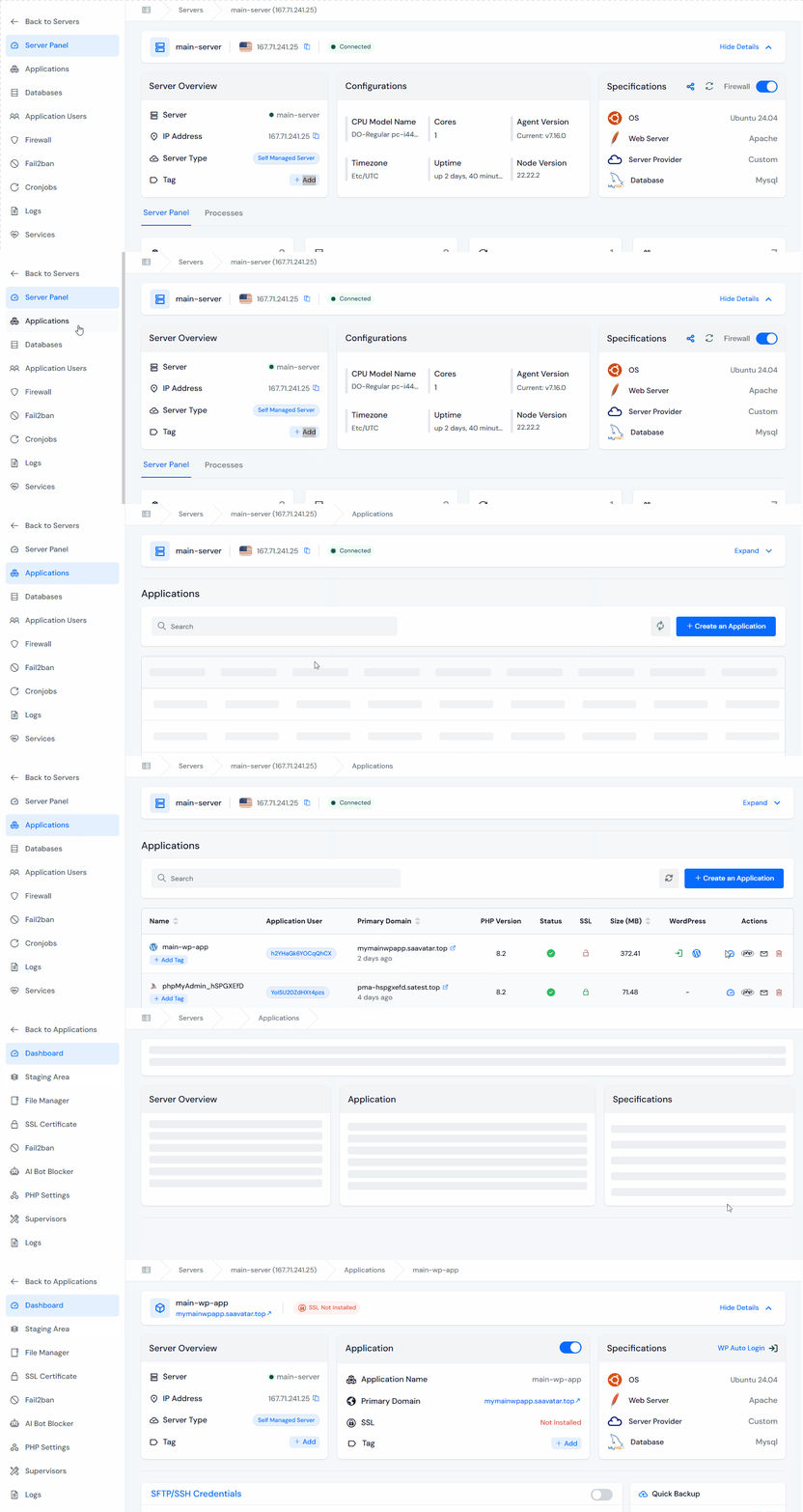
- Click on the Applications section, and navigate to your application panel by clicking on the dashboard icon.
- Click on the WordPress Toolkit section from the left sidebar.
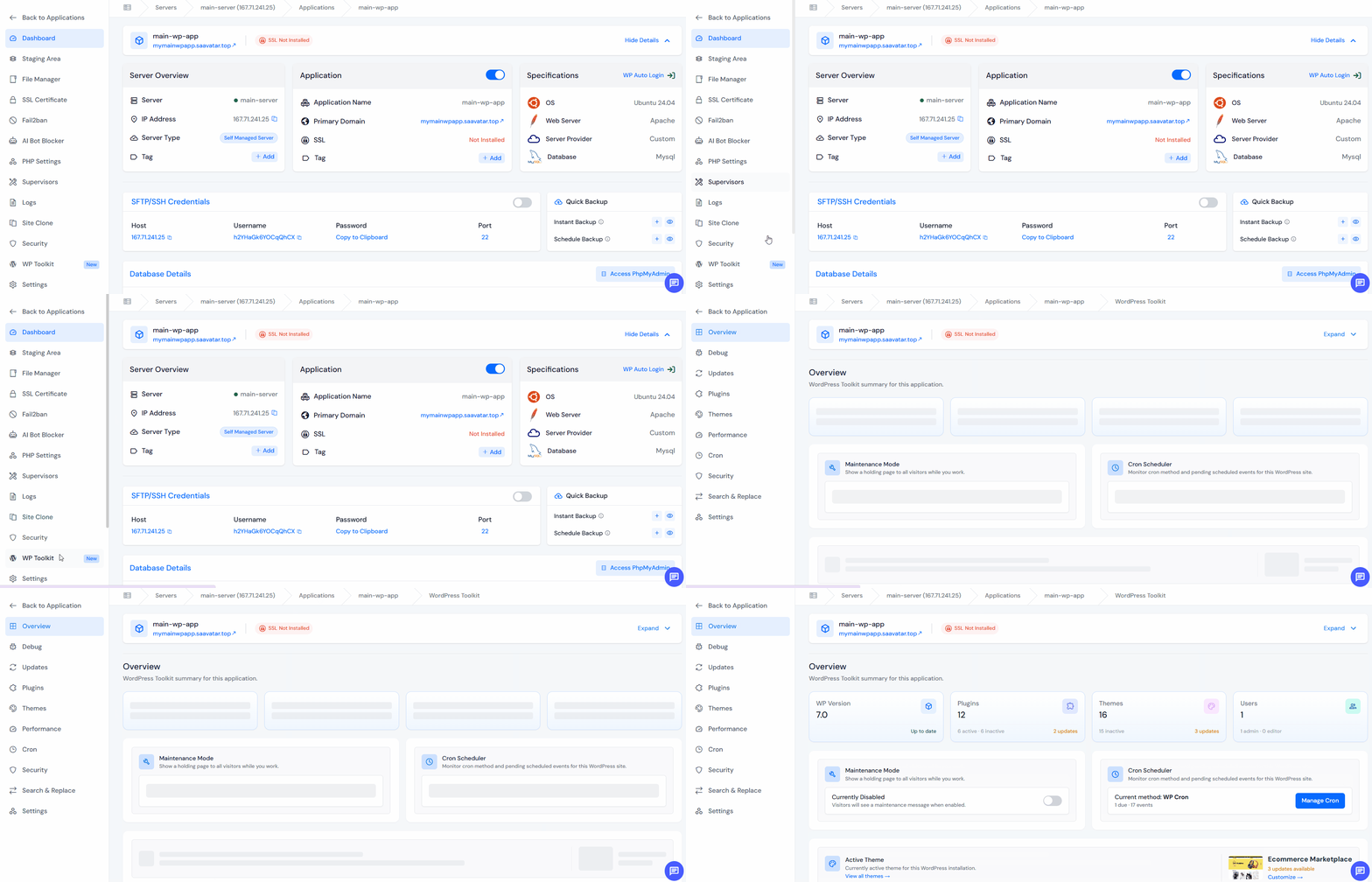
- Navigate to the Themes section.
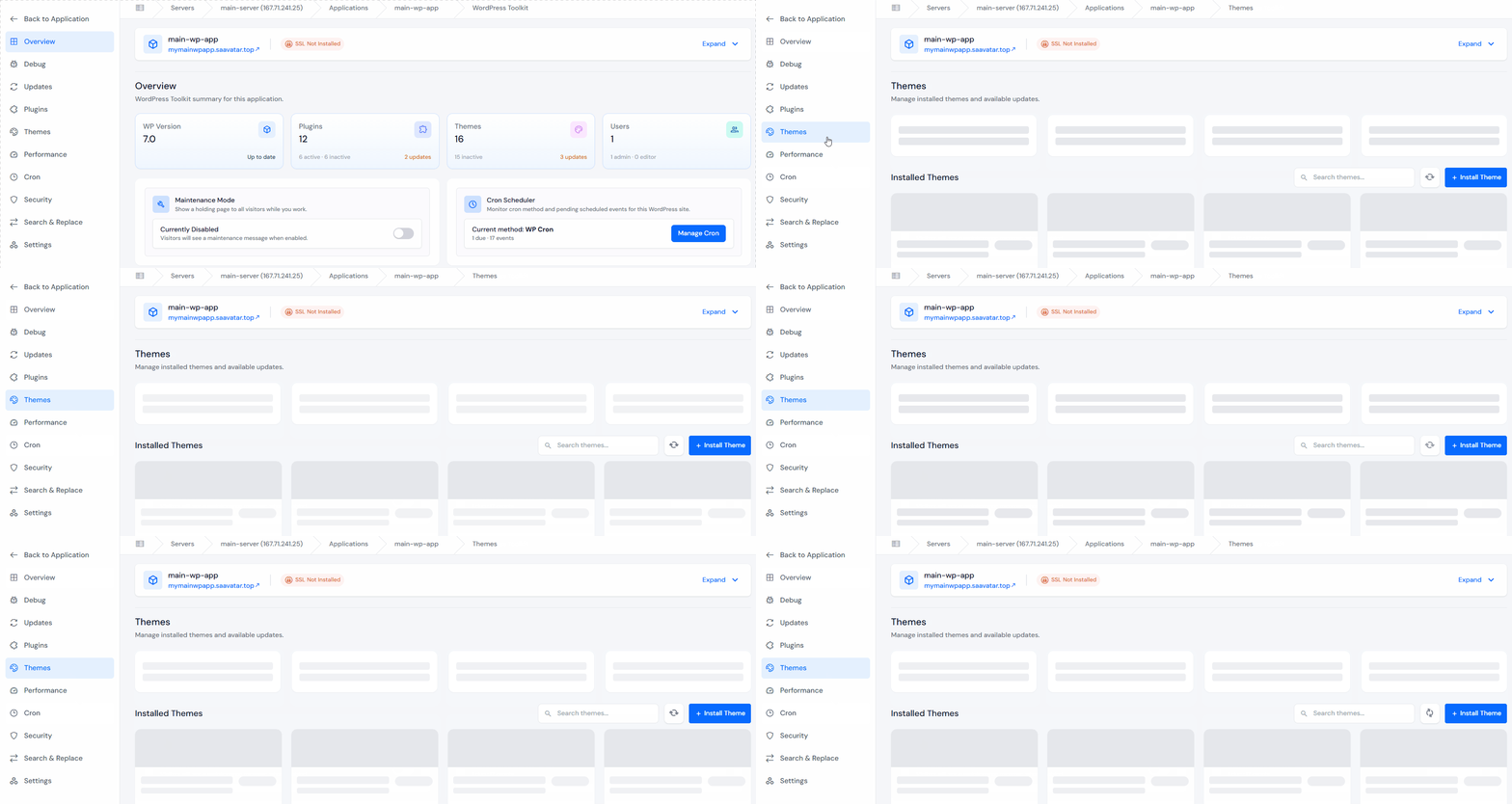
From there, you’ll see theme management options for the selected WordPress installation.
Install a New WordPress Theme Using ServerAvatar
Sometimes you launch a new site and need a fresh design. Other times, you’re migrating an existing WordPress website and want to install a theme before going live.
Inside the Themes section, you can install themes without opening the WP-Admin.
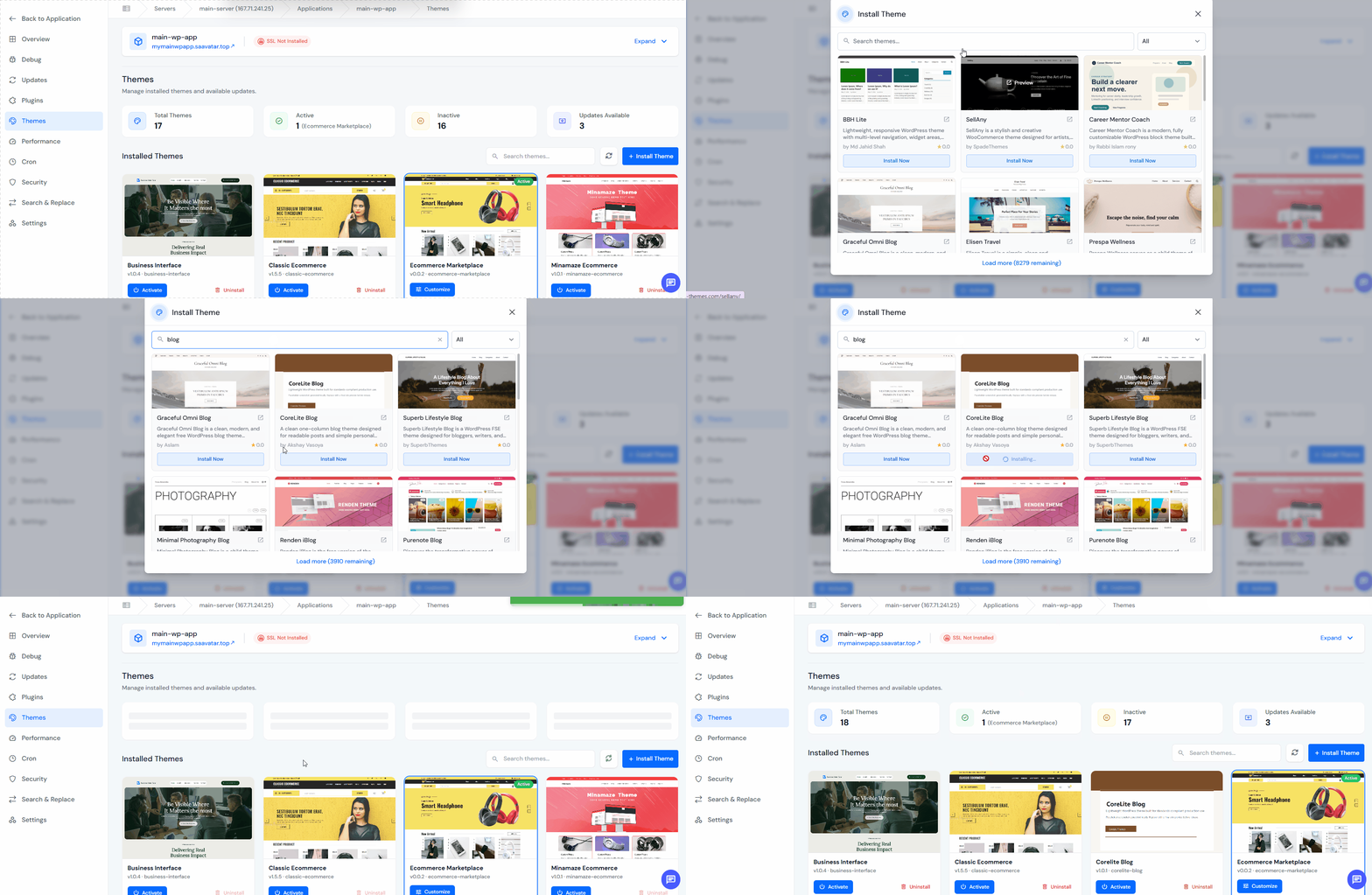
- Inside the Themes section, click on the Install Theme button.
- Search for the Theme you want to install, and click on the Install Now button for your preferred theme.
- ServerAvatar handles installation directly for the selected WordPress site.
- Once it is installed, it will be visible in the themes table.
Activate a Different Theme
Changing themes is easy. Doing it safely matters more. Inside ServerAvatar’s WordPress Toolkit section:
- Inside the Themes section, choose your preferred installed theme, and click on the activate button.
- Click on the “Activate” button for confirmation.
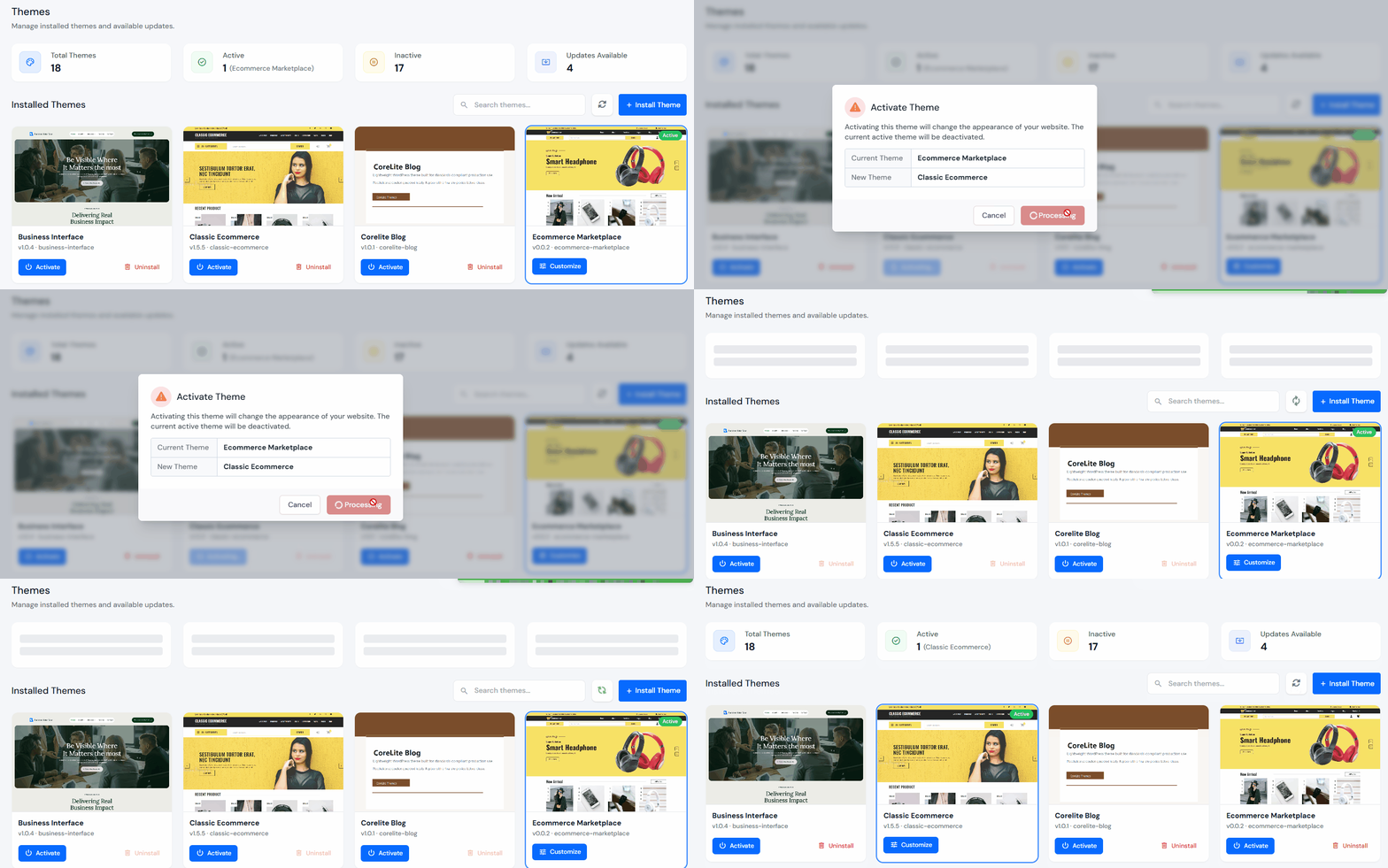
- Once activated, check the homepage layout, menu structure, widgets, customizer settings, blog page, mobile view, and plugin styling. A quick review helps catch layout issues immediately.
- Example: A page builder theme may behave differently from a lightweight blogging theme.
So activation should always include a visual check.
Update WordPress Themes Without Logging Into wp-admin
This is one of the most practical parts of the Themes section. Instead of updating themes via the WP-Admin repeatedly on multiple websites, you can manage updates directly from ServerAvatar. That saves time when handling multiple WordPress applications.
- Navigate to the Themes section of WordPress Toolkit, and check for the theme which requires update, and click on the update button.
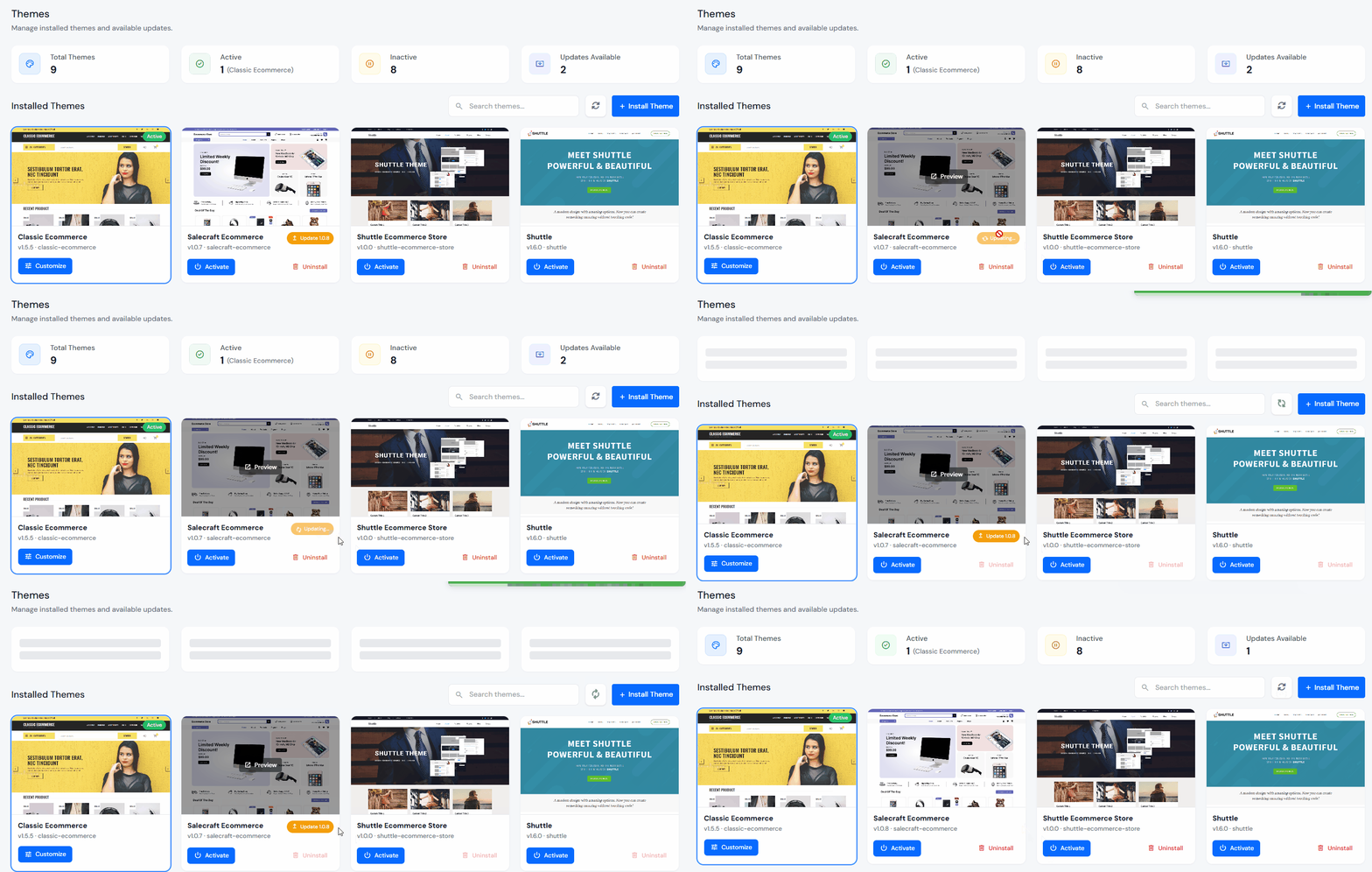
- Once the theme is updated, you can see latest version of theme has been installed.
- After updating, check the homepage, test forms, check product pages, test responsive layout, and confirm no CSS breaks
- Small checks now save bigger troubleshooting later.
Remove Unused Themes
Many WordPress websites keep old inactive themes for months. That usually creates clutter. Unused themes can take space, create confusion, increase maintenance, become outdated, and create avoidable security exposure.
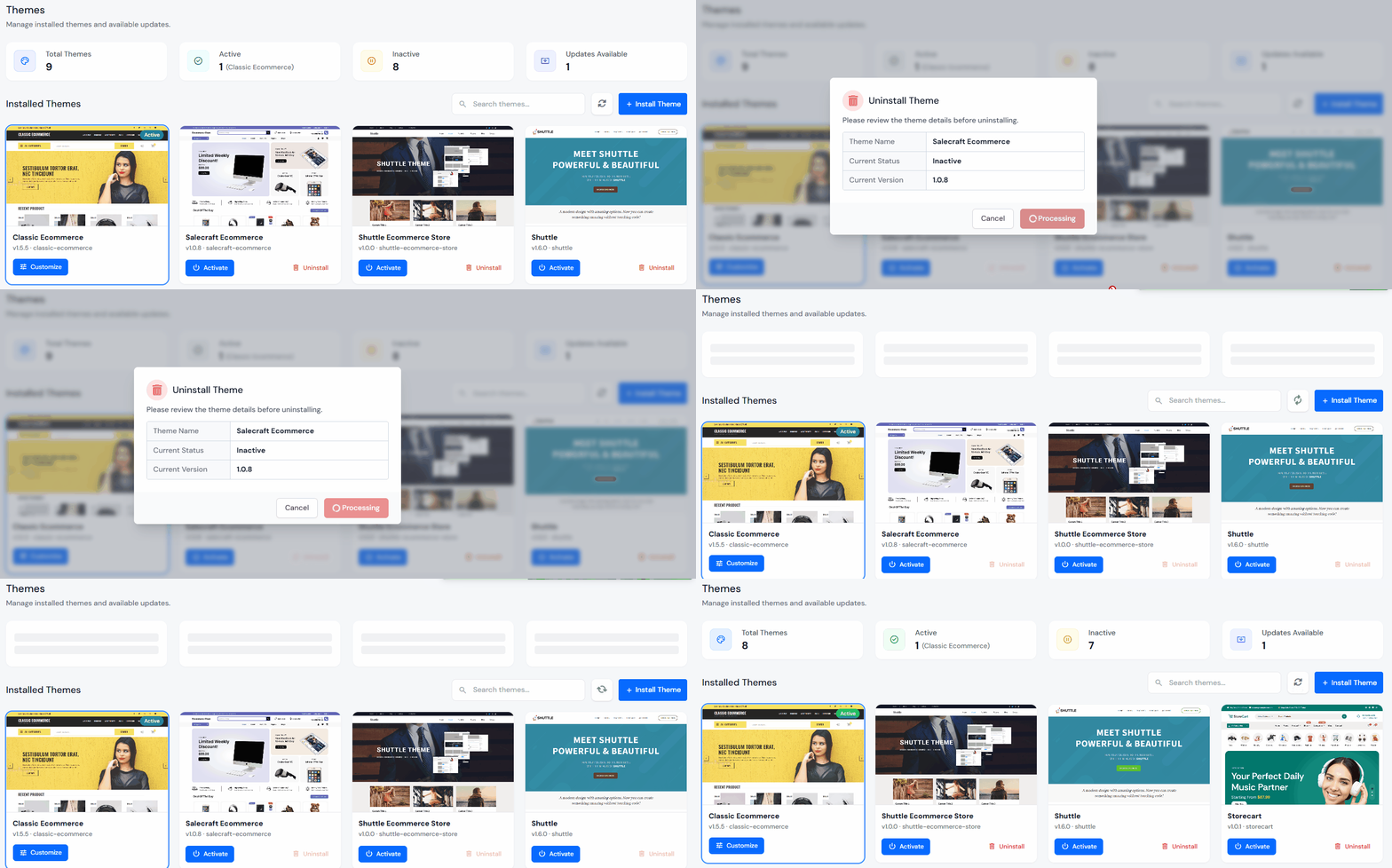
- Inside the Themes section of WordPress Toolkit, choose the theme you want to remove and click on the uninstall button.
- Click on the Uninstall button for the confirmation to remove the theme.
Please take a look and do not remove:
- currently active theme
- child theme connected to active theme
- temporary fallback theme you intentionally keep
A clean theme list makes long-term management easier.
Best Practices for Managing WordPress Themes on a VPS
Here are practical habits that help.
- Always check the themes before activating, updating, or deleting, especially on production websites.
- Use staging feature while redesigning to check out the layout, CSS, plugins, and checkout flow, then move to production. You can also use ServerAvatar’s staging area feature for the same.
- Too many unused themes create clutter. Keep only what you need, such as an active theme, a child theme, an optional emergency fallback, and remove the rest.
- Update regularly, avoid delaying theme updates too long. Regular, smaller updates are easier than fixing large compatibility issues later.
- Always check the plugin compatibility, as themes with plugin conflicts are common. Especially with page builders, WooCommerce, caching plugins, and membership plugins.
Theme Management: wp-admin vs ServerAvatar
| Task | wp-admin | ServerAvatar |
|---|---|---|
| Install theme | Yes | Yes |
| Activate theme | Yes | Yes |
| Update themes | Yes | Yes |
| Remove theme | Yes | Yes |
| Multiple website workflow | repetitive | easier |
| VPS + WordPress management in one place | no | yes |
For teams managing WordPress on VPS servers, ServerAvatar keeps everything more centralized.
Key Takeaways
- WordPress themes affect design and site functionality.
- ServerAvatar simplifies theme management from one dashboard.
- Installing and activating themes is faster.
- Theme updates are easier across multiple websites.
- Removing unused themes improves maintenance.
Conclusion
Managing WordPress themes doesn’t need to feel repetitive. Once you start handling several websites, jumping between WordPress dashboards takes more time than expected.
ServerAvatar’s WordPress Toolkit keeps theme management in one place. You can install a new theme, activate a redesign, update existing themes, and clean unused ones without leaving your server dashboard. That makes daily WordPress maintenance smoother, especially when you manage multiple VPS-hosted websites.
FAQs
Can I manage themes without opening WordPress admin?
Yes, ServerAvatar’s WordPress Toolkit lets you manage themes directly from the dashboard.
Will changing a theme affect content?
Usually, posts and pages stay intact, but layout, styling, widgets, and menus may change. Always verify after switching.
Should I delete inactive themes?
Generally, yes. Keep only the ones you actually use. It keeps maintenance cleaner.
Should I update themes immediately?
Usually yes, but check, changelog, compatibility, and then proceed.
Can changing a WordPress theme affect my website?
Yes. Your posts, pages, and media stay the same, but the website layout, menus, widgets, and styling may look different. It’s always best to take a backup and review key pages after switching themes.
Next Steps
You may also want to read:
- WordPress Toolkit for WordPress Management in ServerAvatar
- How to Create WordPress Blueprints Easily in ServerAvatar
- How to Enable Debug Mode, Debug Logs, and Display Errors in WordPress
Managing WordPress sites on a VPS becomes much easier when theme updates, server management, SSL, backups, and application controls are available from one dashboard. ServerAvatar helps simplify those everyday tasks without adding extra complexity.
About the Author
Meghna Meghwani is a technical writer focused on Linux, Ubuntu, VPS hosting, server management, WordPress, PHP, Node.js, cloud hosting, and DevOps. She creates beginner-friendly tutorials, practical hosting guides, troubleshooting articles, and server security content designed to help developers and businesses manage applications and servers more efficiently.