

Every time someone visits your WordPress site, their browser has to do many things. To reduce HTTP requests, it first has a list of files it needs before it can show a single pixel. CSS files. JavaScript files. Images. Fonts. Tracking pixels. Font icons. Video embeds.
Each item on that list is one HTTP request. And here’s the thing most people don’t realize until they actually look: that list is usually way longer than it needs to be.
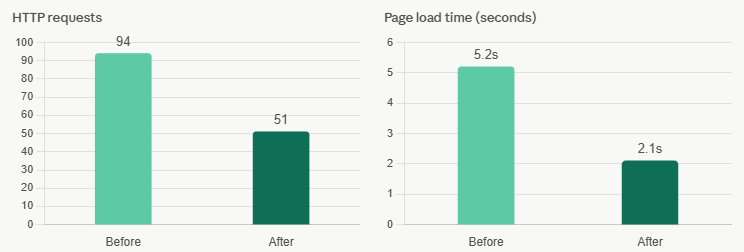
I remember opening GTmetrix for a client’s WordPress site for the first time a couple of months ago and seeing 94 requests for a simple blog page. The site was loading four separate JavaScript files from a plugin the client had forgotten they even installed. Just disabling that one plugin brought it down to 71 requests and dropped the load time by nearly two seconds. That’s the kind of gap we’re talking about here.
In this guide, I’m going to walk you through how HTTP requests actually work in WordPress, how to measure them properly, and, more importantly, which optimizations actually move the needle.
TL;DR
- Every file your browser fetches is a separate HTTP request, more requests mean a slower site
- The biggest culprits are heavy plugins, unoptimized fonts, external tracking scripts, and oversized images
- You can cut requests dramatically by auditing what loads, hosting assets locally, deferring non-critical scripts, and using modern formats
What Actually Are HTTP Requests
Think of your browser like a customer in a restaurant where every ingredient needed for a dish comes from a different supplier. Each supplier call represents an HTTP request. The browser makes these requests over a network (not a phone line, but the idea is similar), and every single request introduces a small delay or latency before the page can fully load.
How This Works in WordPress
- Every WordPress page is built using multiple assets that the browser must load before displaying the page.
- These assets include CSS stylesheets, JavaScript files, fonts, images, and other supporting resources.
- The browser sends a separate request to the server for each asset.
- It waits for the server to respond before downloading the requested file.
- Once the file is received, the browser continues requesting the remaining assets.
- This sequence is repeated until every required resource has been downloaded and processed.
- The more assets a page contains, the more requests the browser needs to make before the page is fully rendered.
Every resource that your browser downloads requires its own HTTP request. Understanding which assets generate requests helps you identify where optimization efforts will have the biggest impact.
The table below highlights the most common asset types found on WordPress websites and the best ways to optimize them.
| Asset Type | Example | Creates HTTP Request? | Best Optimization |
|---|---|---|---|
| CSS | style.css | Yes | Minify and remove unused CSS |
| JavaScript | app.js | Yes | Defer or delay non-critical scripts |
| Images | hero.webp | Yes | Compress and lazy load |
| Fonts | Open Sans | Yes | Host locally and preload |
| Videos | YouTube Embed | Yes | Use click-to-load embeds |
| Third-party Scripts | Google Analytics | Yes | Delay or remove unnecessary scripts |
Why This Becomes a Problem
- Every file request takes time, even on a fast internet connection.
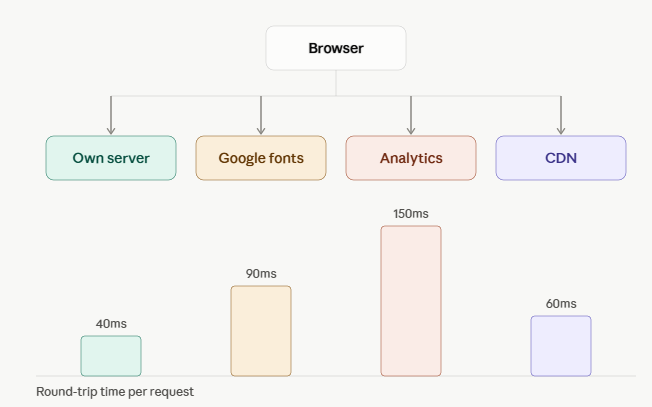
- Requests to a local server are typically faster, while external resources introduce additional delay.
- Third-party services, such as analytics, advertising scripts, or embedded widgets, often take the longest to respond.
- A typical WordPress page can generate 80 to 100 or more individual requests.
- As these requests add up, the browser spends more time waiting for resources to load.
- The extra waiting time delays page rendering and interactivity.
- This results in slower page load speeds, a poorer user experience, and can negatively affect website performance.
Impact on Performance & SEO
- Slow page loading affects more than just the visitor experience.
- Search engines consider page speed as one of the signals when evaluating website quality and rankings.
- Excessive network requests can slow down the delivery of important page content.
- Google Core Web Vitals are directly impacts important performance metrics, including Largest Contentful Paint (LCP).
- Delayed loading of scripts and resources can also affect Interaction to Next Paint (INP) by making the page less responsive.
- The more requests a page makes, the longer it takes to load and become interactive.
- Reducing unnecessary requests can improve performance scores, user satisfaction, and overall SEO.
I’ll skip the surface-level advice and focus on the changes that genuinely speed up a live site. If you want a broader view, I’ve written a complete guide to speeding up WordPress with optimization methods that covers everything from caching to image optimization.
Why Reducing Requests Matters More Than You Think
I’ve seen developers spend days optimizing database queries when the real bottleneck was twenty JavaScript files loading synchronously on every single page. The database was fine. The theme was fine. The plugins were the problem.
When you cut down HTTP requests, three things happen:
First, the browser has less work to do. It downloads fewer files, parses less code, and renders the page faster. For your visitors, this means a noticeably snappier experience, especially on mobile, where network conditions are less predictable.
Second, your server handles less work. Each request consumes CPU and memory on the server side. Fewer requests means your server can serve more visitors simultaneously without breaking a sweat. For growing sites, this is the difference between a server that scales and one that falls over during a traffic spike. If your server response time is already slow, start with my TTFB optimization guide first.
Third, your Core Web Vitals improve. Google measures how quickly your page becomes interactive. Fewer requests means faster LCP, lower INP, and better CLS scores. That directly translates to better rankings.
The good news: you don’t need to overhaul your entire site. A handful of targeted fixes usually handles the bulk of the problem.
Measuring What Your Site Is Actually Loading
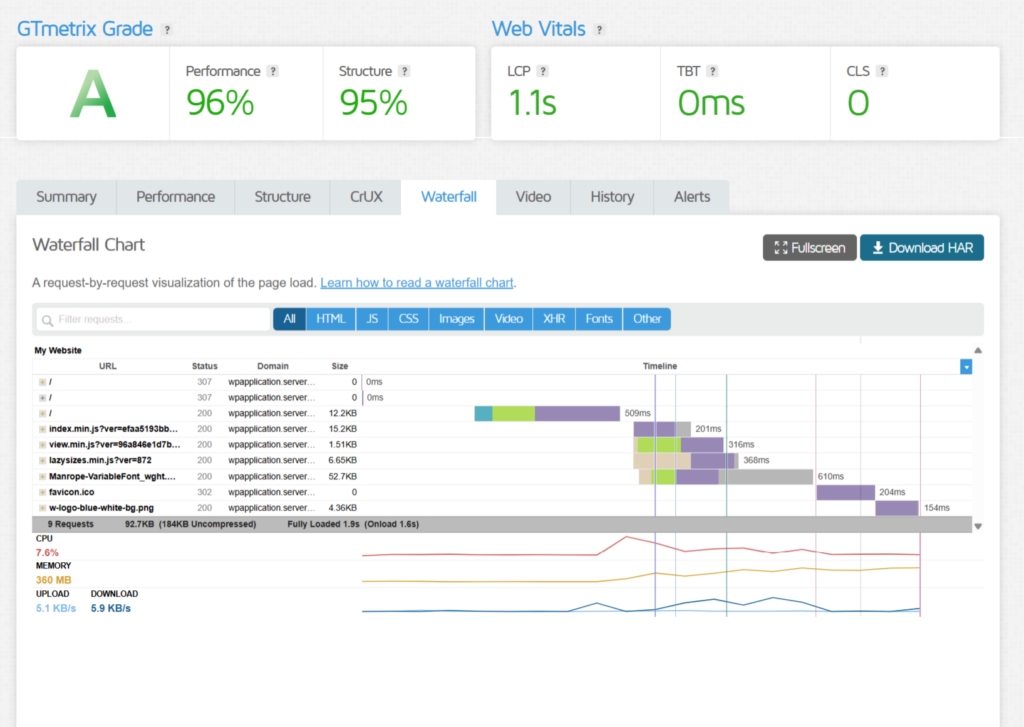
Before you start changing things, you need to know what you’re working with. This is where waterfall analysis comes in, it’s the single most useful diagnostic tool for HTTP request problems.
Tools to Analyze Requests
- Provides a detailed waterfall chart showing every request made during page loading.
- Clearly identifies whether a resource is served from your server, a CDN, or a third-party service.
- Displays important details such as file size, loading time, and request order.
- The waterfall chart is especially useful for identifying bottlenecks and slow-loading resources.
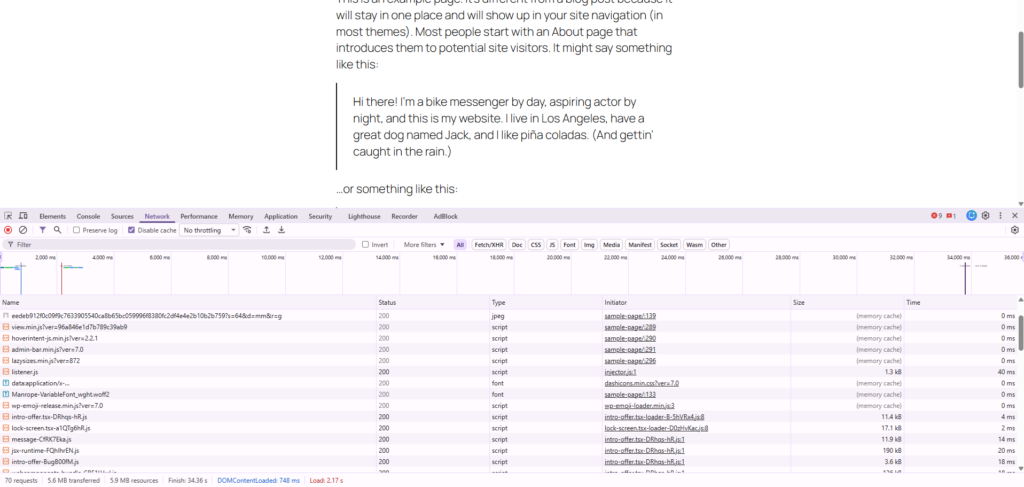
Chrome DevTools (Network Tab)
- Open your browser’s Developer Tools by pressing F12 and navigate to the Network tab.
- Refresh the page to capture all network requests in real time.
- Filter and sort requests by file type, size, loading time, or status.
- Makes it easier to identify large files, slow resources, and unnecessary requests.
What You Should Look For
- Multiple CSS and JavaScript files loaded by the same theme or plugin.
- Large images that have not been compressed or optimized.
- Requests to external services such as Google Fonts, analytics platforms, advertising networks, or embedded social media widgets.
- Resources that take significantly longer than others to load.
- Long bars in the waterfall view, which often indicate slow or render-blocking requests.
- Unused or duplicate assets that increase the total number of HTTP requests without adding value.
Common Issue Found in Real Sites
- Many WordPress plugins load their CSS and JavaScript files across the entire website by default.
- As a result, assets are downloaded even on pages where the related feature is never used.
- For example, a contact form plugin may load its JavaScript on the homepage, despite the form existing only on the Contact page.
- These unnecessary requests increase the number of files the browser must download.
- Reducing or preventing unused assets from loading is often one of the quickest ways to improve website performance.
Not every HTTP request is necessary. In many WordPress websites, unnecessary requests come from plugins, themes, fonts, and third-party services that load assets globally. Identifying these common causes makes it much easier to prioritize performance improvements.
| Cause | Impact | Recommended Solution |
|---|---|---|
| Too many plugins | Loads extra CSS & JS | Remove unused plugins or load assets conditionally |
| Heavy themes | Unnecessary files on every page | Use lightweight themes |
| External fonts | Additional DNS lookups | Host fonts locally |
| Third-party scripts | Higher latency | Delay or remove non-essential scripts |
| Large images | Slower loading | Convert to WebP or AVIF |
| WordPress default assets | Extra requests | Disable Emoji & oEmbed scripts |
Fix 1: Audit and Replace What Loads Too Much
The biggest source of unnecessary HTTP requests on most WordPress websites is plugins. While plugins are essential for adding features, many of them load scripts and styles on every page, even when those assets are not actually needed.
This creates avoidable overhead and slows down the overall page load. The first step is to identify these patterns and reduce unnecessary loading wherever possible.
What to check:
- Review your website’s waterfall chart using tools like GTmetrix or your browser’s Network tab.
- Check for multiple CSS and JavaScript files being loaded by the same plugin or theme.
- Identify assets that are loaded across every page, even when they are only needed on specific pages.
- Pay special attention to plugins that load scripts and styles globally instead of only where their functionality is used.
How to fix it:
- Use WordPress conditional loading to prevent unnecessary assets from loading on pages where they are not required.
- Remove unused scripts with the
wp_dequeue_script()function when they are not needed. - Remove unnecessary stylesheets with the
wp_dequeue_style()function on pages where they serve no purpose. - Load plugin and theme assets only on the pages that actually require them to reduce HTTP requests and improve page performance.
Example scenario:
Here’s a simple example that stops a fictional contact form plugin’s assets from loading anywhere except the contact page:
add_action( 'wp_enqueue_scripts', 'stop_plugin_assets_globally', 100 );
function stop_plugin_assets_globally() {
    if ( ! is_page( 'contact' ) ) {
        wp_dequeue_script( 'contact-form-plugin' );
        wp_dequeue_style( 'contact-form-plugin' );
    }
}No-code options:
- Perfmatters plugin
- Asset CleanUp plugin
- Allows per-page script/style control
Additional improvements:
- Replace heavy plugins with lightweight alternatives
- Avoid bloated or outdated themes that load unnecessary assets
Fix 2: Take Control of Your Fonts
Fonts are the most ignored source of HTTP request. When using Google Fonts in the default way, the browser first loads a stylesheet and then downloads multiple font files from external servers. Each font weight or style creates extra requests, which can slow down the overall page loading process.
Issues caused by default font loading:
- Multiple external requests to Google servers
- Each font weight increases load time
- Slower text rendering on initial page load
How to optimize:
- Check whether your website loads fonts from external services such as Google Fonts.
- Hosting fonts locally eliminates additional requests to third-party servers.
- Local fonts can improve page load speed and provide more consistent performance.
- They also reduce dependency on external services, helping pages render more reliably.
- If you use WordPress, plugins such as OMGF (Optimize My Google Fonts) can automatically download and serve Google Fonts from your own server.
- After making changes, test your website to ensure fonts load correctly and performance has improved.
Advanced improvements:
What I recommend for most WordPress sites:
- Host fonts locally download your Google Fonts and serve them from your own server. This eliminates the external requests entirely. A plugin like OMGF (Optimize My Google Fonts) can handle this automatically. You point it at your site, it finds your Google Fonts, downloads them, and reconfigures your theme to serve them locally. From your server’s perspective, this is a significant speed win.
- Subset your fonts most font files include hundreds of characters you never use. Latin alphabet fonts that include extended Cyrillic characters, for instance. Subsetting removes everything except the characters you actually need. A font that was 200KB can drop to 40KB this way.
- Use
font-display: swapadd this to your@font-faceCSS declaration. It tells the browser to show a system fallback font immediately while the custom font is loading. Without it, you get Flash of Invisible Text (FOIT), the page sits there with blank text until the font downloads. With it, content appears right away and swaps to your custom font once it’s ready.
@font-face {
    font-family: 'MyFont';
    src: url('/wp-content/fonts/myfont.woff2') format('woff2');
    font-display: swap;
}- Preload critical fonts for the one or two fonts that render your above-the-fold content (the headline font, for example), add a preload link in your
<head>. This tells the browser to download those fonts as a high priority before it would normally discover them.
<link rel="preload" href="/wp-content/fonts/headline-font.woff2" as="font" type="font/woff2" crossorigin>The combination of local hosting, subsetting, and font-display: swap alone can eliminate four to six external requests on a typical WordPress site.
Fix 3: Deal With External Requests Proactively
Every third-party service adds additional HTTP requests that you do not fully control. These include analytics tools, chat widgets, ad scripts, and embedded media. Apart from the request itself, they also involve DNS lookup, connection setup, and security handshakes, all of which add latency.
Common external sources:
- Google Analytics
- Chat widgets
- Heatmaps
- Social media embeds
- Ad networks
What to do:
The approach I take is practical:
- Audit all external domains in waterfall analysis
- Remove non-essential services
Look at your waterfall chart and identify every domain that isn’t your own server.
For each one, ask: is this service worth its performance cost? Does its functionality justify the latency it introduces?
Optimization strategies:
- Review all third-party scripts to determine whether they are essential for every visitor.
- Self-host scripts whenever possible to reduce reliance on external servers and improve loading performance.
- Delay non-critical scripts so they load only after the page becomes interactive.
- Trigger certain scripts only when a visitor scrolls, clicks, or moves the mouse.
- Prioritize loading critical content first and defer secondary scripts until they are actually needed.
- Regularly remove outdated or unused third-party scripts to reduce unnecessary HTTP requests and improve page speed.
For video embeds:
- Avoid loading full player on page load
- Use thumbnail preview + click-to-load method
Fix 4: Optimize Images the Right Way
Images are usually the largest contributor to page size and HTTP requests. However, the issue is not only file size but also the number of images being loaded simultaneously. When images are not properly optimized, they can noticeably increase page load time and make the website feel slower.
Here’s what actually works:
- Switch to modern image formats: WebP and AVIF files are significantly smaller than JPEG or PNG equivalents at the same quality level. Most WordPress hosts, including ServerAvatar, handle automatic image conversion now when you enable it. If your host doesn’t, a plugin like ShortPixel or Imagify can handle it site-wide. A 200KB JPEG can become a 45KB WebP with no visible quality loss.
- Lazy load everything below the fold: Images that are outside the viewport shouldn’t load until the visitor scrolls to them. WordPress 5.5 and later has native lazy loading for images built in, just make sure your theme isn’t overriding it with its own image handling. For more control, plugins such as Smush or ShortPixel allow you to customize lazy loading settings, including the option to exclude certain images, such as the hero image above the fold, so they load immediately for better initial rendering.
- Use SVGs for icons and simple graphics: If your site loads icon fonts or individual PNG icons for UI elements, switch to SVG. A set of twenty icons that would be 80KB across twenty separate PNG files can become a single 12KB SVG sprite. SVGs are resolution-independent, meaning they look sharp on every screen size, and they load as a single request.
Fix 5: Minify and Combine Files, But Know When It Helps
Minification removes unnecessary characters from code, making files smaller. Combining merges multiple files into one, reducing HTTP requests. However, their effectiveness depends heavily on the server protocol being used.
How HTTP Versions Affect File Loading
Whether combining CSS and JavaScript files improves performance depends on the HTTP protocol your server uses. Modern protocols like HTTP/2 and HTTP/3 can download multiple assets simultaneously, reducing the need to merge files into a single bundle.
| Protocol | How It Handles Requests | Combining Strategy |
|---|---|---|
| HTTP/1.1 | One file per connection, serial | Yes, combine files into fewer bundles |
| HTTP/2 | Multiple files per connection, parallel | Test both ways, often better to leave separate |
| HTTP/3 | Parallel over QUIC, no head-of-line blocking | Test both ways, multiple small files often win |
When it helps:
- File combination is generally more beneficial on servers that still use HTTP/1.1, where reducing the number of requests can improve loading performance.
When it may not help:
- Websites running HTTP/2 or HTTP/3 can download multiple files simultaneously, making file combination less important.
- Combining too many files on modern servers can sometimes delay the loading of critical resources and slow the initial page render.
Best practice:
- Popular WordPress caching plugins such as WP Rocket, LiteSpeed Cache, and W3 Total Cache provide options for minification and file optimization.
- Enable CSS and JavaScript minification to reduce file sizes without affecting functionality.
- Test your website before and after enabling file combination to verify whether it improves performance.
- Measure the impact using performance testing tools instead of assuming file combination will always help.
- Popular WordPress caching plugins such as WP Rocket, LiteSpeed Cache, and W3 Total Cache provide options for minification and file optimization.
Fix 6: Use resource hints to know and speed up upcoming requests
Resource hints are HTML directives you can place in your <head> that tell the browser what it’s going to need soon, so it can start working on those requests early. They’re a small addition with a meaningful impact because they shave off the DNS lookup and connection time from critical resources.
The ones I use most often:
| Resource Hint | What It Does | When to Use It |
|---|---|---|
dns-prefetch | Resolves DNS in background | External services like Google Fonts or analytics |
preconnect | DNS + TCP + TLS handshake | Critical third-party domains (font files, CDN) |
preload | Downloads file now at high priority | Your own critical CSS, fonts, or LCP image |
dns-prefetchresolves the DNS for a third-party domain in the background. Useful for services like Google Fonts or analytics providers where you know the browser will need to connect, but don’t need the connection established immediately.
<link rel="dns-prefetch" href="//fonts.googleapis.com">preconnectgoes further, it does the DNS lookup, TCP handshake, and TLS negotiation in advance. Use this for third-party domains that are critical to your page rendering, like a font stylesheet URL or a CDN.
<link rel="preconnect" href="https://fonts.gstatic.com" crossorigin>preloadtells the browser to fetch a specific file right now with high priority. Use this for your most important CSS file or your primary font, the files needed to render above-the-fold content before the browser would normally discover them through parsing.
<link rel="preload" as="style" href="/wp-content/themes/your-theme/main.css">One caution: don’t overuse these. Preloading everything defeats the purpose. For a deeper dive into preloading specifically, see my guide on improving WordPress performance with preloading tricks.
Fix 7: Disable What WordPress Loads By Default
WordPress includes some default features that are not required for every site but still load scripts globally. These add unnecessary HTTP requests and can be safely disabled in many cases.
- WordPress includes a small JavaScript file (
wp-emoji-release.min.js) that converts text emoticons into emoji characters. - If your content doesn’t rely on this conversion, which most modern sites don’t, since visitors’ devices render emoji natively, this script is pure overhead.
- WordPress loads oEmbed scripts that allow you to embed YouTube videos, tweets, and other content by just pasting a URL.
- If you’re not using oEmbed functionality in your content, these scripts are wasting requests.
- You can disable both with a lightweight plugin like Asset CleanUp, which has toggles for these features.
If you prefer a code-based approach, add this to your theme’s functions.php:
// Disable emoji scripts
remove_action( 'wp_head', 'print_emoji_detection_script', 7 );
remove_action( 'wp_print_styles', 'print_emoji_styles' );

// Disable oEmbed scripts
remove_action( 'wp_head', 'wp_oembed_add_discovery_links' );
remove_action( 'wp_head', 'wp_oembed_add_host_js' );These lines eliminates two individual JavaScript request on page load. It takes five minutes to implement and the impact is immediate.

Fix 8: Implement Critical CSS and Defer Non-Critical JavaScript
By default, CSS and JavaScript files block rendering until they are fully downloaded and processed. This delays the time it takes for users to see meaningful content on the page.
Critical CSS
- Load only the CSS needed for above-the-fold content first.
- Inline Critical CSS to render the page immediately.
- Load the remaining stylesheet asynchronously.
- WP Rocket can generate Critical CSS automatically.
Defer JavaScript
- Use the
deferattribute for non-critical JavaScript files. - Download scripts in the background while the HTML loads.
- Execute scripts only after the HTML is fully parsed.
- Defer analytics, chat widgets, and social sharing scripts whenever possible to improve initial page rendering.
You can add defer to enqueued scripts programmatically:
add_filter( 'script_loader_tag', 'add_defer_to_non_critical_scripts', 10, 2 );
function add_defer_to_non_critical_scripts( $tag, $handle ) {
    // Add defer to all scripts except those that must run immediately
    if ( is_admin() ) return $tag;
    return str_replace( ' src', ' defer src', $tag );
}Or you can use a plugin to manage which scripts load where and with what attributes.
Why Your Hosting Environment Also Matters
Reducing HTTP requests is one part of improving WordPress performance, but your hosting stack also plays a significant role. Modern web servers, built-in caching, PHP optimization, and CDN support help browsers fetch assets more efficiently.
Platforms like ServerAvatar make it easy to configure these performance features without manually managing complex server configurations. While optimizing your WordPress assets is essential, pairing those optimizations with a properly configured server helps you achieve the best possible loading speeds.
Conclusion
Reducing HTTP requests is one of the most effective ways to improve your WordPress site’s loading speed, but the goal isn’t simply to achieve the lowest request count. Instead, focus on eliminating unnecessary assets, optimizing the files that matter, and ensuring every request contributes to a better user experience. Regularly auditing your website, optimizing images and fonts, limiting third-party scripts, and loading resources only when needed can significantly improve performance and Core Web Vitals.
Website optimization is ongoing process, not one-time task. As your site grows and new plugins or features are added, revisit your performance regularly to identify new optimization opportunities. Combined with reliable hosting, proper caching, and modern technologies like HTTP/2 and HTTP/3, reducing unnecessary HTTP requests helps create a faster, more responsive WordPress website that benefits both your visitors and your long-term search visibility.
FAQs
How do I see how many HTTP requests my WordPress site is making?
Use GTmetrix or the Network tab in Chrome DevTools (F12). Both show a waterfall chart of every request. GTmetrix gives you a cleaner overview with grades and recommendations; DevTools gives you raw timing data.
Will reducing HTTP requests fix my Core Web Vitals scores?
It can significantly improve LCP (Largest Contentful Paint) and INP (Interaction to Next Paint), both of which are Google ranking factors. Fewer requests means faster rendering and less blocking, which directly affects how quickly your page becomes interactive and visually complete.
Is combining CSS and JavaScript files always a good idea?
Not on HTTP/2 or HTTP/3 servers. On modern protocols, multiple small files load in parallel more efficiently than one large combined file. Enable combination on HTTP/1.1 servers, but test both ways on HTTP/2 or HTTP/3, sometimes the combined file is worth it for your specific setup, sometimes it isn’t.
What’s the fastest way to reduce external requests?
Self-hosting Google Analytics is the quickest win, it eliminates at least one external DNS lookup and connection on every page view. Disabling WordPress emojis and embeds is a close second. Both take minutes to implement with a plugin.
Do CDN services reduce HTTP requests?
A CDN doesn’t reduce the number of requests, but it dramatically reduces how long each request takes by serving files from a server geographically close to the visitor. Combined with HTTP/3 (which handles many small parallel requests efficiently), this makes request-heavy sites feel much faster.
Key Takeaways
- Every file your browser fetches is an HTTP request, the goal is fewer, smaller, smarter requests
- Your biggest wins come from auditing plugins, hosting fonts locally, and eliminating unused default WordPress features
- Modern image formats (WebP/AVIF), lazy loading, and SVG icons dramatically cut image-related requests
- Resource hints (preload, preconnect, dns-prefetch) help the browser get ahead on critical files
- HTTP/2 and HTTP/3 change how you approach file combination, test both ways
About the Author
Meghna Meghwani is a technical writer focused on Linux, Ubuntu, VPS hosting, server management, WordPress, PHP, Node.js, cloud hosting, and DevOps. She creates beginner-friendly tutorials, practical hosting guides, troubleshooting articles, and server security content designed to help developers and businesses manage applications and servers more efficiently