

You’re working on your WordPress site. Everything looks fine one minute, and the next, a stark white page with a single line of text stares back at you: “Error Establishing a Database Connection”. This WordPress database connection error means your posts, pages, comments, user data, all of it lives inside that database. And WordPress is telling you it can’t reach it anymore.
I’ve been there. More importantly, I’ve fixed this error on dozens of sites, my own, client projects, and staging environments that somehow got into a bad state overnight. The good news is this: it’s almost always solvable, and it usually doesn’t take long.
This guide walks you through every real cause of this error and every real fix, ordered from the most common to the least common. I will explain what’s actually happening at each step, not just what to type, because understanding the “why” is what makes you faster the next time this happens.
TL;DR
Here’s the quick version before you dive in:
- Most common cause: Wrong database credentials in wp-config.php
- Second most common: Corrupted database tables from failed updates or plugin conflicts
- Quickest test: Add WP_ALLOW_REPAIR to wp-config.php and visit the repair page
- Always back up first, before touching anything
- If multiple sites are down at once, it’s server issue, not a WordPress issue
What Triggers This Error?
Before reaching for fixes, it helps to understand the architecture. WordPress is a PHP application. Every time a visitor lands on your site, PHP code runs, asks your MySQL database for the content, and assembles a page to send back.
When that handshake breaks, you get the error. Here’s what typically causes it:
1. Incorrect Database Credentials
WordPress stores four critical pieces of information in your wp-config.php file, the database name, the username, the password, and the hostname. If any one of those is wrong, the connection gets refused. This is the single most common cause, responsible for the majority of cases I see.
2. Corrupted Database Tables
Over time, database tables can become corrupted, especially after a plugin fails mid-update, a theme install gets interrupted, or the server loses power at the wrong moment. When the table structure breaks, WordPress can’t read the data it needs, even if the credentials are perfect.
3. Database User Loses Permissions
A database user can exist with the right password but without the right privileges. MySQL permissions are managed separately from login credentials. If something strips those permissions, a bad migration script, a one-click “optimization” tool, or a hosting control panel glitch, WordPress gets locked out despite having correct-looking credentials.
4. The MySQL Server Itself Is Unresponsive
Sometimes the problem isn’t WordPress or your config, it’s that the MySQL service has stopped, run out of memory, or is being overwhelmed. This is a server-level problem, and it requires server-level attention.
5. Sudden Traffic Spikes Overwhelming the Database
A single plugin that goes viral on Hacker News, a social media mention from an influencer, these can flood your server with simultaneous connection requests. MySQL has a limit on concurrent connections, and when that limit fills up, new requests get refused.
6. Corrupted WordPress Core Files
This is rarer, but if a core WordPress file that handles database communication gets damaged, from a failed auto-update, for example, it can produce this exact error even when everything else is fine.
Step-by-Step: How to Fix the Error
Follow these steps in order. Each one eliminates a common cause. If step one doesn’t solve it, move to step two. By the time you reach step seven, you’ll have ruled out almost everything.
Step 1: Create a Backup Before Making Changes
Before troubleshooting database problems, create a backup of your website. Ideally, your backup should include:
- WordPress files
- WordPress database
- Important configuration files
This gives you a recovery point if a repair operation or configuration change causes another problem.
Creating a Backup with ServerAvatar
If your WordPress website is managed through ServerAvatar, you can create website backup directly from the ServerAvatar dashboard.
ServerAvatar supports application backups that include the application’s files and associated database. It also provides options for storing backups to ServerAvatar storage or to your own cloud-storage provider from available options.
Important: Do not assume that a backup exists simply because backups were configured previously. Check that recent backups are actually available before proceeding.
Step 2: Verify Your Database Credentials in wp-config.php
This is one of the first things you should check. The wp-config.php file is normally located in the root directory of your WordPress installation.
Look for:
/** The name of the database for WordPress */
define( 'DB_NAME', 'your_database_name' );

/** MySQL database username */
define( 'DB_USER', 'your_username' );

/** MySQL database password */
define( 'DB_PASSWORD', 'your_password' );

/** MySQL hostname */
define( 'DB_HOST', 'localhost' );For more information about the config file and its database-related settings, see the official WordPress wp-config.php documentation
Managing Database Details with ServerAvatar
If your server is managed through ServerAvatar, you can manage databases and database users through the ServerAvatar dashboard instead of relying entirely on command-line database administration.
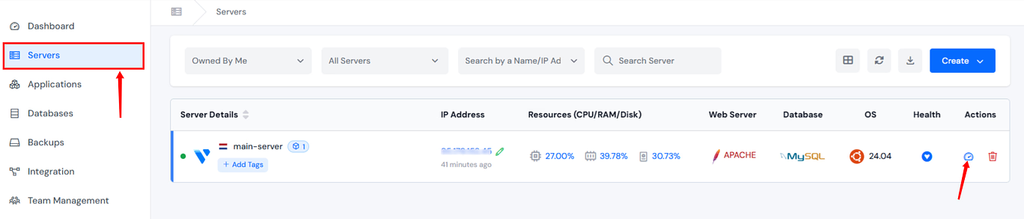
- Navigate to your server panel by clicking on the server dashboard icon.
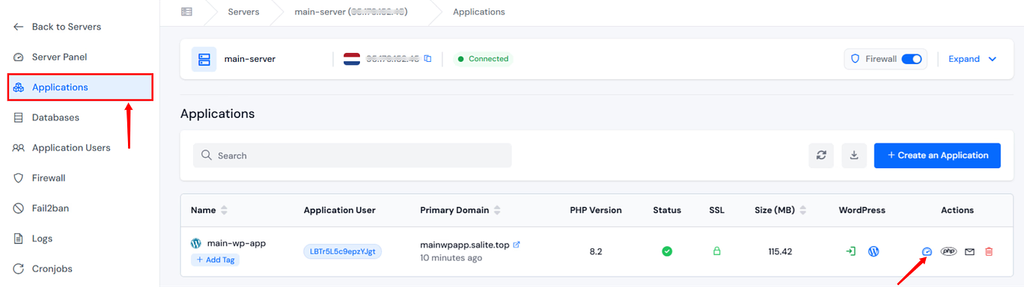
- Go to the Application section, and click on your WordPress application dashboard icon.
- Navigate to the File Manager section from the left sidebar, and navigate to the public_html folder.
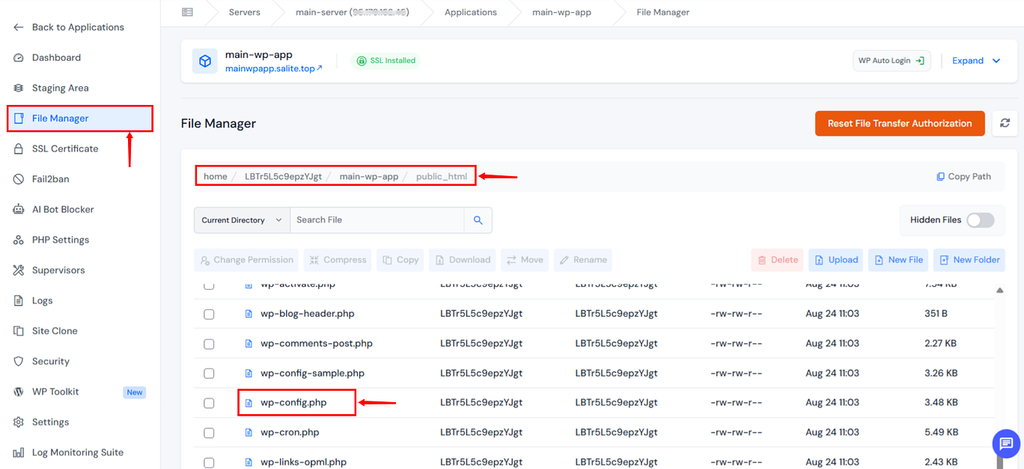
- Open the
wp-config.phpfile.
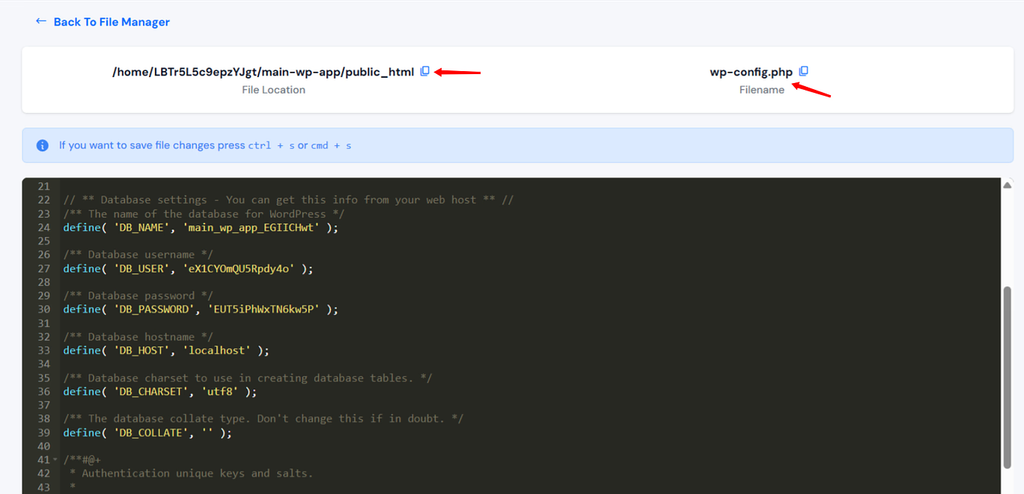
Check each mentioned value carefully:
DB_NAME: Make sure the database exists and that the name matches the database assigned to your WordPress installation.DB_USER: Confirm that the database user exists.DB_PASSWORD: Make sure the password matches the password configured for that database user.DB_HOST:localhostis common when the database is running on the same server, but the correct value depends on your server architecture.
Do not automatically replace DB_HOST with localhost unless you know that the database is running locally.
After confirming the correct credentials, make sure the values in wp-config.php match your database configuration.
Step 3: Check Database User Permissions
If the database credentials are correct but WordPress still cannot connect, check the database user’s permissions. The user must have the appropriate privileges required to work with the WordPress database.
If you recently:
- Changed the database password
- Migrated your website
- Created a new database user
- Restored a database
- Changed hosting providers
then database permissions are worth checking carefully.
Check Database Users in ServerAvatar
ServerAvatar provides database-user management through the dashboard. You can edit a database user and configure its connection preference, including options such as:
- Everywhere
- Specific IP
- Localhost
Restricting database access to the appropriate source can also improve security.
If you change the database password, remember to update the corresponding DB_PASSWORD value in wp-config.php.
For example:
define( 'DB_PASSWORD', 'your_new_password' );Save the file and test your website again.
Step 4: Repair the WordPress Database
If your credentials and permissions are correct, corrupted database tables may be the problem.
WordPress includes a built-in database repair feature that can help with certain database problems.
Enable the WordPress Database Repair Tool
- Open
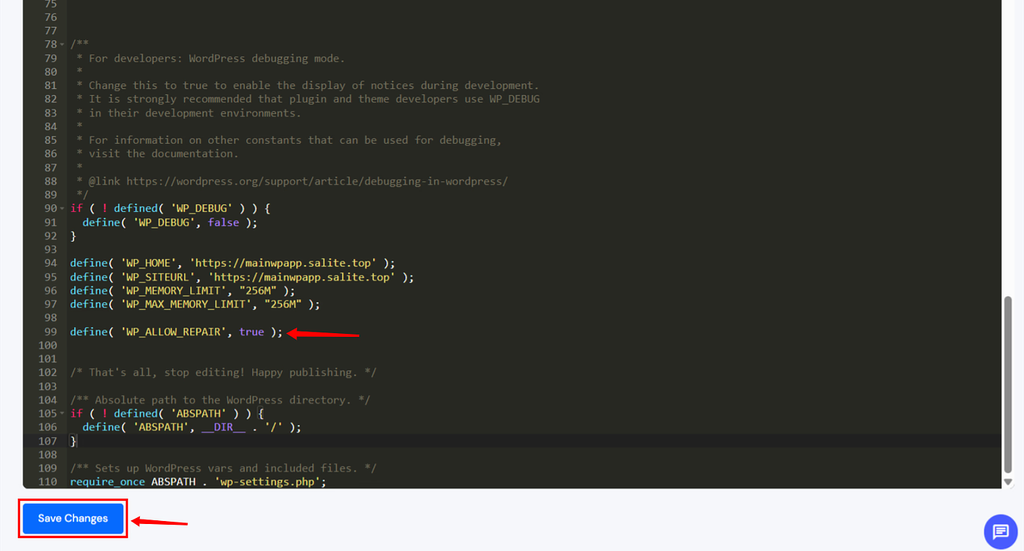
wp-config.phpand add:
define( 'WP_ALLOW_REPAIR', true );- Place it before:
/* That's all, stop editing! Happy publishing. */- Save the file.
- Then visit:
https://example.com/wp-admin/maint/repair.php- Replace
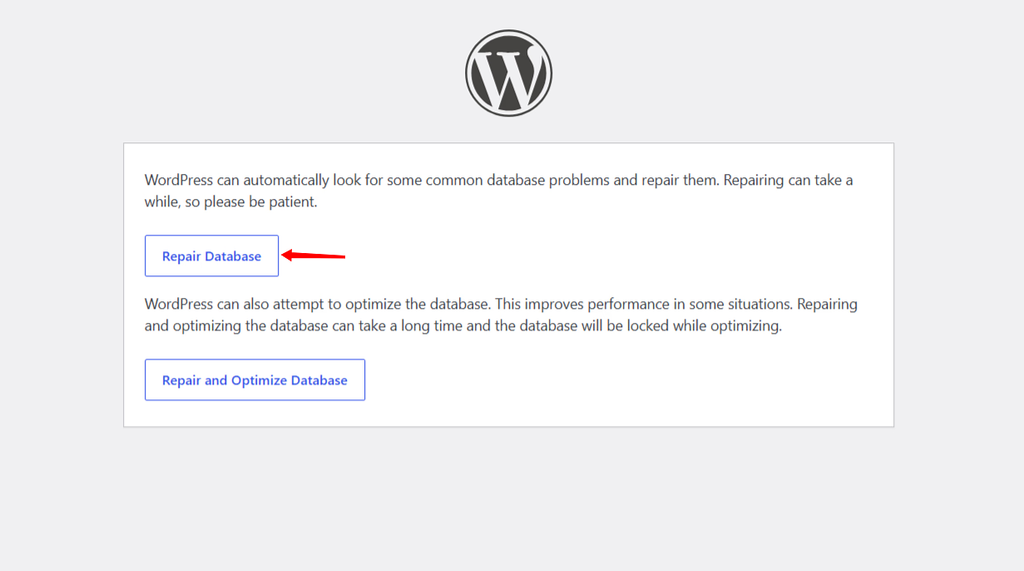
example.comwith your actual domain. - WordPress will provide options to repair the database.
- Choose Repair Database first.
- After completing the repair, remove the mentioned sentence from
wp-config.php.
define( 'WP_ALLOW_REPAIR', true );Why should you remove it?
The repair page does not require normal WordPress authentication in the same way as the WordPress admin dashboard.
Leaving database repair enabled unnecessarily can therefore expose a potentially sensitive maintenance function.
Remove the setting as soon as you’re finished.
Step 5: Check Whether the Database Service Is Running
If the configuration looks correct and the database is still unreachable, check the database service. On a VPS, MySQL or MariaDB may have stopped because of:
- Memory exhaustion
- CPU overload
- Configuration errors
- Database crashes
- Server maintenance
- Storage problems
If you have multiple websites on the same server, check whether they are experiencing the same issue.
If Multiple Websites Are Down
Suppose five WordPress websites hosted on the same server suddenly display:
Error Establishing a Database Connection
That points more strongly toward a server or database-service problem than five separate WordPress configuration problems.
Server-Level Troubleshooting with ServerAvatar
ServerAvatar provides a feature to check and manage services directly through the ServerAvatar platform, including service resource information and controls for service operations.
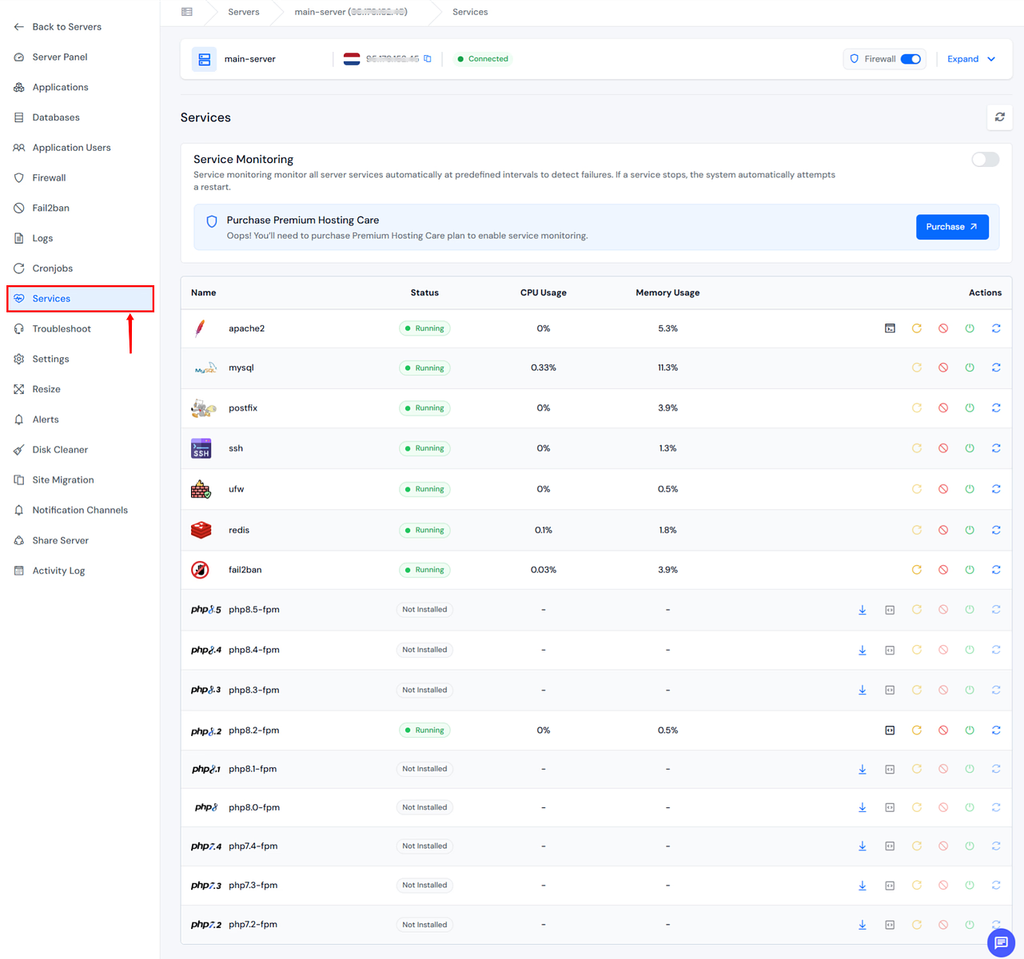
It also provides server-level log viewing and filtering tools that can help when troubleshooting application and infrastructure issues.
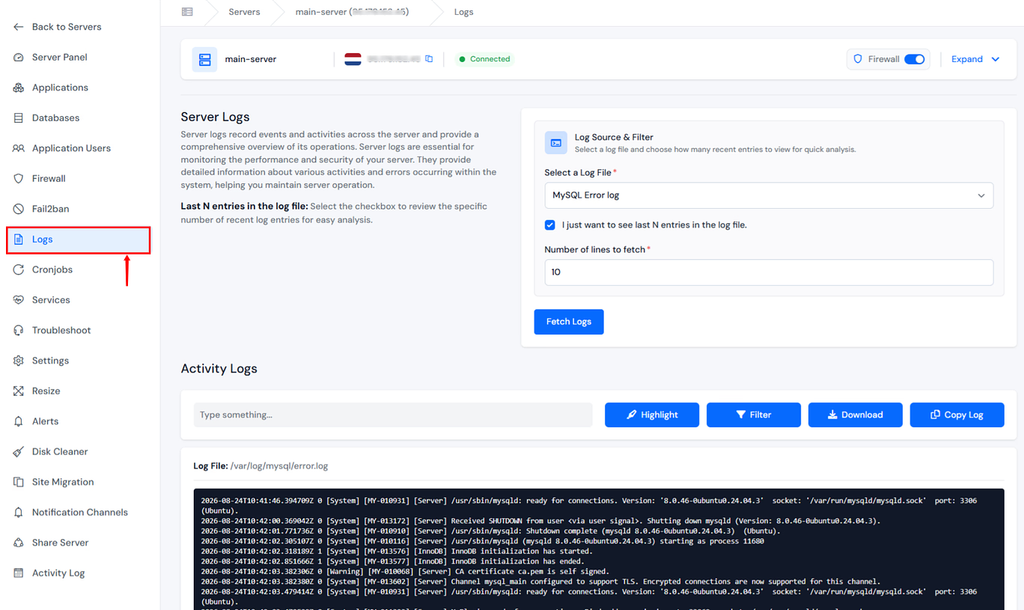
This allows you to investigate the server environment without having to perform every routine management task from the command line.
Step 6: Check Server Resources
If MySQL or MariaDB is running but the website continues to experience database connection problems, check the server’s available resources. Pay attention to:
- RAM usage
- CPU usage
- Disk usage
- Database load
- PHP processes
- Number of concurrent requests
A server running out of memory can cause database services or PHP processes to become unstable.
If the problem occurs only during traffic spikes, resource constraints may be the underlying cause.
Don’t Immediately Accuse WordPress
A WordPress database problem does not always cause a database connection error. The complete request path looks roughly like this:
Visitor
   ↓
Web Server
   ↓
PHP / PHP-FPM
   ↓
WordPress
   ↓
MySQL / MariaDBA problem anywhere along this chain can affect the website.
Step 7: Check PHP Configuration
PHP configuration can also become relevant when a website is running resource-intensive operations. For example, a WordPress application may require more memory than the current PHP configuration allows.
You can check or adjust values such as:
define( 'WP_MEMORY_LIMIT', '256M' );However, increasing the WordPress memory constant does not automatically increase the server’s available RAM. The underlying PHP configuration and server resources still matter.
Managing PHP Settings with ServerAvatar
ServerAvatar allows PHP settings to be managed at the application level. Depending on the server and supported PHP versions, you can manage settings such as:
- PHP version
memory_limitmax_execution_timeupload_max_filesizepost_max_sizemax_input_timemax_input_vars
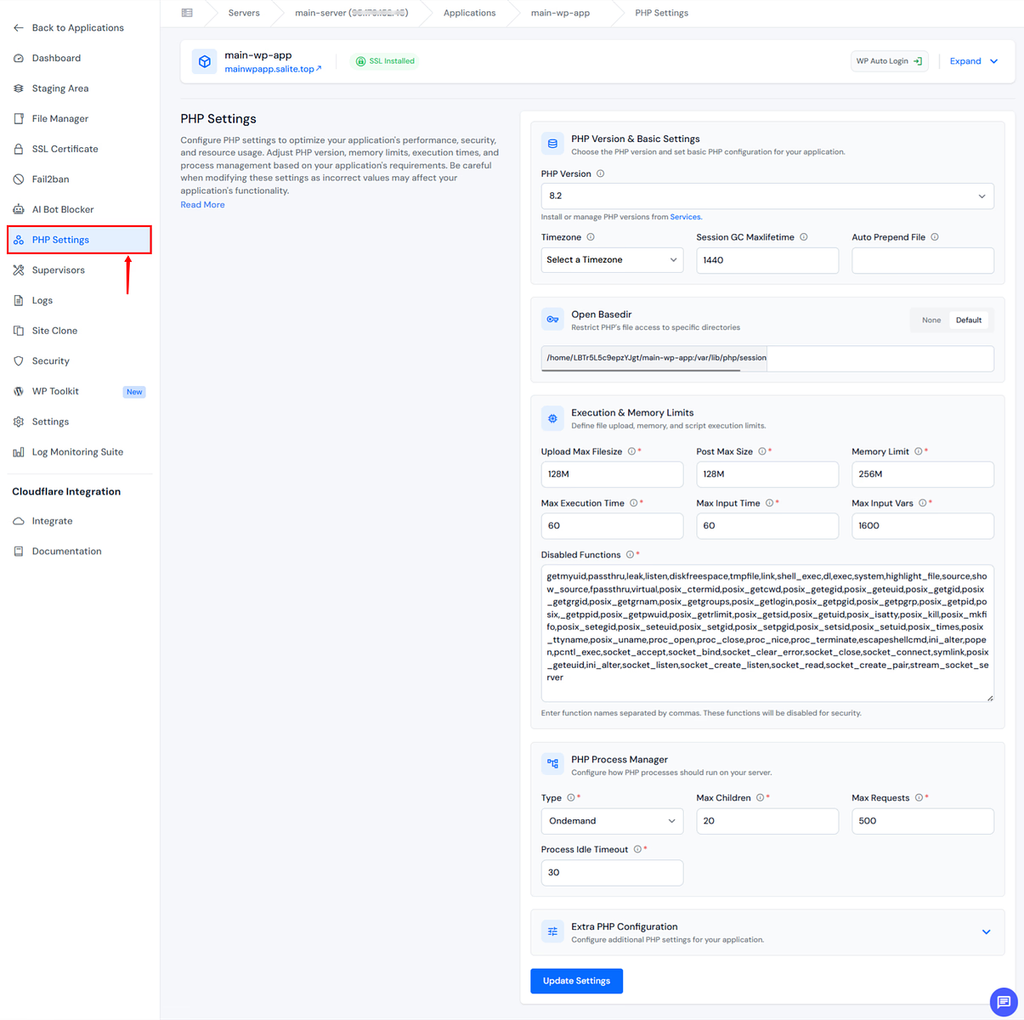
This lets different applications on the same server use appropriate PHP configurations rather than forcing every site to use identical settings.
Step 8: Replace Corrupted WordPress Core Files
If the database is accessible, credentials are correct, permissions are correct, and the server is healthy, corrupted WordPress core files may be worth investigating.
You can replace the WordPress core files without replacing your content.
General Process
- Download a fresh copy of WordPress.
- Extract the downloaded package.
- Do not overwrite your existing
wp-contentdirectory. - Do not replace your existing
wp-config.php. - Upload the fresh WordPress core files.
- Overwrite the existing core files.
- Test the website.
Your themes, plugins, media, and database should remain intact as long as you avoid replacing the appropriate application-specific files and directories.
Always keep a backup before performing this operation.
Step 9: Reduce Database Load with Caching
If your database connection problems happen during traffic spikes, improving caching can reduce the number of requests that reach the database.
Without effective caching, many page requests can require WordPress to execute PHP code and query the database.
With caching, frequently requested content can sometimes be served more efficiently.
Redis with ServerAvatar
ServerAvatar supports Redis at the server level. Redis can be used by applications for caching and other performance-related workloads.
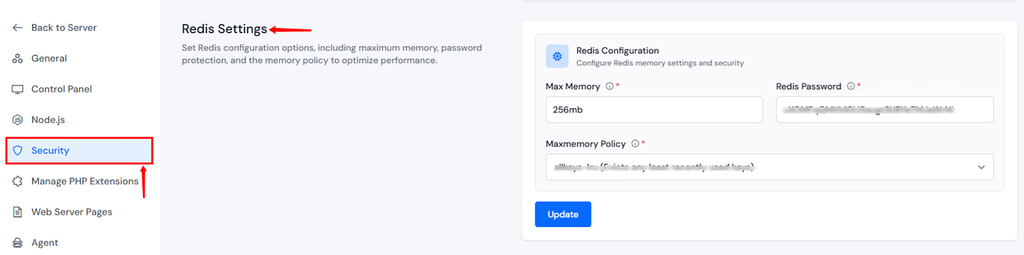
For WordPress, Redis-based object caching can reduce repeated database work for supported workloads. Check out our guide to see Install Redis Object Cache Plugin into WordPress
Check out and see How To Use Redis Full-Page Caching To Speed Up WordPress guide from ServerAvatar
Step 10: Investigate Plugins and Themes
A poorly coded or incompatible plugin can generate excessive database queries or modify database tables incorrectly. If the database connection error appeared immediately after installing or updating a plugin, investigate that plugin first.
You can also temporarily disable plugins to determine whether one of them is contributing to the problem.
If you cannot access the WordPress dashboard, plugins can be disabled through the filesystem or database, depending on your situation.
Use Staging Before Making Risky Changes
Rather than testing potentially disruptive changes directly on production, consider using a staging environment.
ServerAvatar’s Staging Area feature can give you a separate environment where you can test updates, configuration changes, and other modifications without directly affecting the live site. Once testing is complete, supported changes can be directly deployed to production.
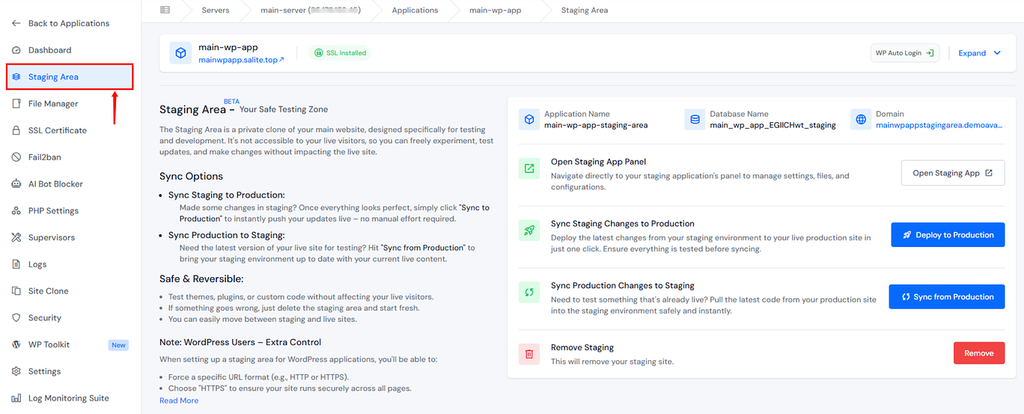
Check out our Complete Guide to Setting Up a Staging Environment directly from ServerAvatar.
For WordPress site owners, this is particularly useful before:
- Updating plugins
- Updating themes
- Changing PHP versions
- Testing database-related changes
- Changing application configuration
Step 11: Consider Your Hosting Environment
If database connection problems happen repeatedly, don’t treat every incident as an isolated WordPress problem. Your hosting environment may be the underlying issue.
Shared hosting environments can place multiple websites on the same infrastructure and resources. A sudden spike in workload can impact application performance, depending on how the provider allocates resources and structures its infrastructure.
A VPS gives you greater control over server resources and configuration. However, managing a VPS manually requires knowledge of:
- Web servers
- PHP
- Databases
- Security
- Backups
- Services
- Server configuration
- Monitoring
- Updates
This is where a server management platform such as ServerAvatar can be useful.
Managing a VPS with ServerAvatar
ServerAvatar provides a management layer for cloud servers, allowing developers and website owners to manage applications, databases, services, system users, backups, PHP settings, security-related settings, and other server operations through a centralized dashboard.
ServerAvatar can also help configure a server with common web stacks and services, including Apache, Nginx, OpenLiteSpeed, and Node Stack, PHP-FPM, MySQL, Redis, Git, and Composer.
This doesn’t eliminate the need to understand your applications, but it can reduce the amount of routine server administration required.
How ServerAvatar Helps Prevent WordPress Database Problems
Fixing a database connection error is important, but preventing recurring problems is even better. ServerAvatar can help with several parts of the infrastructure that support a WordPress website.
1. Automated Backups
ServerAvatar supports instant and scheduled backups for applications, files, and databases. You can configure backup schedules and connect supported cloud storage providers for storing your backups.
This gives you a recovery option if a database becomes corrupted or an update causes unexpected problems.
2. Database Management
Instead of managing every database operation manually through the command line, ServerAvatar provides database and database-user management from its dashboard.
It supports MySQL and MariaDB along with database-user management and access configuration.
3. Application-Level PHP Management
Different WordPress websites may have different PHP requirements. ServerAvatar allows PHP versions and several PHP directives to be configured at the application level, helping you manage multiple applications on the same server.
4. Redis Support
Redis can be used to improve application performance and reduce repeated database work for appropriate workloads. ServerAvatar supports Redis.
5. Staging Environments
Testing directly on a production WordPress website can be risky.
ServerAvatar’s staging functionality allows you to create a testing area for your application and test changes separately before deploying them to production.
6. Server and Service Management
When the problem is outside WordPress, you need visibility into the underlying server.
ServerAvatar provides server and service management capabilities, including resource information and service controls, along with tools such as log viewing for troubleshooting.

How to Prevent “Error Establishing a Database Connection”
Once your website is working again, take a few preventive measures.
Keep Automated Backups Enabled
Don’t wait for a database problem before creating your first backup. Set up a regular backup schedule and periodically verify that backups are being created successfully.
Keep WordPress Updated
Keep WordPress core, themes, and plugins updated. However, test important updates on staging first when possible. ServerAvatar’s WordPress Toolkit add-on allows you to update outdated WordPress core, plugins, and themes directly from the ServerAvatar dashboard.
Avoid Untrusted Plugins and Themes
Pirated or modified plugins and themes can introduce security vulnerabilities and unstable code. Download WordPress extensions from trusted sources and developers.
Monitor Server Resources
If your server frequently approaches its CPU, RAM, or disk limits, investigate before the problem becomes an outage.
Use Appropriate Caching
Caching can reduce unnecessary application and database workload. Consider page caching and object caching based on your site’s requirements.
Use Staging for Major Changes
Test significant WordPress, PHP, plugin, and configuration changes in a staging environment before applying them to production.
Keep Your Database Access Secure
Use strong database credentials and restrict database access where appropriate. ServerAvatar supports database-user connection preferences, including restricting access to localhost or specific IP addresses.
Key Takeaways
- The error means WordPress can’t reach its MySQL database, and the cause is usually straightforward
- Start with wp-config.php credentials, wrong database name, username, password, or hostname accounts for most cases
- Use WordPress’s built-in repair tool by adding
WP_ALLOW_REPAIRto wp-config.php, it’s safe and effective for corrupted tables - Database user permissions are separate from login credentials, gcheck them if everything else looks right
- Replace corrupted core files by uploading a fresh WordPress install (without touching wp-content)
- Server issues (MySQL service down, resource exhaustion) require host-level intervention
- Caching and hosting quality are the best long-term defenses against recurring errors
Conclusion
The “Error Establishing a Database Connection” message is alarming, but it’s almost never as bad as it looks. In the overwhelming majority of cases, the data is fine, the connection is just broken in one detectable, fixable way.
Work through the steps above in order: back up first, check your credentials, repair the database if needed, verify user permissions, and escalate to your host if server infrastructure is the problem. Most cases resolve within an hour.
If you find yourself dealing with this regularly, it’s worth investing in a better hosting and management setup, one where your MySQL instance isn’t competing with hundreds of other sites for the same resources. Platforms such as ServerAvatar handle the server management, so you can focus on your site rather than fighting with infrastructure.
FAQs
Why does WordPress show this error suddenly when nothing changed on my end?
This usually means something changed on the server side, a MySQL service restart, a memory limit being hit, or a host-level configuration update. It can also happen when a plugin runs a background task that modifies the database incorrectly while you’re asleep.
Can I fix this error from my phone?
Not reliably, You’ll need access to your hosting control panel, your wp-config.php file, and ideally phpMyAdmin or a similar database management tool. These are difficult to use on mobile screens. Use a desktop or laptop for this.
Will changing my database password break my site?
Only if you change it in MySQL but forget to update wp-config.php. As long as you update both places simultaneously, there’s no downtime. If you’ve already changed it in MySQL and now can’t log in to your site, update the DB_PASSWORD line in wp-config.php to match.
Does this error mean my data is lost?
Not at all. Your data is almost certainly intact inside the MySQL database. The error is about the connection, not the data itself. Fixing the connection restores access to everything. The only exception is if the database was physically corrupted, and even then, the WordPress repair tool recovers most corrupted tables.
How do I prevent this from happening again?
Regular automated backups, keeping your software updated, using reputable plugins only, and enabling server-level caching are the four most impactful preventive steps. If you’re on shared hosting and seeing this error repeatedly, consider migrating to a VPS for resource isolation.
About the Author
Meghna Meghwani is a technical writer focused on Linux, Ubuntu, VPS hosting, server management, WordPress, PHP, Node.js, cloud hosting, and DevOps. She creates beginner-friendly tutorials, practical hosting guides, troubleshooting articles, and server security content designed to help developers and businesses manage applications and servers more efficiently.