

WordPress may show a reassuring “message sent” notice even when no email reaches the recipient. That gap is frustrating when the missing message is a password reset, contact-form notification, new-account email, or order receipt. WordPress Gmail SMTP provides a reliable way to send emails through Email’s SMTP server instead of relying on your web host’s default mail function.
You can send emails from WordPress using Gmail SMTP without paying for a separate email service. The setup in this guide uses FluentSMTP, a free WordPress plugin, and a Google App Password. It is suitable for personal sites, portfolios, staging sites, and small websites that send a modest number of transactional messages.
This isn’t a newsletter solution, and it won’t guarantee inbox placement. What it will do is replace the server’s often-unreliable default mail path with an authenticated connection to Gmail. You’ll learn how to decide whether Gmail is appropriate, prepare the account safely, configure WordPress, verify more than a green success message, and diagnose the failures that usually trip people up.
TL;DR
- Install the free FluentSMTP plugin and select Other SMTP.
- Use smtp.gmail.com, TLS encryption, and port 587.
- Turn on Google 2-Step Verification and create a dedicated App Password.
- Keep the WordPress From Email identical to the Gmail account used for authentication.
- Send a test, inspect the email log, and check the received message headers.
- Use Gmail only for low-volume transactional messages, not newsletters or bulk campaigns.
- Prefer OAuth when your chosen plugin offers a practical Gmail integration; Google recommends it over App Passwords.
First, Understand What This Setup Changes
WordPress applications commonly call the wp_mail() function when they need to send a message. By itself, wp_mail() is only an interface. It passes the message to the configured mailer; it does not provide a reputation system or an email-delivery network.
On many VPSs, WordPress hands mail to PHP’s local mail function. That route can fail because the server has no mail transfer agent, outbound SMTP ports are restricted, the sending IP has a poor reputation, or the message lacks authentication that receiving providers expect.
An SMTP plugin changes the transport. Instead of asking the web server to deliver the message directly, WordPress authenticates with Gmail and asks Google to send it.
| Component | Its job in this setup |
| WordPress or a plugin | Creates the email and recipient details |
| FluentSMTP | Intercepts WordPress mail and applies the configured connection |
| Gmail SMTP | Authenticates the request and submits the message |
| Receiving mail server | Accepts, filters, rejects, or places the message |
| Email log | Records what WordPress attempted and any returned error |
This distinction matters during troubleshooting. A successful plugin log means Gmail accepted the submission. It does not prove that the recipient’s provider placed the message in the inbox.
Email reliability is only one part of WordPress performance; if your site also has slow server response times, see our WordPress TTFB optimization guide.
Is Free Gmail SMTP the Right Choice for Your WordPress Site?
Gmail SMTP is useful when the site sends occasional operational emails. Think of a portfolio contact form, a small membership site, an internal staging environment, or a low-traffic blog where password resets are the main concern.
It is a poor fit for:
- Marketing newsletters
- Large membership communities
- Busy WooCommerce stores
- Applications with bursts of notifications
- Sites that need delivery analytics, bounce processing, suppression lists, or guaranteed support
Google enforces sending and recipient limits, and the thresholds vary by account type and sending method. See Google’s Gmail sending limits for the current restrictions. Google’s consumer help page warns that sending may be suspended temporarily when limits are reached, while Google Workspace publishes separate limits for paid organizational accounts. Treat those limits as ceilings, not daily targets. They can change, and anti-abuse systems can restrict suspicious sending before a published maximum is reached.
If your site sends only a few dozen transactional messages on a normal day, Gmail can be a sensible free starting point. If email is tied directly to revenue or customer access, use a transactional provider designed for application mail.
Gmail SMTP settings at a glance
| Setting | Recommended value |
| SMTP host | smtp.gmail.com |
| Encryption | TLS / STARTTLS |
| Port | 587 |
| Authentication | Enabled |
| Username | Your complete Gmail or Google Workspace address |
| Password | A 16-character Google App Password, not your normal password |
| From Email | The authenticated Google address, unless a verified alias is configured |
Port 465 with SSL is also supported by many mail clients, but this tutorial uses port 587 with STARTTLS. Choosing one complete pair avoids the common mistake of combining TLS with the SSL port.
What You Need Before Changing WordPress
Do a short preflight check before installing anything. It prevents most configuration loops.
You need:
- Administrator access to WordPress.
- A Gmail or Google Workspace account that you control.
- 2-Step Verification enabled for that Google account.
- Permission to create an App Password.
- A WordPress site using HTTPS.
- A recipient address on another provider for meaningful testing, if possible.
Google only exposes App Passwords after 2-Step Verification is enabled. The option may still be unavailable when the account is enrolled in Advanced Protection, uses security-key-only 2-Step Verification, or is controlled by an organization that blocks App Passwords.
Google also states that App Passwords are not its preferred connection method. When a plugin supports “Sign in with Google” or a native Gmail OAuth connection, OAuth is the better long-term choice because the site does not store a reusable mail password. We’re using an App Password here because it provides a direct, free SMTP configuration and is widely supported.
Security note: Never paste the App Password into a support ticket, screenshot, shared document, or chat. Anyone who obtains it may be able to use the authorized Gmail connection until you revoke it.
Configure WordPress to Send Through Gmail SMTP
The following workflow uses FluentSMTP. It is available in the WordPress plugin directory, supports standard SMTP, provides email logs, and does not require a paid upgrade for the settings used here.
1. Install FluentSMTP and open its connection screen
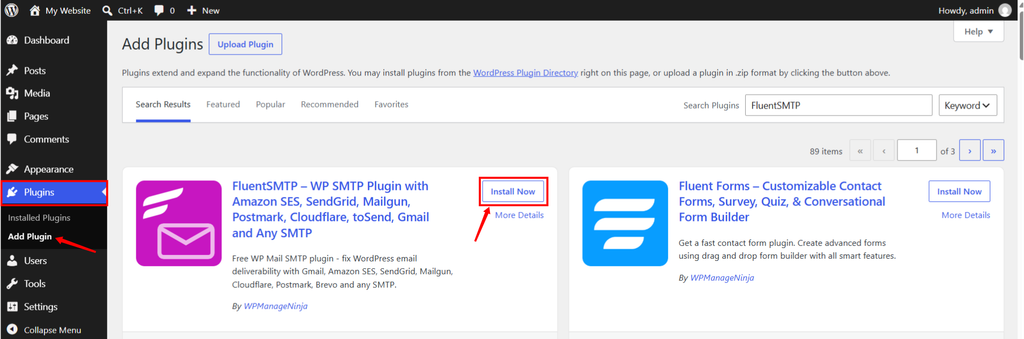
- In WordPress admin dashboard, go to Plugins section >> Add Plugin.
- Search for FluentSMTP, install it, and activate it.
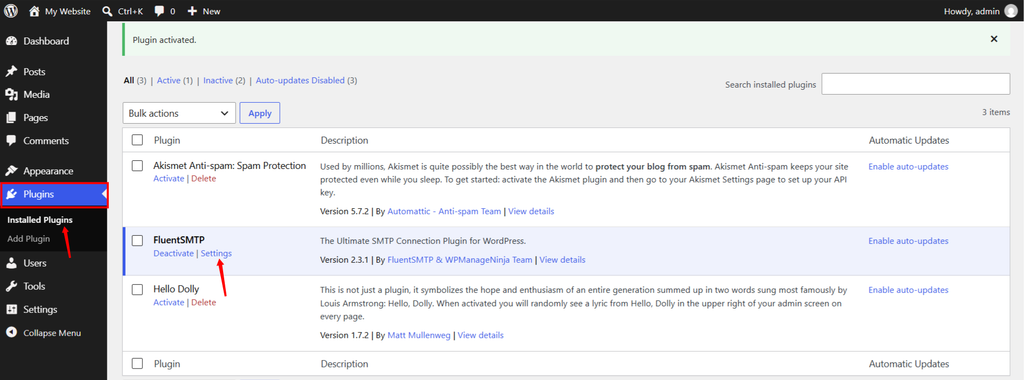
- Go to the Installed Plugins section, and click on the Settings for FluentSMTP plugin.
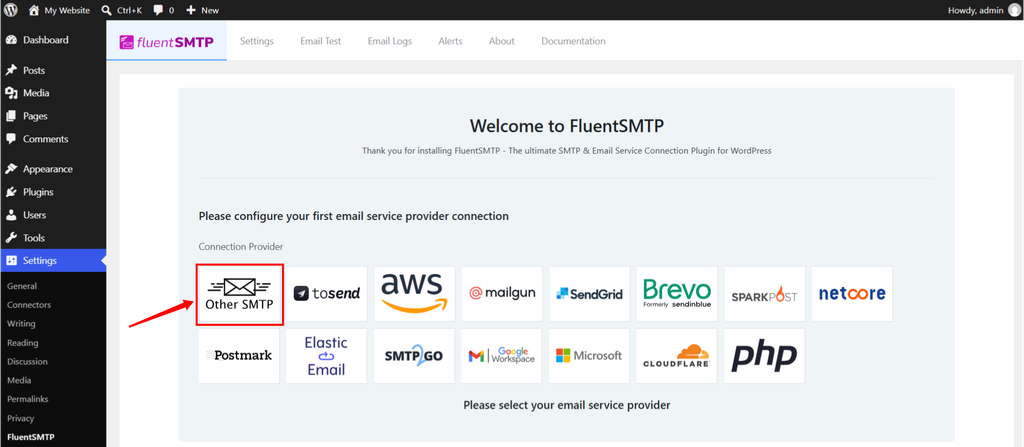
- In a setup screen, choose Other SMTP rather than a provider-specific API connection. “Other SMTP” lets you enter Email’s host, encryption, port, and App Password directly.
- Avoid running two SMTP plugins at the same time. Two plugins can both hook into wp_mail(), producing inconsistent From addresses, duplicate logging, or a connection that changes depending on load order.
- Deactivate any previous SMTP plugin if using, before using FluentSMTP.
2. Create a dedicated Google App Password
For security, you should not use your regular Gmail password directly into the plugin. Instead, create a Google App Password, a unique 16-character code that allows a specific app or device to securely access your Google Account without revealing your main password.
- Open the Google account that will send the site’s emails.
- Go to Security and confirm that 2-Step Verification is active.
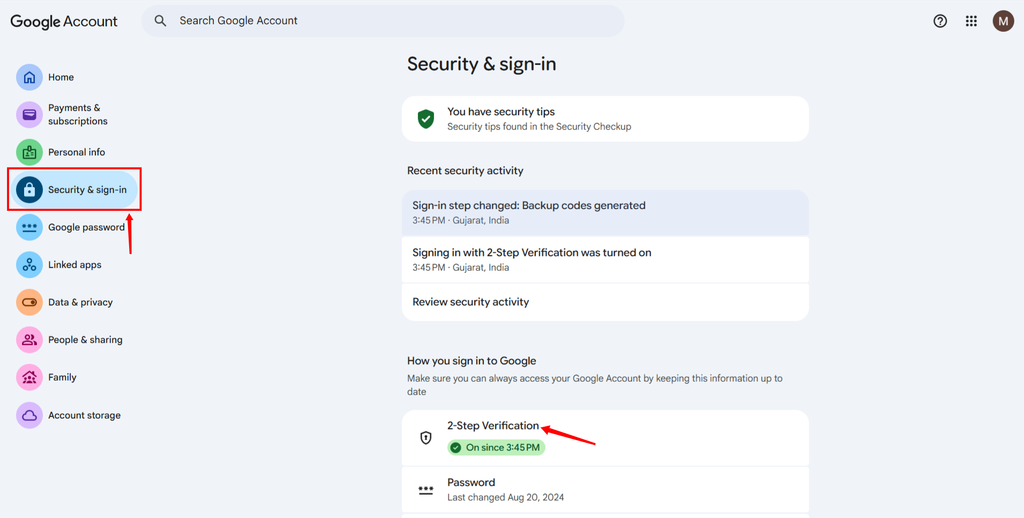
- Then open the App Passwords page.
- Create a new entry with a App name that identifies both the site and its purpose, such as: example.com WordPress SMTP
- Click on Create button.
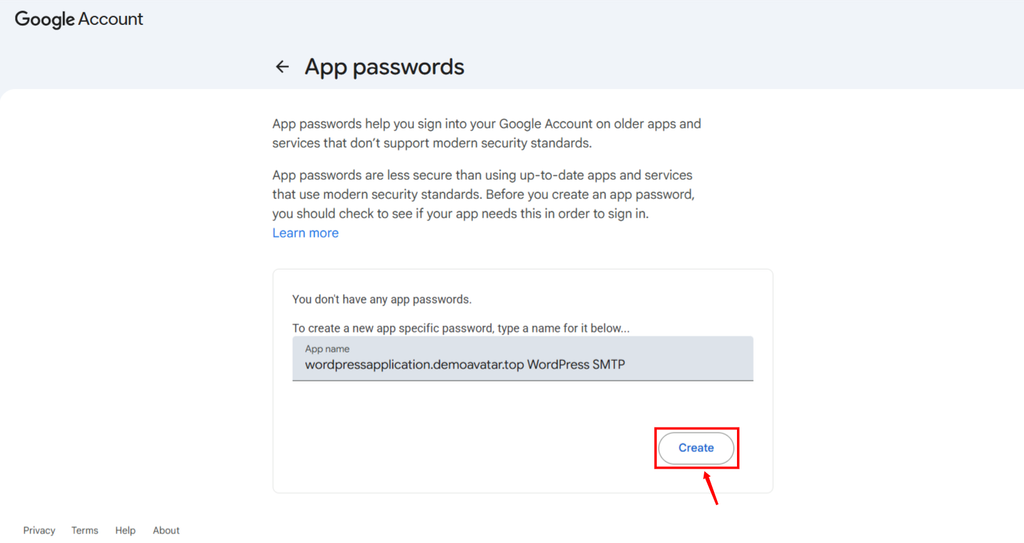
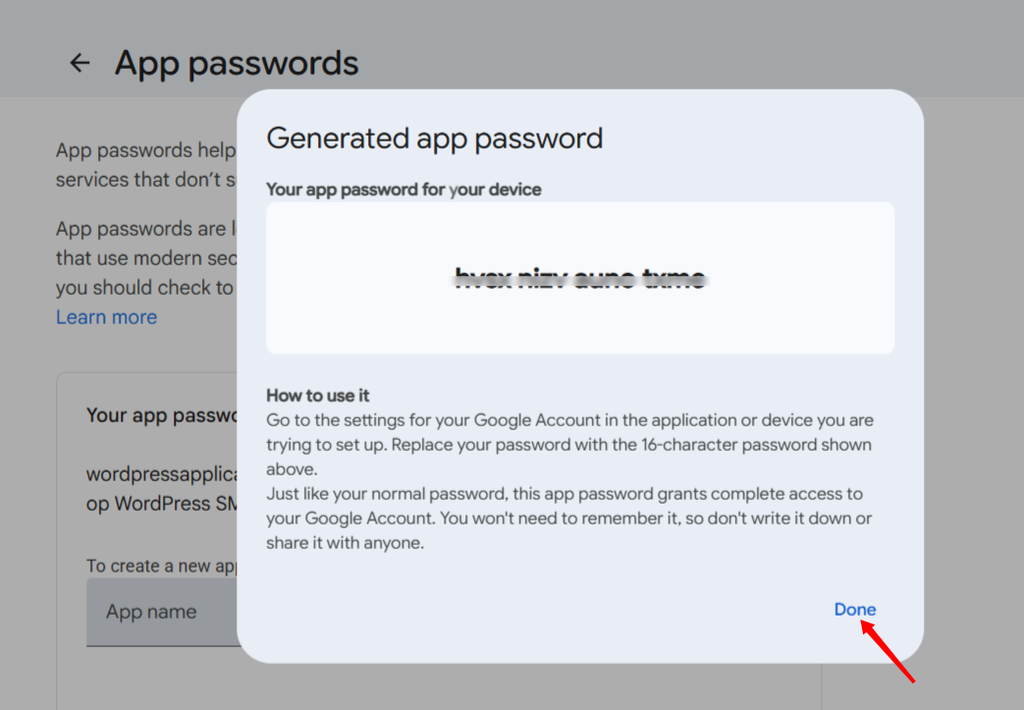
- Google displays a 16-character App Password once.
- Copy it immediately.
- The spaces shown on screen are for readability; if the plugin rejects the value, paste it without spaces.
- Using a site-specific label pays off later. If that website is retired, migrated, or compromised, you can revoke only its credential without disrupting other applications.
Do not enter your ordinary Google account password in WordPress. Google ended support for basic “less secure app” sign-ins, and using the normal password also exposes a far more valuable credential than necessary.
3. Enter the SMTP connection details
Return to the FluentSMTP connection screen and enter these values:
- From Email: the Gmail or Google Workspace address you are authenticating
- From Name: the website or business name recipients should recognize
- SMTP Host: smtp.gmail.com
- SMTP Port: 587
- Encryption: TLS or STARTTLS
- Authentication: enabled
- SMTP Username: the full Google email address
- SMTP Password: the App Password created for this site
- Save the connection.
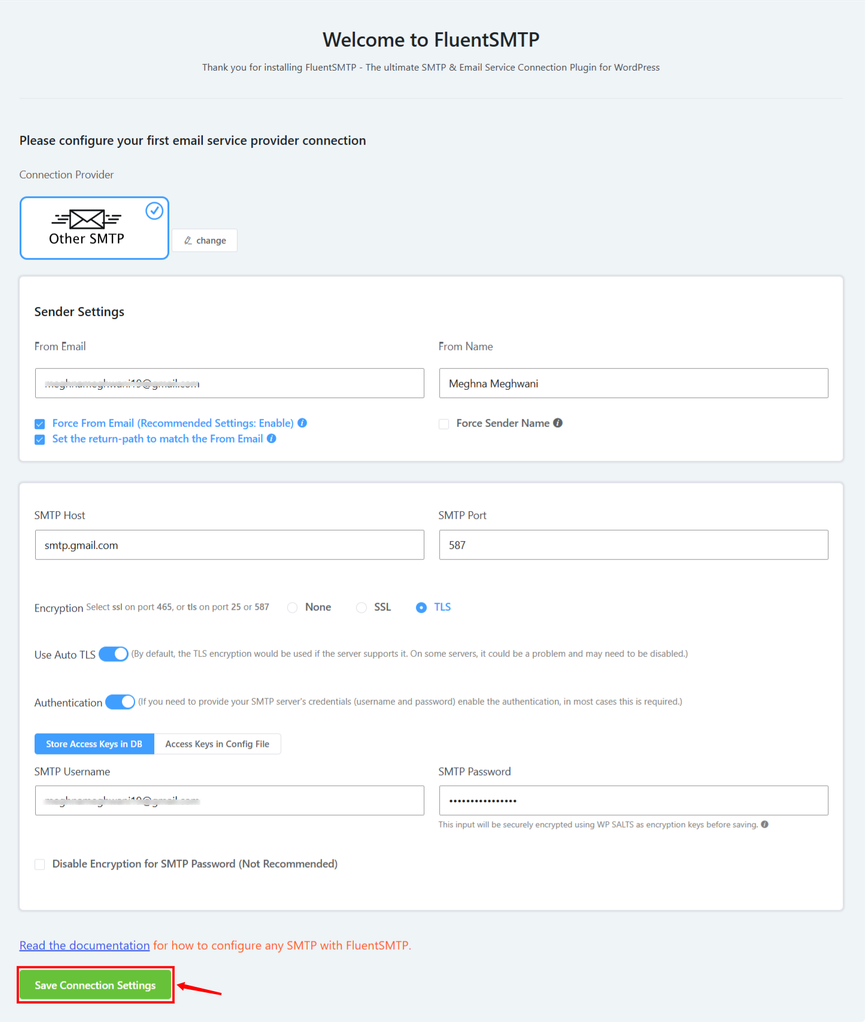
The password field may appear blank or masked afterward; that is normal behavior for a secret value.
4. Update the General Settings
- Enable the “Log All Emails for Reporting” option to keep a record of sent emails for reporting and troubleshooting purposes.
- Set how long email logs should be retained.
- Select the primary email connection used to send emails. As here, an SMTP server connected to a Gmail account is selected.
- Enable “Email Simulation” option when you want to prevent emails from actually being sent. This is useful when testing email functionality.
- Enable the “Add Multi-Part Plain Text for HTML Emails” beta option to include a plain-text version alongside HTML emails, improving compatibility with email clients that don’t properly render HTML.
- Click Save Settings after making changes to apply the updated email configuration.
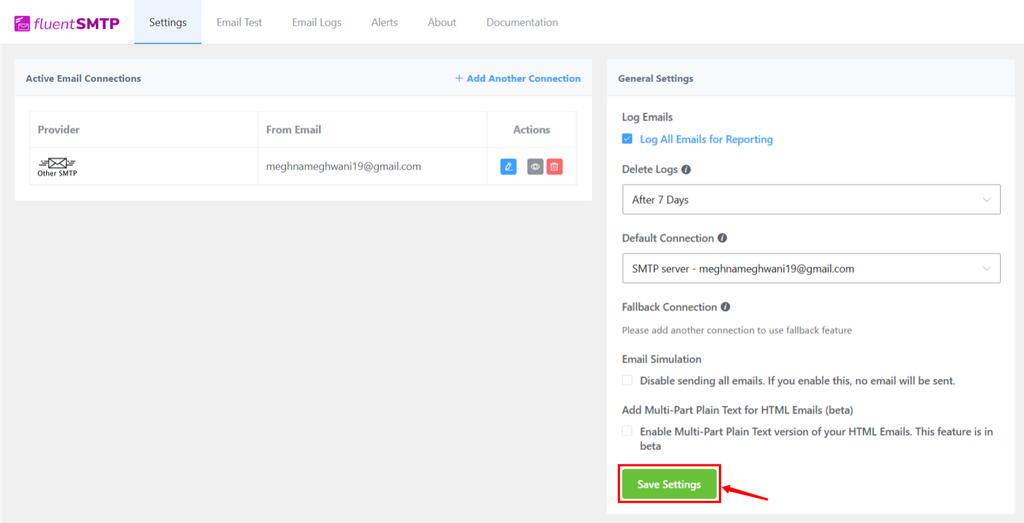
For additional configuration details, see the official FluentSMTP Gmail and Google Workspace setup guide.
Test the Entire Delivery Path
Clicking Send Test Email is necessary, but it isn’t the complete test. Verify the message at three different layers
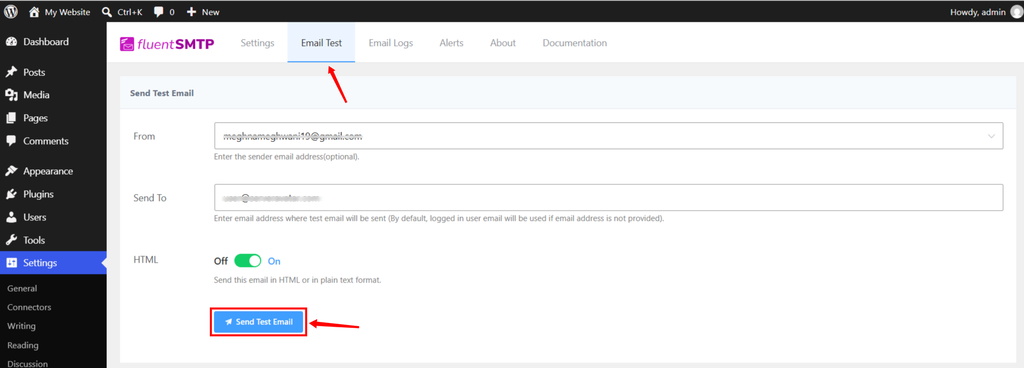
Layer 1: WordPress submission
Open FluentSMTP’s email test tool and send a plain-text message to an address you can inspect. A successful result confirms that WordPress reached Gmail and Gmail accepted the submission at that moment.
If it fails, copy the exact error before changing settings. Authentication errors, connection timeouts, and rejected sender addresses require different fixes.
Layer 2: Recipient placement
Check the inbox, spam folder, promotions tab, and any server-side quarantine. Test at least one address outside the sending Google account. Sending from Gmail back to the same inbox can hide routing and filtering problems that real recipients will face.
Layer 3: Message identity
Open the received email’s original source or “Show original” view. Confirm that:
- The visible From address is the one you configured.
- The Reply-To address is correct for form notifications.
- Authentication results do not show an obvious failure.
- The message timestamp and subject match the test.
Then trigger a real WordPress workflow: request a password reset or submit the contact form. A plugin test proves the transport works; a real workflow proves the application is creating the email correctly.
Fix Common Gmail SMTP Problems in WordPress
Use the error message and symptoms to choose a fix. Randomly switching ports or reinstalling the plugin usually wastes time.
| Symptom or error | Likely cause | What to check |
| Username or password rejected | Normal password used, App Password mistyped, or credential revoked | Create a fresh App Password and confirm the full email username |
| App Password option missing | 2-Step Verification is off or account policy blocks App Passwords | Review Google account security and Workspace administrator policies |
| Connection timed out | Hosting provider or firewall blocks outbound SMTP | Test outbound access to smtp.gmail.com:587 and ask the host about restrictions |
| Test succeeds, form mail fails | Form plugin has an invalid From address or is not generating mail | Match the From Email and inspect the email log |
| Message goes to spam | Content, sender reputation, recipient filtering, or identity mismatch | Inspect headers, simplify the message, and use a consistent sender |
| Mail stops after a password change | Google revokes App Passwords after account password changes | Generate a new site-specific App Password |
| Daily limit error | Too many messages or recipients | Stop retries, wait for the restriction to clear, and move to a transactional provider |
| Duplicate messages | Two SMTP plugins or duplicate application triggers | Keep one mailer active and check form/automation rules |
Authentication fails even with the correct address
Generate a new App Password rather than trying your normal password. Confirm that the username includes the full domain, such as name@gmail.com, and paste the App Password without accidental leading or trailing spaces.
If the Google password was changed after the App Password was created, replace the stored SMTP credential. Google revokes App Passwords following a password change.
WordPress cannot connect to port 587
A timeout usually points below WordPress. Some hosting networks restrict outbound mail ports to reduce abuse.
If the SMTP issue is accompanied by a broader WordPress server error, see our guide on how to fix the WordPress 500 Internal Server Error.
If you have SSH access, you can perform a non-destructive connectivity check:
openssl s_client -starttls smtp -connect smtp.gmail.com:587 -crlfA successful TLS handshake shows that the server can reach Gmail on port 587. Exit with Ctrl+C. This command does not validate your username or send a message.
If the connection times out, check the server firewall and hosting provider’s outbound-email policy. Do not open inbound port 587; WordPress is making an outbound connection.
The test works, but contact-form notifications do not
Open the FluentSMTP email log immediately after submitting the form.
- No new log entry usually means the form did not call WordPress mail. Check conditional rules, recipient fields, and anti-spam behavior in the form plugin.
- A failed log entry points to a mailer or message error. Read the detailed response.
- A successful entry means Gmail accepted it. Continue checking the recipient’s spam, filtering, and headers.
Also confirm that the form uses the site-controlled Gmail address as From and the visitor’s email as Reply-To.
Emails arrive, but they land in spam
SMTP authentication improves the sending path; it cannot guarantee inbox placement. Filters also evaluate message content, links, recipient engagement, sending patterns, and sender history.
For cleaner transactional mail:
- Use a consistent From name and address.
- Avoid URL shorteners and unnecessary attachments.
- Keep password-reset and notification templates focused on one purpose.
- Never send purchased lists or promotional blasts through this connection.
- Ask recipients to allowlist the address only when appropriate; do not treat that as the main fix.
If you send from a business domain through Google Workspace, review the domain’s SPF, DKIM, and DMARC configuration. Those controls deserve their own setup and validation rather than being pasted blindly into DNS.

Keep the Connection Secure and Reliable
Email configuration is not a one-time checkbox. Add it to normal WordPress maintenance.
Use one credential per site
Name each App Password after its website. Separate credentials make revocation precise and reduce the impact of a leaked secret.
Restrict administrator access
Anyone who can change plugin settings may be able to replace or misuse the mail connection. Use individual WordPress accounts, strong passwords, 2FA, and the minimum role each team member needs.
Limit email-log retention
Logs may contain recipient addresses, subjects, reset links, or form content. Keep them only as long as they are operationally useful, restrict access, and avoid logging sensitive message bodies when the plugin allows that choice.
Test after relevant changes
Send a test after migrating the site, restoring a backup, changing the Google account password, replacing an SMTP plugin, or modifying outbound firewall rules. Also test the real contact or password-reset workflow, not only the plugin’s diagnostic email.
If an interrupted WordPress update leaves your site unavailable, see our guide on how to fix WordPress stuck in maintenance mode
Monitor failures instead of assuming delivery
Review failed-message logs periodically. A site can continue operating normally while every outgoing email fails. For business-critical workflows, use monitoring or a transactional provider that supplies bounce events and delivery reporting.
If your WordPress dashboard itself is becoming slow during routine maintenance, see our guide on why WordPress Admin is slow and how to fix it.
When to Move Beyond Gmail
There is no magic daily number that fits every site. Move away from Gmail when the consequences of delayed or missing mail become more expensive than a dedicated service.
Strong migration signals include:
- Order receipts or account emails are business-critical.
- Normal traffic creates sudden bursts of messages.
- You need bounce and complaint handling.
- Multiple sites share one sending account.
- You are approaching Google’s limits.
- Support staff need searchable delivery events.
- You want to authenticate and report on a business domain properly.
Transactional email providers are designed for application-generated mail and typically expose delivery events, domain authentication, suppression management, and scalable limits. Gmail remains useful for a small site; it should not become hidden infrastructure for a growing platform.
Key Takeaways
- Gmail SMTP replaces the web server’s default mail path with authenticated submission through Google.
- FluentSMTP can configure the connection without a paid plugin.
- Use TLS on port 587, a dedicated App Password, and a matching From Email.
- Put a contact-form visitor’s address in Reply-To, not From.
- Verify the plugin log, recipient placement, message headers, and a real WordPress workflow.
- Switch to a transactional provider when volume, reporting, or business risk grows.
Conclusion
For a small WordPress site, Gmail SMTP is a practical way to make password resets, contact-form alerts, and routine notifications more dependable without adding a monthly email bill.
Start with one controlled test: create a site-specific App Password, configure FluentSMTP with smtp.gmail.com and TLS on port 587, then test both the mailer and the WordPress feature that matters most. Keep the sender address consistent and review the log if anything fails.
The moment email becomes revenue-critical or high-volume, graduate to purpose-built transactional delivery. The free route is valuable because it solves a modest problem cleanly, not because it should be stretched indefinitely.
FAQs
Can WordPress send email through Gmail for free?
Yes. A low-volume WordPress site can use Email’s SMTP server with a free SMTP plugin and an eligible Google account. You still need to follow Google’s account and sending limits, and free SMTP does not guarantee inbox placement.
What are the Gmail SMTP settings for WordPress?
Use smtp.gmail.com as the host, port 587 with TLS/STARTTLS, authentication enabled, your complete Gmail address as the username, and a Google App Password as the password.
Why can’t I use my normal Gmail password in WordPress?
Google no longer supports basic sign-in through “less secure apps.” For a standard SMTP connection, use a dedicated App Password after enabling 2-Step Verification. If your plugin offers a native Google OAuth connection, Google recommends that approach because it does not share a reusable password with the plugin.
Why is the Google App Password option missing?
The option may be missing because 2-Step Verification is disabled, the account is enrolled in Advanced Protection, 2-Step Verification uses security keys only, or a Google Workspace administrator has restricted App Passwords.
Why does FluentSMTP say the email was sent when it never arrived?
“Sent” usually means Gmail accepted the submission. The recipient server can still filter, quarantine, defer, or reject the message later. Check spam and quarantine, inspect the received headers when available, verify the recipient address, and review the FluentSMTP log for the exact event.
Manage the WordPress Server Behind Your Email Workflow
Reliable mail is only one part of a healthy WordPress setup. The application also depends on secure server access, updated software, SSL, firewall rules, backups, and useful logs.
If you want a simpler way to handle those operational tasks on your own cloud server, ServerAvatar provides a central panel for deploying and managing servers and PHP and Node.js applications without turning every maintenance job into a manual command-line session.
About the Author
Meghna Meghwani is a technical writer focused on Linux, Ubuntu, VPS hosting, server management, WordPress, PHP, Node.js, cloud hosting, and DevOps. She creates beginner-friendly tutorials, practical hosting guides, troubleshooting articles, and server security content designed to help developers and businesses manage applications and servers more efficiently.