

WordPress page refusing to load is frustrating enough. Seeing 429 Too Many Requests Error while logging in, saving post, or opening website makes situation more confusing. What requests? Why is your own website blocking you?
In this guide, I’ll walk you through four ways to troubleshoot 429 Too Many Requests error in WordPress. My starting point is simple, find out what is being blocked before changing anything. That helps you choose useful fix instead of cycling through settings while visitors continue to see errors.
Whether you manage business website, blog, or client’s WordPress installation, you can follow this process without editing WordPress core files.
TL;DR
- Check which page or request returns 429 and allow any stated cooldown to expire
- Change login URL if repeated requests target standard login page
- Test plugins individually to identify excessive requests or restrictive security settings
- Temporarily activate default theme to investigate theme-related behavior
- Contact your host when logs point to infrastructure limits or cause remains unclear
What Does the WordPress 429 Error Mean?
HTTP 429 means request has exceeded rate limit. Rate limit controls how many requests particular source can make during defined period.
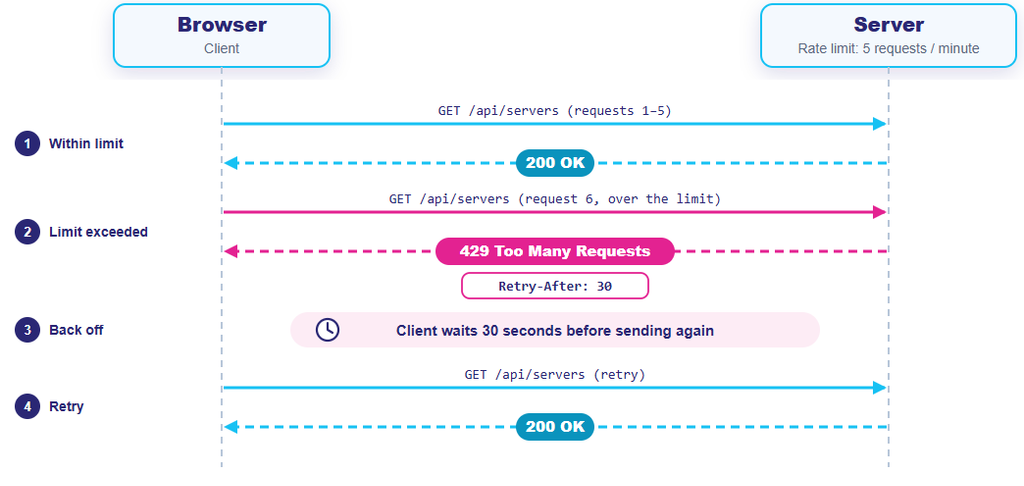
For example, imagine login rule that permits 20 attempts within five minutes. Further attempts matching that rule may receive 429 response until restriction expires. These numbers are illustrative; your website’s actual limits depend on its configuration.
The response may include Retry-After header. Value such as Retry-After: 120 ask client to wait 120 seconds before trying again. Security plugin, hosting rule, or content delivery network can restrict requests even when server usage is modest.
Also, error does not always affect entire website. Your homepage might work while login attempt or background request fails.
According to HTTP 429 status code documentation, this response indicates that client has sent too many requests within given period.
Why It Happens on WordPress Websites
The four areas I would investigate are:
| Possible source | Useful clue |
| Repeated login attempts | Failures concentrate around the login page |
| Plugin behavior or restrictions | The problem follows a plugin update or specific action |
| Theme-generated requests | Errors appear during interactions controlled by the theme |
| Hosting or network rules | Requests are blocked before WordPress handles them |
A plugin can also receive 429 from an external service. If an integration reports an API quota error but visitors can browse normally, investigate that service’s limit rather than assuming your whole website is blocked.
Before You Apply a Fix
First, record affected URL, action that failed, and time, including your time zone. Check whether another visitor experience same problem.
For more detail, open your browser’s developer tools, select Network, and reproduce issue once. Look for request with status 429. Its URL, response headers, and response body can help identify source.
Avoid repeatedly refreshing page. Each retry may add to traffic being counted.
Before testing plugins or themes, take current backup and confirm you can restore it. I would use staging area wherever practical, especially for website accepting orders or enquiries. Record currently active plugins and theme so you can return to original setup.
Method 1: Move Your Login Page Away From the Default URL
The standard WordPress login endpoint, wp-login.php, is easy for automated scripts to discover. Repeated attempts against it may trigger protective rule.
Changing login address can reduce routine automated attempts aimed at default endpoint. However, it will not solve 429 caused by product page, external API quota, or unrelated server rule.
I would use this method when request history points to the login traffic.
Change the Login Address With WPS Hide Login
WPS Hide Login changes how login page is reached without renaming WordPress core files. Its official description also explains that deactivating plugin restores previous behavior.
With WordPress admin dashboard access:
- Open Plugins section from the left side bar, click on the Add New Plugin
- Search for WPS Hide Login, then install and activate it.
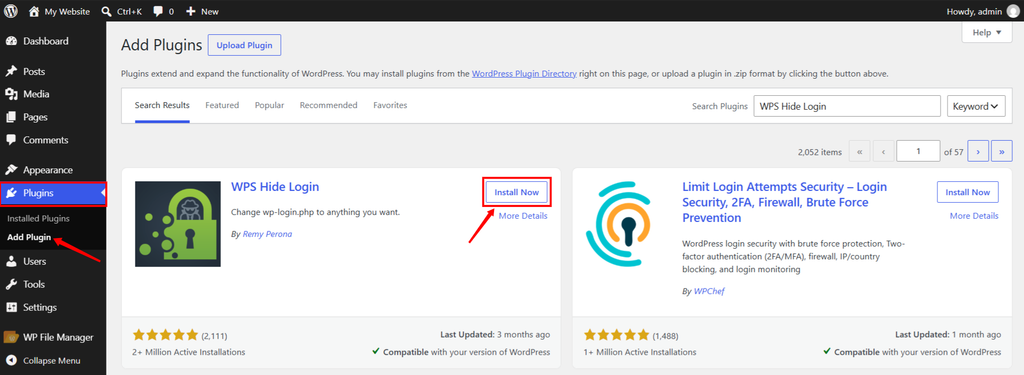
- Open Settings >> General section, and locate its login URL setting.
- Enter custom path, such as “team-entry”.
- Save setting and bookmark new address.
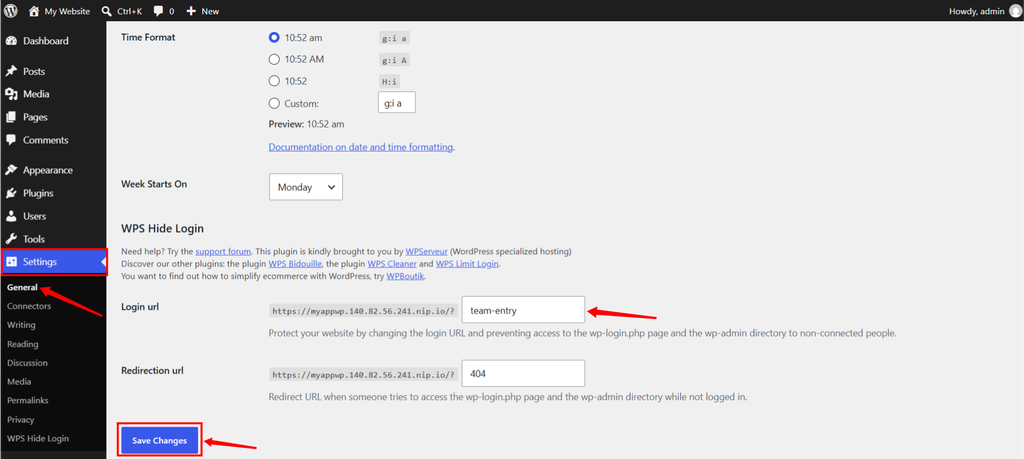
- Keep your existing session open while testing new address in private browser window.
Make sure other administrators receive updated address. Check any tools or workflows that depend on old login URL. If you are already facing 429, resolve access with your host before trying to install another plugin.
Check Whether It Helped
Once its done, test normal login and review whether legitimate requests still fail. Automated requests may continue hitting old address, so useful question is whether change reduces problem affecting your users.
Custom login path is additional precaution. Continue using strong passwords and appropriate login protection.
For additional WordPress security controls, explore WordPress Toolkit for WordPress Management in ServerAvatar and learn about the security options available for managing your WordPress applications.
Method 2: Identify a Plugin Behind the Requests
Plugins can contribute to 429 errors in different ways. One may repeatedly send requests; another may enforce limit that is too restrictive for legitimate workflow.
I would start with recently installed or updated plugins, followed by whichever plugin controls failing action. If saving form triggers error, testing unrelated gallery plugin first offers little direction.
When You Can Access the Dashboard
- Open Plugins >> Installed Plugins from WordPress admin section.
- Deactivate one suspected plugin.
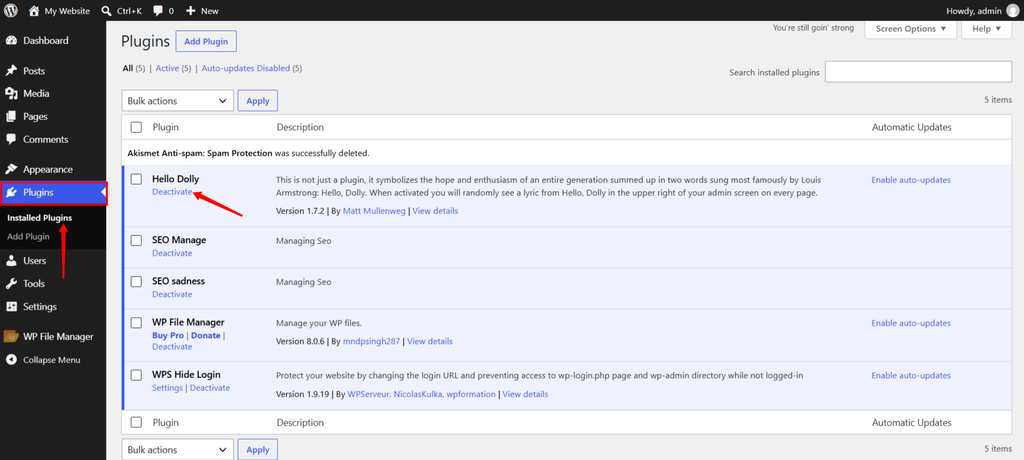
- Allow any existing restriction to expire.
- Repeat action that previously failed.
- Record result before testing another plugin.
For additional details about managing plugins, refer to the official WordPress plugin management documentation.
Prefer staging for disruptive tests. Deactivating payment, membership, or security plugin can affect essential website behavior.
If you want to test anything without affecting your live website, read step by step guide to setting up a staging environment to learn how to create a separate testing environment.
If your WordPress website is managed through ServerAvatar, you can access its WordPress admin dashboard directly from the ServerAvatar panel using the WP Auto Login option.
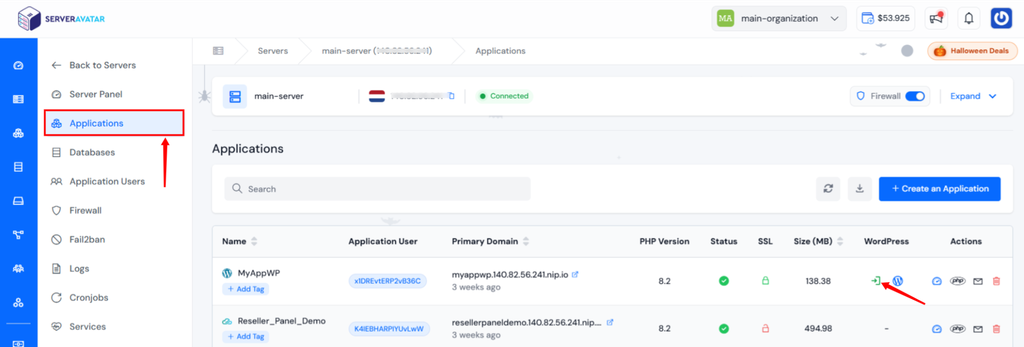
Open your Server panel, navigate to Applications section, find your WordPress application, and click WP Auto Login option. Select the admin account if prompted, and you will be redirected to the WordPress dashboard without manually entering your login credentials.
If you manage multiple WordPress websites, you can also explore how to manage WordPress plugins through ServerAvatar’s WordPress Toolkit to activate, deactivate, update, and manage plugins directly from your hosting dashboard.
When Dashboard Is Unavailable
Use your host’s file manager or SFTP connection to access WordPress installation. Locate directory containing wp-admin, wp-content, and wp-includes.
Inside wp-content/plugins, rename suspected plugin’s folder.
For example: from “example-plugin” to “example-plugin-paused”
Access WordPress Files Through ServerAvatar
If your website is hosted on server managed through ServerAvatar, you can use its built-in File Manager to access and modify WordPress files without needing separate FTP client.
- Log in to your ServerAvatar account, and open the Server panel by clicking on server dashboard icon.
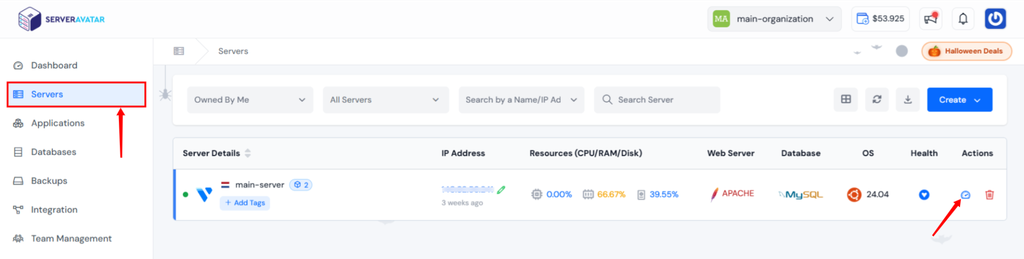
- Navigate to Applications section from the left sidebar, and click on the WordPress application dashboard icon.
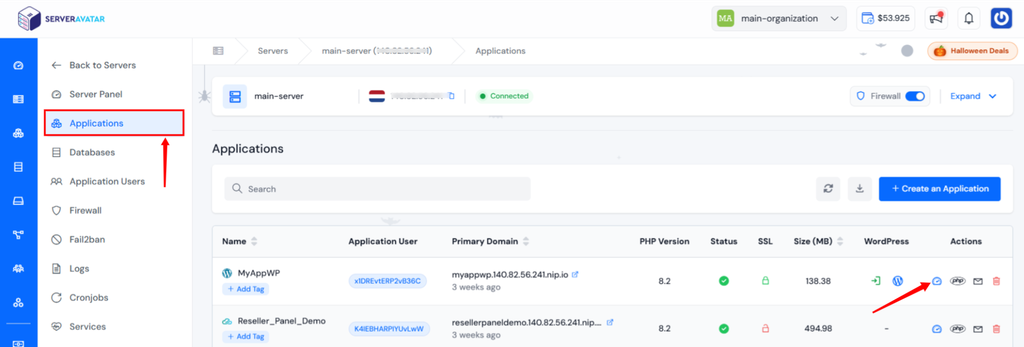
- Navigate to the File Manager section from the Application Panel sidebar.
- Navigate to the “public_html/wp-content/plugins/” directory.
- Find the suspected plugin folder and rename it by clicking on the Rename icon. For example, change “example-plugin” to “example-plugin-paused”.
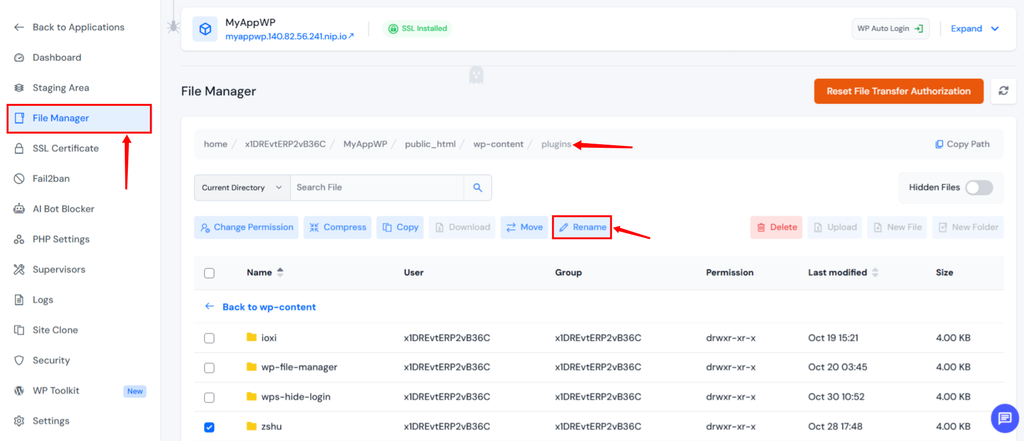
- Visit your website again and check whether 429 error persists.
If issue is related to plugin, this may help restore access. Once testing is complete, restore folder’s original name when appropriate.
Note: The default webroot is public_html, but your application may use a custom webroot. Make sure you are working in the correct directory before changing any files.
You can also use File Manager to edit, rename, upload, download, and manage application files directly from the ServerAvatar panel.
This prevents WordPress from loading that plugin from its expected location. Test again once done, then restore folder’s original name when appropriate. Check its activation status in dashboard once access returns.
If you cannot identify likely candidate, temporarily renaming entire “plugins” directory can test ordinary plugins as a group. This is more disruptive, it can remove important functionality, and must-use plugins or special drop-ins may still run.
Confirm the Cause Before Removing Anything
One successful page load is not enough to prove plugin caused error. The rate-limit window may simply have reset while you were testing.
Compare same action under similar conditions, and check logs where available. If plugin is responsible, investigate its settings, available updates, or developer support. Preserve its data before considering removal.
For external API quota, reducing call frequency or correcting retries may be more appropriate than deleting integration.
Method 3: Test With a Default WordPress Theme
Theme can contain scripts or integrations that repeatedly request data. Testing another theme helps determine whether active theme contributes to failing workflow.
I would consider this method when error accompanies theme-specific feature or begins after theme update.
Switch Themes Through WordPress
On staging copy of your website:
- Open Appearance >> Themes section from the WordPress admin
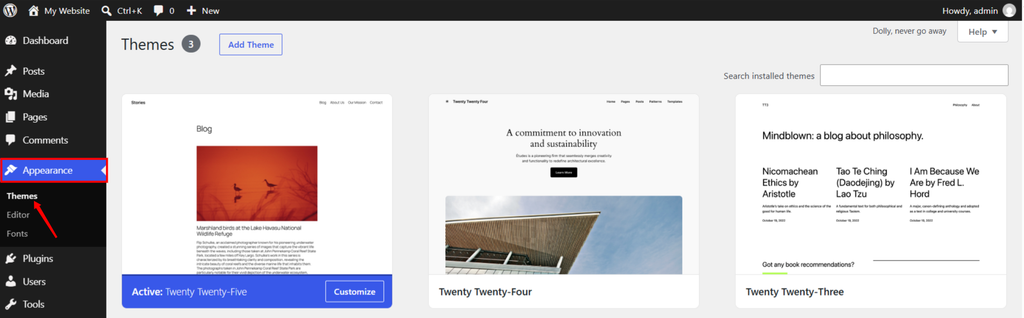
- Confirm compatible default WordPress theme is installed
- Note current theme and whether it uses child theme
- Activate default theme
- Repeat affected interaction after cooldown
Expect appearance to change. Theme-specific menus, layouts, and widgets may behave differently during test.
Compare equivalent requests where possible. If temporary theme removes feature that was sending requests, disappearance of 429 is clue rather than conclusive proof of defective theme code.
If you need to preserve custom theme modifications during updates, WordPress recommends using a child theme rather than editing parent theme directly.
If You Cannot Open the Dashboard
Theme files normally live inside “wp-content/themes/” directory.
Do not rename active theme folder and assume WordPress will recover automatically. First confirm that working fallback theme is installed and that you have reliable activation or recovery route.
If you manage your server through ServerAvatar, you can access your WordPress theme files through its built-in File Manager.
- Log in to your ServerAvatar account and open Server panel by clicking on server dashboard icon.
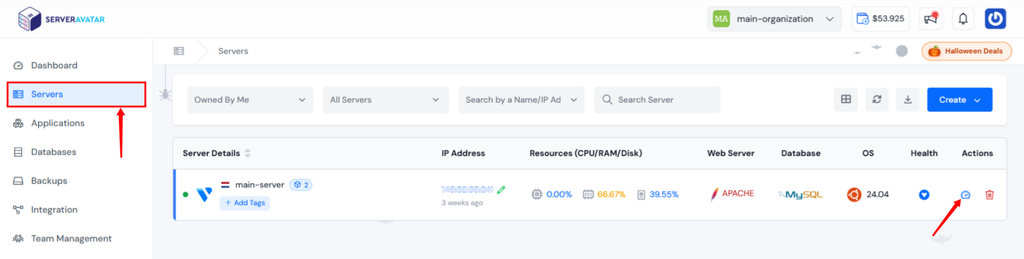
- Navigate to Applications section from the leftside bar and open your WordPress application panel by clicking on the dashboard icon.
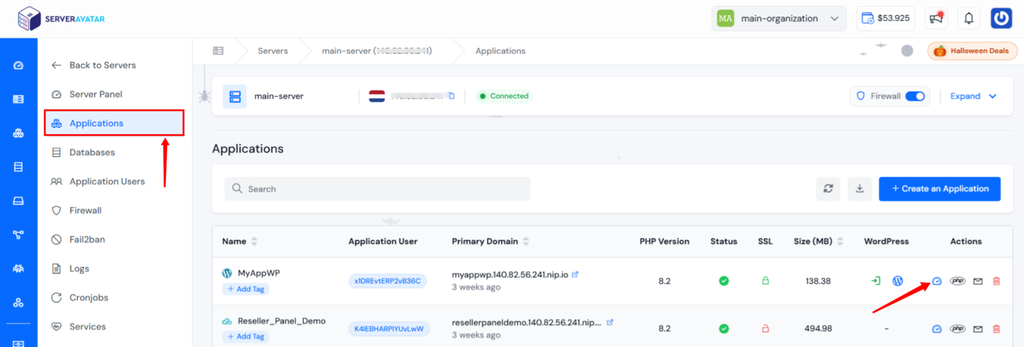
- Select File Manager from the Application Panel sidebar.
- Navigate to “public_html/wp-content/themes/”.
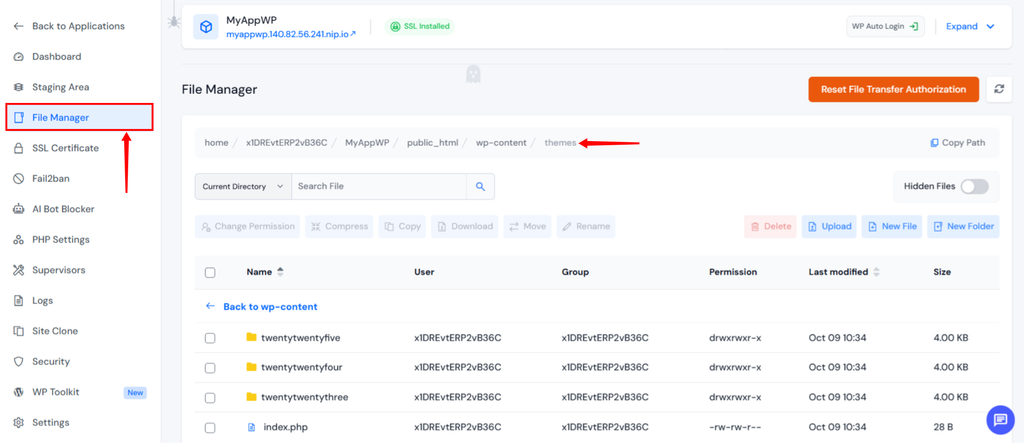
- Locate the active theme folder and inspect the relevant files if necessary.
Before making changes, download a backup of the affected files by selecting and clicking on the Download button. Note to first Compress the theme folder by selecting it and to click on the Compress button before downloading it. Avoid renaming or modifying active theme folder without confirming that compatible fallback theme is installed and that you have reliable recovery method.
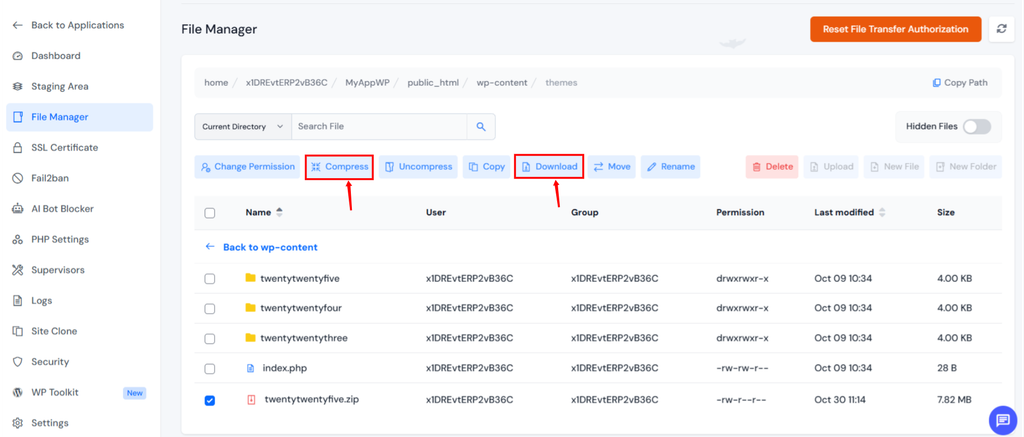
This gives ServerAvatar users another way to inspect their theme files without relying on an external FTP client.
Once testing is complete, reactivate original theme. If issue consistently follows it, send its developer affected URL, reproduction steps, and relevant request details. Keep customizations backed up before applying updates or code changes.
Method 4: Ask Your Hosting Provider to Trace the Block
You do not need to exhaust every WordPress test before contacting hosting provider. If response or logs already point to hosting infrastructure, asking host early can save unnecessary changes.
Server or upstream firewall may reject request before WordPress runs. In that situation, switching themes cannot change the rule responsible.
Send Evidence With Your Support Request, Include:
- Affected URL and request method, if known
- Exact time and time zone
- Action that produced the error
- Whether one user or multiple visitors are affected
- A screenshot and relevant response headers
- Changes already tested and their results
Share your public IP privately if support needs it. Remove cookies, passwords, and authorization tokens from any request details you send.
Ask support to identify which layer generated response, which limit was reached, and what traffic matched it. Useful evidence might include excessive request pattern, restrictive security rule, or requests being grouped incorrectly behind proxy.
Using ServerAvatar?
If your WordPress website is hosted on server managed through ServerAvatar, you can reach out to ServerAvatar support team for assistance.
ServerAvatar provides 24/7 customer support to help users with server management and technical issues. Technical experts can help with investigating server-related problems, review relevant configurations, and guide through troubleshooting process.
You can contact the ServerAvatar Support Team whenever you need assistance. Thing to Note that ServerAvatar Support response priority and service levels vary depending on your subscription plan.
Choose the Correction Based on the Findings
Right next step depends on evidence. It might involve correcting a specific rule, reducing unnecessary requests, or reviewing capacity when metrics demonstrate resource constraint.
I would avoid requesting blanket removal of rate limits. The aim is to restore legitimate activity while retaining useful protection.
After correction, repeat original action and ask support to confirm that matching failures have stopped. Monitor beyond one successful attempt, particularly if issue previously returned at regular intervals.

Can Repeated 429 Errors Affect SEO?
If Googlebot repeatedly receives 429 responses, crawling can slow down. Persistent failures may eventually affect whether URLs remain indexed. Google’s crawl-rate guidance explains why extended unavailability matters.
An occasional blocked login request is different from public pages repeatedly returning 429 to crawlers. I would focus on affected URLs and duration rather than assuming every isolated error causes ranking loss.
After recovery, review Google Search Console’s Crawl Stats and inspect important public pages if crawling problems were reported.
Key Takeaways
- Identify failed request before moving to fix
- Change login URL when standard login traffic is part of problem
- Test plugins and themes carefully, allowing existing restrictions to expire
- Give your host specific evidence when infrastructure limits are suspected
- Verify recovery across affected workflow and monitor for recurrence
Conclusion
To solve WordPress 429 error, I would start with request that failed and work outward from there. The methods above cover login traffic, plugin behavior, theme-related requests, and hosting related restrictions. Choose method that fits evidence, make one controlled change, and repeat original action.
Once access returns, keep monitoring so temporary cooldown is not mistaken for permanent fix. If you manage WordPress on VPS, ServerAvatar can help simplify routine server and application management. Pair that visibility with clear troubleshooting records to make future incidents easier to investigate.
ServerAvatar simplifies routine server and application management directly form ServerAvatar panel. You can use its built-in File Manager to access website files, WP Auto Login to access your WordPress admin dashboard, and server and application Logs to investigate errors. If you face server-related issues that need further investigation, the support team is available 24/7 to assist.
FAQs
Will WordPress 429 error disappear by itself?
It can clear when rate-limit window resets. However, repeated requests or unsuitable rule can trigger it again. Waiting is useful for temporary restriction, but recurring failures need investigation.
Why does my website show 429 with very little traffic?
Visitor totals do not show every background request. Plugin, repeated login attempts, or restrictive rule can reach limit even on quiet website.
Does changing login URL fix every 429 error?
No, It may help when automated requests target standard login endpoint. It does not address theme requests, external API quotas, or unrelated hosting restrictions.
Can I troubleshoot without WordPress admin access?
Yes, a file manager or SFTP connection can help isolate ordinary plugins. Ask your host for assistance with theme activation or infrastructure rules when dashboard access is unavailable.
Should I upgrade hosting immediately?
First identify limit involved. Larger plan may help with demonstrated capacity problem, but it may leave restrictive rule or faulty request loop unchanged.
About the author
Meghna Meghwani is a technical writer focused on Linux, Ubuntu, VPS hosting, server management, WordPress, PHP, Node.js, cloud hosting, and DevOps. She creates beginner-friendly tutorials, practical hosting guides, troubleshooting articles, and server security content designed to help developers and businesses manage applications and servers more efficiently.