
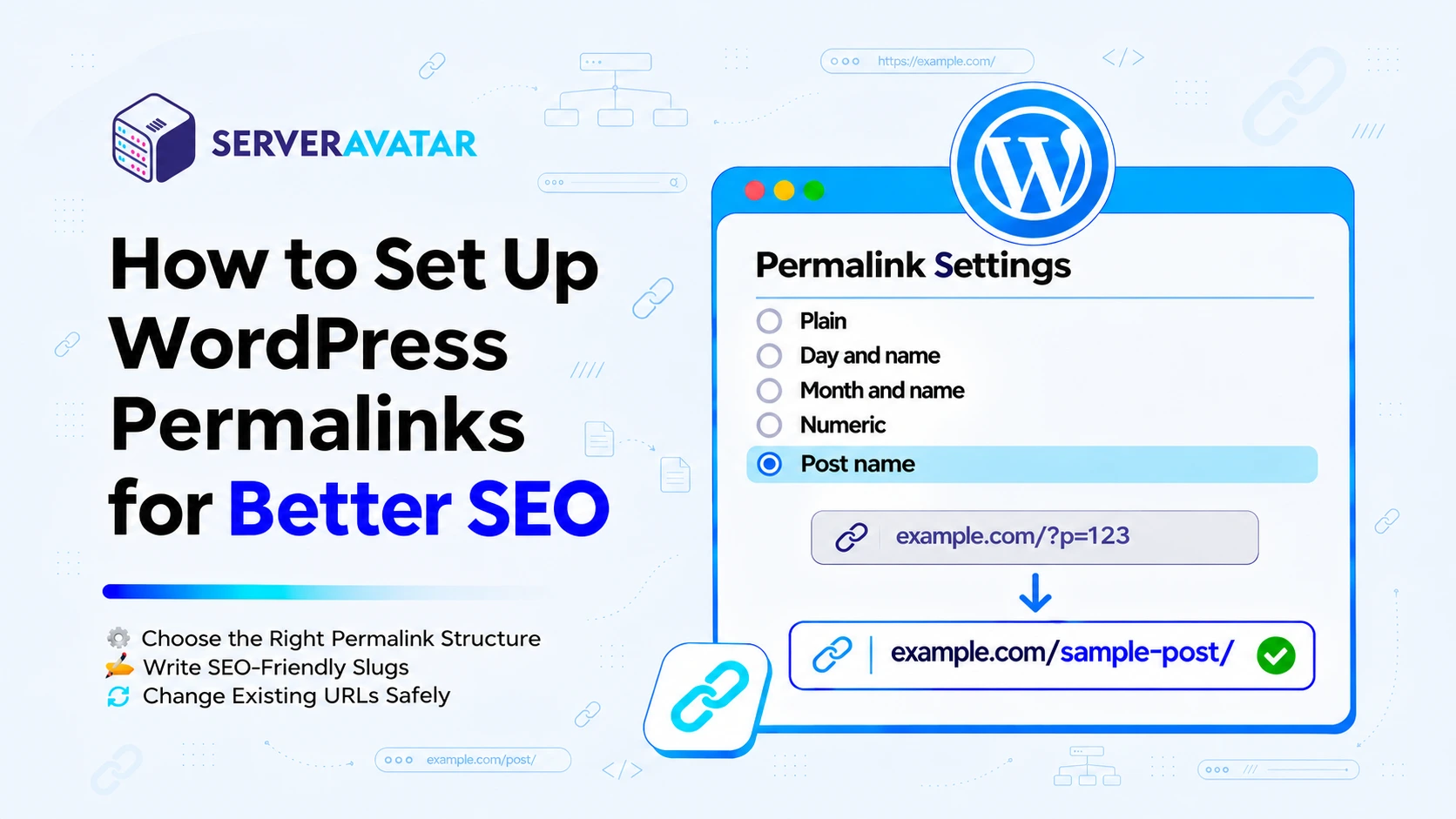

WordPress permalinks are easy to check when launch website. You publish post, copy it’s link, and move on. But structure you choose affect how readable your URLs are, and how much work it will be of change them later.
For most new blogs, I recommend starting with Post name and writing descriptive slug before publishing. For established website, I first check existing URL and prepare redirects.
In this guide, I will walk you through both situations, explain available settings, and show you what to check if link stop working.
TL;DR
- For most new blogs, start with Settings >> Permalinks >> Post name.
- Use descriptive slug with hyphen between words.
- Plan and verify redirects when changing published URLs.
- Keep working URL stable unless there is clear reason to change them.
What Are WordPress Permalinks?
Permalink is permanent web address used to access particular piece of content. Consider example:
https://example.com/blog/wordpress-backups
In this example, example.com represents the domain name,/blog/ indicates the URL path prefix, and wordpress-backups refers to the individual post slug.
Permalink structure determines URL pattern. Slug identifies individual post within pattern. Changing it either can change published post’s address.
Why Do Permalink Matter for SEO?
Descriptive URL give readers useful context before they open link. Google also recommend simple, understandable URL structure with readable words and hyphens sepaFor an established website, keeping a working structure may be more practical than migrating every URL.rating them.
Google Search Central also recommends using descriptive words in URLs and separating words with hyphens to make URL structures easier for users and search engines to understand.
For example, /wordpress-backups/ communicates subject more clearly than /?p=482.
However, I would not change established URL simply to add keyword. Readable address support your SEO work, but it does not replace useful content, sound site navigation, or accessible pages.
My priority is structure that readers understand and that you can maintain consistently.
Which WordPress Permalink Structure Should You Choose?
WordPress offers several common settings:
| Structure | Example path | Main consideration |
| Plain | /?p=123 | Works without descriptive words |
| Day and name | /2026/11/03/sample-post/ | Includes the full publication date |
| Month and name | /2026/11/sample-post/ | Includes the publication month |
| Numeric | /archives/123 | Uses a numerical identifier |
| Post name | /sample-post/ | Keeps the path descriptive and simple |
| Custom | /blog/sample-post/ | Allows a planned prefix or other structure |
These options are available through WordPress’s permalink setting.
If you want to understand how these permalink options work and how to configure a custom URL structure, refer to the official WordPress guide to customizing permalinks.
My Recommendation for New Blogs
I recommend Post name for most new blogs because it avoids unnecessary date or category dependencies.
A custom “/blog/%postname%/” structure can also make sense when you want a consistent blog prefix.
Category-based URLs require more planning: changing the category used in a post’s permalink can change its address. Date-based URLs remain reasonable for publications where dates provide useful context.
For an established website, keeping a working structure may be more practical than migrating every URL.
What To Check Before Changing Settings
Before changing in live website;
- Back up website files and database
Checkout guide on creating website backups with ServerAvatar explains how to prepare your website for unexpected changes.
- Checkout current permalink structure
- List out published URLs affected by change
- Map old URL to new destination
- Test changes on staging copy when available
Testing permalink changes on a staging website allows you to identify broken URLs, redirect issues, and routing problems before they affect your live visitors. If you haven’t created one before, see complete guide to setting up a staging environment.
For website without content or shared links, setup is simpler. Once URLs have visitors, backspin, search visibility, change needs migration plan.
How to Set Up WordPress Permalinks
Step 1: Open the Permalink Settings
Log in to your WordPress admin dashboard, and navigate to Settings >> Permalinks section.
Step 2: Select Post Name
Choose Post name from given options. The corresponding structure is:
“/%postname%/”
WordPress replaces “%postname%” with each post’s slug.
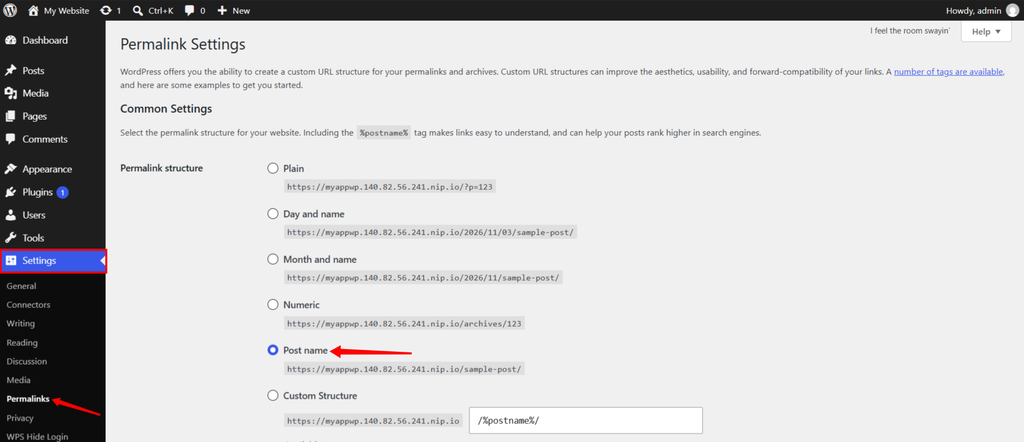
If you prefer a fixed blog prefix, select Custom Structure and enter:
“/blog/%postname%/”
Select the structure from given options, without your domain.
Step 3: Save Your Changes
Click Save Changes.
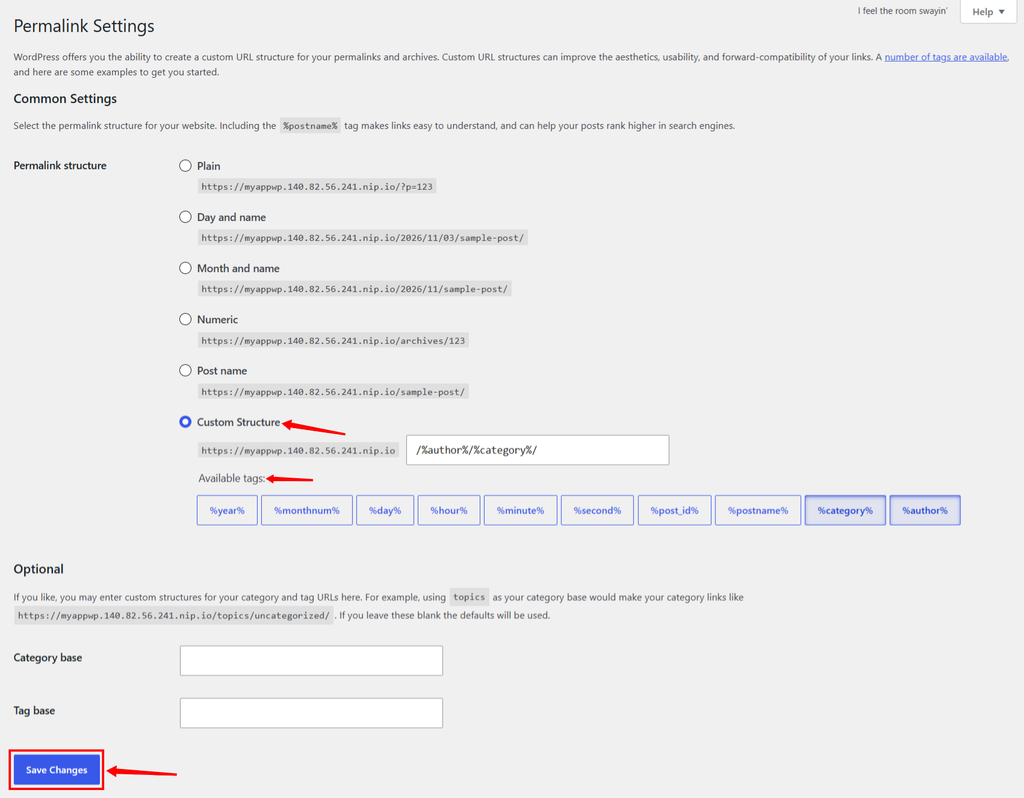
WordPress update it’s rewrite rules. Depending on hosting configuration, additional server configuration may be necessary for readable URLs to work.
Step 4: Verify Several Posts
Open few post and confirm that:
- Each URL load intended content
- Navigation link still working
- Changed old URLs reach their correct destination
How To Write SEO-Friendly Slugs
To aim for slug that explains page without unnecessary detail. For example, tutorial titled “How to Back Up Your WordPress Website Before Updating”
I would consider:
“/backup-wordpress-before-updating/”
My approach is simple here:
- Include words that describe actual topic
- Use hyphens between words
- Keep lowercase consistent
- Avoid repeating keywords
- Remove unnecessary date from evergreen slug before publication
There is no need to force every slug into fixed character count. Clarity matters more than making it extremely short.
To edit one, open post and find it’s URL or slug control in editor’s setting. The exact label can vary by editor version.
I prefer finalize this before publishing. Editing live slug create another URL change to manage.
How to Change Existing Permalinks Safely
Map URL and Add Permanent Redirects:
Suppose, for example, you change;
“/2024/06/wordpress-backups/”
to;
“/wordpress-backups/”
The old address permanently redirect to matching article. Redirect plugin or appropriate server configuration can handle this.
Avoid sending old URL directly to homepage. Each destination should match content that moved.
When changing existing URLs, prepare a mapping between old and new addresses and configure appropriate permanent redirects. Google’s site migration guidelines explain how to manage URL changes while helping search engines discover the updated pages.
Verify Automatic Redirects
WordPress has built-in handling that attempts to redirect certain old post slugs. That doesn’t mean every sitewide structure change will be covered automatically.
Update Links, Canonicals, and Sitemaps
Revise internal links to direct visitors straight to the updated URLs. Check that canonical tags identify the intended URLs and that your XML sitemap lists them.
Then inspect representative pages in Google Search Console and monitor indexing errors and search performance. Temporary fluctuations can occur while Google processes URL changes.
How to Fix Common Permalink Problems
| Problem | What I would check first |
| New post URLs return 404 | Re-save intended permalink settings and retest |
| Old URLs return 404 | Check their redirect mappings |
| Apache routing fails | Check rewrite support and relevant .htaccess configuration |
| Nginx routing fails | Check server’s WordPress routing configuration |
| Changes appear inconsistent | Clear relevant browser, plugin, and server caches |
| Redirect loops occur | Look for conflicting redirect rules |
Nginx doesn’t read .htaccess, so Apache fix will not resolve Nginx configuration problem.
If your WordPress URLs are still returning errors after checking the server configuration, follow guide on how to fix WordPress permalinks not working for additional troubleshooting steps.
Before editing server files, save copy of existing configuration. If plugin or theme appears responsible, isolate issue on staging.

Permalink Mistakes To Avoid
I would recommend to avoid repeatedly changing published slugs, stuffing keywords into URLs, or removing dates solely to make older content look new.
Also, do not assume successful browser visit means everything is correct. Verify destination, redirect behavior, internal links, canonical URL, and sitemap entry.
Key Takeaways
- Choose maintainable permalink structure before publishing
- Write descriptive slug with natural wording and hyphens
- Prepare redirects before changing established URLs
- Verify routing, links, canonicals, and sitemap consistency
- Keep working URLs stable wherever possible
Conclusion
For new blog, I will choose Post name, write clear slugs, and verify few posts before publishing more content. It create straightforward foundation without unnecessary URL dependencies.
For established website, start with URL list and clear redirect plan. If you manage WordPress hosting through ServerAvatar, it’s easy and straightforward process to take backup, test everything on staging site, and check application workflow before changing live URLs.
FAQs
What Is Best WordPress Permalink Structure for SEO?
For mostly new blogs, I recommend “Post Name” because it is descriptive and simple to maintain. Existing website should assess migration costs before changing.
Should I Include Categories in Permalinks?
Only when hierarchy provide useful context and is likely to remain stable.
Should I Remove Dates From Existing URLs?
Only for clear editorial or structural reason, with redirects prepared beforehand.
Does WordPress Automatically Redirect Old Permalinks?
It can handle some old post slugs, but you should verify every affected URL.
Why Posts Show 404 Errors After Change?
Possible causes include stale rewrite rules, server routing problems, or missing redirects.
About the author
Meghna Meghwani is a technical writer focused on Linux, Ubuntu, VPS hosting, server management, WordPress, PHP, Node.js, cloud hosting, and DevOps. She creates beginner-friendly tutorials, practical hosting guides, troubleshooting articles, and server security content designed to help developers and businesses manage applications and servers more efficiently.