


When working with Linux, understanding how TCP ports behave is an important technical skill. TCP ports control how applications communicate over a network and determine which services are accessible on your system. Whether you are managing a server, troubleshooting application issues, or reviewing system security, knowing how to check open, closed, or in-use TCP ports on Linux helps you maintain better control over your environment.
This guide explains the concept clearly and walks through commonly used Linux commands in a simple, easy-to-follow way. The focus is on clarity, practical usage, and accuracy, without unnecessary complexity.
What Are TCP Ports and Why Do They Matter
A TCP port is a numbered endpoint that allows applications to send and receive data over a network. In Linux, services listen on specific TCP ports to accept incoming connections. Each port works alongside an IP address to ensure data reaches the correct destination.
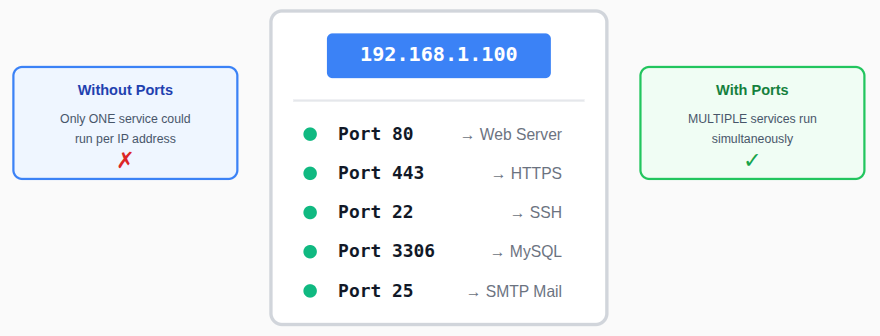
Without TCP ports, multiple network services could not operate simultaneously on the same system.
Difference Between Open, Closed, and In-Use Ports
TCP ports on a Linux system can exist in different states depending on how services are using them. Knowing the difference between these states makes it easier to understand how network communication works and why certain connections succeed or fail.
- Open Port: A service is actively listening and ready to accept incoming network connections.
- Closed Port: No service is listening on the port, even though the system itself is reachable.
- In-Use Port: The port is already assigned to a running process and cannot be reused by another service.
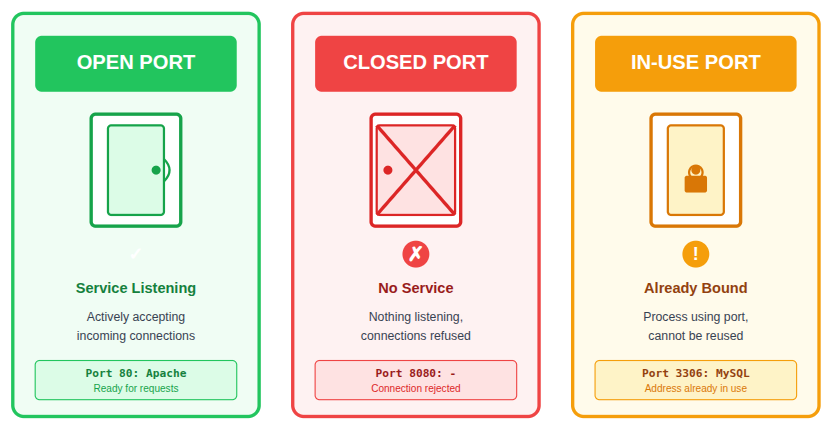
Understanding these port states helps quickly identify network errors and resolve service-related conflicts.
Why Monitoring TCP Ports Is Important
Monitoring TCP ports allows you to stay aware of what services are running on your system. It plays an important role in maintaining system stability, performance, and security.
- Security auditing: Helps detect unnecessary or exposed services that could pose risks.
- Application troubleshooting: Assists in finding why a service is not starting or responding.
- Preventing port conflicts: Identifies ports already in use before deploying applications.
- Identifying unauthorized services: Reveals unexpected processes listening on ports.
- Ensuring required services are running: Confirms that essential applications are active.
Regular TCP port monitoring is a simple yet essential part of effective system administration.
TCP Port Number Ranges Explained
TCP ports are identified by numbers ranging from 0 to 65535, with each range serving a specific purpose. Understanding these categories helps in analyzing network behavior more efficiently.
- Well-known ports (0–1023): Commonly reserved for core system and network services.
- Registered ports (1024–49151): Typically assigned to user applications and software services.
- Dynamic ports (49152–65535): Used temporarily for short-lived client connections.
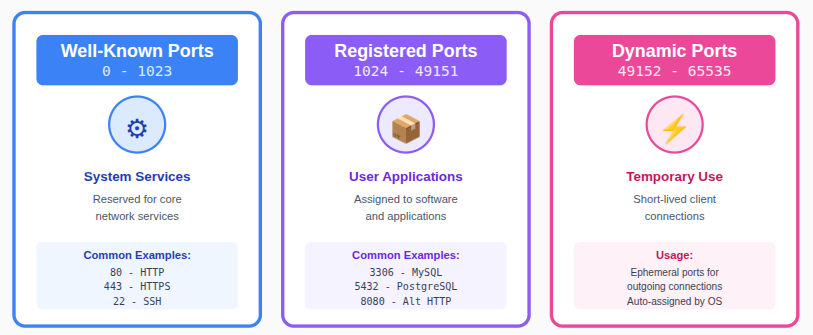
Recognizing these port ranges makes it easier to identify expected services and spot unusual activity.
Check TCP Ports Easily Using ServerAvatar Online Port Checker
While Linux commands like ss, lsof, and nmap are powerful, they require server access and basic command-line knowledge. In many situations, especially during quick checks, remote troubleshooting, or security validation, you may want a faster, browser-based solution. This is where ServerAvatar’s Online Port Checker becomes useful.
What is ServerAvatar?
ServerAvatar is a platform to simplify the hosting and management of servers and applications. It simplifies the process of deploying and managing PHP and Node.js based web applications on servers.
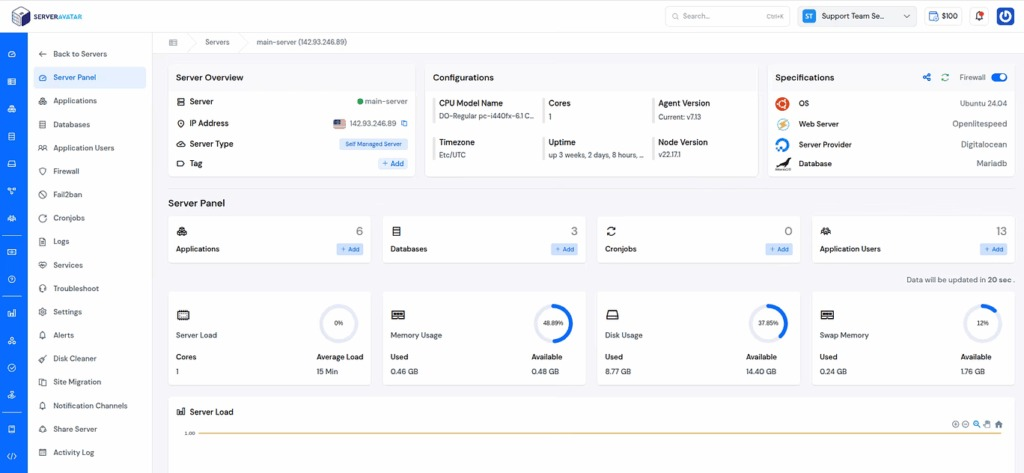
ServerAvatar provides a free online tool that allows you to instantly check whether a specific TCP port is open or closed on any server or domain, without logging into the server or running terminal commands.
Try the tool here:
https://serveravatar.com/online-port-checker/
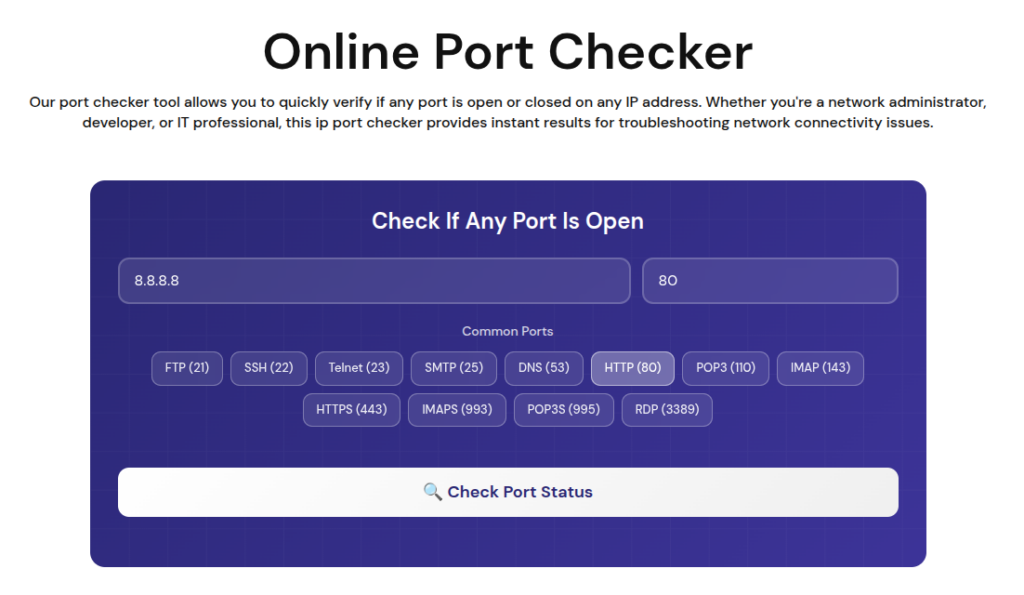
Why Use ServerAvatar’s Online Port Checker?
The ServerAvatar Online Port Checker is designed for simplicity, speed, and accuracy. It helps developers, system administrators, and website owners verify port availability in just a few seconds.
Key benefits include:
- No server access required: Check ports remotely using just a domain name or IP address.
- Quick verification: Instantly confirm whether a TCP port is open or blocked.
- Useful for firewall testing: Validate firewall rules and network configurations.
- Beginner-friendly: No command-line knowledge needed.
- Works alongside Linux tools: Ideal for confirming results from ss, nmap, or firewall changes.
When This Tool Is Most Helpful
The ServerAvatar Online Port Checker is especially useful in scenarios such as:
- Verifying whether SSH (port 22) or HTTP/HTTPS ports (80/443) are accessible.
- Checking if a newly deployed application port is reachable from the internet.
- Confirming firewall or cloud security group configurations.
- Troubleshooting connection issues without direct server login.
- Performing quick security and accessibility checks.
Checking Ports Manually Using CLI
Checking TCP Ports Using netstat
The netstat command is used to display active network connections and listening ports on a Linux system. It provides a quick overview of which TCP ports are currently open or in use.
netstat -tulnWhat each option means:
- -t: shows TCP connections only.
- -u: includes UDP connections in the output.
- -l: lists ports that are actively listening.
- -n: displays port numbers instead of service names.
Although netstat is deprecated on some modern systems, it is still available and commonly used.
Using ss Command to View Port Status
The ss command is a faster and more efficient alternative to netstat. It provides detailed information about TCP connections with minimal system overhead.
ss -tulnWhat each option means:
- -t: shows only TCP connections.
- -u: includes UDP connections in the output.
- -l: displays ports that are actively listening for connections.
- -n: shows port numbers instead of resolving service names.
To view process-related details:
ss -tulpnExplanation of each option:
- -t: shows TCP connections.
- -u: includes UDP connections.
- -l: lists ports that are actively listening.
- -p: displays the process name and process ID (PID).
- -n: shows numerical port values instead of service names.
This command is especially useful for troubleshooting port conflicts, identifying running services, and verifying which applications are bound to specific ports.
Listing Ports with lsof
The lsof command lists open files and network connections, including TCP ports. It is especially useful for identifying which process is using a specific port.
lsof -i -P -nExplanation of each option:
- -i: displays network-related open files, including TCP and UDP connections.
- -P: shows port numbers instead of converting them to service names.
- -n: prevents hostname resolution and displays raw IP addresses.
To check a specific port:
lsof -i :443- Reveals the process name using the port.
- Shows the process ID (PID).
- Helps track down port ownership quickly.
Scanning TCP Ports Using nmap
The nmap tool is widely used to scan and detect open TCP ports on a system. It helps verify which ports are accessible and which services may be exposed.
nmap localhostTo scan a specific port:
nmap -p 80 localhost- Identifies open and closed ports.
- Confirms service availability.
- Assists in basic security checks.
Identifying Services Bound to Ports
When a port is already in use, it is important to identify the service responsible. The ss command makes this process straightforward.
ss -tulpn | grep :8080What this command does:
- Displays active and listening TCP and UDP ports.
- Filters results to show information for port 8080 only.
- Reveals the process name and process ID (PID) using the port.
This output includes:
- Process name running on the port.
- Process ID (PID) for management or troubleshooting.
- Port number currently in use.
This command is especially helpful when troubleshooting port conflicts or verifying which service is bound to a particular port.
Checking the Status of a Specific TCP Port
To verify whether a particular TCP port is open and accepting connections, you can test it directly using the nc command.
nc -zv localhost 22What this command does:
- Attempts a connection to port 22 on the local system.
- Confirms whether the port is open and reachable.
- Displays a success or failure message based on the connection result.
This command is useful for quick connectivity checks and for verifying whether a service is actively listening on a specific port.

TCP and UDP: Key Differences
TCP and UDP are the two main protocols used for network communication. While both handle data transfer, they work in different ways and are used for different purposes.
- TCP: Connection-oriented and reliable, ensuring data is delivered accurately and in order.
- UDP: Connectionless and faster, designed for quick data transmission without delivery guarantees.
| Feature | TCP (Transmission Control Protocol) | UDP (User Datagram Protocol) |
| Connection Type | Connection-oriented | Connectionless |
| Reliability | Highly reliable with guaranteed delivery | No guarantee of delivery |
| Data Order | Maintains correct data order | Data order is not guaranteed |
| Error Checking | Includes error detection and recovery | Basic error checking only |
| Speed | Slower due to reliability mechanisms | Faster due to minimal overhead |
| Data Loss Handling | Retransmits lost data | Does not retransmit lost data |
| Flow Control | Yes, controls data flow | No flow control |
| Congestion Control | Yes, manages network congestion | No congestion control |
| Use Cases | Web traffic, email, file transfer, SSH | Streaming, gaming, DNS, VoIP |
| Header Size | Larger header size | Smaller header size |
| Resource Usage | Uses more system resources | Uses fewer system resources |
| Port Usage | Uses TCP ports | Uses UDP ports |
Most server-based applications depend on TCP, which is why TCP port checks are performed more frequently.
Commonly Used TCP Ports
Certain TCP ports are widely used by standard services and applications. Being familiar with these ports helps quickly identify expected network activity.
- 22 (SSH): Used for secure remote server access.
- 80 (HTTP): Handles unencrypted web traffic.
- 443 (HTTPS): Manages encrypted web communication.
- 3306 (MySQL): Commonly used by MySQL database services.
- 6379 (Redis): Used by Redis in-memory data storage systems.
Recognizing these ports simplifies system reviews and network audits.
Security Concerns Related to Open Ports
Open TCP ports can become security risks if they are not properly controlled. Services that are exposed without need may be targeted by unauthorized users.
- Unused open ports increase the attack surface.
- Misconfigured services can expose sensitive data.
- Lack of monitoring may allow unnoticed access attempts.
Regular port checks help reduce these risks and improve system security.
Best Practices for TCP Port Management
Managing TCP ports carefully ensures stable and secure system operations. Following basic best practices can prevent many common issues.
- Close unused ports: Reduces unnecessary exposure.
- Use firewall rules: Controls which ports are accessible.
- Restrict external access: Limits connections to trusted sources.
- Monitor running services: Ensures only required applications are active.
- Review port usage periodically: Helps detect unexpected changes.
These steps improve both system performance and security.
Resolving Common TCP Port Issues
TCP port-related problems are common and usually easy to fix once identified. Most issues stem from configuration conflicts or security rules.
- Port already in use errors: Occur when multiple services try to use the same port.
- Blocked ports due to firewall rules: Prevent services from being reachable.
- Unexpected open ports: May indicate unnecessary or unknown services.
Identifying the service and adjusting its configuration usually resolves these problems.
Conclusion
Understanding how to check open, closed, or in-use TCP ports on Linux is a fundamental skill for anyone managing servers or applications. By learning how TCP ports work and using tools like ss, lsof, netstat, nmap, and nc, you can quickly diagnose connectivity issues, prevent port conflicts, and strengthen system security. Combining command-line methods with browser-based solutions like the ServerAvatar Online Port Checker makes port monitoring faster and more accessible, even without direct server access. Regularly reviewing TCP ports ensures that only necessary services remain active, helping you maintain a stable, secure, and well-managed Linux environment.
FAQs
1. How do I list all open TCP ports on Linux?
You can use ss -tuln or netstat -tuln to view all open TCP ports.
2. Which command shows the process using a port?
Commands like lsof -i :PORT or ss -tulpn show the process and PID.
3. Is it safe to leave TCP ports open?
Only required ports should remain open to minimize security risks.
4. Can I scan ports on my local system?
Tools like nmap allow local TCP port scanning.
5. Can I check TCP ports without logging into a server?
ServerAvatar Online Port Checker tool allow you to check whether a TCP port is open or closed using only a domain name or IP address.