

Running a website is exciting. You publish content, connect with visitors, and build relationships through features like contact forms. But if you’ve owned a website long enough, you’ve probably experienced a frustrating problem: spam messages flooding your WordPress contact form. Many website owners struggle to stop contact form spam in WordPress, as automated bots continuously submit fake messages, promotional links, or suspicious content. If left unchecked, these spam submissions can clutter your inbox and make it harder to find genuine inquiries from real visitors.
One day your inbox contains genuine messages from customers, and the next day it’s filled with dozens, or even hundreds, of fake submissions. These spam messages are usually generated by automated bots trying to advertise shady products, send malicious links, or test vulnerabilities.
The good news? Stopping spam in WordPress contact forms is easier than you think. With the right tools, settings, and best practices, you can drastically reduce or even eliminate spam submissions. In this guide, we’ll explore practical methods that anyone can implement, even if you’re not a technical expert.
What Is Contact Form Spam in WordPress?
Contact form spam happens when automated programs (bots) submit fake messages through your website forms. These messages often include:
- Random text
- Suspicious links
- Promotional content
- Malware attempts
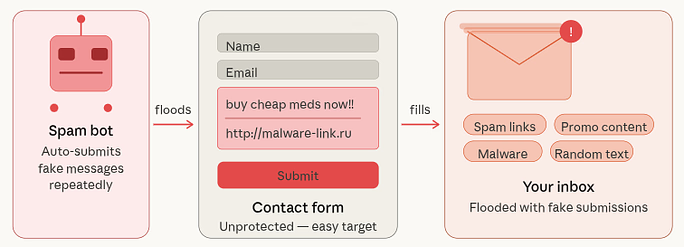
Bots scan thousands of websites looking for vulnerable forms they can exploit. Instead of a real person typing a message, a script automatically fills your form and submits it repeatedly. If your form lacks protection, it becomes an easy target.
Why Spam Bots Target Contact Forms
You might wonder: Why would anyone target my website?
The truth is, spam bots don’t target specific websites, they target thousands at once. Below are common reasons bots attack contact forms:
- SEO manipulation: Spammers try to place links to boost their own websites.
- Advertising scams: Bots send promotional messages for fake products.
- Security testing: Some bots test websites for vulnerabilities.
- Email harvesting: Attackers try to collect email responses from site owners.
Because WordPress powers a huge portion of the internet, it naturally becomes a prime target for bots.
Signs Your WordPress Contact Form Is Receiving Spam
Not sure if spam is affecting your website? Watch for these warning signs:
- Sudden increase in form submissions: You start receiving dozens of emails daily.
- Messages with random text: Spam often contains meaningless sentences.
- Links in messages: Many spam messages include suspicious URLs.
- Repeated keywords or promotions: Messages advertising SEO services, crypto, or adult sites.
- Submissions at unusual hours: Bots can send messages every minute, even at midnight.
If you notice these patterns, it’s time to strengthen your contact form security.
Why You Need Form Spam Protection
If you run a website, your contact form is one of the easiest ways for visitors to reach you. It helps customers ask questions, request services, or share feedback. However, without proper protection, that same form can quickly become a target for spam bots.
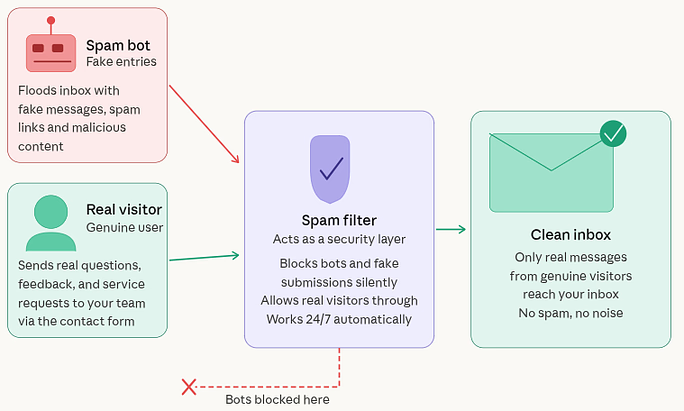
Form spam protection is important because it keeps your website communication clean, secure, and manageable. When bots start submitting fake messages, your inbox can get flooded with useless emails. This makes it harder to spot genuine inquiries from real users who actually need your help. Some spam messages include suspicious links or malicious content that may attempt to exploit vulnerabilities.
Adding proper spam protection acts like a security filter for your website. It allows genuine visitors to contact you while automatically blocking bots and unwanted submissions. In simple terms, it keeps your contact form working the way it should, for real people, not automated spam scripts.
Methods to Stop Contact Form Spam in WordPress
There are several practical ways to reduce or completely stop spam submissions in WordPress contact forms. Some methods use hidden fields, while others rely on verification tools or plugins that automatically filter suspicious activity.
The best part is that most of these methods protect your form without making it difficult for real visitors to use. Let’s explore the most reliable techniques you can implement today.
Method 1: Add CAPTCHA Verification
CAPTCHA verification helps distinguish between real visitors and automated scripts. While older CAPTCHA systems required users to solve puzzles or identify images, modern verification methods run quietly in the background.
Invisible verification tools provide strong protection while keeping the user experience smooth. Two of the most commonly used CAPTCHA solutions are Cloudflare Turnstile and Google reCAPTCHA v3.
Option 1: Cloudflare Turnstile
Cloudflare Turnstile is a privacy-focused CAPTCHA alternative. Instead of asking visitors to solve challenges, it runs small background checks in the browser to verify that the visitor is human.
The process happens automatically while the visitor interacts with the page, making it both user-friendly and highly effective against bots.
How to Add Cloudflare Turnstile to WordPress Forms
- Log in to your Cloudflare dashboard.
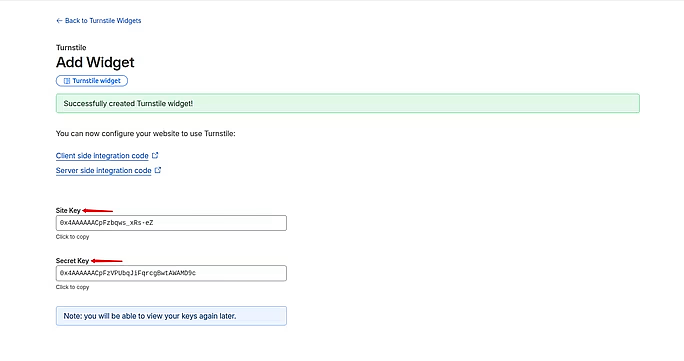
- Create a new Turnstile key for your domain.
- Copy the Site Key and Secret Key generated by Cloudflare.
- Open your WordPress admin dashboard.
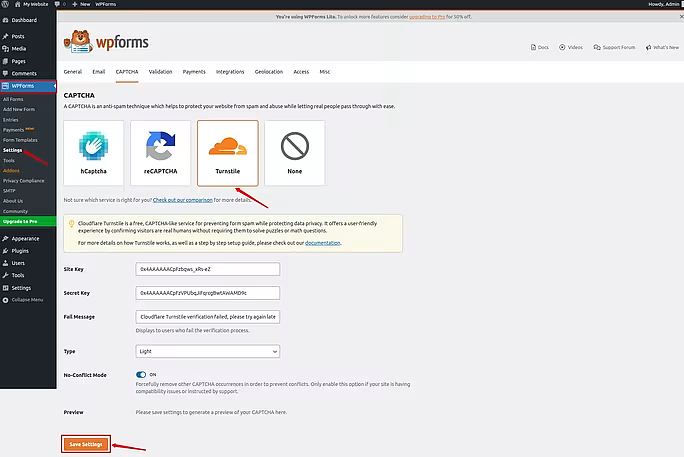
- Navigate to your form plugin’s settings >> CAPTCHA.
- Choose Turnstile as the verification method.
- Paste the keys into the required fields.
- Add the Turnstile field to the form and save the changes.
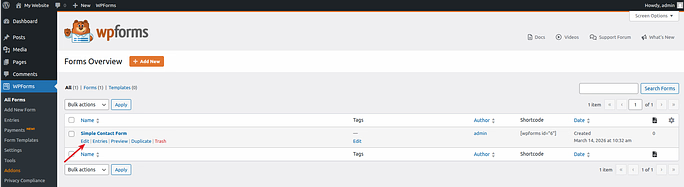
- Navigate to the Fields section and search for Turnstile, and add it by clicking on it.
- Click on the OK button to enable it for the form.
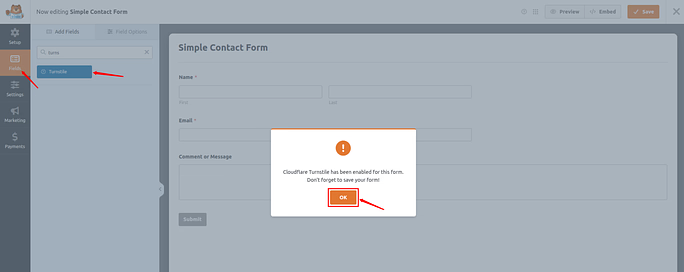
Once enabled, the system will automatically analyze visitor behavior and block suspicious submissions.
Check out the detailed blog on How to add CAPTCHA in WordPress by reviewing the following link: https://serveravatar.com/wordpress-captcha-setup/
Option 2: Google reCAPTCHA v3
Google reCAPTCHA v3 works differently from earlier versions. Instead of asking visitors to check a box or solve a puzzle, it evaluates their behavior on your website.
Each visitor receives a risk score based on how they interact with your page. If the score indicates bot-like behavior, the form submission can be blocked or flagged.
Steps to Configure Google reCAPTCHA v3
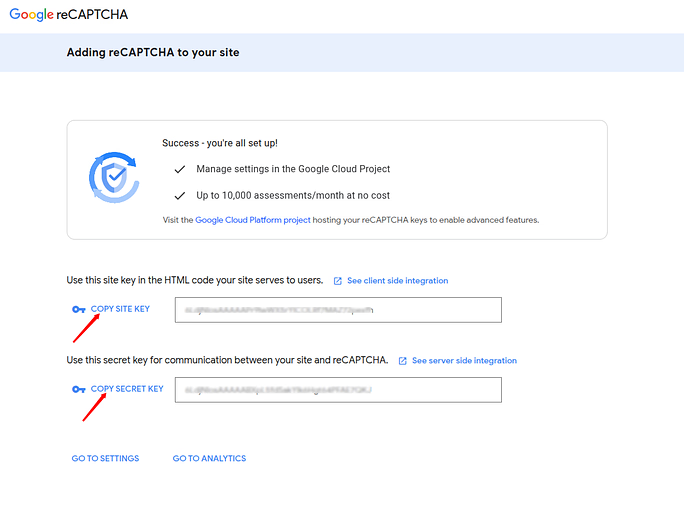
- Visit the Google reCAPTCHA Admin Console and register your website.
- Enter the Label you want to give, select Score based reCAPTCHA v3, and submit it.
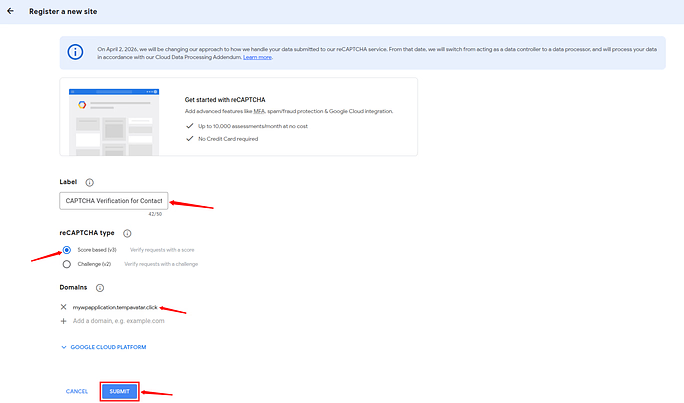
- Copy the provided Site Key and Secret Key.
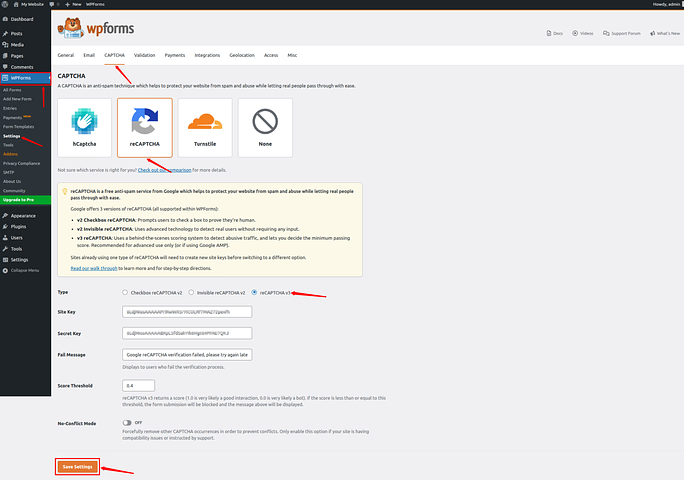
- Go to your WordPress dashboard, and navigate to the WPForms >> Settings.
- Navigate to the CAPTCHA integration section and select reCAPTCHA.
- Select reCAPTCHA v3 as a type.
- Paste your Site Key and Secret key copied before.
- Click on the Save Settings button.
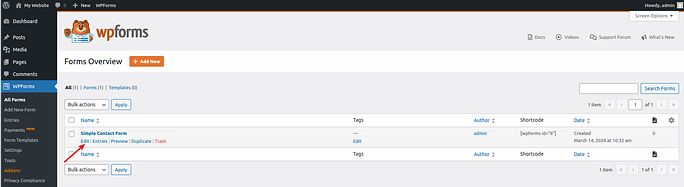
- Now, enable reCAPTCHA on your contact form.
- Navigate to the WPForms >> All Forms section and click on Edit.
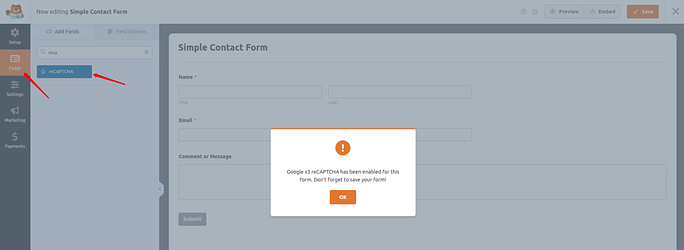
- Navigate to the Fields section and search for reCAPTCHA, and add it by clicking on it.
- Click on the OK button to enable it for the form.
This method protects your forms while remaining completely invisible to users.
Method 2: Use Honeypot Fields
The honeypot technique is one of the simplest yet most effective ways to stop spam bots. It works by placing a hidden field inside your form that normal visitors cannot see.
Since automated bots scan the form code and try to fill every field they find, they often fill this hidden field as well. When that happens, the system instantly recognizes the submission as spam and blocks it.
This approach works silently in the background, so users never have to solve puzzles or click images.
How to Enable Honeypot Protection (Using WPForms)
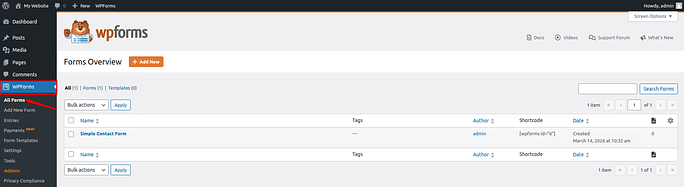
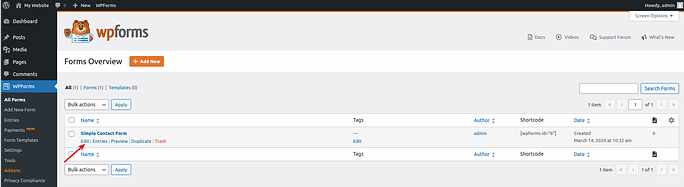
- Log in to your WordPress dashboard, and navigate to WPForms >> All Forms.
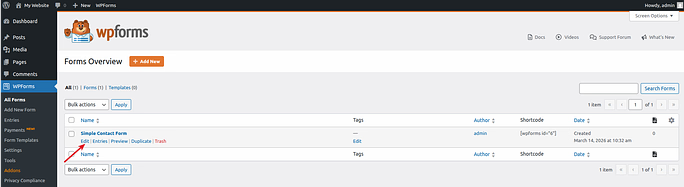
- Locate the form you want to protect and click Edit.
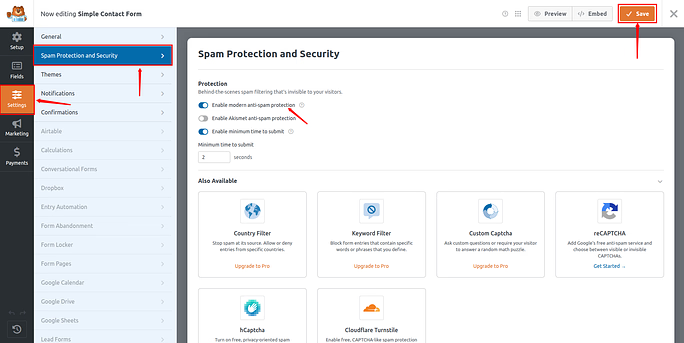
- Inside the form builder, navigate to Settings and Select Spam Protection and Security.
- Turn on Modern Anti-Spam Protection.
- Save your changes.
If you use other form plugins like Gravity Forms or Contact Form 7, they usually include honeypot protection in their security or spam settings.
Method 3: Set a Minimum Submission Time
Spam bots submit forms extremely fast, often within milliseconds. Humans, on the other hand, need a few seconds to read the form fields and type their message.
By setting a minimum time requirement, you can automatically block submissions that arrive too quickly.
Any form sent before the required time limit is flagged as suspicious and rejected.
Steps to Enable Minimum Submission Time
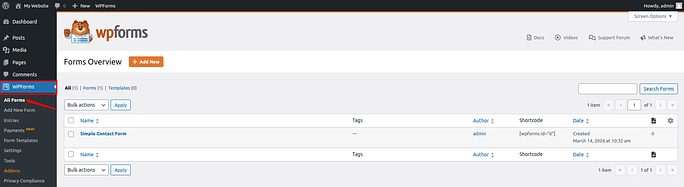
- Log in to your WordPress dashboard, and navigate to WPForms >> All Forms.
- Locate the form you want to protect and click Edit.
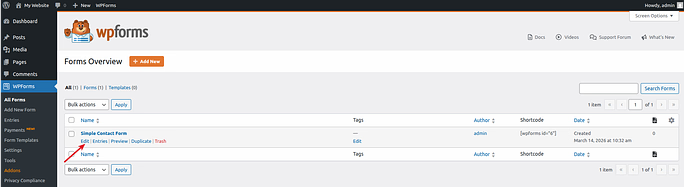
- Inside the form builder, navigate to Settings >> Spam Protection and Security.
- Turn on Modern Anti-Spam Protection.
- Enable the option Minimum Time to Submit, and set the time limit to 3–4 seconds.
- Save the form.
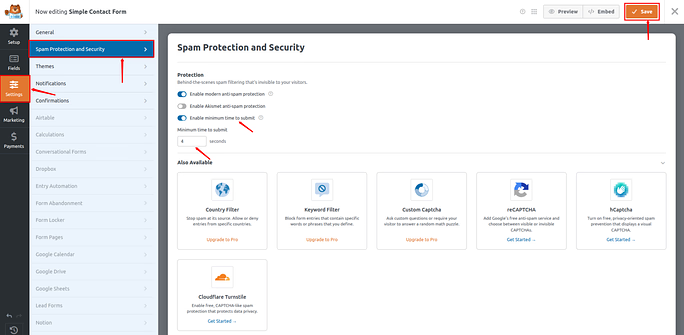
Now, if a bot tries to submit the form instantly, the system will block the request before it gets stored in your database.
Method 4: Block Disposable Email Addresses
Spam bots frequently use temporary or disposable email services to bypass email validation. These email addresses are created quickly and discarded after use.
Blocking these domains can significantly reduce fake form submissions.
Steps to Block Disposable Emails
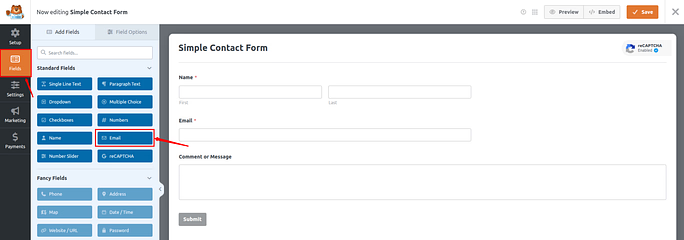
- Navigate to the Field section and click on the Email.
- Navigate to the Advanced Settings section.
- Select the Denylist option.
- Add disposable email domains such as:
*@mail.ru
*@yopmail.com- Save your changes.
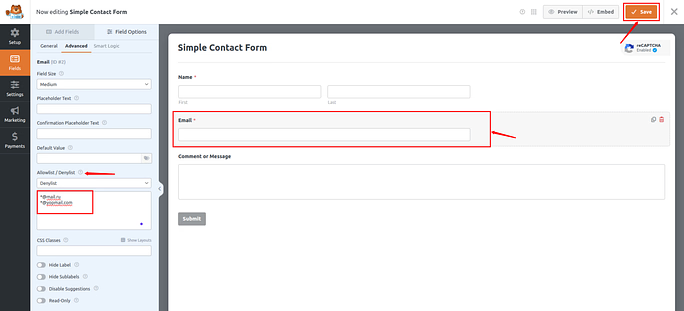
Any submission using these domains will automatically fail validation and will not be accepted.
Method 5: Install an Anti-Spam Plugin
Basic form protections like honeypots and time limits are helpful, but they may not stop all advanced bots.
A dedicated anti-spam plugin provides stronger protection by connecting your website to large databases that track spam activity across millions of websites. Incoming submissions are analyzed using these databases before reaching your site.
Below are some widely used anti-spam plugins for WordPress.
1. Akismet Anti-Spam
Akismet is one of the most popular spam filtering tools available for WordPress.
It checks every submission against a global database of known spam patterns. If a message matches suspicious activity, it is automatically filtered or stored separately for review.
How to Set Up Akismet
- Navigate to Plugins >> Add Plugin section, and search for Akismet.
- Install and activate the Akismet plugin.
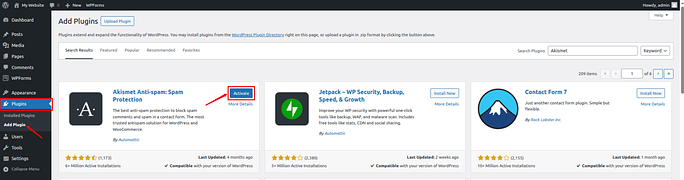
- Create or log in to your Akismet account, copy your API key from the Akismet dashboard.
- Paste the API key into the plugin settings in WordPress.
- Enable Akismet integration inside your contact form plugin.
Once activated, Akismet continuously scans form submissions and blocks suspicious ones.
2. Anti-Spam by CleanTalk
CleanTalk works by filtering spam traffic through an external service before it reaches your website.
Instead of letting your server process every request, CleanTalk checks submissions remotely and blocks malicious traffic instantly. This approach reduces server load while improving spam detection.
Steps to Configure CleanTalk
- Navigate to Plugins >> Add Plugin section, and search for Anti-Spam by CleanTalk.
- Install and activate the Anti-Spam plugin.
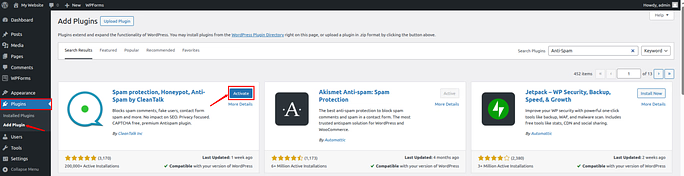
- Navigate to the plugin settings from your WordPress dashboard, and click on the Get Access Key to generate your authentication key.
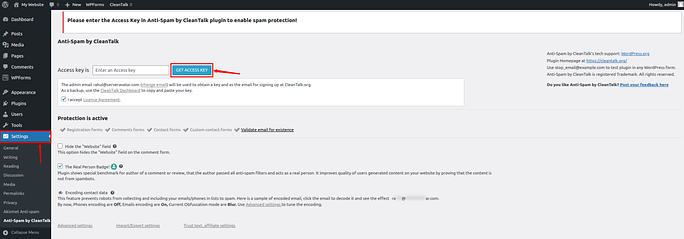
- Confirm that protection is active across your forms, and save the settings.
Once configured, CleanTalk starts filtering submissions automatically.
3. Antispam Bee
Antispam Bee is another effective plugin that focuses on privacy.
Unlike some spam filtering tools, it does not send visitor data to external servers. Instead, it analyzes submissions locally using factors like IP validation and submission behavior.
How to Configure Antispam Bee
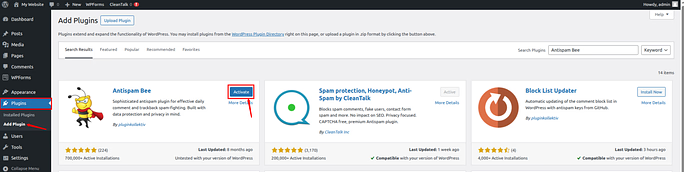
- Navigate to Plugins >> Add Plugin section, and search for Antispam Bee.
- Install and activate the Antispam Bee.
- Enable filters such as Trust Approved Commenters and Local Spam Database.
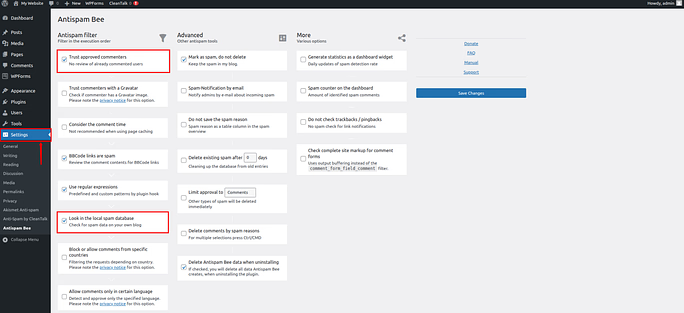
- Save the settings.
- You can also configure advanced options like automatic spam deletion after a certain number of days.
This plugin is especially useful for websites that must comply with strict privacy regulations.
Method 6: Filter Spam Keywords
Spam messages often contain certain keywords or promotional phrases. By blocking these words, you can prevent many spam submissions from ever reaching your inbox.
WordPress includes a built-in moderation system that allows you to block specific words, URLs, or IP addresses.
How to Block Keywords in WordPress
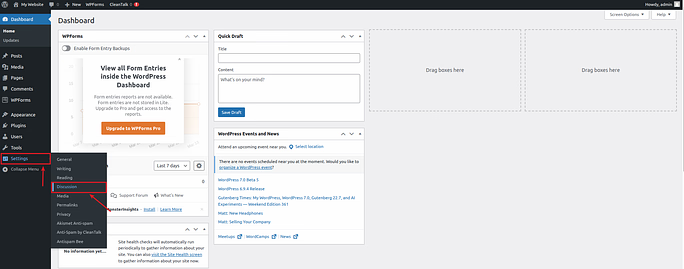
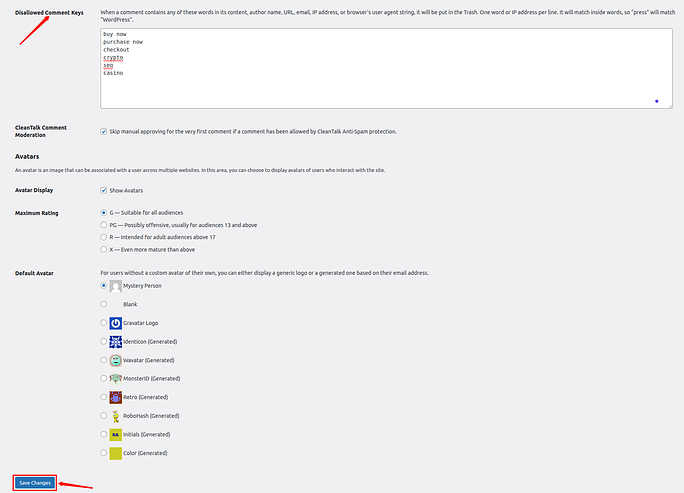
- Scroll to the Disallowed Comment Keys section. Enter words, URLs, or IP addresses you want to block.
- Add each entry on a new line.
- Save your changes once you have added.
Many form plugins also provide keyword filtering inside their spam protection settings.
If you’re using WPForms, the keyword filtering feature is configured individually for each form, not across the entire site.
Here’s how to set it up:
- Click on the Edit for the form you want to edit and navigate to Settings >> Spam Protection and Security.
- Turn on the Keyword Filter option (this feature requires the Pro version).
- Enter the keywords you want to block, separating each word with a comma.
- Click Save to apply the changes.
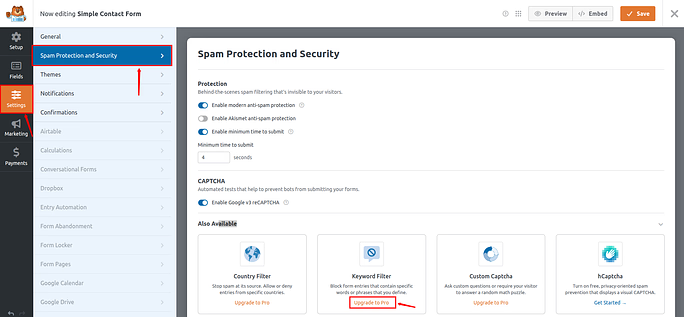
Once enabled, any submissions containing those specified keywords will be automatically blocked.
Additional Tips to Prevent WordPress Contact Form Spam
Even after implementing the main spam protection methods, there are a few extra precautions that can help keep your forms secure. Small improvements in your website’s security setup can make a big difference in preventing automated bots from reaching your forms.
Consider using a website firewall or security plugin that monitors incoming traffic and blocks suspicious requests before they reach your contact form. These tools work like a security guard for your website, identifying unusual activity and stopping it instantly.
Another helpful practice is keeping your WordPress core, plugins, and themes updated. Updates often include security improvements that protect your website from newly discovered vulnerabilities.
Finally, regularly review your form submissions and spam filters. Monitoring activity helps you detect unusual patterns early and adjust your spam protection settings when necessary.

Best Practices for Managing WordPress Contact Forms
A well-managed contact form not only prevents spam but also improves the overall communication experience for your visitors.
Start by keeping your form simple and focused. Only ask for the information you truly need. Shorter forms are easier for real users to complete and less attractive to automated bots.
You can also add clear validation rules, such as limiting the number of links allowed in a message or restricting certain file types in uploads. These small adjustments reduce the chances of spam slipping through.
Additionally, make sure your contact form sends notifications to a monitored email address so you can respond to legitimate inquiries quickly. When real visitors receive timely replies, it strengthens trust and improves the credibility of your website.
Conclusion
Spam submissions in WordPress contact forms can quickly become frustrating, but the good news is that they are manageable with the right approach. By implementing techniques like CAPTCHA verification, honeypot fields, minimum submission time limits, keyword filtering, and reliable anti-spam plugins, you can significantly reduce unwanted messages. These methods work together to block automated bots while keeping the form simple and accessible for genuine visitors. With proper spam protection in place, your contact form will remain a useful communication tool that allows real users to reach you without the distraction of constant spam.
FAQs
1. Why do WordPress contact forms receive so much spam?
WordPress contact forms often receive spam because automated bots scan the internet looking for forms they can exploit to send promotional links, advertisements, or malicious content.
2. What is the easiest way to stop spam in WordPress contact forms?
Adding CAPTCHA verification or enabling honeypot protection is one of the easiest and most effective ways to reduce spam submissions.
3. Do anti-spam plugins affect website performance?
Most modern anti-spam plugins are optimized for performance and work in the background without significantly affecting website speed.
4. Can I completely eliminate contact form spam in WordPress?
While it may not be possible to remove spam entirely, using multiple security methods together can drastically reduce spam submissions.
5. Is CAPTCHA necessary for every WordPress contact form?
CAPTCHA is highly recommended because it helps verify whether the visitor is human, making it much harder for bots to submit spam messages.
Stop Wasting Time on Servers. Start Building Instead.
You didn’t start your project to babysit servers. Let ServerAvatar handle deployment, monitoring, and backups — so you can focus on growth.
Deploy WordPress, Laravel, N8N, and more in minutes. No DevOps required. No command line. No stress.
Trusted by 10,000+ developers and growing.