


Deleting a large directory in Linux can feel like trying to clean out a packed storeroom with a tiny broom. When you need to delete large directories, you know what has to go, but the process often feels slow, confusing, or even risky. If you have ever typed a delete command and watched your terminal “think” forever, you are not alone.
Linux is powerful, but with power comes responsibility. One wrong command can wipe out important data. That is why learning how to delete large directories in Linux quickly and safely is an essential skill, even for non-technical users. In this guide, we will break everything down in plain English, step by step, without scary jargon.
Large directories build up over time. Old backups, logs, unused files, or test data slowly eat up disk space like clutter piling up in your garage. At some point, you need to clear it out. The challenge is doing it quickly, safely, and without panic.
In this article, we will walk you through multiple ways to remove large folders in Linux.
What Is a Directory in Linux?
In Linux, a directory is simply a container that holds files and other directories. If you are more familiar with Windows or macOS, you can think of a directory as the same thing as a folder. It helps organize data so that everything does not end up in one messy place.
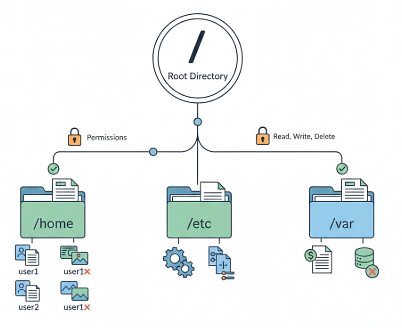
In Linux, everything is organized in a tree-like structure that starts from a single top-level directory called the root directory, written as /. All other directories branch out from this root. For example, your personal files usually live inside /home, while system files stay in directories like /etc or /var.
Directories in Linux do not just store data. They also control permissions, which decide who can read, write, or delete the files inside them. This is one reason Linux systems are considered secure and stable.
What Makes a Directory ”Large” in Linux
In Linux, a directory is considered large not just because of how much disk space it uses, but because of how many files it contains. The system handles files individually, so a directory filled with countless small files can be more demanding than one with fewer large files.
For example:
- One folder with 10 video files (10 GB total)
- Another folder with 1 million log files (also 10 GB)
The second folder will take much longer to delete. Linux must process each file individually, checking permissions, links, and file system records.
Why Deleting Large Directories Takes Time
Deleting large directories in Linux is a slow process because the system does not remove everything at once. Instead, it carefully handles each file separately to maintain stability and data integrity.
When a directory contains a large number of files, this step-by-step process naturally takes longer, and the overall speed is also influenced by factors like storage performance and system workload.
- Locates each file: Linux first identifies every file inside the directory.
- Checks ownership and permissions: The system verifies access rights before allowing deletion.
- Removes file system references: File entries are safely detached from the directory structure.
- Free disk space: The occupied storage is released back to the system.
This is why deleting a folder with 5 GB of videos is faster than deleting 5 GB of tiny log files.
The Basic rm Command Explained
The rm command is the standard way to delete files and directories in Linux.
While this command is simple and effective for regular cleanup tasks, it may take noticeable time when used on directories that contain a large number of files.
rm -rf directory_name- rm (remove): Removes files or directories from the system.
- -r (recursive): Deletes all contents inside a directory, including subdirectories.
- -f (force): Forces deletion without asking for confirmation.
This command works fine for small to medium directories. But for very large ones, it can feel painfully slow.
When rm -rf Feels Too Slow
Sometimes, running the rm -rf command can feel frustratingly slow or make the terminal appear unresponsive. This usually happens because the system has to process a large amount of data under less-than-ideal conditions.
When this occurs, relying on more efficient deletion methods becomes a better approach than forcing a single command to do all the work.
- The directory has too many files: A high file count increases the time needed for individual processing.
- The disk is under heavy load: Ongoing read or write activity slows down deletion tasks.
- The file system is slow: Certain file systems handle large deletions less efficiently.
At this point, you need smarter methods instead of brute force.
Deleting Files First, Then Folders
A more efficient way to remove large directories is to handle files and folders separately. Since files require more system checks during deletion, removing them first makes the overall process smoother and faster.
Once the files are gone, the remaining empty directories can be cleared almost instantly.
Why does this help?
- Files take longer to process: Each file needs individual verification before removal.
- Empty directories are removed quickly: Linux can delete empty folders with minimal effort.
- Improves overall deletion speed: Separating tasks reduces unnecessary processing.
Using find to remove files from a directory
The find command offers a more efficient way to handle large directory deletions by targeting files directly instead of processing everything at once.
By removing files first, the system avoids repeated directory checks, which helps speed up the overall cleanup process.
find directory_name -type f -delete- find: Searches through a directory and its subdirectories based on given conditions.
- directory_name: Defines the starting location for the search operation.
- -type f: Limits the search to only files, and excludes directories.
- -delete: Removes each file that matches the search criteria.
This removes all files first. Once files are gone, deleting empty folders becomes much faster.
Removing Directories the Smart Way
After all files have been removed, clearing out empty directories becomes a quick and simple task. Since empty folders do not require detailed file checks, Linux can remove them with very little effort, allowing the cleanup process to finish smoothly and efficiently.
find directory_name -type d -delete- find: Searches through a directory and its subdirectories based on the criteria provided.
- directory_name: Specifies the directory where the search begins.
- -type d: Limits the search to directories only, ignoring individual files.
- -delete: Permanently removes each directory that matches the criteria.
This finishes the cleanup quickly. Together, these two commands are often much faster than rm -rf.
Using rsync to Delete Large Directories
Although rsync is usually used for copying files, it can also be used as a smart and efficient way to clear large directories.
By syncing an empty directory with a target folder, the contents are removed in an organized manner, making the final deletion faster and less resource-intensive.
Step 1: Create an empty directory
mkdir empty_dir- mkdir: Creates a new directory.
- empty_dir: Name of the directory to be created.
Step 2: Sync it with deletion
rsync -a --delete empty_dir/ large_dir/- rsync: Synchronizes files and directories between locations.
- -a (archive): Preserves file permissions, timestamps, symbolic links, and directory structure.
- –delete: Removes files in the destination that don’t exist in the source.
- empty_dir/ large_dir/: Synchronizes the contents of empty_dir to large_dir.
Please note and use carefully, as –delete can remove files in the destination permanently.
Step 3: Remove the directory
rm -rf large_dir- rm: Removes files or directories.
- -r (recursive): Deletes the directory and all its contents, including subdirectories.
- -f (force): Ignores warnings and deletes without asking for confirmation.
- large_dir:– Specifies the directory to be removed completely.
What is Parallel File Deletion?
Parallel file deletion in Linux allows multiple files to be removed efficiently by passing file paths as input to a deletion command.
This approach minimizes idle system time and improves performance by handling file removal in batches rather than one file at a time.
find directory_name -type f | xargs rm -f- find: Searches for files within a specified directory and its subdirectories.
- directory_name: The directory where the search begins.
- -type f: Limits the search to files only, ignoring directories.
- xargs rm -f: Passes the found files to the rm -f command to delete them without confirmation.
Parallel deletion uses system resources better and reduces waiting time, especially on modern systems.
Deleting Directories with Millions of Files
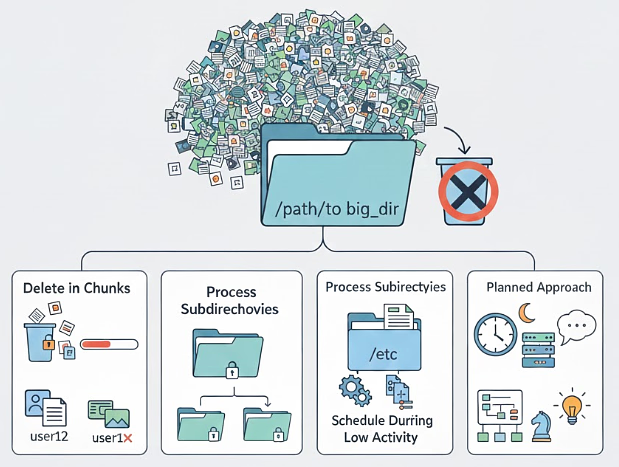
Removing directories that contain an extremely high number of files requires a careful and structured approach. Instead of attempting to delete everything at once, breaking the task into smaller, manageable steps helps reduce system strain and improve reliability during the process.
- Delete in Chunks: Removes files in smaller groups to avoid overwhelming system resources.
- Process Subdirectories Individually: Handles each subdirectory separately for better control and stability.
- Schedule During Low Activity: Reduces performance impact by running deletion tasks when system usage is minimal.
- Use a Planned Approach: Combining patience with strategy ensures successful and safe directory cleanup.
Checking Disk Space Before and After
Verifying disk space before and after a cleanup task helps ensure that storage changes occurred as expected. This simple check allows you to confirm that files were removed successfully and that the system remains in a healthy state.
df -h- df: Displays disk space usage for all mounted filesystems.
- -h (human-readable): Shows sizes in a readable format like KB, MB, or GB.
It helps you confirm that space has actually been freed and nothing went wrong.

Common Mistakes to Avoid
File deletion operations require careful attention, as even small errors can lead to permanent data loss. Taking a moment to verify commands and paths before execution helps prevent unintended and irreversible consequences.
- Running Commands in the Wrong Location: Deleting files from an unintended directory can remove important data.
- Skipping Folder Name Verification: Incorrect or incomplete names may target the wrong files or folders.
- Using High-Risk Delete Options Carelessly: Forceful deletion methods can erase critical system data if misused.
- Ignoring Minor Errors: A single typing mistake can result in significant and unrecoverable loss.
Safety Tips Before Running Commands
Performing file or directory deletion requires caution, as these actions are often irreversible. Reviewing your approach and validating each step beforehand helps reduce the risk of accidental data loss.
- Preview Directory Contents: Check what will be affected before executing any removal command.
- Start with a Small Test: Verify command behavior on limited data to avoid widespread impact.
- Protect Important Data: Ensure backups are available when the data has value.
- Pause Before Execution: Taking a moment to review commands can prevent costly mistakes.
Using sudo and Root Permissions Carefully
Administrative privileges allow commands to bypass standard safety restrictions, making them powerful but risky when used incorrectly. Exercising caution and verifying commands beforehand is essential to avoid unintended system changes.
sudo rm -rf directory_name- sudo: Runs the command with administrative (root) privileges.
- rm: Removes files or directories.
- -r (recursive): Deletes the directory and all its contents, including subdirectories.
- -f (force): Skips confirmation prompts and ignores warnings.
- directory_name: Specifies the target directory to be deleted.
Using sudo gives full power. Always pause and double-check before pressing Enter.
Best Practices for the Future
Maintaining an organized file system helps prevent performance issues and reduces the need for risky cleanup operations. Adopting proactive habits ensures smoother system management and long-term stability.
- Perform Regular Cleanups: Removes unnecessary files before they accumulate.
- Automate Log Rotation: Prevents log files from growing uncontrollably over time.
- Limit File Density per Directory: Improves efficiency by avoiding excessive small files in a single location.
- Focus on Prevention: Proactive management minimizes future effort and stress.
Delete Large Directories Easily Using ServerAvatar File Manager
Deleting large directories using terminal commands can feel risky, especially when a single mistake can remove the wrong files permanently. If you prefer a safer and more visual approach, ServerAvatar makes directory cleanup much easier with its built-in File Manager.
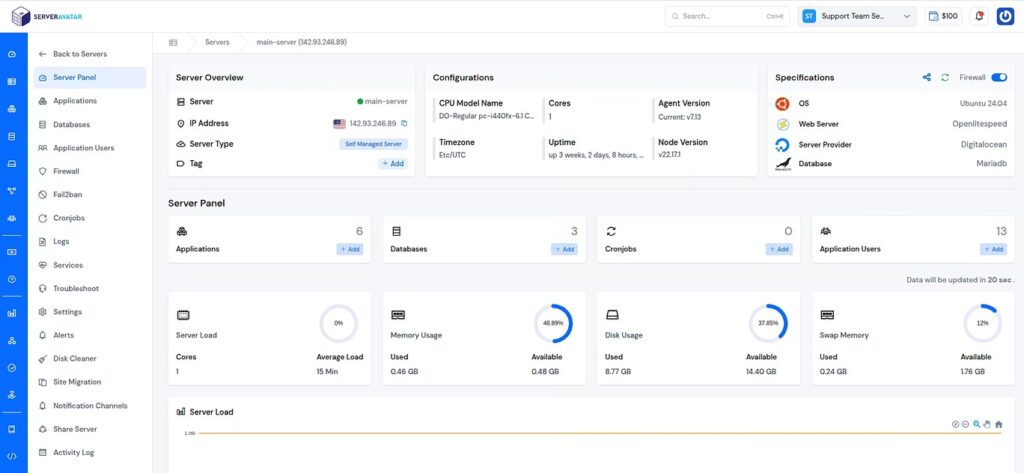
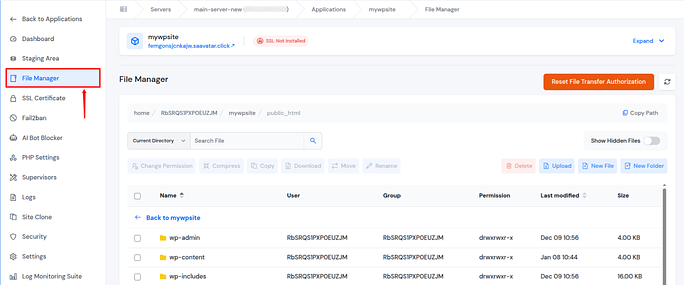
ServerAvatar’s File Manager allows you to delete large folders directly from the dashboard, no terminal commands, no complex flags, and no fear of typing the wrong path.
How ServerAvatar Simplifies Directory Deletion
With ServerAvatar, you can manage your files the same way you manage files on your computer. Everything is visual, structured, and easy to understand.
Here’s how it helps when deleting large directories:
- Visual folder navigation: You can browse through directories clearly and confirm exactly what you are deleting before taking action.
- One-click directory deletion: Simply select the folder you want to remove and delete it using the built-in options, no rm -rf, no guessing.
- Safe and controlled actions: Since you are working inside the dashboard, the risk of accidentally deleting system-critical paths is greatly reduced.
- No command-line expertise required: Even non-technical users can remove large directories confidently without learning Linux commands.
When ServerAvatar File Manager Is the Better Choice
Using the ServerAvatar File Manager is especially useful when:
- You are not comfortable using terminal commands
- You want to avoid accidental data loss
- You are cleaning up application files, uploads, logs, or backups
- You need a quick and stress-free way to manage server storage
Instead of watching a terminal hang during deletion or worrying about permissions and flags, ServerAvatar handles everything behind the scenes in a structured and reliable way.
A Safer Alternative to Risky Delete Commands
While command-line tools are powerful, they are also unforgiving. ServerAvatar’s File Manager gives you clarity, safety, and simplicity, making it an ideal choice for users who want results without complexity.
If your goal is to delete large directories quickly, safely, and without panic, ServerAvatar’s built-in File Manager offers a clean and user-friendly solution that removes the stress from server file management.
Conclusion
Deleting large directories in Linux doesn’t have to be overwhelming or risky. By understanding how the system processes files and directories, using commands strategically, and following safe practices, you can manage even the largest folders efficiently. Whether it’s removing files first, leveraging tools like find or rsync, or performing deletions in parallel, these methods help save time and reduce system strain.
Always double-check commands, use administrative privileges carefully, and adopt regular maintenance habits to prevent clutter from building up in the first place. With patience, planning, and the right techniques, cleaning up Linux directories becomes a safe, manageable, and stress-free task. With the right approach, deleting large directories in Linux becomes a straightforward, stress-free task, saving you time and protecting your important data.
FAQs
1. Is rm -rf safe to use?
Yes, if used carefully. Always double-check the directory name before running it.
2. Why does deleting many small files take so long?
Because Linux removes files one by one, and file count matters more than size.
3. Can I stop a delete command once it starts?
Yes, you can press Ctrl + C, but some files may already be deleted.
4. Which method is fastest for very large directories
Using find or rsync is often faster than plain rm -rf.
5. Should beginners use the terminal to delete files?
Yes, with caution. Start slow, test commands, and gain confidence step by step.
Stop Wasting Time on Servers. Start Building Instead.
You didn’t start your project to babysit servers. Let ServerAvatar handle deployment, monitoring, and backups — so you can focus on growth.
Deploy WordPress, Laravel, N8N, and more in minutes. No DevOps required. No command line. No stress.
Trusted by 10,000+ developers and growing.