


Have you ever wondered how your Linux system knows where to find websites like Google, YouTube, or your favorite blog? When you type a website name and press Enter, the website loads instantly because your system uses a DNS server IP address to translate domain names into readable locations. Behind the scenes, something important is working quietly: DNS.
Domain Name System (DNS) is the same as the phonebook for the internet. Instead of remembering numbers (IP addresses), we remember names (domain names). But sometimes, you may need to know which DNS server your Linux system is using. Maybe you’re troubleshooting internet issues, setting up a server, or just curious.
Don’t worry, you don’t need to be a Linux expert. In this guide, I’ll walk you through easy, human-friendly ways to find your DNS server IP address in Linux. No confusing jargon. Just clear steps you can follow right away.
What Is a DNS Server?
A DNS server translates website names like “example.com” into IP addresses like “93.184.216.34“. Your computer understands numbers, not names, DNS acts as the translator.
Think of DNS as a GPS for the internet. You enter a place name, and it finds the exact location for you.

Why You Might Need to Find Your DNS Server IP Address
There are many practical reasons to check your DNS server IP:
- Internet not working properly: Checking your DNS server helps identify name-resolution issues that can block internet access.
- Slow website loading: A slow or misconfigured DNS server can delay website loading times.
- Server configuration: Knowing your DNS IP is essential when setting up or managing Linux servers correctly.
- Security or privacy checks: Verifying DNS ensures your traffic isn’t being routed through untrusted servers.
- Switching to public DNS (like Google or Cloudflare): Finding your current DNS helps you replace it with faster and more reliable public DNS services.
Knowing your DNS server helps you diagnose problems faster and stay in control. If you want to quickly verify DNS records or test name resolution online, you can also use a browser-based tool like NSLookup.io, which allows you to check DNS information without using the terminal.
Understanding DNS in Linux
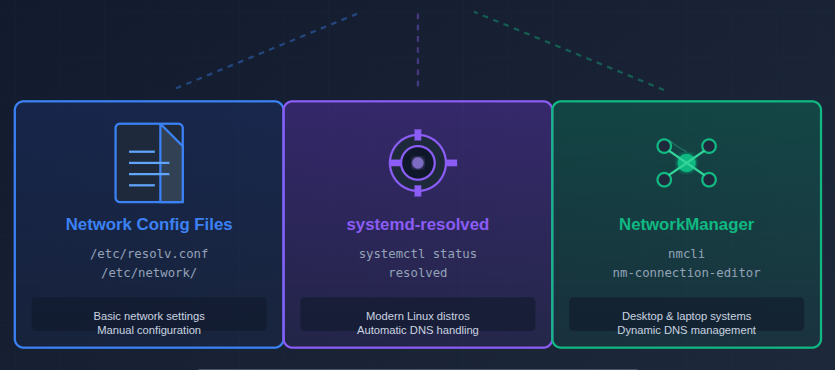
Linux doesn’t rely on just one method to manage DNS. Depending on your system:
- DNS info may come from network settings: Some Linux systems get DNS details directly from basic network configuration files.
- It could be managed by systemd: Many modern Linux distributions use systemd services to automatically handle DNS resolution.
- Or controlled by NetworkManager: Desktop and laptop systems often rely on NetworkManager to manage DNS dynamically.
Don’t worry, we’ll cover all the easy ways.
Using the resolv.conf File
This is the most classic and simple method.
- Open the terminal and run:
cat /etc/resolv.conf- You’ll see lines in output like:
nameserver 8.8.8.8
nameserver 1.1.1.1These numbers are your DNS server IP addresses.
Note: On modern systems, this file may be auto-managed, but it still gives useful info.
Finding DNS Server Using systemd-resolve
If your Linux system uses systemd, this command is one of the easiest ways to find your DNS server IP address. It shows detailed DNS information for each network interface.
- Open the terminal and run:
systemd-resolve --status- Sample Output:
Global
       LLMNR setting: yes
MulticastDNS setting: no
  DNSOverTLS setting: no
      DNSSEC setting: no

Link 2 (eth0)
  Current DNS Server: 8.8.8.8
         DNS Servers: 8.8.8.8
8.8.4.4- What This Output Means:
- Current DNS Server: The DNS server your system is actively using to resolve domain names.
- DNS Servers: A list of all configured DNS servers available as backups.
- Link (eth0): The network interface where these DNS settings are applied.
- Global Section: Shows system-wide DNS behavior and security-related settings.
- Why This Is Useful:
- Shows DNS per network interface
- More accurate on modern Linux systems
- Great for servers and desktops
This method is especially useful on modern Linux distributions because it provides accurate, real-time DNS information without manually checking configuration files.
Checking DNS with resolvectl Command
On newer Linux distributions, the ‘resolvectl’ command replaces ‘systemd-resolve’ and provides a clean way to check your DNS server details. It’s simple, reliable, and widely used on modern systems.
- Open the terminal and run:
resolvectl status- Sample Output:
Global
       Protocols: LLMNR=resolve -mDNS -DNSOverTLS DNSSEC=no

Link 2 (eth0)
  Current Scopes: DNS
  Protocols: +DefaultRoute
  Current DNS Server: 1.1.1.1
         DNS Servers: 1.1.1.1
1.0.0.1- What This Output Means:
- Current DNS Server: The primary DNS server currently resolving domain names.
- DNS Servers: All configured DNS servers that the system can use if one fails.
- Link (eth0): The active network interface using these DNS settings.
- Global Section: Displays overall DNS protocols and system-wide behavior.
The resolvectl command is recommended for accurate DNS checking on modern Linux systems and is often the preferred choice over older methods. This is one of the most reliable ways today.
Using nmcli Command
If your Linux system uses NetworkManager, the ‘nmcli’ command is a quick and effective way to find your DNS server IP address. This method is especially common on desktops, laptops, and cloud servers.
- Open the terminal and run:
nmcli dev show | grep DNS- Sample Output:
IP4.DNS[1]:                             8.8.8.8
IP4.DNS[2]: 8.8.4.4- What This Output Means:
- IP4.DNS[1]: The primary DNS server currently in use.
- IP4.DNS[2]: The secondary DNS server used as a backup.
- Multiple entries: Show all DNS servers assigned to your network connection.
- Why Use nmcli?
- Clean output
- Easy to read
- Great for laptops and desktops
This method is ideal when you want a clean and straightforward output without extra technical details, making it perfect for beginners and everyday Linux users.
Finding DNS Server on Ubuntu
Ubuntu manages DNS settings slightly differently compared to some other Linux distributions, as it commonly relies on systemd-resolved to handle name resolution in the background. Because of this, DNS information isn’t always stored in a single static file and is often managed dynamically.
The most reliable way to view your active DNS server on Ubuntu is by running the following command:
resolvectl statusresolvectl statusThis command displays detailed, real-time DNS information for each active network interface, including the primary and secondary DNS servers currently in use.
Alternatively, you can also check the DNS configuration file using:
cat /etc/resolv.confWhile this file may be automatically generated, it still provides a quick snapshot of the DNS servers assigned to your system. In most cases, Ubuntu users can easily find their DNS server IP address by using either of these two simple methods.
Finding DNS Server on CentOS / RHEL
CentOS, RHEL, and Rocky Linux usually manage DNS settings using traditional network configuration files, making it easy to locate DNS server details. The quickest way to check your DNS server IP address on these distributions is by viewing the resolver configuration file:
cat /etc/resolv.confThis file lists all configured DNS servers that your system uses for domain name resolution.
If NetworkManager is enabled on your system, you can also retrieve DNS information using the following command:
nmcli dev showThis method displays DNS servers assigned to each network interface, providing clear and reliable results. Both approaches are simple, practical, and commonly used on CentOS-based systems.
Finding DNS Server on Debian
Debian is known for its clean and minimal system design, and checking DNS settings is just as straightforward. Most Debian systems store DNS server information in the resolver configuration file, which you can view using:
cat /etc/resolv.confOn newer Debian installations that use systemd, DNS settings may be managed dynamically. In such cases, you can use the following command to get accurate and up-to-date DNS details:
resolvectl statusWith these easy methods, Debian users can quickly identify their DNS server IP address without dealing with complex configuration steps.

Common DNS IP Addresses
If you’re looking for reliable public DNS servers, there are a few well-known options trusted by millions of users worldwide. These DNS providers are known for their speed, stability, and improved security features.
- Google DNS: Popular for fast performance and global availability.
8.8.8.8, and 8.8.4.4 - Cloudflare: Focuses on privacy and quick response times.
1.1.1.1, and 1.0.0.1 - OpenDNS: Offers additional security and filtering features.
208.67.222.222
Using public DNS servers can often result in faster browsing, better reliability, and improved protection compared to default ISP-provided DNS.
Troubleshooting DNS Issues
When websites fail to load or internet access feels unstable, DNS problems are often the root cause. In such cases, a few simple steps can help resolve the issue quickly:
- Restart networking services to refresh your connection.
- Flush the DNS cache to remove outdated or incorrect entries.
- Switch to a public DNS server like Google or Cloudflare for better reliability.
- Check firewall rules to ensure DNS traffic is not being blocked.
DNS problems can feel like knocking on the wrong door, once the correct address is set, everything starts working smoothly again.
Best Practices for Managing DNS in Linux
Managing DNS properly is essential for keeping your Linux system reliable and secure. Following a few proven best practices can help you avoid common connectivity issues and reduce the risk of misconfigurations.
- Use trusted DNS providers: Always choose reliable and well-known DNS services to ensure fast and secure domain resolution.
- Avoid hardcoding DNS settings unless necessary: Dynamic DNS configurations are easier to manage and less prone to errors, especially on servers that change networks.
- Monitor DNS changes on servers: Regularly check DNS settings to quickly detect unexpected or unauthorized changes.
- Document your DNS setup: Keeping a record of DNS configurations makes troubleshooting and future updates much easier.
Good DNS management helps maintain system stability, better performance, and stronger security over time.
Conclusion
Finding your DNS server IP address in Linux is much simpler once you know where to look. Whether you use traditional files like ‘/etc/resolv.conf‘ or modern tools such as ‘resolvectl‘, ‘systemd-resolve‘, and ‘nmcli‘, Linux offers multiple easy and reliable ways to check DNS information across different distributions.
Understanding and managing DNS helps you troubleshoot connectivity issues faster, improve website loading speed, and maintain better security on your system. With the methods and best practices covered in this guide, you can confidently handle DNS settings and ensure your Linux system stays stable, secure, and well-connected to the internet.
FAQs
1. What is a DNS server IP address?
A DNS server IP address is the numerical address of the server that translates website names into IP addresses.
2. Which command is best to find DNS in Linux?
resolvectl status is the most reliable on modern Linux systems.
3. Can I change my DNS server in Linux?
Yes, you can change it using NetworkManager, system settings, or configuration files.
4. Is 8.8.8.8 safe to use as a DNS server?
Yes, Google DNS (8.8.8.8) is widely used, fast, and reliable.
5. Why does my DNS server change automatically?
This usually happens when your network or ISP assigns DNS dynamically.
Stop Wasting Time on Servers. Start Building Instead.
You didn’t start your project to babysit servers. Let ServerAvatar handle deployment, monitoring, and backups — so you can focus on growth.
Deploy WordPress, Laravel, N8N, and more in minutes. No DevOps required. No command line. No stress.
Trusted by 10,000+ developers and growing.