

Have you ever opened your WordPress site expecting everything to work fine, only to be greeted by a scary message like “Allowed memory size exhausted”? This memory exhausted error can feel as if there’s just no space left. Don’t worry, this is a common WordPress issue, and the good news is that it’s completely fixable, even if you’re not a tech expert.
In this guide, we’ll walk step by step through what the WordPress memory exhausted error really means, why it happens, and how you can fix it using simple and safe methods. No heavy jargon, no guesswork, just practical solutions that actually work.
What Is the WordPress Memory Exhausted Error
The WordPress memory exhausted error appears when your website tries to use more memory than it’s allowed. WordPress runs on PHP, and PHP has a memory limit set by your hosting provider. Once that limit is crossed, WordPress simply can’t continue working and throws this error.

Why WordPress Needs Memory
WordPress uses memory to run themes, plugins, media files, scripts, and database queries. Every visitor, every page load, and every plugin adds to memory usage.
Modern websites are more powerful than ever, but that power comes at a cost. Page builders, security plugins, and eCommerce tools all need extra memory to function smoothly.
How ServerAvatar Helps Manage WordPress Memory Issues
ServerAvatar makes server and application management simple, even for users who don’t want to deal with complex server commands. Instead of digging through terminal commands or confusing server settings, ServerAvatar gives you a clean dashboard where you can manage PHP settings, files, and websites with just a few clicks.
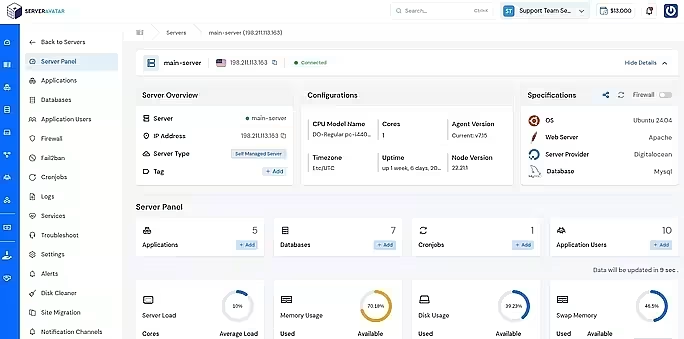
In short, ServerAvatar acts like a control center for your server. It allows you to monitor resources, edit WordPress files safely, and change PHP configurations without needing advanced technical knowledge. This makes fixing issues like the WordPress memory exhausted error faster and less stressful.
You can easily set up WordPress in just a few minutes using ServerAvatar’s one-click application installer. With ServerAvatar’s one-click application installer, you can easily install WordPress, Mautic, N8N, Uptime Kuma, and many more popular applications within a few minutes.
Follow this step-by-step guide to install WordPress quickly on your VPS: https://serveravatar.com/install-wordpress-quickly-on-vps/
Common Causes of Memory Exhaustion
Several factors can push WordPress over its memory limit:
- Poorly coded plugins or themes: Badly optimized code can consume excessive memory and overload WordPress.
- Too many plugins running at once: Each active plugin uses memory, and too many together can exceed the limit.
- Low memory limit set by hosting: Some hosting plans assign very little PHP memory, causing WordPress to run out quickly.
- Large images or heavy scripts: Oversized media files and scripts increase memory usage during page loading.
- Outdated WordPress core files: Old versions may have performance issues that use more memory than necessary.
One small issue alone might not trigger the error, but together they can overload your site.
Check Your Current PHP Memory Limit Using ServerAvatar
Before increasing the memory limit, it’s always a good idea to check how much memory your WordPress site currently has. ServerAvatar makes this process straightforward.
Steps to Check PHP Memory Limit in ServerAvatar
- Log in to your ServerAvatar account. Navigate to the server panel by clicking on the dashboard icon next to your server.

- Navigate to the Applications section from the left sidebar of your server panel and click on the dashboard icon for your WordPress application.

- Navigate to the PHP Settings section from the left sidebar of your application panel and check for the Memory Limit value.
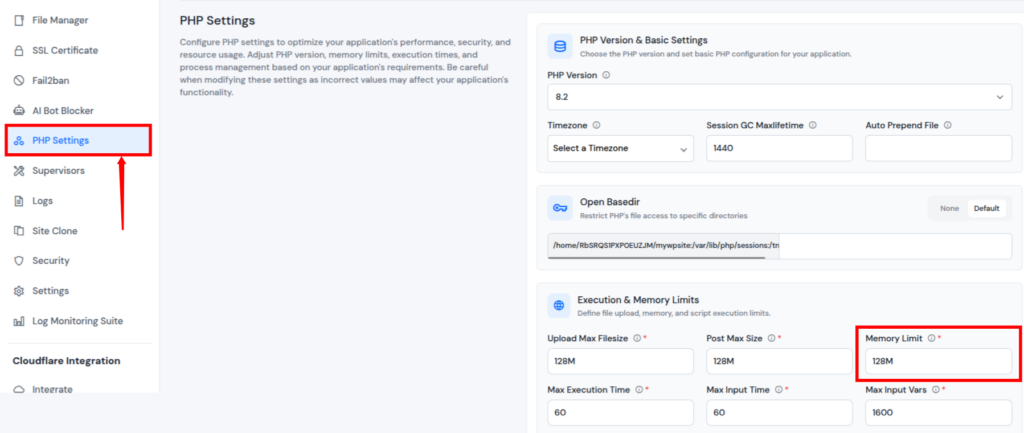
Here, you’ll see how much memory is allocated to your site. If it’s set too low (like 64M or 128M), that’s often the main reason behind the memory exhausted error.
Increase PHP Memory Limit from ServerAvatar
If WordPress requests more memory but the PHP limit remains low, you’ll need to increase the memory at the PHP level. ServerAvatar allows you to do this easily from the dashboard.
Steps to Increase PHP Memory Limit Using ServerAvatar
- Log in to your ServerAvatar account. Navigate to the server panel by clicking on the dashboard icon next to your server.

- Navigate to the Applications section from the left sidebar of your server panel and click on the dashboard icon for your WordPress application.

- Navigate to the PHP Settings section from the left sidebar of your application panel and increase the PHP Memory Limit to 256M or higher.
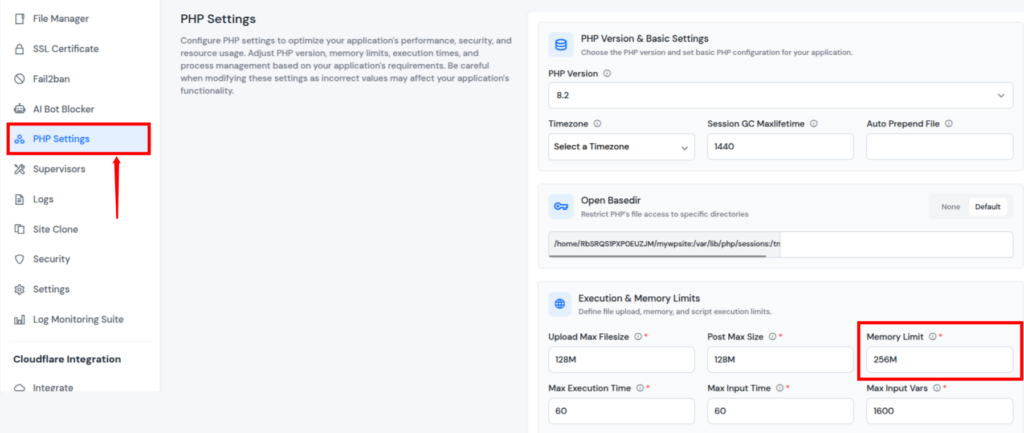
- Save changes by clicking on the Update Settings button.
Once applied, your server will allow WordPress to use more memory without restriction.
Increase WordPress Memory Limit
One of the safest ways to increase WordPress memory is by editing the wp-config.php file. ServerAvatar’s built-in File Manager lets you do this without FTP tools or command-line access.
Steps to Increase Memory via wp-config.php in ServerAvatar
- Log in to your ServerAvatar account. Navigate to the server panel by clicking on the dashboard icon next to your server.

- Navigate to the Applications section from the left sidebar of your server panel and click on the dashboard icon for your WordPress application.

- Navigate to the File Manager section from the left sidebar of your application panel and open the public_html folder, and locate the wp-config.php file.
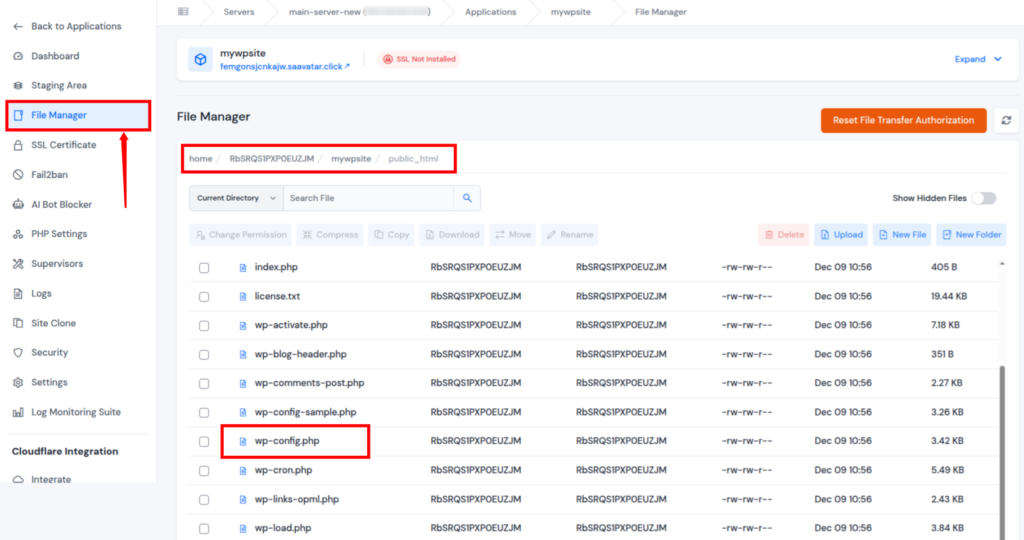
Open the wp-config.php file, and add the following line before the “That’s all” comment:
define('WP_MEMORY_LIMIT', '256M');- Save the file.

This change tells WordPress to request more memory, which often immediately resolves the error.

Increase Memory Using the .htaccess File (Apache only)
Another option is editing the .htaccess file.
- Log in to your ServerAvatar account. Navigate to the server panel by clicking on the dashboard icon next to your server.

- Navigate to the Applications section from the left sidebar of your server panel and click on the dashboard icon for your WordPress application.
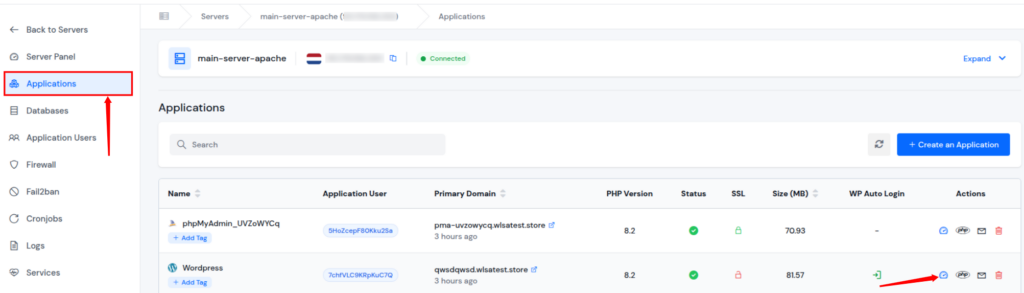
- Navigate to the File Manager section from the left sidebar of your application panel and open the public_html folder.
- Enable the toggle button of Show Hidden Files, and locate the .htaccess file.
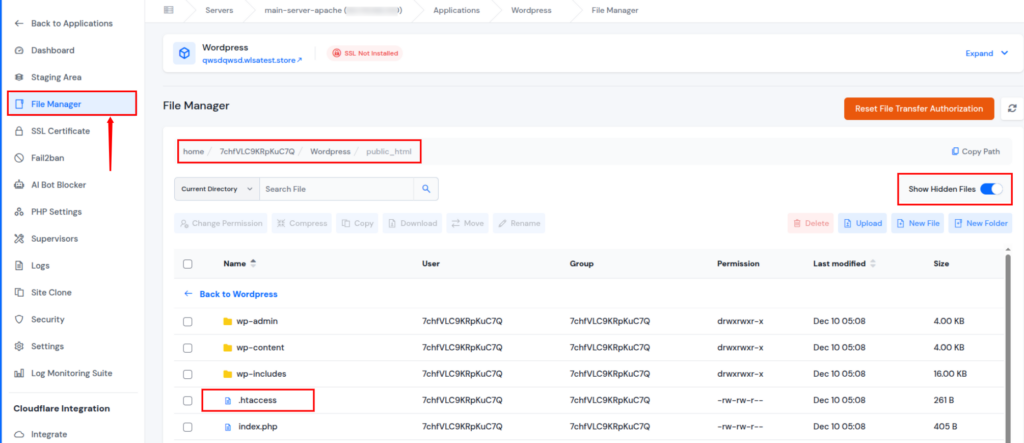
- Open the .htaccess file, and add the following line:
php_value memory_limit 256M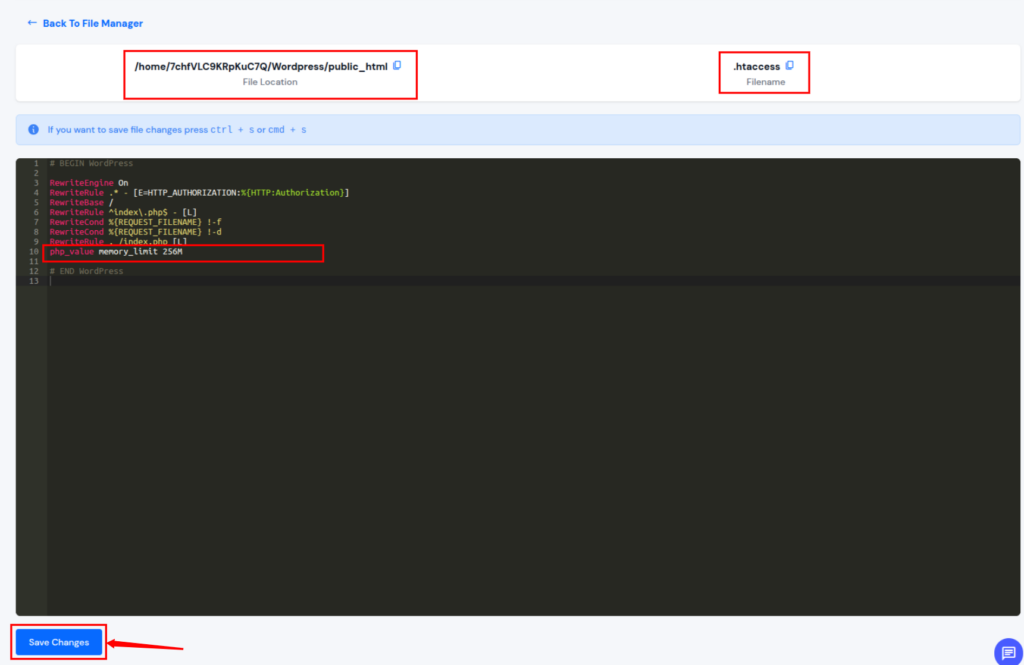
This method is only works for Apache servers; not all servers allow this method.
If editing files feels overwhelming or if you are fear something might go wrong with your site. Don’t worry, the ServerAvatar support team is here to help. Just create a ticket on the support panel, and our technical team will be available 24/7 to assist you.
Why ServerAvatar Is Ideal for Hosting WordPress and Fixing Errors
Managing WordPress websites often means dealing with server settings, file access, and configuration changes, all of which can feel overwhelming without the right tools.
ServerAvatar simplifies both WordPress hosting and error resolution by bringing everything into one easy-to-use platform.
Instead of switching between hosting panels, FTP tools, and support tickets, ServerAvatar gives you direct control from a single dashboard. You can manage your server resources, access website files, and change PHP settings without touching the command line.
With ServerAvatar, you can:
- Edit WordPress core files securely using the built-in file manager
- Adjust PHP limits without coding or terminal access
- Host and manage multiple WordPress websites from one dashboard
- Resolve WordPress issues faster without waiting for hosting support
It’s like having a powerful hosting environment with a built-in WordPress assistant, giving you full control without the usual complexity.
ServerAvatar not only fixes the WordPress memory exhausted error, but also helps keep your website stable, faster, and ready to grow.
How to Prevent Memory Errors
1) Identify Memory-Hungry Plugins
Some plugins quietly eat up memory.
What to do:
- Deactivate plugins one by one
- Reload your site after each step
- Identify the plugin causing the issue
Replace heavy plugins with lightweight alternatives wherever possible.
2) Switch to a Default WordPress Theme
Custom themes sometimes contain unnecessary code.
Try switching temporarily to:
- Twenty Twenty-Three
- Twenty Twenty-Four
If the error disappears, your theme may need optimization or replacement.
3) Update WordPress, Themes, and Plugins
Outdated software often uses more resources than needed.
Always keep:
- WordPress core updated
- Themes updated
- Plugins updated
Updates usually include performance improvements and bug fixes.
4) Optimize Your WordPress Website
Optimization reduces memory usage and improves speed.
Simple steps include:
- Compress images
- Enable caching
- Remove unused plugins
- Clean up your database
This is like cleaning your house, you instantly feel the extra breathing space.
How to Prevent Memory Errors in the Future
Prevention is always better than repair.
Best practices:
- Use quality plugins only: Choose well-maintained plugins from trusted developers to avoid unnecessary memory usage and performance issues.
- Monitor site performance regularly: Keeping an eye on site speed and resource usage helps you detect memory problems before they grow.
- Avoid installing unnecessary tools: Only keep plugins and features you actually use, as extra tools quietly consume memory in the background.
- Choose reliable hosting: A good hosting provider offers sufficient resources and stable performance for growing WordPress websites.
A little maintenance goes a long way. Regular updates, cleanups, and optimizations help prevent memory issues over time.
Conclusion
The WordPress memory exhausted error can look alarming at first, but in reality, it’s a clear sign that your website needs more resources to run smoothly. As your site grows with more plugins, features, and visitors, memory usage naturally increases. The key is knowing where the limit is coming from and how to adjust it safely.
With ServerAvatar, handling memory-related issues becomes much easier. From checking your current PHP memory limit to increasing it directly from the dashboard or editing WordPress files through the built-in file manager, everything can be done without complex commands or risky server changes. On top of that, regular maintenance, smart plugin choices, and proper optimization help prevent these errors from returning. With the right setup and tools, your WordPress site stays stable, fast, and ready to grow.
FAQs
1. What does the WordPress memory exhausted error mean?
It means WordPress has reached the maximum memory limit allowed by your server and cannot continue processing requests.
2. How much PHP memory is recommended for WordPress?
For most websites, 128M works fine, but 256M is recommended for sites using page builders, eCommerce, or multiple plugins.
3. Can I increase the WordPress memory limit using ServerAvatar?
Yes, ServerAvatar lets you increase both PHP memory limits and WordPress memory limits directly from its dashboard or file manager.
4. Will increasing the memory limit break my website?
No, increasing the memory limit is safe and often necessary, as long as your server has enough available resources.
5. Do plugins cause memory exhausted errors?
Yes, poorly coded or heavy plugins can consume excessive memory and are one of the most common causes of this error.