

People do not think about taking backups until something goes wrong. A failed update, accidental file deletion, malware infection, or server crash can wipe out hours or even years of work in seconds. That’s why smart developers and site owners rely on Google Drive Integration to automate their backups and securely store them off-site without manual effort.
Managing server backups is a fundamental part of any server administration workflow. Whether developing applications, hosting websites, or safeguarding databases, having reliable backups is essential. One efficient way to maintain off-site backups is to integrate with cloud storage services. It enables effortless storage of backups directly in cloud storage, giving users a secure, accessible way to safeguard their data without additional infrastructure or complex setups.
If you’re using ServerAvatar to manage your cloud servers, integrating Google Drive for backups is one of the easiest and most reliable ways to protect your data. In this guide, we’ll explore why offsite backups matter, how Google Drive integration works in ServerAvatar, and how you can set it up for seamless, worry-free backups.
What Is Google Drive?
Google Drive is a cloud-based storage service designed to store, organize, and manage digital data securely online. Instead of relying on local storage alone, it allows files and data to be saved in a remote environment that remains accessible whenever needed.
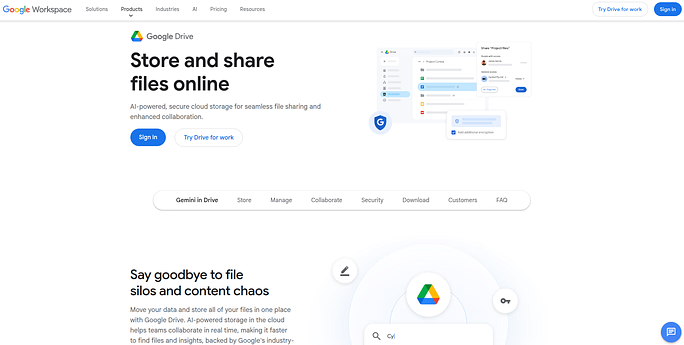
From a technical perspective, Google Drive acts as a centralized storage layer where data can be uploaded, maintained, and retrieved through secure authentication. It supports structured file organization and ensures data remains available even if the original system is no longer accessible.
When used as a backup destination, Google Drive functions as an off-server storage location. This makes it suitable for storing automated and on-demand backups generated by server management platforms like ServerAvatar. Once connected, it serves as a reliable space where backup files can be preserved according to defined retention rules and accessed for restoration whenever required.
What Is ServerAvatar?
ServerAvatar is a platform to simplify the hosting and management of servers and applications. It simplifies the process of deploying and managing PHP and Node.js based web applications on servers.
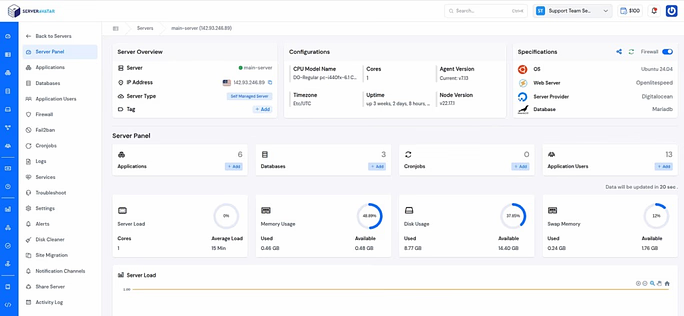
Instead of manually configuring backups via SSH, cron jobs, and custom scripts, ServerAvatar lets you:
- Instant and scheduled backups: Create instant backups and backups at fixed intervals without manual effort or repetitive setup tasks.
- Manage multiple servers and applications: manage and maintain multiple servers and applications from a single, unified dashboard.
- Monitor servers: Keep track of server health, usage, and performance in real time.
- Restore sites easily: Recover files or applications quickly using previously created backups.
- Integrate supported cloud storage: Store backups securely in cloud storage for better availability and data safety.
The Google Drive integration eliminates manual backup uploads and reduces operational risks.
Why Offsite Backups Are Essential
Keeping backups on the same server as your website defeats their purpose. If the server goes down, gets hacked, or becomes corrupted, your backups may disappear along with your site.
Offsite backups provide:
- Data redundancy: Your files are stored in a separate, secure location
- Protection from server failure: Hardware crashes won’t impact stored backups
- Ransomware protection: Even if your server is compromised, your backup remains safe
- Quick recovery: Restore your site without rebuilding everything from scratch
This is where cloud storage platforms like Google Drive become incredibly useful.
What Is Google Drive Integration in ServerAvatar?
Cloud storage integration allows ServerAvatar to connect with external storage so that backups can be stored outside the primary server environment. Among the supported services, Google Drive stands out for its ease of use and seamless accessibility. Once connected, ServerAvatar can push backups of your applications, files, and databases straight to your Google Drive storage space without manual uploads.
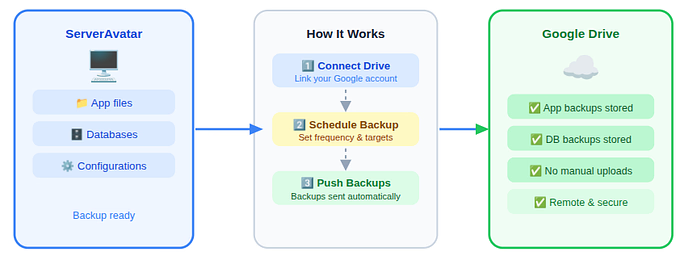
This integration simplifies data protection, adds redundancy, and ensures that backups are stored safely in a remote cloud space.
Why Use Google Drive for Backups in ServerAvatar?
Here are some key benefits of integrating Google Drive with ServerAvatar for backups:
- Cloud-level safety: Backups are kept in cloud storage, protecting them from local server failures.
- Centralized storage: All important backups are kept in one easily managed Google Drive account.
- Convenient access: Backups can be downloaded or restored anytime from your cloud account.
- No additional tools needed: Once linked, ServerAvatar handles backup uploads automatically without extra software.
Benefits of Google Drive Integration in ServerAvatar
- Automated Backup Scheduling: Set daily, weekly, or custom backup intervals. Once configured, backups run automatically.
- Secure Storage: Your backups are stored in your own Google Drive account, protected by Google’s infrastructure and security protocols.
- Easy Restore Process: Need to restore a backup of your site? Simply select a backup and restore it directly from the ServerAvatar dashboard.
- Reduced Server Load: Backups are transferred to cloud storage, preventing your server disk from filling up.
- Peace of Mind: You don’t need third-party scripts or complex configurations. Everything is handled within the ServerAvatar panel.
Step-by-Step Guide to Integrate Google Drive With ServerAvatar
Follow these detailed steps to connect your ServerAvatar dashboard with Google Drive.
Step 1: Log In to Your ServerAvatar Account
First, log in to your ServerAvatar account.
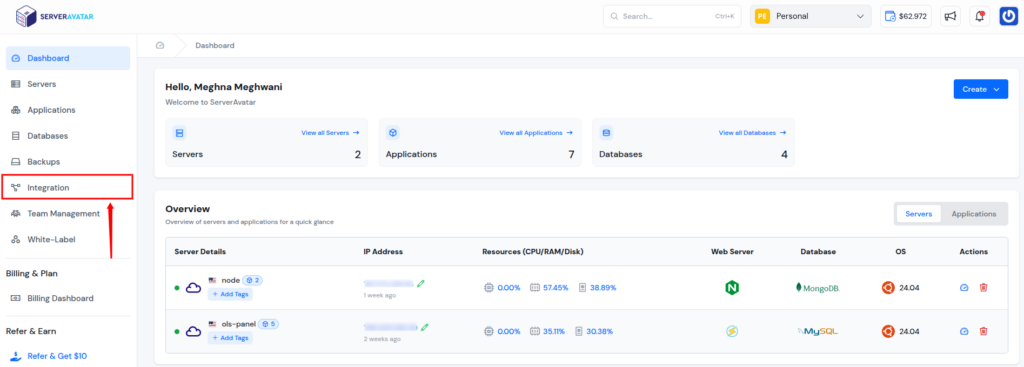
Step 2: Go to the Integration Section
Once logged in, navigate to the Integration section from the left sidebar. Click it to open the integrations panel.
Step 3: Access Cloud Storage Options
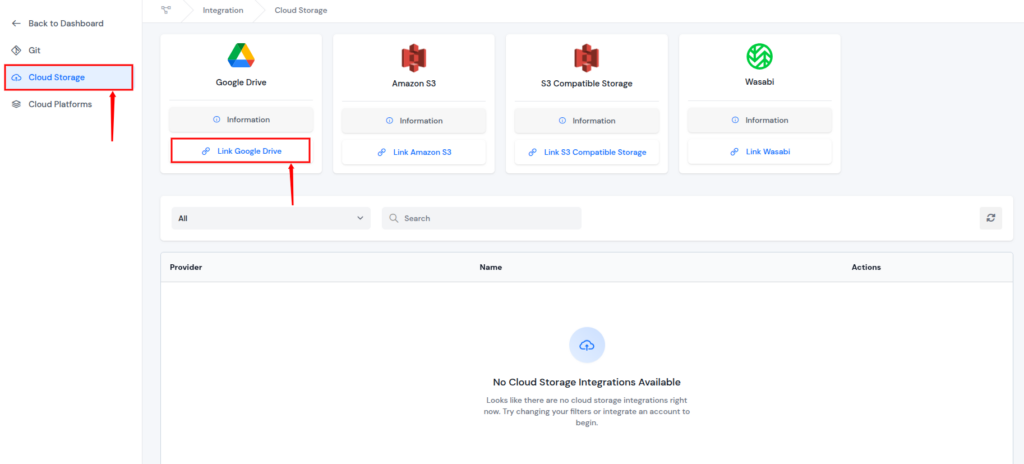
Inside the Integration section, you’ll see a list of supported integrations. Navigate to the Cloud Storage section, where supported cloud storage providers are listed.
Step 4: Click “Link Google Drive”
Under the Cloud Storage section, find the Google Drive option and click the “Link Google Drive” button. This initiates the authorization workflow to connect your Google account to ServerAvatar.
Step 5: Authenticate With Your Google Account
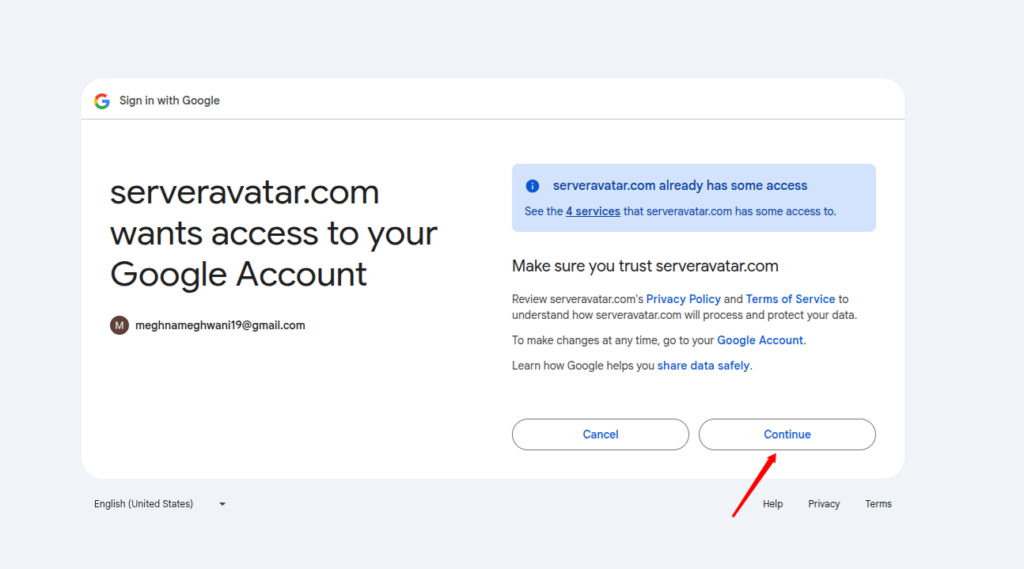
If you’re not already logged into a Google account, a Google sign-in screen will appear. Enter your account details and complete the login process.
Step 6: Grant Authorization
After signing in, you will see a prompt asking for permission to allow ServerAvatar to access your Google Drive for backup storage. Review the permissions and click Continue to grant access.
Step 7: Integration Complete
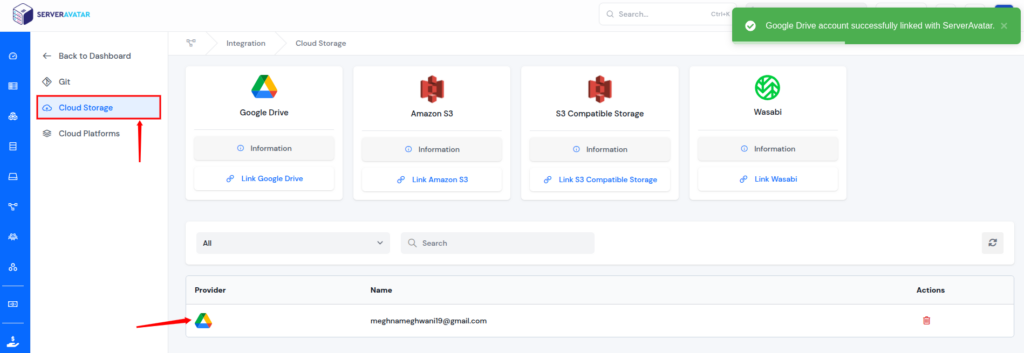
Once permission is granted, ServerAvatar is successfully linked to your Google Drive account. From this point onwards, you can start saving backups directly to your Google Drive cloud storage.
What Happens After Integration?
When you connect your Google Drive account to ServerAvatar:
- ServerAvatar generates backups of your application files and databases.
- The backup is compressed into a secure archive.
- The archive is automatically uploaded to your connected Google Drive account.
- You can access, download, or restore backups anytime.
Everything runs on schedule, without manual intervention. This streamlined flow significantly lowers the complexity of maintaining off-site backups and keeps your server environments safe and recoverable at all times.
How to Take Backups in ServerAvatar
After setting up Google Drive integration for backup storage, let’s now see how to take backups for your applications, database, or file systems. ServerAvatar provides flexible backup features that let you take instant backups on demand as well as automated scheduled backups for regular protection.
Instant Backups: Protect Your Data When You Need It
Instant Backups allow you to create a backup at any time with just a few clicks. This is useful when you want to secure your server’s files, databases, or entire applications before making changes or updates.
Here’s how to take an instant backup in ServerAvatar:
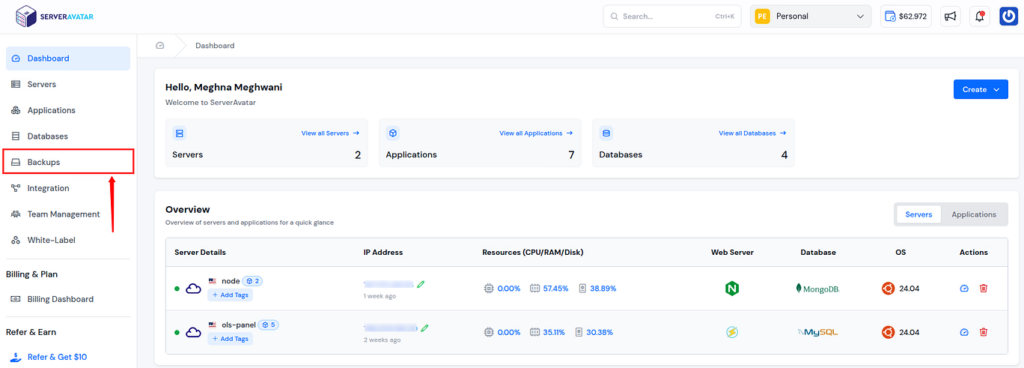
- Click on the Create section under the Instant Backups section tab to start a new backup process.
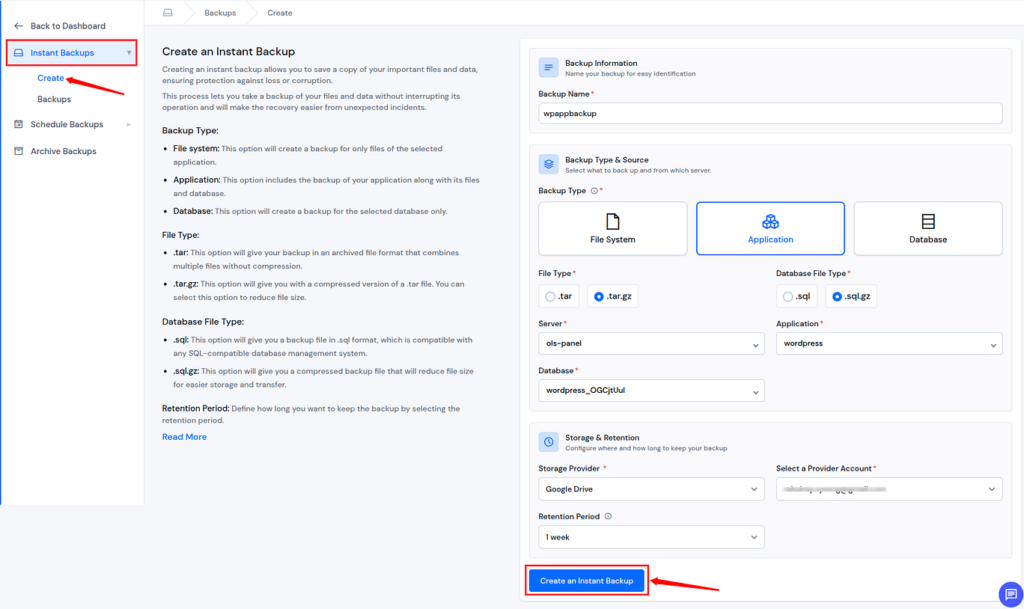
- Fill in Backup Details:
- Backup Name: Give the backup a clear, memorable name.
- Backup Type: Section what you want to back up: File System, Application, or Database.
- File Type: Pick whether you want a standard .tar archive or a compressed .tar.gz file.
- Database File Type: Pick whether you want a backup for the database file type in .sql or .sql.gz format.
- Storage Provider: Select Google Drive where the backup will be stored.
- Retention Period: Set how long the backup should be maintained.
- Once all fields are filled, click on the Create an Instant Backup button to start the backup creation.
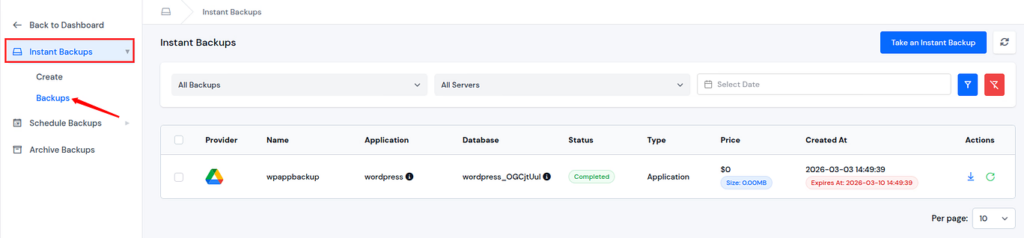
- After the backup is created, it will be listed under the Backups section, where you can view details, download the file, or restore it later.
Scheduled Backups: Automate Your Backup Routine
While instant backups are great for on-the-fly protection, Scheduled Backups let you automate the process so your data is backed up regularly without manual action. You can create schedules that run daily, weekly, or at any interval you choose.
To schedule automatic backups:
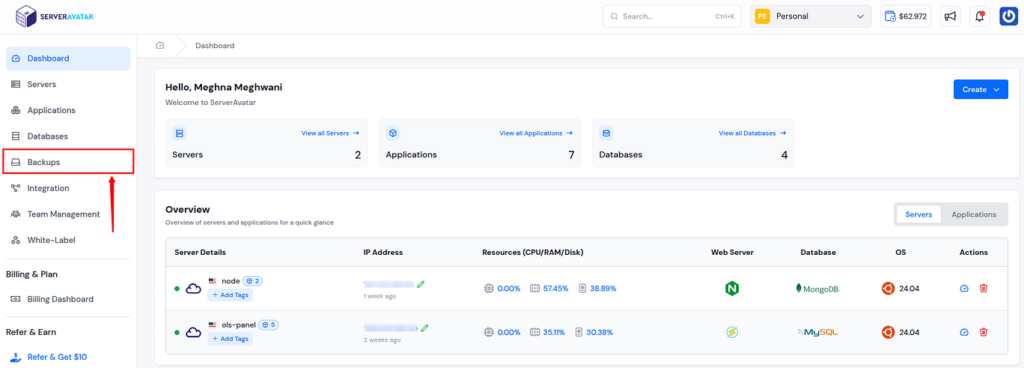
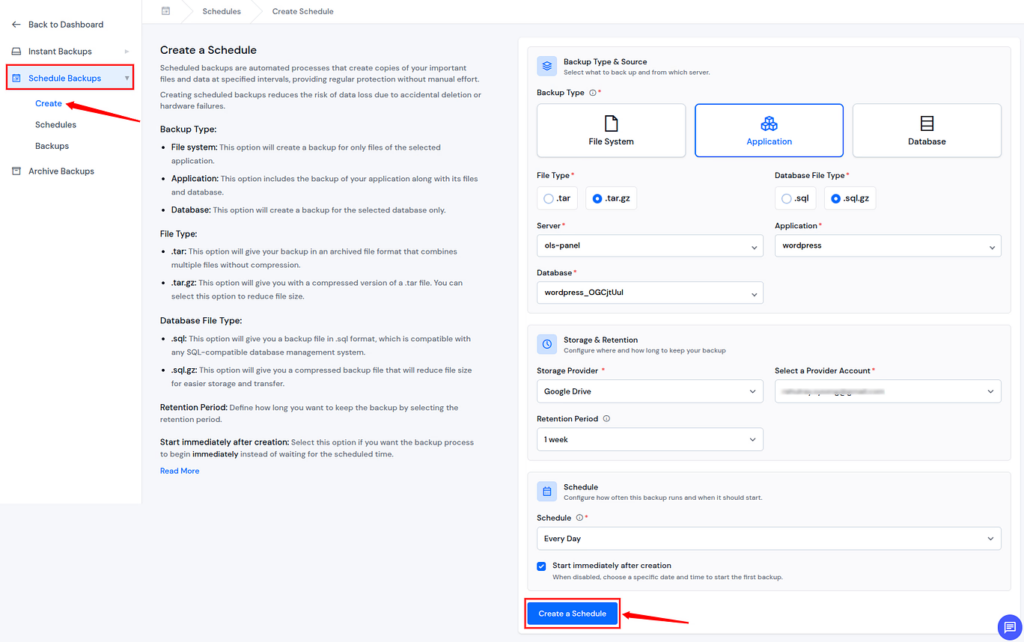
- Click on the Create section under the Schedule Backups section tab to start a new backup process.
- Fill in Backup Details:
- Backup Type: Section what you want to back up: File System, Application, or Database.
- File Type: Pick whether you want a standard .tar archive or a compressed .tar.gz file.
- Database File Type: Pick whether you want a backup for the database file type in .sql or .sql.gz format.
- Storage Provider: Select Google Drive where the backup will be stored.
- Retention Period: Set how long the backup should be maintained.
- Set the Schedule: Specify how often backups should occur, for example, Every Day, Every Week, or any other frequency that matches your needs.
- Start immediately after creation: Select this option if you want the backup process to begin immediately instead of waiting for the scheduled time.
- Once all fields are filled, click on the Create a Schedule button to start the backup creation.
- Once scheduled, ServerAvatar will automatically take backups at the chosen times and store them in your connected Google Drive account storage.
- You can check out all your scheduled backups in the Schedules section. This list includes the actions such as, pause backup, edit, and delete.

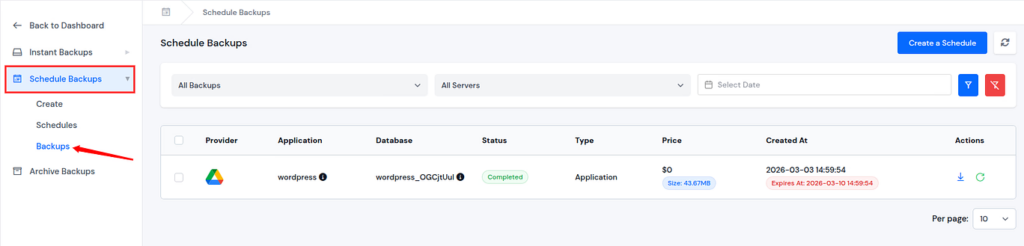
- Once the backup is created, it will be listed under the Backups section, where you can view details, download the file, or restore it later.
Why Backups Matter
Cyber threats are increasing, hosting environments are becoming more complex, and user expectations for uptime are higher than ever. Having a simple, reliable, automated backup system is no longer optional, it’s foundational.
Whether you’re applying updates, migrating applications, or preparing for unexpected issues, having a fresh backup available can save time and prevent data loss. With both Instant and Scheduled Backups backed by your Google Drive integration, ServerAvatar delivers a complete and reliable backup solution for your server environments.
Google Drive integration in ServerAvatar makes enterprise-level backup practices accessible even to small businesses and solo developers.

Best Practices for Backup Management
Even with automation, follow these best practices:
- Set a retention policy: Avoid storing unnecessary old backups.
- Test restores periodically: Ensure backups actually work.
- Monitor storage space: Google Drive storage can fill up over time.
- Use strong account security: Enable 2FA on your Google account.
Backups are only valuable if they are reliable and restorable.
Who Should Use Google Drive Integration?
This integration is ideal for:
- Website owners: Helps protect website data and simplify backup management without technical complexity.
- SaaS startups: Support consistent data protection as applications grow and evolve.
- Agencies managing client sites: Enables centralized backup control across multiple client projects.
- Freelance developers: Make handling backups faster while managing several servers or applications.
- eCommerce store owners: Ensures critical store data remains protected and recoverable.
- Anyone managing production websites: Provides a reliable backup workflow for live and actively used environments.
If downtime equals lost revenue, automated offsite backups are non-negotiable.
Conclusion
Reliable backups are no longer a secondary consideration in modern server management, they are a core requirement. By combining ServerAvatar with Google Drive, users gain a simple yet powerful way to protect applications, databases, and file systems through automated offsite backups. From seamless integration and flexible backup types to instant and scheduled backup options, this setup removes the complexity traditionally associated with backup management.
With data securely stored in cloud storage and easily restorable when needed, ServerAvatar ensures that your server environments remain resilient, recoverable, and prepared for unexpected situations.
FAQs
1. Does ServerAvatar support both instant and scheduled backups?
Yes, ServerAvatar allows you to create instant backups on demand as well as scheduled backups that run automatically at defined intervals.
2. Can I choose Google Drive as the storage location for my backups?
Yes, once Google Drive is integrated, it can be selected as the storage provider for both instant and scheduled backups.
3. What types of backups can I create in ServerAvatar?
You can create backups for the file system, individual applications, or databases, depending on your requirements.
4. Are backups stored on the server or offsite?
When Google Drive is selected, backups are stored offsite in your connected cloud storage account, not on the server itself.
5. Can I restore my application or data from a Google Drive backup?
Yes, backups stored in Google Drive can be restored directly through the ServerAvatar dashboard using the standard restore process.
6. Is backup retention configurable in ServerAvatar?
Yes, ServerAvatar allows you to define a retention period so backups are automatically kept or removed based on your preferences.